Streamers use two monitors to manage gameplay, chat, alerts, streaming tools, and recording without interrupting the main view.
The answer to why do streamers have 2 monitors goes beyond appearance. A second screen can make streaming smoother, reduce screen switching, improve chat control, and help creators react to their audience in real time. This guide explains how dual-monitor streaming works, what equipment you need, and when one monitor may be enough.
Why do streamers have 2 monitors?
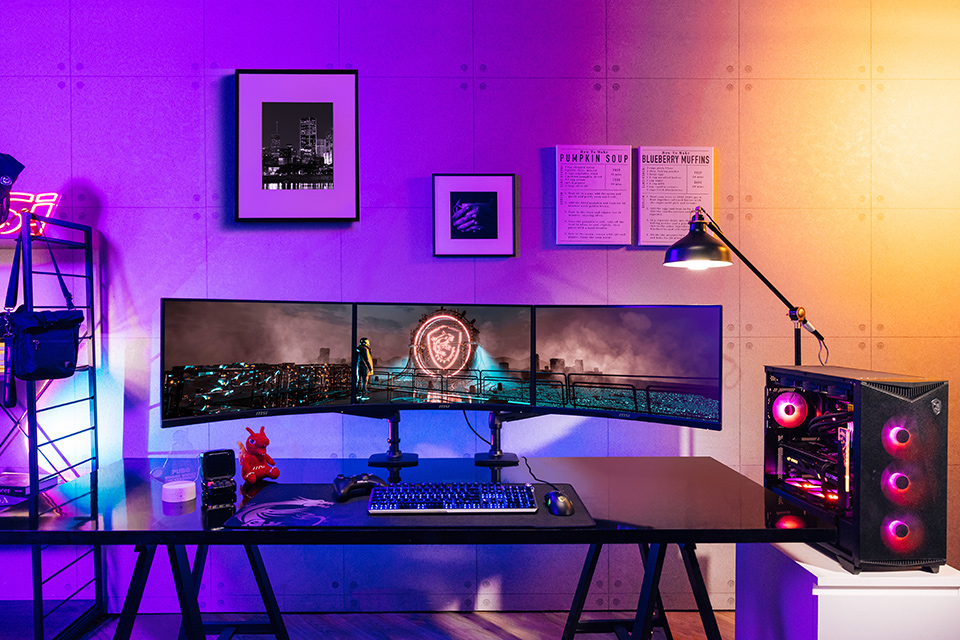
Most streamers use two monitors to separate their game or main content from their streaming controls. One display shows the game, while the other handles chat, alerts, music, OBS Studio, browser pages, and system performance.
This setup works like having a cockpit. The main monitor is the windshield. The second monitor is the control panel beside you. You can keep your eyes on the action while still checking the tools that keep the stream running.
The main reasons streamers use two monitors include:
- Reading live chat without covering the game
- Watching stream alerts and follower notifications
- Controlling OBS Studio or another streaming program
- Checking stream health and dropped frames
- Managing music, voice calls, or browser sources
- Viewing a camera preview or production notes
- Recording clips while continuing to play
For many creators, the second monitor is less about showing off and more about reducing interruptions. Instead of pressing Alt + Tab every few minutes, they can glance at another screen.
How a two-monitor streaming setup works
A typical dual-monitor setup uses one primary monitor and one secondary monitor. The primary display usually shows the game, video editor, or other main content. The secondary display shows the tools needed to manage the broadcast.
A common layout looks like this:
- Monitor one: Game or main content
- Monitor two: Chat, OBS Studio, alerts, and music
- Microphone: Voice communication and commentary
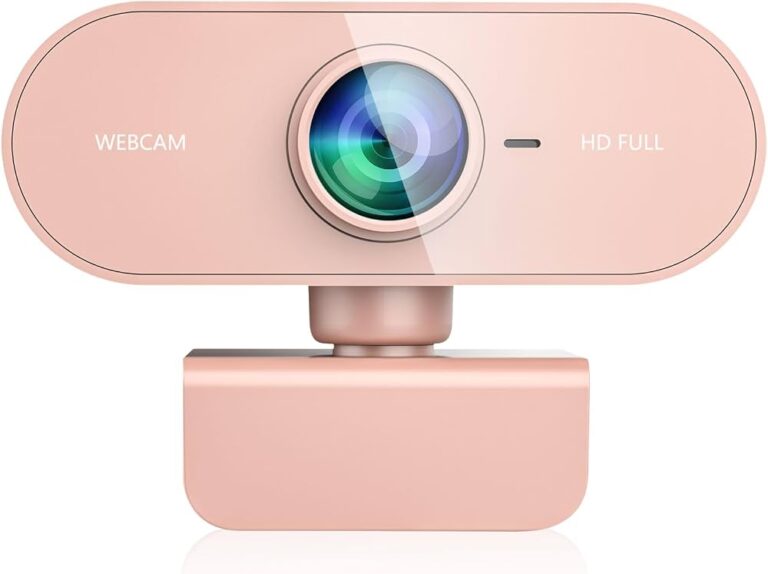
- Webcam: Face camera or room view
- Capture card: Console video sent to the computer
- Streaming software: Broadcast control and scene management
The computer treats both displays as one extended desktop. This means the streamer can move the mouse from one monitor to the other. Windows and macOS both support this feature.
Most streamers place the main monitor directly in front of them. The second monitor sits to the left or right at a slight angle. This position allows quick glances without turning the neck too far.
A vertical second monitor is also popular. Its tall shape works well for chat because more messages can appear at once. A standard horizontal monitor may be better for OBS Studio, video editing, or multitasking.

The biggest benefits of using two monitors for streaming
Better chat management
Chat is one of the main reasons why do streamers have 2 monitors is a common search question. A second screen lets streamers read messages while the game remains visible.
This matters most during fast games. Opening chat over the game can hide important details, cause lag, or make the stream look less polished. With a second display, the streamer can respond during safe moments without leaving the game.
A second monitor also helps creators spot spam, harmful comments, or technical questions. Moderators may handle much of this work, but the streamer still benefits from seeing the conversation.
Easier OBS control
OBS Studio uses scenes and sources to manage a live broadcast. A streamer may need to switch from a starting screen to gameplay, then to a break screen, and later to a camera-only scene.
With two monitors, OBS can remain open on the second screen. The streamer can change scenes, mute sources, adjust audio, or check the preview without hiding the main content.
This is especially useful when a stream includes:
- Multiple games
- Guest interviews
- Full-screen camera scenes
- Sponsor graphics
- Live reactions
- Break screens
- Screen sharing
Faster access to alerts
Follower, subscriber, donation, and raid alerts are important parts of many streams. A second monitor can show the alert dashboard or a browser source that confirms whether alerts are working.
If an alert fails, the streamer may notice it before viewers report the problem. This can save time and prevent confusion during a busy broadcast.
Better technical awareness
Streaming uses several systems at once. The game, encoder, internet connection, microphone, camera, and alerts must all work together.
A second monitor can display:
- CPU and graphics card usage
- Memory use
- Upload speed
- Stream resolution
- Frame rate
- Dropped frames
- Microphone levels
- Encoding warnings
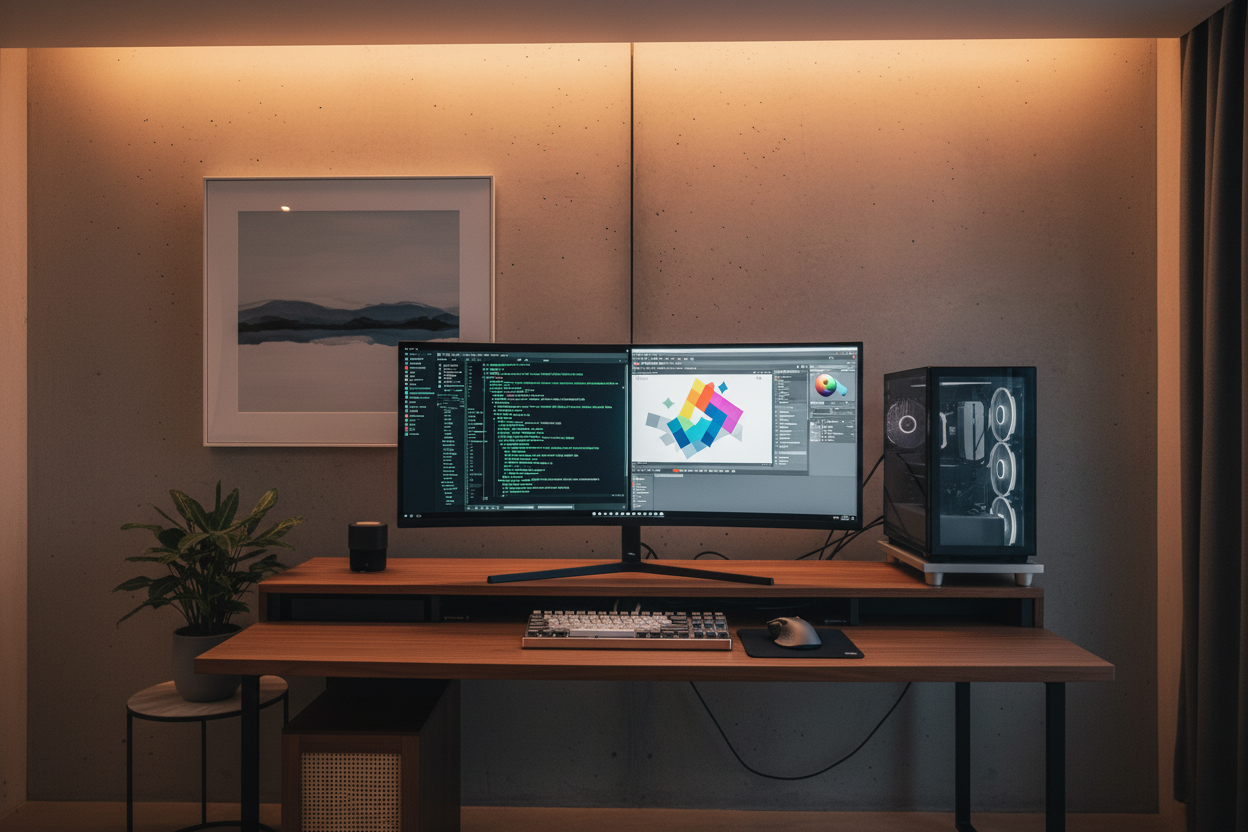
These details help a streamer find problems early. For example, dropped frames often point to a network problem, while skipped frames may suggest an encoding issue. The exact cause depends on the software and hardware, so monitoring helps guide the fix.
Does a second monitor improve gaming performance?
A second monitor does not automatically make a game run faster. In some cases, it can slightly increase the workload on the graphics card, especially when the second display plays video, shows animated content, or uses a high refresh rate.
The main performance benefit is operational rather than graphical. The streamer can manage the broadcast without repeatedly minimizing the game. This can reduce mistakes and make the stream feel more controlled.
Performance depends on several factors:
- Graphics card power
- Game settings
- Monitor resolution
- Refresh rate
- Browser activity
- Streaming encoder
- Video playback on the second screen
- Computer cooling
Modern graphics cards usually handle two displays well. However, a demanding game on a 4K monitor plus a high-resolution video on another display may require more power.
If performance drops, try these steps:
- Lower the refresh rate of the second monitor.
- Close video-heavy browser tabs.
- Turn off hardware acceleration in selected apps.
- Use a hardware encoder when supported.
- Reduce game settings slightly.
- Monitor temperatures and system usage.
The best setup is not always the setup with the most screens. It is the setup that stays stable during a real broadcast.
One monitor versus two monitors for streaming
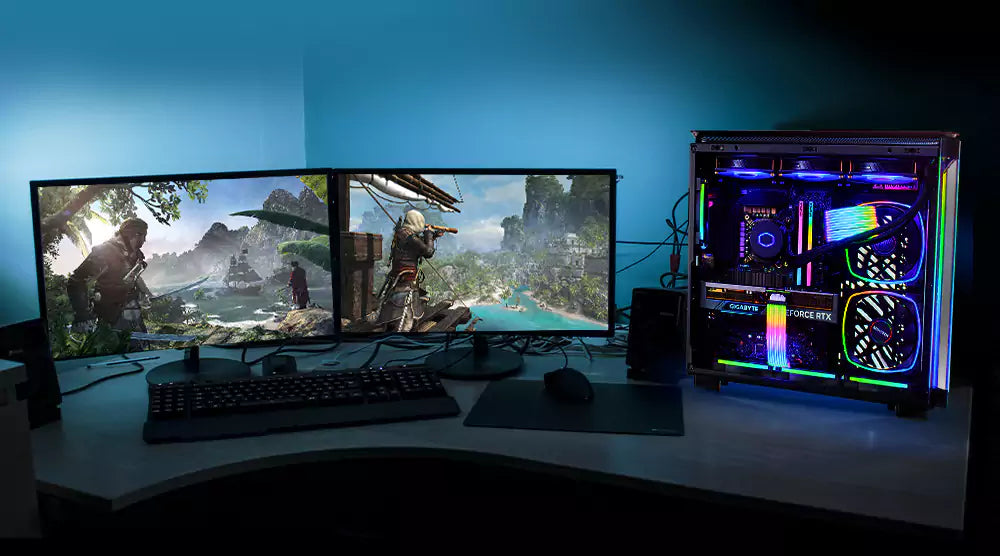
One monitor can be enough for a new streamer. Many creators begin with one display and use hotkeys, a mobile phone, or a tablet to monitor chat.
A single-monitor setup costs less and uses less desk space. It also requires fewer cables and may be easier to manage. For casual streams, these benefits can outweigh the convenience of a second display.
However, one monitor creates limits. The streamer may need to switch windows often, shrink the game, or place chat over the content. These actions can distract the streamer and sometimes affect the viewer experience.
Two monitors are more useful when:
- You stream several times each week.
- You read and answer chat often.
- You use complex OBS scenes.
- You interview guests.
- You play competitive games.
- You monitor technical data.
- You create clips during a stream.
- You broadcast from a console through a capture card.
A second monitor is less important when you stream rarely, play simple games, or have a moderator handling chat and technical checks.
.webp)
What should the second monitor display?
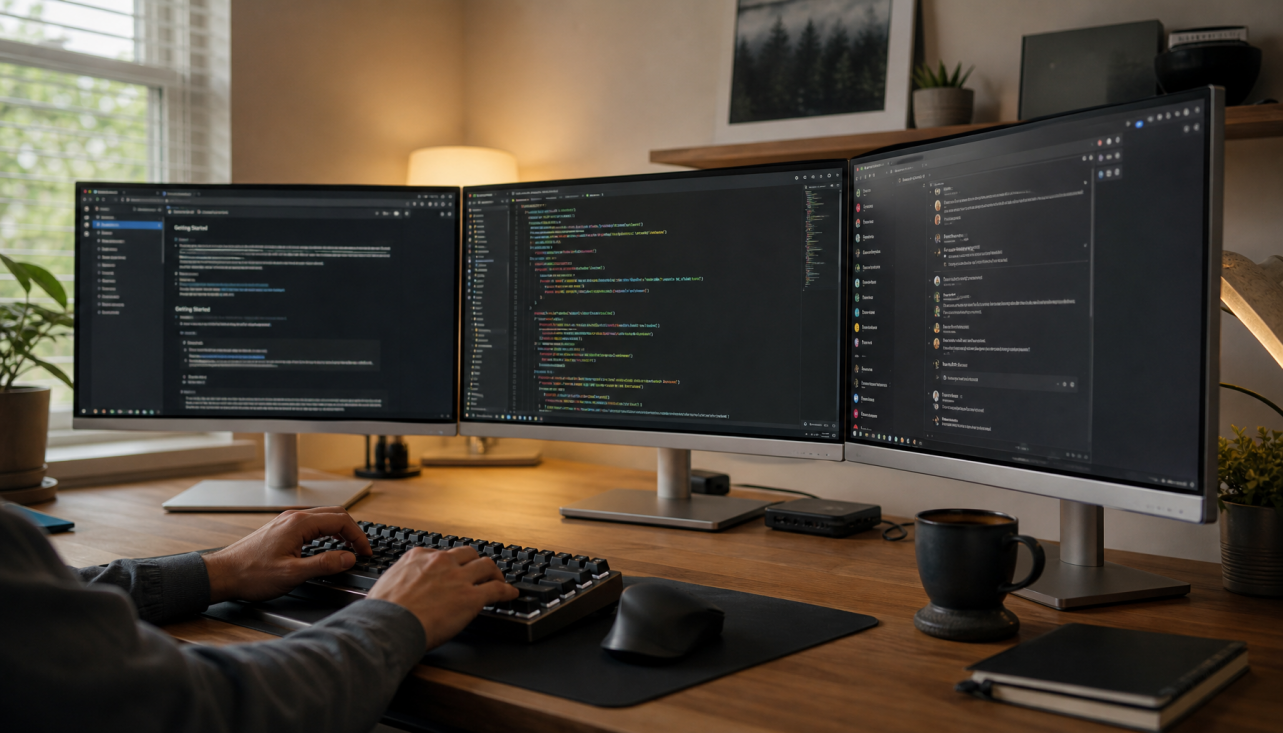
The best second-monitor layout depends on the type of content you make. A gaming streamer may need chat and OBS. A just-chatting creator may need a script, guest call, alerts, and scene controls.
Useful second-screen layouts include:
Gaming stream layout
- Chat
- OBS Studio
- Alerts
- Music controls
- Performance statistics
Just-chatting layout
- Chat
- Guest video call
- Topic notes
- Camera preview
- Moderation tools
Creative stream layout
- Project files
- Reference images
- Chat
- Music controls
- Recording status
Esports layout
- Team communication
- Match information
- Stream controls
- Performance monitoring
- Chat moderation
Avoid filling the second monitor with too many windows. A crowded screen can create the same confusion as having no second monitor. Keep the most important tools visible and place less urgent apps behind them.
A useful rule is to display information that requires quick action. Chat, alerts, and stream status belong on the second monitor. Email and unrelated social media can wait until the stream ends.
How to choose a second monitor for streaming
The second monitor does not need to match the main monitor. Matching displays look neat, but function matters more than appearance.
Consider these features:
Screen size
A 24-inch or 27-inch monitor is enough for most streaming tools. A larger display gives more space but may require a deeper desk.
Resolution
Full HD, or 1920 × 1080, works well for chat and control panels. A higher resolution gives you more workspace, but it may cost more and use more graphics power.
Refresh rate
A high refresh rate is useful for gaming. It is less important for reading chat or managing OBS. A 60 Hz second monitor is often fine for control tasks.
Panel type
An IPS panel usually offers good color and viewing angles. A VA panel can provide strong contrast. A basic TN panel may cost less but often has weaker color quality.
Mounting options
A monitor arm can save desk space and make it easier to position the second screen. Check that the monitor supports the mount standard used by the arm.
Ports
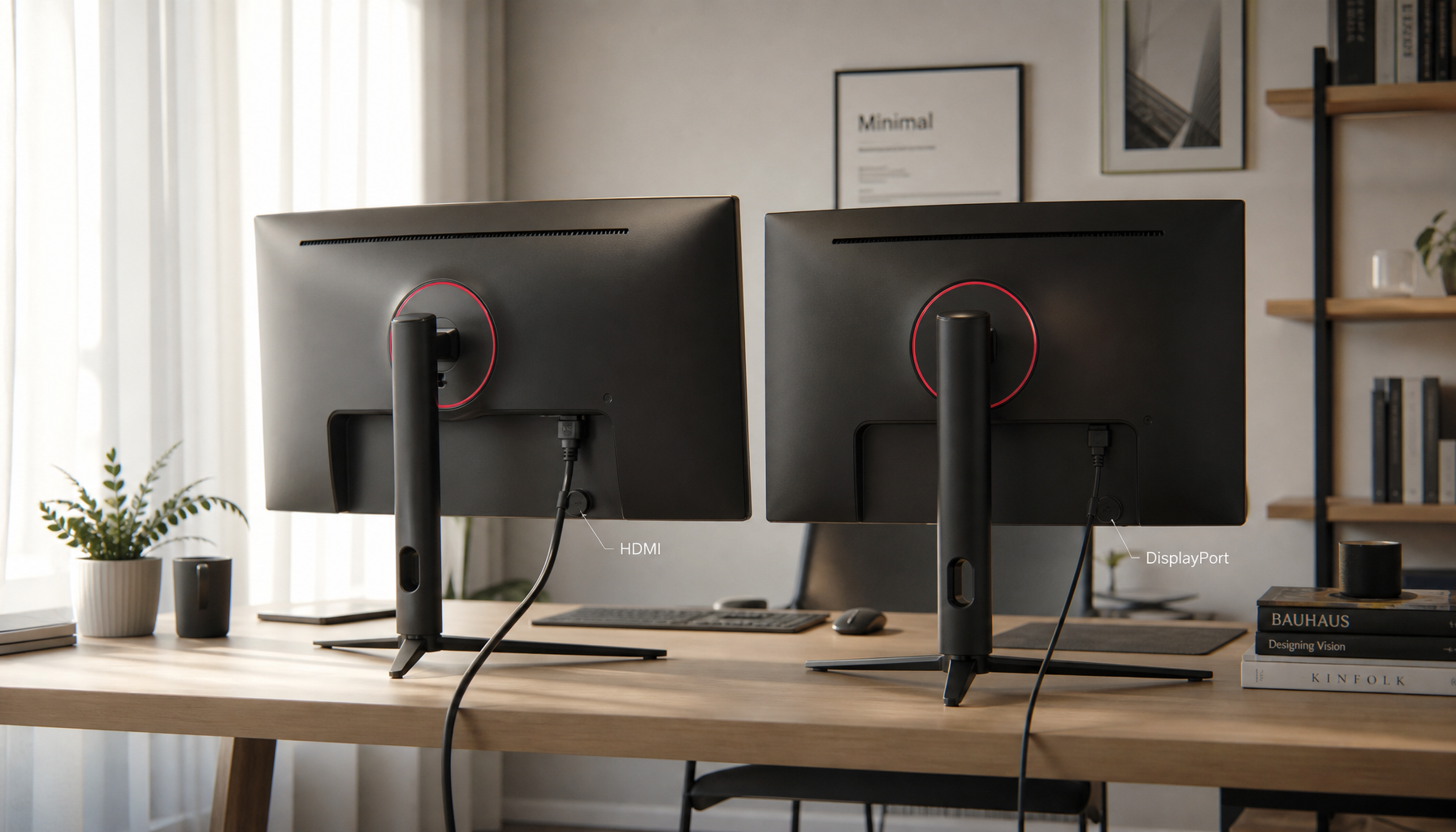
Check for HDMI, DisplayPort, or USB-C support. Your graphics card must also have a suitable output. Adapters can work, but poor-quality adapters may create display or audio problems.
You do not need an expensive gaming monitor for chat. A reliable office monitor can handle the job very well.
Best placement for a dual-monitor streaming setup
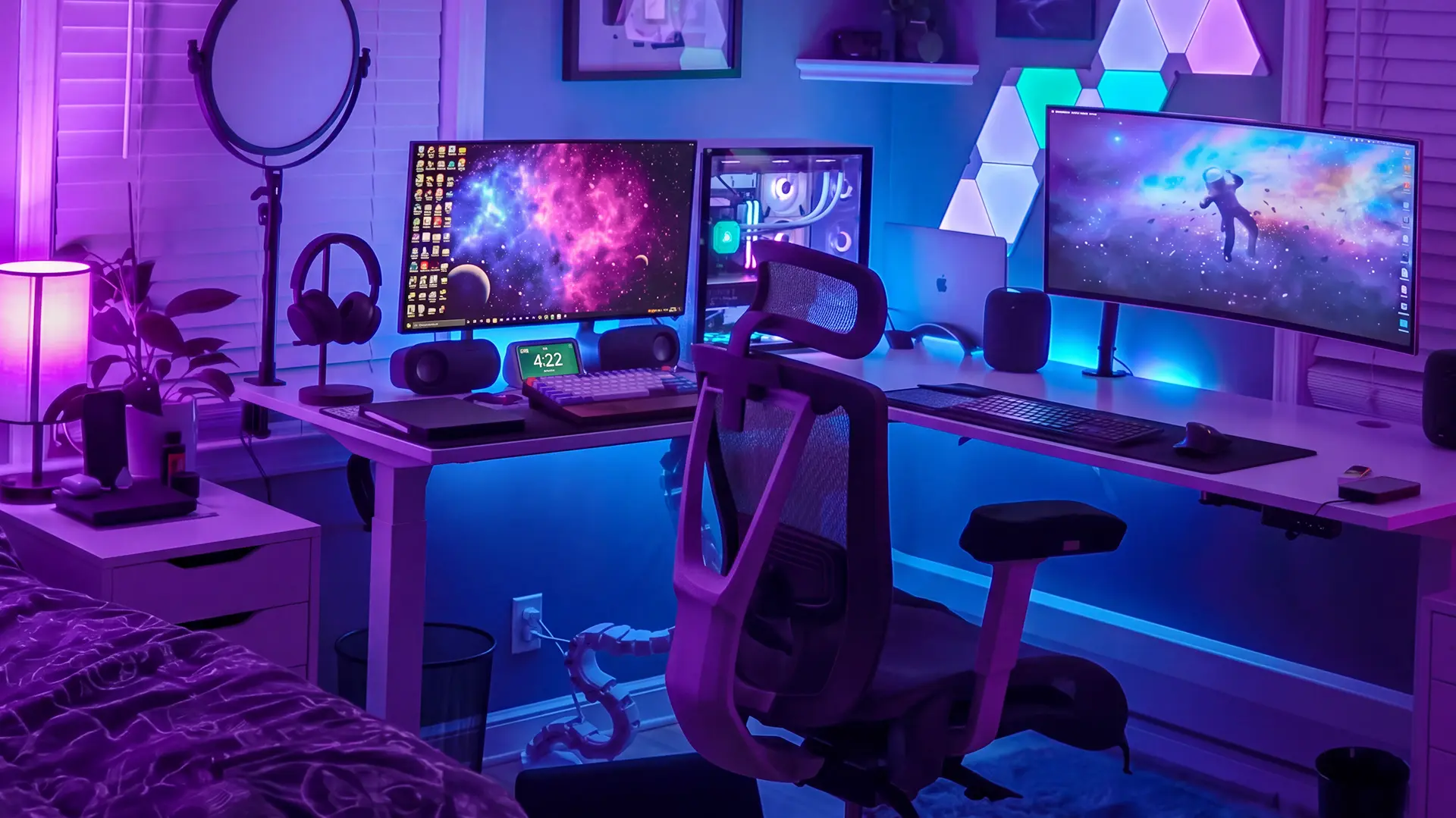
Place the primary monitor directly in front of you. Put the second display beside it at a small angle. The top edges should be close to the same height so your eyes do not move sharply up or down.
If you use chat often, place the chat screen on the side of your dominant hand. This can make mouse movement feel more natural. A vertical monitor can sit next to the main display if you want to read more messages at once.
Keep the webcam near eye level. If the camera sits too low, the image may look unflattering. If the second monitor blocks the camera, move it slightly outward or use a monitor arm.
Cable management also matters. Label power, display, microphone, and capture-card cables before tightening them. This simple step can save a great deal of time when troubleshooting.
One practical lesson from testing streaming layouts is that comfort matters more than style. A setup may look impressive in photos but still cause neck strain if the second monitor is too far away. Adjust the screen until you can glance at it without turning your whole head.
Common mistakes to avoid with two monitors
A second display can help, but it can also create new problems. The most common mistake is adding too many distractions.
Avoid these issues:
- Watching unrelated videos during a live broadcast
- Keeping dozens of browser tabs open
- Placing the second monitor too far away
- Using different brightness levels
- Ignoring cable and power limits
- Forgetting to test audio after changing displays
- Running demanding apps in the background
- Showing private messages or personal information on stream
Privacy deserves special attention. Notifications, email previews, direct messages, and file names may appear on the second screen. If you capture the wrong window, viewers could see information that should remain private.
Use a clean streaming profile in your browser. Turn off desktop notifications while live. Before every broadcast, open a test recording and confirm that only the intended windows appear.
Another common mistake is assuming that two monitors solve every workflow problem. Good scene organization, hotkeys, moderation, and audio checks remain important. A second monitor is a tool, not a replacement for preparation.
How much does a second streaming monitor cost?
The cost depends on whether you buy new or used and which features you need. A basic 1080p office monitor may be enough for chat and OBS. A high-refresh gaming monitor costs more but may also serve as a backup gaming display.
A simple budget plan looks like this:
- Budget option: Used or basic 1080p monitor
- Mid-range option: 1080p or 1440p monitor with good color
- Premium option: High-refresh display with adjustable stand
You may also need:
- Display cable
- Monitor arm or stand
- Cable ties
- USB hub
- Capture card for console streaming
- Surge protector
Do not buy a second monitor before checking your desk space and graphics card outputs. Measure the available width and confirm that your computer can support the desired resolution.
If money is limited, upgrade the microphone, lighting, or internet connection first. Viewers usually notice poor audio and unstable video more than they notice a missing second monitor.
Are two monitors worth it for new streamers?
For many new streamers, two monitors are useful but not essential. Starting with one good display lets you learn the basics without spending too much money.
Begin with a clear streaming process:
- Create a few simple scenes.
- Set up chat and alerts.
- Test your microphone.
- Record a short sample.
- Review the video for problems.
- Add a second monitor when window switching becomes frustrating.
This approach keeps the upgrade based on a real need. You may discover that a phone or tablet works well for chat. You may also find that a second monitor becomes essential once your audience grows.
The best answer to why do streamers have 2 monitors depends on the creator’s workflow. A competitive gamer, podcast host, artist, and casual streamer may all use the second screen in different ways.
Frequently Asked Questions About Why Do Streamers Have 2 Monitors
Why do streamers have 2 monitors instead of one large monitor?
Two monitors separate the main content from streaming controls. One large ultrawide monitor can provide similar space, but separate screens may offer easier window placement and simpler organization.
Do streamers need two powerful monitors?
No. The main monitor may need a high refresh rate for gaming, while the second monitor can be a basic 60 Hz display. Chat and OBS do not usually require premium gaming features.
Can two monitors cause lag while streaming?
They can add a small amount of graphics workload, especially when the second screen plays video or uses a high refresh rate. Most modern computers handle two displays well, but system performance should be tested before going live.
Can I stream with one monitor?
Yes. You can use hotkeys, windowed mode, a phone, or a tablet to monitor chat and control your stream. One monitor is often enough for beginners and casual broadcasts.
Should the second monitor be vertical?
A vertical monitor is helpful for chat because it displays more messages in a tall column. A horizontal screen may be better if you use OBS, video editing software, or several wide windows.
What do streamers put on their second monitor?
They commonly display chat, OBS Studio, alerts, music controls, stream health, browser sources, guest calls, or performance statistics. The exact layout depends on the content and production style.
Does a second monitor make a streamer look more professional?
It can make the workflow more efficient, but it does not guarantee better content. Clear audio, stable video, useful commentary, and good audience interaction matter more than the number of monitors.
Conclusion
Streamers have two monitors because a dual-screen setup keeps the main content clear while placing chat, alerts, OBS, and technical tools within easy reach. It reduces window switching, supports faster reactions, and makes complex broadcasts easier to manage.
A second monitor is helpful, but it is not a requirement for success. Start with the equipment that improves your content most, then add another display when your workflow demands it. Test your layout, protect private information, and choose comfort over appearance.
Set up your screens with purpose, record a test stream, and adjust the layout until it feels natural. Explore more streaming guides, share your setup in the comments, and help other creators build a smoother broadcast.