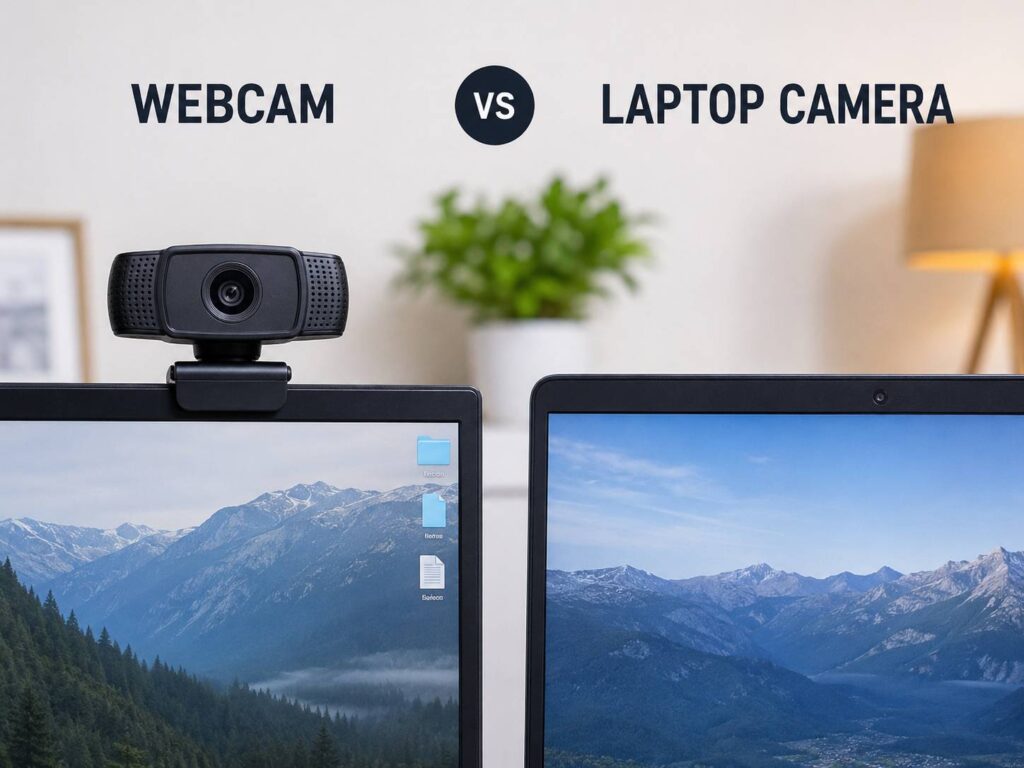
A dedicated webcam delivers better image quality, flexible placement, clearer video, and more control than most laptop cameras.
If you have ever looked washed out, blurry, or oddly framed during a video call, you may wonder why use webcam instead of laptop camera. After testing built-in and external cameras for meetings, online classes, interviews, and streaming, I have found that the right webcam can make a clear difference. It is not always necessary, but it often gives you a more professional and comfortable setup.

Why Use a Webcam Instead of a Laptop Camera?
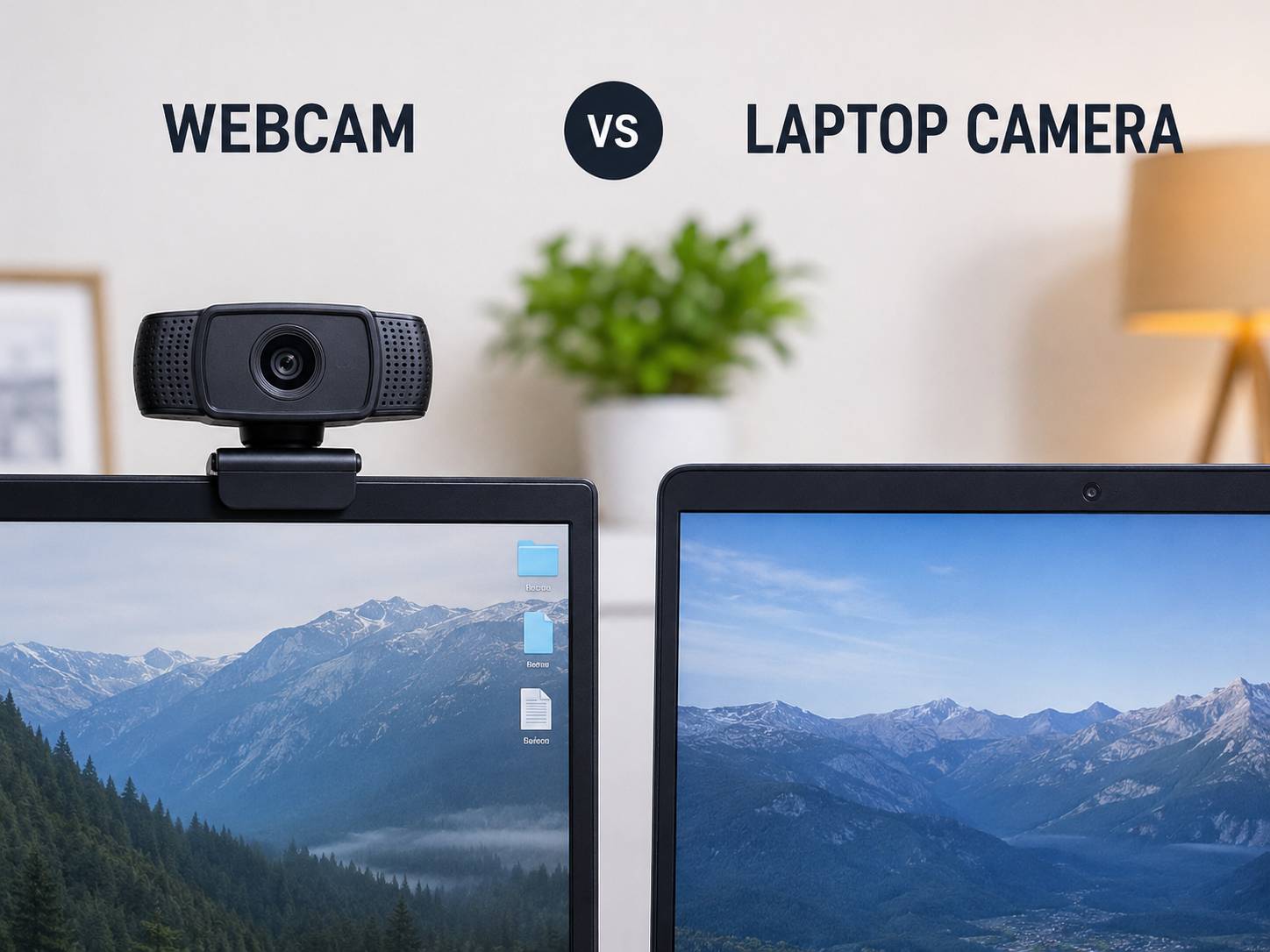
The main reason to use a webcam instead of a laptop camera is better control. A laptop camera is built into the screen bezel, so its position and features are limited. An external webcam can sit on top of a monitor, attach to a tripod, or move closer to eye level.
This simple change can improve your appearance on screen. Your face looks more natural when the camera is at eye level, rather than pointing up from below or down from a laptop placed on a desk.
A webcam may also offer:
- Higher video resolution
- Better low-light performance
- Wider or narrower viewing angles
- Improved autofocus
- Better microphones
- More flexible mounting
- Greater privacy control
- Easier upgrades
A built-in laptop camera is designed to be small and convenient. A dedicated webcam is designed to focus more on video quality and control.
Laptop Camera vs. Webcam: The Main Differences
Understanding the difference between these two camera types makes the choice easier.
| Feature | Laptop Camera | External Webcam |
|---|---|---|
| Position | Fixed to the laptop screen | Adjustable |
| Image quality | Often basic | Usually better |
| Lens size | Very small | Often larger |
| Low-light video | Limited | Often stronger |
| Microphone | Basic built-in mic | May include better audio |
| Privacy | May need a cover | Can be unplugged or covered |
| Upgrade options | Replace the laptop | Replace only the webcam |
| Portability | Always built in | Needs a separate device |
Laptop cameras are useful when convenience matters most. You can open your computer and join a call within seconds. For casual chats, that may be all you need.
The benefit of a webcam becomes clearer when video quality affects your work, school, or personal brand. A job interview, sales call, online presentation, or live stream deserves a camera that shows you clearly.
Better Image Quality and Sharper Video
One of the biggest reasons why use webcam instead of laptop camera is sharper video. Many laptop cameras use small sensors and basic lenses. These parts save space, but they can produce soft, noisy, or dull images.
A good webcam may support Full HD, which is 1920 by 1080 pixels. Some models support 4K, although 4K is not always needed. Your meeting app, internet speed, and computer may reduce the video quality before others see it.
Resolution is only one part of image quality. A webcam with a better sensor can capture more detail, especially around your eyes, hair, and clothing. Better image processing can also reduce grain and improve color.
In my own testing, a midrange 1080p webcam often looked better than a laptop camera with a similar stated resolution. The difference came from the lens, sensor, exposure control, and placement.
However, do not buy based on resolution alone. A poor 4K webcam may look worse than a well-made 1080p model.

Improved Performance in Low Light
Laptop cameras often struggle in dim rooms. The image may become dark, gray, or full of digital noise. Your face can also look uneven if a bright window sits behind you.
Many dedicated webcams handle light better because they use larger sensors, better lenses, and stronger automatic exposure controls. Some also include high dynamic range features that help balance bright and dark areas.
You do not need a studio light to improve your video. Place a soft lamp in front of you, near eye level. Avoid placing the main light behind your head.
A webcam cannot fix every lighting problem. A dark room will still look dark. Good lighting and a good camera work together, much like a clean window and a bright room.

More Flexible Camera Placement
A fixed laptop camera limits your setup. If you raise the laptop, the keyboard and screen may become uncomfortable. If you lower it, the camera may point at your chest or chin.
An external webcam solves this problem. You can place it where it gives you a natural and balanced view.
Try these placement tips:
- Put the webcam at eye level or slightly above.
- Keep your face near the center of the frame.
- Leave a little space above your head.
- Keep the camera about two to three feet away when possible.
- Tilt the camera slightly downward if it sits above your monitor.
- Look at the lens when speaking.
This is a major reason why use webcam instead of laptop camera during interviews and presentations. A natural camera angle helps you appear more confident and engaged.
A More Professional Look for Work and Interviews
Your camera does not define your skills, but poor video can distract from them. A blurry face, harsh light, or strange camera angle may make a meeting feel less polished.
A webcam can create a cleaner image for:
- Job interviews
- Client meetings
- Online teaching
- Business presentations
- Telehealth appointments
- Real estate tours
- Product demonstrations
- Remote team calls
A professional setup does not need to look expensive. A simple webcam, a quiet room, and a light in front of you can be enough.
I once joined an online meeting with a laptop placed on a low coffee table. The camera angle made me look down at the screen. After moving the computer and using an external webcam, eye contact felt much easier. The improvement was not only visual. I also felt more relaxed.

Better Control Over Framing and Field of View
Different webcams offer different fields of view. A narrow view focuses on your face. A wider view shows more of your room, desk, or presentation area.
A wide-angle webcam can help when two people share a screen. It can also work well for teaching, demonstrations, and group calls. However, an overly wide lens may show too much of your space or make the edges look stretched.
A narrow field of view is often better for interviews and one-person meetings. It keeps attention on you and reduces background distractions.
Many webcam apps also let you adjust:
- Brightness
- Contrast
- White balance
- Zoom
- Focus
- Exposure
- Background effects
Built-in laptop cameras may offer some software controls, but dedicated webcams often provide more options.
Better Audio, With One Important Limitation
Some webcams include microphones that sound better than the microphone beside a laptop camera. This can help during short calls or casual meetings.
Still, a webcam microphone is not always the best audio choice. A headset, USB microphone, or well-positioned external microphone usually provides clearer sound and less room echo.
This is an important lesson when deciding why use webcam instead of laptop camera. Better video does not automatically mean better audio. Treat the camera and microphone as separate parts of your setup.
For clear speech, keep the microphone close to your mouth, reduce fan noise, and choose a quiet room. Test your sound before an important call.
Privacy and Security Benefits
A laptop camera stays attached to your computer. You may cover it with a sliding shutter or privacy sticker, but some covers can interfere with the laptop screen when it closes.
An external webcam gives you more privacy choices. You can unplug it when you finish a call, turn it away, or use its built-in privacy shutter.
Privacy still requires good habits. Only install webcam software from trusted sources. Review camera permissions in your operating system. Close meeting apps when you are done.
A camera cover is useful, but it is not a complete security plan. Keep your software updated and avoid giving camera access to apps that do not need it.
When a Laptop Camera Is the Better Choice
A webcam is not always necessary. Your laptop camera may be the better option in several situations.
Use the built-in camera when:
- You need maximum portability.
- You make only occasional video calls.
- Your laptop camera already looks clear.
- You do not want extra cables.
- You work in many different locations.
- Your meetings are informal.
The question of why use webcam instead of laptop camera depends on your needs. A student joining a weekly class may be happy with a laptop camera. A remote consultant who meets clients every day may benefit from an external webcam.
You should also consider your laptop ports. Some webcams use USB-A, while newer computers may use USB-C. An adapter may be needed, and not every adapter works well with every device.
How to Choose the Right Webcam
You do not need the most expensive model. Focus on features that match your daily use.
Resolution
Full HD is enough for most meetings, classes, and interviews. Consider 4K if you create video content, crop your image, or want extra detail.
Frame Rate
A 30-frame-per-second webcam works well for most calls. A 60-frame-per-second model creates smoother motion for streaming, demonstrations, and fast movement.
Autofocus
Autofocus helps when you move closer to the camera or hold objects up to show them. Fixed focus may be fine if you always sit in one place.
Low-Light Performance
Look for a webcam that handles dim rooms without producing heavy noise. Good lighting still matters more than many buyers expect.
Privacy Shutter
A physical shutter provides simple peace of mind. It blocks the lens without relying only on software.
Mounting Options
A standard monitor clip is useful for desk work. A tripod thread adds more flexibility for filming, teaching, or streaming.
Software Support
Check that the webcam works with your operating system and video apps. Most modern USB webcams support common platforms, but advanced controls may require special software.
How to Set Up a Webcam Properly
Buying a webcam is only the first step. Placement and lighting can change the result more than the price.
Follow this simple setup:
- Connect the webcam directly to your computer or a reliable USB hub.
- Open your meeting app and select the webcam as the video source.
- Position the lens at eye level.
- Place a light in front of you.
- Keep bright windows behind the camera, not behind your head.
- Adjust the crop so your head and shoulders fill the frame.
- Test video and audio before the call.
- Use a clean and calm background.
Wipe the lens with a soft microfiber cloth. Fingerprints can make the video look hazy.
Also check whether your meeting app reduces video quality. Some services change resolution based on bandwidth, device power, or network conditions. A webcam improves the source image, but it cannot overcome a weak connection.
Common Mistakes to Avoid
Many people buy a webcam but still get poor results because of setup mistakes.
Avoid these problems:
- Placing the webcam below your face
- Sitting with a bright window behind you
- Using a dirty lens
- Choosing an overly wide angle
- Ignoring microphone quality
- Forgetting to test the camera
- Blocking the webcam with a monitor
- Using too much background blur
- Buying 4K without a strong computer or connection
One mistake I often see is placing the webcam too far away. The camera then shows too much room, and your face becomes small. Move it closer or use a moderate digital crop.
Another mistake is trusting automatic settings completely. If your face looks too dark, add front lighting before changing complicated camera controls.
Is a Webcam Worth It for Remote Work?
For many remote workers, yes. A webcam can improve how you look and communicate during daily calls. It may also make it easier to use a separate monitor while keeping the camera at a good height.
The value is highest when you spend many hours in meetings or speak with customers and coworkers often. A better camera can reduce the need to adjust your laptop position every time you join a call.
Still, a webcam cannot replace good communication. Clear speech, active listening, preparation, and a stable internet connection matter just as much.
Think of a webcam as a tool. It helps present your work, but it does not perform the work for you.
Frequently Asked Questions About Why Use Webcam Instead of Laptop Camera
Why use a webcam instead of a laptop camera for Zoom meetings?
A webcam can provide a sharper image, better lighting control, and a more natural camera angle. It is especially helpful if you use a separate monitor or keep your laptop below eye level.
Is an external webcam better than a built-in laptop camera?
An external webcam is often better because it may have a larger sensor, stronger lens, and adjustable placement. However, a newer laptop can have a high-quality built-in camera, so compare actual image quality rather than assuming.
Do I need a 4K webcam for work calls?
Most people do not need 4K for work calls. A reliable 1080p webcam with good lighting is usually enough for meetings, interviews, and online classes.
Does a webcam improve microphone quality?
It can, but not always. Some webcams have useful microphones, while others sound similar to a laptop microphone; a headset or USB microphone is usually better for clear speech.
Can I use a webcam with any laptop?
Most modern webcams work with Windows, macOS, and ChromeOS through USB. Check the connector, operating system support, and any software requirements before buying.
Is a webcam useful in low light?
Many webcams perform better than basic laptop cameras in low light, but no camera works perfectly in a dark room. A soft light placed in front of you will usually create the biggest improvement.
How far should a webcam be from my face?
Place it far enough to show your head and shoulders, often about two to three feet away. Adjust the distance based on the lens and the framing you want.
Conclusion
The strongest reasons why use webcam instead of laptop camera are better image quality, improved placement, stronger low-light performance, flexible framing, and a more professional appearance. A dedicated webcam is especially useful for remote work, interviews, teaching, streaming, and frequent video calls.
A laptop camera still works well for casual use and travel. If you choose an external model, focus on 1080p video, good low-light handling, a privacy shutter, reliable software, and a secure mounting option.
Start with better placement and lighting before spending more money. Then test a webcam during your next call and compare the result. Share your setup or explore more video tips to build a clearer, more confident on-camera presence.