Open the built-in Voice Memos app, tap the red button to record, tap again to stop, then save or share.
I’ve used iPhones for years and have helped friends, students, and clients get clear recordings fast. This guide walks you through how to use voice recorder on iphone from first tap to polished export. You’ll get step-by-step instructions, real tips I learned the hard way, simple fixes for common problems, and smart ways to store and share recordings. Read on to master the Voice Memos app and feel confident capturing audio on your iPhone.
Get started: the built-in Voice Memos app
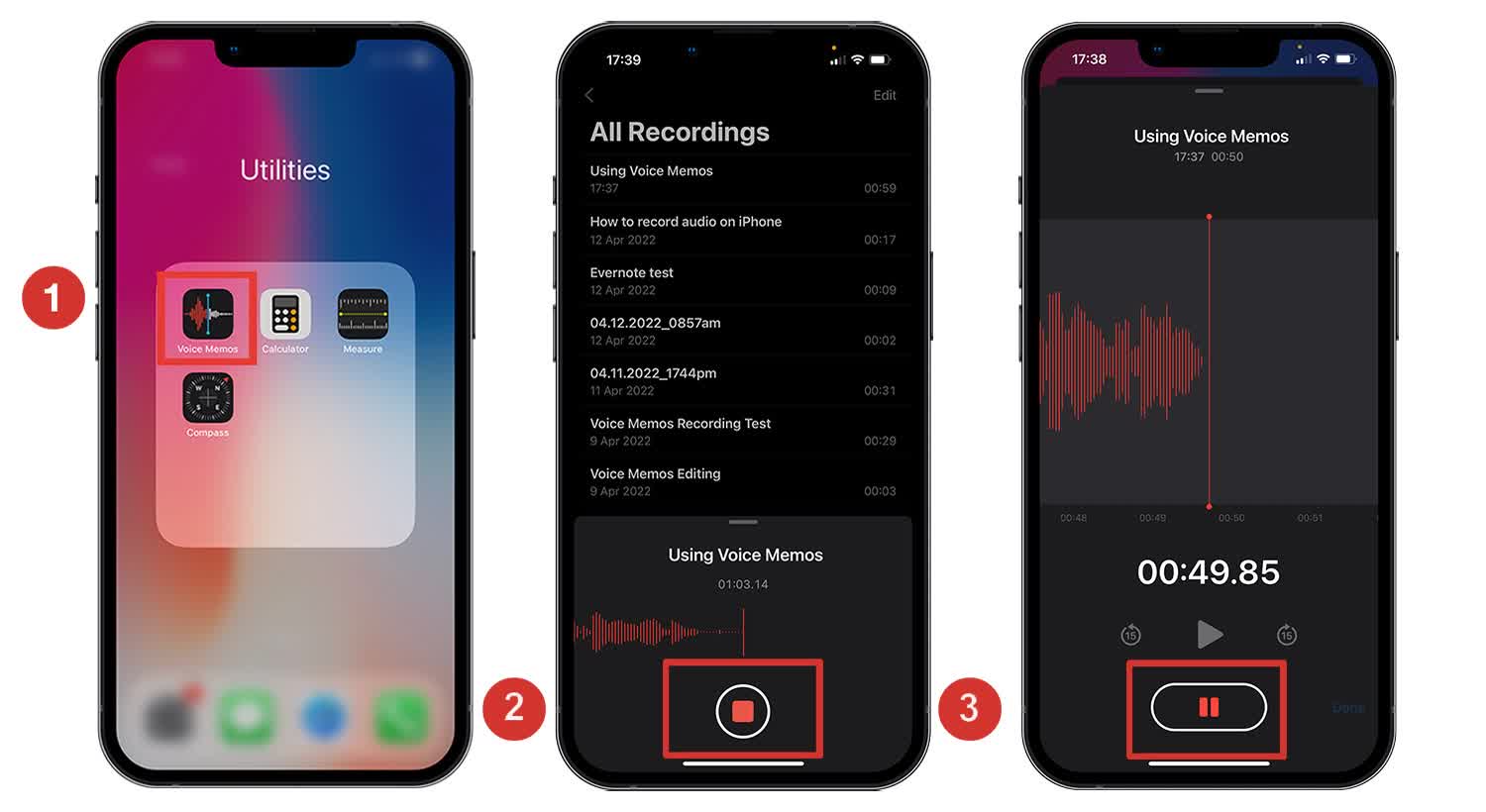
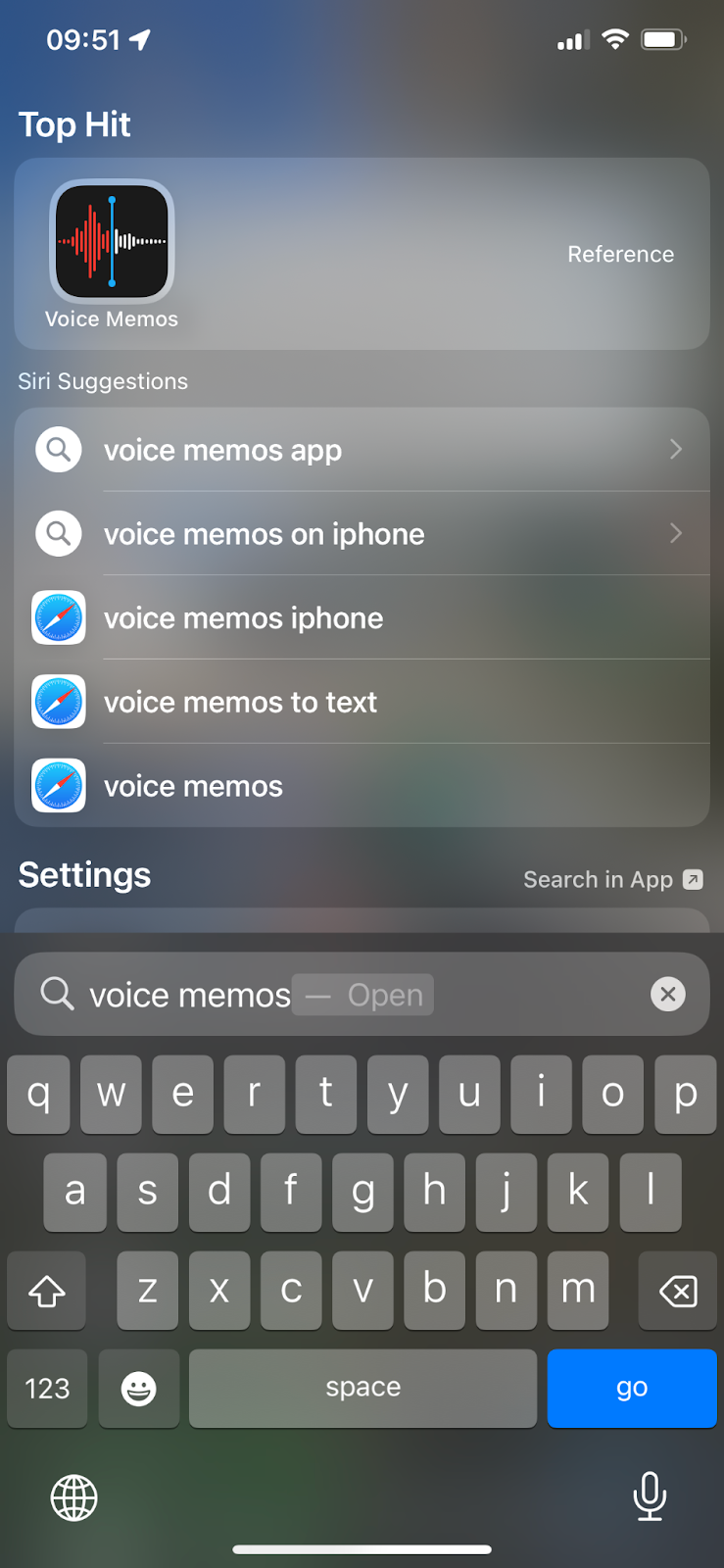
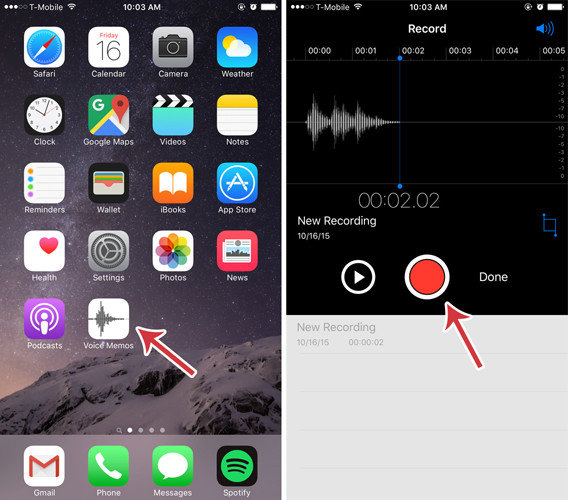
Voice Memos is Apple’s simple voice recorder on iPhone. It comes preinstalled and works offline. Open Voice Memos from your Home Screen or App Library. Tap the big red record button to start. Tap it again to pause or stop. You can rename the file right after you record by tapping the title.
How to use voice recorder on iphone in basic steps:
- Open Voice Memos.
- Tap the red circle to record.
- Tap the square to stop or pause.
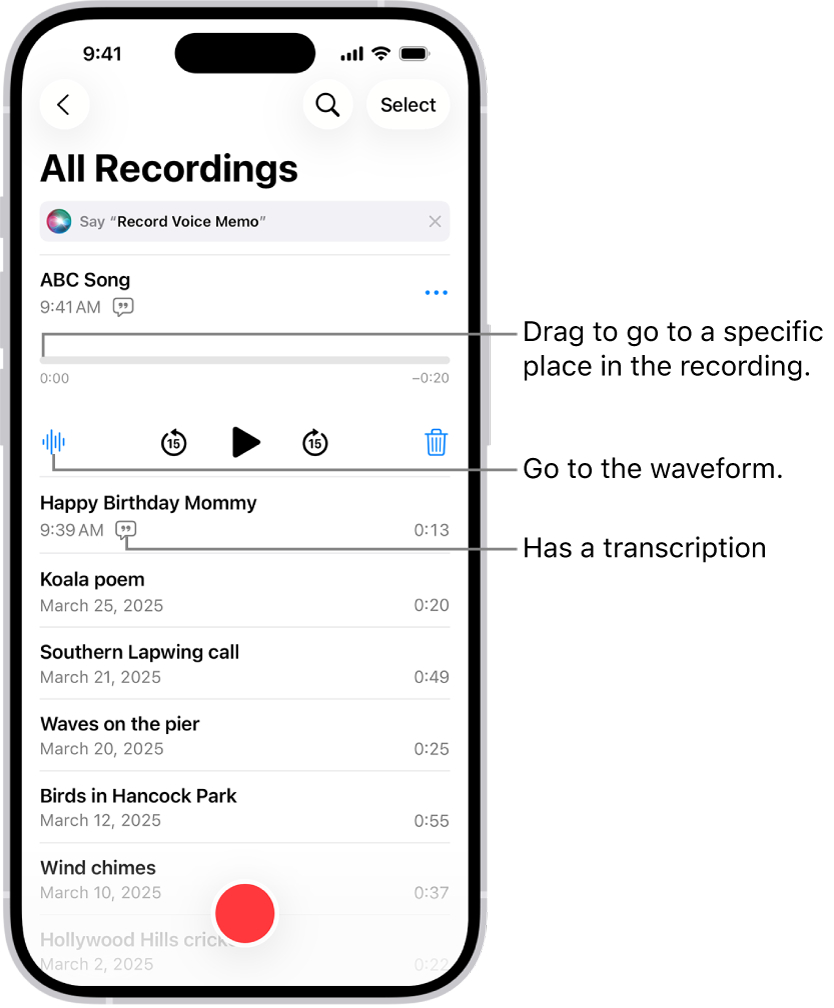
- Tap the recording to rename, trim, or share.
Voice Memos stores files with timestamps and location data if you allow it. You can play back immediately, mark favorites, and sort by date or name. For quick access, add Voice Memos to Control Center via Settings > Control Center > add Voice Memos.
Record like a pro: tips and settings
Good audio starts with small choices. Move close to the sound. Avoid noisy rooms and wind. Try these simple tips to get a clean recording.
Pro tips I use often:
- Use the iPhone mic toward your mouth for clear voice capture.
- Turn on Airplane Mode to avoid ring interruptions during a take.
- Use an external lightning or Bluetooth mic for interviews or music.
- Put a soft cloth near your iPhone to reduce table vibrations.
Settings to check:
- Permissions: Settings > Privacy & Security > Microphone, then enable Voice Memos.
- Storage: Check Settings > General > iPhone Storage if recordings don’t save.
- High-quality recordings: Some third-party apps let you choose sample rate and bit depth. Voice Memos keeps it simple but reliable.
I’ve found moving the phone slightly off-axis from direct wind reduces pops more than software fixes ever will. Practice a short test before important recordings.
Can I record phone calls on iPhone?
No. iOS does not let Voice Memos record regular phone calls. Use a call-recording app or external device, and always tell the other party you are recording to follow the law.
How do I improve audio quality quickly?
Record in a quiet room, use an external mic if possible, and keep the iPhone mic steady and close to the speaker.
Where are recordings stored on iPhone?
Recordings are in the Voice Memos app and sync to iCloud if you enable Voice Memos in iCloud settings.
Edit, trim, and enhance recordings
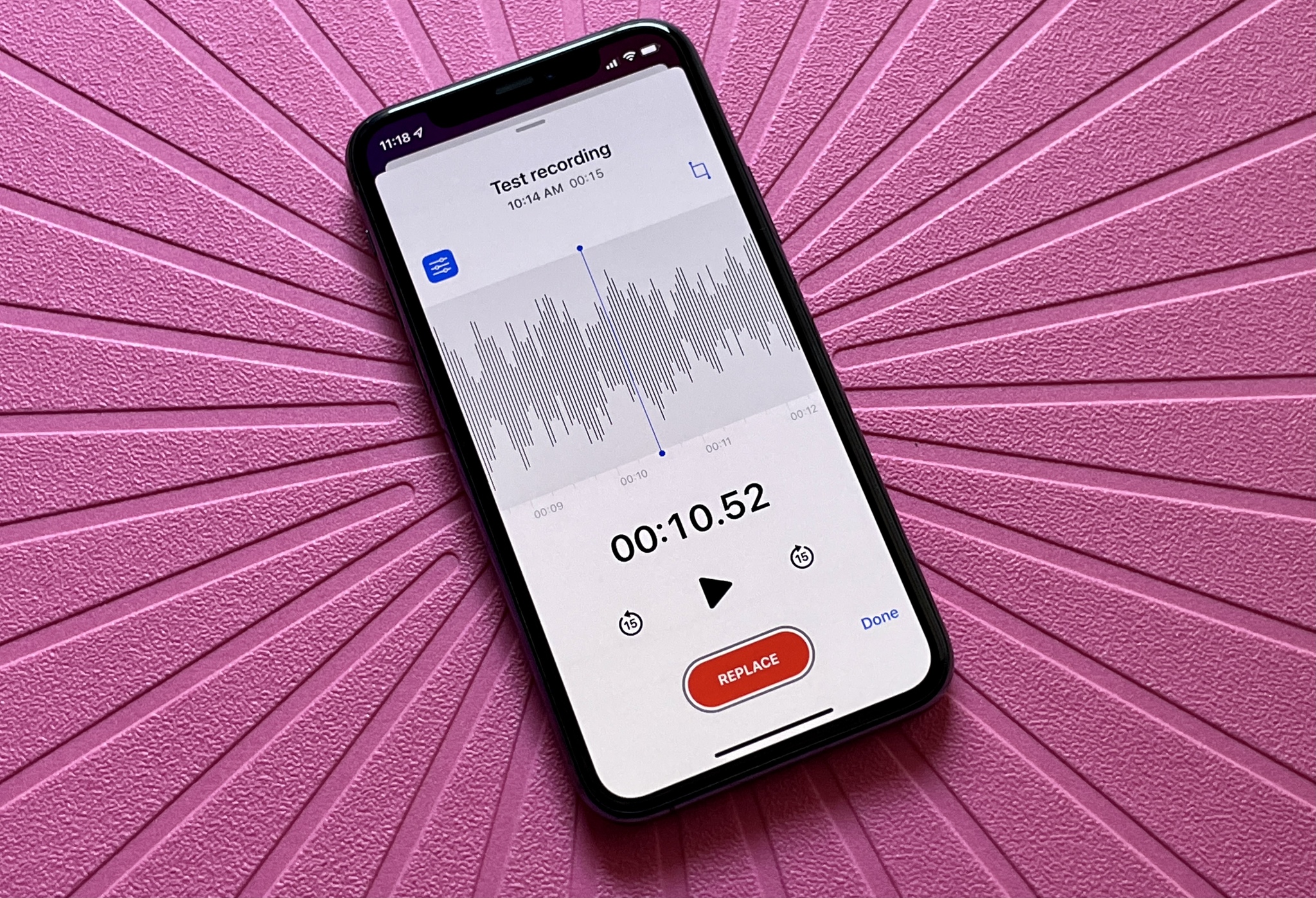
Voice Memos includes basic editing tools to clean up your audio. Tap a recording, then tap the three dots or Edit Recording to start.
Editing steps:
- Trim: Drag the yellow handles to cut the start or end.
- Replace: Position the playhead and tap Replace to record over a section.
- Delete: Use the trash icon to remove unwanted clips.
- Enhance: Tap the wand icon to apply noise reduction and clarity boost.
You can duplicate a memo before editing if you want a backup. For multi-track edits or podcast production, import the file into a dedicated audio editor on Mac or iPad.
Organize, backup, and share recordings
Keep recordings tidy with folders and iCloud backup. You can share via many apps instantly.
Organizing tips:
- Create folders in Voice Memos to group interviews, lectures, and ideas.
- Mark important memos as favorites for quick retrieval.
- Rename files with clear labels like “Interview – Jane – 2026-07-30”.
Backup and sharing options:
- iCloud sync: Settings > Apple ID > iCloud > toggle Voice Memos to sync across devices.
- AirDrop: Tap Share and choose a nearby Mac or iPad.
- Export: Share to Files, email, messaging apps, or cloud storage services.
I once lost several notes before I enabled iCloud. Backing up saved me from redoing hours of interviews. Make backup a habit.
Advanced features and third-party apps
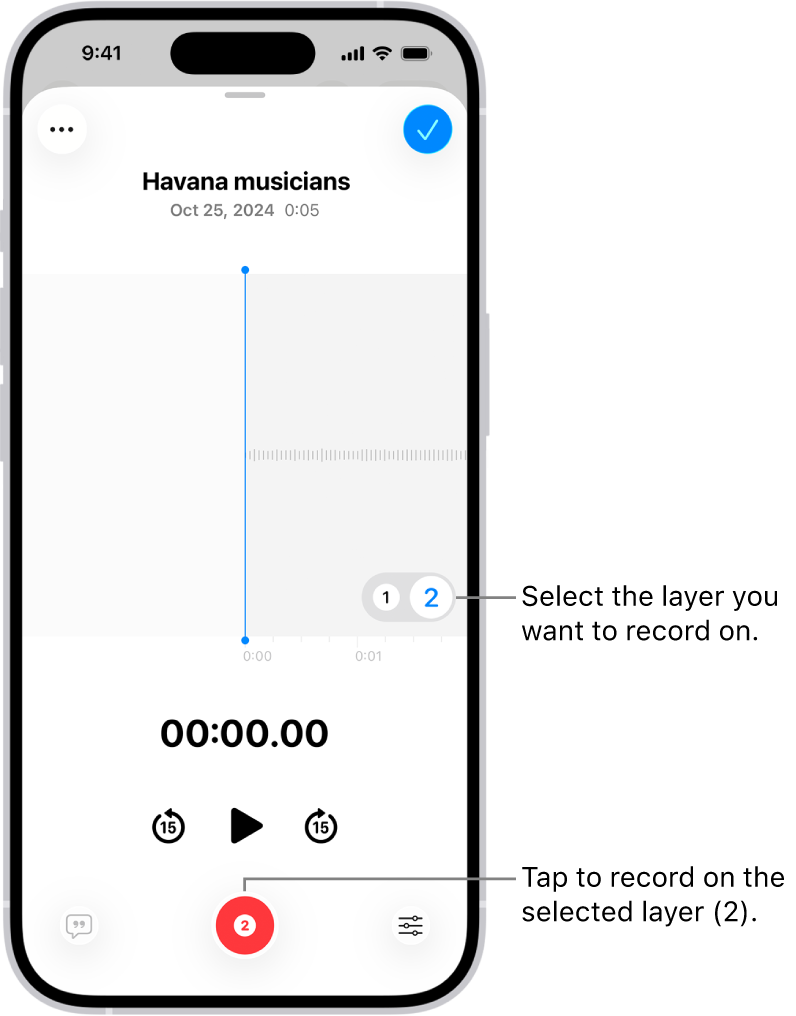
If you need transcription, multi-track editing, or noise gating, third-party apps can help. They offer extra controls beyond Voice Memos.
Advanced choices:
- Transcription apps can convert speech to text automatically for notes.
- Multi-track apps allow mixing, fades, and compressor controls for podcasts.
- Dedicated field-recording apps let you set sample rates and formats like WAV.
Privacy note: Always check app permissions and privacy policies before uploading recordings to cloud services. For sensitive interviews, consider local backups or offline transfer.
When I started podcasting, moving to a simple third-party editor made editing faster. But for quick voice notes and interviews, Voice Memos remains my go-to.
Troubleshooting common issues
Problems happen. Here are quick fixes for the most common issues when you use voice recorder on iphone.
No sound in recording:
- Check Microphone permission in Settings > Privacy & Security > Microphone.
- Make sure the microphone is not blocked by a case or debris.
Recording cuts off or stops:
- Check available storage in Settings > General > iPhone Storage.
- Disable Low Power Mode if background processes are limited.
Poor audio quality:
- Move closer to the speaker or use an external mic.
- Try the Enhance Recording tool in Voice Memos.
App crashes or won’t open:
- Force quit and reopen Voice Memos.
- Restart your iPhone or update iOS to the latest version.
If none of these work, export what you can and contact Apple Support for deeper device diagnostics.

Personal tips and real-life examples
I use the Voice Memos app every week. I record interviews, lecture notes, and quick ideas. Here are a few lessons I learned.
Lessons from my experience:
- Do a 5-second test before important takes to check levels.
- Label files immediately after recording to avoid confusion later.
- If recording outdoors, use a wind cover or external mic to stop wind noise.
A mistake I made once was trusting memory to name files later. I had to sift through dozens of “New Recording 1” files. Now I label as soon as I stop the recording. Small habits save time.

Frequently Asked Questions of how to use voice recorder on iphone
How do I start a quick voice memo?
Open Voice Memos and tap the red record button. Tap again to stop and save.
Can I record in the background while using other apps?
Yes, Voice Memos can record while you use other apps unless the app blocks background audio.
How do I export a recording to my computer?
Use AirDrop, iCloud Drive, or connect your iPhone and share the file via the Files app or email.
Will Voice Memos sync across my Apple devices?
Yes, if you enable Voice Memos in iCloud settings, recordings sync to your other signed-in devices.
Can I recover a deleted recording?
Voice Memos has a Recently Deleted folder where deleted items stay for 30 days. Restore from there if needed.
Is there a limit to recording length?
No hard limit from the app, but battery life and available storage determine how long you can record.
Conclusion
You now know how to use voice recorder on iphone from quick setup to advanced sharing. Start with basic steps, practice a few test runs, and use the editing and backup tips to keep recordings safe. Make a habit of labeling files and testing audio before important sessions. Try a short recording now to build confidence, and leave a comment with your favorite Voice Memos trick or question.