Wireless CarPlay lets you connect your iPhone to a compatible vehicle infotainment system without plugging in a USB cable. To use it, enable Bluetooth and Wi-Fi on your iPhone, pair it with your vehicle, and select Apple CarPlay when the connection appears.
Across the United States, many newer vehicles from manufacturers such as Ford, Toyota, Honda, Hyundai, and others include wireless Apple CarPlay support, allowing drivers to access navigation, music, calls, and messages without handling a cable. The exact setup process depends on the vehicle model, infotainment system version, and iPhone compatibility.
Wireless CarPlay works by combining Bluetooth for the initial pairing process with Wi-Fi for the higher-speed data connection needed for CarPlay features. If your vehicle only supports wired CarPlay, a compatible wireless CarPlay adapter may convert the wired connection into a wireless one, but performance and compatibility can vary by vehicle and adapter model.
Source: carluex.store
What Is Wireless CarPlay and How Does It Work?
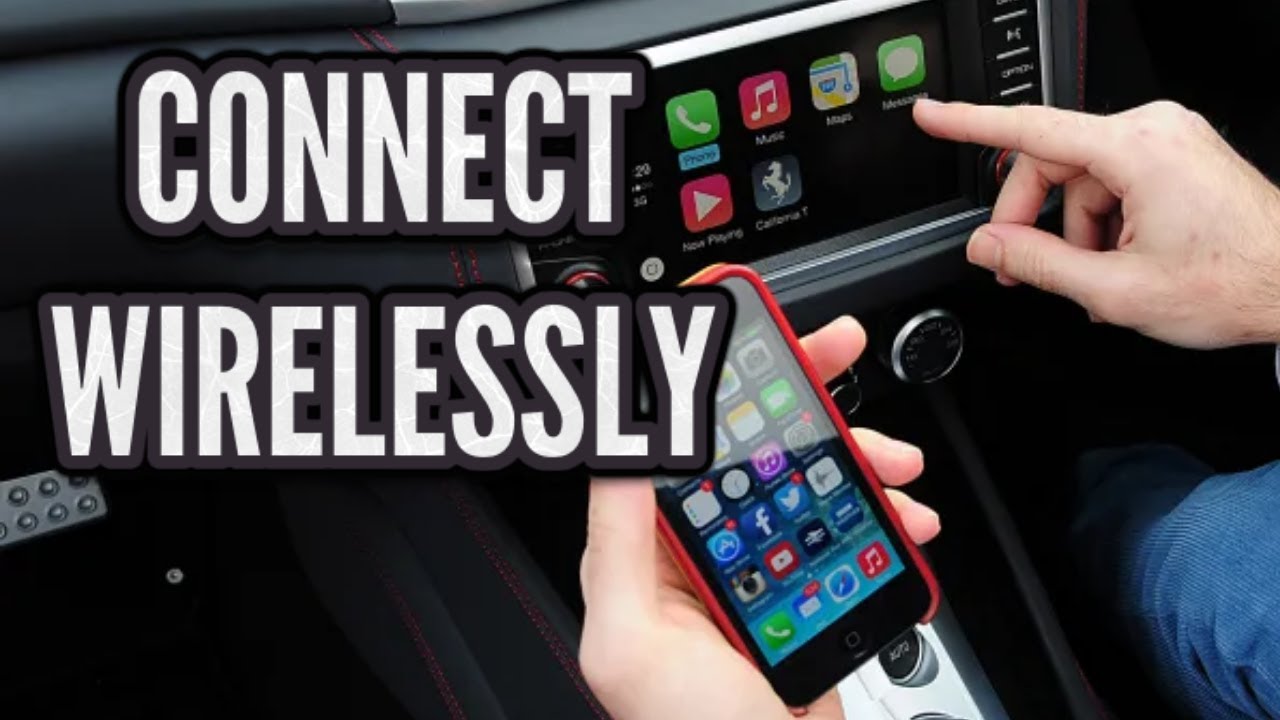
Wireless CarPlay is Apple’s vehicle integration system that allows an iPhone to connect to a car display without a physical USB cable. It provides access to supported apps including Apple Maps, Apple Music, phone calls, messages, podcasts, and compatible third-party navigation or audio apps.
Unlike traditional wired CarPlay, wireless CarPlay does not rely on the USB connection for data transfer. The vehicle and iPhone create a wireless connection using Bluetooth for discovery and Wi-Fi for continuous communication.
Source: storage.googleapis.com
Bluetooth pairing
Bluetooth helps the vehicle identify and begin connecting with the iPhone during the initial setup process.
Wi-Fi connection
A direct Wi-Fi connection provides the bandwidth required for CarPlay features and screen interaction.
Car display integration
The vehicle screen displays compatible iPhone apps through the infotainment system.
Wireless CarPlay Requirements
Before attempting setup, confirm that both your vehicle and iPhone support wireless CarPlay. Many vehicles support only wired CarPlay even if they have Bluetooth audio.
Compatible iPhone
A supported iPhone model with a recent version of iOS is required.
Compatible vehicle system
The infotainment system must include wireless CarPlay support or support a compatible adapter.
How to Set Up Wireless CarPlay Step by Step
The setup process normally takes only a few minutes when your vehicle and iPhone are compatible. Complete the first connection while the vehicle is parked because some vehicles restrict setup features while driving.
Source: onecarstereo.com
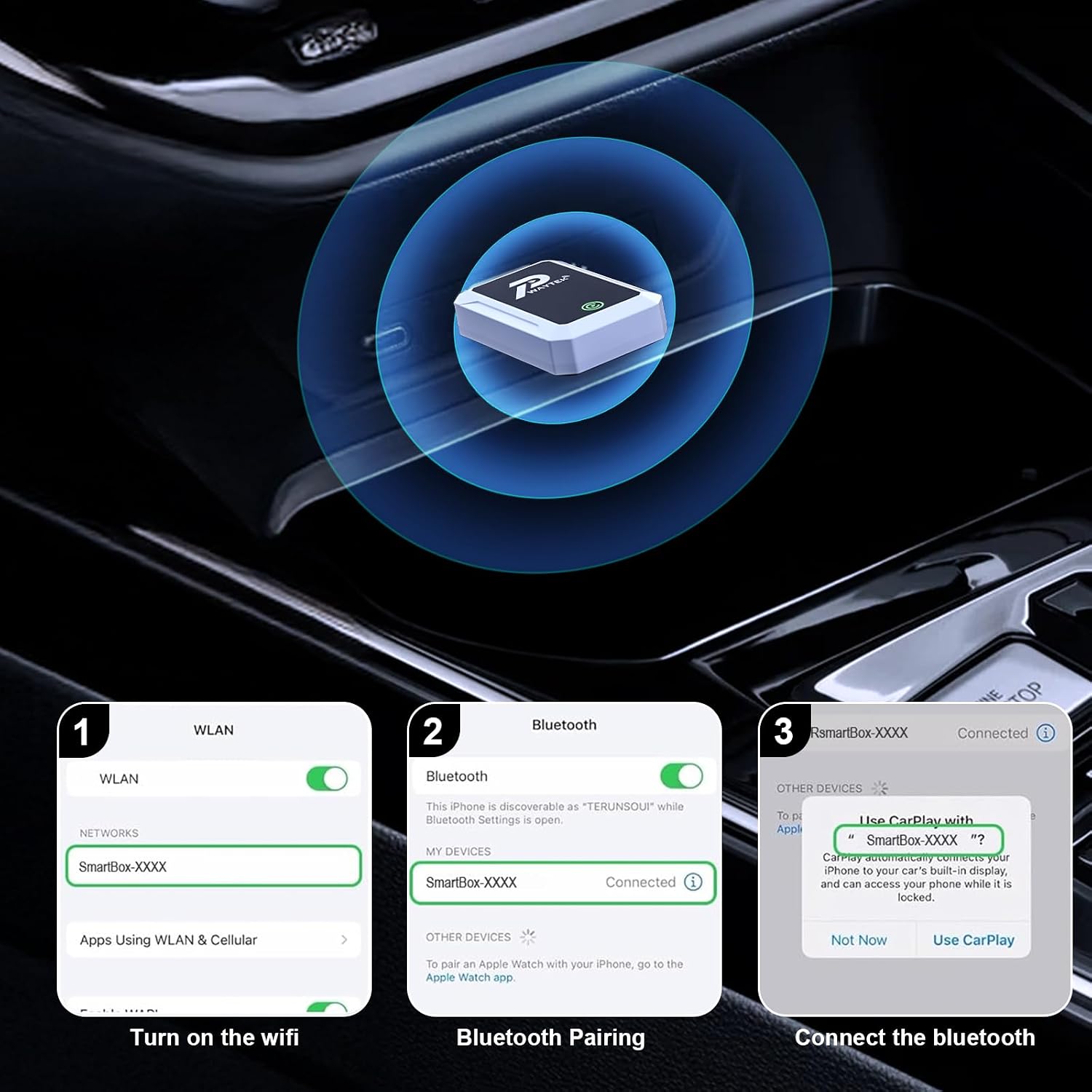
Step 1: Turn on iPhone connections
Enable Bluetooth, Wi-Fi, and Siri on your iPhone because wireless CarPlay depends on these features.
Step 2: Start vehicle pairing mode
Open your vehicle’s infotainment settings and choose the option to add or connect a phone.
Step 3: Pair your iPhone
Select your vehicle from the iPhone Bluetooth menu and follow the pairing instructions shown on both screens.
Step 4: Approve CarPlay access
Accept the CarPlay connection request and allow required permissions for contacts, messages, and notifications.
How to Know Wireless CarPlay Is Working
A successful connection usually appears when the CarPlay interface automatically opens on the vehicle display after starting the car or selecting the CarPlay option.
Connection indicator
The vehicle display shows the Apple CarPlay interface instead of only Bluetooth audio controls.
App access
Navigation, music, phone, and messaging apps become available through the vehicle screen.
How to Use Wireless CarPlay Features While Driving
After setup, wireless CarPlay works similarly to wired CarPlay. Drivers can use the vehicle touchscreen, steering wheel controls, or voice commands through Siri depending on the vehicle equipment.
Source: storage.googleapis.com
Navigation
Use Apple Maps or compatible navigation apps for directions, traffic information, and route guidance.
Music and audio
Stream supported audio apps and control playback through the car display or steering wheel buttons.
Calls and messages
Make calls and send messages using hands-free controls and Siri voice commands.
Using Siri With Wireless CarPlay
Siri allows drivers to perform many CarPlay tasks without touching the screen. Voice commands can help reduce distractions by keeping attention focused on driving.
Voice commands
Ask Siri for directions, music selection, phone calls, or message assistance.
How to Fix Wireless CarPlay Connection Problems
Wireless CarPlay problems are often caused by compatibility issues, outdated software, Bluetooth conflicts, or incorrect connection settings. Start with simple checks before changing advanced settings.
Source: manuals.plus
CarPlay does not appear
Confirm that your vehicle supports wireless CarPlay and that Bluetooth and Wi-Fi are enabled on the iPhone.
Connection keeps dropping
Restart the iPhone and vehicle system, remove old Bluetooth pairings, and reconnect from the beginning.
CarPlay is slow
Check for software updates and reduce interference from other wireless devices when possible.
Common Wireless CarPlay Mistakes
Many connection problems happen because users assume Bluetooth audio support means a vehicle supports wireless CarPlay. These are separate technologies.
Mistake
Using Bluetooth alone without completing the CarPlay pairing process.
Mistake
Leaving multiple previously connected iPhones stored in the vehicle system.
Using a Wireless CarPlay Adapter for Wired-Only Vehicles
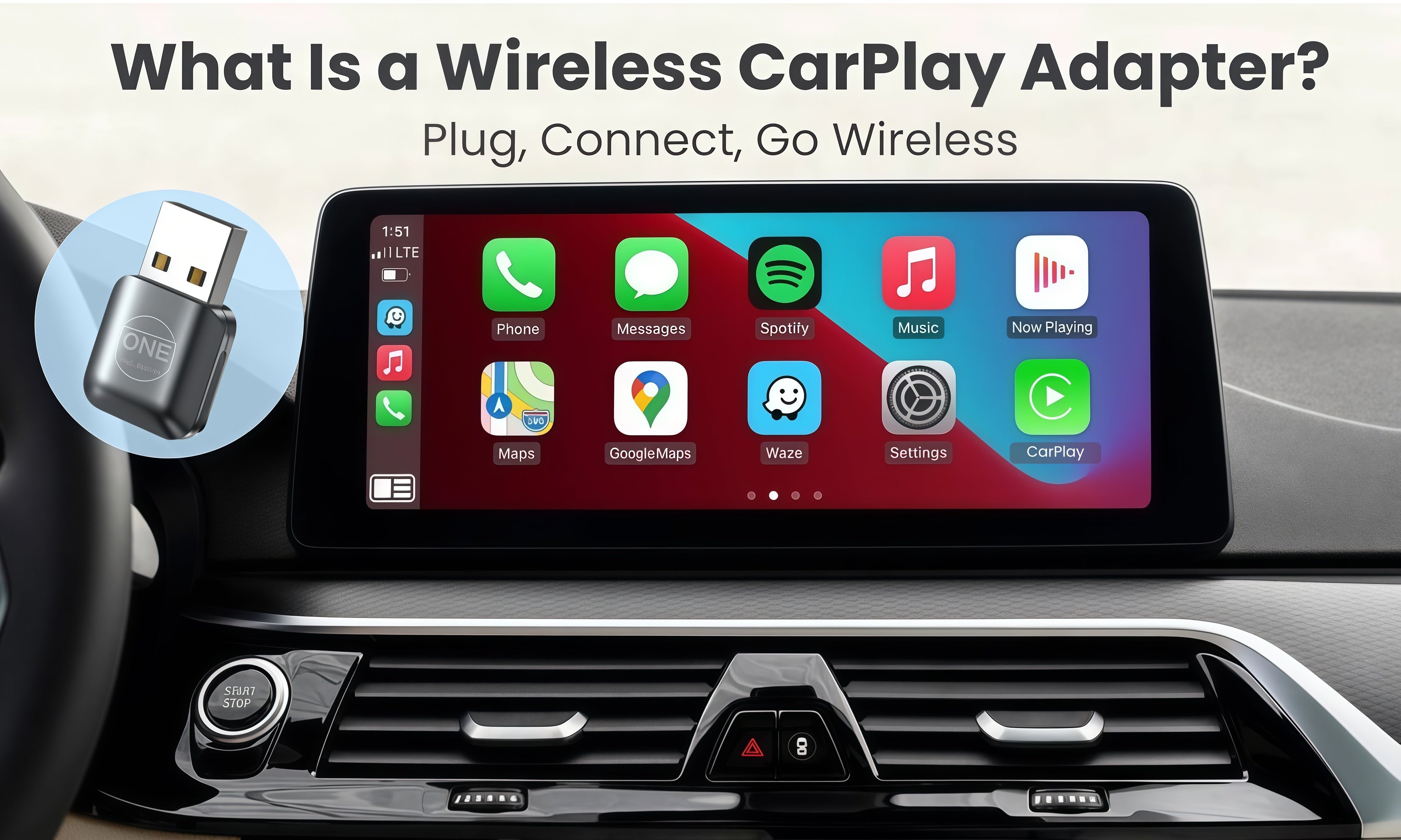
A wireless CarPlay adapter can help some vehicles that already support wired Apple CarPlay connect wirelessly. The adapter plugs into the vehicle’s CarPlay USB port and creates a wireless connection between the vehicle and iPhone.
Compatibility is not universal. Before purchasing an adapter, verify that your vehicle supports wired CarPlay, check adapter requirements, and review return policies in case the system is not supported.
Source: manuals.plus
Best suited for
Drivers who already have working wired CarPlay but want to remove the USB cable.
Possible limitations
Some adapters may introduce connection delays, require firmware updates, or lack support for certain vehicle features.
Choosing an Adapter
Choose an adapter based on documented compatibility with your vehicle model, iPhone requirements, and desired features rather than appearance or marketing claims alone.
Check compatibility
Confirm the adapter works with your vehicle’s existing wired CarPlay system.
Frequently Asked Questions
Q
Can I use wireless CarPlay without Bluetooth?
No. Wireless CarPlay normally requires Bluetooth for the initial connection process and Wi-Fi for ongoing data communication between the iPhone and vehicle.
Q
Does every car with Apple CarPlay support wireless CarPlay?
No. Some vehicles support only wired Apple CarPlay through USB. Wireless CarPlay requires a compatible infotainment system or a suitable adapter.
Q
Why does my wireless CarPlay disconnect frequently?
Frequent disconnections can result from software issues, wireless interference, outdated vehicle firmware, or conflicting Bluetooth connections. Restarting and repairing the devices often resolves basic problems.
Q
Can I use wireless CarPlay with an older car?
Older vehicles may support wireless CarPlay if they have an aftermarket infotainment system or a compatible wired-to-wireless CarPlay adapter.
Q
Is wireless CarPlay better than wired CarPlay?
Wireless CarPlay offers more convenience because it removes the cable connection, while wired CarPlay may provide a more consistent connection and can charge the iPhone at the same time.
✦ Wrapping Up
Conclusion
Using wireless CarPlay involves pairing a compatible iPhone with a compatible vehicle system through Bluetooth and Wi-Fi. Once connected, drivers can access navigation, entertainment, calls, and messages through the car display without a USB cable.
If wireless CarPlay does not work, start by confirming compatibility, checking connection settings, and repairing the devices. For vehicles with wired CarPlay only, a compatible adapter may provide wireless functionality, but compatibility should always be verified before purchase.
💡 Key Takeaway
Before setting up wireless CarPlay, confirm your vehicle supports the feature, enable Bluetooth and Wi-Fi on your iPhone, and complete the pairing process while parked.
Learn how wireless CarPlay works, how it connects your iPhone to your car, setup steps, compatibility requirements, limitations, and troubleshooting tips.