Your Zoom video may flicker because of LED lighting, camera exposure, weak USB connections, outdated drivers, or app settings.
If you are asking, “why is my video flickering on Zoom,” the answer is often easier to find than it seems. In most cases, the problem comes from a mismatch between your camera’s shutter speed and nearby lights, but network issues, virtual backgrounds, graphics drivers, and faulty hardware can also play a part. This guide explains how to identify the cause and fix it step by step.

Why is my video flickering on Zoom?
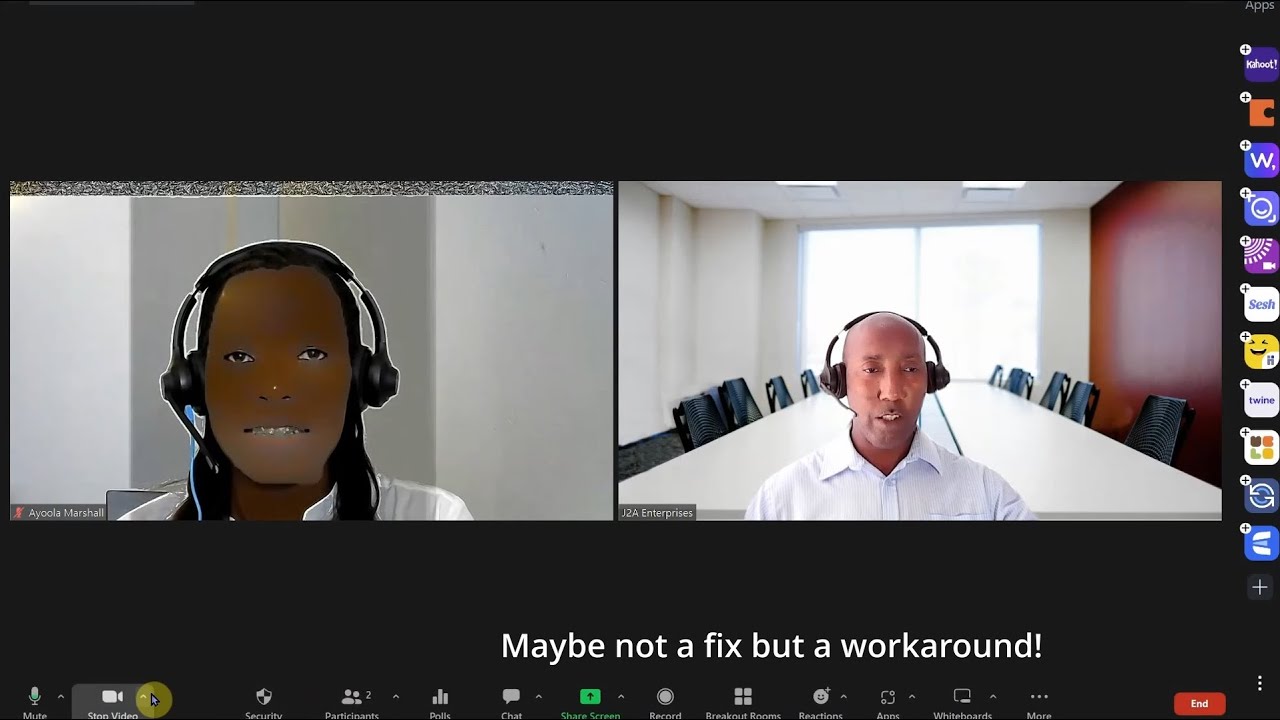
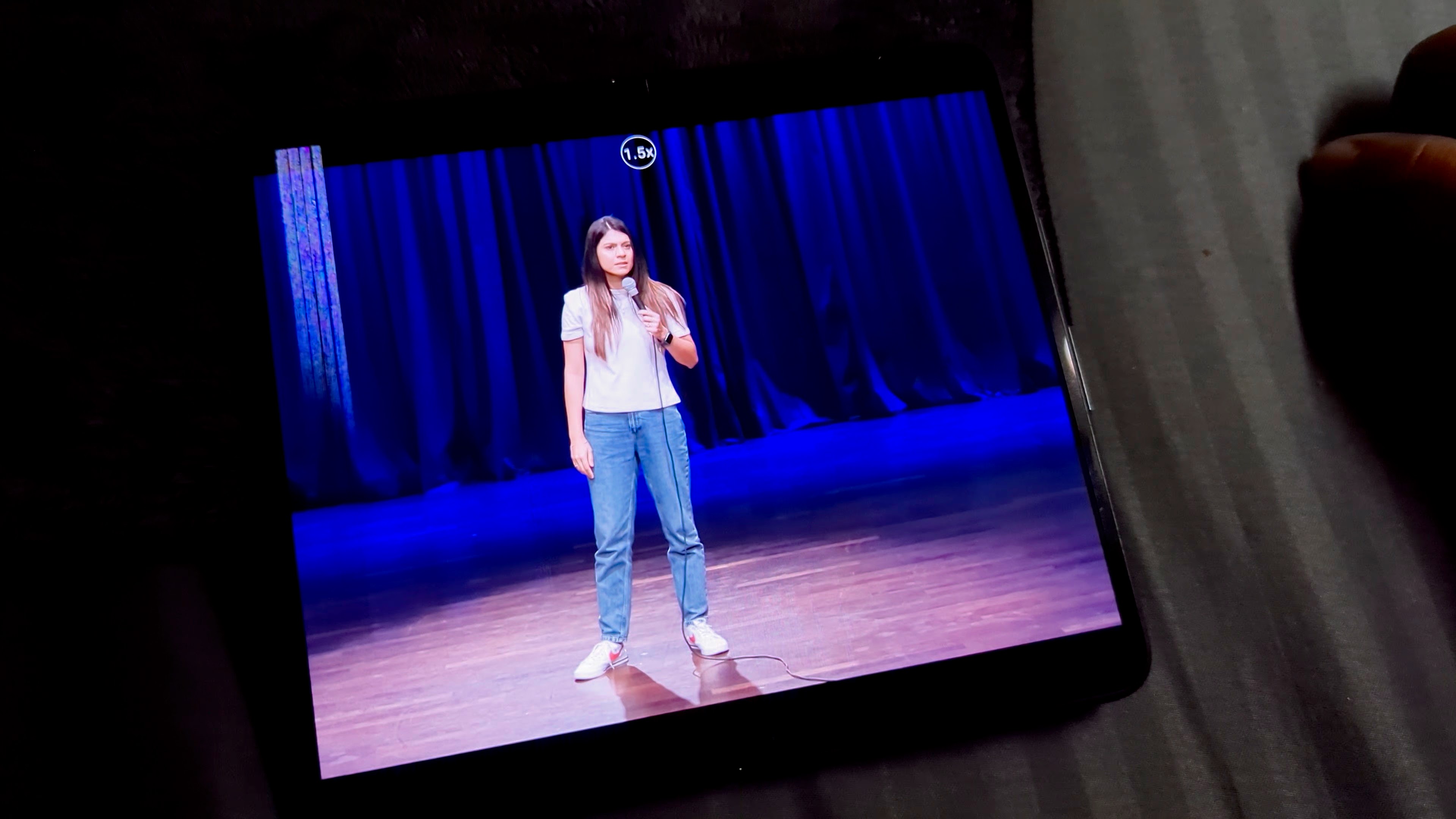
Zoom flickering means your camera image changes brightness, flashes, shows dark bands, or briefly turns black. The issue may affect the whole picture or only parts of it. It can happen on a laptop, desktop, tablet, or external webcam.
The most common cause is artificial light. Many LED and fluorescent bulbs turn on and off very quickly. Your eyes do not notice this change, but your camera sensor can capture it. When the camera frame rate and the light’s pulse do not match, the video may look like it is flashing.
Other common causes include:
• Low room light that makes the camera raise exposure
• A loose or damaged USB cable
• An outdated webcam or graphics driver
• Zoom video settings that use too much processing power
• A virtual background or video filter
• Camera access problems caused by another app
• An unstable camera connection
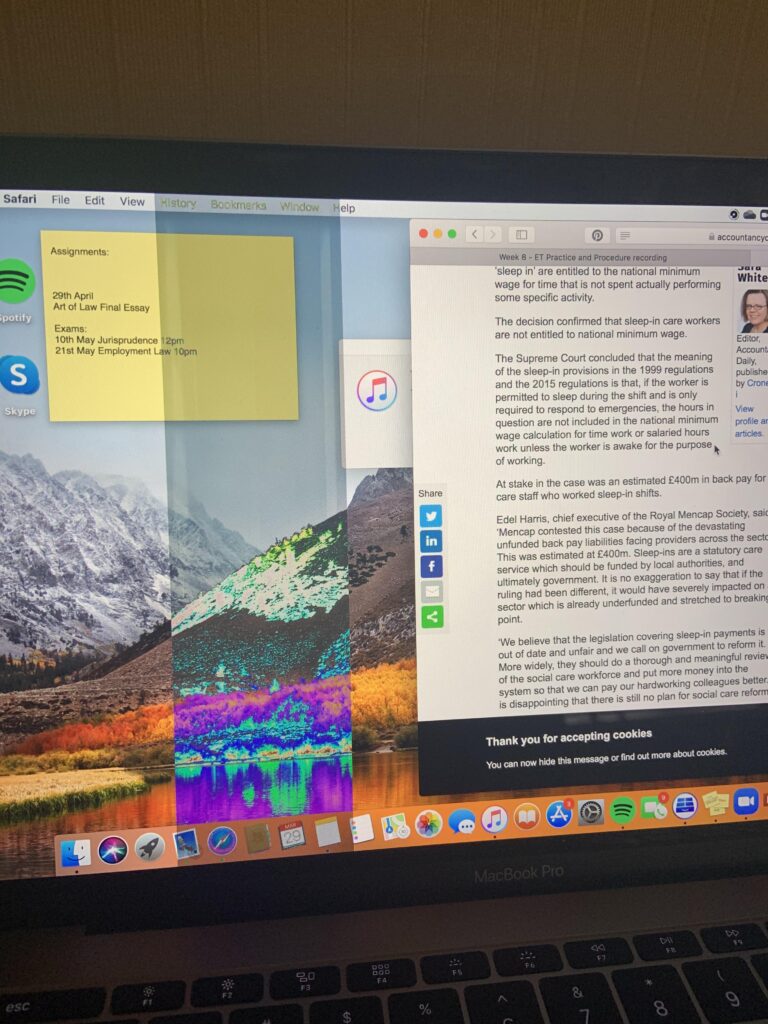
• Screen refresh or display driver problems when only shared content flickers
A useful first step is to ask whether your face is flickering or your entire display is flickering. If only your camera image flickers, start with lighting and camera settings. If your screen, Zoom controls, and shared content also flash, investigate your monitor, graphics driver, or display cable.
The most common cause: LED and fluorescent lights
LED bulbs are a leading reason why is my video flickering on Zoom appears as a search question. Many low-cost LED lights use pulse-width modulation. This method controls brightness by switching the light on and off very rapidly.
That switching is usually invisible to people. A webcam, however, captures separate frames. If the camera captures a frame while the light is bright and another while it is dim, the brightness changes from frame to frame.
Fluorescent lights can cause a similar effect. This is more likely in offices, classrooms, conference rooms, and stores with older lighting systems.
Try these lighting fixes:
• Turn off the light directly behind or beside your webcam.
• Move near a window and face the natural light.
• Use a soft lamp in front of your face.
• Avoid placing a bright light behind your head.
• Test a different LED bulb with a high-quality driver.
• Turn off ceiling lights one at a time to find the source.
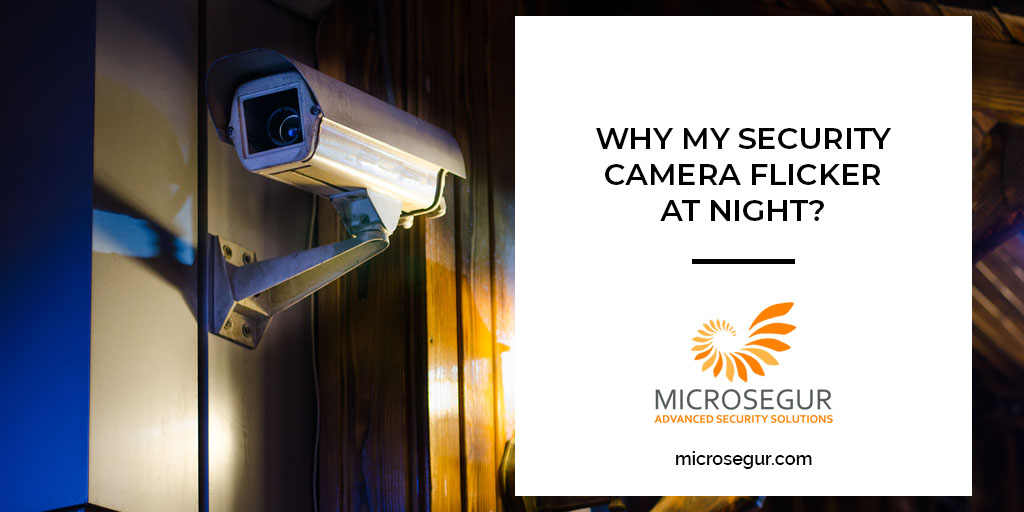
A simple test can save time. Join a Zoom test meeting during the day, then repeat the test at night. If the flicker appears only at night, the room lighting is the strongest suspect.
Camera exposure and frame-rate problems
Your webcam constantly adjusts brightness, focus, and color. In a dark room, it may increase exposure to make your face visible. This can create slow pulsing, sudden brightness changes, or a washed-out image.
Some webcams also struggle when the frame rate changes. A camera may switch between 30 frames per second and a lower rate when the room becomes darker. That change can make the image look unstable.
To reduce camera exposure problems:
-
Add more light in front of your face.
-
Keep the light steady and soft.
-
Open the camera settings in Zoom.
-
Turn off low-light adjustment if the option is available.
-
Test automatic exposure against manual exposure in the webcam’s own app.
-
Keep your face at a moderate distance from the camera.
Zoom’s camera controls can vary by device. Some built-in laptop cameras offer only basic options, while external webcams may provide exposure, brightness, white balance, and frequency controls.
If your camera software includes a power-line frequency setting, try 50 Hz or 60 Hz. Use the setting that matches your local electrical system. In most of the United States, 60 Hz is the correct choice. The wrong setting can create dark bands or repeated flashing.
Zoom settings that may trigger flickering
Zoom uses your computer’s processor and graphics hardware to improve video. Features such as virtual backgrounds, portrait lighting, video filters, studio effects, and automatic low-light adjustments can increase the workload.
Older laptops may struggle with these tools. The result may look like flickering, freezing, ghosting, or a camera that repeatedly turns off and on.
Open Zoom and review these settings:
• Go to Settings, then Video.
• Select your correct camera.
• Turn off HD if your computer is under heavy load.
• Disable video filters and studio effects.
• Turn off virtual backgrounds.
• Test the low-light adjustment setting.
• Close the video preview and reopen it.
• Install the latest Zoom version from the official app.
If the flicker stops after you disable a feature, turn options back on one at a time. This identifies the setting that causes the problem without forcing you to leave every feature disabled.
Virtual backgrounds deserve special attention. Zoom must separate your body from the background in real time. Poor lighting, patterned clothing, and a busy room can make the outline jump or flash. This may look like camera flickering even when the light is stable.

Check your webcam, USB port, and computer
A physical connection can also explain why is my video flickering on Zoom. External webcams send a large amount of data through USB. A loose plug, worn cable, or overloaded USB hub can interrupt that stream.
You may see one or more of these signs:
• The video cuts to black for a second.
• Zoom displays a message that the camera stopped.
• The camera works after you move the cable.
• The image freezes, then returns.
• The flicker appears in every camera app.
Try the following checks:
• Unplug the webcam and reconnect it firmly.
• Try another USB port.
• Avoid a cheap or overloaded USB hub.
• Connect the webcam directly to the computer.
• Test a different USB cable if the cable is removable.
• Restart the computer after reconnecting the camera.
• Test the webcam in the computer’s built-in camera app.
If the camera flickers in every app, Zoom is probably not the main cause. If it works normally elsewhere but flickers in Zoom, focus on Zoom settings, permissions, or software conflicts.
For a laptop, gently moving the screen can also reveal a hardware issue. If the image changes when the lid moves, the built-in camera cable may be loose or damaged. That problem usually needs professional repair.
Update Zoom, camera drivers, and graphics drivers
Outdated software can cause camera instability. Zoom, Windows, macOS, webcam drivers, and graphics drivers all work together. A recent operating system update may also expose a compatibility problem.
Update these items in a safe order:
-
Restart your computer.
-
Update Zoom.
-
Install available operating system updates.
-
Update the webcam driver through your computer’s device settings.
-
Update the graphics driver from your computer maker or graphics chip maker.
-
Restart again and test the camera.
Windows users can check the camera under Device Manager. Mac users can check camera permissions under System Settings and Privacy & Security. The names may differ slightly by operating system version.
Be careful with random driver websites. They may offer incorrect or unsafe files. Use your computer manufacturer, webcam manufacturer, or operating system update tool whenever possible.
After an update, test Zoom in a new meeting. Do not rely only on the small preview window. A full test helps reveal whether the problem returns when Zoom uses your camera, microphone, and network at the same time.

Camera permissions and software conflicts
Another reason why is my video flickering on Zoom may be a conflict with another app. Microsoft Teams, Google Meet, Skype, FaceTime, browser tabs, recording tools, and camera utilities may try to control the same webcam.
Close all apps that may use the camera. Then reopen Zoom and test again. On some computers, the camera may remain locked for a few seconds after another app closes.
Check these permissions:
• Make sure Zoom can use the camera.
• Allow camera access for desktop apps.
• Confirm that your security software is not blocking Zoom.
• Close browser tabs that use video calls.
• Quit webcam control software before opening Zoom.
• Restart Zoom after changing permissions.
If Zoom shows a black preview instead of flickering, permission problems are more likely. If the image flashes but remains visible, lighting, exposure, or a connection problem is more likely.
A clean restart is often more useful than repeatedly changing settings. Close Zoom completely, restart the computer, open only Zoom, and test the camera before launching other apps.
Network problems can look like camera flickering
A poor internet connection usually causes freezing, blocky video, delay, or dropped frames. It does not normally create true light flicker. Still, compressed or missing video frames may look like flashing during a call.
Zoom reduces video quality when your connection is weak. This can cause the image to jump between clear and blurry. Packet loss may also make parts of the picture disappear for a moment.
To test your connection:
• Use a wired Ethernet connection if possible.
• Move closer to your Wi-Fi router.
• Stop large downloads and uploads.
• Pause cloud backups during important calls.
• Ask other household members to limit high-bandwidth streaming.
• Check Zoom’s statistics during a meeting.
Zoom’s meeting statistics can show latency, packet loss, frame rate, and resolution. High packet loss points to a network problem. A steady frame rate with visible brightness changes points more strongly to lighting or exposure.
This distinction matters. You do not want to replace a webcam when the real problem is a crowded Wi-Fi network. At the same time, faster internet will not fix LED light flicker.
What to do when the shared screen flickers
Sometimes people ask why is my video flickering on Zoom when the actual issue affects screen sharing. This is a different problem from webcam flicker.
Screen flicker may come from:
• An outdated graphics driver
• A faulty HDMI, DisplayPort, or USB-C cable
• An incorrect monitor refresh rate
• Hardware acceleration
• A failing monitor
• A browser or app rendering issue
• A problem with Zoom screen-sharing optimization
First, check whether the flicker appears outside Zoom. Move windows around, play a local video, and open a different application. If the monitor flickers everywhere, inspect the display cable and refresh rate.
If only Zoom screen sharing flickers, try these steps:
• Stop sharing and start again.
• Share a specific window instead of the entire screen.
• Turn off video optimization for screen sharing when available.
• Disable hardware acceleration in Zoom if the option appears.
• Update your graphics driver.
• Test Zoom with a different monitor.
A screen recording can help. If the recording looks normal but your monitor flashes, the display or cable is likely at fault. If the recording also shows flicker, investigate Zoom or the graphics driver.
A quick troubleshooting order
When time matters, use this short process. It helps find the cause without changing too many settings at once.
-
Face a window or use a steady lamp in front of you.
-
Turn off nearby LED or fluorescent lights.
-
Restart Zoom and your computer.
-
Test the camera in another app.
-
Disconnect and reconnect an external webcam.
-
Disable virtual backgrounds, filters, and HD video.
-
Update Zoom and your device drivers.
-
Test another USB port or another webcam.
-
Check Zoom meeting statistics for network problems.
-
Contact the webcam or computer maker if the issue continues everywhere.
Keep notes while testing. Write down what changed and whether the flicker stopped. This prevents repeated steps and makes it easier to explain the problem to technical support.
In my troubleshooting experience, the fastest fix is often better lighting. People commonly spend time changing drivers when a pulsing desk lamp is the real cause. The next most common mistake is testing only inside Zoom instead of checking the camera in another app.
How to prevent Zoom video flickering
Once you fix why is my video flickering on Zoom, a few habits can help prevent it from returning.
Use a stable setup:
• Keep a soft light in front of your face.
• Avoid mixed lighting from several bulb types.
• Keep the webcam cable still and secure.
• Use a direct USB connection for an external camera.
• Update Zoom before important meetings.
• Test your setup before interviews, classes, or presentations.
• Keep virtual backgrounds off unless you need them.
• Close apps that use the camera.
• Maintain a clean camera lens.
• Keep your computer plugged in during long calls.
A small ring light can help, but brightness is not everything. A low-quality ring light may flicker more than a simple lamp. Look for a light with adjustable brightness and a steady output.
Also, avoid placing a bright window behind you. Backlighting can make your face dark, which causes the camera to raise exposure. The result may look like pulsing or unstable brightness even when the light itself is steady.
When you should replace the webcam
A replacement may be worthwhile when the camera flickers in Zoom, the built-in camera app, and other video services after you test different lighting and connections.
Consider replacing the webcam if:
• The camera has visible physical damage.
• The USB connection drops often.
• The lens shows permanent lines or color bands.
• The camera fails on more than one computer.
• The manufacturer no longer provides software support.
• A second webcam works normally in the same room.
Before buying one, check its low-light performance, frame rate, USB type, and compatibility with your computer. A more expensive camera is not always better. A reliable 1080p webcam with good exposure control may perform better than a high-resolution model in a dark room.
Hardware has limits, too. A webcam cannot create clean video in a nearly dark room. Good lighting usually improves the image more than a jump from 1080p to 4K.

Frequently Asked Questions
Why is my video flickering on Zoom but not in other apps?
Zoom may be using different exposure controls, video effects, or hardware acceleration than other apps. Compare Zoom’s camera settings with the settings in your computer’s camera app, then disable filters, virtual backgrounds, and low-light adjustments.
Can bad lighting make my Zoom camera flicker?
Yes. LED and fluorescent lights can pulse faster than your eyes can detect, while the camera records those changes. Move toward natural light or use a steady lamp placed in front of your face.
Why does my external webcam flicker on Zoom?
A loose USB connection, damaged cable, overloaded hub, or outdated driver may cause an external webcam to flicker. Connect it directly to another USB port and test it in a different camera app.
Does poor internet cause Zoom video flickering?
Poor internet usually causes freezing, blocky video, delay, or dropped frames rather than true brightness flicker. Check Zoom’s network statistics to separate connection problems from lighting or camera problems.
How do I stop my Zoom camera from flashing?
Improve the light in front of you, turn off nearby LED or fluorescent lights, disable Zoom effects, and reconnect the webcam. If the issue continues, update Zoom and your camera or graphics drivers.
Why does my Zoom screen flicker while sharing?
Screen flicker may come from a display cable, monitor refresh rate, graphics driver, or Zoom hardware acceleration. Test another cable or monitor, update the graphics driver, and share one application window instead of the entire screen.
Should I buy a new webcam if Zoom keeps flickering?
Buy a new webcam only after testing different lights, USB ports, apps, and computers. If the camera flickers everywhere while another webcam works normally, replacement is a reasonable next step.
Conclusion
The most likely answer to why is my video flickering on Zoom is unstable lighting, especially from LED or fluorescent bulbs. Camera exposure, USB connections, Zoom effects, outdated drivers, software conflicts, and network problems can also contribute.
Start with the simplest tests: improve the light, disable virtual effects, reconnect the camera, and test it outside Zoom. Work through the causes one at a time so you can find the real fix instead of guessing. Try these steps before your next meeting, and share your setup or solution in the comments to help other Zoom users.