Your Logitech C920 is not working because of USB, app, privacy, driver, or hardware problems.
If you are asking, “why is my Logitech C920 not working,” the cause is often simple to fix. The camera may have power but no video because another app is using it, Windows or macOS blocked access, or the selected camera is wrong. This guide explains the likely causes and walks you through safe fixes that work in Zoom, Teams, Google Meet, Discord, OBS, and other apps.
Why is my Logitech C920 not working?
The Logitech C920 is a plug-and-play USB webcam, but it still depends on several parts working together. The camera needs a working USB port, a proper driver, system permission, and access from the video app.
The most common reasons include:
• The USB cable is loose or damaged.
• The C920 is connected through a faulty hub or adapter.
• Another app is already using the camera.
• Windows or macOS has blocked camera access.
• Your meeting app selected a different camera.
• The webcam driver is outdated or damaged.
• The C920 is disabled in system settings.
• The camera has a physical fault.
A useful way to think about the problem is like a door with several locks. The webcam may be plugged in, but the operating system, privacy settings, and app must all unlock access before video appears.

Check the Logitech C920 hardware first
When someone asks me why is my Logitech C920 not working, I start with the physical connection. This step is quick, and it can prevent a long software troubleshooting session.
Follow these checks:
-
Unplug the C920 from your computer.
-
Wait about 10 seconds.
-
Plug it directly into another USB port.
-
Avoid USB hubs, docking stations, and monitor ports for now.
-
Check that the cable is firmly attached to the camera.
-
Restart your computer.
The C920 does not need a separate power cable. It receives power through USB. If the camera is not detected at all, the USB connection is one of the strongest suspects.
Try the webcam on a second computer if possible. If it works there, your original computer likely has a software, port, or permission problem. If it fails on both computers, the cable or webcam may be damaged.
In my own webcam testing, I have seen a C920 appear completely dead when the real problem was a loose USB connection behind a desk. Moving it to a direct motherboard USB port fixed the issue at once.

Check whether another app is using the camera
Many people search why is my Logitech C920 not working after switching from Zoom to Teams or from a browser call to OBS. The reason is often that the first app did not release the camera.
Most webcams allow only one app to control the video stream at a time. Close apps that may use the C920, including:
• Zoom
• Microsoft Teams
• Google Meet browser tabs
• Skype
• Discord
• OBS Studio
• Windows Camera
• Logitech webcam software
After closing those programs, open Task Manager on Windows or Force Quit on macOS. End any camera-related app that remains open, then restart the app you want to use.
A full computer restart can also clear a camera lock. This is especially useful after a video meeting app crashes.

Select the C920 in your video app
Sometimes the Logitech C920 is working, but the app is using a laptop camera or a virtual camera instead. This can make it seem like the C920 is broken.
Open your app’s video settings and look for a camera menu. Select an option named Logitech C920, C920 HD Pro Webcam, or USB Video Device.
Common locations include:
• Zoom: Settings, Video, Camera
• Microsoft Teams: Settings, Devices, Camera
• Google Meet: Settings, Video, Camera
• Discord: User Settings, Voice & Video, Camera
• OBS Studio: Video Capture Device properties
After selecting the C920, look for a live preview. If you see video in the preview, the webcam itself is working. The issue may be limited to the original app.
Also check whether the app has a virtual camera selected. Tools such as OBS Virtual Camera, Snap Camera, and some browser extensions can replace the physical webcam in the camera list.

Allow camera access in Windows
Windows privacy settings are a major reason why is my Logitech C920 not working. The camera may appear in Device Manager but still show a black screen in an app if access is blocked.
On Windows 11 or Windows 10:
-
Open Settings.
-
Select Privacy & security.
-
Choose Camera.
-
Turn on Camera access.
-
Turn on Let apps access your camera.
-
Turn on Let desktop apps access your camera.
Desktop apps include browsers, Zoom, Teams, OBS, and many other programs. If desktop access is off, the app may not appear as a separate switch.
Then open the Camera app in Windows. If the C920 works there, your hardware and system access are likely fine. Check the settings inside the app that fails.
If the Camera app also shows a black screen, continue with the driver and Device Manager steps below.
Allow camera access on macOS
On a Mac, privacy permission can explain why is my Logitech C920 not working in a browser or meeting app. macOS may block a newly installed app until you approve camera access.
To check the permission:
-
Open System Settings.
-
Select Privacy & Security.
-
Choose Camera.
-
Turn on access for your video app.
-
Quit and reopen the app.
For browser meetings, allow camera access when the browser asks. You can also click the camera or lock icon near the address bar and review the site’s camera permission.
If the camera remains blocked, fully quit the browser. On a Mac, closing the window may not close the browser. Use Command + Q, then reopen it.

Update or reinstall the webcam driver
A damaged or outdated driver can cause the Logitech C920 not working error after a Windows update, app update, or system change. The C920 usually uses a built-in USB video driver, so you may not need a special driver download.
On Windows, check Device Manager:
-
Right-click the Start button.
-
Open Device Manager.
-
Expand Cameras or Imaging devices.
-
Find Logitech C920 or USB Video Device.
-
Right-click it and select Update driver.
-
Restart the computer.
If updating does not help, right-click the camera again and choose Uninstall device. Restart Windows afterward. Windows should detect the webcam and reinstall the basic driver.
Do not download random driver tools from unknown websites. They can install unwanted software or the wrong driver. Use Windows Update and trusted Logitech support pages when a software download is necessary.
If the camera appears with a warning icon, the driver or USB connection needs attention. If it does not appear at all, test another port and another computer before focusing on drivers.
Fix a black screen, frozen video, or poor image
The question why is my Logitech C920 not working can also describe a camera that is detected but produces no useful image. A black screen, frozen image, or poor picture has several possible causes.
Try these adjustments:
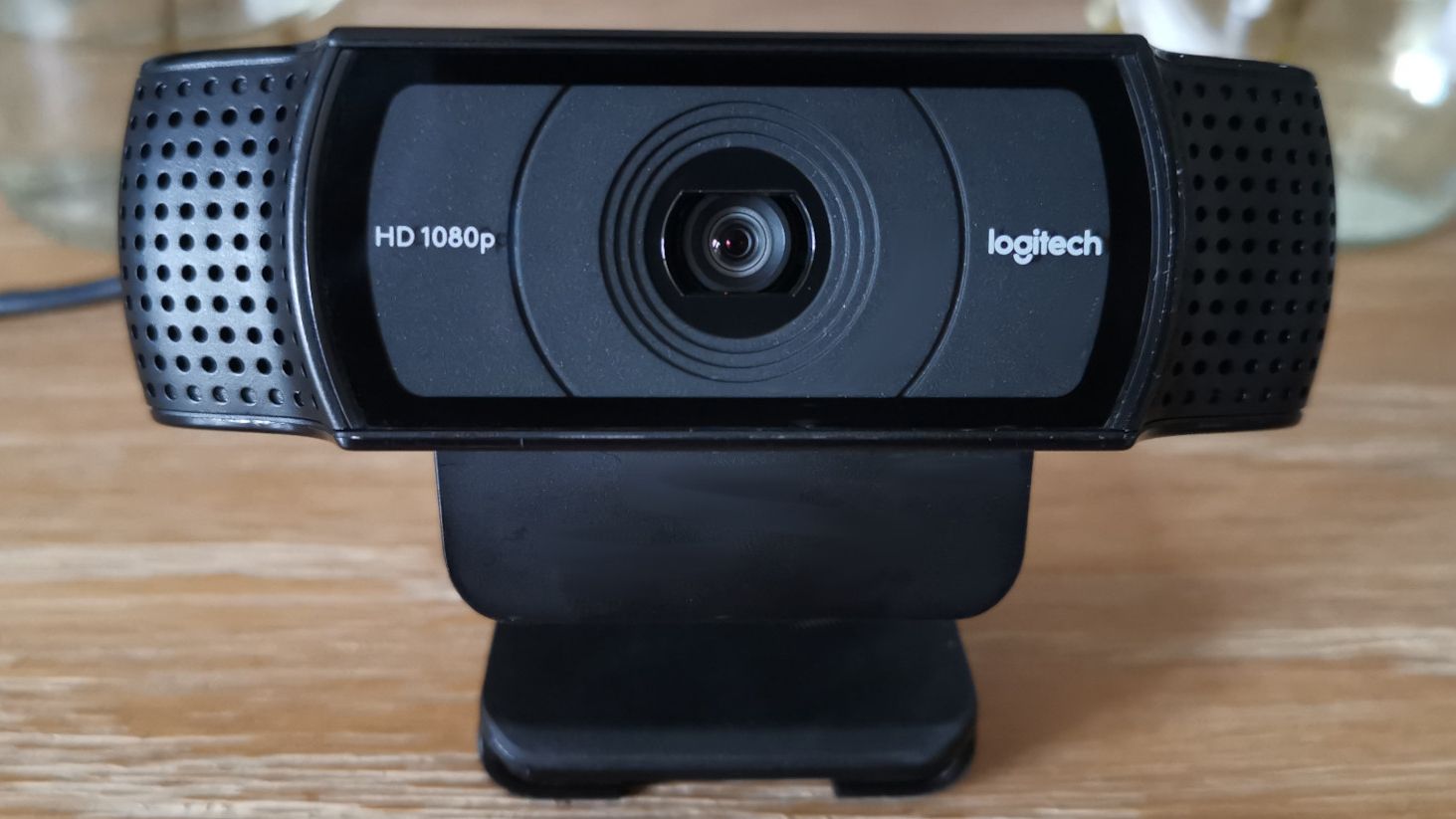
• Remove the privacy shutter if your C920 has one.
• Check that the lens is not covered by dust or tape.
• Close and reopen the video app.
• Lower the video resolution in the app.
• Turn off background replacement or virtual effects.
• Test the camera in the Windows Camera app or macOS Photo Booth.
• Disconnect other high-bandwidth USB devices.
A frozen image can result from limited USB bandwidth, especially when several devices use the same hub. Connecting the C920 directly to the computer often improves stability.
Poor lighting may also look like a camera fault. The C920 can produce a dark or grainy image in a dim room. Face a window or use a small lamp in front of you, not behind you.

Check Logitech software and camera settings
Logitech Capture and Logi Tune may offer settings for supported devices, but the C920 can often work without them. Extra software is not always the answer to why is my Logitech C920 not working.
If Logitech software detects the camera, review its settings for:
• Camera selection
• Resolution
• Frame rate
• Exposure
• Focus
• White balance
• Privacy or mute controls
Avoid changing many settings at once. If the picture becomes worse, return the camera to automatic exposure and focus.
The C920 has fixed physical capabilities. Software cannot create true 4K video or repair a damaged lens. It can only adjust the image and control how the computer uses the webcam.
Test the C920 with a simple camera app
A direct test helps separate a webcam problem from an app problem. On Windows, use the built-in Camera app. On macOS, open Photo Booth or another trusted camera app.
If the image works in the basic camera app:
• The C920 is receiving power.
• The USB connection is probably working.
• The operating system can access the camera.
• The problem is likely inside Zoom, Teams, a browser, OBS, or another app.
If the image fails everywhere, check the USB port, privacy settings, driver, and camera on another computer.
This simple test is one of the best ways to avoid guessing. It is similar to testing a light bulb in another socket before replacing the entire lamp.
When the Logitech C920 may be physically damaged
If you have tried different USB ports, computers, apps, and operating systems, the webcam may have a hardware fault. Signs of physical damage include:
• The camera is never detected.
• The USB cable feels loose or cuts in and out.
• The image shows permanent lines or colored blocks.
• The lens does not focus after cleaning.
• The webcam becomes unusually hot.
• The camera disconnects when the cable moves.
Do not open the webcam while it is connected. Inspect the cable and connector for visible damage, but avoid forcing the plug into a port.
If the C920 works on another computer, it is not likely to be physically broken. If it fails everywhere, contact Logitech support or consider replacing it. The C920 is an older model, so repair may cost more than a newer webcam.
Mistakes to avoid when troubleshooting
When troubleshooting why is my Logitech C920 not working, a few common mistakes can waste time.
• Do not test only inside one video app.
• Do not assume a detected camera must have permission.
• Do not use a USB hub during the first test.
• Do not install unknown driver-updater software.
• Do not change resolution, exposure, and focus all at once.
• Do not forget to check the selected camera.
• Do not ignore a second-computer test.
One lesson I have learned from webcam setup work is to change one thing at a time. If you replace the USB port, update the driver, and change app settings together, you may fix the problem without learning what caused it.
How to prevent future C920 problems
Once you fix why is my Logitech C920 not working, a few habits can keep the issue from returning.
Keep the webcam connected directly to a reliable USB port when possible. Update Windows, macOS, browsers, and meeting apps regularly, but review camera permissions after major updates.
Before an important call, test the camera in the same app you plan to use. Check the preview, microphone, lighting, and camera selection. This takes less than a minute and can prevent last-minute stress.
You should also keep the lens clean and avoid pulling the cable. Store the webcam where it will not be bumped or pressed against another device.
Frequently Asked Questions About Why Is My Logitech C920 Not Working
Why is my Logitech C920 not showing up on my computer?
The USB port, cable, privacy setting, or driver may be preventing detection. Plug the camera directly into another USB port, restart the computer, and check Device Manager or System Information.
Why is my Logitech C920 showing a black screen?
A black screen may come from blocked camera permission, another app using the webcam, a covered lens, or a selected virtual camera. Close other video apps, check privacy settings, and select the C920 in your app’s camera menu.
Does the Logitech C920 need a driver?
The C920 normally works with the standard USB video driver built into Windows and macOS. If it fails, updating or reinstalling the system’s camera device can help, but avoid untrusted driver websites.
Why does my Logitech C920 work in Camera but not Zoom?
Zoom may be using another camera or may not have permission to access the C920. Open Zoom’s video settings, select the Logitech C920, and allow camera access in your operating system.
How do I reset my Logitech C920?
There is no common physical reset button on the C920. Unplug it, restart the computer, reconnect it directly to USB, and reset the camera selection and permissions inside your video app.
Can a USB hub cause the Logitech C920 to stop working?
Yes, a hub can cause detection, bandwidth, or power issues. Test the webcam from a direct USB port on the computer before using a hub or docking station.
How can I tell if my Logitech C920 is broken?
Test it on another USB port and another computer. If it fails everywhere and is never detected, the cable or webcam may have a hardware fault.
Conclusion
The answer to why is my Logitech C920 not working usually involves a USB connection, camera permission, app selection, driver, or another program using the webcam. Start with the simplest checks: connect it directly, restart the computer, close other camera apps, confirm permissions, and select the C920 in your video software.
A second-computer test can quickly show whether the problem belongs to the webcam or your system. Work through the steps in order, change one setting at a time, and test the camera after each fix. If this guide helped, share it with someone preparing for a video call or explore more webcam troubleshooting resources.