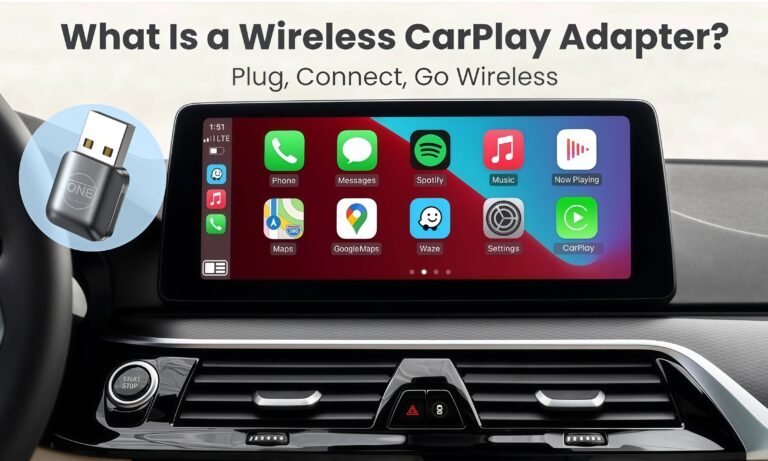
To enable wireless CarPlay, make sure your iPhone and vehicle support wireless Apple CarPlay, turn on Bluetooth and Wi-Fi, pair your iPhone with your car, and complete the CarPlay connection process from your vehicle’s infotainment system.
Drivers across the United States use Apple CarPlay to access navigation, calls, messages, music, and other iPhone features through their vehicle’s display. Wireless CarPlay removes the need to connect an iPhone with a USB cable every time you enter the vehicle, but the setup depends on whether the car supports wireless CarPlay from the factory or requires an adapter.
The process is different from traditional wired CarPlay because wireless connections rely on Bluetooth for initial pairing and Wi-Fi for data communication. Before attempting setup, confirm that your vehicle model, infotainment system, and iPhone version meet the required compatibility conditions.
Source: ottocast.com
Check If Your Vehicle Supports Wireless CarPlay
The first step is confirming compatibility because not every vehicle with Apple CarPlay supports wireless operation. Many vehicles released with CarPlay initially supported only wired connections through a USB cable.
Check your vehicle owner’s manual, infotainment settings, or manufacturer documentation to determine whether wireless Apple CarPlay is available. If your vehicle supports only wired CarPlay, a wireless CarPlay adapter may be required.
Source: howtoisolve.com
Compatible iPhone
An iPhone running a supported version of iOS with Apple CarPlay capability is required.
Compatible vehicle
The car must have built-in wireless CarPlay support or a compatible adapter connected to the USB CarPlay port.
Active wireless connections
Bluetooth and Wi-Fi must be enabled because wireless CarPlay uses both technologies.
Wireless CarPlay vs Wired CarPlay
Wired CarPlay uses a physical USB connection between the iPhone and vehicle. Wireless CarPlay creates a cable-free connection after the initial pairing process, allowing the phone to remain in your pocket or bag while connected.
Wired CarPlay
Requires a USB cable and usually provides a direct connection.
Wireless CarPlay
Uses Bluetooth and Wi-Fi to connect without a cable after setup.
How to Enable Wireless CarPlay Step by Step
Once compatibility is confirmed, you can enable wireless CarPlay by pairing your iPhone with the vehicle. The exact menu names vary by manufacturer, but the overall process is similar across most supported vehicles.
Source: YouTube > Omni Garage
Step 1: Start the vehicle
Turn on your car and allow the infotainment system to fully load before beginning setup.
Step 2: Enable iPhone settings
Turn on Bluetooth, Wi-Fi, and Siri on your iPhone because CarPlay requires these features.
Step 3: Pair the devices
Open your vehicle’s Bluetooth or CarPlay settings and select your iPhone from the available devices.
Step 4: Approve CarPlay access
Accept the connection prompts on your iPhone and vehicle display to complete setup.
Signs Wireless CarPlay Is Enabled Successfully
A successful wireless CarPlay connection usually opens the CarPlay interface automatically after the vehicle starts. Your iPhone should appear as a connected device, and CarPlay apps should display on the vehicle screen.
CarPlay dashboard appears
The vehicle display shows Apple CarPlay apps such as Maps, Phone, Messages, and Music.
Automatic reconnection works
The iPhone reconnects after future vehicle starts without repeating the pairing process.
How to Convert Wired CarPlay Into Wireless CarPlay
If a vehicle supports wired Apple CarPlay but does not include wireless capability, a wireless CarPlay adapter can provide a wireless connection. These adapters plug into the existing USB CarPlay port and create a wireless bridge between the iPhone and vehicle system.
Adapter compatibility varies by vehicle, infotainment system, and iPhone model. Always verify that an adapter supports your specific vehicle before purchasing.
Source: carplaylife.com
Connect the adapter
Plug the adapter into the vehicle’s USB port that supports wired CarPlay.
Pair the iPhone
Follow the adapter instructions to connect through Bluetooth and Wi-Fi.
Test automatic connection
Restart the vehicle and confirm whether the iPhone reconnects automatically.
When an Adapter May Not Work
A wireless adapter cannot add CarPlay functionality to vehicles that do not already support Apple CarPlay. It only converts an existing wired CarPlay connection into a wireless one.
No factory CarPlay support
Vehicles without Apple CarPlay capability generally cannot use wireless CarPlay adapters.
USB limitations
Some USB ports provide charging only and do not support CarPlay data connections.
Troubleshoot Wireless CarPlay Connection Problems
Wireless CarPlay connection issues are usually caused by pairing conflicts, disabled settings, outdated software, or compatibility limitations. Checking the simplest causes first can often restore the connection.
Source: storage.googleapis.com
CarPlay does not appear
Confirm that CarPlay is enabled in iPhone settings and that the vehicle supports wireless operation.
Connection keeps dropping
Restart the iPhone and vehicle system, then remove and reconnect the Bluetooth pairing.
CarPlay is slow
Check for interference, software updates, and unnecessary connected devices.
Reset Wireless CarPlay Connection
If wireless CarPlay worked previously but stopped connecting, remove the vehicle from the iPhone Bluetooth settings and delete the iPhone from the vehicle system. Then repeat the pairing process from the beginning.
Forget old connections
Remove outdated Bluetooth and CarPlay pairings that may interfere with reconnection.
Update software
Install available iPhone and vehicle infotainment updates when supported.
Common Wireless CarPlay Setup Mistakes to Avoid
Many setup problems happen because users assume every CarPlay-equipped vehicle supports wireless operation or disable settings needed for the connection.
Source: storage.googleapis.com
Using only Bluetooth
Bluetooth alone does not provide the full wireless CarPlay experience because Wi-Fi is also required.
Ignoring Siri settings
CarPlay requires Siri functionality for many voice-based features.
Connecting to the wrong USB port
Some vehicles have multiple USB ports, but only one may support CarPlay data.
Frequently Asked Questions
Q
Can I enable wireless CarPlay on any car?
No. The vehicle must support wireless Apple CarPlay or already have wired CarPlay that can be converted with a compatible wireless adapter.
Q
Do I need Wi-Fi for wireless CarPlay?
Yes. Wireless CarPlay uses Bluetooth for pairing and a Wi-Fi connection between the iPhone and vehicle system for communication.
Q
Why is my iPhone not connecting to wireless CarPlay?
Common causes include disabled Bluetooth or Wi-Fi, incorrect pairing, outdated software, or a vehicle that supports only wired CarPlay.
Q
Can a wireless CarPlay adapter work with Android phones?
Most wireless CarPlay adapters are designed specifically for Apple CarPlay. Android users typically need an adapter designed for Android Auto instead.
Q
Does wireless CarPlay use more iPhone battery?
Wireless connections can use more battery than wired CarPlay because the iPhone maintains Bluetooth and Wi-Fi communication. Long drives may require charging.
✦ Wrapping Up
Conclusion
Enabling wireless CarPlay requires three things: a compatible iPhone, a compatible vehicle system, and properly configured Bluetooth and Wi-Fi connections. Most users can complete the setup by pairing the iPhone through the vehicle’s CarPlay menu.
If your vehicle only supports wired CarPlay, a compatible wireless adapter may provide a cable-free connection. Always confirm compatibility before making changes or purchasing additional hardware.
💡 Key Takeaway
Check your vehicle’s CarPlay compatibility first, then enable Bluetooth, Wi-Fi, and Siri on your iPhone before starting the wireless pairing process.