To setup wireless CarPlay, make sure your iPhone and vehicle support wireless Apple CarPlay, enable Bluetooth and Wi-Fi, pair your iPhone with the car system, and complete the on-screen connection steps.
Across the United States, many newer vehicles from brands such as Ford, Chevrolet, Honda, Toyota, Hyundai, and others include wireless Apple CarPlay, allowing drivers to access navigation, calls, messages, and music without plugging in a Lightning or USB-C cable. The exact setup process depends on the vehicle manufacturer and infotainment system version.
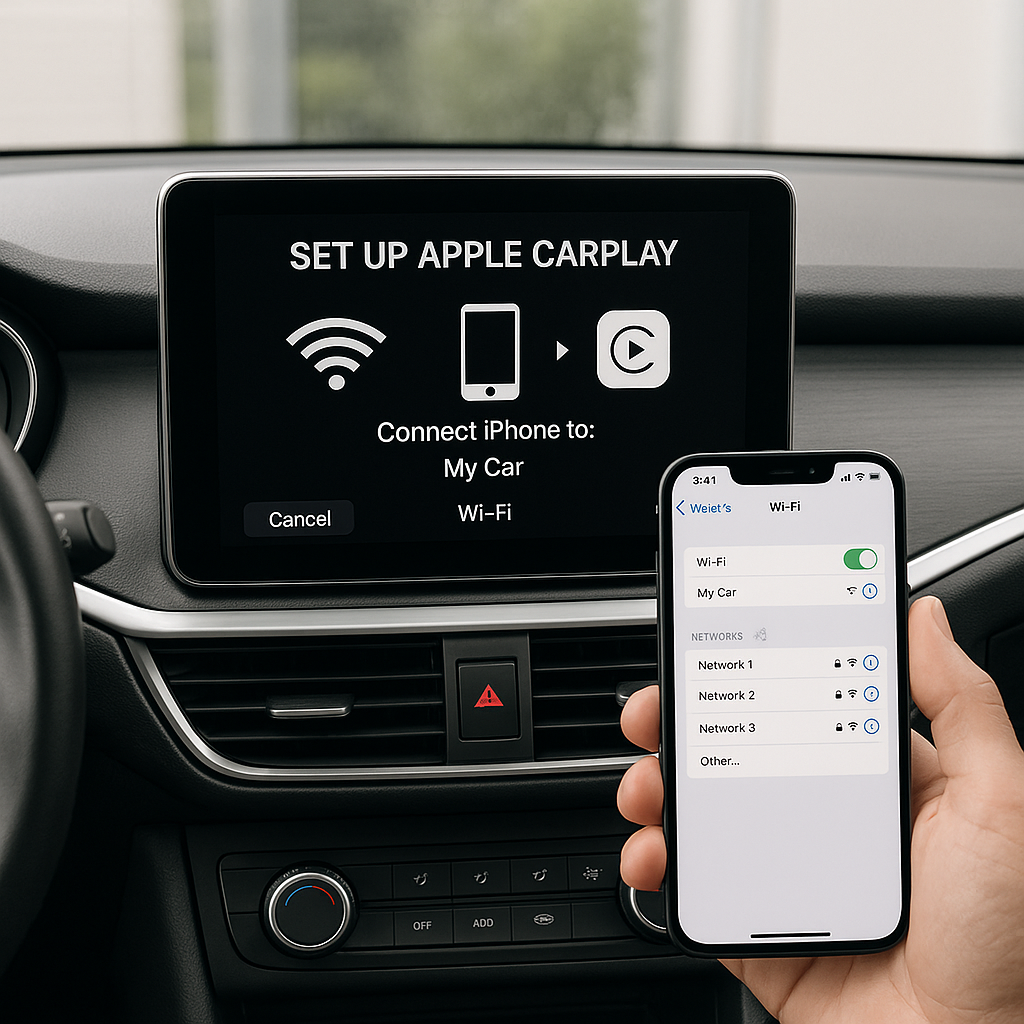
Wireless CarPlay works by using Bluetooth for the initial pairing process and Wi-Fi for the higher-bandwidth connection needed to transfer data between the iPhone and the vehicle. If a car only supports wired CarPlay, a compatible wireless CarPlay adapter may be required to add wireless functionality.
Source: carluex.store
Check if Your Car Supports Wireless CarPlay Before Setup
The first step is confirming compatibility because Apple CarPlay availability does not always mean wireless CarPlay availability. Many vehicles support CarPlay only through a USB cable, while newer models include built-in wireless connectivity.
Check your vehicle owner’s manual, infotainment settings, or manufacturer documentation to verify whether wireless Apple CarPlay is supported. Your iPhone should also meet the required iOS version listed by Apple and have Bluetooth and Wi-Fi enabled.
Source: www.youtube.com > The Average EV
Vehicle compatibility
Your car must have factory wireless Apple CarPlay or support a compatible wireless CarPlay adapter.
iPhone compatibility
A supported iPhone model with an updated iOS version is required for reliable wireless CarPlay operation.
Connectivity requirements
Bluetooth handles pairing while Wi-Fi creates the wireless data connection between the phone and vehicle.
Wireless CarPlay vs Wired CarPlay
Wired CarPlay sends data through a physical USB connection, while wireless CarPlay uses Bluetooth and Wi-Fi to communicate with the vehicle. Wireless operation is more convenient because the driver does not need to connect a cable every time the car starts.
Wired CarPlay
Requires a USB cable but usually provides a simple and stable connection.
Wireless CarPlay
Provides cable-free access but depends on compatible hardware and software.
How to Setup Wireless CarPlay Step by Step
Once compatibility is confirmed, you can connect your iPhone to the vehicle system. The names of menus vary by manufacturer, but the overall process is similar across most wireless CarPlay-enabled vehicles.
Keep the vehicle parked during setup so you can safely complete the pairing process without distractions.
Source: autostereoguide.com
Step 1: Start the vehicle
Turn on the ignition and allow the infotainment system to fully load before starting the connection process.
Step 2: Enable iPhone wireless connections
Turn on Bluetooth, Wi-Fi, and Siri on your iPhone because wireless CarPlay requires these features.
Step 3: Pair the iPhone
Open the vehicle’s Bluetooth or smartphone connection menu and select your iPhone when it appears.
Step 4: Approve CarPlay access
Accept the CarPlay connection request on your iPhone and vehicle display.
Step 5: Confirm the connection
The CarPlay interface should appear on the vehicle screen once pairing is complete.
How to Know Wireless CarPlay Setup Worked
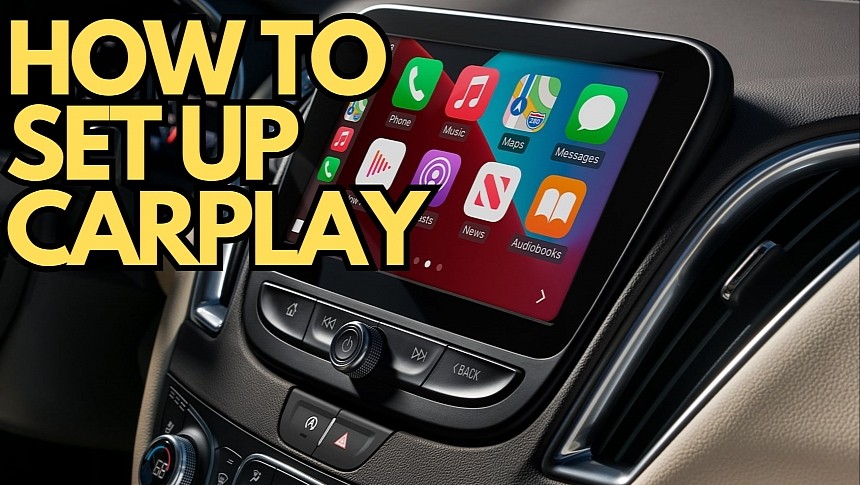
A successful setup usually shows the Apple CarPlay interface automatically after starting the vehicle. You should be able to open Apple Maps, Apple Music, phone calls, messages, and compatible third-party apps from the car display.
Successful connection signs
CarPlay launches automatically, audio plays through the vehicle speakers, and steering wheel controls work normally.
How to Setup Wireless CarPlay Adapter for a Wired Car
If your vehicle supports only wired Apple CarPlay, a wireless CarPlay adapter can convert the existing USB CarPlay connection into a wireless one. These adapters connect to the vehicle USB port and communicate with the iPhone wirelessly.
Adapter compatibility varies by vehicle model, infotainment software, and iPhone version. Check the adapter specifications before purchasing to confirm support for your vehicle.
Source: rokform.com
Connect the adapter
Plug the adapter into the vehicle’s USB CarPlay port according to the manufacturer’s instructions.
Pair your iPhone
Use Bluetooth pairing and follow the adapter setup instructions shown on the vehicle screen.
Test features
Check navigation, calls, music playback, and steering wheel controls after installation.
Limitations of Wireless CarPlay Adapters
Wireless adapters can add convenience, but they may introduce small connection delays compared with factory wireless CarPlay systems. Performance depends on the adapter hardware, vehicle software, and wireless environment.
Possible limitations
Some adapters may require firmware updates or may not support every CarPlay feature.
Common Wireless CarPlay Problems and Fixes
Wireless CarPlay connection problems are usually caused by pairing conflicts, outdated software, disabled settings, or compatibility limitations. Troubleshoot in the simplest order first.
Source: ottocast.com
CarPlay does not appear
Confirm that Bluetooth, Wi-Fi, and Siri are enabled on the iPhone and that the vehicle supports wireless CarPlay.
Connection keeps dropping
Restart the iPhone and infotainment system, remove old Bluetooth pairings, and reconnect the device.
Audio problems
Check the vehicle audio source, iPhone volume settings, and Bluetooth connection status.
Slow performance
Update iOS and vehicle infotainment software if updates are available.
When to Contact the Vehicle Manufacturer
If wireless CarPlay fails after resetting connections and updating software, the issue may involve vehicle firmware or hardware compatibility. Manufacturer support may be needed for system-specific problems.
Professional support may help
Seek assistance when infotainment hardware faults or software errors prevent normal operation.
Wireless CarPlay Setup Mistakes to Avoid
Many connection problems happen because users skip compatibility checks or leave old device pairings active. A clean setup usually produces better results.
Source: www.autoevolution.com
Assuming all CarPlay systems are wireless
A vehicle can support Apple CarPlay without supporting wireless CarPlay.
Keeping multiple old pairings
Removing unused Bluetooth devices can prevent connection conflicts.
Outdated iPhone or vehicle software can affect wireless connectivity.
What Affects Wireless CarPlay Performance
Wireless CarPlay performance depends on the vehicle system, iPhone software, wireless connection quality, and surrounding interference. Results can vary between different vehicle models.
Vehicle electronics
Different infotainment systems handle wireless connections differently.
Frequently Asked Questions
Q
Can I add wireless CarPlay to a car that only has wired CarPlay?
Yes, some wired CarPlay vehicles can be upgraded with a compatible wireless CarPlay adapter. Compatibility depends on the vehicle infotainment system and adapter specifications.
Q
Does wireless CarPlay use Bluetooth or Wi-Fi?
Wireless CarPlay uses both technologies. Bluetooth helps establish the connection, while Wi-Fi provides the higher-speed data transfer needed for the CarPlay interface.
Q
Why is my wireless CarPlay not connecting automatically?
Automatic connection failures can happen because of disabled settings, outdated software, previous pairing conflicts, or unsupported hardware. Re-pairing the iPhone often resolves the issue.
Q
Do I need a cable for wireless CarPlay?
No. Once wireless CarPlay is properly configured, the iPhone connects without a USB cable. A cable may still be needed for charging.
Q
Can every iPhone use wireless CarPlay?
Not every iPhone and vehicle combination supports wireless CarPlay. Check Apple and vehicle manufacturer compatibility information before setup.
✦ Wrapping Up
Conclusion
Setting up wireless CarPlay usually requires only a compatible vehicle, supported iPhone, and correct Bluetooth and Wi-Fi settings. Following the pairing steps carefully can help you connect without relying on a USB cable.
If your vehicle does not include factory wireless CarPlay, a compatible adapter may provide an alternative. Always confirm compatibility and follow manufacturer instructions for the best results.
💡 Key Takeaway
Before troubleshooting, confirm compatibility first, then reset connections, update software, and repeat the pairing process if wireless CarPlay does not connect.