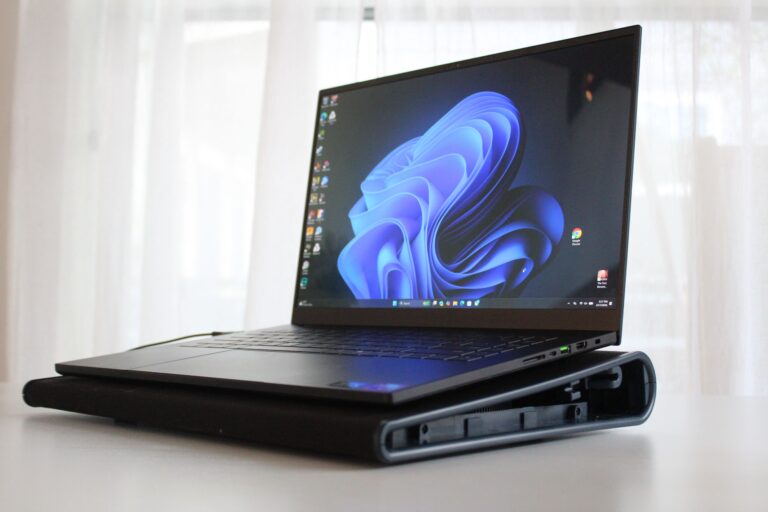
Most monitors lack speakers because they focus on image quality, lower cost, and flexible audio choices.
If you have ever connected a monitor and heard nothing, you are not alone. Many people expect every screen to play sound, but monitors and TVs serve different roles. Understanding why do monitors not have speakers helps you choose the right display, cable, and audio setup without wasting money.
Why Do Monitors Not Have Speakers?
The main reason why do monitors not have speakers is that many monitors are designed only to display video. They receive an image from a computer, game console, or other device and show it on the screen. Sound is often handled by separate headphones, desktop speakers, or a headset.
Monitors also serve many types of users. A gamer may want headphones, while an office worker may already own speakers. A video editor may need studio monitors with accurate sound. By leaving out built-in speakers, manufacturers can keep the product more flexible.
Here are the most common reasons:
• Cost control: Removing speakers can lower the monitor’s price.
• Space limits: Thin monitors may not have room for large speaker chambers.
• Sound quality: Small built-in speakers often produce weak bass and low volume.
• User choice: Many people prefer headphones, soundbars, or external speakers.
• Product design: Monitors focus on resolution, color, refresh rate, and response time.
• Power use: Speakers need extra hardware and energy.
A monitor without speakers is not defective. It is often a deliberate design choice. Think of it like a camera body without a built-in flash. The main device does one job well, while optional tools handle the rest.

Monitors and TVs Have Different Goals
A television is usually the center of a living room. People sit several feet away and expect it to provide both a picture and sound. For that reason, almost every modern TV includes built-in speakers.
A computer monitor sits closer to the user. It is often placed on a desk with a keyboard, mouse, headphones, or separate speakers nearby. This setup makes built-in audio less important.
Monitors also compete on technical features that matter to computer users. These include:
• 1080p, 1440p, and 4K resolution
• High refresh rates such as 144 Hz or 240 Hz
• Low input lag
• Fast response times
• Wide color coverage
• HDR support
• Adjustable stands
Adding good speakers can increase the size and cost of the monitor. Many brands would rather use that budget for a better panel or stand.
This difference explains why do monitors not have speakers more clearly. A TV is an all-in-one entertainment product. A monitor is often one part of a larger computer system.

Built-In Monitor Speakers Are Often Limited
Some monitors do have speakers. However, the sound may be basic. Small monitor speakers usually have limited space, which affects their volume, bass, and clarity.
A speaker needs more than a small opening. It needs a driver, a strong enclosure, and enough power. A thin monitor may only offer a tiny driver with little room to move air. The result can sound flat or quiet.
Built-in monitor speakers are useful for simple tasks, such as:
• Hearing system alerts
• Joining a basic video call
• Watching short online videos
• Playing casual games
• Testing whether an audio connection works
They are less ideal for:
• Music listening
• Competitive gaming
• Movies
• Video editing
• Mixing or mastering audio
In my own monitor testing and desk setups, built-in speakers were convenient but rarely impressive. They worked well for a quick meeting. For music or games, headphones or external speakers sounded much better.
This is another important part of why do monitors not have speakers. Manufacturers may include speakers, but they often cannot match the quality of a dedicated audio device.
Do Monitors Have Audio at All?
A monitor may not have speakers, but it can still support audio signals. HDMI and DisplayPort can carry both video and digital audio from a computer or console. The monitor may then send that audio to its own speakers, a headphone jack, or another audio output.
This creates some confusion. A monitor may show up in your computer’s sound settings even when you cannot hear anything from it. The computer sees the monitor as an available audio device, but the monitor may not have speakers installed.
Check these features:
• Built-in speakers: The monitor can produce sound on its own.
• Headphone jack: The monitor can pass audio to headphones or external speakers.
• HDMI audio support: The monitor can receive sound through HDMI.
• DisplayPort audio support: The monitor can receive sound through DisplayPort.
• USB audio: Some monitors include a USB hub or audio device.
If the monitor has a headphone jack, connect headphones to it and select the monitor as the audio output. If sound works through the headphones, the video cable and audio signal are likely working correctly.
This explains why do monitors not have speakers while still appearing in the sound menu. Audio support does not always mean built-in audio hardware.
Why Manufacturers Leave Out Monitor Speakers
Monitor design involves many trade-offs. Every extra part adds cost, space needs, testing requirements, and possible failure points.
Speakers also need an amplifier. The amplifier increases the cost and uses power. It may create heat inside the monitor, although the amount is usually small. Manufacturers must decide whether customers will value that feature.
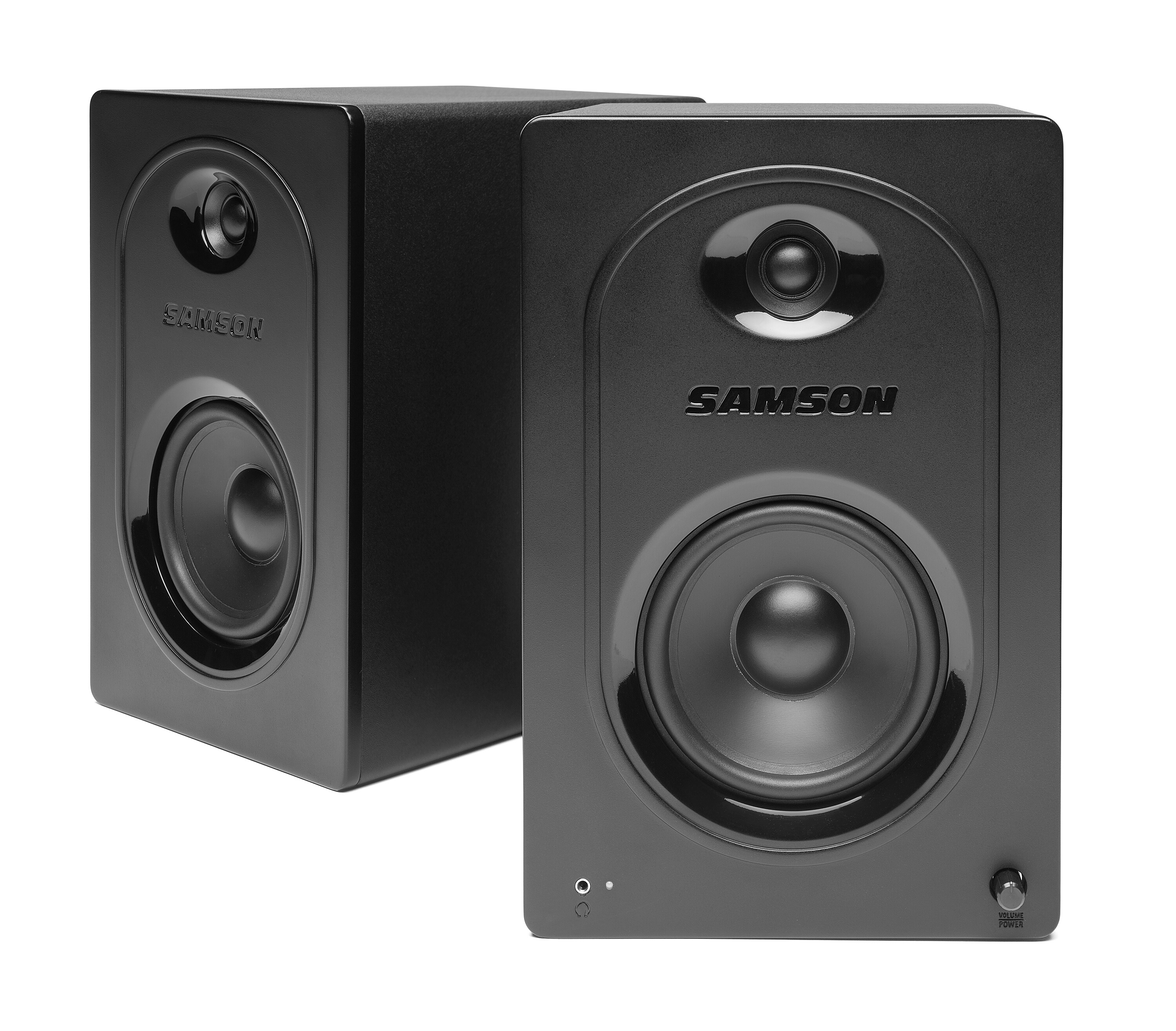
Many buyers do not want to pay for speakers they will never use. Gamers often use a headset. Office users may have a laptop, docking station, or conference speaker. Creative professionals may use specialized audio equipment.
Leaving out speakers can also improve product variety. A company can sell one monitor at a lower price and offer a separate model with built-in audio. This lets customers choose based on their needs.
The most common design priorities are:
-
Better image quality
-
Lower input lag
-
Higher refresh rate
-
Slimmer bezels
-
Improved stand adjustment
-
Lower production cost
-
More reliable thermal design
The answer to why do monitors not have speakers is therefore not simply “because speakers are hard to add.” It is mainly about priorities, demand, and product value.

How to Tell If a Monitor Has Speakers
Do not assume a monitor has speakers because it has HDMI or DisplayPort. Check the product specifications before buying it.
Look for phrases such as:
• Built-in speakers
• 2-watt speakers
• 5-watt stereo speakers
• Integrated audio
• Multimedia speakers
• Audio output
The word “audio out” can be misleading. It often means the monitor can send sound to headphones. It does not always mean the monitor can create sound by itself.
You can also inspect the monitor physically. Speaker openings may appear on the front, bottom, or rear. Still, the specifications are more reliable because some openings are used for ventilation.
On a Windows computer, check the sound output list. On a Mac, open the sound settings and review the available output devices. If the monitor appears but has no audible output, it may support audio pass-through without having speakers.
A simple buying checklist can prevent problems:
• Confirm that the monitor includes built-in speakers.
• Check the speaker power rating.
• Look for a headphone jack if you use headphones.
• Confirm HDMI or DisplayPort audio support.
• Read user reviews about volume and sound quality.
• Check whether the monitor has a mute button or menu setting.

How to Get Sound From a Monitor Without Speakers
A monitor without built-in speakers can still be part of a complete audio setup. You simply need another device to produce the sound.
Use computer speakers
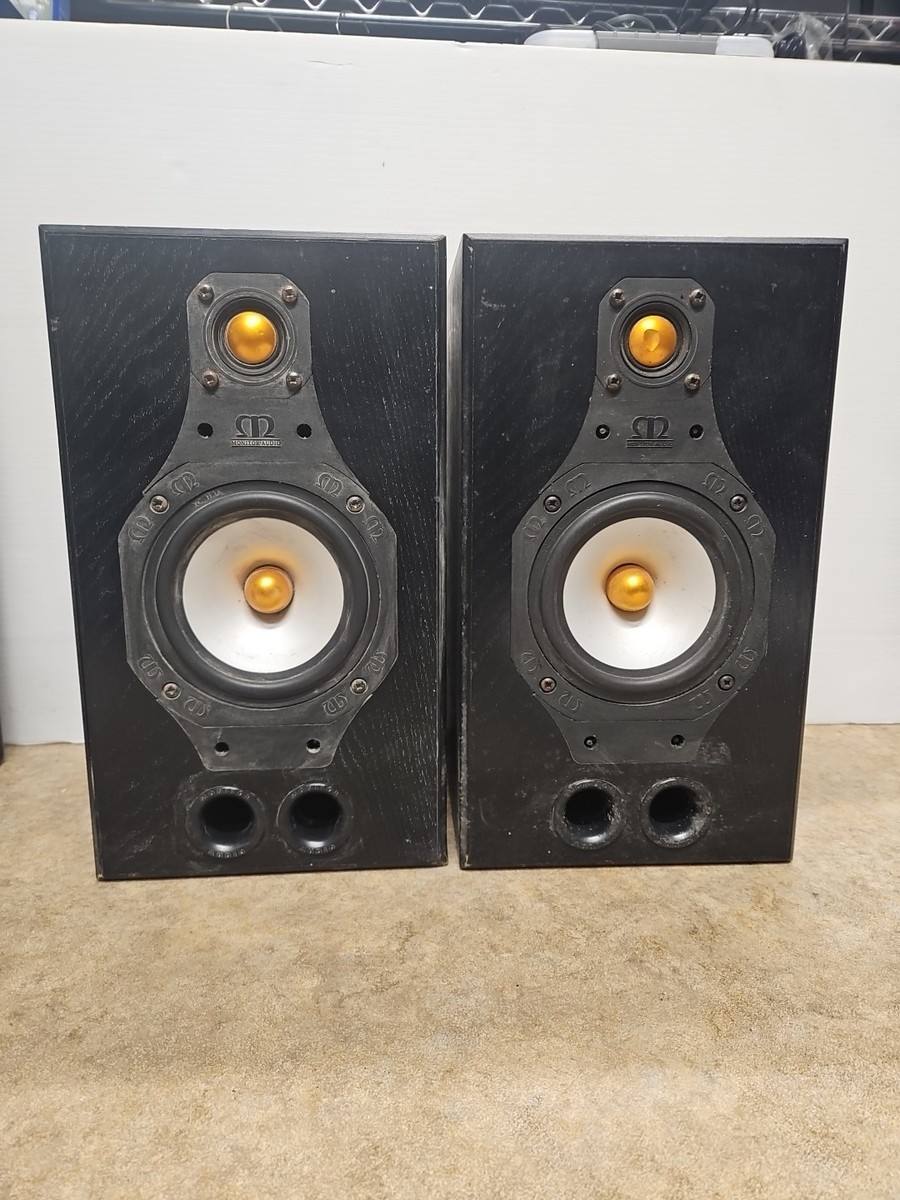
Connect powered speakers to your computer’s audio jack or USB port. Then select the computer’s audio output in the sound settings. This is a good choice for music, calls, and everyday use.
Use headphones
Headphones are easy to connect and work well for gaming or shared spaces. If your monitor has an audio-out jack, you may connect headphones there. Otherwise, connect them directly to the computer, console, or docking station.
Use a gaming headset
A gaming headset often connects through USB, a 3.5-millimeter plug, or wireless technology. It can provide clear game audio and voice chat without disturbing others.
Use a soundbar
A small desktop soundbar can sit below the monitor. Some models connect through USB, HDMI, Bluetooth, or a standard audio cable. This option saves space and offers a cleaner desk setup.
Use a USB audio device
A USB speaker, USB headset, or external USB sound card can handle audio separately from the monitor. This can help when your computer has a damaged audio jack.
Use Bluetooth audio
If your computer, console, or monitor supports Bluetooth, you can connect wireless headphones or speakers. Bluetooth may add a small delay, so wired audio can be better for competitive games.
In most cases, external audio is simple to add. The answer to why do monitors not have speakers does not mean you must use a poor setup. It means the audio device is separate.
Troubleshooting: No Sound From Your Monitor
If you expected sound, work through these steps in order.
-
Confirm that the monitor actually has built-in speakers.
-
Make sure the monitor is not muted in its menu.
-
Select the correct output device on your computer or console.
-
Raise the system volume and monitor volume.
-
Check the HDMI or DisplayPort connection.
-
Try another cable or port.
-
Update the graphics and audio drivers.
-
Test the monitor with another device.
-
Disconnect Bluetooth headphones that may be receiving the sound.
-
Check whether the monitor’s headphone jack is being used.
A common mistake is selecting the monitor in the sound menu when it has no speakers. In that case, the computer sends audio to the monitor, but there is no hardware to play it.
Another mistake is using a cable that carries video but not audio. Modern HDMI and DisplayPort cables normally support audio, but older adapters may not. For example, some passive adapters and legacy connections can create compatibility issues.
During one desk setup, I once spent several minutes checking volume controls before noticing that wireless headphones were still connected. The monitor was working correctly. The computer was simply sending sound to another device. Checking the output list first would have saved time.
Are Monitors With Speakers Worth Buying?
A monitor with speakers can be worth buying if convenience matters more than sound quality. It may reduce cable clutter and remove the need for separate desktop speakers.
Built-in speakers make sense for:
• Office work
• Video calls
• Classrooms
• Digital signage
• Guest rooms
• Small desks
• Basic home use
A monitor with speakers may not be the best choice for:
• Music production
• Home theater use
• Competitive gaming
• Professional video editing
• High-quality music listening
Before buying, compare the speaker power, volume, and customer feedback. A monitor may technically include speakers but still sound too quiet for your room.
Also consider the price difference. If a model with speakers costs much more, a basic monitor plus affordable external speakers may offer better sound and more flexibility.
When people ask why do monitors not have speakers, they often assume built-in audio is always better. In reality, a separate speaker system usually provides better placement, stronger bass, and easier upgrades.
Advantages and Disadvantages of Monitor Speakers
Built-in monitor speakers offer clear benefits, but they also have limits.
Advantages
• They save desk space.
• They reduce cable clutter.
• They are easy to set up.
• They work well for alerts and calls.
• They can be useful in shared work areas.
• They do not require a separate power outlet in some setups.
Disadvantages
• Sound quality may be weak.
• Bass is often limited.
• Maximum volume may be low.
• Repairs can be difficult.
• The speakers may face downward or backward.
• They can increase the monitor’s price.
External speakers solve many of these problems. You can place them at ear level, upgrade them later, and choose a model that fits your listening needs.
Still, monitor speakers are not useless. They are like the small speakers in a laptop. They are handy for quick tasks, but they are not designed to replace a full audio system.
Monitor Audio Compared With Other Devices
Understanding the role of each device makes the answer to why do monitors not have speakers easier to remember.
Laptops usually include speakers because they are complete portable computers. Users may not have room for external audio devices. Tablets and phones also include speakers for the same reason.
Desktop computers are different. They often connect to separate monitors, keyboards, mice, webcams, and speakers. Each part can be replaced or upgraded without replacing the entire system.
Televisions include speakers because they are built for shared viewing. Monitors are more modular. You can change the display without changing the sound system.
Docking stations can also affect audio. A laptop connected to a monitor may list the monitor as an audio output, even if the actual sound comes from a headset connected to the dock.
This modular design gives desktop users more control. It also means you must check each part of the system instead of assuming the monitor handles everything.
Frequently Asked Questions About Why Do Monitors Not Have Speakers
Why do monitors not have speakers while TVs do?
Monitors are usually part of a larger computer setup with separate headphones or speakers. TVs are designed as all-in-one entertainment devices, so built-in audio is more important.
Can a monitor play sound without built-in speakers?
A monitor cannot produce sound without speakers or another audio output device. However, it may pass audio through HDMI or DisplayPort to a headphone jack or external speakers.
How can I get sound from a monitor without speakers?
Connect headphones, powered speakers, a soundbar, or a USB audio device to your computer, console, or monitor’s audio-out port. Then select the correct audio output in your system settings.
Do all HDMI monitors have speakers?
No. HDMI can carry audio, but the monitor still needs built-in speakers to play that audio. Some HDMI monitors only pass the signal to a headphone jack or provide no audio output at all.
Are monitors with speakers better?
They are more convenient, but they are not always better. Built-in speakers are useful for calls and basic sounds, while external speakers or headphones usually provide better volume and sound quality.
Why does my monitor appear as an audio device?
Your computer may detect the monitor because HDMI or DisplayPort supports digital audio. The monitor may have no speakers, so you must connect headphones or speakers elsewhere.
Can I add speakers to a monitor?
Yes. You can connect external speakers to the computer, console, docking station, or compatible audio-out jack on the monitor. Choose powered speakers if the connection does not provide enough power.
Conclusion
The main answer to why do monitors not have speakers is simple: many monitors prioritize display performance, slim design, low cost, and user flexibility. Built-in speakers can be useful, but they often offer basic sound and are not essential for a desktop setup.
Before buying, check the specifications for built-in speakers, audio output, HDMI support, and headphone connections. If your monitor has no speakers, a good headset, soundbar, or pair of powered speakers can complete your setup in minutes.
Choose audio gear based on how you use your computer, not just what the monitor includes. Explore your monitor’s manual and sound settings, then share your setup or questions in the comments.