A laptop cooling pad improves airflow, lowers heat, and helps your computer run more smoothly during demanding tasks.
If you have ever felt hot air pour from your laptop while gaming, editing video, or working with many apps, you already know the problem. Understanding why use a laptop cooling pad can help you protect performance, reduce discomfort, and make smarter choices about your computer setup. This guide explains the real benefits, limits, and best practices in simple terms.
What Is a Laptop Cooling Pad?
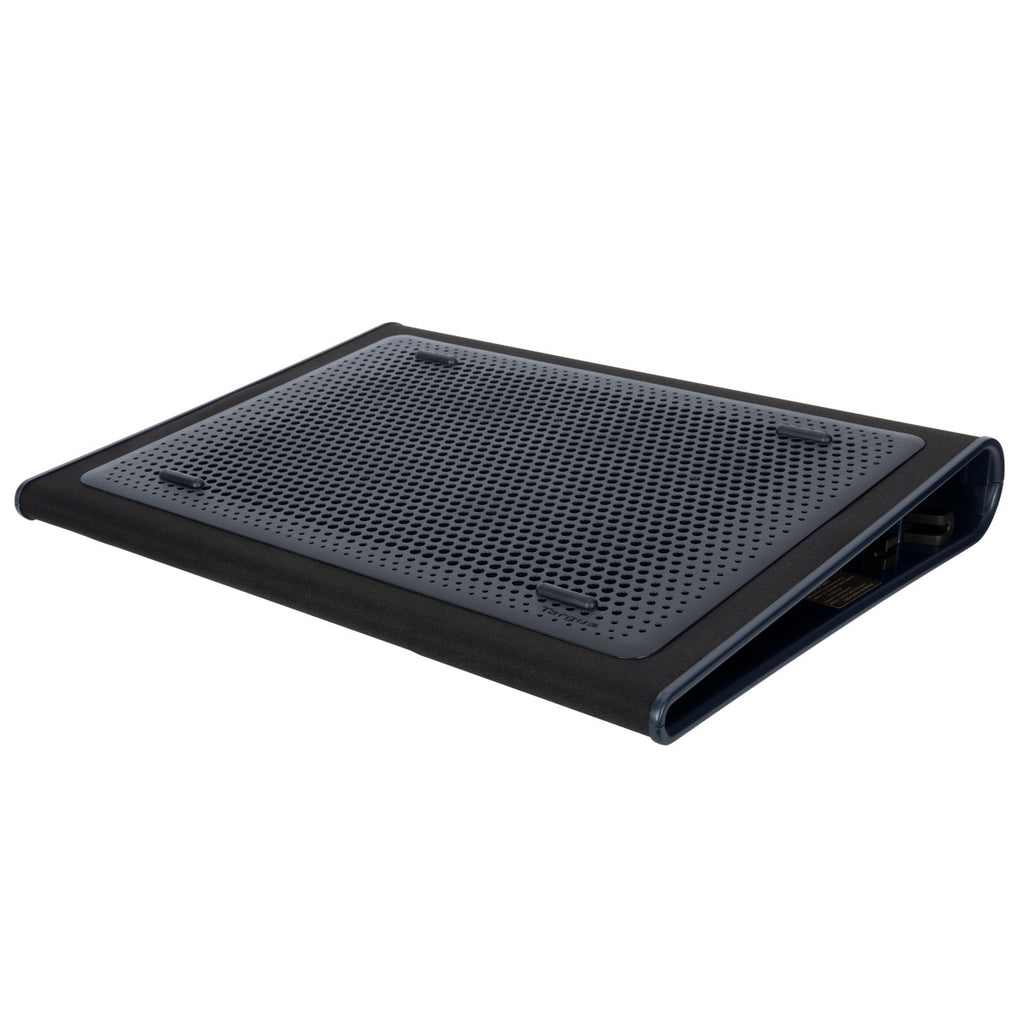
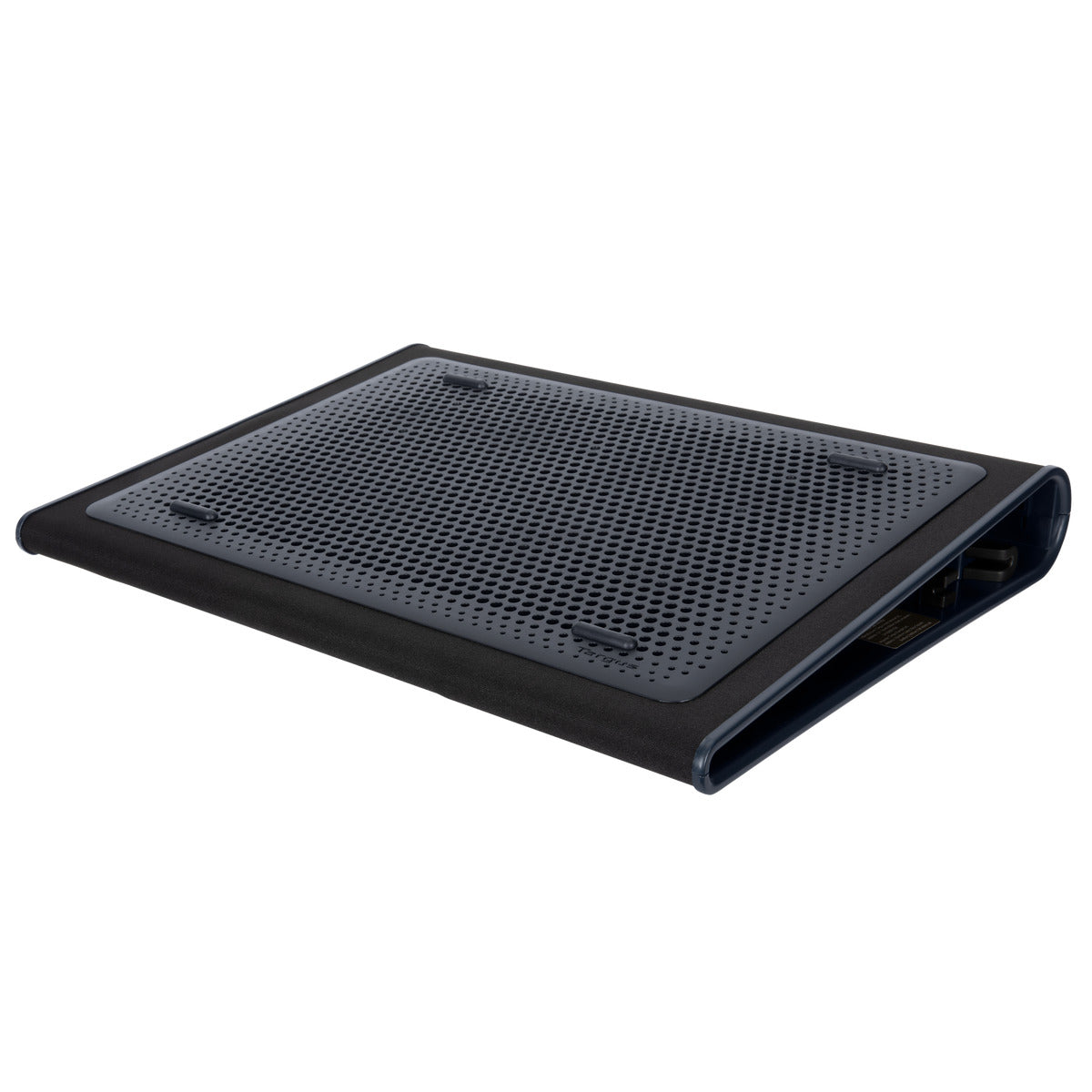
A laptop cooling pad is a stand with one or more built-in fans. You place your laptop on top of it. The fans push cool air toward the laptop’s underside and help move warm air away from its vents.
Most cooling pads connect through USB. Many also raise the laptop screen to a more comfortable height. Some models include adjustable fan speeds, extra USB ports, RGB lighting, or a quiet mode.
To understand why use a laptop cooling pad, it helps to understand how laptops manage heat. The processor and graphics chip create heat when they work hard. Internal fans and heat pipes move that heat away, but airflow can suffer when the laptop sits flat on a desk, bed, couch, or blanket.
A cooling pad does not replace the laptop’s internal cooling system. Instead, it supports that system by improving airflow and lifting the laptop above the surface.

Why Use a Laptop Cooling Pad for Better Performance?
The main reason to use a laptop cooling pad is to help control heat during demanding work. When internal parts become too hot, many laptops reduce their speed. This process is called thermal throttling.
Thermal throttling protects the hardware. However, it can cause lower game frame rates, slower exports, longer loading times, and sudden performance drops. A cooling pad may help the laptop stay below the temperature level where throttling begins.
Common tasks that create a lot of heat include:
• Playing modern PC games
• Editing 4K video
• Rendering 3D designs
• Running virtual machines
• Compiling large software projects
• Streaming while gaming
• Using artificial intelligence or other heavy applications
A cooling pad may also improve performance consistency. A laptop that starts fast but slows after 30 minutes may benefit more than one that only becomes warm during short tasks.
In my own laptop testing, the biggest difference appeared during long gaming sessions. A raised laptop with steady airflow stayed more comfortable and showed fewer signs of heat-related slowdown than the same laptop placed directly on a desk.
Still, results vary. The improvement depends on the laptop design, fan quality, room temperature, dust buildup, and the location of the laptop’s intake vents.

How a Cooling Pad Helps Reduce Laptop Heat
Laptop cooling pads help in several ways. The first is simple: they create more space beneath the computer. This space lets air move more freely around the intake vents.
The second benefit is active airflow. Built-in fans can push air toward the bottom panel. This may help the internal fans draw in cooler air, especially when the laptop has a large intake area underneath.
The third benefit is elevation. Raising the back of the laptop can improve its natural airflow. It can also reduce the chance that a soft surface will block the vents.
Heat leaves a laptop through several paths:
• Internal fans push warm air through side or rear vents.
• Heat pipes carry heat away from the processor and graphics chip.
• Metal surfaces spread heat across the chassis.
• The laptop’s bottom panel may release some heat into the surrounding air.
A cooling pad supports these paths, but it cannot fix a blocked internal fan or a layer of dust inside the laptop. If the laptop is extremely hot, loud, or slow, cleaning and servicing may be more important than buying an accessory.
Research from chip and computer manufacturers consistently shows that electronics perform best within their designed temperature ranges. Exact safe temperatures vary by processor and laptop model, so avoid treating one number as universal.

Benefits of Using a Laptop Cooling Pad
The benefits of a cooling pad extend beyond temperature readings. Here are the most useful advantages for everyday users.
More stable performance
A cooler laptop may maintain higher speeds for longer periods. This matters during games, video exports, and other tasks that keep the processor busy.
Better gaming comfort
Gaming laptops can become hot near the keyboard, palm rest, or bottom panel. A cooling pad can reduce the heat you feel while playing. It may also help reduce sudden frame-rate drops caused by thermal throttling.
Less fan noise in some cases
A cooling pad does not always make a laptop quieter. However, if it helps the internal fans work less aggressively, the total noise may fall during some tasks.
External cooling fans also create noise. A cheap model running at full speed may be louder than the laptop itself. Look for adjustable controls if quiet work matters to you.
A better typing position
Many cooling pads tilt the laptop upward. This can make the screen easier to view and reduce neck strain. The raised angle may also improve wrist comfort, though an external keyboard is often better for long typing sessions.
Extra protection from soft surfaces
Using a laptop on a bed or couch can block its vents. A firm cooling pad creates a stable platform. It does not make soft-surface use completely risk-free, but it is safer than placing the laptop directly on fabric.
Longer component life
Lower heat can reduce stress on electronic parts over time. However, a cooling pad cannot promise a specific lifespan. Battery health, charging habits, dust, build quality, and overall use also matter.

When Should You Use a Laptop Cooling Pad?
You may not need a cooling pad for light tasks. Web browsing, email, word processing, and video streaming usually create less heat than gaming or rendering.
The answer to why use a laptop cooling pad becomes clearer in these situations:
• Your laptop becomes uncomfortable to touch.
• The fan runs loudly for long periods.
• Games slow down after extended play.
• Video exports take longer than expected.
• The laptop shuts down or restarts during heavy workloads.
• You use the laptop on a bed, sofa, or other soft surface.
• Your room is warm or poorly ventilated.
• You regularly connect an external monitor and run demanding apps.
You should also check the laptop before buying a pad. Look at the bottom panel and find the intake vents. A cooling pad works best when its fan lines up with those openings.
During one test, I used a large cooling pad with a small laptop whose intake vents were placed near the rear edge. The pad’s fans sat too far forward, so the temperature change was minor. Raising the laptop helped more than the fan itself. This was a useful reminder that design and alignment matter more than the number of fans.

Does a Cooling Pad Work for Every Laptop?
No. Laptop cooling pads do not work equally well with every computer.
Gaming laptops often have large intake vents on the bottom. These models may benefit from a strong cooling pad. Thin laptops may have small or unusual vent layouts, so external airflow may have less effect.
Some laptops pull air through the keyboard or side vents. Others use a sealed bottom panel with limited intake space. In these cases, elevation may help, but a cooling pad may not create a major temperature drop.
Performance also depends on the cooling pad itself. Consider these features:
• Fan position: The fan should sit near the laptop’s intake vents.
• Fan speed: Adjustable speed gives you better control.
• Surface design: A metal mesh surface can support airflow.
• Size: The pad should support the whole laptop without blocking ports.
• Noise level: Check independent reviews when possible.
• Stability: Rubber grips should prevent sliding.
• Tilt angle: The angle should improve comfort without stressing your wrists.
• USB design: A pass-through USB port helps replace the port used by the fan.
A cooling pad may reduce temperatures by only a few degrees in some systems. In others, especially laptops with poor underside airflow, the improvement may be more noticeable. Treat product claims as estimates, not guarantees.
Cooling Pad vs. Other Ways to Cool a Laptop
A cooling pad is only one part of laptop heat management. You can often improve cooling without buying anything.
Start with simple steps:
-
Place the laptop on a hard, flat surface.
-
Keep the side and rear vents clear.
-
Clean visible dust from the vents.
-
Close apps you do not need.
-
Update the laptop’s firmware and graphics drivers.
-
Use a balanced or performance power mode that fits the task.
-
Keep the room well ventilated.
-
Avoid direct sunlight and hot rooms.
-
Replace an aging battery if it is swollen or unusually hot.
Never use a laptop with a swollen battery. Stop using it and seek professional service.
Internal cleaning can help, but opening a laptop may affect a warranty or damage delicate parts. If you are not comfortable working inside a computer, use a qualified repair shop.
A cooling pad is often most useful when combined with these habits. It is like opening a window in a warm room. The window helps, but it cannot solve a blocked air conditioner or a dirty filter.

How to Choose the Best Laptop Cooling Pad
The best cooling pad depends on your laptop and your normal workload. Do not choose a model only because it has many fans or bright lighting.
Use this checklist:
• Measure your laptop: Confirm that the pad supports your screen size and weight.
• Check the vents: Choose a fan layout that matches the bottom of your laptop.
• Review noise data: A quiet fan is important for work, study, and recording.
• Look for adjustable speed: You can use low speed for browsing and high speed for gaming.
• Choose a stable design: A slipping laptop can damage ports or cables.
• Consider height: A raised screen may improve posture.
• Check USB ports: A pass-through port can help connect other accessories.
• Read verified reviews: Look for long-term comments, not only first impressions.
• Avoid unrealistic promises: No cooling pad can make every laptop run at room temperature.
For a large gaming laptop, choose a strong, stable pad with wide airflow coverage. For a thin work laptop, a quiet stand with moderate airflow may be enough.
You should also consider your desk. A large cooling pad may take up valuable space. If you use an external keyboard and mouse, the extra height may not be a problem. If you type directly on the laptop, test whether the angle feels comfortable.
Common Mistakes to Avoid
Many people ask why use a laptop cooling pad but skip the setup details. Poor placement can limit the benefits.
Avoid these mistakes:
• Covering the laptop’s vents with the pad surface.
• Buying a pad without checking fan alignment.
• Using maximum fan speed all day when low speed is enough.
• Placing the setup on a blanket or pillow.
• Ignoring dust inside the laptop.
• Expecting a cooling pad to repair a failing fan.
• Blocking the cooling pad’s own air intake.
• Using a USB hub that cannot supply enough power.
• Trusting a temperature claim without checking real reviews.
Monitor the laptop during a normal workload. Free monitoring tools can show processor temperature, graphics temperature, fan speed, and clock speed. Compare the same task with and without the pad.
For a fair test, keep the room, power mode, application, and workload the same. Run each test for at least 15 to 30 minutes. Short tests may not show the heat buildup that causes throttling.
Are Laptop Cooling Pads Worth It?
A cooling pad is worth considering if your laptop runs hot during long or demanding tasks. It can improve airflow, comfort, and performance stability at a fairly low cost.
It may not be worth buying if your laptop stays cool, has quiet fans, and performs well on a hard surface. In that case, a simple laptop stand may provide enough airflow and better ergonomics.
The most honest answer to why use a laptop cooling pad is this: use one when your laptop needs extra airflow or when you want a more comfortable setup. Do not buy one as a cure for every heating problem.
Before spending money, try raising the back of the laptop slightly with a safe, stable stand. If temperatures or fan behavior improve, a cooling pad may offer added value. Never use an unstable object that could block vents or cause the laptop to fall.
Frequently Asked Questions About Why Use a Laptop Cooling Pad
Does a laptop cooling pad really lower temperature?
Yes, a laptop cooling pad can lower temperatures, but the result varies by model and laptop design. It usually works best when the laptop has bottom intake vents that line up with the pad’s fans.
Can a cooling pad improve gaming performance?
It can improve performance stability during long gaming sessions by reducing heat-related throttling. It will not upgrade the laptop’s processor or graphics chip, so the performance gain may be small if heat is not the main problem.
Is it safe to use a laptop cooling pad all day?
Most USB cooling pads are designed for extended use. Keep the pad clean, use a stable surface, and stop using it if the fan, cable, or USB port becomes unusually hot.
Can a cooling pad damage a laptop?
A quality cooling pad is unlikely to damage a laptop when used correctly. Problems may occur if the pad blocks vents, forces dirt into openings, causes the laptop to slide, or places stress on the ports.
Do cooling pads work for MacBooks?
A cooling pad may help some MacBooks through elevation and improved airflow, but results can be limited by the device’s vent design. A stand may provide more value if the MacBook has few bottom intake vents.
Does a cooling pad reduce laptop fan noise?
Sometimes. If the pad lowers internal heat, the laptop’s fans may run more slowly, but the pad adds its own fan noise. Choose a quiet, adjustable model if noise is a concern.
Should I use a cooling pad on a bed?
A cooling pad is safer than placing a laptop directly on a bed, but a hard desk is still the best choice. Fabric can block airflow and allow dust or lint to collect around the vents.
Conclusion
Knowing why use a laptop cooling pad helps you decide whether your computer truly needs one. A good pad can improve airflow, reduce heat, support stable performance, and make long gaming or work sessions more comfortable.
The best results come from matching the pad to your laptop’s vents, keeping the system clean, and using the laptop on a firm surface. Check your temperatures and performance before and after testing so you can make an informed choice.
If your laptop runs hot, start with better airflow today, then explore a well-reviewed cooling pad that fits your setup. Share your experience or questions in the comments, and keep learning how to protect your laptop’s performance.