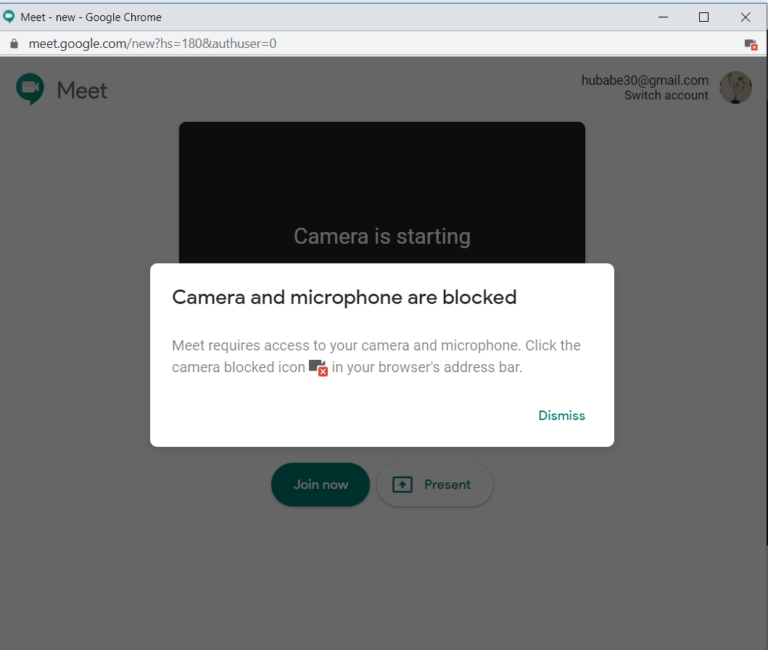
Webcams often look bad because tiny sensors, poor lighting, weak lenses, and video compression limit image quality.
If you have ever looked sharp in the mirror but blurry on a video call, you are not alone. The question “why do webcams look so bad” has several answers, from low light and dirty lenses to poor software settings and limited internet bandwidth. This guide explains each cause and shares simple fixes that can make almost any webcam look clearer, brighter, and more natural.

Why do webcams look so bad?
The short answer is that most webcams use small image sensors, basic lenses, and heavy video compression. These parts keep cameras affordable and compact, but they also reduce detail, color quality, and sharpness.
A webcam must capture your face, process the image, and send it through an app in real time. That is a lot of work for a small device. When light is weak or your internet connection is slow, the camera has even less information to work with.
The most common reasons include:
• Poor lighting that creates grain and shadows
• A small sensor that cannot capture much light
• A low-quality lens with soft focus
• Low video resolution or frame rate
• Dirt, fingerprints, or a privacy cover on the lens
• Automatic settings that choose poor exposure or focus
• Video compression in apps such as Zoom, Teams, or Meet
• A slow upload connection that lowers image quality
• Incorrect camera placement or a distracting background
Think of a webcam as a small window. A clean, bright window shows a clear view. A tiny, dirty window in a dark room cannot produce the same result, no matter how good the view is outside.
Small sensors make webcams struggle
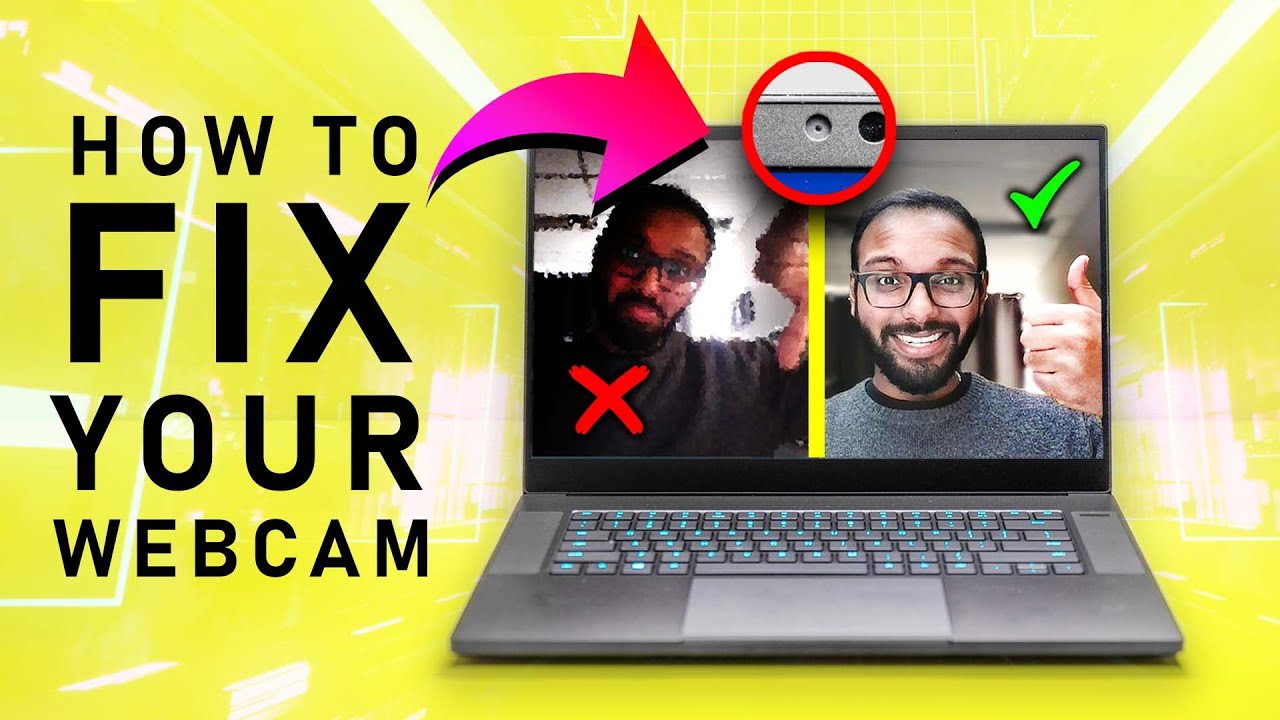
The image sensor is the part that turns light into a digital picture. Most built-in laptop webcams use a very small sensor because laptops are thin and need to stay affordable.
A small sensor collects less light than the larger sensor found in a mirrorless camera, DSLR, or modern smartphone. When the room is dark, the webcam increases its electronic gain. This brightens the picture, but it also creates noise.
Noise appears as colored specks, fuzzy detail, or a rough texture. The camera may also smooth the image to hide that noise. As a result, your face can look waxy or blurry.
This is one of the main reasons why webcams look so bad indoors. The camera is trying to create a bright picture from very little light.
Why phones often look better
Many smartphones use better sensors, stronger image processors, and advanced software. They can combine several frames, reduce noise, improve skin tones, and adjust exposure quickly.
A phone may also have a wider lens and better autofocus. Even an older phone can sometimes produce a better video image than a basic laptop webcam.
That does not mean every phone is ideal for video calls. It may over-sharpen your face, change exposure too often, or need extra software. Still, its larger processing power gives it a major advantage.

Bad lighting is often the biggest problem
Lighting has more impact on webcam quality than many people expect. A costly webcam can look poor in a dark room, while a basic webcam can look good when your face is evenly lit.
A webcam needs enough light to capture fine details. If the room is dark, the camera raises exposure and gain. This causes grain, motion blur, and washed-out colors.
Backlighting creates another problem. If a bright window is behind you, the camera sees a large area of light and may darken your face. You then appear as a shadow.
For better lighting:
• Face a window when possible
• Place a lamp behind the webcam and in front of your face
• Use a soft light instead of a harsh bare bulb
• Avoid strong light directly above your head
• Keep bright windows and lamps out of the camera’s background
• Add a second light from the opposite side if one side of your face is dark
A simple desk lamp can help. Point it toward a white wall first. The reflected light will look softer and reduce harsh shadows.
The best place for a light
Place your main light slightly above eye level, close to the camera. This setup lights both eyes and reduces dark areas under your nose and chin.
Ring lights can work well, but they are not magic. A low-quality ring light may create bright circles in your eyes or make your face look flat. Soft window light is often more natural.

The webcam lens may be dirty or weak
A dirty lens can make a webcam look foggy. Fingerprints, dust, and skin oil scatter light across the glass or plastic surface. This lowers contrast and makes the image seem out of focus.
Clean the lens with a soft microfiber cloth. Do not use a rough paper towel, as it may leave fibers or create tiny scratches. If the camera has a sliding privacy cover, make sure it is fully open.
The lens itself also matters. Low-cost webcams often use simple plastic lenses. These may produce soft corners, color fringing, or poor detail. A better lens can make text, hair, and facial features look clearer.
Webcam focus can create another issue. Some cameras use fixed focus, which works best at one distance. If you sit too close or too far away, your face may look soft.
Autofocus webcams can help, but autofocus may hunt during a call. If the camera keeps shifting focus, try sitting still, improving the light, or switching to manual focus in the camera software.

Resolution and frame rate affect image quality
Resolution describes how many pixels a camera records. A 720p webcam captures fewer pixels than a 1080p model, so the image may look less detailed.
However, resolution alone does not guarantee a good picture. A poor 1080p webcam with a weak sensor and bad lens can look worse than a well-made 720p webcam in strong light.
Frame rate describes how many images the camera captures per second. A camera running at 30 frames per second usually looks smoother than one running at 15 frames per second.
Low frame rates can make movement look choppy. They may also create motion blur when you turn your head or move your hands.
Look for these features when choosing a webcam:
• 1080p resolution for clear everyday video
• 30 frames per second for smooth calls
• A glass lens for better detail
• Autofocus if you move during presentations
• Manual exposure controls for difficult lighting
• A wide dynamic range feature for mixed light
• A reliable microphone, if you do not use a separate one
A 4K webcam can capture more detail, but many video platforms reduce the stream to 720p or 1080p. For most calls, good lighting and a strong 1080p camera offer better value than 4K.

Video compression can make a good webcam look bad
Your webcam may record a clear image, but the video call app may compress it before sending it. Compression reduces file size and saves bandwidth. It can also remove fine detail.
Compression often creates:
• Blocky areas around your face
• Blurry hair and clothing
• Smearing during movement
• Loss of detail in dark areas
• Flat or incorrect colors
This is another important reason why webcams look so bad during online meetings. The camera is only one part of the chain. The app, computer, and network also affect the final image.
Many platforms lower video quality when your upload speed drops. Wi-Fi interference, network congestion, and other active devices can cause this problem.
To improve the stream:
-
Use a wired Ethernet connection when possible.
-
Pause large downloads and cloud backups.
-
Move closer to your Wi-Fi router.
-
Close apps that use your camera or internet connection.
-
Choose the highest video quality available in the meeting app.
-
Test the camera in a local preview before joining a call.
Remember that the preview inside one app may look better than the final image seen by other people. The platform may apply more compression during the live call.
Automatic webcam settings can hurt the picture
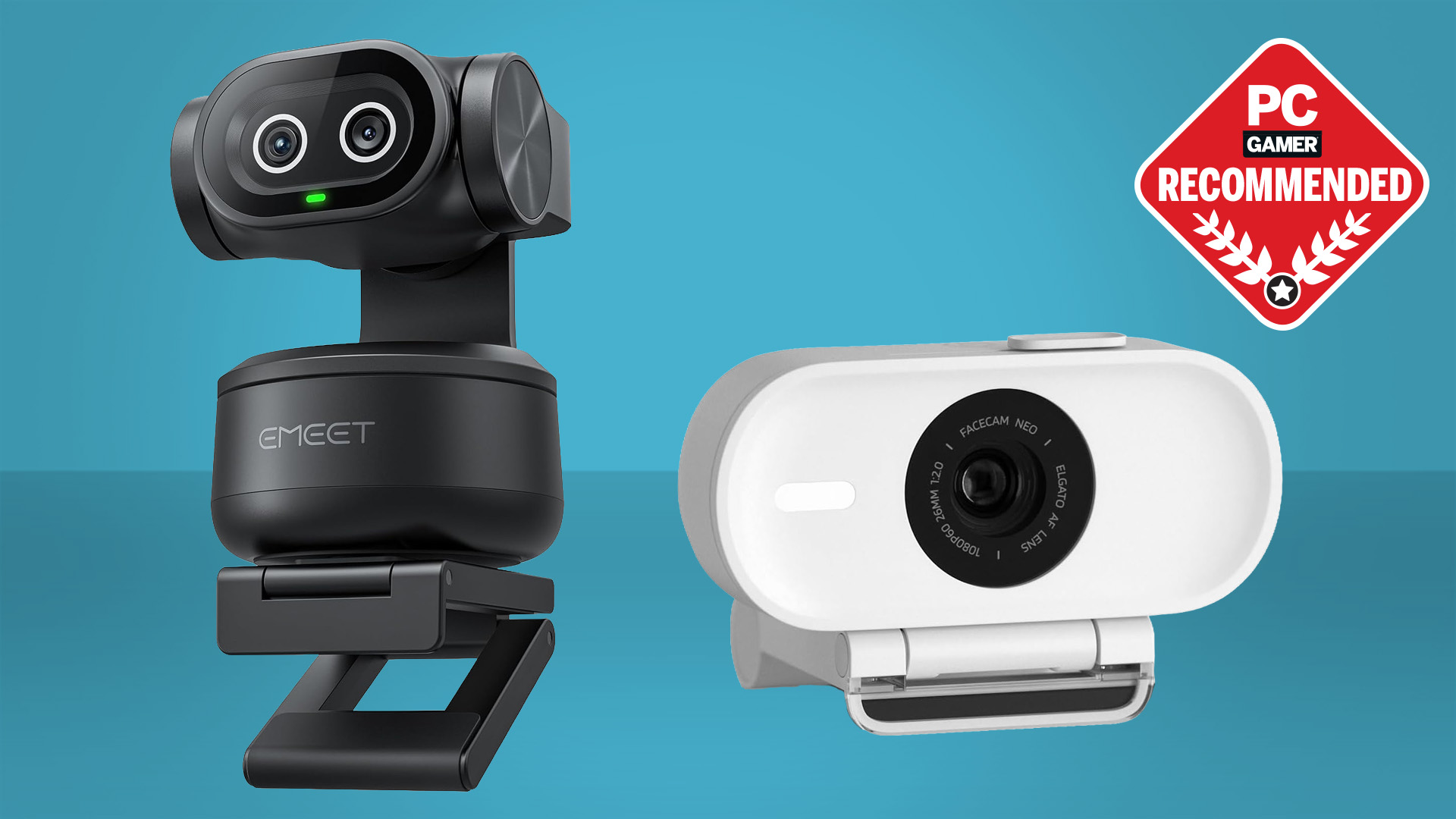
Most webcams use automatic exposure, white balance, gain, and focus. These tools are useful, but they do not always understand what you want.
For example, a bright white wall may cause the camera to darken your face. A warm lamp may make your skin look orange. A moving background may cause exposure changes throughout the call.
You can often improve the image by adjusting:
• Brightness
• Contrast
• Exposure
• White balance
• Sharpness
• Saturation
• Focus
Avoid increasing sharpness too much. Over-sharpening can create bright outlines around your face and make skin texture look unnatural.
White balance is also important. If the image looks blue, the camera may be correcting for warm indoor light. If it looks orange, the camera may be correcting too far in the other direction.
If your webcam software supports manual settings, change one control at a time. This makes it easier to understand what helped and what made the image worse.

Camera position changes how you look
A webcam placed too low can point up your nose and create strong shadows. A camera placed too high can make your face look small and force you to look upward.
The best position is usually close to eye level. Your eyes should sit near the upper third of the frame, with a small amount of space above your head.
Avoid placing the camera too close. Wide-angle lenses can stretch facial features when your face is near the edge of the frame. Sit far enough away to keep your face near the center.
Good framing also improves perceived image quality. A clean background helps people focus on you instead of visual clutter.
Try these placement tips:
• Raise a laptop with books or a stand
• Keep the webcam at eye level
• Sit about an arm’s length from the camera
• Keep your face near the center
• Leave a small gap above your head
• Use a simple, well-lit background
In my own webcam tests, raising a laptop by only a few inches often made a bigger difference than changing software settings. Camera height affects both appearance and lighting.

Laptop webcams have built-in limitations
Built-in webcams are designed for convenience, not professional video. Manufacturers must fit them into a thin screen bezel, so the camera module has limited space.
These cameras often have:
• Tiny sensors
• Narrow lenses
• Fixed focus
• Basic microphones
• Limited low-light performance
• Few manual controls
They are usually fine for short calls in a bright office. Problems appear when you work in a dim bedroom, sit far from the screen, or need to show detailed objects.
An external webcam gives you more control over placement. You can position it near a window, place it on a tripod, or move it farther from your face.
An external model is not automatically better, though. A cheap external webcam may use the same type of small sensor as a laptop camera. Check reviews, sample videos, and low-light performance before buying.
How to make your webcam look better
You do not need a studio to improve webcam quality. Start with the simple changes that affect the image most.
A practical improvement checklist
-
Clean the camera lens with a microfiber cloth.
-
Face a window or place a soft lamp behind the camera.
-
Move bright lights away from the background.
-
Raise the camera to eye level.
-
Sit at a comfortable distance.
-
Select 1080p and 30 fps if your device supports them.
-
Close programs that use heavy network bandwidth.
-
Check your camera settings for exposure and white balance.
-
Use a wired connection if video keeps becoming blurry.
-
Test the final image in the app you use for calls.
Change only a few things at once. If you change the camera, light, software, and internet connection together, you will not know which fix worked.
My most useful troubleshooting lesson
One mistake I have seen often is blaming the webcam too soon. A person may buy a new camera when the real issue is a bright window behind them or a dirty lens.
The best order is light, lens, position, settings, network, and then hardware. This approach saves money and solves many webcam problems in minutes.
When should you replace your webcam?
Consider replacing your webcam if it still looks poor after you improve the room lighting, clean the lens, and adjust the settings.
A replacement may help if:
• Your current camera only supports low resolution
• The lens stays blurry at normal seating distance
• The camera produces heavy noise in a bright room
• Colors remain badly distorted
• The device freezes or disconnects
• You need better autofocus or background detail
For most people, a good 1080p webcam is enough. Streamers, teachers, presenters, and remote workers may benefit from a camera with better exposure controls, a wider dynamic range, or a larger sensor.
A smartphone can also serve as a webcam. This may give you better image quality, but it can use battery power and require extra software. Keep the phone stable and connect it to power during long meetings.
Dedicated cameras can deliver the best results, but they cost more and need more setup. They may also require a capture card, a USB connection, or additional lighting.
Common webcam mistakes to avoid
Even a good webcam can look poor when basic setup mistakes get in the way.
Avoid these common problems:
• Sitting with your back to a bright window
• Using only ceiling lights
• Placing the webcam below your chin
• Leaving a privacy shutter partly closed
• Looking at the video preview instead of the camera lens
• Using a digital zoom that lowers detail
• Covering the microphone or camera with a protective film
• Running many video apps at the same time
• Expecting 4K quality from a platform that streams at 720p
• Buying a camera based only on megapixel or resolution claims
A webcam is part of a complete video system. The room, lens, lighting, computer, app, and internet connection all shape the final result.
Frequently Asked Questions
Why do webcams look so bad in low light?
Webcams have small sensors that collect limited light. In a dark room, they increase gain and exposure, which creates grain, blur, and washed-out colors. Adding soft light in front of your face usually makes the biggest improvement.
Why does my webcam look blurry even in good lighting?
The lens may be dirty, scratched, or unable to focus at your current distance. Clean the lens, sit farther away, and check whether the camera has autofocus or manual focus controls.
Why do webcams look worse on Zoom or Teams?
Video platforms compress the camera feed to reduce data use. A weak upload connection, busy Wi-Fi network, or low-quality app setting can cause extra blur and blocky detail.
Is a 4K webcam always better than a 1080p webcam?
No. A 4K webcam may offer more detail, but sensor quality, lens quality, lighting, and software also matter. A good 1080p webcam can look better than a poor 4K model.
Can lighting really improve a cheap webcam?
Yes. Better lighting gives the sensor more information, which reduces noise and blur. Place a soft light or window in front of you instead of behind you.
Should I use my phone as a webcam?
A phone can produce a sharper image because it often has a better sensor and image processor. It needs stable placement, power, and compatible software, so it may be less convenient than a dedicated webcam.
Conclusion
Webcams look bad for several connected reasons: small sensors, weak lenses, poor lighting, automatic settings, video compression, and slow connections. The camera itself may not be the main problem.
Start by cleaning the lens, facing a soft light, raising the camera, and checking your video settings. Then test your network before spending money on new hardware. With a few simple changes, even a basic webcam can look far clearer and more professional.
Try these steps before your next call, then share your results or explore more video setup guides to improve your home office.