Your webcam may not turn on because of blocked permissions, a disabled device, another app using it, or a driver problem.
If you are asking, “why won’t my webcam turn on,” you are not alone. This guide explains the most common causes, safe fixes, and simple tests for Windows PCs, Macs, laptops, browsers, and external USB cameras.

Why won’t my webcam turn on?
A webcam can fail for many reasons. The camera itself may be fine, but the computer may block access to it. Think of webcam access like a locked door: the camera is inside, but an app needs the right key to use it.
The most common causes include:
• Camera privacy settings are turned off.
• Another app is already using the webcam.
• The webcam is disabled in system settings or Device Manager.
• A camera driver is missing, outdated, or damaged.
• The USB cable or port is faulty.
• The browser has not been given camera permission.
• Antivirus software or privacy tools are blocking camera access.
• The webcam has a physical shutter or hardware switch.
• A recent system update caused a software conflict.
When someone asks me why their webcam will not turn on, I first check permissions and app conflicts. These two issues solve a surprising number of camera problems.
Start with these quick webcam checks
Before changing advanced settings, try a few simple checks. These steps are fast, safe, and often reveal the cause within minutes.
Check the camera cover and switch
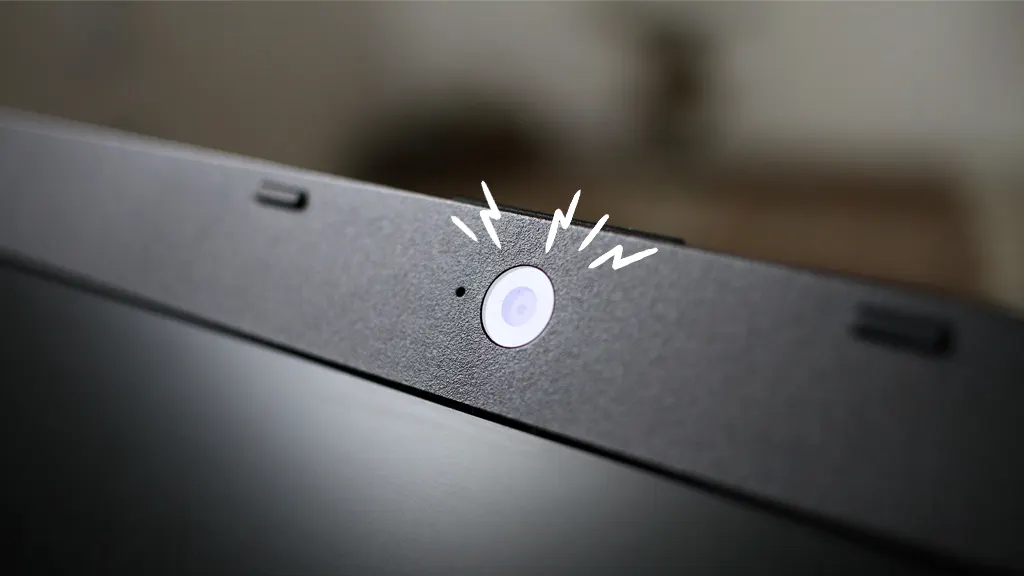
Many laptops have a small camera shutter above the display. Slide it open if it covers the lens. Some laptops also use a keyboard key with a camera icon.
Look for a key marked with a camera symbol. You may need to press it alone or hold the Fn key while pressing it. If a light appears on the key, the camera may now be enabled.
Restart the computer
A restart can close an app that is secretly holding the webcam. It can also reload the camera driver and clear a temporary system error.
Shut down the computer fully if a normal restart does not help. Wait about 30 seconds, then turn it on again and test the camera before opening Zoom, Teams, Discord, or another video app.
Test the camera in a different app
Open the built-in Camera app on Windows or Photo Booth on a Mac. If the webcam works there, the problem is likely inside the original app or browser.
If the camera fails everywhere, the issue is more likely related to permissions, drivers, hardware, or the operating system.
Disconnect other camera devices
Unplug external webcams, capture cards, phones used as cameras, and virtual camera tools. Your video app may be selecting the wrong device.
After disconnecting extra devices, open the camera app again. Select the built-in webcam if your computer offers a camera choice.
Clean the lens
A dirty lens does not usually stop a webcam from turning on, but it can make the image look black, cloudy, or broken. Wipe the lens gently with a clean microfiber cloth.
Do not spray liquid directly onto the camera. A small amount of moisture on a cloth is safer for the screen and lens.

Check webcam permissions on Windows
Windows includes privacy controls that decide which apps can use your camera. If these controls are off, the webcam may appear broken even when the hardware works.
Windows 11 camera permissions
Follow these steps:
- Open Settings.
- Select Privacy & security.
- Choose Camera.
- Turn on Camera access.
- Turn on Let apps access your camera.
- Turn on Let desktop apps access your camera.
The desktop app setting matters for programs such as Zoom, Microsoft Teams, Google Chrome, and Discord. These programs may not appear as individual apps because Windows treats them as desktop applications.
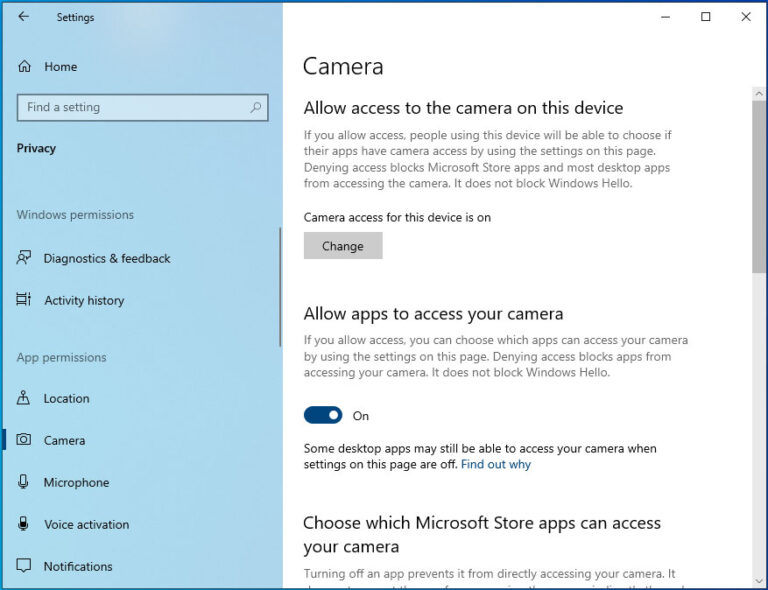
Windows 10 camera permissions
On Windows 10:
- Open Settings.
- Select Privacy.
- Choose Camera.
- Turn on Allow access to the camera on this device.
- Turn on Allow apps to access your camera.
- Turn on Allow desktop apps to access your camera.
Close and reopen the video app after changing these settings. Some programs check camera access only when they start.
If you are still wondering why your webcam will not turn on after enabling permissions, continue with the driver checks below.

Check Device Manager for a disabled webcam
Windows Device Manager shows whether the system recognizes your camera. It can also reveal driver errors.
- Right-click the Start button.
- Select Device Manager.
- Expand Cameras, Imaging devices, or Sound, video and game controllers.
- Find the webcam.
- Right-click it and select Enable device if that option appears.
If you see a small arrow beside the webcam, it may be disabled. If you see a yellow warning symbol, Windows has detected a device or driver problem.
Update the webcam driver
Right-click the camera in Device Manager and select Update driver. Allow Windows to search automatically.
If Windows finds no update, visit your laptop or webcam maker’s official support page. Download the driver made for your exact model and Windows version. Avoid random driver websites because they may provide unsafe or incorrect files.
Reinstall the webcam driver
A damaged driver can stop the webcam from starting. To reinstall it:
- Open Device Manager.
- Right-click the webcam.
- Select Uninstall device.
- Restart the computer.
- Let Windows detect the camera again.
Some computers reinstall the driver automatically. If not, install the correct driver from the manufacturer.
One mistake I often see is uninstalling a driver without knowing how to reinstall it. Before removing anything, save the computer model and download the correct support file if possible.

Check webcam settings on a Mac
Mac computers also use privacy permissions. macOS may block camera access until you approve it for each app.
Allow camera access in macOS
On newer versions of macOS:
- Open the Apple menu.
- Select System Settings.
- Choose Privacy & Security.
- Select Camera.
- Turn on access for the app you want to use.
On older macOS versions, open System Preferences, select Security & Privacy, choose Camera, and enable the app.
Quit the app completely after changing the setting. Then open it again and test the camera.
Check the selected camera
Some apps let you choose from several camera sources. Open the app’s video settings and select the built-in FaceTime camera or your connected USB webcam.
A virtual camera from streaming software may be selected by mistake. If the preview is black, switch to the physical camera and test again.
Restart camera-related apps
Close FaceTime, Photo Booth, Zoom, Teams, browser tabs, and other programs that may use the camera. A Mac may not let two apps use the webcam at the same time.
Restart your Mac after closing those apps. This can release a camera connection that did not close correctly.
Fix webcam problems in Zoom, Teams, and other apps
Sometimes the webcam works in the operating system but not in one video app. This usually means the app has the wrong camera selected or lacks permission.
Choose the correct camera
Open the video settings inside the app. Look for Camera, Video, Devices, or Input settings.
Select your built-in camera or USB webcam. Avoid options named Virtual Camera unless you intentionally use streaming or recording software.
Check the video preview
Turn on the preview before joining a meeting. If you see a clear image, the webcam works and the issue may be related to the meeting settings.
If the preview is black, check the app’s permission, camera selection, and privacy settings. Also close other apps that may be using the camera.
Update the app
An old version of a video app may not work well with a new operating system or camera driver. Update the app from its official website or built-in update menu.
If the problem began after an update, reinstalling the app may help. Keep your meeting login details available before removing it.
Turn off virtual camera software
Programs used for streaming, filters, backgrounds, or screen recording can create virtual cameras. These tools can confuse video apps or take control of the physical webcam.
Close tools such as camera filters, broadcasting software, and webcam utilities. Then reopen the app and choose the real camera.

Fix webcam problems in a web browser
If the camera works in a desktop app but not in Google Meet, a browser site may not have permission.
Allow camera access in Chrome
When a website asks to use your camera, choose Allow. If you blocked it earlier:
- Open the website.
- Select the lock or settings icon near the address bar.
- Find Camera.
- Choose Allow.
- Reload the page.
You can also review camera permissions in Chrome’s privacy settings. Make sure the correct camera is selected.
Allow camera access in Edge
In Microsoft Edge, select the lock icon near the website address. Open permissions and set Camera to Allow. Refresh the page afterward.
Allow camera access in Safari
On a Mac, open Safari settings and review camera permissions for the website. You can set access to Ask, Deny, or Allow.
If the browser keeps blocking the camera, close every video tab and restart the browser. A private browsing window can also help identify an extension or stored permission problem.
Disable troublesome extensions
Privacy extensions, ad blockers, and security tools sometimes block camera scripts. Temporarily disable extensions one at a time and test the website.
Do not disable security tools permanently. Use this only as a short test, then restore protection after finding the cause.

Fix an external USB webcam
External webcams are easy to replace, but the connection can fail in several ways.
Try another USB port
Unplug the webcam and connect it to another USB port. If you are using a hub, connect the camera directly to the computer instead.
Some hubs do not provide enough power for cameras. A direct connection helps separate a hub problem from a webcam problem.
Check the USB cable
If the cable is removable, test another compatible cable. Look for bent connectors, loose plugs, or visible damage.
Do not force a USB connector. A damaged port can make the webcam connect and disconnect repeatedly.
Test the webcam on another computer
This is one of the best hardware tests. If the webcam works on another computer, your original computer has a settings, driver, port, or compatibility issue.
If it fails on multiple computers, the webcam or cable may be defective. This test can prevent you from spending time changing settings when the hardware needs replacement.
Check the webcam’s indicator light
Some webcams show a light when the camera is active. No light does not always mean the camera is broken, because some models do not include an indicator.
A light that turns on but shows a black image may point to a lens cover, app setting, privacy block, or video signal problem.

Check security software and privacy tools
Antivirus programs and privacy utilities can block camera access. This feature is useful because it prevents unwanted spying, but it can also stop trusted apps.
Open your security software and look for settings named:
• Webcam protection
• Camera privacy
• Device access control
• App permissions
• Privacy guard
Allow access only for apps you trust. Do not approve unknown programs just to make the webcam work.
If your webcam stopped working after installing security software, review its recent alerts. The program may have blocked the video app without showing a large warning.
When a black screen is not a webcam power problem
A camera can turn on while showing a black, frozen, or dark image. This is different from the webcam not being detected.
Possible causes include:
• The lens shutter is closed.
• The room is too dark.
• The app is using the wrong camera.
• A virtual camera is showing a blank feed.
• The camera driver is failing.
• Another program has control of the camera.
• The video app has a black-screen bug.
Test the webcam in a bright room. Then open the built-in camera app and compare the result. If the built-in app shows video but your meeting app does not, focus on app settings rather than hardware.
Use built-in troubleshooters and system updates
Windows includes troubleshooters that can find common hardware and app problems. Open Settings and search for troubleshooting options related to cameras, devices, or Windows Update.
Install available operating system updates, but use care with major updates on work computers. If the webcam failed immediately after an update, check whether the computer maker offers a newer camera driver.
On a Mac, install available macOS updates from System Settings. Apple often includes hardware compatibility and security fixes in system updates.
Updates are not a guaranteed fix. They can also introduce compatibility issues with older devices. If the camera is essential for work, create a backup and record your current settings before making major changes.
Advanced fixes for persistent webcam problems
If the webcam still will not turn on, use these steps carefully.
Check BIOS or UEFI settings
Some business laptops allow the integrated camera to be disabled in BIOS or UEFI. Restart the computer and enter the firmware menu using the key shown on the startup screen.
Look for settings related to Integrated Camera, Webcam, or Device Configuration. Enable the camera if it is disabled, then save and restart.
Do not change unrelated firmware settings. An incorrect change can affect startup or other hardware.
Check for workplace restrictions
Company-managed computers may block cameras through group policies or mobile device management. You may not have permission to change these settings.
Ask your IT team for help rather than trying to bypass the restriction. The block may be required by company policy or security rules.
Check hardware damage
A webcam may stop working after a drop, liquid spill, screen replacement, or cable repair. Laptop cameras connect through thin cables near the display hinge, so physical damage can affect them.
If the camera disappears from Device Manager or system information after physical damage, professional repair may be needed.
Reset the app
If only one app has a problem, reset or reinstall that app. Save important files and confirm that you know your account password first.
For browser issues, clear site permissions and test the camera in a new browser profile. This can reveal a damaged setting without affecting your main profile.
What I learned from troubleshooting webcam failures
A useful lesson from webcam support is to change one thing at a time. If you update drivers, change permissions, reinstall the app, and switch USB ports all at once, you may fix the issue but never learn what caused it.
Start with the least risky checks:
- Open the camera shutter.
- Restart the computer.
- Test the built-in camera app.
- Check privacy permissions.
- Close other camera apps.
- Select the correct camera.
- Try another USB port.
- Update or reinstall the driver.
- Test the webcam on another computer.
I have also seen people replace a working webcam because the browser had camera access set to Deny. A quick permission check would have saved the cost and the frustration.
The best troubleshooting habit is to compare results. Test the camera in one operating system app, one desktop app, and one browser. The pattern tells you where the problem lives.
How to prevent webcam problems
A few simple habits can reduce future camera failures.
• Keep Windows, macOS, browsers, and video apps updated.
• Use official drivers from the computer or webcam maker.
• Avoid installing several virtual camera tools unless you need them.
• Close video apps after meetings.
• Keep the camera lens and shutter clean.
• Do not bend or pull the webcam cable.
• Review privacy permissions after major system updates.
• Use a trusted security app with clear camera controls.
• Keep a spare USB port or external webcam for important meetings.
For work or school calls, test the webcam ten minutes before the meeting. This gives you time to switch cameras or join by phone if needed.
Frequently Asked Questions
Why won’t my webcam turn on in Windows?
The most common reasons are blocked camera permissions, a disabled device, a driver error, or another app using the webcam. Check Windows camera privacy settings, Device Manager, and the app’s selected camera.
Why won’t my webcam turn on in Zoom?
Zoom may be using the wrong camera or may not have permission to access it. Open Zoom’s video settings, select the correct webcam, close other camera apps, and review Windows or macOS privacy settings.
Why won’t my webcam turn on in Google Meet?
Your browser may have blocked camera access for Google Meet. Select the lock icon near the website address, allow camera access, choose the correct camera, and reload the meeting page.
Why won’t my webcam turn on even though the light is on?
A webcam light shows that the camera may be active, but it does not guarantee that video is reaching the app. Check for a closed lens cover, incorrect camera selection, poor lighting, driver trouble, or a black-screen issue.
Why won’t my webcam turn on after a Windows update?
An update may change privacy settings or create a driver conflict. Check camera permissions, restart the computer, run Windows Update again, and install the latest camera driver from your computer manufacturer.
Why won’t my external webcam turn on?
The USB port, cable, hub, driver, or webcam itself may be causing the problem. Try another port, connect the webcam directly to the computer, test a different cable, and check the device on another computer.
How do I know if my webcam is broken?
Test the camera in the built-in camera app and on another computer. If it fails everywhere and does not appear in system hardware settings, the webcam or cable may need repair or replacement.
Conclusion
When you ask why your webcam will not turn on, begin with simple causes: a closed shutter, blocked permissions, another app using the camera, or the wrong device selected. Then check drivers, USB connections, browser settings, security tools, and possible hardware damage.
Work through the steps in order and change one setting at a time. Most webcam problems are fixable without buying new equipment. If this guide helped, share it with someone before their next video call, and explore your computer maker’s support resources for model-specific help.