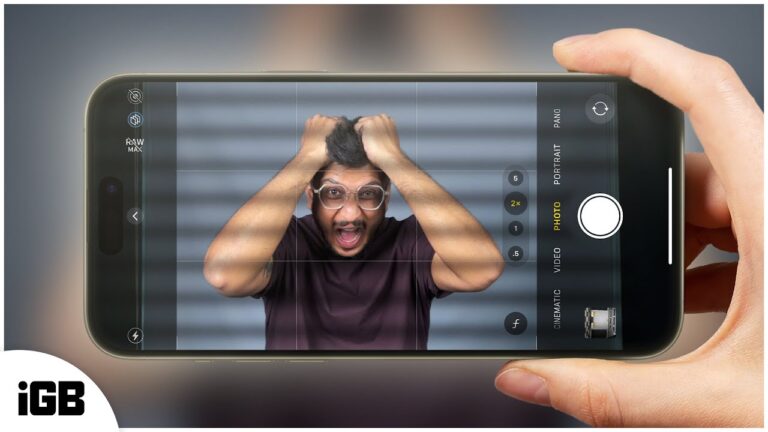
Your Snap camera may look blurry because of a dirty lens, poor light, focus trouble, app bugs, or camera hardware issues.
Wondering, “why is my Snap camera blurry?” You are not alone. Snapchat can show a soft, hazy, or low-quality preview even when your phone camera works well in other apps. The good news is that most causes are simple to fix. This guide explains each likely cause and gives clear steps to restore sharp Snapchat photos and videos.
Why Is My Snap Camera Blurry?
The most common reason your Snapchat camera is blurry is a blocked or dirty camera lens. A fingerprint, dust spot, screen protector edge, or phone case can sit over the lens and make every Snap look soft.
Other causes include low light, camera focus problems, an outdated Snapchat app, a full cache, weak internet, or a damaged camera lens. Sometimes the camera preview looks blurry, but the saved photo is clear. This points to a temporary app or display issue rather than a hardware fault.
Snapchat also uses its own camera tools, lenses, filters, and image processing. These features can affect sharpness in ways that your phone’s default Camera app does not.

Common Reasons Your Snap Camera Looks Blurry
A dirty camera lens
Your phone spends much of the day in your hand, pocket, purse, or car. The rear and front lenses can quickly collect oil and dust. Even a thin fingerprint can scatter light and create a foggy image.
Use a clean microfiber cloth to wipe the lens. Avoid paper towels, rough fabric, or strong cleaning liquids. They may scratch the glass or leave more fibers behind.
Poor lighting
Cameras need enough light to capture sharp detail. In a dark room, Snapchat may use a slower shutter speed or brighten the image digitally. This can create blur, grain, and motion trails.
Try facing a window or standing near a soft light. Keep the light in front of you, not directly behind you. Bright, even light usually improves Snapchat photo quality at once.
The camera has not locked focus
Many phones use autofocus. The camera needs a moment to choose what should look sharp. If you move too fast or hold the phone very close to an object, Snapchat may not lock focus correctly.
Tap the main subject on the screen. Then hold the phone steady for a second before taking the Snap. This simple step often helps with blurry close-ups.
A Snapchat Lens is causing the problem
Some Snapchat lenses add blur, glow, soft focus, or other visual effects. A face lens may smooth skin, soften edges, or change the way the camera processes detail.
Test the camera with no lens or filter. If the image becomes clear, the lens was likely the cause. Not every blurry effect means your camera is broken.
A phone case or screen protector blocks the lens
A poorly fitted case can cover part of the rear camera. A cracked screen protector can also affect the front camera. This is easy to miss because the phone may look fine at first glance.
Remove the case for a quick test. Check for raised edges, cracks, dust, or a cloudy protector near the camera opening.
Snapchat needs an update
App updates often fix camera bugs, crashes, and compatibility problems. If your phone recently received an operating system update, an older Snapchat version may not work properly with it.
Open the App Store on an iPhone or the Google Play Store on Android. Search for Snapchat and install any available update.
Snapchat cache data is causing trouble
Snapchat stores temporary files to load lenses, memories, and other features faster. These files can become outdated or damaged. A faulty cache may cause blurry previews, slow loading, or camera glitches.
Clearing the cache is safe. It does not normally delete your saved Memories, Snaps, or chats. You may need to sign in again in some cases, so keep your login details available.
How to Fix a Blurry Snapchat Camera
Work through these fixes in order. Start with the simple checks before changing advanced settings.
1. Clean both camera lenses
Use a dry microfiber cloth. Gently wipe the front and rear camera glass.
Check the lens under a bright light. Look for:
• Fingerprints or skin oil
• Dust or lint
• Water drops
• Scratches or cracks
• A case or protector covering the lens
Take a test photo after cleaning. If the photo is sharp, you have found the cause.
2. Improve the light
Move to a brighter area. Face a window or use a lamp placed in front of you.
Avoid pointing the camera at a bright window. Strong backlight can make your face dark and reduce detail. Good light is often more useful than a newer phone.
3. Tap to focus
Open Snapchat and point the camera at your subject. Tap the subject on the screen. Wait briefly, then take the photo.
For close objects, move the phone slightly farther away. Phone cameras have a minimum focus distance. If you get too close, the subject may stay blurry.
4. Remove Snapchat lenses and filters
Swipe through the lens options and choose the normal camera view. Also test the Snap without extra filters.
If only one lens looks blurry, the problem is likely with that lens or its effect. You can report a faulty lens through Snapchat’s support options.
5. Close and reopen Snapchat
Swipe Snapchat away from your recent apps. Wait a few seconds, then open it again.
This clears a temporary camera session. It is a quick fix for a frozen preview or a camera that stopped focusing.
6. Restart your phone
A restart can repair small conflicts between Snapchat, the camera service, and the phone’s operating system. It also frees short-term memory used by background apps.
After restarting, open Snapchat first and test the camera before opening many other apps.
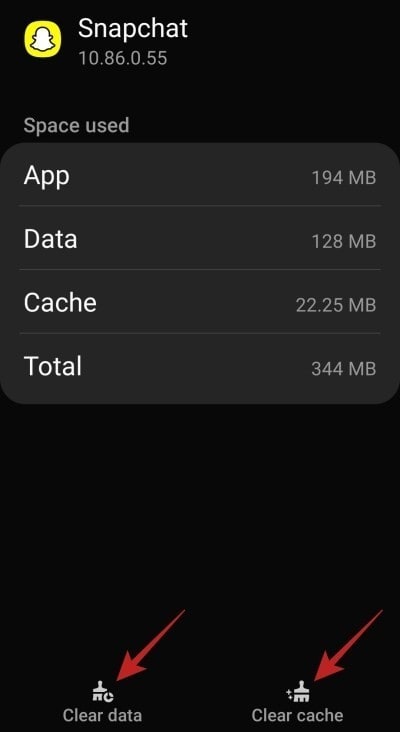
7. Clear Snapchat’s cache
On most Snapchat versions, you can find this option in:
- Open Snapchat.
- Tap your profile icon.
- Tap the Settings gear.
- Scroll to Clear Cache.
- Confirm the action.
- Reopen Snapchat and test the camera.
The menu name or location may change slightly after an app update. Android users can also clear app cache through system settings, but avoid selecting “Clear data” unless you understand the effects.
8. Update Snapchat and your phone
Install the newest Snapchat version from the official app store. Also check your phone for system updates.
Updates can improve camera access, fix bugs, and support newer device software. Only download Snapchat from the official Apple or Google store.
9. Check camera permissions
Snapchat needs camera access to take photos and record videos. If permission settings are limited or malfunctioning, the camera may behave strangely.
On iPhone, check Snapchat under Settings and Privacy & Security. On Android, open Settings, Apps, Snapchat, and Permissions. Make sure camera access is allowed while using the app.
10. Test the phone’s default Camera app
Open your normal Camera app and take a photo with the front and rear cameras.
• If both cameras are clear, Snapchat is likely the problem.
• If only Snapchat is blurry, update, restart, or reinstall the app.
• If every camera app is blurry, inspect the lens and phone hardware.
This test helps you avoid wasting time on the wrong fix.

Why Is My Snap Camera Blurry After Taking a Photo?
Sometimes the Snapchat camera preview looks clear, but the finished Snap becomes blurry. This can happen because Snapchat processes, resizes, or compresses images before sending them.
A weak connection may also delay loading a high-quality image. The app may show a soft preview while the photo is still processing. Wait a moment and check the Snap again.
Blurry results can also come from:
• Fast hand movement
• A moving subject
• Low indoor light
• Digital zoom
• Heavy filters or effects
• Upload compression
• A temporary Snapchat server problem
Try taking the Snap without zoom. Hold the phone with both hands and keep still. If possible, use a well-lit scene and a stable Wi-Fi connection.
Why are Snapchat videos blurry?
Video blur often comes from movement, low light, or digital stabilization. A phone needs more light to record clean video than many people expect.
Hold the phone steady and avoid digital zoom. Clean the lens before recording. If the video becomes blurry only after uploading, test it on Wi-Fi and compare the saved video with the sent version.
Why is Snapchat blurry on Android?
Android phones vary widely in camera hardware, screen settings, and operating system versions. Snapchat may not use every camera feature equally on every Android model.
Update Snapchat and Android first. Then check camera permissions, disable battery restrictions for Snapchat, and test the default Camera app. If the issue affects only one phone model, it may be an app compatibility bug.
Why is Snapchat blurry on iPhone?
On an iPhone, blurry Snapchat images may result from a dirty lens, an app bug, low light, or a faulty camera handoff. Restarting the iPhone and updating Snapchat often helps.
Also compare Snapchat with the built-in Camera app. If the built-in app is sharp but Snapchat is not, the phone camera itself is probably working correctly.

Advanced Fixes for Persistent Snapchat Blur
If you still ask, “why is my Snap camera blurry?” after the basic steps, try these deeper fixes.
Reinstall Snapchat
Delete Snapchat, restart the phone, and install the app again from the official app store. Reinstallation can replace damaged app files that a normal update does not fix.
Before removing the app, confirm that you know your login information. Also make sure important Memories are backed up in Snapchat settings.
Turn off battery-saving restrictions
Battery-saving modes may limit camera access, background activity, or app performance. This can affect loading and recording.
Temporarily turn off Low Power Mode on iPhone or Battery Saver on Android. Test Snapchat again. If the camera improves, add Snapchat to the system’s unrestricted or allowed app list when that option is available.
Free some storage space
A phone with very little free storage may struggle to save videos, load lenses, or process images. It can also make apps slow or unstable.
Delete unwanted downloads, large videos, or unused apps. Keep enough free space for normal phone operation and app files.
Check for heat
Phones can reduce performance when they become hot. Long video calls, gaming, direct sunlight, or charging while recording may increase heat.
Move the phone to a cool place and remove it from the charger. Let it return to a normal temperature before testing Snapchat.
Inspect possible hardware damage
A cracked lens cover can make every image hazy. Moisture inside the camera can create fog or soft focus. A fall may also damage autofocus or image stabilization.
Do not press hard on the camera glass. If the default Camera app is also blurry after cleaning and restarting, contact the phone maker or an authorized repair center.

Mistakes to Avoid When Fixing a Blurry Snap Camera
A few common habits can make the problem worse.
• Do not clean the lens with abrasive fabric.
• Do not spray liquid directly onto the phone.
• Do not use extreme digital zoom.
• Do not assume every soft filter means camera damage.
• Do not download unofficial Snapchat versions.
• Do not clear app data without checking what may be removed.
• Do not test only in a dark room.
In my own troubleshooting tests, the fastest fix has often been a lens cleaning followed by a comparison with the default Camera app. People commonly jump straight to reinstalling Snapchat, even though a fingerprint or low light is the real issue.
Another useful lesson is to test one change at a time. If you clean the lens, update the app, change settings, and restart together, you may not know which step solved the problem.
When Should You Contact Support?
Contact Snapchat Support if the issue continues after updating, restarting, checking permissions, and testing different lighting. Include your phone model, operating system version, Snapchat version, and a clear description of when the blur appears.
Contact the phone manufacturer or a repair professional when:
• The default Camera app is also blurry
• The lens glass is cracked
• The camera fogs up from inside
• Autofocus keeps hunting or clicking
• The problem started after a drop or liquid exposure
• The camera stays blurry in bright light
Support may not be able to repair a damaged lens through software. In that case, a hardware inspection is the safest choice.

Frequently Asked Questions About Why Is My Snap Camera Blurry
Why is my Snap camera blurry but my regular camera is clear?
If the regular Camera app is clear, the issue is likely related to Snapchat settings, cache files, permissions, or app compatibility. Update Snapchat, clear its cache, restart the phone, and test without lenses or filters.
How do I make my Snapchat camera quality better?
Clean the lens, use bright front-facing light, avoid digital zoom, and hold the phone steady. Updating Snapchat and using a strong Wi-Fi connection may also improve processed or uploaded image quality.
Can a Snapchat filter make my camera look blurry?
Yes. Some lenses and filters add soft focus, glow, skin smoothing, or motion effects. Test the camera without a lens to see whether the effect disappears.
Does clearing Snapchat’s cache delete my photos?
Clearing the cache normally removes temporary files, not saved Memories or photos in your phone’s gallery. Still, check that your Memories are backed up before making major app changes.
Why is my Snapchat camera blurry in low light?
Low light gives the camera less information to capture. Snapchat may brighten the image, which can increase noise and motion blur. Move near a window or use soft light in front of the subject.
Why is Snapchat blurry after an update?
An update can create a temporary compatibility bug with your phone model or operating system. Restart the phone, check for another Snapchat update, and report the issue if it continues.
Is a blurry Snapchat camera a sign of phone damage?
It can be, especially if the default Camera app is also blurry or the phone was dropped. A cracked lens cover, moisture, or damaged autofocus may require professional repair.
Conclusion
A blurry Snap camera is usually caused by a dirty lens, weak light, focus trouble, a filter, an outdated app, or a temporary software issue. Start by cleaning the lens and comparing Snapchat with your phone’s default Camera app. Then update Snapchat, check permissions, clear the cache, and test the camera in bright light.
If every camera app remains blurry, look for cracks, moisture, or hardware damage. Try these steps one at a time, and you should quickly find the cause of why your Snap camera is blurry. Share your experience or explore more troubleshooting guides for better Snapchat photos and videos.