Your webcam may make you look yellow because of warm lighting, incorrect white balance, or a camera color setting.
If you are wondering, “why do I look yellow on my webcam,” you are not alone. This common issue usually comes from the light around you, not from your skin. In this guide, you will learn how webcam color works, how to fix a yellow video, and when a skin color change may need medical attention.
Why do I look yellow on my webcam?
The most common reason you look yellow on your webcam is warm light. Indoor bulbs often produce yellow or orange light. Your camera then records that color on your face.
A webcam also tries to guess the color of the room. This process is called automatic white balance. If the camera guesses wrong, your face may look yellow, orange, or even green.
Other common causes include:
• A warm desk lamp near your face
• A yellow wall reflecting light
• A low-quality or old webcam
• Incorrect white balance settings
• A camera filter or video effect
• A dirty webcam lens
• Mixed light from windows and indoor bulbs
• Poor room color and shadows
Think of your webcam as a pair of digital eyes. If the room has a yellow tint, the camera may treat that tint as normal. It then changes the whole image, including your skin tone.
Warm lighting is often the main cause
Warm light has a low color temperature. It may come from incandescent bulbs, soft white LEDs, lamps, and some ceiling lights. These lights can make white walls look cream-colored and skin look yellow.
Many bulbs use a color temperature between about 2,700K and 3,000K. This light feels cozy in a living room, but it is not always ideal for video calls. Daylight is usually cooler and can make your face look more natural.
Your webcam may struggle when two light sources have different colors. For example, a window may shine cool blue light on one side of your face while a desk lamp adds warm yellow light to the other side. This mixed lighting can create strange skin tones.
If you are asking why do I look yellow on my webcam during evening calls, check your lamp first. Turn it off for a moment and see whether your face changes color.
Incorrect white balance can change your skin tone
White balance helps a camera decide what should look white. The camera uses that information to balance other colors in the image.
If the webcam sees a white wall under yellow light, it may try to correct the image. Sometimes it overcorrects. Your face can then appear yellow, orange, pale, or gray.
Automatic white balance works well in many scenes, but it is not perfect. A small room with one warm lamp can confuse it. A bright shirt or colorful background can also affect the camera’s color choice.
To fix white balance, look for camera controls in your video app. You may see options such as:
• Auto white balance
• Color temperature
• Exposure
• Saturation
• Tint
• Image effects
If your app allows manual control, test a neutral setting. Avoid making large changes at once. Adjust one setting, check your face, and then make another small change.

Your webcam settings may be causing the yellow tint
Many video apps apply automatic enhancements. These may include skin smoothing, color filters, low-light correction, and background effects.
Some apps also save camera settings from an earlier call. You may have changed a filter weeks ago and forgotten about it. The effect may not be obvious until you use a different room or light.
Check your camera settings in apps such as:
• Zoom
• Microsoft Teams
• Google Meet
• FaceTime
• OBS Studio
• Discord
• Your computer’s camera app
Turn off filters, touch-up tools, and color effects. Then compare the image with the default camera view.
If you use OBS Studio, check the camera source filters. Color correction, LUT filters, and saturation controls can make your face look yellow. If you use a virtual camera, inspect both the virtual camera software and the meeting app.

A dirty lens can make the image look strange
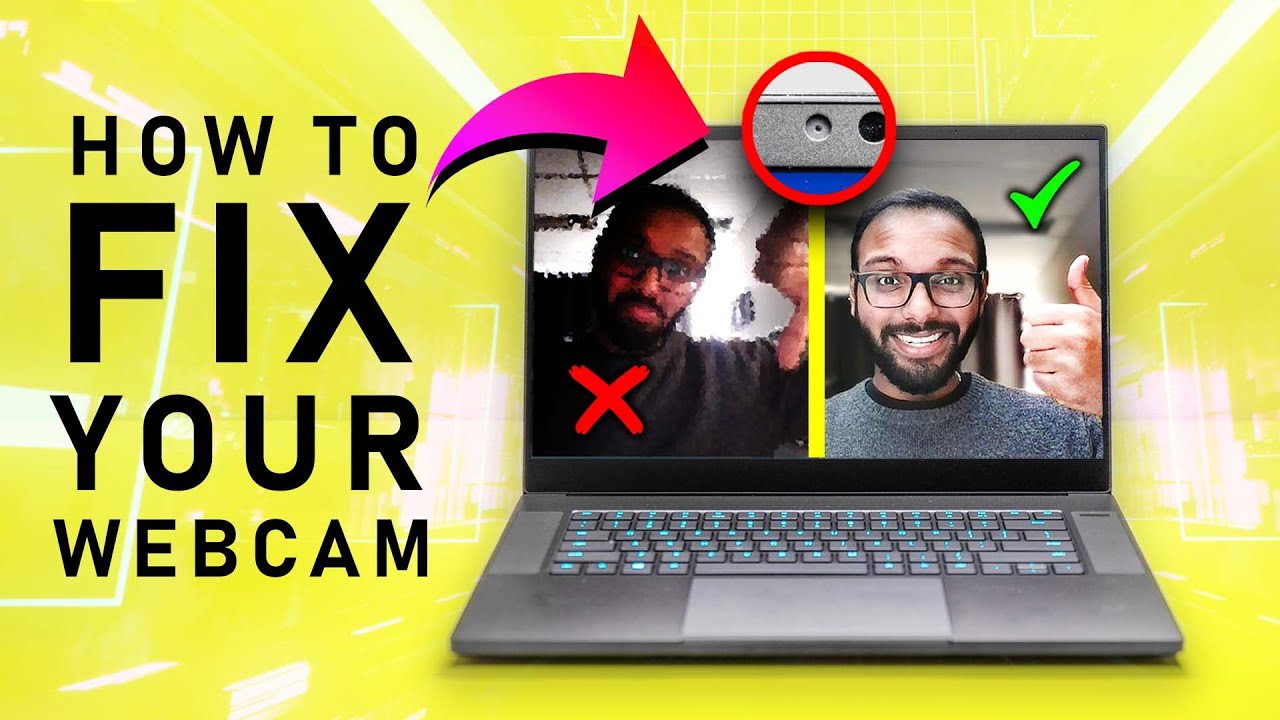
A webcam lens collects dust, skin oil, and small marks over time. A dirty lens usually makes video blurry, but it can also reduce contrast and affect color.
Laptop webcams are easy to touch by accident. A fingerprint may cover part of the lens. This can create a hazy glow that makes warm light appear stronger.
Clean the lens with:
• A clean microfiber cloth
• A small amount of lens-safe cleaner on the cloth
• Gentle, circular movements
Do not spray liquid directly onto the camera. Avoid paper towels, tissues, and rough fabric. These can leave fibers or cause tiny scratches.
After cleaning the lens, restart your camera app. A fresh camera preview makes it easier to see whether the color improved.

How to fix a yellow webcam image
You can often fix a yellow webcam image in a few minutes. Try these steps in order.
1. Use a neutral light
Place a soft white light in front of you. The light should be close to eye level and slightly to one side.
Look for bulbs labeled:
• Daylight
• Neutral white
• Cool white
A color temperature near 4,000K to 5,000K often works well for video. Very cool light can make skin look blue, so avoid extreme settings.
2. Turn off warm lamps
Switch off yellow desk lamps and overhead bulbs. If your face looks better, the lamp was likely the main cause.
You can still use warm light in the room. Just keep your main face light neutral.
3. Face a window
Natural daylight can improve webcam color. Sit facing the window rather than placing it behind you.
Avoid direct sunlight. It can create harsh shadows and make your face look washed out.
4. Reset camera effects
Open your video app settings. Turn off filters, skin effects, and low-light modes. Then restart the app.
5. Adjust exposure
An image that is too dark may look muddy or yellow. Raise exposure slightly if your app allows it.
Do not raise exposure too much. Overexposure can remove natural skin detail.
6. Test another app
Open the default camera app on your computer. If your face looks normal there, the problem may be inside your meeting app.
If your face still looks yellow everywhere, inspect your room light, camera settings, and webcam hardware.

How to improve webcam color for video calls
Good lighting is more useful than buying an expensive webcam. A basic camera can look clear when the light is soft, even, and neutral.
Place your light in front of your face. A light behind you can make the camera darken your face. This may cause muddy colors and poor skin detail.
Try this simple setup:
• Sit about two feet from a soft light
• Keep the light slightly above eye level
• Place your camera at eye height
• Use a plain, neutral background
• Keep bright windows out of the camera’s direct view
• Avoid placing a yellow wall close behind you
Your clothing can also affect automatic white balance. A bright red shirt, green wall, or blue screen may cause the camera to adjust the whole image. A neutral shirt can make testing easier.
During webcam tests I’ve run, the biggest improvement often came from moving one lamp rather than changing software settings. People often spend time searching for a camera problem when the real issue is a bulb placed beside the screen.

Why do I look yellow on my webcam but normal in a mirror?
A mirror shows you under the room’s real light. Your webcam adds another layer of processing.
The camera captures the scene, applies white balance, changes exposure, compresses the video, and displays it on a screen. Your monitor may also have a warm color mode, such as Night Shift or Night Light.
This means your webcam and mirror are not showing the same image. The mirror may look normal while the camera adds a yellow cast.
Test your webcam in daylight. Then view the video on another device if possible. If the color looks different on your phone, computer display settings may be part of the problem.
Your screen may use:
• Night Light
• True Tone
• Blue light reduction
• A custom color profile
• A monitor warmth setting
Turn these features off during testing. This will not change the camera file, but it can change what you see.

Why do I look yellow on my webcam with a Mac or Windows computer?
Both Mac and Windows computers can show yellow webcam video because of lighting, software controls, or display settings.
On a Mac, check the camera preview in a basic app such as Photo Booth. Then compare it with FaceTime or another meeting app. Look for video effects, Portrait mode, and lighting controls.
On Windows, test the camera through the built-in Camera app. Check privacy settings, camera controls, and any software supplied by the webcam maker.
Also check whether another program is controlling your camera. Webcam software may change color before the image reaches Zoom, Teams, or Google Meet.
A useful test is to record a short clip. Do not rely only on the live preview. Watch the saved clip in a different app. This helps you separate camera color problems from screen color problems.
Why do I look yellow on my webcam only at night?
Nighttime rooms often use warm bulbs and uneven light. Your camera has less natural light to work with, so it may increase exposure and gain. This can make yellow tones look stronger.
Low-light correction may also brighten shadows in an uneven way. One side of your face may look orange while the other side looks gray.
For better night video:
• Use a front-facing neutral lamp
• Avoid a single lamp placed far to one side
• Reduce bright screens behind you
• Turn off warm overhead lights
• Keep the background slightly darker than your face
• Use a soft diffuser when possible
If you use a ring light, lower its brightness until your skin looks natural. A ring light that is too bright can cause pale skin and sharp reflections.
Can a yellow webcam image be a health warning?
A webcam color problem is usually caused by lighting or camera settings. However, a yellow appearance in real life can sometimes relate to jaundice.
Jaundice may make the skin or whites of the eyes look yellow. It can occur with liver, gallbladder, blood, or other health problems. A camera cannot diagnose jaundice, and screen color is not a reliable medical test.
Check your appearance in natural daylight or ask a trusted person to look at you. If your skin or eyes truly look yellow, especially with dark urine, pale stool, stomach pain, fever, confusion, or severe tiredness, contact a health professional promptly.
Seek urgent medical help for severe symptoms or a sudden major change. Do not rely on webcam adjustments to hide a possible health issue.
A simple webcam troubleshooting checklist
Use this checklist when you are unsure why do I look yellow on my webcam.
-
Clean the webcam lens with a microfiber cloth.
-
Turn off warm lamps near your face.
-
Face a window or use a neutral white light.
-
Remove camera filters and beauty effects.
-
Reset white balance to auto.
-
Test the camera in another app.
-
Turn off Night Light or similar display modes.
-
Record a short video and watch it elsewhere.
-
Try another webcam if the yellow tint remains.
-
Compare your skin color in natural light.
Change only one thing at a time. This makes the cause easier to find. If you change the lamp, filter, exposure, and camera at once, you may not know which fix worked.
Common mistakes that make webcam color worse
One common mistake is placing a warm lamp directly beside the monitor. The lamp may light one side of your face with orange light while the screen adds cool light to the other side.
Another mistake is using a bright window behind you. The camera sees the window as the main light source and makes your face darker. Dark skin areas can then look dull or yellow.
People also raise saturation to make video look “better.” This can make orange and yellow tones much stronger. Start with natural color before adding any style.
Avoid extreme white balance changes. A small adjustment may help, but a large shift can make your skin look blue or gray. Always check your result under the same lighting used for your calls.
Frequently Asked Questions About Why Do I Look Yellow on My Webcam
Why do I look yellow on my webcam when I use Zoom?
Zoom may show a yellow image because of warm room lighting, video filters, or automatic low-light correction. Turn off video effects, use a neutral light in front of you, and compare the result with your computer’s default camera app.
Why does my face look yellow on camera but not in person?
Your webcam applies white balance, exposure, and color processing that your eyes do not. A warm lamp, yellow wall, or warm monitor setting can make the camera image look more yellow than your real skin tone.
Can a bad webcam make me look yellow?
Yes. An older or low-quality webcam may have weak color accuracy and poor white balance. However, lighting is often the bigger cause, so test the camera in daylight before replacing it.
How do I stop my webcam from making my skin look yellow?
Use a soft, neutral light in front of your face and turn off warm lamps nearby. Then reset camera filters, white balance, exposure, and color effects to their default settings.
Why do I look yellow on my webcam only in the evening?
Evening rooms often use warm bulbs and lack natural daylight. Add a neutral front light, turn off yellow lamps near the camera, and check whether low-light correction is changing the video color.
Should I worry if my face looks yellow on a webcam?
Usually, a yellow webcam image is caused by lighting or camera processing. If your skin or the whites of your eyes also look yellow in natural light, speak with a health professional rather than relying on the camera image.
Conclusion
The answer to why do I look yellow on my webcam is usually simple: warm lighting, incorrect white balance, camera filters, or a dirty lens. Start with the light in front of your face, then reset your camera effects and test the image in another app.
Small changes can make a major difference. Clean the lens, use neutral light, avoid mixed lighting, and compare your video in natural daylight. If your skin or eyes look yellow away from the webcam, seek medical advice. Try these steps before your next call, and share your best webcam lighting tip in the comments.