Your webcam may have stopped working because of privacy settings, driver errors, loose cables, or a recent system change.
If you are asking, “why did my webcam stop working,” the answer is often simple to find. A blocked camera permission, failed driver, damaged cable, wrong camera selection, or an app conflict can stop video in seconds. This guide explains how to identify the cause, test your webcam safely, and restore it on Windows, Mac, Chromebook, and common video apps.
Why did my webcam stop working suddenly?
A webcam can stop working without warning because several parts must work together. The camera needs power, a physical connection, an operating system driver, permission to access video, and an app that knows which camera to use.
The most common reasons include:
• Camera privacy settings are blocking access
• The webcam is covered by a privacy shutter
• A USB cable or port has failed
• The camera is disabled in system settings
• A driver update caused an error
• Another app is already using the webcam
• Zoom, Teams, Meet, or another app selected the wrong camera
• Antivirus software is blocking camera access
• The built-in webcam has a hardware fault
• A recent operating system update changed permissions
When someone asks me why did my webcam stop working, I first check simple causes before changing drivers. Many webcam problems are not serious hardware failures. They are more like a locked door: the camera works, but something is preventing the app from reaching it.

Check the webcam’s physical connection
Start with the hardware. If you use an external webcam, unplug it and connect it again. Push the USB plug firmly into the port, then test another USB port on the computer.
Avoid using a USB hub during the first test. Some hubs do not provide enough power, or they may have a connection problem. Plug the webcam directly into the computer instead.
Also check these physical details:
• Remove any lens cover or privacy shutter
• Look for a small camera light when the webcam is active
• Inspect the cable for cuts, bends, or loose sections
• Try the webcam on another computer
• Test a different USB device in the same port
• Restart the computer after reconnecting the webcam
For a laptop, look for a camera key on the keyboard. Some models use a function key to disable the webcam. The key may show a camera icon, a slash, or a small lock symbol.
If the webcam works on another computer, the camera is probably fine. The problem is more likely related to software, permissions, or settings on the first device.
Review camera privacy settings
Privacy controls are one of the biggest answers to why did my webcam stop working. Modern operating systems let you control which apps can use the camera. If access is off, the webcam may appear normal but show a black screen or an error.
Windows camera permissions
On Windows, open Settings and go to Privacy & security. Select Camera, then make sure these options are enabled:
• Camera access
• Let apps access your camera
• Let desktop apps access your camera
Desktop apps include browsers, video meeting tools, media players, and many older programs. If desktop camera access is off, an app such as Zoom or Google Chrome may not detect the webcam.
After changing the setting, close and reopen the video app. Some apps check permissions only when they start.
Mac camera permissions
On a Mac, open System Settings and choose Privacy & Security. Select Camera and allow access for the app you want to use.
You may need to quit the app completely before the change takes effect. If macOS asks you to restart the app, follow that prompt.
Chromebook camera permissions
On a Chromebook, open the settings area and review camera permissions for the website or app. In a browser, click the lock or settings icon near the address bar, then allow camera access for the site.
If you recently clicked “Block” by mistake, the site may continue to refuse access until you change the permission manually.

Select the correct webcam in your app
Sometimes the webcam works, but the app is using a different camera. This often happens after you connect a USB webcam, docking station, monitor, or virtual camera tool.
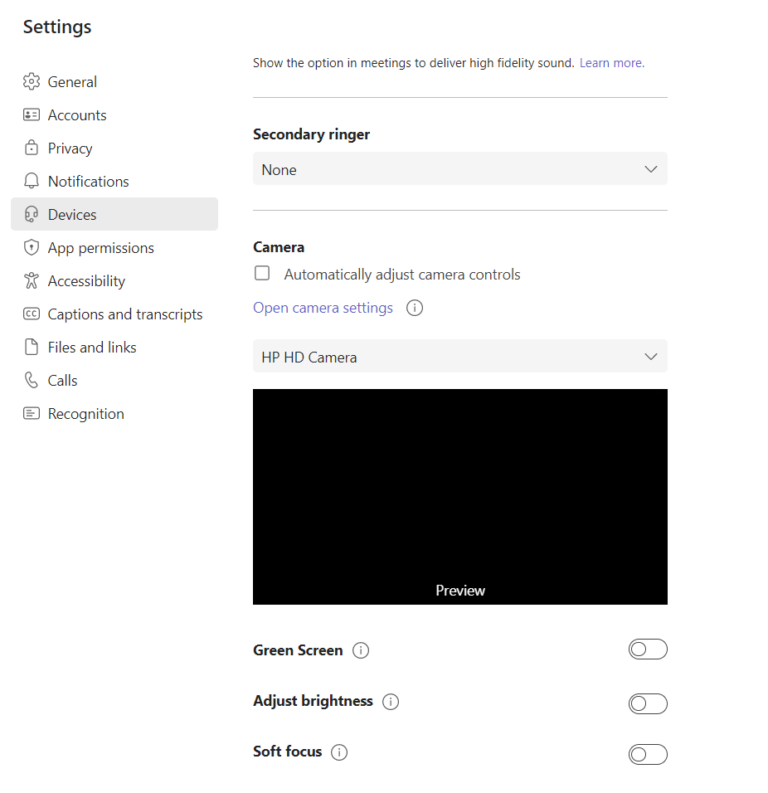
Open the video settings inside your app and look for a camera or video menu. You may see options such as:
• Built-in webcam
• USB webcam
• External monitor camera
• Virtual camera
• Phone camera
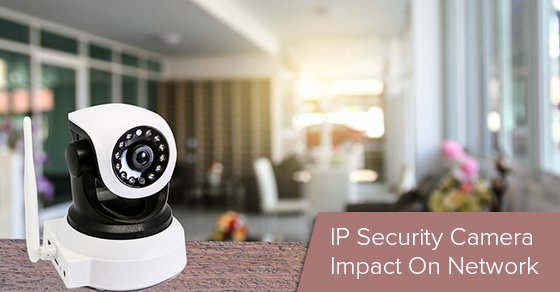
• Network camera
Choose the camera you want, then preview the video. If you see a picture, the webcam is working.
This is a common reason why did my webcam stop working seems difficult to answer. The app may show “no camera” even though the camera is available. It is simply looking at the wrong device.
In my troubleshooting experience, checking the camera menu solves many meeting problems faster than reinstalling software. Always confirm the selected camera before changing advanced settings.

Close other apps using the camera
Most webcams work best with one app at a time. If another program is using the camera, your meeting app may show a black screen or report that no camera is available.
Close programs that may use video, including:
• Zoom
• Microsoft Teams
• Google Meet in another browser tab
• Skype
• FaceTime
• Discord
• OBS Studio
• Camera
• Social media apps
• Virtual camera software
Do not only close the window. Some apps continue running in the background. On Windows, check the taskbar and Task Manager. On Mac, use Force Quit if an app refuses to close.
Then restart the app you want to use. If that fails, restart the computer. A full restart clears many camera locks and temporary software errors.

Update or reinstall the webcam driver
A driver is software that helps the operating system communicate with hardware. If the driver is outdated, damaged, or incompatible, the webcam may stop appearing.
Update a webcam on Windows
Open Device Manager and look under categories such as Cameras, Imaging devices, or Sound, video and game controllers. Right-click the webcam and choose the option to update its driver.
If Windows cannot find a suitable update, visit the computer maker’s official support page. Download drivers only from a trusted manufacturer or the computer maker. Random driver websites can provide unsafe or incorrect files.
Reinstall a webcam on Windows
If the camera appears in Device Manager but does not work, you can remove the device and restart the computer. Windows will often detect and reinstall the webcam automatically.
Before doing this, note the camera’s name and make sure you have access to your computer account. If the webcam is part of a business laptop, company policies may control driver changes.
Update a Mac or Chromebook
Mac and Chromebook cameras usually receive support through system updates rather than separate camera drivers. Install pending operating system updates, then restart the device.
Updates can fix bugs, but they can also change privacy settings. After updating, check camera permissions again.

Test the webcam with a simple camera app
Use a basic camera app to separate a system problem from an app problem. On Windows, open the Camera app. On Mac, test the camera with FaceTime or Photo Booth. On a Chromebook, use the built-in Camera app.
If the webcam works in the basic camera app but not in Zoom or Meet, the hardware is probably working. Focus on the video app’s settings, browser permissions, and background conflicts.
If the webcam fails in every app, check the system settings, driver, connection, and hardware. This test gives you a clear path instead of guessing.
Write down the exact error message if one appears. Phrases such as “camera not found,” “camera is in use,” and “permission denied” point to different causes.

Fix a black screen or poor webcam image
A black screen does not always mean the webcam is broken. The lens may be covered, the room may be too dark, or the app may be showing a disabled preview.
Try these steps:
• Remove the lens cover
• Clean the lens with a soft microfiber cloth
• Add light in front of your face
• Move away from a bright window behind you
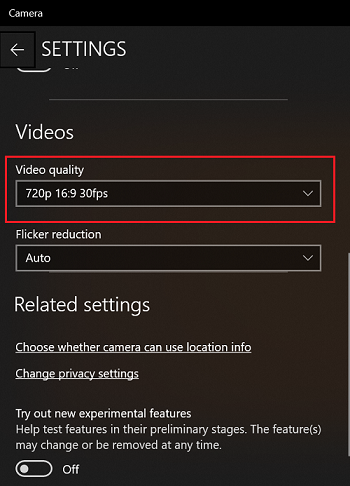
• Check the app’s brightness or exposure controls
• Select the correct camera
• Close other camera apps
• Restart the video call
Avoid using liquid directly on the lens. A dry, soft cloth is safer.
If the image is frozen, unplug an external webcam for 10 seconds and reconnect it. For a built-in camera, restart the computer and test again.
In one common case, the camera looked broken because a bright window was behind the user. The webcam was working, but the face appeared almost black. Better front lighting fixed the issue without any software change.
Check antivirus and security software
Security software can block camera access to protect your privacy. This is useful, but it can also make you wonder why did my webcam stop working after an antivirus update.
Open your antivirus or security program and look for privacy, webcam protection, device control, or application permissions. Allow the video app to use the camera if you trust it.
Do not disable security tools for a long time. If you test by turning off a feature, turn it back on immediately after the test. On a work or school computer, contact the administrator instead of changing company security rules.
A browser extension can also interfere with camera access. Try opening the meeting site in a private browser window or a different trusted browser. If the camera works there, review your extensions and site permissions.
What to do after a system update
A Windows, macOS, ChromeOS, or app update can change camera behavior. Updates may reset permissions, install a new driver, or create a temporary compatibility problem.
After an update, follow this order:
- Restart the computer.
- Check camera privacy permissions.
- Confirm the selected camera in the app.
- Install updates for the video app and browser.
- Test the camera in a basic camera application.
- Check for a newer driver or system patch.
- Contact the computer or webcam maker if the issue continues.
Avoid immediately rolling back an update unless you understand the risks. Older software may include security problems. A newer patch or official driver is usually a safer solution.
If the webcam stopped working right after an update, note the update date and error message. This information helps technical support identify a compatibility issue.
When the webcam may have a hardware problem
Software checks cannot repair damaged hardware. The webcam may need replacement if it fails on several computers and in several apps.
Signs of a hardware issue include:
• The camera never appears in system settings
• A USB webcam disconnects when the cable moves
• The camera light flickers or never turns on
• The device shows physical damage
• Another computer also cannot detect it
• The webcam failed after liquid exposure or a drop
• The built-in camera has a damaged screen bezel
For a laptop, do not open the display unless you have the right tools and experience. Camera cables inside a screen hinge are small and easy to damage. A repair shop or the manufacturer may offer a safer fix.
An external webcam is often the simplest solution. It can also provide better image quality, a wider view, and easier replacement than a built-in camera.
A reliable webcam troubleshooting checklist
If you still need to know why did my webcam stop working, use this short checklist from top to bottom:
- Remove the privacy shutter or cover.
- Check the webcam cable and USB port.
- Restart the computer.
- Close every app that may use the camera.
- Check operating system camera permissions.
- Select the correct camera in the video app.
- Test the webcam in a basic camera application.
- Update the operating system and video app.
- Update or reinstall the webcam driver.
- Test the webcam on another computer.
- Check antivirus and browser permissions.
- Contact support if the camera fails everywhere.
This order saves time because it begins with simple, safe checks. It also prevents a common mistake: changing several settings at once and then losing track of what fixed the problem.
Mistakes to avoid when fixing a webcam
Webcam troubleshooting is usually safe, but a few mistakes can create more trouble.
• Do not download drivers from unknown websites
• Do not disable all security protections permanently
• Do not force a stuck USB connector
• Do not spray cleaner onto the camera
• Do not open a laptop display without proper tools
• Do not assume a black screen means hardware damage
• Do not forget to recheck permissions after an update
• Do not share private meeting links while testing the camera
The best approach is to change one thing at a time. Test the camera after each change. This makes the cause easier to identify and helps you undo a setting if needed.
Frequently Asked Questions
Why did my webcam stop working after a Windows update?
An update may reset camera permissions or install a driver that does not work well with your device. Restart the computer, check camera privacy settings, and update the webcam driver from the computer maker’s official website.
Why is my webcam showing a black screen?
A covered lens, poor lighting, wrong camera selection, or another app using the webcam can cause a black screen. Test the camera in a basic camera app and check the lens, lighting, and app settings.
Why does Zoom say that my camera is not found?
Zoom may lack camera permission, or it may be using another camera device. Open Zoom’s video settings, select the correct webcam, close other camera apps, and confirm that your operating system allows Zoom to access the camera.
How do I know if my webcam is broken?
Test the webcam in more than one app and, if possible, on another computer. If it fails everywhere and does not appear in system settings, the webcam or its cable may have a hardware fault.
Can antivirus software block my webcam?
Yes. Some security tools include webcam protection that blocks apps from accessing video. Review the security software’s camera permissions and allow access only for trusted apps.
Why did my webcam stop working in my browser?
Your browser may have blocked camera access for the website. Open the site permissions near the browser address bar, set the camera to Allow, select the correct webcam, and reload the page.
Will restarting my computer fix a webcam problem?
Restarting can fix temporary driver errors, camera locks, and app conflicts. It will not repair damaged hardware, but it is a useful first step because it is quick and safe.
Conclusion
The most likely reason why did my webcam stop working is a blocked permission, wrong camera selection, app conflict, driver issue, loose connection, or privacy shutter. Start with the simple checks, then move to drivers, security settings, and hardware tests.
Work through the steps one at a time and record any error message you see. With a calm, methodical check, most webcam problems can be fixed without replacing the camera. If this guide helped, share your experience or explore more device troubleshooting tips for your computer and video apps.