Your monitor may not run at 240Hz because of cable limits, wrong settings, port issues, or GPU restrictions.
If you are wondering why is my monitor not running at 240hz, the answer is often simple but easy to miss. A 240Hz display needs the right monitor mode, cable, port, graphics driver, and enough signal bandwidth. This guide explains each cause in plain English so you can find the problem without guessing or buying new hardware too soon.
What 240Hz Means and Why It Matters
A monitor’s refresh rate shows how many times it can update the image each second. A 60Hz monitor refreshes 60 times per second, while a 240Hz monitor can refresh 240 times per second.
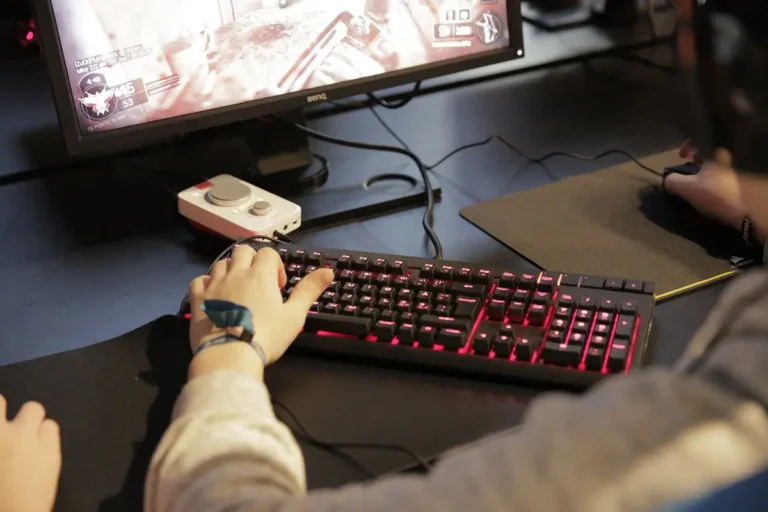
A higher refresh rate can make games, scrolling, and mouse movement feel much smoother. It is most useful in fast games such as Counter-Strike 2, Valorant, Overwatch 2, Fortnite, and Apex Legends.
However, a 240Hz monitor does not always run at 240Hz by default. The display, computer, cable, operating system, and game must all support the required signal.
A simple way to think about it is like a highway:
• The monitor is the destination.
• The graphics card is the traffic source.
• The cable is the highway.
• The monitor setting is the speed limit.
If one part limits the connection, your monitor may stay at 60Hz, 120Hz, 144Hz, or 165Hz.
Why Is My Monitor Not Running at 240Hz?
The most common reason is that your computer is still using a lower refresh rate in Windows or macOS. Other causes include an unsuitable HDMI cable, an older port, a video adapter, outdated drivers, or a game that does not have enough frames per second.
Here are the main causes to check:
• The refresh rate is set incorrectly in your operating system.
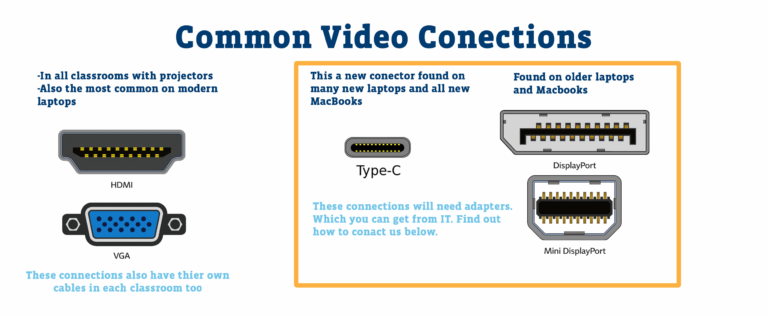
• You are using the wrong HDMI or DisplayPort connection.
• The cable does not provide enough bandwidth.
• Your laptop is connected through a dock or adapter.
• The monitor’s 240Hz mode is hidden in its on-screen menu.
• The graphics card cannot output 240Hz at your chosen resolution.
• The display is connected to the motherboard instead of the dedicated GPU.
• A game is using a frame limit or display setting below 240Hz.
• Multiple monitors are affecting the available output modes.
• Your graphics driver or monitor firmware needs an update.
This is why is my monitor not running at 240hz in many real-world setups: the screen supports 240Hz, but the complete connection does not.
Check the Refresh Rate in Windows
Windows often defaults to 60Hz after a fresh installation, a driver update, or a monitor change. You must select 240Hz manually if it is available.
Follow these steps in Windows 11:
- Right-click an empty area of the desktop.
- Select Display settings.
- Choose the correct monitor if you use more than one display.
- Select Advanced display.
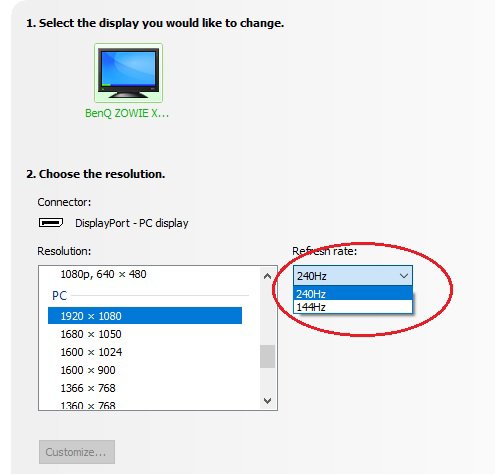
- Find Choose a refresh rate.
- Select 240Hz.
- Confirm the change if Windows asks.
Windows 10 uses a similar path:
- Right-click the desktop.
- Open Display settings.
- Select Advanced display settings.
- Choose Display adapter properties.
- Open the Monitor tab.
- Select 240 Hertz.
- Click Apply.
If 240Hz does not appear, Windows is not receiving a 240Hz signal option. That usually points to the cable, port, driver, monitor menu, or graphics hardware.
Also check your resolution. Some monitors support 240Hz only at a specific resolution, such as 1920 × 1080. A 1440p monitor may support 240Hz only through DisplayPort or a newer HDMI standard.

Check macOS and Laptop Display Settings
Mac users can open System Settings, select Displays, choose the external monitor, and check the refresh rate menu. Hold the Option key while selecting the refresh rate menu if macOS does not show every available mode.
Laptop users face extra limits. Some laptops route video through the integrated graphics chip, a USB-C port, a docking station, or an HDMI port with limited bandwidth.
Check these points:
• Connect the monitor directly to the laptop when possible.
• Avoid inexpensive USB-C hubs for high refresh rate gaming.
• Confirm that the USB-C port supports DisplayPort Alt Mode.
• Check whether the laptop HDMI port supports the required HDMI version.
• Try the laptop’s DisplayPort-capable USB-C port if available.
A frequent example is a gaming laptop with a 240Hz screen connected through a dock. The dock may support only 60Hz at the selected resolution, even though the laptop and monitor can support 240Hz separately.
Use the Correct Cable and Port
A cable can be the main reason why is my monitor not running at 240hz. The monitor may support 240Hz, but an older cable may not carry enough data at the chosen resolution.
For many 1080p 240Hz monitors, a good DisplayPort cable is the safest choice. Some HDMI connections also support 240Hz, but the exact result depends on the monitor, graphics card, HDMI version, resolution, and color settings.
Try these steps:
• Use the DisplayPort cable included with the monitor.
• Connect the cable directly to the graphics card.
• Avoid HDMI splitters, converters, and passive adapters.
• Try another port on the graphics card.
• Try another certified cable if the current one is old or damaged.
• Check the monitor manual for its recommended 240Hz input.
DisplayPort 1.2 can support many 1080p 240Hz displays, while higher resolutions may need DisplayPort 1.4 with Display Stream Compression or a newer connection. HDMI 2.0 can handle 1080p at high refresh rates on many displays, but HDMI 1.4 may be limited depending on the monitor and timing settings.
Do not judge a cable only by its appearance. A cable can look new and still fail at a high refresh rate. In practice, replacing a questionable cable with the monitor’s original cable solves many cases.

Check the Monitor’s Built-In Menu
Some monitors do not enable their highest refresh rate until you turn on a special option. This option may be called Overclock, 240Hz Mode, High Refresh Rate, or Performance Mode.
Use the buttons or joystick on the monitor to open its on-screen display. Look under sections such as Gaming, Display, System, or Picture.
Check for settings such as:
• Refresh Rate
• Overclock
• DisplayPort version
• HDMI compatibility mode
• Adaptive-Sync
• Input source
• Factory reset
If the monitor is set to HDMI compatibility mode, it may limit the refresh rate. If it has a DisplayPort version setting, choose the newest supported version. Some screens also require a restart after enabling 240Hz.
Be careful with overclock options. A monitor labeled “240Hz overclocked” may use a factory-tested mode that is not available until enabled. If the image flickers, goes black, or shows artifacts, return to the standard mode.
Confirm That Your Graphics Card Supports 240Hz
Your monitor cannot display more than the graphics card can send. Modern entry-level and midrange graphics cards can often output 240Hz at 1080p, but higher resolutions need more bandwidth and more rendering power.
Check the ports on your graphics card. An older card may have HDMI 1.4 or an older DisplayPort connection. Even if the monitor supports 240Hz, the computer may show only lower refresh rates.
You should also connect the monitor to the dedicated graphics card. On a desktop computer, the motherboard video ports may use the processor’s integrated graphics. Those ports can have different limits from the ports on the graphics card.
Look at the rear of the computer:
• Connect DisplayPort or HDMI to the graphics card’s ports.
• Do not use the motherboard ports unless you specifically need integrated graphics.
• Remove unnecessary adapters between the GPU and monitor.
• Update the graphics driver from the GPU manufacturer.
If you recently changed graphics cards, uninstalling the old driver with a trusted driver cleanup tool and installing the current driver can help. Create a restore point first, and download drivers only from the manufacturer’s official website.

Understand the Difference Between Refresh Rate and FPS
Your monitor’s refresh rate and your game’s frame rate are different things. A 240Hz monitor can refresh 240 times per second, but the game must produce close to 240 frames per second to fully use it.
For example, if your monitor is set to 240Hz but your game runs at 90 FPS, you are still receiving only 90 new frames each second. The desktop may feel smooth, but the game will not show the full benefit of 240Hz.
This can also explain why is my monitor not running at 240hz when the real issue is low FPS. Check your frame rate with the game’s built-in counter or an approved performance overlay.
For better results:
• Set the monitor to 240Hz in Windows first.
• Turn off unnecessary in-game frame caps.
• Check V-Sync settings.
• Lower demanding graphics options if you want higher FPS.
• Use a suitable competitive or performance preset.
• Watch GPU and CPU usage during gameplay.
• Keep temperatures under control.
A 240Hz display still provides value at lower frame rates because it can reduce scanout time and improve motion handling. However, the biggest benefit appears when the game produces high, stable frame rates.
Disable Frame Limits and Check Game Settings
Games often have their own refresh rate and frame limit options. A game may launch at 60Hz even though Windows is set to 240Hz.
Open the game’s video or display menu and check:
• Display mode is set to Fullscreen or the mode you prefer.
• The correct monitor is selected.
• Resolution matches the monitor’s native resolution.
• Refresh rate is set to 240Hz.
• Frame rate limit is set above 240 FPS or disabled.
• V-Sync is configured correctly.
Some games use borderless windowed mode and follow the Windows desktop refresh rate. Others have a separate refresh rate setting. Restart the game after changing these options.
If you use NVIDIA or AMD software, check the game profile too. A driver profile can apply a frame cap, power-saving mode, or preferred refresh rate without making the cause obvious.

Fix Common NVIDIA and AMD Settings
NVIDIA users can open NVIDIA Control Panel, select Change resolution, choose the correct monitor, and select 240Hz under Refresh rate. Choose the resolution listed in the PC section rather than a lower TV format when possible.
AMD users can open AMD Software: Adrenalin Edition, go to Display, and check the connected monitor’s refresh rate. Disable custom resolutions temporarily while troubleshooting.
Also check these settings:
• Confirm that the correct display is selected.
• Use the monitor’s native resolution.
• Disable GPU scaling temporarily.
• Turn off custom refresh modes.
• Check whether FreeSync or G-SYNC is enabled correctly.
• Reinstall the graphics driver if the option remains missing.
Adaptive sync does not usually prevent 240Hz, but some monitor models limit certain combinations of refresh rate, HDR, color depth, and variable refresh rate. Test with HDR and adaptive sync temporarily disabled. If 240Hz appears, re-enable features one at a time to find the conflict.
Check Resolution, HDR, and Color Depth
High resolution, HDR, high color depth, and high refresh rate all use bandwidth. Your connection may support 240Hz at 8-bit color but not at 10-bit color.
This is especially common with 1440p or ultrawide monitors. The display may offer several modes, but not every combination works through every port.
Try this test:
- Set the native resolution.
- Select 8-bit color.
- Turn off HDR temporarily.
- Disable adaptive sync temporarily.
- Check whether 240Hz appears.
- Re-enable each feature separately.
If 240Hz becomes available after reducing color settings, the connection may be near its bandwidth limit. This does not always mean something is broken. It may simply mean that your cable or port cannot carry every feature at once.
Display Stream Compression can help compatible DisplayPort connections carry high resolution and high refresh rates. It is designed to preserve image quality while reducing the data required over the cable.
Troubleshoot Dual-Monitor and Docking Problems
Multiple displays can create confusing refresh rate behavior. One monitor may run at 240Hz while another stays at 60Hz, or a dock may force both displays into limited modes.
Disconnect all other displays and test the 240Hz monitor by itself. If 240Hz works, reconnect the second display and test again.
Pay special attention to:
• USB-C docks
• KVM switches
• HDMI splitters
• AV receivers
• Capture cards
• Display adapters
• Long cable runs
Each device adds another possible limit. For the clearest test, connect one monitor directly to the graphics card with one cable.
This simple step often reveals why is my monitor not running at 240hz. If the monitor reaches 240Hz alone but not through a dock, the dock is the restriction, not the monitor.
Update Drivers, Firmware, and Windows
A graphics driver can affect which refresh rates appear. Windows updates can also change display behavior, especially after a major system update.
Install the latest stable graphics driver for your NVIDIA, AMD, or Intel GPU. Then restart the computer and check the refresh rate again.
You can also check the monitor manufacturer’s support page for firmware updates. Firmware updates are less common than driver updates, but they may fix signal detection, compatibility, or DisplayPort issues.
Before updating firmware:
• Confirm the exact monitor model.
• Read the instructions carefully.
• Use a stable power connection.
• Do not turn off the monitor during the update.
If everything worked before an update and stopped afterward, rolling back the graphics driver may help. Keep notes about each change so you know which step fixed the problem.
A Practical 240Hz Troubleshooting Order
When I troubleshoot high-refresh displays, I start with the simplest checks before changing advanced settings. This avoids wasting time and makes it easier to identify the real cause.
Use this order:
- Confirm the monitor model actually supports 240Hz at your chosen resolution.
- Connect the monitor directly to the dedicated graphics card.
- Use the original DisplayPort or recommended HDMI cable.
- Open the monitor menu and enable its high refresh mode.
- Set 240Hz in Windows or macOS.
- Check the graphics driver control panel.
- Test with HDR and adaptive sync temporarily disabled.
- Disconnect other monitors, docks, and adapters.
- Try another cable and another GPU port.
- Test the monitor with another computer if possible.
One mistake I see often is changing game settings before checking Windows. If the operating system is limited to 60Hz, the game usually cannot fix that. Start at the signal source, then move toward the game.
If the monitor still cannot reach 240Hz after these tests, the cable, GPU port, monitor input, or monitor firmware may be faulty. Contact the manufacturer if the display is under warranty.
When You Should Replace the Cable or Monitor
A replacement cable is reasonable when the current cable is damaged, unusually long, poorly labeled, or unable to provide the monitor’s recommended mode. Choose a certified cable that matches the connection standard instead of buying the most expensive option.
You may need a different monitor or graphics card when:
• The monitor supports 240Hz only at a resolution your GPU cannot output.
• The graphics card has no suitable high-bandwidth port.
• The monitor’s 240Hz mode works only through a port your computer does not have.
• The screen repeatedly loses signal at 240Hz.
• Another computer produces the same problem with known-good cables.
Avoid assuming that a new cable fixes every issue. If 240Hz is missing because Windows is set to 60Hz, a cable purchase will not change anything. Test the settings first.
Frequently Asked Questions
Why is my monitor not running at 240Hz in Windows?
Windows may be set to 60Hz by default, or the cable and port may not support 240Hz. Open Advanced display settings, choose the correct monitor, and select 240Hz if it is available.
Can HDMI run a 240Hz monitor?
Yes, HDMI can run 240Hz on some monitors, especially at 1080p, but the result depends on the HDMI version, resolution, GPU, and monitor design. DisplayPort is often the more reliable choice for high-refresh PC gaming.
Why does my 240Hz monitor show only 144Hz?
The monitor may be using an older cable, a limited port, or a mode that supports only 144Hz. Check the monitor menu, try DisplayPort, and confirm the graphics card supports 240Hz at the selected resolution.
Does a 240Hz monitor need 240 FPS?
No, the monitor can still operate at 240Hz when the game produces fewer frames. However, you need close to 240 FPS to experience the full smoothness and motion benefits in fast games.
Why is my monitor not running at 240Hz after a graphics driver update?
A driver update may reset the refresh rate, change the active display, or remove a custom mode. Recheck Windows display settings and the GPU control panel, then reinstall or roll back the driver if needed.
Can a laptop run an external monitor at 240Hz?
Yes, but the laptop’s GPU, HDMI or USB-C port, cable, and adapter must all support the required signal. Connect the monitor directly to a DisplayPort-capable USB-C port when possible.
Does DisplayPort always support 240Hz?
No. DisplayPort versions have different bandwidth limits, and the result also depends on resolution, color depth, compression, and the monitor. Check the monitor and GPU specifications together.
Conclusion
The answer to why is my monitor not running at 240hz usually comes down to one missing link: the wrong system setting, cable, port, monitor mode, driver, or frame limit. Set 240Hz in Windows, use a direct connection, choose the correct cable, and test the monitor without docks or adapters.
Work through the checks in order rather than changing everything at once. Once your display, GPU, cable, and game settings agree, your 240Hz monitor should deliver the smooth motion it was built to provide. If this guide helped, share your monitor model and connection type in the comments so others can compare solutions.