Your 240Hz monitor may show 144Hz because of cable limits, wrong settings, bandwidth, or an unsupported display mode.
Wondering why is my 240hz monitor only showing 144hz can be frustrating, especially after buying a high-refresh display for smoother gaming. The good news is that the monitor is often not faulty. In most cases, a Windows setting, graphics driver, port limitation, cable issue, or monitor menu option is holding it back. This guide explains the real causes and shows safe steps to unlock 240Hz.
Why is my 240Hz monitor only showing 144Hz?
The most common reason is that your computer is using the wrong refresh rate in Windows or in your graphics card control panel. A new monitor can support 240Hz, but Windows may choose 144Hz by default.
Other causes include:
• The cable does not have enough bandwidth.
• You are using the wrong port on the monitor or graphics card.
• The monitor’s 240Hz mode is disabled in its on-screen menu.
• Your selected resolution needs more bandwidth than the connection can provide.
• Your graphics card or laptop output cannot support 240Hz.
• The monitor needs a special overclock, turbo, or high-refresh mode.
Think of refresh rate like a road. A 240Hz signal is more traffic than a 144Hz signal. If the road, cable, port, or graphics hardware is too limited, the system lowers the speed to a mode that works reliably.

Check the Windows refresh rate first
Before replacing cables or changing advanced settings, check Windows. This takes less than a minute and often solves the problem.
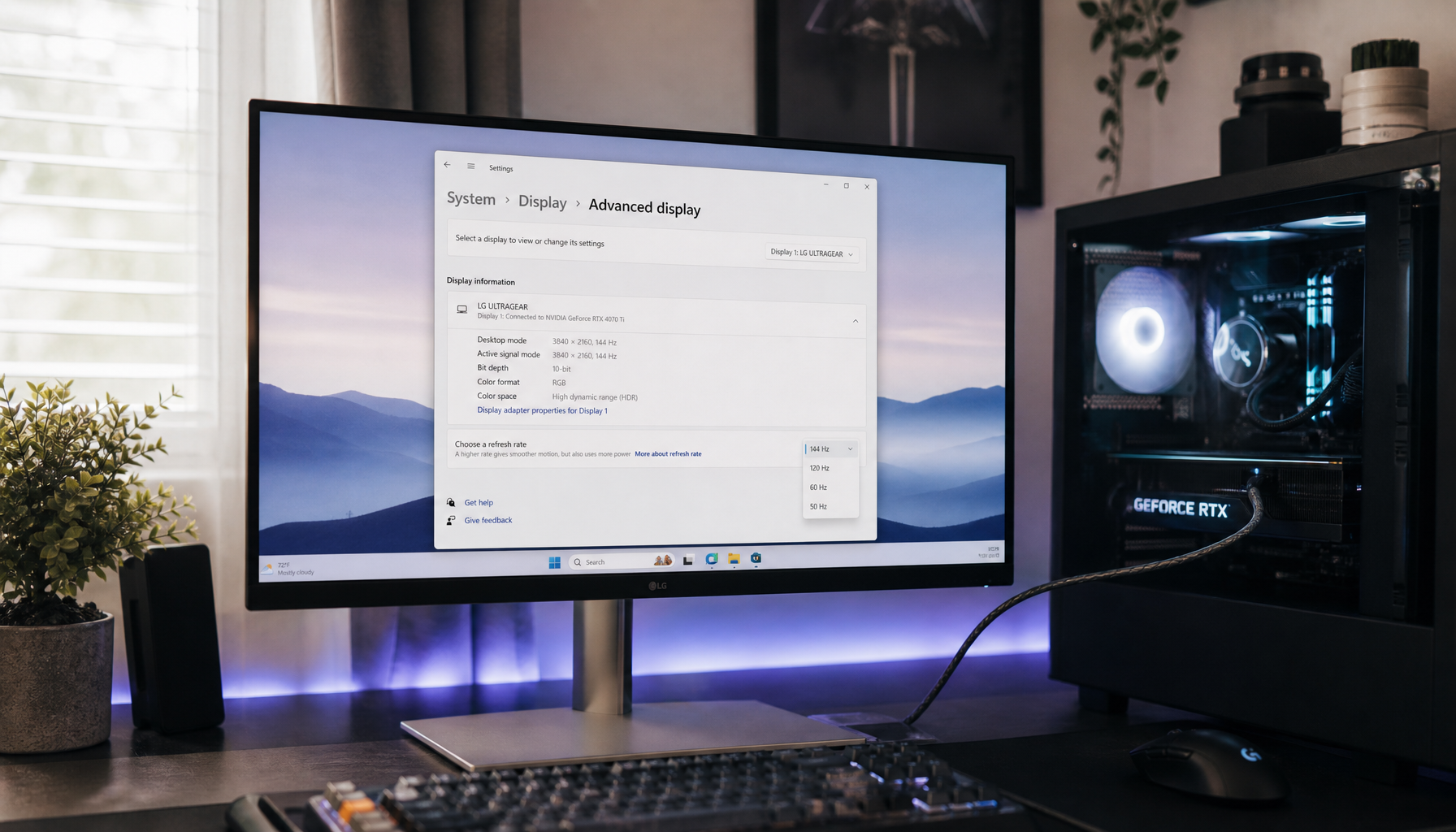
Windows 11
- Right-click an empty area of the desktop.
- Select Display settings.
- Choose Advanced display.
- Select your 240Hz monitor.
- Open the Choose a refresh rate menu.
- Select 240Hz if it appears.
Windows 10
- Right-click the desktop and select Display settings.
- Click Advanced display settings.
- Select Display adapter properties.
- Open the Monitor tab.
- Choose 240 Hertz from the Screen refresh rate menu.
- Click Apply and confirm the change.
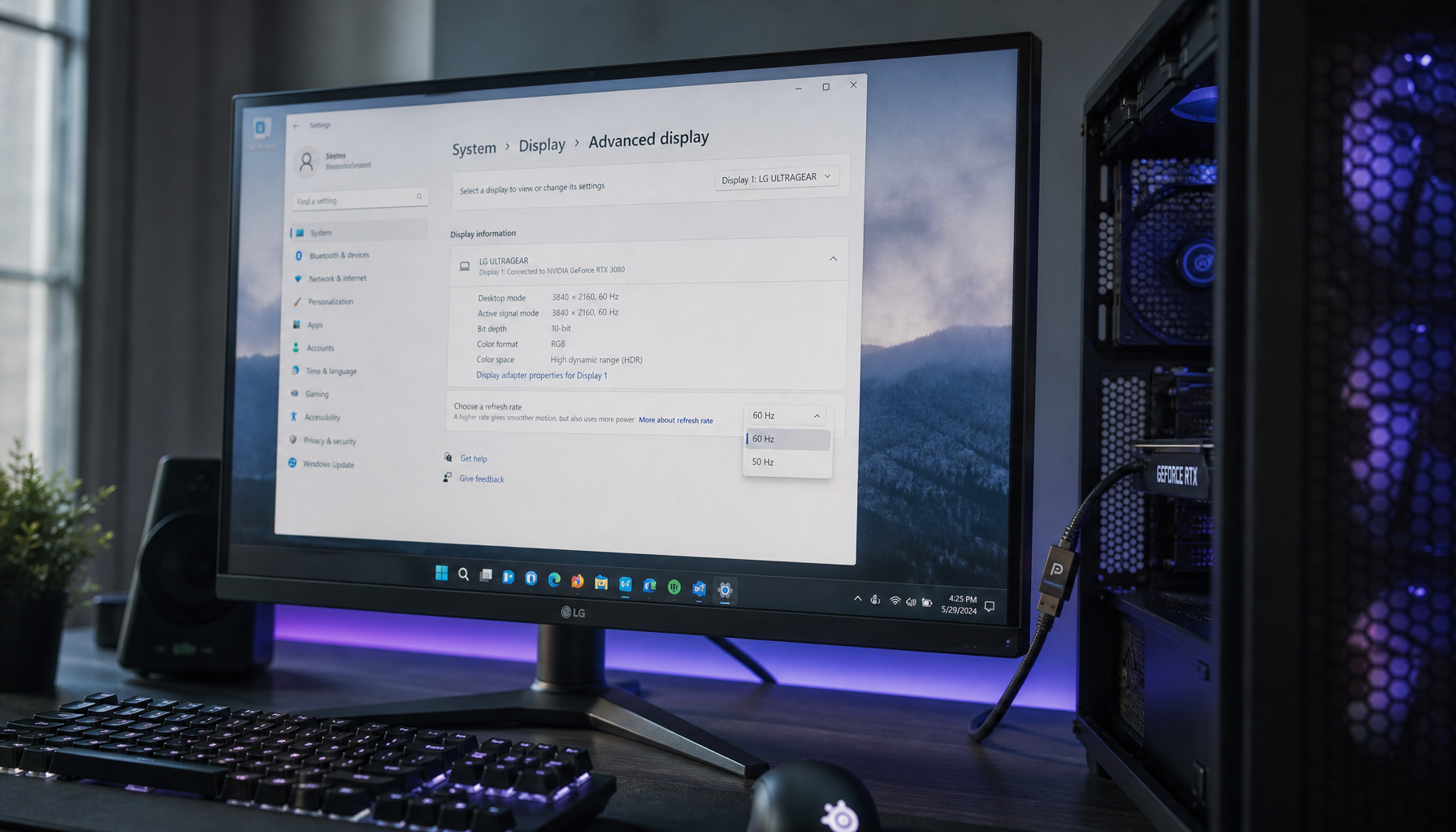
If 240Hz does not appear, Windows is not receiving that mode from the monitor. That usually points to a cable, port, driver, resolution, or monitor menu issue.
I have seen this happen after a Windows update or a graphics driver reset. The display worked perfectly, but the refresh rate quietly returned to 144Hz. Checking Advanced display should always be your first step when asking why is my 240hz monitor only showing 144hz.
Check the monitor’s on-screen menu
Many gaming monitors do not enable their highest refresh rate automatically. Use the buttons or joystick on the monitor to open its on-screen display, often called the OSD.
Look for settings with names such as:
• Refresh Rate
• Overclock
• Turbo
• Extreme
• High Refresh Rate
• DisplayPort Version
• HDMI 2.1 Mode
• Adaptive Sync
Some displays list 240Hz as an overclocked mode. This does not always mean the monitor is unsafe to use. It means the manufacturer may require you to enable the mode manually.
Read the monitor manual for the exact menu path. On some models, enabling overclocking can briefly turn the screen off or restart the monitor. That is normal. If the screen becomes unstable, return to the previous setting.
Also check the monitor’s input source. A monitor may support 240Hz through DisplayPort but only 144Hz through HDMI. The port labels and manual are more reliable than a general product listing.

Make sure the cable and port support 240Hz
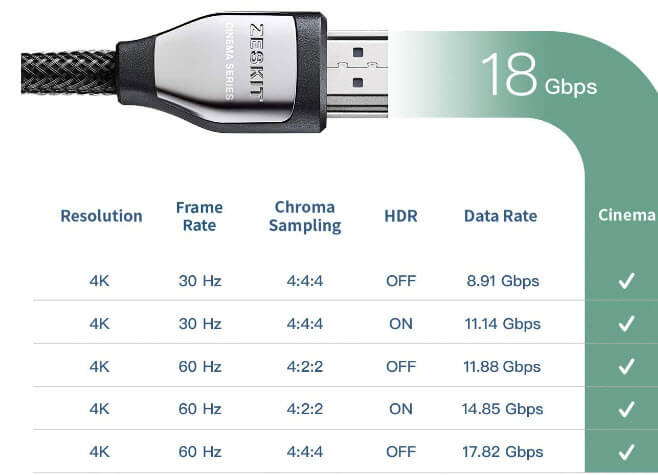
A cable can work at 144Hz and still fail at 240Hz. This is one of the most common answers to why is my 240hz monitor only showing 144hz.
DisplayPort
DisplayPort is often the easiest choice for high-refresh PC gaming. DisplayPort 1.4 can support many 240Hz modes, especially when Display Stream Compression, or DSC, is available. The exact result depends on resolution, color depth, chroma settings, and the monitor.
DisplayPort 2.0 and 2.1 provide even more bandwidth, but both the graphics card and monitor must support the needed standard. A newer cable alone cannot upgrade an older port.
HDMI
HDMI support depends strongly on the version and resolution. HDMI 2.1 has much more bandwidth than HDMI 2.0 and is better suited to high-refresh 1440p and 4K displays. HDMI 2.0 may support 240Hz at 1080p on some monitors, but it may be limited to 144Hz at 1440p.
Avoid very long, damaged, or unbranded cables. Use a cable rated for the connection standard listed by the monitor maker. A short, certified cable is usually the safest choice.
Try a direct connection
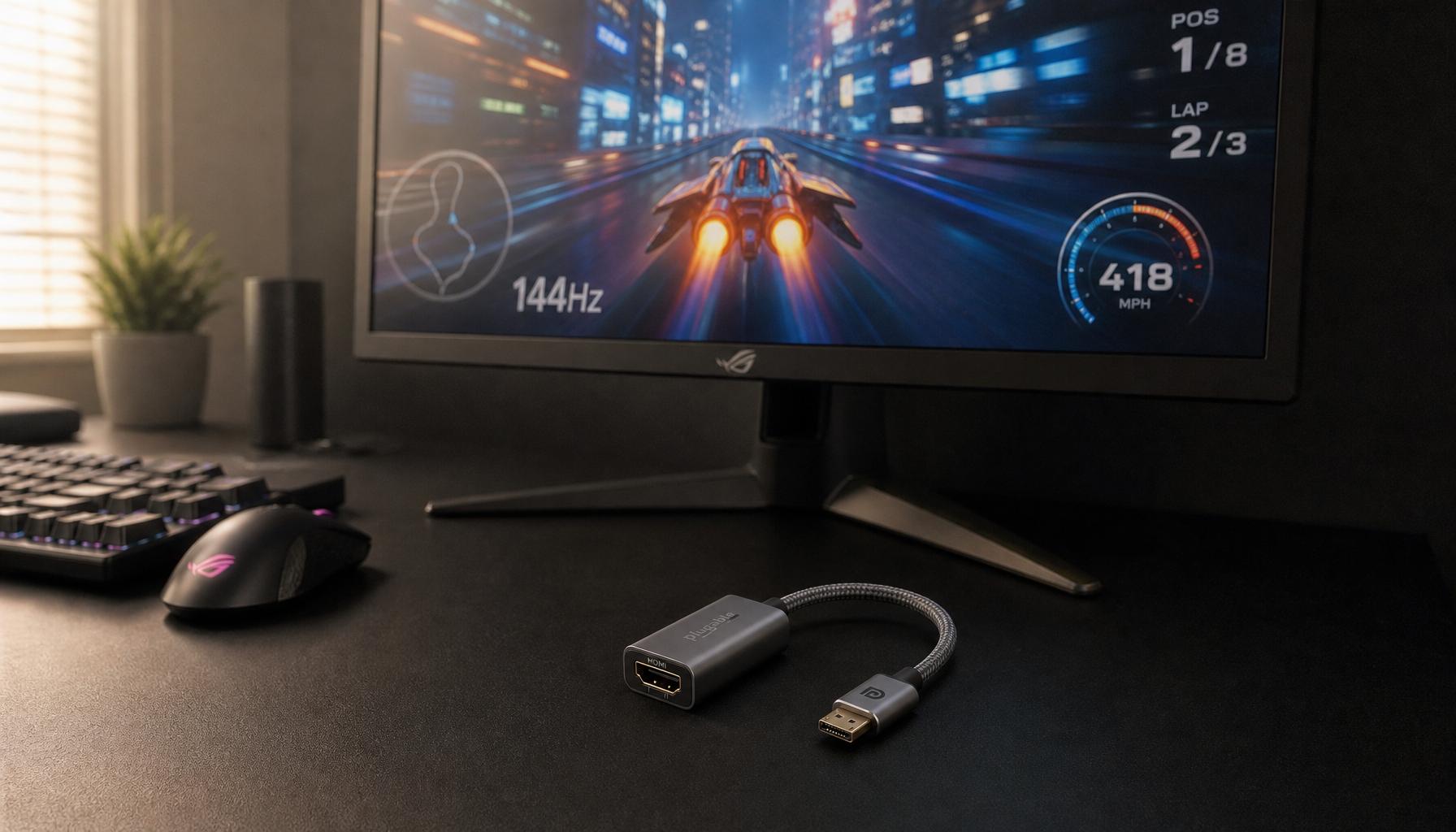
Connect the graphics card directly to the monitor. Avoid docking stations, adapters, splitters, receivers, and older KVM switches while testing. These devices may limit the signal to 144Hz even when the monitor and GPU support 240Hz.
A practical test is simple: use a certified DisplayPort cable, connect it to another supported port, and restart the computer. This basic swap has solved many cases where users asked why is my 240hz monitor only showing 144hz.

Confirm the monitor’s resolution and bandwidth
A monitor may support 240Hz only at one resolution. For example, a display could offer:
• 240Hz at 1920 × 1080
• 165Hz at 2560 × 1440
• 120Hz at 3840 × 2160
Always check the specification table for your exact model. Product pages sometimes advertise the highest refresh rate without making the required resolution clear.
Higher resolution uses more data. Higher color depth also uses more data. A 10-bit RGB signal at 1440p can require more bandwidth than an 8-bit signal at the same resolution.
For testing, select the monitor’s native resolution and try 240Hz. If it is missing, temporarily test 1920 × 1080. If 240Hz appears at 1080p but not at the native resolution, the connection probably lacks enough bandwidth.
This does not always mean you need a new monitor. You may only need DisplayPort, a newer HDMI port, DSC, or a different color setting.
Check your graphics card and laptop limits
Your graphics card must support the resolution and refresh rate you want. A monitor can display 240Hz, but the computer still needs a suitable output.
Check these details:
• The GPU model and its DisplayPort or HDMI version
• Whether the port is connected to the dedicated GPU
• The laptop’s maximum external display refresh rate
• Whether a USB-C port supports DisplayPort Alt Mode
• Whether the dock or adapter supports 240Hz
On a desktop, connect the monitor to the graphics card rather than the motherboard. The motherboard video port may be controlled by integrated graphics and may not support the monitor’s full refresh rate.
On a laptop, the HDMI port may be limited even if the laptop has a powerful GPU. A USB-C port may support a faster display signal, but only when it supports DisplayPort Alt Mode. Check the laptop manual for confirmation.
The graphics card does not need to render 240 frames per second just to show a 240Hz desktop option. However, games feel most responsive when the GPU can produce a high frame rate that matches the display.

Update or reinstall the graphics driver
A driver problem can hide supported refresh rates. This may happen after a system update, a new graphics card installation, or a driver replacement.
Download the current driver from the official NVIDIA, AMD, or Intel support page. During installation, choose a clean installation if that option is available. Then restart the computer and check Advanced display again.
You can also check the graphics card control panel.
NVIDIA
Open NVIDIA Control Panel, select Change resolution, choose the monitor, and select 240Hz under Refresh rate. Use the PC resolution category instead of a television category when both are listed.
AMD
Open AMD Software, go to Display, select the monitor, and check the available refresh rate. Also review custom resolution settings if 240Hz is not listed.
Intel
Open Intel Graphics Command Center, select Display, and review the refresh rate and resolution options.
Do not create a custom 240Hz mode unless you understand the risks. A bad timing value can cause a black screen or an out-of-range message. Standard modes supplied by the monitor are safer.
Test common settings that can block 240Hz
If you still wonder why is my 240hz monitor only showing 144hz, test the settings below one at a time.
Turn off duplicate display mode
Windows may restrict refresh rates when you duplicate the monitor with another display. Press Windows + P and choose Extend or Second screen only. Then check the refresh rate again.
Disconnect extra monitors
A second monitor usually does not prevent 240Hz, but older adapters and mixed display setups can cause problems. Disconnect other displays during testing.
Disable HDR temporarily
HDR does not always reduce refresh rate, but it can increase bandwidth requirements in some setups. Turn HDR off briefly to see whether 240Hz becomes available.
Check color settings
In the graphics control panel, test 8-bit color and standard RGB. If 240Hz appears, the original color format may have exceeded the connection’s bandwidth.
Disable GPU scaling
GPU scaling and custom scaling options can sometimes create unusual resolution modes. Use the monitor’s native resolution and let the display handle scaling while testing.
Turn off variable refresh temporarily
FreeSync, G-SYNC, and Adaptive-Sync usually work with high refresh rates, but testing with them disabled can help identify a compatibility issue. Turn the feature back on after finding the correct 240Hz mode.

Use the correct 240Hz setup for gaming
Seeing 240Hz in Windows does not mean every game will run at 240 frames per second. Refresh rate is the number of times the display can update each second. Frame rate is the number of frames the GPU creates.
For the smoothest result:
- Set Windows to 240Hz.
- Select 240Hz in the game’s video settings.
- Use exclusive fullscreen or borderless mode, depending on the game.
- Enable Adaptive-Sync if it works correctly.
- Set a frame limit if needed.
- Watch the in-game frame counter.
A 240Hz monitor can still feel smooth when the game runs at 160 or 200 frames per second. It simply will not show a new frame during every refresh cycle.
Competitive games often benefit most from 240Hz because the lower refresh interval can reduce perceived motion blur and input delay. The improvement is real, but it is smaller than the jump from 60Hz to 144Hz. You also need a fast GPU, stable frame times, and low input lag to gain the full benefit.
A simple troubleshooting order
Follow this order instead of changing many settings at once. It makes the cause easier to identify.
- Set the monitor to its native resolution.
- Check Windows Advanced display settings.
- Check the monitor OSD for overclock or high-refresh mode.
- Use a certified DisplayPort or HDMI cable.
- Try another supported port on the GPU.
- Connect the monitor directly to the graphics card.
- Update or reinstall the graphics driver.
- Disconnect adapters, docks, and extra monitors.
- Test 240Hz at a lower resolution.
- Check the monitor and GPU manuals for limits.
If 240Hz works at a lower resolution but not at the native resolution, bandwidth is the leading suspect. If 240Hz never appears, check the monitor mode, GPU output, cable, and driver.
If the monitor briefly shows 240Hz and then returns to 144Hz, look for signal errors, flickering, black screens, or driver crashes. Those signs often point to an unreliable cable, weak port connection, or mode that exceeds the system’s stable bandwidth.
Mistakes to avoid
Do not assume every HDMI cable supports every HDMI feature. The connector shape is the same across many HDMI generations, but the bandwidth can be very different.
Do not buy an expensive cable before checking the port and resolution limits. A premium cable cannot make an HDMI 2.0 port behave like HDMI 2.1.
Do not force a custom refresh rate while the screen is unstable. Use the monitor’s standard 240Hz mode first. If the display shows a black screen, wait for Windows to restore the old setting or use Safe Mode to undo the change.
Do not confuse a monitor’s refresh rate with your game’s frame rate. A 240Hz setting is ready for high-speed motion, but the game and GPU must still produce enough frames.
In my own display troubleshooting work, the most common mistake was replacing the monitor before testing the cable and Windows setting. Start with the simple checks. They cost nothing and often solve why is my 240hz monitor only showing 144hz within minutes.
When the monitor may be defective
Most cases are caused by setup limits, but hardware failure is possible. Consider contacting the manufacturer if:
• The monitor manual confirms 240Hz at your chosen resolution.
• The GPU and cable support the required standard.
• The correct OSD mode is enabled.
• The latest driver is installed.
• Another known-good cable and computer show the same problem.
Also look for flickering, colored lines, random black screens, or repeated signal loss. These symptoms may indicate a damaged cable, port, monitor board, or graphics output.
Keep your receipt and note the exact model, resolution, connection type, and refresh rates you tested. Clear details help support staff diagnose the issue faster.
Frequently Asked Questions
Why is my 240hz monitor only showing 144hz in Windows?
Windows may have selected 144Hz as the active refresh rate, or the connection may not support 240Hz at your current resolution. Check Advanced display, the monitor’s OSD, and the cable standard.
Can an HDMI cable limit a 240Hz monitor to 144Hz?
Yes. HDMI 2.0, older ports, or low-quality cables may support 144Hz but not 240Hz at higher resolutions. Check the monitor and GPU specifications, then test a certified cable through a supported port.
Is DisplayPort better than HDMI for 240Hz?
DisplayPort is often the simplest choice for a 240Hz PC monitor, but the best option depends on the monitor, GPU, resolution, and port version. HDMI 2.1 can also support very high refresh rates when both devices support it.
Does a 240Hz monitor need a powerful graphics card?
The monitor can show a 240Hz desktop signal without rendering 240 frames per second. For smooth competitive gaming, however, your GPU and game settings should produce a high and stable frame rate.
Why does 240Hz appear at 1080p but not at 1440p?
1440p requires more bandwidth than 1080p. Your cable or port may support 240Hz at 1080p but lack enough bandwidth for 240Hz at 1440p.
Can a graphics driver hide the 240Hz option?
Yes. A corrupted, outdated, or incorrectly installed driver can remove supported modes. Update the driver from the GPU maker and then check both Windows and the graphics control panel.
Does Adaptive-Sync stop a monitor from running at 240Hz?
Usually, no. FreeSync, G-SYNC, and Adaptive-Sync are designed to work with high refresh rates, but a compatibility issue can occur. Disable the feature briefly for testing, then enable it again if the display remains stable.
Conclusion
If you are asking why is my 240hz monitor only showing 144hz, start with Windows Advanced display settings, the monitor’s OSD, and the cable. Then check the port, resolution, graphics driver, GPU limits, and any adapter or docking device.
In most cases, the monitor is capable of 240Hz but the current signal path is not configured for it. Test one change at a time, use a certified cable, and confirm the limits of both the monitor and graphics card. Once you unlock the correct mode, check your games too so they can take advantage of the faster display.
Try these steps today, and share your monitor model, GPU, resolution, and cable type in the comments if you need help finding the exact limit.