Your laptop camera quality is often poor because of a low-quality webcam, dim light, dirty lens, or incorrect settings.
Wondering why is my laptop camera quality so bad can feel frustrating, especially during work calls, online classes, or family chats. The good news is that blurry video is not always caused by a broken camera. This guide explains the most common causes, simple fixes, software settings, and signs that it is time to use an external webcam.

Why Is My Laptop Camera Quality So Bad?
The most common reason is simple: many built-in laptop webcams use small sensors and low-resolution lenses. Laptop makers often prioritize a thin design, long battery life, and a lower price over professional camera quality.
A built-in webcam may produce a soft or grainy image even when it works correctly. This is especially common on budget laptops, older models, and devices with 720p cameras.
Other common causes include:
• Poor room lighting
• A dirty or smudged camera lens
• Incorrect camera settings
• Weak internet service
• An outdated camera driver
• An app using low video quality
• Digital zoom or image cropping
• A loose or damaged camera module
• Too many apps using system resources
It helps to separate camera quality from video call quality. Your camera creates the image, while your internet connection sends it. A slow connection can cause freezing, blocky video, or reduced resolution, but it does not usually make the original camera image blurry.
In simple terms, the webcam is like a small window. If the window is dirty, the room is dark, or the glass is low quality, the view will not look sharp.
The Main Causes of Poor Laptop Webcam Quality
Your laptop webcam has limited hardware
Many built-in laptop cameras have a 720p resolution. Some newer models offer 1080p, but resolution is only one part of image quality.
A webcam also depends on its sensor size, lens, exposure control, white balance, and image processing. A small 1080p sensor can still look worse than a good 720p external webcam in a dark room.
Laptop webcams also sit inside very small screen bezels. This limits the space available for a larger lens and sensor. The result is often a narrow, soft, and noisy image.
The room is too dark
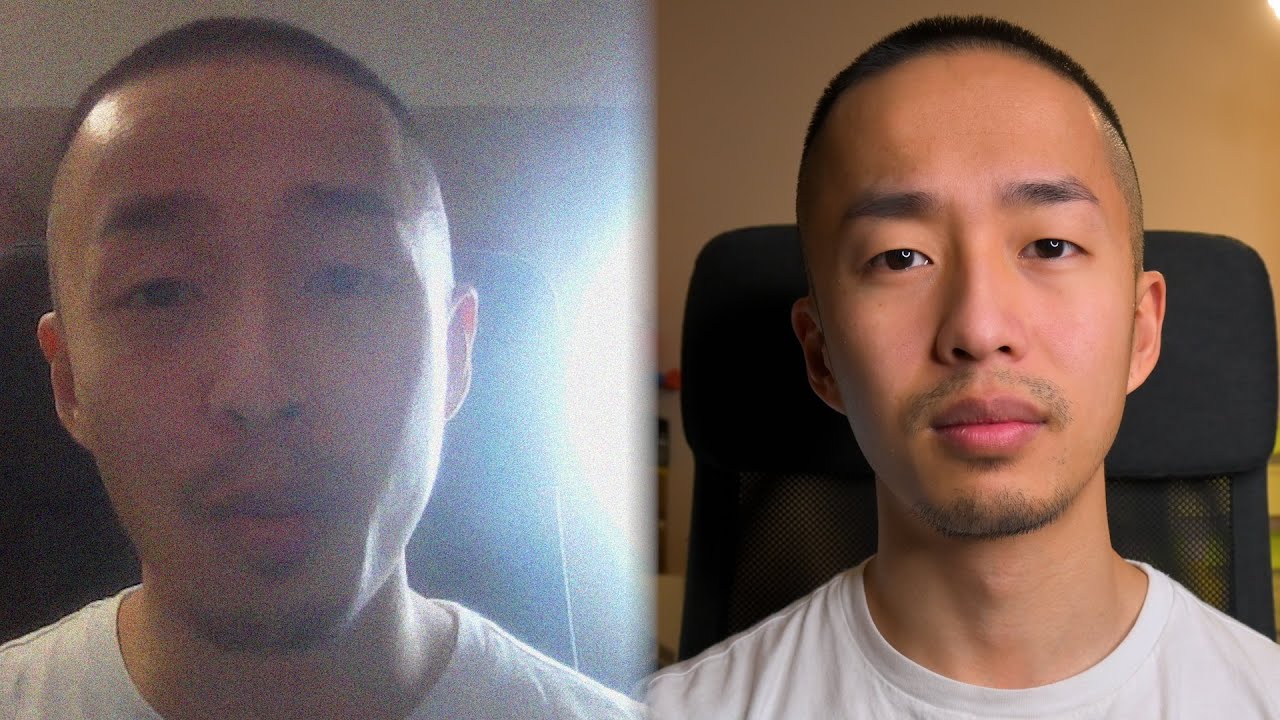
Low light is one of the biggest answers to why is my laptop camera quality so bad. Webcams need enough light to create a clean image. When the room is dark, the camera increases its exposure and gain.
This can create:
• Grainy video
• Motion blur
• Pale skin tones
• Dark shadows
• A washed-out background
• Flickering from indoor lights
Place a lamp in front of you, not behind you. A window behind your head can turn your face into a dark silhouette. Soft light placed near eye level usually gives better results than a strong ceiling light.
The lens is dirty
A fingerprint can make your camera look out of focus. Dust, skin oil, and cleaning spray may leave a thin film over the lens.
Turn off the laptop and gently wipe the camera with a clean microfiber cloth. Do not spray liquid directly onto the screen or camera area. Avoid paper towels, rough fabric, and strong cleaning products, as they may scratch the surface or damage the display.
Your video app lowers the quality
Some video apps reduce resolution to save bandwidth. This can happen when your internet is slow or when the app detects limited system performance.
Check the video settings in Zoom, Microsoft Teams, Google Meet, FaceTime, Discord, or another app. Look for options such as:
• HD video
• Original quality
• High-quality video
• Camera resolution
• Low-light adjustment
• Automatic video quality
The exact names vary by app. Also check whether the app is using the correct camera. You may be viewing a low-quality virtual camera instead of the built-in webcam.
The camera driver is outdated
A driver helps Windows or another operating system communicate with the camera. A damaged or outdated driver can cause poor focus, wrong colors, flickering, or a black screen.
On Windows, open Device Manager and expand Cameras. Right-click the webcam, choose Update driver, and restart the laptop. You can also install driver updates from the laptop maker’s official support page.
On a Mac, camera updates usually arrive through macOS updates rather than a separate webcam driver. Install available system updates, then test the camera again.
Your internet connection is weak
A poor connection may make video appear blurry or blocky. Video apps often lower the stream quality when upload speed changes.
You can test this by opening the camera app on your laptop. If the local preview looks sharp but the call looks poor, your camera may be fine. The problem may be your Wi-Fi, video app, VPN, or network congestion.
Try these steps:
• Move closer to the Wi-Fi router
• Use a wired connection if possible
• Pause large downloads
• Close other video calls
• Turn off an unnecessary VPN
• Ask others on the network to reduce heavy use
Your laptop is under heavy load
Video calls need processing power. If many apps are open, your laptop may struggle to process and transmit the camera feed.
Close unused browser tabs and apps. Check Task Manager on Windows or Activity Monitor on macOS. If the processor or memory is near full use, ending heavy tasks may improve the video.

How to Improve Laptop Camera Quality
Improve your lighting first
Lighting often gives the fastest improvement. You do not need expensive studio gear.
Try this setup:
- Face a window during the day.
- Put a lamp behind your screen at night.
- Keep the light slightly above eye level.
- Avoid bright lights directly behind you.
- Use a white wall or curtain to soften harsh light.
A small LED light can help if you attend many meetings. Choose one with adjustable brightness and a warm or neutral color setting. Avoid placing a very bright light close to your face.
Clean and position the camera
Clean the lens before changing software settings. Then raise the laptop so the camera sits close to eye level.
A stack of books can work as a simple laptop stand. This improves your camera angle and keeps you from looking down. It also helps your face fill the frame without using digital zoom.
Keep your face a reasonable distance from the camera. Sitting too close can make the image look distorted, while sitting too far away can make detail disappear.
Change camera settings
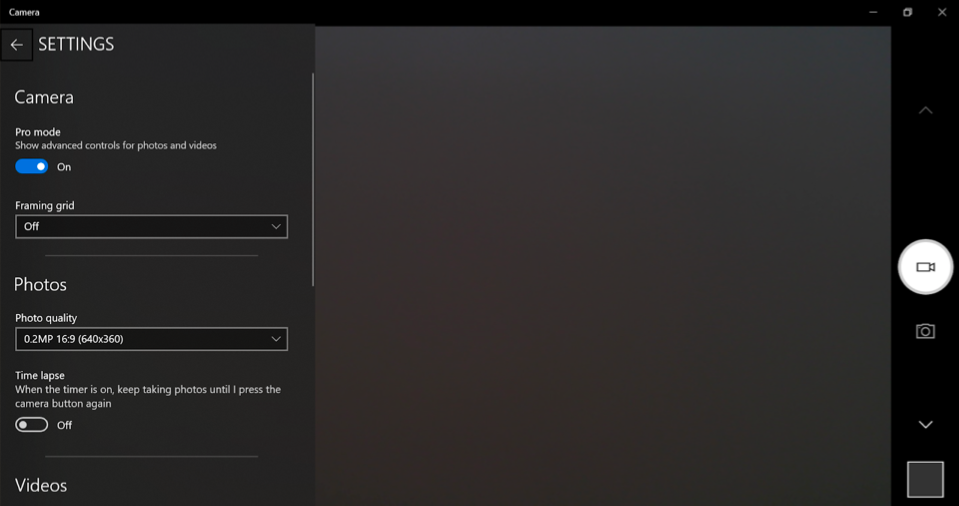
Open your operating system’s camera settings and adjust the available controls. Useful options may include brightness, contrast, exposure, focus, saturation, and white balance.
Avoid increasing sharpness too much. Excessive sharpening can create bright outlines around your face and make skin look unnatural.
If your camera has an automatic low-light mode, test it in a dark room. It may brighten your face, but it can also add noise or make movement look blurry.
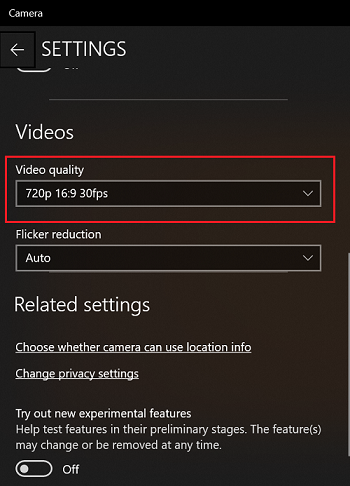
Choose the correct resolution
If your webcam supports 1080p, select it in the video app. Keep in mind that the app, laptop, and internet connection must all support that quality.
A 1080p setting may not help if:
• The lens is dirty
• The room is dark
• The app compresses the video
• Your upload speed is low
• The camera sensor is poor
• Your laptop cannot process the stream well
Higher resolution is useful, but good light and clean glass matter just as much.
Update your system and apps
Install operating system updates from official settings. Update your meeting apps as well. Updates may fix camera bugs, compatibility problems, and video processing issues.
Avoid downloading random camera drivers from unofficial websites. They may contain unwanted software or may not match your laptop model.
Windows and Mac Fixes for a Bad Laptop Camera
Windows troubleshooting steps
If you use Windows, work through these steps:
- Open the Camera app and check the preview.
- Clean the camera lens.
- Go to Settings, Privacy and security, then Camera.
- Make sure camera access is enabled.
- Allow desktop apps to access the camera.
- Check that your meeting app has permission.
- Open Device Manager and update the camera driver.
- Restart the laptop.
- Test the webcam in another app.
Windows camera permissions can block an app from using the webcam. If the camera works in one app but not another, permissions or app settings are likely the cause.
You can also run the built-in camera troubleshooter if your Windows version provides one. Results vary, but it may identify a disabled device or driver issue.
Mac troubleshooting steps
On a Mac, try these actions:
- Open Photo Booth and test the camera.
- Close all apps that may be using the webcam.
- Restart the Mac.
- Open System Settings and check camera permissions.
- Update macOS.
- Test the camera in a different app.
- Check whether an external monitor or accessory is interfering.
A green camera indicator should appear when the Mac camera is active. If an app appears to hold the camera open, close it before testing another program.
If the camera works in Photo Booth but not in a meeting app, review that app’s selected camera and privacy permissions.

How to Tell Whether the Camera Is Broken
Software problems are more likely when the camera works in one app but not another. Hardware problems become more likely when every app shows the same poor image.
Look for these warning signs:
• The image has permanent lines or colored spots
• The camera stays black in every app
• The picture is severely distorted
• The camera disappears from system settings
• The camera cable causes changes when the screen moves
• The image suddenly became poor after physical damage
• The lens appears cracked or loose
Test the camera in a local app first. This removes internet problems from the test. If the local preview is still blurry after cleaning the lens and improving light, the built-in webcam may simply have limited hardware.
A repair may not be worthwhile for an older laptop. A USB webcam is often cheaper, faster, and easier than replacing a built-in camera module. If the laptop is under warranty, contact the manufacturer before opening the device.
Is an External Webcam Worth It?
An external webcam can be a major improvement. Many models offer better sensors, wider lenses, autofocus, HDR, and 1080p or 4K video.
It is worth considering one if:
• You attend frequent work meetings
• You create online videos
• You teach or stream from home
• Your built-in camera is only 720p
• You work in changing light
• Your laptop webcam has a hardware fault
You do not need the most expensive model. A reliable 1080p webcam with autofocus and good low-light performance is enough for most calls.
Place the webcam near the top center of your monitor. This keeps your eye line natural. If the camera sits far to the side, people may feel as if you are looking away during the conversation.
An external webcam has limits, too. It still needs good lighting, correct software settings, and a stable connection. A costly camera cannot fully fix a dark room or weak Wi-Fi.

Mistakes That Make Webcam Video Worse
Some fixes can create new problems. Avoid these common mistakes:
• Using digital zoom, which enlarges blur and noise
• Sitting with a bright window behind you
• Covering the lens with a thick privacy sticker
• Cleaning the lens with rough material
• Running several camera apps at once
• Installing unknown webcam software
• Choosing 4K when your internet cannot support it
• Placing the camera below chin level
• Using harsh overhead lighting
• Assuming blurry calls always mean a broken camera
In my usual troubleshooting process, I check the local camera preview before changing many settings. This simple step quickly shows whether the issue comes from the webcam itself or from the meeting app and network.
The biggest lesson is to change one thing at a time. Clean the lens, test it, improve the light, and then review the app settings. If you change everything at once, you may not know which fix worked.
Frequently Asked Questions About Why Is My Laptop Camera Quality So Bad
Why is my laptop camera blurry but my phone camera is clear?
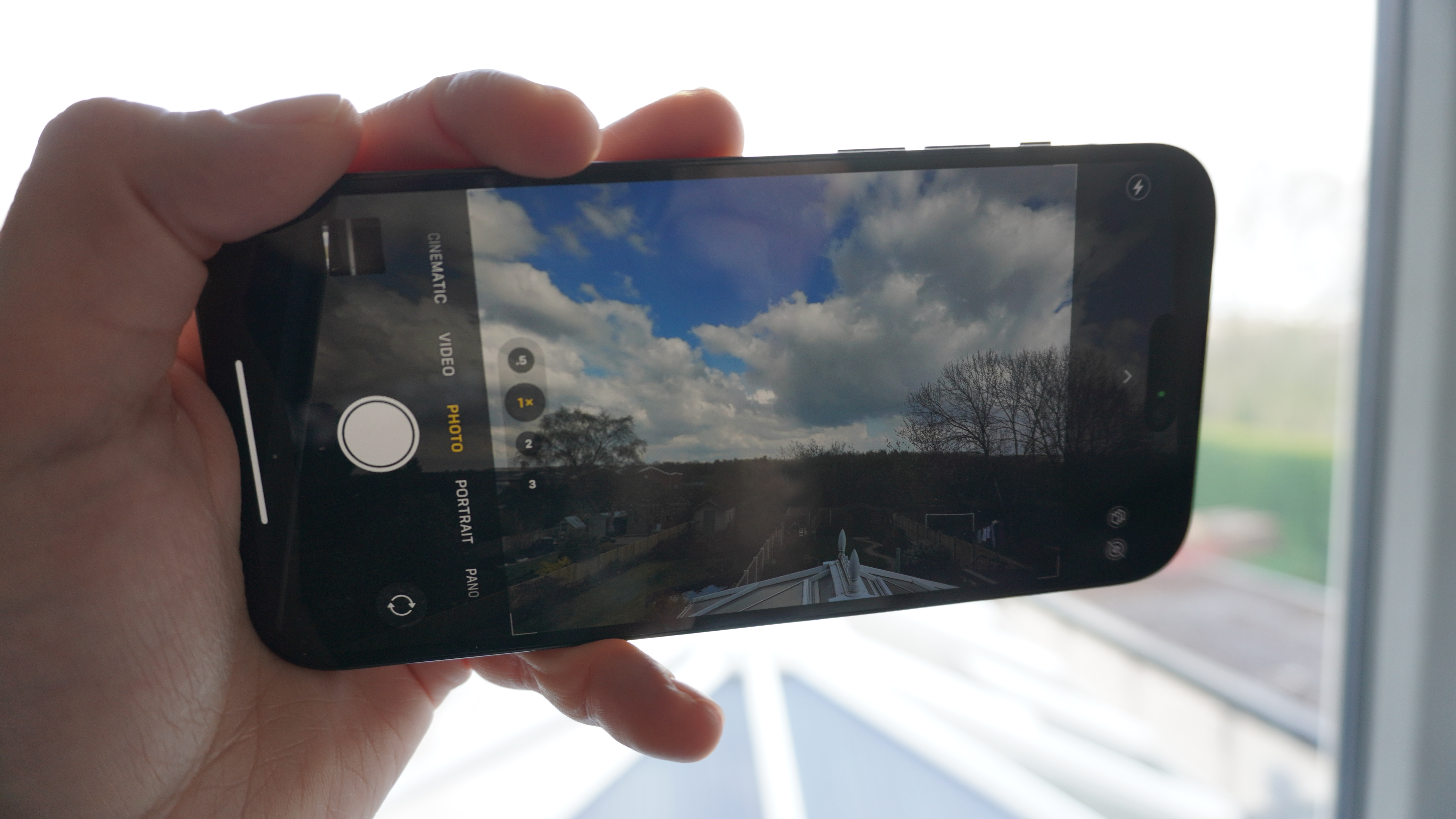
Phone cameras usually have larger sensors, better lenses, and stronger image processing than built-in laptop webcams. Your laptop camera may be working normally but may not match the quality of a modern phone.
How can I make my laptop camera clearer?
Clean the lens, face a soft light source, sit closer to the camera, and select the highest supported quality in your video app. Updating camera drivers and app permissions can also help.
Does a slow internet connection make my camera blurry?
Yes, a slow or unstable connection can cause compression, blocky images, and reduced video resolution during calls. Test the webcam in a local camera app to see whether the original preview is clear.
Why is my laptop camera grainy in low light?
The webcam increases its electronic gain when there is not enough light. This brightens the image but also adds visible grain and can create motion blur.
Should I buy an external webcam?
An external webcam is useful if you need clearer video for work, teaching, streaming, or frequent calls. A good 1080p model can provide a noticeable improvement over many built-in laptop cameras.
Can a laptop camera lose focus?
Some built-in webcams have fixed focus and cannot adjust at all. If your camera once looked clear and suddenly became blurry, clean the lens, check software settings, and test for physical damage.
Conclusion
The answer to why is my laptop camera quality so bad is often a mix of basic hardware, poor lighting, a dirty lens, app compression, or network trouble. Start with the easiest fixes: clean the lens, improve front lighting, check permissions, update the system, and test the camera locally.
If the image remains poor in every app, your laptop may have a weak or damaged webcam. In that case, a quality external webcam can provide a simple and affordable upgrade. Try these steps before your next call, and share your results or explore more practical laptop setup guides for better video and sound.