Your laptop camera is usually dark because of poor lighting, blocked exposure, privacy settings, or an outdated camera driver.
If you are asking, “why is my laptop camera so dark,” the answer is often simple to find. A webcam needs enough light and the right exposure settings to create a clear image. In this guide, you will learn how to test each likely cause, fix the problem on Windows or Mac, and know when the camera may need repair.
Why Is My Laptop Camera So Dark?
A dark laptop camera image means the webcam is not receiving or using enough light. The issue may come from your room, the camera lens, software settings, or the camera hardware itself.
Unlike a phone camera, most built-in laptop webcams have small sensors and basic lenses. They work well in bright, even light but struggle in a dim room. A bright window behind you can also make your face look almost black because the camera lowers exposure to protect the bright background.
Common causes include:
• Low room lighting: Your webcam may not capture enough light in a dark room.
• Backlighting: A window or lamp behind you can make your face look shadowed.
• A dirty lens: Dust, fingerprints, and smudges can block light and reduce contrast.
• Camera exposure settings: Some apps may lower brightness or exposure.
• Privacy software: Security tools may limit camera access or change its behavior.
• An outdated driver: Windows may use an old or incorrect camera driver.
• A hardware fault: The camera sensor, cable, or webcam module may be damaged.
The best fix depends on the cause. Before changing advanced settings, test the camera in a well-lit room and clean the lens with a soft microfiber cloth.

Quick Checks Before Changing Settings
Simple checks can solve the problem in less than five minutes. They also help you avoid changing settings that were not causing the issue.
Clean the webcam lens
Laptop webcams sit near the top of the screen. That area collects dust and fingerprints easily. A thin greasy mark can make the image look dull, gray, or darker than normal.
Turn off the laptop or close the camera app. Wipe the lens gently with a clean microfiber cloth. Do not spray cleaner directly onto the screen or camera.
Improve the light in front of you
Place a lamp or window in front of your face. The light should point toward you, not toward the camera from behind you.
Soft light works best. A lamp covered by a shade or a light placed near eye level can brighten your face without creating harsh shadows.
Remove anything covering the camera
Check for a sliding privacy shutter, webcam cover, tape, or screen protector that overlaps the lens. Some laptop models include a small physical shutter that can partly block the camera.
Also check whether your hand, a monitor edge, or a laptop case is blocking the lens.
Restart the laptop
A restart can clear a temporary camera service problem. Close video apps first, restart the computer, and then test the camera again.
Test another camera app
Try the built-in Camera app on Windows or Photo Booth on macOS. If the image looks normal there, the problem may be inside Zoom, Google Meet, Microsoft Teams, or another video app.
Fix a Dark Laptop Camera on Windows
Windows includes camera controls, privacy settings, and driver tools that can affect image quality. The exact names may vary slightly between Windows 10 and Windows 11.
Check camera permissions
A blocked permission usually causes a black screen, but it can also create unusual camera behavior in some apps.
-
Open Settings.
-
Select Privacy & security.
-
Choose Camera.
-
Turn on camera access.
-
Turn on permission for apps to use the camera.
-
Make sure your video app has access.
Open the Camera app after changing these settings. If the picture is still dark, continue with the next steps.
Adjust camera brightness and exposure
Some Windows laptops show camera controls in the Camera app or the video app you use. Look for settings named:
• Brightness
• Exposure
• Contrast
• White balance
• Low-light compensation
Increase brightness or exposure in small steps. Too much exposure can wash out your face and create a pale, blurry image.
Many laptops do not offer built-in exposure controls. In that case, the video app may have its own adjustment panel. Zoom, Teams, and other platforms often place these tools under video settings.
Update the camera driver
A camera driver helps Windows communicate with the webcam. If the driver is damaged or outdated, the camera may show poor color, flicker, or a dark image.
To check it:
-
Right-click the Start button.
-
Open Device Manager.
-
Expand Cameras or Imaging devices.
-
Right-click the built-in webcam.
-
Select Update driver.
-
Choose the option to search automatically.
Restart the laptop after the update. You can also visit the laptop maker’s official support page and search for your exact model. Avoid random driver websites because they may provide unsafe or incorrect files.
Reinstall the camera device
If updating does not help, Device Manager may allow you to uninstall the camera device. Restarting Windows often causes the system to reinstall it automatically.
Use this step only if you are comfortable with basic device troubleshooting. Write down the camera model first, and download the correct support driver if your laptop maker provides one.
Check the video app settings
A dark laptop camera image may appear in only one app. Open that app’s video settings and check whether it has:
• Low-light mode
• Automatic lighting
• Background effects
• Camera selection
• Video quality controls
Background blur and virtual backgrounds can sometimes make the picture look darker. Turn these features off for a test.

Fix a Dark Laptop Camera on a Mac
MacBooks usually manage camera exposure automatically. Still, lighting, app settings, permissions, and software updates can affect the image.
Test the camera in Photo Booth
Open Photo Booth and take a test image. If the image is bright there but dark in another app, the camera hardware is probably working.
The problem may be caused by that app’s lighting controls, video filters, or camera selection. Check the app settings and select the built-in FaceTime camera if more than one camera is available.
Check camera permissions
Open System Settings, select Privacy & Security, and choose Camera. Make sure the app you want to use has permission.
Close and reopen the app after changing permission. Some apps do not detect a new permission until they restart.
Improve the room lighting
MacBook cameras can struggle with a dark room and bright screen. Place a soft light in front of you and lower strong lights behind you.
You can also move away from a bright window. Your face should be one of the brightest parts of the scene, but the light should not shine directly into the lens.
Install macOS updates
Apple often includes camera, security, and compatibility improvements in macOS updates. Open System Settings, select General, and choose Software Update.
Keep your Mac connected to power during the update. Test the camera again when the update finishes.
Reset only when needed
Older Mac troubleshooting guides sometimes recommend resetting system controllers for camera issues. On newer Apple silicon Macs, many old reset steps do not apply. Start with permissions, updates, restarts, and lighting before trying advanced procedures.

Why Lighting Often Causes a Dark Webcam
Lighting is the most common reason people ask, “why is my laptop camera so dark.” The camera does not see a room the way your eyes do. Your eyes adjust quickly, while a small webcam sensor has limited ability to capture detail in shadows.
Imagine standing in front of a bright window. Your eyes can see your face and the window at the same time. The camera has a harder job. It may reduce exposure because the window is very bright, leaving your face underexposed.
Use the three-point lighting idea
You do not need a professional studio. A simple setup can make a large difference:
• Key light: Place a soft lamp in front of you.
• Fill light: Add a weaker light to one side if one side of your face is too dark.
• Background light: Add a small light behind you if the background looks flat.
For normal calls, one soft light near the screen is often enough. Avoid placing a powerful lamp directly below your face because it can create unnatural shadows.
Avoid mixed color temperatures
A warm table lamp and a cool daylight window can produce uneven color. Your face may look dark on one side and orange or blue on the other.
Close the blinds or use one main type of light. This gives the camera a more stable image and helps automatic exposure work properly.
Do not rely only on screen brightness
Increasing screen brightness may add a little light to your face, but it is not a strong solution. The screen faces you at a short distance and usually creates a cool, flat glow.
A small LED light made for video calls can work better. Choose one with adjustable brightness and place it slightly above the screen.
Camera Settings That Can Make the Image Dark
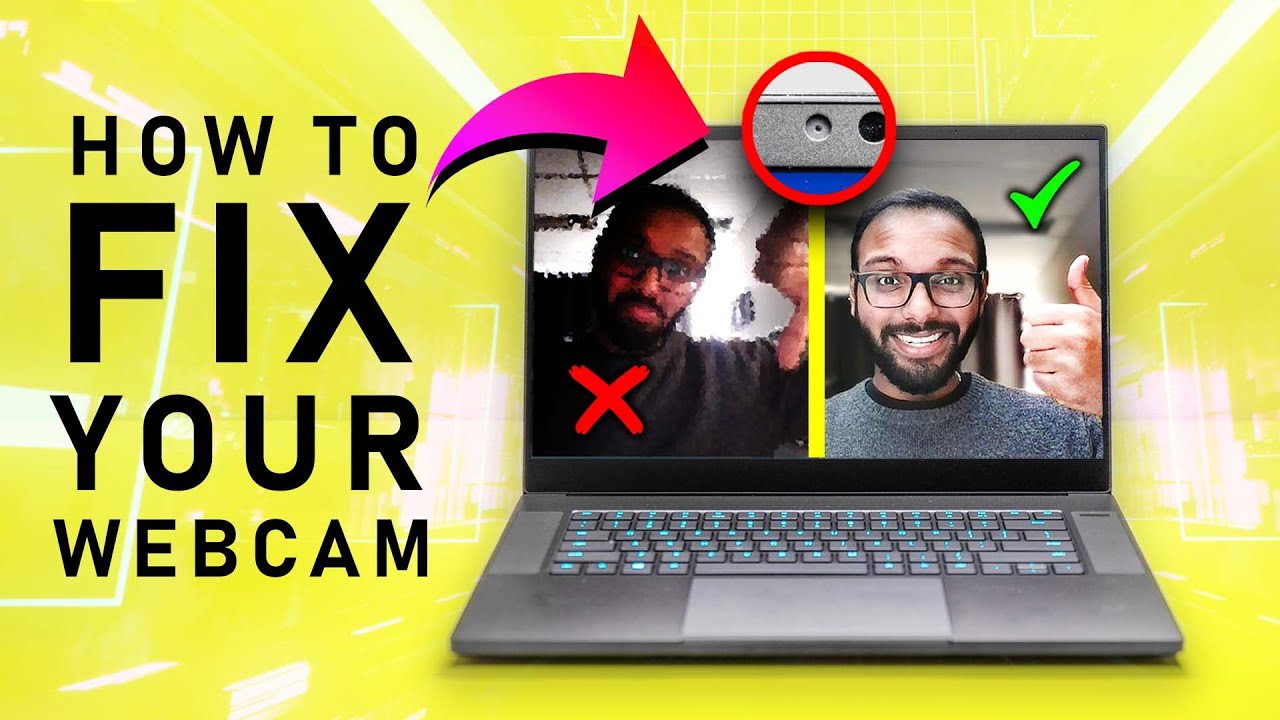
Some camera tools change the image without making it obvious. If the camera became dark after installing an app or changing a setting, look for recent changes.
Automatic exposure
Automatic exposure tries to balance the whole scene. If your background is bright, it may darken your face. If your face is near a bright lamp, it may lower exposure too much.
If manual exposure is available, raise it slightly. Make small changes and check your face, hair, and background after each adjustment.
HDR and low-light modes
Some newer webcams offer high dynamic range or low-light features. These modes can help in difficult scenes, but they may also create noise, blur, or unnatural colors.
Test the camera with the feature on and off. The best choice depends on your room and webcam model.
Filters and effects
Video filters can reduce brightness or add a dark color style. Disable filters, touch-up tools, virtual backgrounds, and studio effects while testing.
A clean, unedited image gives you a better idea of whether the camera itself is working.
Camera selection
If your laptop is connected to a monitor, docking station, or external webcam, the app may choose a different camera. One camera may be brighter than another.
Open video settings and confirm the selected device. Test each available camera if more than one appears.
:max_bytes(150000):strip_icc():focal(749x0:751x2)/Jamie-Lynn-Sigler298-06262026-7bf08767610e44569a82d11db4869fdd.jpg)
How to Tell Whether the Webcam Hardware Is Faulty
If the camera remains dark in every app and lighting condition, hardware may be the problem. A built-in webcam can fail after a drop, liquid spill, screen replacement, or cable damage.
Watch for these signs:
• The image stays dark even with a bright light directly in front of you.
• The camera flickers, shows colored lines, or displays a purple or green tint.
• The image is dark in both the built-in camera app and video calls.
• The camera stops working when you move the laptop screen.
• The webcam is missing from Device Manager or System Information.
• An external webcam works normally on the same laptop.
A damaged display cable can affect a camera located near the top bezel. If moving the screen changes the image, stop bending it repeatedly. That symptom may need professional repair.
You can also compare the built-in camera with an external USB webcam. If the USB webcam is bright and clear, the built-in camera or its connection may be faulty.
Laptop webcams are usually not designed for easy home repair. Opening the screen bezel can damage the display, cable, or clips. If the laptop is under warranty, contact the manufacturer before opening it.
A Practical Troubleshooting Order
When I work through a dark webcam problem, I start with the lowest-risk checks. This saves time and prevents a simple lighting issue from becoming a complicated driver problem.
Follow this order:
-
Clean the camera lens.
-
Remove any privacy shutter or cover.
-
Put a light in front of your face.
-
Move away from bright windows and lamps behind you.
-
Restart the laptop.
-
Test the built-in camera app.
-
Check camera permissions.
-
Turn off filters and virtual backgrounds.
-
Update the operating system and camera driver.
-
Test an external webcam.
This process separates environment problems from software problems and hardware problems. For example, if the image improves after moving a lamp, the camera is likely fine. If it stays dark everywhere, deeper troubleshooting makes more sense.
Mistakes to avoid
Do not spray glass cleaner onto the webcam. Liquid can enter the screen bezel and damage internal parts.
Do not download drivers from unknown websites. Use your laptop maker’s support page or the operating system’s trusted update tools.
Do not increase exposure to the highest level at once. This can create bright white areas, grainy shadows, and motion blur.
Do not assume a dark image means the camera is broken. In many cases, the webcam is working normally but is facing the wrong light.
How to Keep Your Laptop Camera Bright and Clear
Once you fix the problem, a few habits can help prevent it from returning. Webcam quality depends on the camera, the room, and your setup.
Keep the lens clean. Wipe it once a week if you use video calls often. Avoid touching the lens when adjusting the screen.
Use a repeatable light setup. A small lamp beside your monitor can give you steady results during work calls, online classes, and family chats.
Check your camera before important meetings. Open the camera app a few minutes early and look for dark shadows, glare, or an incorrect camera selection.
Keep your operating system updated. Updates may improve compatibility with video apps, camera drivers, and security permissions.
If you work in a dark room often, consider an external webcam with better low-light performance. A USB camera with a larger sensor, autofocus, and manual exposure controls may provide a clearer image than a basic built-in webcam.
Still, an expensive webcam cannot fix poor room lighting. Good light remains the simplest upgrade.
Frequently Asked Questions About Why Is My Laptop Camera So Dark
Why is my laptop camera so dark even in a bright room?
The light may be behind you instead of in front of you. Move a lamp or window so it lights your face, then test the camera again.
How do I brighten my laptop camera?
Clean the lens, add soft light in front of your face, and adjust brightness or exposure in your camera app. Also check for low-light, filter, or background settings that may change the image.
Why is my laptop camera dark only on Zoom?
Zoom may use different exposure, video enhancement, or camera selection settings than your computer’s built-in camera app. Check Zoom’s video settings, disable effects, and confirm that it is using the correct camera.
Can a camera driver make a laptop webcam look dark?
Yes, a faulty or incompatible driver can cause image problems, including poor color and unusual brightness. Update the driver through Device Manager or the laptop manufacturer’s official support page.
Why is my MacBook camera so dark?
A MacBook camera may look dark because of weak front lighting, a bright background, camera permissions, or an app-specific setting. Test it in Photo Booth and place a soft light in front of your face.
Does a privacy shutter make the camera dark?
A privacy shutter can partly block the lens and create a dark or shadowed image. Open the shutter fully and remove any webcam cover before changing software settings.
Should I replace my laptop if the camera is dark?
Usually not. Try lighting, lens cleaning, permissions, software updates, and an external webcam first. Replace or repair the laptop only if the built-in camera has clear hardware damage and the repair cost is not practical.
Conclusion
A dark laptop camera is usually caused by poor front lighting, a bright background, a dirty lens, app settings, permissions, or an outdated driver. Start with simple checks, then test the camera in more than one app before assuming the hardware has failed.
Place a soft light in front of you, keep the lens clean, and use the troubleshooting order in this guide. If the image stays dark everywhere, compare it with an external webcam and contact the manufacturer if hardware damage seems likely. Share this guide with someone struggling on a video call, or explore more camera setup tips to improve your next meeting.