
Your webcam mic may not work because of muted settings, blocked permissions, wrong input selection, or a driver problem.
If you are asking, “why is my webcam mic not working,” the cause is often simple but easy to miss. The camera may work while its microphone stays muted, blocked by your browser, used by another app, or disconnected by a faulty USB port. This guide explains how to find the exact cause and fix it on Windows, Mac, browsers, Zoom, Teams, and other common apps.
Why Is My Webcam Mic Not Working?
A webcam microphone can stop working for several reasons. The most common issue is that your computer is using a different microphone, such as a laptop mic, headset, or Bluetooth device.
Other causes include:
- The webcam has a physical mute button.
- Your operating system blocked microphone access.
- The app selected the wrong input device.
- Your webcam driver is outdated or damaged.
- Another app is using the microphone.
- Your browser has denied microphone permission.
- The USB connection is weak or faulty.
- A privacy switch or security tool disabled the mic.
- The webcam microphone is damaged.
When people ask why is my webcam mic not working, they often assume the webcam itself is broken. In many cases, the camera is fine. The problem is more like sending mail to the wrong address: the sound is working, but the computer is listening somewhere else.

Check the Simple Causes First
Before changing drivers or system settings, check the physical setup. Simple checks can solve the problem in less than a minute.
Check the webcam mute button
Some webcams have a touch button, LED indicator, or sliding privacy cover. A red light may mean the microphone is muted, though the exact signal depends on the model.
Press the mute button once and speak again. If your webcam has a companion app, open it and check its audio controls.
Check the USB connection
A loose USB connection can provide enough power for video but not stable audio. Unplug the webcam and connect it directly to another USB port.
Avoid testing through a low-quality hub at first. If the webcam works when connected directly, the hub may not provide enough power or may have a connection fault.
Restart the computer
A restart can clear a microphone lock caused by a video call app. It also reloads USB devices and system audio services.
Close all meeting apps before restarting. Then open only one test app and check the mic.
Disconnect other microphones
Temporarily disconnect headsets, USB microphones, Bluetooth earbuds, and docking stations. Your computer may automatically switch to one of these devices.
This is one of the most common reasons why is my webcam mic not working appears to be a hardware problem.
Test the webcam on another computer
If possible, connect the webcam to another computer. Test both the camera and microphone there.
If the microphone fails on two computers, the webcam may have a hardware fault. If it works elsewhere, the issue is likely related to your main computer’s settings, drivers, or apps.

Select the Correct Microphone in Windows
Windows may detect your webcam but choose another microphone as the default input. Selecting the webcam manually often fixes the issue.
Choose the webcam mic in Windows 11
- Open Settings.
- Select Sound.
- Scroll to Input.
- Choose your webcam from the list.
- Speak and watch the input level.
- Raise the input volume if needed.
The device name may include words such as “Webcam,” “USB Audio Device,” or the webcam brand.
If the input meter moves when you speak, Windows can hear the microphone. The issue may then be inside Zoom, Teams, Discord, your browser, or another app.
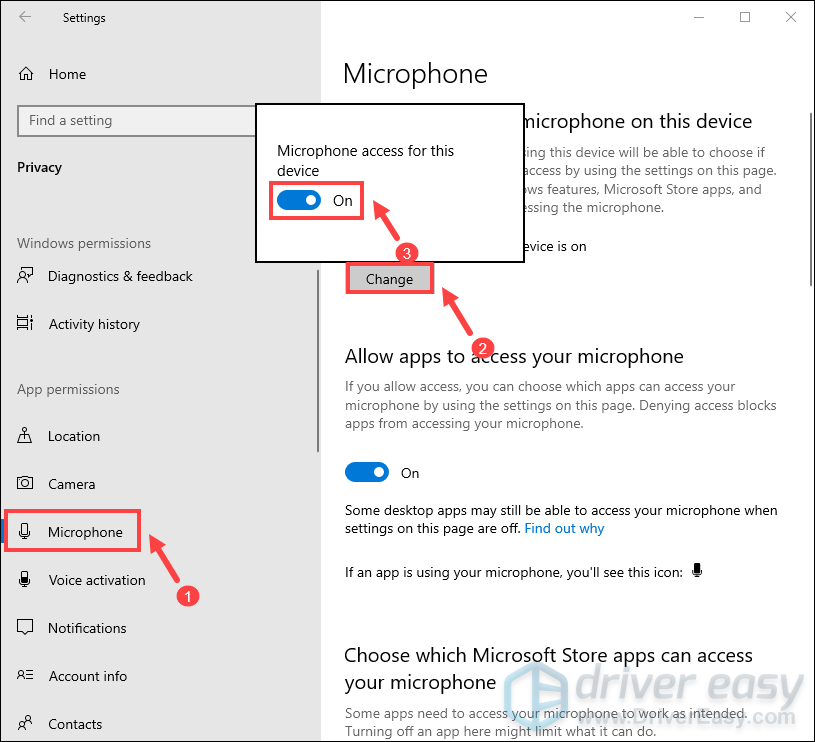
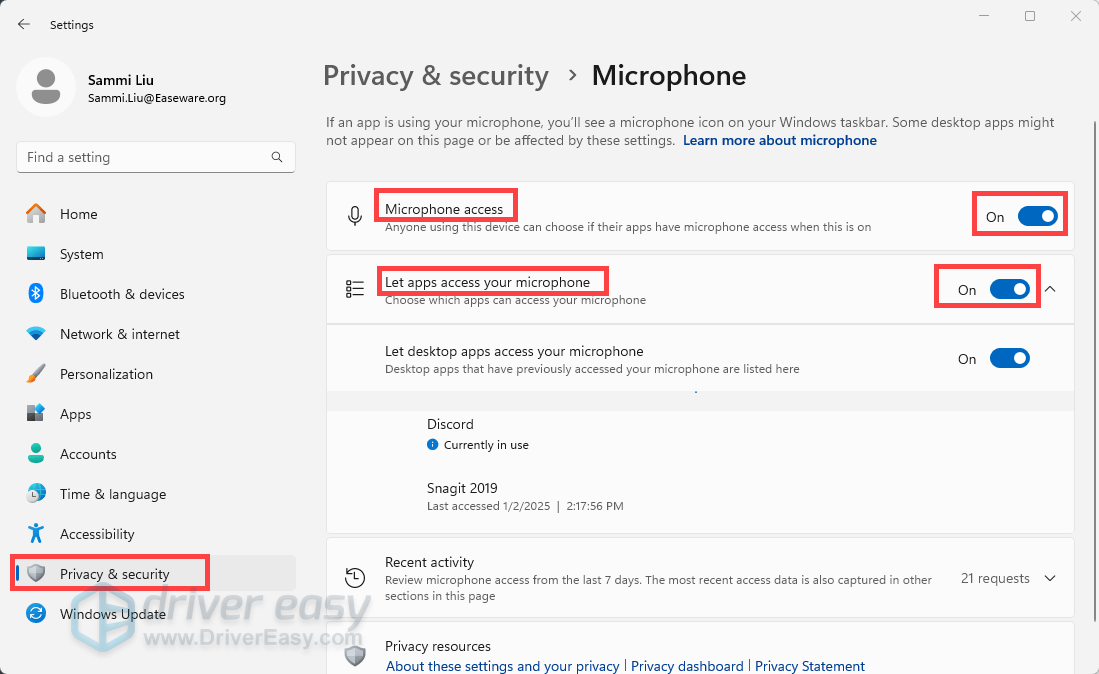
Check microphone permissions
Windows lets you control which apps can use the microphone.
- Open Settings.
- Select Privacy & security.
- Choose Microphone.
- Turn on Microphone access.
- Turn on Let apps access your microphone.
- Turn on access for desktop apps if needed.
If only one program has a problem, check whether that program appears in the permission list. A privacy setting can make the webcam video work while blocking its microphone.
Use the Windows sound troubleshooter
Windows includes a built-in troubleshooter for audio input. Open the Sound settings and use the troubleshooter near the input device controls.
The troubleshooter may reset an audio service, adjust the input level, or identify a disabled device. It cannot repair physical damage, but it is a useful first test.
Select the Correct Microphone on a Mac
Mac computers can also select the wrong input device. This often happens after you connect AirPods, a monitor, a headset, or a USB microphone.
Choose the webcam microphone
- Open the Apple menu.
- Select System Settings.
- Choose Sound.
- Open the Input section.
- Select your webcam microphone.
- Adjust the input volume.
Speak while watching the input level. If the level changes, the Mac is receiving sound.
Check microphone permissions on macOS
- Open System Settings.
- Select Privacy & Security.
- Choose Microphone.
- Allow access for your browser or meeting app.
- Quit and reopen the app.
Some permission changes do not take effect until you restart the program. If you are still wondering why is my webcam mic not working on a Mac, permission settings should be one of your first checks.
Check the webcam app
Some webcams have software that controls audio. Open the webcam utility and look for:
- Microphone mute controls
- Input volume
- Noise reduction
- Privacy mode
- Firmware updates
- Device selection
Do not install random driver tools from unfamiliar websites. They may add unwanted software or change system settings without clear permission.

Fix Microphone Permissions in Your Browser
A browser can block microphone access even when Windows or macOS allows it. This is common with Google Meet, browser-based Zoom, Microsoft Teams, Skype, and online recording tools.
Allow microphone access in Chrome or Edge
- Open the website that needs the microphone.
- Select the lock or settings icon beside the address bar.
- Find Microphone permissions.
- Set the option to Allow.
- Refresh the page.
- Select the webcam mic inside the website.
You can also review microphone permissions in the browser’s privacy settings. Remove old blocked entries if the site was denied by mistake.
Allow microphone access in Safari
- Open the website.
- Open Safari settings for the current site.
- Set Microphone to Allow.
- Reload the page.
- Confirm the input device in the call settings.
A browser may remember a previous choice. For example, it may keep using a headset mic that is no longer connected.
Test the browser microphone
Use a trusted browser-based microphone test or the audio preview inside your meeting platform. Watch for an input meter while speaking.
If the meter does not move, confirm the system input first. If the system meter moves but the website meter does not, the browser permission or website device setting is likely the cause.
Fix Webcam Mic Problems in Zoom, Teams, and Other Apps
Meeting apps often have their own audio settings. Your computer may use the webcam mic correctly while the app uses a different input.
Zoom
- Open Zoom settings.
- Select Audio.
- Choose the webcam microphone under Microphone.
- Speak and check the input meter.
- Use the test microphone option.
- Raise the input volume if necessary.
Check the mute icon during the meeting. Also look for the small arrow beside the microphone button. It may show a different input device.
Microsoft Teams
- Open Teams settings.
- Select Devices.
- Find the Microphone section.
- Choose the webcam microphone.
- Make a test call if available.
- Check the mute button in the meeting window.
Your organization may apply security rules that limit microphone access. If the setting is locked, contact your workplace administrator.
Google Meet
- Join or open the meeting preview.
- Select the three-dot menu.
- Open Settings.
- Choose Audio.
- Select the webcam microphone.
- Speak and check the input indicator.
Google Meet also shows browser permission prompts. Choose Allow when prompted, then reload the meeting if the mic remains silent.
Discord and other apps
Open the app’s voice settings and choose the webcam as the input device. Turn off automatic input sensitivity for a moment and test with a clear, moderate voice.
In my own troubleshooting work, I have often found that an app was set to “Default” while the operating system had changed the default device. Choosing the webcam by name is more reliable than leaving the app on automatic selection.

Update or Reinstall the Webcam Driver
A driver helps the operating system communicate with the webcam. A damaged or outdated driver can affect video, audio, or both.
Update the driver in Windows
- Right-click the Start button.
- Open Device Manager.
- Expand Cameras.
- Find your webcam.
- Right-click it.
- Select Update driver.
- Follow the instructions.
Also check Sound, video and game controllers. Some webcams appear there as a USB audio device rather than as a separate microphone.
Reinstall the device
If updating does not help, open Device Manager and uninstall the webcam device. Restart the computer and allow Windows to detect it again.
Use this step carefully. Do not remove unrelated audio devices. If your webcam manufacturer provides an official driver, download it only from the manufacturer’s support page.
Check for system updates
Operating system updates can fix compatibility problems. They can also create temporary issues with older webcams, especially when the device uses an unusual driver.
If the problem began immediately after an update, check the manufacturer’s support notes and try another USB port. Avoid rolling back system software unless you understand the risks and have a backup.
Check for App Conflicts and Audio Enhancements
Only one app may control the microphone correctly at a time. A meeting app, screen recorder, game overlay, or security program may hold the audio input.
Close programs such as:
- Zoom
- Microsoft Teams
- Discord
- Skype
- OBS Studio
- Voice recording tools
- Browser tabs using audio
- Webcam control software
Then open one test program. This helps identify whether another app is blocking the device.
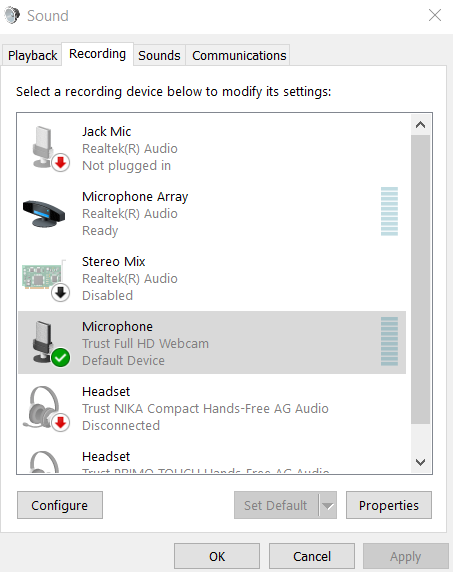
Audio enhancements can also cause low or missing sound. In Windows, open the microphone properties and temporarily disable enhancements, noise suppression, or exclusive control. These options can be helpful, but they may conflict with some USB webcams.
If the microphone works after disabling an enhancement, turn features back on one at a time. This shows which setting caused the problem.
Improve Weak, Low, or Distorted Webcam Audio
Sometimes the webcam mic works, but the sound is too quiet or unclear. This is different from a completely failed microphone.
Try these steps:
- Move closer to the webcam.
- Speak toward the microphone opening.
- Keep fans and loud speakers away.
- Raise the input volume.
- Disable aggressive noise suppression.
- Use a quiet room.
- Test without Bluetooth devices nearby.
Many built-in webcam microphones are small and designed for short distances. They may struggle in a large room or beside a noisy laptop fan.
A webcam mic is convenient, but it may not match the quality of a dedicated USB microphone. If clear voice matters for work, teaching, streaming, or podcasting, a separate microphone can offer better pickup and noise control.
When the Webcam Microphone May Be Broken
Hardware damage is more likely when software checks fail on several computers. Look for these warning signs:
- The webcam mic never appears in sound settings.
- The device disconnects when the cable moves.
- The microphone stopped after liquid exposure.
- The webcam has visible cracks or cable damage.
- The mic fails in every app and on another computer.
- The camera works but the audio device disappears repeatedly.
Do not open the webcam while it is connected. Small electronics can be damaged further, and opening the case may void the warranty.
If the webcam is under warranty, contact the manufacturer. If it is older or inexpensive, replacement may cost less than repair. Before buying a new model, check its operating system support, USB connection, microphone type, and privacy controls.
A Fast Five-Minute Troubleshooting Order
Use this order when you need a quick fix before a meeting.
- Unmute the webcam and check its physical privacy controls.
- Disconnect other microphones and headsets.
- Reconnect the webcam to another USB port.
- Select the webcam mic in Windows or Mac sound settings.
- Allow microphone access for the app or browser.
- Select the webcam mic inside Zoom, Teams, Meet, or another app.
- Close other programs that may use audio.
- Restart the computer.
- Test the webcam on another computer.
- Update or reinstall the official driver.
This order moves from easy checks to deeper checks. It also prevents a common mistake: changing several settings at once and then not knowing which change helped.
When someone asks why is my webcam mic not working before an important call, I recommend testing the microphone in the operating system first. That single step quickly separates a system problem from an app problem.
How to Prevent Webcam Microphone Problems
A few habits can reduce future audio problems.
- Keep your operating system updated.
- Install webcam software only from trusted sources.
- Check microphone permissions after major updates.
- Label your webcam and headset devices clearly.
- Test your setup before an important call.
- Keep a spare headset or microphone available.
- Avoid using damaged USB cables.
- Do not place the webcam beside a loud fan.
- Review app audio settings after connecting new devices.
Create a short pre-call checklist. Open the meeting app, confirm the selected microphone, speak for a few seconds, and check the input meter. This takes less time than troubleshooting a silent microphone while ten people wait in a meeting.
Frequently Asked Questions
Why is my webcam mic not working but the camera works?
The microphone may be muted, blocked by permissions, or replaced by another input device. Check the operating system’s selected microphone, then select the webcam mic inside the app you are using.
How do I turn on my webcam microphone?
Open your computer’s sound settings and choose the webcam under Input. Then allow microphone access for your browser or app and make sure the webcam’s physical mute button is off.
Why is my webcam mic not working in Zoom?
Zoom may be using a different microphone. Open Zoom’s Audio settings, select the webcam microphone, test it, and check that the meeting mute control is not active.
Why does my webcam mic not work in Google Meet?
The browser may have blocked microphone access, or Meet may have selected another device. Allow microphone access for the Meet website, reload the page, and choose the webcam mic in Meet’s audio settings.
How can I test whether my webcam microphone works?
Select the webcam mic in your computer’s sound settings and speak while watching the input meter. You can also test it in the built-in voice recorder or on another computer.
Can a USB port cause webcam microphone problems?
Yes. A weak, damaged, or overloaded USB port can cause unstable webcam audio. Connect the webcam directly to another USB port and avoid using a hub during testing.
Should I buy a new webcam if the microphone does not work?
Not right away. Test permissions, input selection, USB ports, drivers, and another computer first. Replace the webcam when the microphone fails across multiple devices or shows signs of physical damage.
Conclusion
The answer to why is my webcam mic not working usually involves a muted device, incorrect input selection, blocked permissions, app settings, USB trouble, or a driver issue. Start with the simple checks, then test the microphone at the operating system level before changing advanced settings.
Select the webcam mic by name, allow the right permissions, and test one app at a time. If the webcam fails on more than one computer, contact the manufacturer or consider a replacement. Try these steps before your next call, and share this guide with anyone facing a silent webcam.