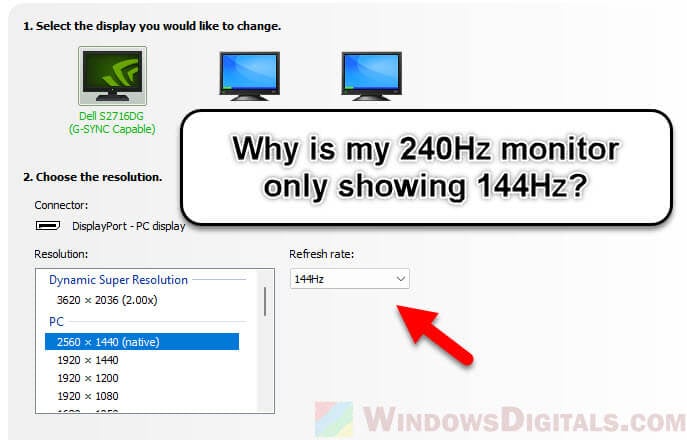
Your 240Hz monitor may show 120Hz because of cable limits, display settings, resolution, or hardware bandwidth.
Seeing only 120Hz on a monitor built for 240Hz can be frustrating, especially when you bought it for smoother gaming. The good news is that the monitor is often working correctly; a setting, cable, port, graphics driver, or connected device may be limiting its refresh rate. This guide explains why your 240Hz monitor only shows 120Hz and gives you clear steps to restore the highest supported refresh rate.
Why is my 240Hz monitor only showing 120Hz?
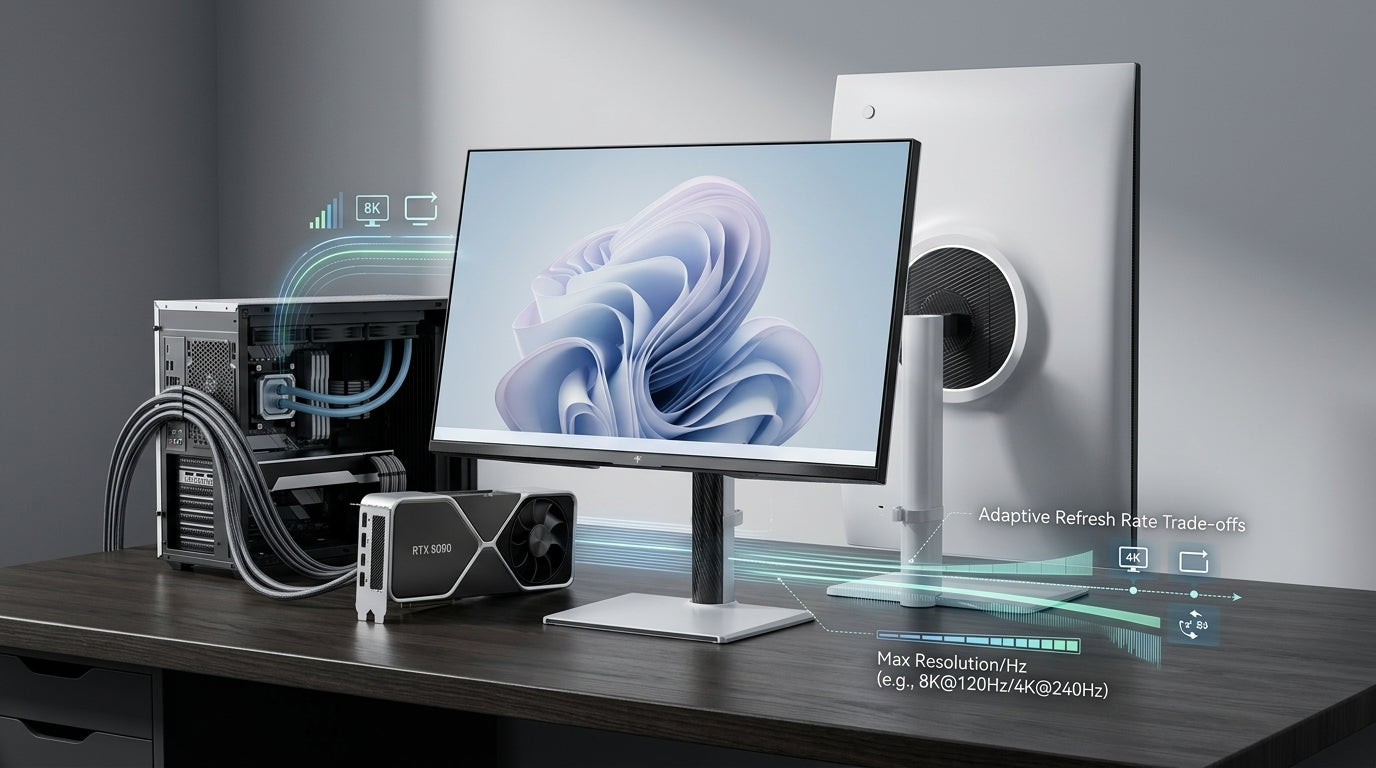
The most common reason your 240Hz monitor only shows 120Hz is a connection or configuration limit. A monitor can support 240Hz, but every part of the video chain must support the needed bandwidth.
That chain includes your computer, graphics card, cable, monitor port, operating system, resolution, color settings, and game. If one part falls short, your system may offer 120Hz as the highest stable option.
Think of refresh rate like a highway. A 240Hz signal needs more lanes than a 120Hz signal. If your cable or port has fewer lanes, the system reduces the speed to keep the picture stable.
Common causes include:
• An HDMI cable that lacks enough bandwidth
• Using the wrong HDMI or DisplayPort input
• Selecting 120Hz in Windows or the monitor menu
• Running a high resolution with HDR or a high color depth
• Using an adapter, dock, receiver, or KVM switch
• Outdated graphics drivers
• A laptop using a limited video output
• A graphics card that cannot support 240Hz at your chosen resolution
Check your monitor’s real refresh-rate limits
Start by checking the monitor manual or the manufacturer’s specifications. Some monitors support 240Hz only through DisplayPort, while their HDMI port may support 120Hz or 144Hz.
This is a common reason why your 240Hz monitor only shows 120Hz. The screen may have several ports, but they do not always offer the same performance.
Look for details such as:
• DisplayPort 1.4 with Display Stream Compression, often called DSC
• HDMI 2.1 support
• HDMI 2.0 support, which may limit high refresh rates at higher resolutions
• The exact refresh rate supported at 1080p, 1440p, or 4K
• Whether 240Hz requires DSC or a special monitor mode
For example, a 1080p monitor may reach 240Hz through HDMI 2.0 or DisplayPort. A 1440p 240Hz monitor often needs DisplayPort 1.4 with DSC or HDMI 2.1. A 4K 240Hz display needs much more bandwidth and usually requires newer hardware.
Do not assume that every port on the monitor is equal. Check the small labels near each port and compare them with the manual.
Use the correct cable and port
The cable is one of the first things to test when your 240Hz monitor only shows 120Hz. A cable can carry a picture at 120Hz but fail at 240Hz because the higher refresh rate needs more data.
Use the cable included with the monitor when possible. If you need a replacement, choose a certified cable that matches your connection.
For DisplayPort:
• Use a certified DisplayPort cable rated for the required speed
• Connect directly to the graphics card
• Avoid old or very long cables during testing
• Confirm that the monitor supports 240Hz through that DisplayPort input
For HDMI:
• Use an Ultra High Speed HDMI cable for HDMI 2.1
• Confirm that both the computer and monitor have HDMI 2.1 ports
• Do not assume that any cable marked “high speed” supports every HDMI feature
Connect the cable to the dedicated graphics card, not the motherboard video port. On a desktop computer with a separate graphics card, the motherboard port may be controlled by the integrated graphics and may have lower limits.
A simple test is to replace the current cable with the original cable from the monitor box. I have seen many cases where a premium-looking cable caused problems because its actual rating was unclear. The shortest reliable cable is often the best choice for troubleshooting.

Set Windows to 240Hz
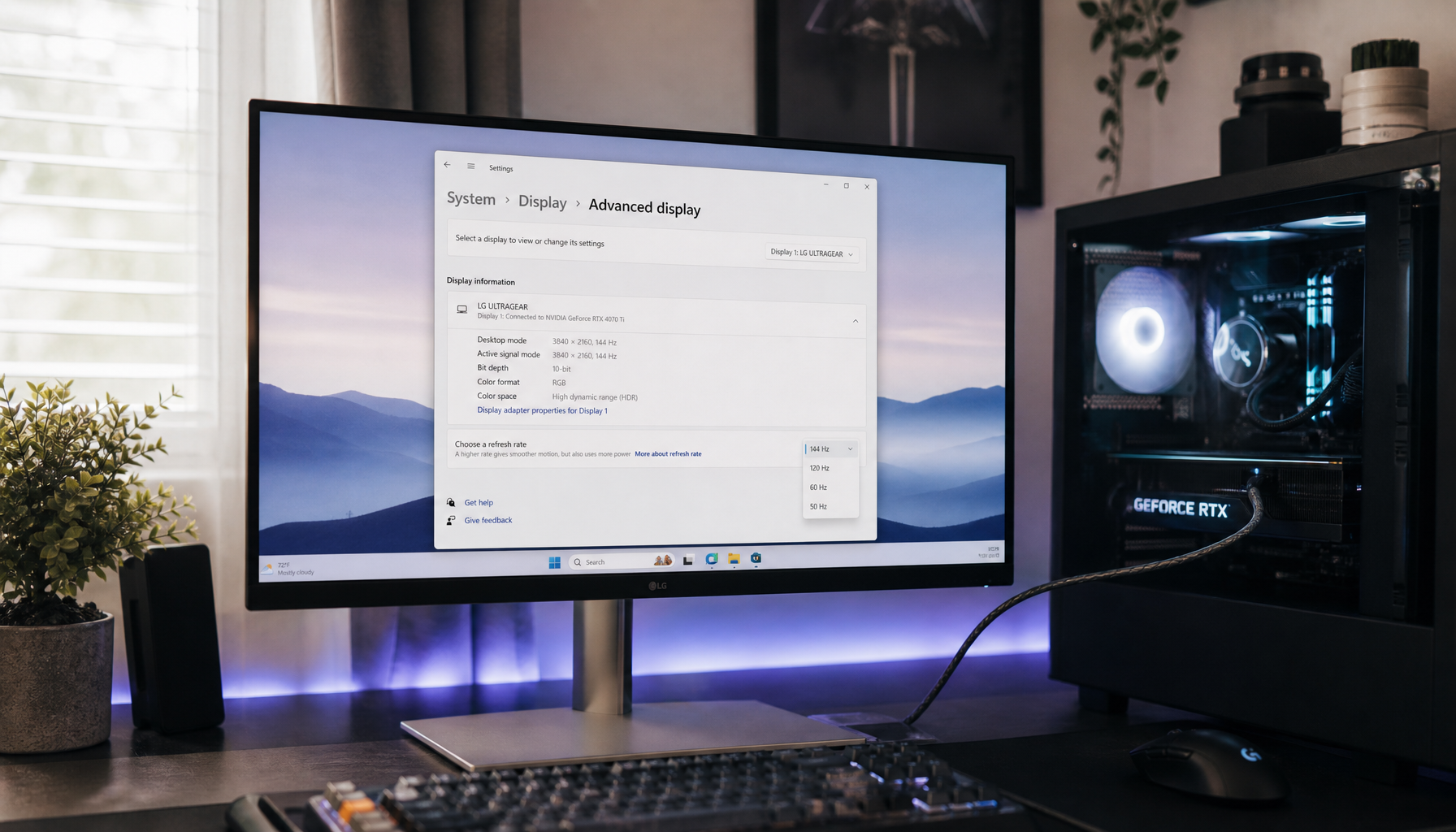
Windows can use a lower refresh rate even when your monitor supports 240Hz. This often happens after installing a new graphics card, updating a driver, changing resolution, or connecting a second screen.
To change the refresh rate in Windows 11:
-
Right-click an empty area of the desktop.
-
Select Display settings.
-
Choose the correct monitor.
-
Open Advanced display.
-
Find Choose a refresh rate.
-
Select 240Hz if it appears.
Windows 10 uses a similar path:
-
Open Settings.
-
Select System, then Display.
-
Choose Display adapter properties.
-
Open the Monitor tab.
-
Select 240 Hertz from the screen refresh rate list.
If 240Hz does not appear, the problem is usually not the Windows setting alone. The system may be hiding the option because the cable, port, driver, resolution, or monitor mode cannot support it.
Also check the monitor’s own on-screen display. Some models have settings called Overclock, High Refresh Rate, Performance Mode, or DisplayPort Version. Enable the correct mode if the manual recommends it.

Check your resolution, HDR, and color settings
A major reason why your 240Hz monitor only shows 120Hz is that the selected resolution uses too much bandwidth. The higher the resolution, color depth, and refresh rate, the more data your computer must send.
Try these settings during testing:
• Use the monitor’s native resolution
• Turn HDR off temporarily
• Set color depth to 8-bit
• Disable 10-bit color if your connection cannot handle it
• Use RGB color format when available
• Turn off custom display modes
• Test 240Hz before enabling extra image features
This does not mean HDR or 10-bit color is bad. These features can improve image quality, but they require more bandwidth. Once 240Hz works, you can turn features back on one at a time.
Display Stream Compression can also matter. DSC compresses the video signal in a visually lossless way so that DisplayPort can carry high resolution and high refresh rates. If DSC is disabled, a 1440p 240Hz display may fall back to 120Hz.
Check the monitor menu for DSC, DisplayPort 1.4, or high-bandwidth mode. The exact name varies by brand.

Update your graphics driver and choose the right GPU
Your graphics driver controls how the operating system communicates with the monitor. A damaged, old, or incomplete driver can cause missing refresh-rate options.
Download the current driver from the official website for your NVIDIA, AMD, or Intel graphics card. During installation, choose a clean installation if the installer provides that option.
Then restart your computer and check the refresh rate again.
Laptop users should also confirm which GPU controls the display. Some laptops connect the HDMI or DisplayPort output to integrated graphics, even when the laptop contains a powerful dedicated GPU. A lower-bandwidth output can explain why your 240Hz monitor only shows 120Hz.
Look for settings such as:
• Discrete GPU mode
• Dedicated GPU mode
• MUX switch
• Advanced Optimus
• External display GPU selection
A USB-C port can also be confusing. USB-C describes the connector shape, not its video speed. The port must support DisplayPort Alt Mode, Thunderbolt, or another suitable video standard.

Remove adapters, docks, and other devices
Adapters and docking stations often limit refresh rate. A USB-C dock may support 4K at 60Hz but not 1080p at 240Hz. An HDMI-to-DisplayPort adapter may support only 120Hz, even if the monitor and graphics card support 240Hz.
For testing, use this setup:
Computer graphics output → direct cable → monitor
Temporarily remove:
• USB-C docks
• HDMI or DisplayPort adapters
• AV receivers
• Capture cards
• KVM switches
• Splitters
• Extension cables
• Wall-mounted cable couplers
This direct connection is one of the fastest ways to find out why your 240Hz monitor only shows 120Hz. If 240Hz appears after removing an accessory, that accessory is the bottleneck.
Some active adapters have a maximum refresh rate listed in their specifications. Check that limit carefully. A device that supports 4K may still support only 60Hz, while a device that supports 144Hz may not support 240Hz.
Check whether the graphics card can deliver 240Hz
A monitor can display 240Hz, but the computer must still send a 240Hz signal. Check the graphics card specifications for the exact resolution and refresh rate you want.
For example, a modern graphics card may support 1080p at 240Hz with ease. However, 4K at 240Hz is far more demanding and may require a recent graphics card, HDMI 2.1, DisplayPort 2.1, or DSC.
There are two separate limits:
• Signal limit: whether the hardware can send a 240Hz video signal
• Performance limit: whether games can render 240 frames per second
Your screen may show 240Hz even when a game runs at 140 frames per second. The monitor refreshes at 240Hz, but the game does not provide a new frame for every refresh.
This distinction matters when checking why your 240Hz monitor only shows 120Hz. The refresh-rate option is about the display signal, while frames per second are about game performance.
Use your graphics card control panel to check the signal:
• NVIDIA Control Panel: Display, Change resolution
• AMD Software: Display settings
• Intel Graphics Command Center: Display settings
Choose the PC resolution category rather than a TV resolution category when NVIDIA’s control panel shows both. The PC category often exposes the correct high-refresh options.

Test the monitor with one screen
Multi-monitor setups can create unexpected limits. Different resolutions, refresh rates, HDR modes, and connection types may cause the graphics driver to choose a safer configuration.
If your 240Hz monitor only shows 120Hz, disconnect the second monitor and restart the computer. Then check the refresh-rate menu again.
Also try these steps:
-
Turn off the second monitor.
-
Disconnect it from the graphics card.
-
Restart the computer.
-
Set the main monitor to its native resolution.
-
Select 240Hz.
-
Reconnect the second screen after testing.
This test does not mean two monitors cannot work together. Many systems run one monitor at 240Hz and another at 60Hz without trouble. It simply removes extra variables while you diagnose the problem.
Some older graphics cards, docks, and adapters handle mixed refresh rates poorly. A driver update may fix the issue, but a direct connection is still the best starting point.
Fix refresh-rate problems on gaming consoles
If you use a PlayStation 5 or Xbox Series X|S, the console may be the reason why your 240Hz monitor only shows 120Hz. These consoles generally target up to 120Hz, not 240Hz.
A 240Hz monitor can still work with a console, but the console will normally send a 60Hz or 120Hz signal. The extra refresh-rate capacity is useful when you later connect a gaming PC.
For a console, check:
• The console’s video output settings
• Whether the HDMI cable supports the required standard
• The monitor’s HDMI input mode
• The game’s performance mode
• The monitor’s compatibility with 120Hz at the selected resolution
If you are using a television or AV receiver between the console and monitor, connect the console directly for testing. This can reveal whether the receiver is limiting the signal.
Use this troubleshooting order
When your 240Hz monitor only shows 120Hz, avoid changing many settings at once. A careful order helps you identify the real cause.
-
Check the monitor manual for 240Hz requirements.
-
Connect the monitor directly to the graphics card.
-
Use the cable supplied with the monitor.
-
Select the correct input on the monitor.
-
Set the native resolution in Windows.
-
Turn off HDR and 10-bit color temporarily.
-
Enable DisplayPort 1.4, HDMI enhanced mode, or DSC if required.
-
Update the graphics driver.
-
Test with one monitor.
-
Try another supported port or cable.
-
Reset the monitor to factory settings.
-
Test the monitor with another computer.
If another computer also stops at 120Hz, the monitor, cable, or port is likely the cause. If another computer reaches 240Hz, your original computer or its settings need attention.
One mistake I often see is changing the game’s graphics settings first. The desktop refresh rate must be correct before game settings can help. Start with the operating system and connection, then check the game.
What refresh rate should you use?
A 240Hz refresh rate can make motion feel very smooth, especially in competitive games. It can also reduce the time between screen updates compared with 120Hz.
Still, 240Hz is not always the best choice for every person. You may prefer 120Hz if:
• Your graphics card cannot produce high frame rates
• You use a high resolution with demanding visual effects
• You want lower power use
• Your monitor becomes unstable at 240Hz
• You mainly watch video, where 24Hz, 30Hz, or 60Hz is common
A stable 120Hz signal is better than an unstable 240Hz signal with flicker, black screens, or dropped frames. Once the connection is correct, choose the highest mode that stays reliable during normal use.
You can verify the result with the Windows advanced display page, the monitor’s information menu, or a trusted refresh-rate test. These tools confirm the signal, but they do not guarantee that a game is producing the same number of frames.
Frequently Asked Questions
Why is my 240Hz monitor only showing 120Hz in Windows?
Your cable, port, resolution, HDR mode, or graphics driver may limit the available refresh rate. Check the monitor specifications, connect directly to the graphics card, and select 240Hz under Advanced display.
Can an HDMI cable limit a 240Hz monitor to 120Hz?
Yes. Older HDMI standards and cables may not have enough bandwidth for 240Hz at your chosen resolution. Use the correct HDMI version and a certified cable that supports the required signal.
Does DisplayPort support 240Hz?
DisplayPort can support 240Hz, but the exact limit depends on the DisplayPort version, resolution, color settings, and DSC support. DisplayPort 1.4 with DSC is commonly used for high-resolution 240Hz monitors.
Why does my 240Hz monitor show 120Hz on a PS5 or Xbox?
Most current consoles support up to 120Hz, so they will not normally send a 240Hz signal. The monitor can still use 240Hz when connected to a compatible gaming PC.
Can a graphics card be too weak for 240Hz?
Yes, a graphics card may lack the needed output bandwidth or game performance. It must support the desired resolution and refresh rate, and it must render enough frames to make 240Hz useful in games.
Will a 240Hz monitor always run at 240Hz?
No. The monitor runs at the refresh rate selected by the operating system and connected device. It may use 60Hz, 120Hz, 144Hz, or 240Hz depending on the signal and available settings.
Conclusion
Your 240Hz monitor only showing 120Hz usually points to a bandwidth or setup issue, not a failed display. Check the monitor’s port limits, use the right cable, connect directly to the graphics card, select 240Hz in Windows, and test resolution, HDR, DSC, and driver settings.
Remember that refresh rate and game frame rate are different. A monitor can accept a 240Hz signal even when a game runs below 240 frames per second, but both the signal path and the graphics card must support your chosen mode.
Work through the checklist one step at a time, and you should be able to find the bottleneck without guesswork. If you discover another fix for why your 240Hz monitor only shows 120Hz, share it in the comments so other readers can benefit.