Your laptop camera is usually black because it is blocked, disabled, used by another app, or affected by a driver problem.
If you are asking, “why is my camera black on my laptop?” you are not alone. A blank camera screen can look like a serious hardware failure, but the cause is often simple. This guide explains the most common causes, safe fixes for Windows and Mac, and signs that your webcam may need repair.

Why Is My Camera Black on My Laptop?
A black laptop camera screen means your computer is not showing a usable video feed. The camera may still be connected, but the image is blocked, turned off, or not reaching the app you are using.
Common causes include:
• A physical privacy shutter is closed
• A camera key or privacy switch is turned off
• Another app is using the webcam
• The camera permission is blocked
• The webcam driver is outdated or damaged
• The camera app has frozen
• Poor lighting makes the image look black
• A recent system update caused a software conflict
• The built-in webcam has a hardware fault
When people ask why is my camera black on my laptop, I first check the simple causes. In many cases, the camera is covered by a small slider near the lens. Some laptops also use a function key with a camera icon to disable the webcam.
The camera is like a small light bulb with a power switch. If the switch is off, changing video settings will not help. Start with physical checks before trying complex repairs.
Quick Checks Before Changing Settings
Before you change drivers or reset your computer, try these fast checks. They often solve why is my camera black on my laptop within a few minutes.
Check the privacy cover
Look closely at the top edge of your laptop screen. Some models have a tiny slider over the webcam. If the slider covers the lens, move it aside.
Also check for:
• Tape or a webcam cover
• Dust or fingerprints on the lens
• A laptop case blocking the camera
• A screen protector placed over the webcam
A privacy cover can make the camera screen completely black. This is one of the easiest causes to miss.
Restart the camera app
Close the app that shows the black screen. Then open it again. If that does not work, close other apps that may use the camera.
Video apps can keep control of the webcam even after their windows appear closed. Restarting the laptop releases the camera and clears many short-term software errors.
Test another camera app
Try the built-in Camera app on Windows or Photo Booth on a Mac. You can also test the camera in a trusted video meeting app.
If the camera works in one app but not another, the webcam is likely fine. The problem is probably linked to app permissions or video settings.
Improve the room lighting
A dark room can make your face hard to see, but it should not usually create a fully black screen. Place a lamp in front of you, not behind you.
Bright light behind your head can make the camera lower exposure. This may turn your face into a dark shape, even though the camera itself is working.

Common Software Causes of a Black Laptop Camera
Software problems are a major reason why is my camera black on my laptop appears in search results. The webcam may be healthy, but the operating system or app may not have access to it.
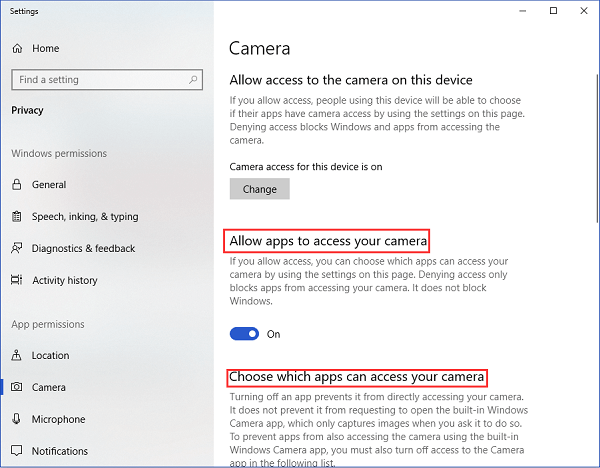
Camera permissions are blocked
Modern operating systems protect your privacy by asking before an app uses the camera. If permission is denied, the app may show a black screen or a camera error.
On Windows:
- Open Settings.
- Select Privacy & security.
- Choose Camera.
- Turn on camera access.
- Turn on access for apps.
- Check that your video app is allowed.
On a Mac:
- Open System Settings.
- Select Privacy & Security.
- Choose Camera.
- Allow access for the app you want to use.
- Close and reopen the app.
The exact menu names can change with system updates. Look for the words Camera, Privacy, Security, or Permissions.
Another program is using the webcam
Most built-in webcams work best with one main app at a time. If Zoom, Teams, Skype, a browser tab, or a camera utility is already using the webcam, another app may show a black image.
Close programs that may use video. Check the taskbar, menu bar, and browser tabs. Then restart the app you want to use.
The camera driver has a problem
A driver helps the operating system communicate with the webcam. A damaged, missing, or outdated driver can cause a black screen.
On Windows, open Device Manager and expand Cameras or Imaging devices. Look for warning symbols. You can then:
• Update the camera driver
• Disable and re-enable the camera
• Uninstall the camera device and restart Windows
• Install a driver from the laptop maker’s support page
Use the laptop manufacturer’s website when possible. Random driver websites can provide unsafe or incorrect files.
A system update caused a conflict
Updates usually improve security and performance, but they can sometimes change camera permissions or driver behavior. If why is my camera black on my laptop started after an update, check privacy settings first.
You may also use Windows System Restore or remove a recent update if the problem began immediately afterward. On a Mac, install the latest available system update because Apple often includes camera and security fixes in system updates.

How to Fix a Black Camera on a Windows Laptop
These steps help when why is my camera black on my laptop involves Windows settings, drivers, or the Camera app.
1. Check the camera function key
Many laptops have a camera key on the keyboard. It may show a camera icon, a crossed-out camera, or a small privacy symbol.
Press the key once. On some laptops, you must hold the Fn key while pressing it. Look for a light or on-screen message that shows whether the webcam is enabled.
2. Run the camera troubleshooter
Windows may offer a built-in troubleshooter through Settings. Open Settings, search for camera troubleshooting, and follow the instructions.
The tool may check permissions, connected devices, and driver errors. It cannot fix physical damage, but it can find common setup problems.
3. Reset the Camera app
If the Windows Camera app is frozen, repair or reset it.
- Open Settings.
- Select Apps.
- Choose Installed apps.
- Find Camera.
- Open Advanced options.
- Select Repair.
- If needed, select Reset.
Repair keeps most app data. Reset returns the app to its default state.
4. Check Device Manager
Open Device Manager and find the camera device. If it is disabled, right-click it and choose Enable device.
If Windows cannot find the camera, select Scan for hardware changes. If the camera still does not appear, the issue may involve the driver, firmware, connection, or hardware.
5. Check antivirus and privacy tools
Some security programs include webcam protection. They may block the camera without showing a clear warning.
Open your security software and look for webcam protection, privacy guard, camera control, or device access settings. Only change these settings if you trust the app using the camera.
How to Fix a Black Camera on a MacBook
Mac users may wonder why is my camera black on my laptop after changing privacy settings or updating macOS. MacBooks usually manage the built-in camera automatically, so permission and app issues are common.
Check camera permission
Go to System Settings, then Privacy & Security, and select Camera. Make sure the app has permission.
After changing permission, quit the app completely. Open it again and test the camera. A permission change may not apply to an app that was already running.
Close apps that may control the camera
Quit FaceTime, Photo Booth, Zoom, Microsoft Teams, web browsers, and other video tools. Do not just close the window. Use Quit from the app menu when possible.
Then reopen one camera app. This helps identify whether another program was holding the camera.
Restart the MacBook
A restart can fix a temporary camera service problem. Save your work first, then choose Restart from the Apple menu.
Older Mac models may benefit from resetting system controllers, but the correct method depends on the model. Use Apple’s official instructions for your specific MacBook rather than guessing.
Check Screen Time restrictions
Screen Time can restrict camera access. Open System Settings, select Screen Time, and review content and privacy settings.
This matters most on family, school, or work devices. An administrator may control camera access, so you may not be able to change it yourself.

Fix Camera Problems in Zoom, Teams, or a Browser
Sometimes the answer to why is my camera black on my laptop is hidden inside the video app. The computer may detect the camera, but the app may be using the wrong device.
Select the correct camera
Open the app’s video settings. Find the camera menu and select the built-in webcam.
You may see several choices, such as:
• Integrated Camera
• FaceTime HD Camera
• External USB Camera
• Virtual Camera
• Capture device
Select the real built-in or USB camera. A virtual camera may show a black feed if its related software is closed.
Check the app preview
Look at the video preview before joining a meeting. If the preview is black, the issue is within the app, permission system, or camera connection.
If the preview works but other people cannot see you, check meeting controls. You may have joined with video turned off.
Allow camera access in your browser
For browser meetings, select the lock or settings icon near the website address. Find camera permissions and allow the website to use the camera.
Refresh the page after changing permission. Some browsers require you to close the tab and reopen it.
Turn off virtual backgrounds
Virtual backgrounds can sometimes create a dark or frozen preview, especially on older hardware. Disable the background effect and test the normal video feed.
Also turn off filters, portrait effects, studio lighting, and background blur. These features use extra processing power and may cause display problems.
When the Problem May Be Hardware
If why is my camera black on my laptop continues after software fixes, the webcam may have a physical problem. This does not always mean the laptop is beyond repair.
Possible hardware causes include:
• A loose internal camera cable
• Damage near the screen hinge
• Liquid exposure
• A failed webcam module
• A damaged USB port for an external camera
• A camera disabled in firmware or BIOS
Test an external USB webcam. If the external camera works, the built-in camera may need service. If both cameras fail, the issue may involve operating system permissions, security software, or a wider system problem.
Check whether the built-in camera appears in Device Manager or System Information. If it does not appear at all, hardware or firmware is more likely than a simple app setting.
Do not open the screen bezel unless you have repair experience. Laptop camera cables are thin, and forcing the bezel can cause more damage. A repair shop can test the camera module and cable safely.
In my own troubleshooting work, I once spent too long looking at drivers before noticing a tiny privacy slider covering the lens. That experience taught me a useful rule: inspect the camera itself before opening advanced settings.
What Not to Do When Your Camera Is Black
Some fixes can create more trouble than they solve. Avoid these common mistakes when why is my camera black on my laptop.
• Do not download drivers from unknown websites
• Do not install several camera apps at the same time
• Do not disable all security software without a clear reason
• Do not change BIOS settings unless you understand the option
• Do not spray cleaner into the camera opening
• Do not force open the laptop screen bezel
• Do not allow an unknown website to use your camera
Use trusted software and make one change at a time. This makes it easier to know which fix worked.
If the laptop belongs to your employer or school, contact the administrator before changing security or device settings. Managed devices may block camera access for valid privacy reasons.
How to Prevent Laptop Camera Problems
You can reduce future webcam problems with a few simple habits. These steps will not prevent every hardware failure, but they help avoid common causes.
• Keep the camera lens clean with a soft microfiber cloth
• Check the privacy shutter before video calls
• Keep Windows or macOS updated
• Install drivers from the laptop maker
• Review camera permissions after major updates
• Close video apps you no longer use
• Keep your laptop away from drinks and moisture
• Avoid pressing hard on the screen near the camera
• Test the camera before an important meeting
For work calls, test your camera and microphone about ten minutes before the meeting. This gives you time to restart the laptop or switch to a backup webcam.
Good lighting also helps. Place a soft light in front of you and keep bright windows behind the camera when possible. A clear lens and balanced light can make a basic webcam look much better.
Frequently Asked Questions About Why Is My Camera Black on My Laptop
Why is my camera black on my laptop but the light is on?
The camera may have power but still lack permission or a working video connection. Check app permissions, close other video programs, and test the webcam in another camera app.
Why is my laptop camera black only in Zoom?
Zoom may be using the wrong camera or may not have permission to access it. Open Zoom’s video settings, select the built-in webcam, and allow camera access in your operating system.
Can a laptop camera be black because of low light?
Low light can make the video look very dark, but it usually does not create a completely black screen. Add light in front of your face and test the camera again.
How do I know if my laptop camera is broken?
Test the camera in more than one app and check whether it appears in Device Manager or System Information. If it stays black everywhere and the device is missing, a failed camera module, cable, or hardware connection is possible.
Will restarting my laptop fix a black camera?
A restart can fix temporary app conflicts, driver errors, and camera service problems. It will not repair a covered lens, blocked permission, damaged cable, or failed camera module.
Does a privacy shutter cause a black camera screen?
Yes. A closed privacy shutter blocks the lens and can make the video appear completely black. Move the shutter aside and remove any tape or cover from the webcam.
Conclusion
A black laptop camera is usually caused by a closed privacy cover, blocked permission, another app using the webcam, a driver issue, or poor lighting. Start with the lens, camera key, app settings, and privacy controls before trying advanced repairs.
If why is my camera black on my laptop remains a problem, test another app and an external webcam. These checks can show whether the issue is software or hardware. Work through the steps one at a time, and contact the laptop maker or a qualified technician if the built-in camera is missing or still fails everywhere.
Try the checks today, test your camera before your next video call, and share which solution worked for you.