Your laptop camera is usually black because of a privacy shutter, blocked app permission, driver error, or a hardware fault.
If you are asking, “why is my laptop camera black?” you are not alone. This problem often appears before a video call, online class, or work meeting, which makes it especially stressful. The good news is that most causes are simple to check, and this guide will help you find the cause and restore your camera step by step.

Why Is My Laptop Camera Black?
A black laptop camera screen means your computer or app is not receiving a usable video image. The camera may be blocked, turned off, used by another app, or unable to connect with the operating system.
Common causes include:
- A physical camera cover is closed.
- A keyboard privacy key has disabled the camera.
- Windows or macOS has blocked camera access.
- Another program is already using the camera.
- The camera driver is outdated or damaged.
- The video app has selected the wrong camera.
- A recent system update caused a software conflict.
- The camera cable or module has failed.
The first step is to avoid guessing. Check the simple physical causes before changing drivers or resetting system settings.

Check the Camera Privacy Cover and Keyboard Controls
Many modern laptops have a small sliding cover over the webcam. It may look like a tiny switch near the camera lens. When closed, it blocks the lens and can make the camera appear completely black.
Look closely at the top edge of your screen. Move the cover to the open position, then close and reopen your camera app.
Some laptops also have a camera button on the keyboard. This key may show a camera icon, a slash, or a small privacy symbol. Press it once, or hold the Fn key while pressing it.
The key may have a small light. On some models, an orange or red light means the camera is disabled. The exact behavior depends on the laptop brand.
Also check these simple issues:
- Remove tape or stickers covering the lens.
- Clean the lens with a soft, dry microfiber cloth.
- Open the laptop fully if the screen hinge is partly closed.
- Disconnect external webcams that may be selected by mistake.
- Restart the laptop after changing the camera switch.
In my experience, a closed privacy shutter is one of the most common reasons people ask, “why is my laptop camera black?” It is easy to miss because the shutter can blend into the laptop’s design.

Allow Camera Access in Windows
Windows includes privacy controls that can block the camera for the whole computer or for one app. If camera access is disabled, video apps may show a black screen even when the camera hardware works correctly.
To check camera permissions in Windows 11:
- Open Settings.
- Select Privacy & security.
- Choose Camera.
- Turn on Camera access.
- Turn on Let apps access your camera.
- Turn on access for the app you want to use.
- Turn on Let desktop apps access your camera if you use Zoom, Teams, Chrome, or another desktop program.
Windows may list recent apps that accessed the camera. Review this list if you are unsure which program is causing the problem.
After changing the setting, close and reopen the video app. Some apps do not notice a permission change until they restart.
If your laptop belongs to a school or workplace, an administrator may control these settings. In that case, you may need to contact the organization’s IT team.
Allow Camera Access on a Mac
macOS also protects camera access through privacy settings. An app may have permission to use your microphone but not your camera, so check both settings separately if your call has audio but no video.
To check camera permissions on a Mac:
- Open the Apple menu.
- Select System Settings.
- Choose Privacy & Security.
- Select Camera.
- Turn on access for the app you want to use.
- Quit and reopen that app.
On older macOS versions, these options may appear under System Preferences instead of System Settings.
You should also check whether Screen Time or a device management profile restricts camera use. A managed Mac may prevent you from changing camera permissions yourself.
If the green camera indicator does not appear when an app should be using the camera, the app may not have permission or may be using another input device.
Close Other Apps Using the Camera
A camera often works with only one program at a time. If Zoom, Microsoft Teams, FaceTime, Skype, a browser tab, or another app already controls it, a second app may show a black screen.
This is a common answer to “why is my laptop camera black?” The camera is not always broken. It may simply be busy.
Try these steps:
- Close every video call app.
- Close browser tabs that may use video.
- Quit apps from the taskbar, menu bar, or system tray.
- Reopen only the app you need.
- Test the camera again.
If the camera still stays active in the background, restart the laptop. A restart clears many temporary camera locks and is safer than repeatedly changing settings.
On Windows, open Task Manager with Ctrl + Shift + Esc and close video apps that remain open. On macOS, use Force Quit only when a normal close does not work.
Test the Camera in Another App
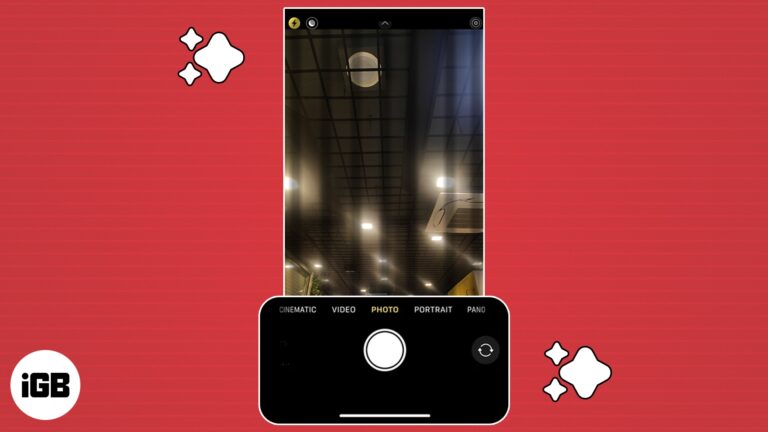
Testing the camera in a second app helps separate a system problem from an app problem. For example, if the camera works in the built-in Camera app but not in Zoom, the laptop camera is probably fine.
On Windows:
- Open the Camera app from the Start menu.
- Wait a few seconds for the preview.
- Check whether the image appears.
On macOS, test the camera with FaceTime or Photo Booth. You can also test it through a trusted browser page after granting permission.
Use this simple diagnosis:
- Camera works in one app but not another: check app settings and permissions.
- Camera is black in every app: check privacy controls, drivers, and hardware.
- External webcam works but built-in camera does not: the internal camera or its connection may have a problem.
- Camera works after a restart but fails later: look for software conflicts or updates.
This test can save time. It prevents you from reinstalling drivers when the real issue is only an app setting.

Select the Correct Camera in Your Video App
Video apps often let you choose from several cameras. If the wrong device is selected, the preview may be black or show no image.
Open the video settings in your app and find the Camera, Video, or Device menu. Select the built-in camera, which may be labeled:
- Integrated Camera
- Built-in Webcam
- FaceTime HD Camera
- HD User Facing Camera
- Internal Camera
If you have connected a monitor, docking station, phone, or USB webcam, the app may have switched to that device automatically.
Check the preview after selecting each available camera. Do not change microphone settings unless your audio also has a problem.
Browser-based calls need separate permission. In Chrome, Edge, or Firefox, select the lock or permission icon near the address bar and allow camera access for the meeting website.
Update or Reinstall the Camera Driver in Windows
A driver helps Windows communicate with the camera hardware. If the driver is damaged, missing, or incompatible with a recent update, the camera may appear black.
To check the driver:
- Right-click the Start button.
- Open Device Manager.
- Expand Cameras or Imaging devices.
- Right-click the built-in camera.
- Select Update driver.
- Choose the automatic search option.
If the camera has a warning icon, Windows has detected a problem. You can also open the device’s properties to view its status message.
If updating does not help, uninstalling the device and restarting the laptop may allow Windows to reinstall the driver. Use this step carefully, and download drivers only from your laptop manufacturer or the official operating system update service.
Avoid random driver websites. They may provide old, incorrect, or unsafe files.
A system update can also cause a temporary compatibility issue. Check for another Windows update, and install the latest camera, chipset, and system updates offered for your exact laptop model.
Reset the Camera App and System Settings
If the Windows Camera app itself is damaged, resetting it may fix a black preview.
Go to:
Settings > Apps > Installed apps > Camera > Advanced options
Then try:
- Terminate to stop the app.
- Repair to fix the app without deleting its data.
- Reset to return the app to its default state.
Restart the computer after resetting it. This process affects the Camera app, not the physical camera.
On macOS, there is no simple Camera app reset button for every system version. Restarting the Mac, installing system updates, and checking permissions are the safest first steps.
Do not reset the entire operating system unless you have backed up your files and confirmed that simpler fixes failed.
Check for BIOS, Firmware, or Manufacturer Privacy Settings
Some laptop brands include camera controls outside Windows or macOS. These controls may appear in a manufacturer security app, BIOS menu, or privacy utility.
Look for settings such as:
- Camera privacy
- Webcam protection
- Camera disable switch
- Privacy mode
- Device access control
Security software can also block the webcam. Check whether your antivirus or privacy tool has a webcam protection feature. If it does, allow the trusted video app.
If you enter the BIOS or UEFI menu, change only camera-related settings that you understand. Avoid changing boot, storage, or security settings without guidance.
For accurate instructions, use the support page for your exact laptop model. Different versions of the same laptop can use different camera controls.
Check for Hardware Damage
If the camera remains black in every app after permission and driver checks, hardware may be the cause. A loose display cable, damaged webcam module, liquid exposure, or impact can stop the camera from sending an image.
Signs of a hardware problem include:
- The camera is missing from Device Manager.
- The camera never appears in system information.
- The camera stopped working after a drop or screen repair.
- The preview stays black on a fresh system installation.
- An external webcam works normally.
- The camera indicator never turns on when access is allowed.
Laptop camera parts are small and often sit inside the screen bezel. Opening the display can damage the panel, cables, or clips, so do not take apart the laptop unless you have the right repair skills.
Before paying for repair, test a basic USB webcam. If the USB camera works, the built-in camera is more likely to need repair. If both cameras fail, the issue may involve operating system settings or broader hardware problems.
What Not to Do When Your Laptop Camera Is Black
Troubleshooting can become harder when you change too many settings at once. Use a simple order: physical checks, permissions, app selection, restart, drivers, and then hardware support.
Avoid these mistakes:
- Do not download drivers from unknown websites.
- Do not disable all security software permanently.
- Do not use sharp tools to clean the camera lens.
- Do not assume a black screen means the camera is broken.
- Do not reinstall the operating system as a first step.
- Do not open a laptop that is still under warranty.
- Do not give remote access to an untrusted person.
Privacy matters, too. Allow camera access only to apps and websites you trust. When you finish a video call, close the app or cover the lens if you want extra peace of mind.
A Fast Five-Minute Fix for a Black Laptop Camera
If you need a quick solution before a meeting, follow this order:
- Open the physical camera shutter.
- Press the camera privacy key on the keyboard.
- Close all video apps and browser tabs.
- Restart the laptop.
- Check camera permissions.
- Select the built-in camera in the app.
- Test the camera in the Windows Camera app, FaceTime, or Photo Booth.
- Install pending system updates.
- Try an external webcam if available.
This routine solves many cases of “why is my laptop camera black?” without advanced repairs. If the camera works after one step, stop there and note what fixed it.
Writing down the fix can help later. For example, you may discover that a keyboard shortcut disables the webcam each time your laptop starts.
How to Prevent Laptop Camera Problems
You can reduce future camera problems with a few simple habits. Keep your operating system and video apps updated, but install updates through official tools.
Use these prevention tips:
- Keep the camera lens clean.
- Learn the camera shortcut on your laptop.
- Review camera permissions every few months.
- Close video apps after meetings.
- Install manufacturer driver updates when needed.
- Avoid covering vents or pressing hard on the screen bezel.
- Use a physical privacy cover that does not damage the lens.
- Back up important files before major system updates.
Updates are helpful, but they can sometimes change privacy settings or device drivers. After a major update, test your camera before an important call.
In troubleshooting work, the biggest lesson is simple: start with the least risky explanation. A blocked shutter or disabled permission is far more common than a failed camera module.
Frequently Asked Questions About Why Is My Laptop Camera Black?
Why is my laptop camera black but the camera light is on?
The app may have permission to use the camera but may be receiving a blocked or faulty video signal. Check the privacy shutter, select the correct camera, and test it in another app.
Why is my laptop camera black on Zoom but working in the Camera app?
Zoom may be using the wrong camera or may not have the required permission. Open Zoom’s video settings, select the built-in camera, and check camera access in your operating system.
Can a laptop camera be disabled with a keyboard key?
Yes. Many laptops include a camera privacy key or an Fn shortcut that disables the webcam. Press the key again and check whether a camera icon or privacy light changes.
Why is my laptop camera black after a Windows update?
An update may change camera permissions, replace a driver, or create a temporary app conflict. Check privacy settings, restart the laptop, and update or reinstall the camera driver through Device Manager.
How do I know if my laptop camera is broken?
If the camera is black in every app, missing from Device Manager or macOS system information, and unaffected by permission and driver checks, hardware failure is possible. An external webcam test can help confirm the problem.
Can low light make a laptop camera screen look black?
Very low light can produce a very dark image, but it usually does not create a completely blank preview. Turn on a nearby lamp and clean the lens before treating the issue as a software or hardware fault.
Conclusion
The answer to “why is my laptop camera black?” is usually found in a short list: a closed privacy shutter, disabled camera permission, another app using the webcam, a wrong device selection, or a driver problem. Start with the simple checks, test the camera in another app, and move to hardware support only when software steps fail.
You can often fix the issue in a few minutes without replacing anything. Try the steps above before your next call, and share this guide with anyone who is struggling with a black webcam preview.