Your monitor is sideways because its display orientation was changed to portrait mode by a setting or keyboard shortcut.
If you are wondering why is my monitor sideways, the good news is that this problem is usually simple to fix. A rotated screen often comes from an accidental key press, a Windows display setting, graphics software, or a monitor mounted in portrait mode. This guide explains the likely causes, safe fixes, and ways to stop the issue from happening again.
Why Is My Monitor Sideways?
A sideways monitor usually means the screen orientation changed from landscape to portrait or another rotated position. Your computer is still working normally, but the image is being displayed at the wrong angle.
The most common causes include:
• An accidental keyboard shortcut
• A changed display orientation in Windows
• Graphics driver software settings
• A monitor rotated on its stand
• A second monitor configured incorrectly
• A graphics driver or operating system glitch
When people ask why is my monitor sideways, they often remember no recent change. That is normal. A quick keyboard shortcut can rotate the screen without showing a warning. On Windows, the shortcut often involves the Ctrl, Alt, and arrow keys.
The screen may rotate 90 degrees, 180 degrees, or 270 degrees. A 90-degree turn makes the monitor look sideways. A 180-degree turn makes the screen appear upside down.
The Fastest Fix for a Sideways Monitor
If your computer runs Windows, try the keyboard shortcut first. Press Ctrl + Alt + Up Arrow at the same time. This often returns the display to normal landscape mode.
Some computers do not support this shortcut. In that case, use the Windows display settings.
-
Right-click an empty area of the desktop.
-
Select Display settings.
-
Find the Display orientation menu.
-
Choose Landscape.
-
Select Keep changes when Windows asks you to confirm.
If the screen is difficult to use, move your mouse slowly. The pointer may also move in a direction that feels wrong because the display is rotated. You can also connect a second monitor and use it to change the setting.
If you searched why is my monitor sideways because the image is upside down, choose Landscape rather than Landscape flipped. The normal option should place the taskbar at the bottom and text in the correct direction.
:max_bytes(150000):strip_icc()/002-fix-a-sideways-or-upside-down-screen-in-windows-4137654-f66b21e77e3e4abb9a79f62d497c661b.jpg)
How to Rotate Your Screen in Windows 11
Windows 11 includes a built-in display orientation setting. This is the safest and most reliable method when the keyboard shortcut does not work.
Open the setting by following these steps:
-
Press Windows + I to open Settings.
-
Select System.
-
Choose Display.
-
Click the monitor you want to change if you use more than one screen.
-
Scroll to Display orientation.
-
Select Landscape.
-
Click Keep changes.
Windows may show a short countdown before it restores the old setting. If the screen returns to sideways mode, choose Keep changes quickly.
You may see these choices:
• Landscape: Normal horizontal view
• Portrait: Vertical view
• Landscape flipped: Upside-down horizontal view
• Portrait flipped: Upside-down vertical view
This setting is useful for people who read long documents, code, or social media feeds. A monitor can be intentionally placed vertically. However, if you did not choose portrait mode, this setting explains why is my monitor sideways.

How to Fix a Sideways Monitor in Windows 10
The steps in Windows 10 are very similar. Right-click the desktop and select Display settings. Then find the Display orientation menu under the Scale and layout section.
Select Landscape and confirm the change. If you use several monitors, select the correct display at the top of the settings window before changing its orientation.
This matters because Windows saves orientation settings for each monitor. You may fix one screen while another remains sideways. I have seen this happen often in home offices where a laptop, dock, and external monitor are connected at the same time.
If Windows does not let you change the setting, restart the computer. A temporary graphics error can prevent the display menu from responding. Updating the graphics driver may also help.

Check Your Graphics Card Settings
Your graphics card software may control screen rotation separately from Windows. This is more common on computers with Intel, NVIDIA, or AMD graphics hardware.
Look for a graphics control app in the Start menu or system tray. The name may be Intel Graphics Command Center, NVIDIA Control Panel, or AMD Software.
Check for a display, rotation, or orientation option. Set the screen to Landscape, then apply the change.
You may also find a hotkey option. If screen rotation keeps happening, turn off display rotation shortcuts. This is especially useful on laptops, shared computers, and machines used by children.
Graphics settings can sometimes override Windows settings after a driver update. That is another possible reason why is my monitor sideways even after you selected the correct Windows option.
Check Whether the Monitor Was Physically Rotated
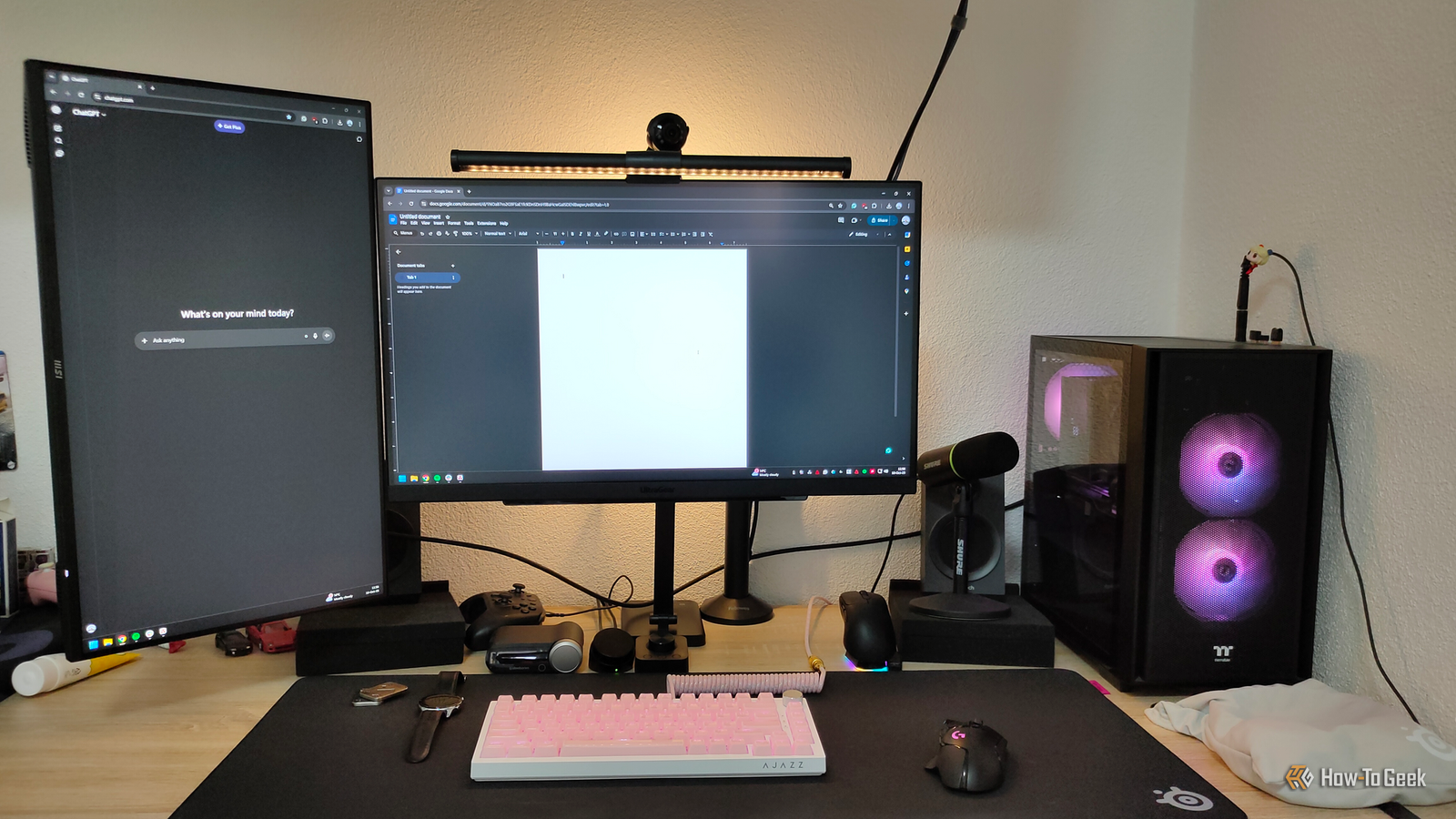
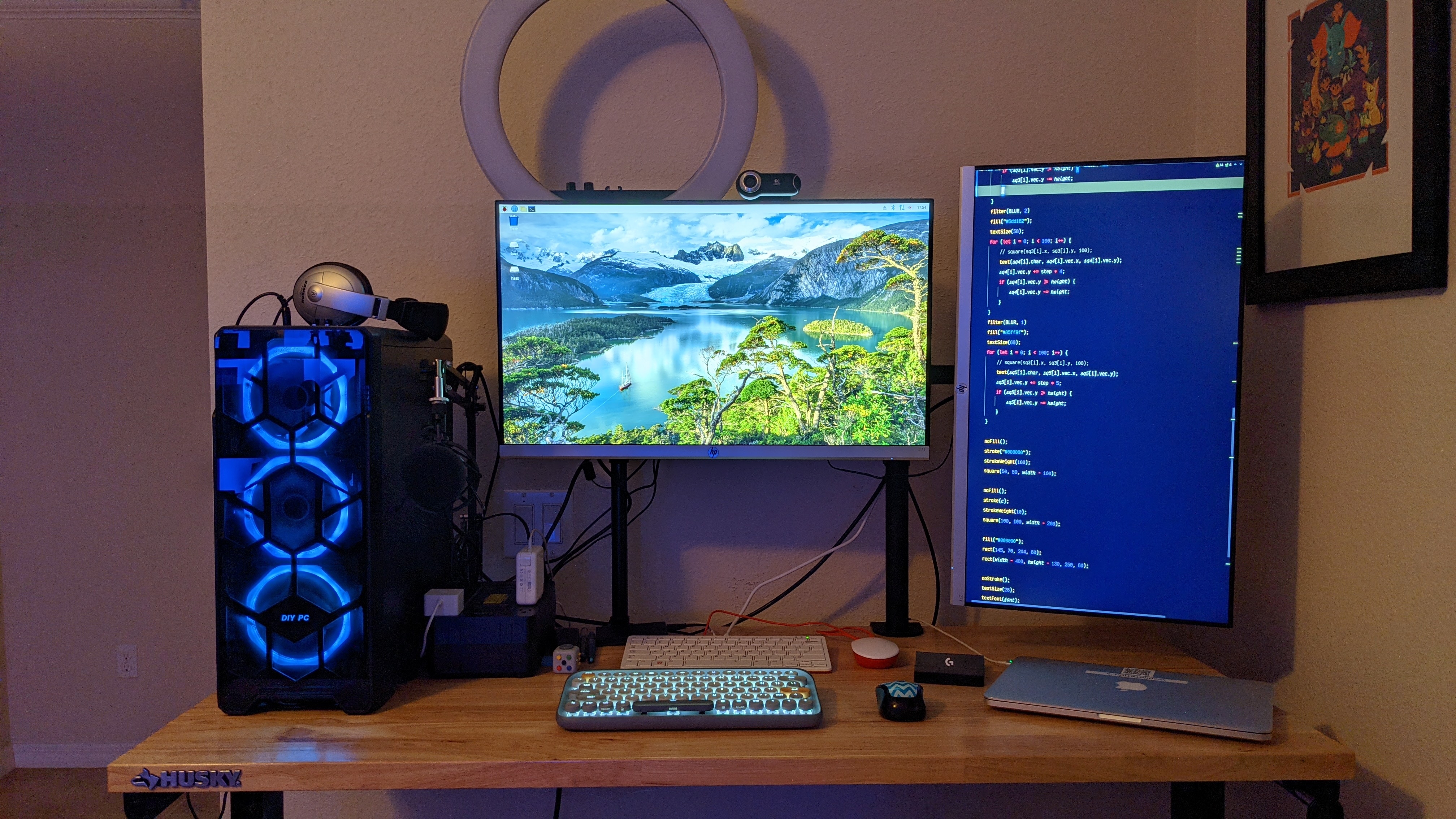
Not every sideways monitor problem is caused by software. Some monitors have stands that let you rotate the display by hand. This feature is called pivot rotation.
Look at the monitor itself. Is the entire physical panel turned 90 degrees? If so, hold the monitor with both hands and slowly rotate it back to a horizontal position. Do not force it if the stand feels locked.
A vertical monitor is not automatically defective. Portrait mode can help with:
• Reading long web pages
• Writing code
• Editing documents
• Viewing chat windows
• Managing narrow spreadsheets
If the computer image is horizontal but the monitor itself is vertical, change the Windows orientation to Portrait. The image should then fill the screen correctly.
This physical check is easy to miss when asking why is my monitor sideways. People often change software settings when the real issue is simply a rotated stand.

Fix a Sideways Second Monitor
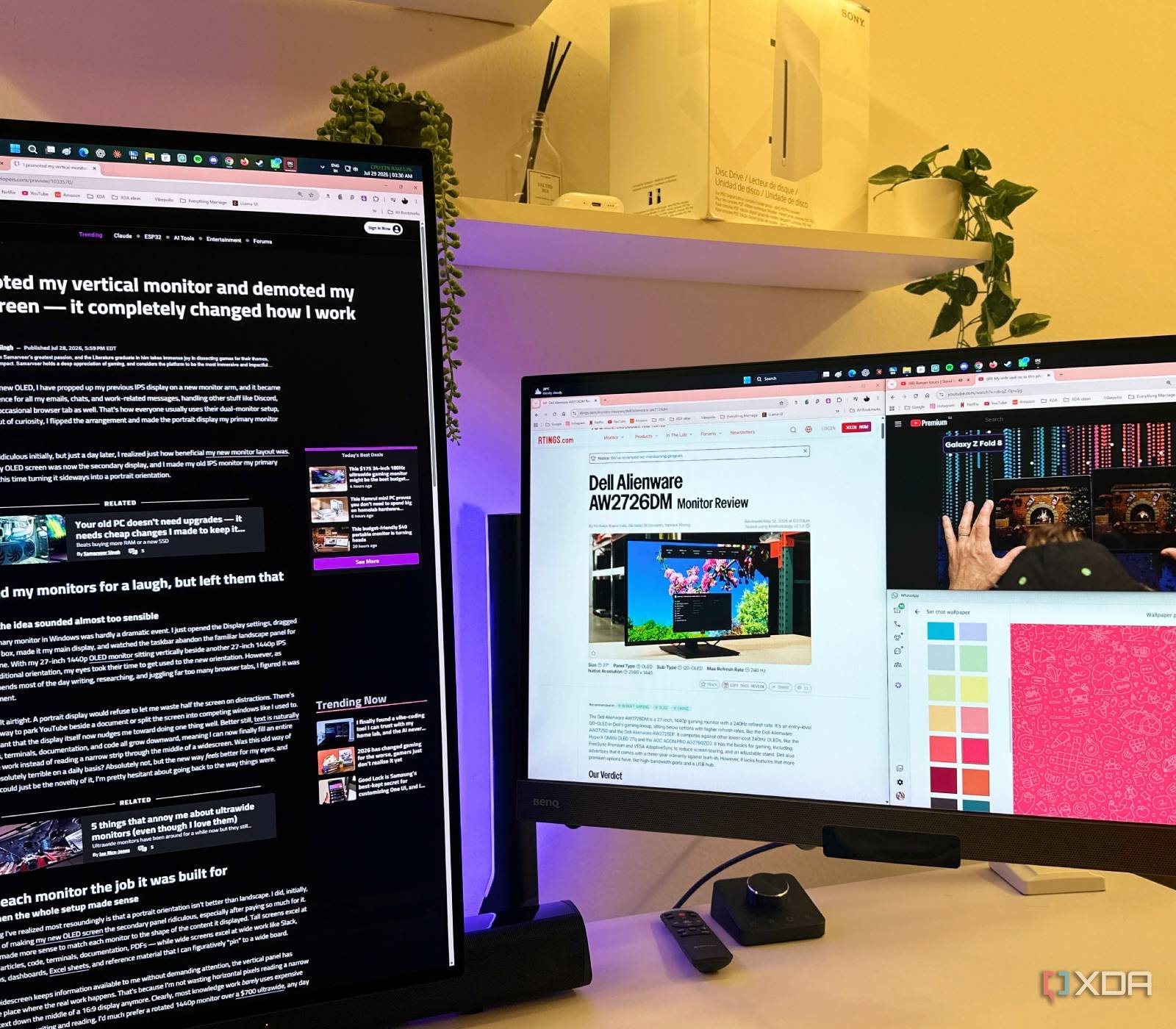
A second display may rotate while your main monitor looks normal. This often happens after connecting a monitor, docking station, projector, or television.
To fix it, open Display settings and select the sideways monitor. Windows labels screens as 1 and 2, but the number may not match their physical position.
Click Identify to show a number on each screen. Select the correct display, change its orientation to Landscape, and confirm the setting.
You can also drag the monitor icons into the correct left-to-right position. This will not rotate the screen, but it will make the mouse move naturally between displays.
If the second monitor is blank, sideways, or flickering, disconnect it and reconnect the cable. Then press Windows + P and choose Extend or Duplicate. A poor connection can sometimes make a display appear incorrectly configured.
What If the Screen Is Sideways on a Mac?
Mac computers also support rotated displays, although the steps differ from Windows. Open System Settings and select Displays. Choose the affected monitor and look for the Rotation option.
Select Standard if that option is available. Some Mac models show the rotation menu only when a compatible external monitor is connected.
If the Rotation option does not appear, restart the Mac and reconnect the monitor. Check the cable, adapter, dock, and monitor input as well.
Mac users who ask why is my monitor sideways may have enabled a portrait setup for an external display. In that case, the display is behaving as configured rather than failing.
Why Keyboard Shortcuts Rotate the Screen
Keyboard shortcuts are one of the most common explanations for why is my monitor sideways. On some Windows computers, Ctrl + Alt plus an arrow key changes screen orientation.
For example:
• Ctrl + Alt + Up Arrow usually sets normal landscape mode
• Ctrl + Alt + Down Arrow may flip the display upside down
• Ctrl + Alt + Left Arrow may rotate the display left
• Ctrl + Alt + Right Arrow may rotate the display right
The shortcut may be triggered when someone presses several keys while cleaning the keyboard, playing a game, or using a laptop. A child may also press the keys by accident.
Not every computer supports these commands. Modern graphics drivers often disable them by default. If your screen rotates unexpectedly, open your graphics software and disable rotation hotkeys.
What to Do If the Screen Will Not Rotate Back
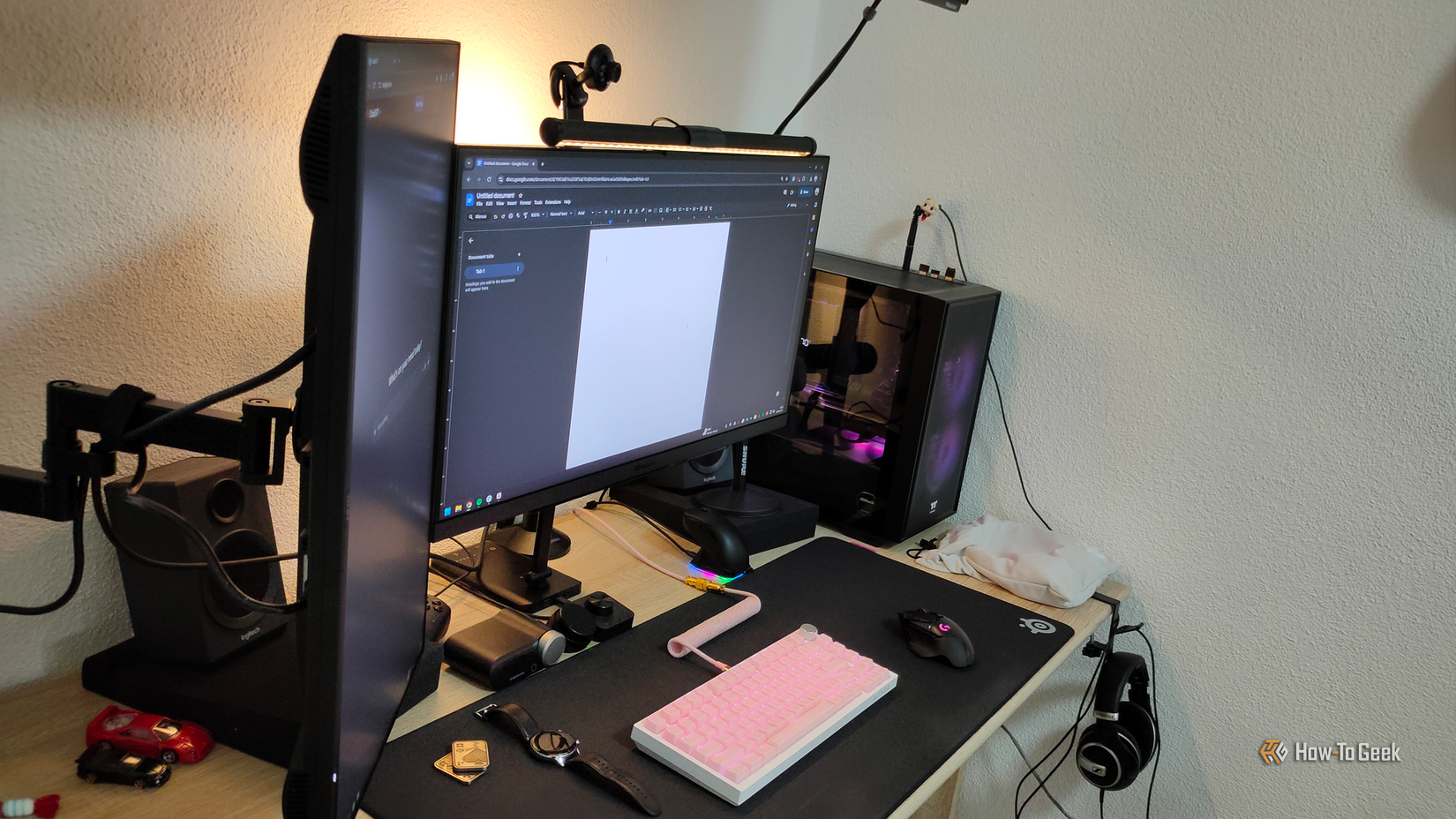
If the usual fixes fail, work through the problem in order. Start with a full restart. This clears many temporary display and graphics errors.
Next, check for updates. Install pending Windows updates and update the graphics driver through your computer maker or graphics hardware provider. Use the correct driver for your computer model and operating system.
You can also try these steps:
• Disconnect extra monitors and docks
• Reconnect the display cable
• Test another HDMI, DisplayPort, or USB-C cable
• Try a different port
• Start Windows in Safe Mode
• Restore the display driver if the issue began after an update
Avoid downloading drivers from unknown websites. Incorrect drivers may cause poor resolution, flickering, or a black screen.
If the image is sideways even before Windows starts, the problem may involve the monitor menu, graphics hardware, or cable connection. If it becomes sideways only after Windows loads, a software setting is more likely.
How to Prevent Your Monitor From Rotating Again
Once you fix the display, prevent repeat problems by turning off unnecessary rotation controls. Disable graphics hotkeys if you never use them. This removes the most common accidental trigger.
Keep your display settings simple. If you use a vertical monitor on purpose, label it with a small note such as “Portrait display.” This can save time when another person uses the computer.
For a multi-monitor setup, make sure each screen has the correct orientation and position. Save your preferred arrangement after connecting a dock or laptop.
I once helped troubleshoot a desk where the “broken” monitor had rotated after a cleaning session. The display itself was fine. The lesson was simple: check the keyboard, software settings, and physical stand before replacing hardware.
Is a Sideways Monitor a Sign of Damage?
Usually, no. A sideways picture normally points to a display orientation setting rather than damaged hardware.
Hardware damage is more likely if you also notice:
• Cracks or dark spots
• Colored lines
• Strong flickering
• A burning smell
• A loose power connection
• A display that turns off randomly
If only the image angle is wrong and the text remains clear, the monitor is probably healthy. Correct the orientation before buying a new screen or paying for repairs.
A damaged cable can create image problems, but it rarely causes a clean 90-degree rotation. A neat sideways image almost always comes from software or physical pivot rotation.
Frequently Asked Questions About Why Is My Monitor Sideways
Why is my monitor sideways after pressing a keyboard shortcut?
You may have pressed a screen rotation shortcut, such as Ctrl + Alt plus an arrow key. Press Ctrl + Alt + Up Arrow or change Display orientation to Landscape in Windows Settings.
How do I turn my monitor back to normal?
Right-click the desktop, open Display settings, and select Landscape under Display orientation. Confirm the change by choosing Keep changes.
Why is only my second monitor sideways?
Windows stores orientation settings for each display. Select the second monitor in Display settings, then set its orientation to Landscape.
Can a sideways monitor be caused by a bad cable?
A bad cable usually causes flickering, missing colors, or no signal rather than a rotated image. A clean sideways picture is more likely caused by an orientation setting or a physically rotated monitor.
How do I stop my screen from rotating by accident?
Disable display rotation hotkeys in your graphics card software. Also avoid pressing Ctrl, Alt, and arrow keys together if your computer supports screen rotation.
Why is my monitor sideways but the mouse still works?
The computer is functioning, but the display coordinates have rotated. The mouse may move in an unusual direction until you restore the screen to Landscape mode.
Can I use a monitor sideways on purpose?
Yes. A monitor can be used in Portrait mode for documents, coding, reading, and messaging. Set the physical monitor position and choose Portrait in your computer’s display settings.
Conclusion
A sideways monitor is usually caused by a changed display orientation, an accidental keyboard shortcut, graphics software, or a physically rotated stand. In most cases, selecting Landscape in Windows or macOS fixes the problem within a minute.
Check the software setting first, then inspect the monitor stand, cables, and graphics driver. If the screen still rotates or shows other faults, disconnect extra devices and seek help from the computer or monitor maker. Try these steps today, and share your experience or setup questions in the comments.