Google Chrome may access your webcam for video calls, recording tools, or a permitted website.
If you are asking, “why is Google Chrome trying to access my webcam,” the answer is usually linked to a website, browser extension, or video feature that requested camera access. Chrome normally asks for permission before a site can use your webcam, but an unexpected prompt can still feel worrying. This guide explains how webcam permissions work, how to find the source, and how to block access safely without breaking trusted video services.
Why is Google Chrome trying to access my webcam?
Google Chrome is trying to access your webcam because a website or Chrome extension has requested permission to use your camera. Common examples include video meeting sites, online classrooms, telehealth platforms, social media tools, browser games, and websites that scan documents or identity cards.
Chrome acts as the bridge between the website and your webcam. The website sends a request, and Chrome shows a permission prompt. If you click Allow, Chrome may let that site use the camera while the page is open or while the site’s permission remains active.
Typical reasons include:
• A video call is starting in Google Meet, Zoom, Microsoft Teams, or another service.
• A website is using video for a live broadcast, interview, or online lesson.
• A web app needs to scan a QR code, ID card, receipt, or document.
• A browser extension has camera-related features.
• A previously allowed website is using the webcam again.
• A page opened in the background is requesting camera access.
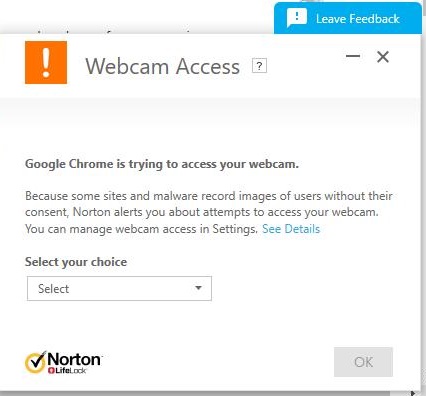
The request does not always mean Chrome itself is spying on you. In most cases, Chrome is simply reporting that a webpage wants camera access. Still, you should check the request if you do not recognize the website.
Is Chrome webcam access dangerous?
Chrome webcam access is not automatically dangerous. It becomes a risk when an unknown, unsafe, or compromised website receives permission to use the camera.
Modern browsers use permission controls to reduce this risk. A website usually cannot use your webcam without permission, and Chrome displays a camera icon or indicator when the camera is active. Your computer’s operating system may also show a camera light or privacy alert.
That said, no security system is perfect. A malicious site may use a familiar design to trick you into clicking Allow. A harmful extension may also ask for more access than it needs. This is why camera permission should be treated like a house key: give it only to people and sites you trust.
Be cautious when:
• The request appears on a site you did not intend to visit.
• The page uses fear or urgency to make you click Allow.
• A website asks for camera access when its purpose does not require video.
• The camera turns on when all video pages are closed.
• A new or unknown Chrome extension appeared on your browser.
• Your webcam indicator stays active for no clear reason.
If you are still wondering why is Google Chrome trying to access my webcam, start by checking the website address in the permission prompt. The domain name often reveals the cause.

Common reasons Chrome requests camera access
Understanding the source makes the problem much easier to solve. Here are the most common causes of Chrome webcam prompts.
Video meetings and online classes
Video meeting platforms need access to your camera so other people can see you. This includes work calls, online interviews, school lessons, webinars, and virtual doctor visits.
Some platforms request camera access as soon as you join a meeting page. Others ask before the meeting begins so you can preview your video.
Social media and live streaming
Social media websites may request webcam access for live video, video messages, filters, or browser-based recordings. If you recently opened a live feature, the request may be expected.
Always confirm that the address is the real website. Fake login pages can imitate popular platforms and ask for camera access as part of a larger scam.
QR code and document scanning
Some websites use your webcam as a scanner. For example, a payment page may scan a QR code, while a service portal may capture a document or identity card.
The camera should usually stop when the scan is complete. If it remains active, close the page and review Chrome’s permissions.
Browser extensions
Extensions can add video tools, screen recording, meeting controls, and other features. An extension may request camera access when you install it or when you use one of its tools.
Review extensions often. Remove any extension you do not recognize or no longer need.
Previously allowed websites
You may have granted permission weeks or months ago and forgotten about it. Chrome can remember the setting, so the site may use the webcam without showing the same first-time prompt.
This is one of the main reasons people ask why is Google Chrome trying to access my webcam. The request may come from an old permission, not a new threat.

How to see which website wants your webcam
Chrome provides several ways to identify the source of a webcam request. Start with the active tab, then review browser permissions.
Look near the right side of Chrome’s address bar. If a site is using or requesting your camera, you may see a camera icon. Select it to view the current permission and the website that made the request.
You can also check camera permissions through Chrome settings:
-
Open Chrome on your computer.
-
Select the three dots in the upper right corner.
-
Choose Settings.
-
Select Privacy and security.
-
Open Site settings.
-
Select Camera.
The Camera page shows the default camera and the sites that are allowed or blocked. Review both lists carefully. Remove access for sites you do not recognize.
On some Chrome versions, you can also type this address into the address bar:
chrome://settings/content/camera
The exact layout may change as Chrome updates, but the camera permission controls remain in the Site settings area.
If the prompt appears only once, check your currently open tabs. A page in another tab may be requesting access. Look at meeting sites, social media pages, online tools, and recently opened links.
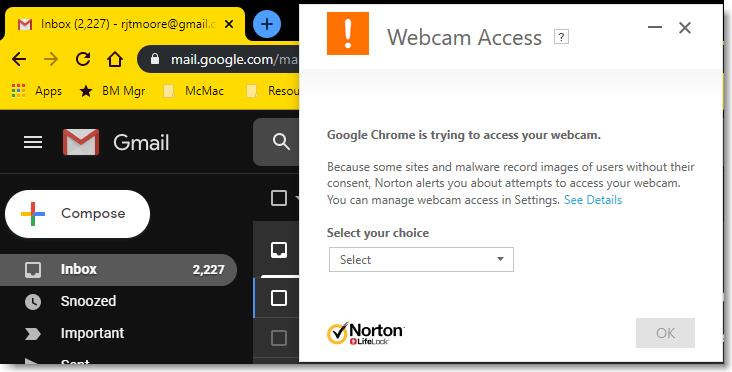
How to block webcam access in Google Chrome
If you do not trust the website, choose Block when Chrome asks for camera access. Blocking the request stops that site from using the webcam under the current permission setting.
To block camera access for a site that already has permission:
-
Open Chrome Settings.
-
Select Privacy and security.
-
Select Site settings.
-
Choose Camera.
-
Find the site under the allowed list.
-
Select the trash can or remove option beside the website.
You can also change permissions for the current page. Open the website, select the icon beside the address bar, and find Camera. Set the option to Block or Ask.
The Ask setting is useful when you want Chrome to request permission each time. It gives you more control, but repeated prompts can become annoying. For trusted sites that you use often, Allow may be convenient.
If you want to block webcam access for every website, set the default camera permission to “Don’t allow sites to use your camera.” You can still add trusted sites to the allowed list later.
What to do if Chrome keeps asking for webcam access
Repeated prompts may come from a page, extension, saved permission, or browser problem. Work through these steps in order.
Close unused tabs
Close meeting pages, social media tabs, online editors, and unfamiliar pages. Then reopen only the site you trust.
Review Chrome extensions
Type chrome://extensions into the address bar. Look for extensions you do not recognize, recently installed tools, or extensions with camera-related permissions.
Disable one extension at a time and check whether the prompts stop. Remove extensions that you do not need.
Clear site permissions
Open the camera settings page and remove permissions for websites you no longer use. You may also clear browsing data for the affected site.
Update Chrome
An outdated browser can contain bugs that affect permissions. Open Chrome’s menu, select Help, and choose About Google Chrome. Install updates if they are available, then restart the browser.
Restart your computer
A video app or browser process may still be using the camera in the background. Restarting the computer can close that process and reset the connection.
Check other camera apps
Zoom, Teams, Skype, FaceTime, Discord, and security tools may use the webcam outside Chrome. Close these apps and check whether the camera indicator turns off.
One practical troubleshooting lesson is to change only one setting at a time. If you block every permission at once, you may solve the prompt but lose access to a trusted service. A slower check helps you identify the real cause.
How to check for malware or a harmful extension
A webcam prompt alone does not prove that your computer has malware. However, unexpected camera activity deserves attention, especially if it appears with other warning signs.
Run a security scan with your operating system’s trusted security tool. Keep your browser, operating system, and security software updated. Avoid downloading “webcam protection” programs from pop-up ads, since some fake security tools are designed to install unwanted software.
Check for these warning signs:
• Unknown extensions or applications.
• Sudden browser redirects.
• Many unwanted pop-ups.
• Unusual login alerts.
• Slow performance after installing a new program.
• Camera activity when Chrome and video apps are closed.
If the webcam remains active after you close Chrome, check your operating system’s privacy settings. On Windows, review the camera privacy page in Settings. On macOS, review Camera permissions under System Settings and Privacy & Security.
A physical webcam cover can provide extra peace of mind. It does not replace software security, but it acts as a simple physical barrier when the camera is not in use.

Chrome webcam permissions on Windows and Mac
Chrome’s site controls work on both Windows and macOS, but the operating system has its own privacy layer. Both layers must allow access for the camera to work.
On Windows:
-
Open Settings.
-
Select Privacy & security.
-
Choose Camera.
-
Make sure camera access is enabled for the device.
-
Check whether desktop apps are allowed to use the camera.
On macOS:
-
Open System Settings.
-
Select Privacy & Security.
-
Choose Camera.
-
Review which apps can access the camera.
-
Turn off access for apps you do not trust.
Chrome may appear as a desktop app in operating system settings. If Chrome is blocked there, trusted video sites may not work even when their Chrome permission is set to Allow.
This two-level system explains why is Google Chrome trying to access my webcam can sometimes be confusing. Chrome controls website permission, while Windows or macOS controls broader app access.
How to safely use webcam permissions
You do not need to avoid every website that requests your camera. Instead, make a quick decision based on trust, purpose, and timing.
Before selecting Allow, ask:
• Do I recognize the website?
• Does the site need a camera for the task I am doing?
• Is the address spelled correctly?
• Did I start a video call, scan, or recording?
• Does the website use a secure connection?
A secure connection is helpful, but it does not guarantee that a site is trustworthy. Scammers can also use secure websites. The site’s identity and purpose matter just as much.
Use the minimum access needed. If a site only needs the camera for one short scan, remove its permission afterward. If you use a video meeting service every day, keep access limited to that trusted domain.
Never install an extension or program simply because a webpage claims that your webcam will not work without it. Chrome and reputable websites normally explain camera requirements clearly.
Frequently Asked Questions About Why Is Google Chrome Trying to Access My Webcam
Why is Google Chrome trying to access my webcam when I am not on a video call?
A website may have saved camera permission, or an open tab may be requesting access in the background. Check Chrome’s Camera settings, close unused tabs, and review your extensions.
Can a website use my webcam without permission in Chrome?
Chrome is designed to require permission before a website uses your camera. You should still keep Chrome updated and block access for sites you do not recognize.
How do I stop Chrome from asking for camera access?
Open Chrome Settings, go to Privacy and security, select Site settings, and choose Camera. Set the default to block camera access or remove permission from specific websites.
How can I tell if Chrome is using my webcam?
Look for the camera icon near Chrome’s address bar or the camera privacy indicator provided by Windows or macOS. If the indicator remains active, close Chrome and check other video apps.
Is the Chrome webcam access request a virus?
The request itself is not proof of a virus. It usually comes from a website or extension, but an unexpected request should lead you to review permissions and run a trusted security scan.
Should I allow Chrome to access my webcam?
Allow access only when you recognize the website and its function clearly needs video. For unfamiliar sites, choose Block or Ask and remove any saved permission later.
[CodeImg is intentionally omitted from the FAQ section.]
Conclusion
The answer to why is Google Chrome trying to access my webcam is usually simple: a website or extension wants to use your camera for video, scanning, recording, or another interactive feature. The request is often normal, but you should never approve it automatically.
Check the website address, review Chrome’s camera permissions, remove access from unknown sites, and inspect extensions if the prompts continue. Keep Chrome and your operating system updated, and use a physical webcam cover if it helps you feel more secure.
Take a minute today to review your camera permissions. If this guide helped, share it with someone who has received a confusing webcam prompt or leave a comment about what caused yours.