Google Chrome may block your camera because site, browser, system, or privacy settings deny camera access.
If you are asking, “why is Google Chrome blocking my camera,” the problem usually has a simple cause. Chrome protects your privacy by asking permission before a website can use your camera. However, an old permission rule, another app using the camera, a blocked site, or a system privacy setting can stop video calls and online meetings from working.
This guide explains the most common causes and shows safe steps to fix them on Windows, Mac, Chromebooks, Android phones, and iPhones. You will also learn how to prevent the issue from returning.
:max_bytes(150000):strip_icc()/005-configure-camera-microphone-setting-in-google-chrome-4103623-c4cf96e26d2447ffafdc71ada791c918.jpg)
Why is Google Chrome blocking my camera?
Google Chrome blocks your camera when it cannot confirm that a website has permission to use it. This design helps prevent websites from turning on your camera without your knowledge.
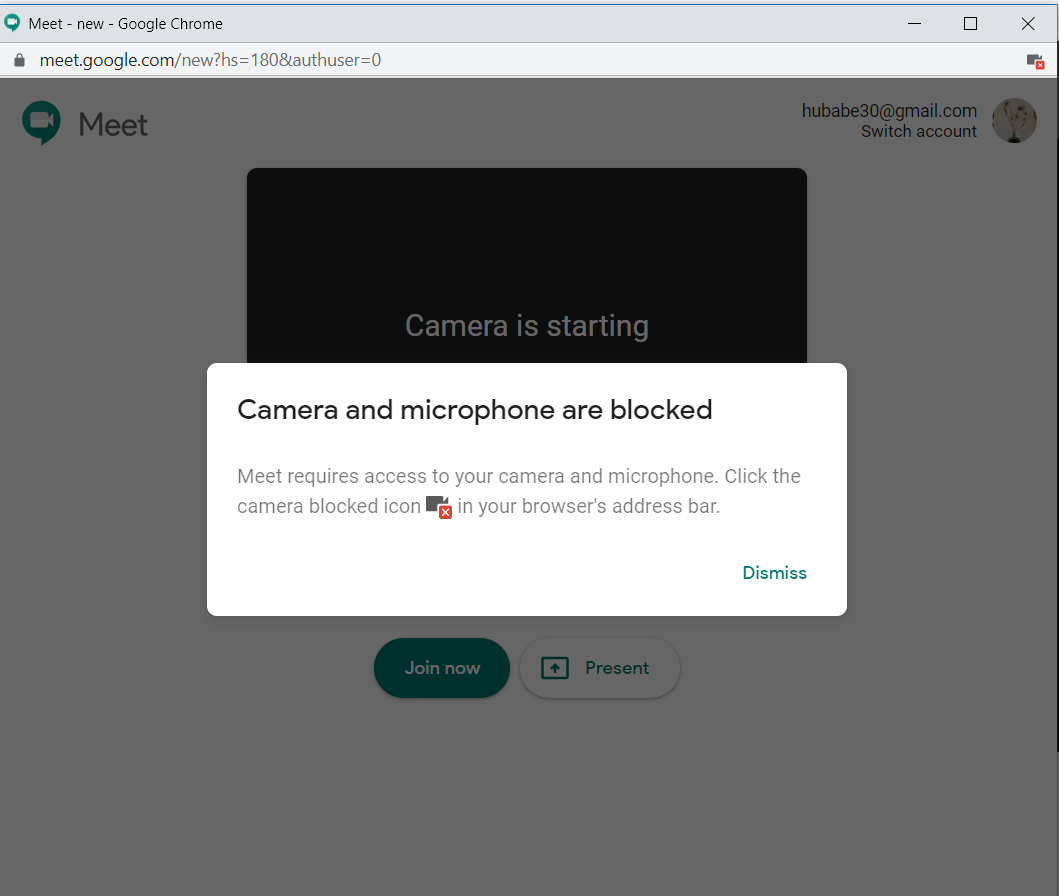
When Chrome blocks camera access, you may see messages such as:
• “Camera is blocked.”
• “No camera found.”
• “Your camera is unavailable.”
• “Please allow camera access.”
• “Camera permission is required.”
The exact cause can differ. In many cases, the camera works in other apps, but Chrome does not have permission. In other cases, the camera is being used by Zoom, Microsoft Teams, Skype, FaceTime, or another browser tab.
The most common reasons include:
• The website permission is set to Block.
• Chrome’s global camera permission is disabled.
• Windows or macOS is blocking Chrome from using the camera.
• Another app is already using the camera.
• A physical camera switch or privacy shutter is closed.
• Chrome is outdated or experiencing a temporary error.
• A browser extension is interfering with video access.
• The website is not using a secure connection.
• Your camera driver is missing or damaged.
Understanding the cause helps you avoid random fixes. Start with the browser permission, then check the operating system and hardware.
Check Chrome’s camera permission first
The fastest solution is often found in Chrome’s address bar. Chrome stores permission settings for each website, so one site may be blocked while another site can still use your camera.
Follow these steps:
-
Open the website that needs your camera.
-
Select the lock icon or tune icon beside the website address.
-
Find Camera in the permission list.
-
Change the setting to Allow.
-
Refresh the webpage.
-
If Chrome asks again, select Allow while using the camera.
You can also review all camera permissions:
-
Open Chrome.
-
Select the three-dot menu in the upper-right corner.
-
Choose Settings.
-
Select Privacy and security.
-
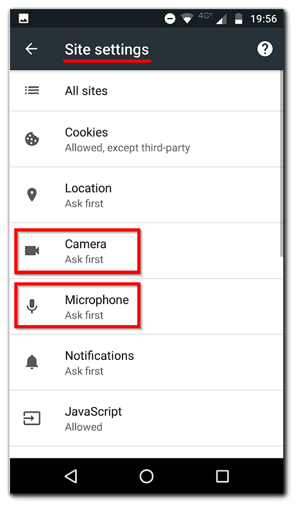
Open Site settings.
-
Select Camera.
-
Choose the correct camera from the device list.
-
Review the Not allowed to use your camera section.
-
Remove the website from the blocked list or change it to Allow.
If you changed the setting but the camera still does not work, close and reopen the browser. Some websites do not apply a new permission until the page reloads.
This step often answers why is Google Chrome blocking my camera when the camera works normally in another program.
:max_bytes(150000):strip_icc()/001-configure-camera-microphone-setting-in-google-chrome-4103623-a53c660dd15b4a09b29e0e580653d305.jpg)
Make sure the website is safe and supported
Chrome usually allows camera access only when a website uses a secure connection. A secure site begins with https:// rather than http://.
Most trusted video services use HTTPS automatically. If you are using a school, work, or personal website, check the address carefully. A missing security certificate or an unusual web address may prevent camera access.
You should also check whether the website supports your browser. Some older services require a specific browser version or a separate desktop app.
Try these checks:
• Confirm that the address starts with https://.
• Visit the official website instead of a link from an unknown message.
• Check whether the service has a current Chrome support page.
• Test the camera on another trusted video website.
• Avoid granting camera access to websites you do not recognize.
Camera permission is powerful. A website with access may capture video while you are using that site. Only approve access when you understand why it is needed.

Check Windows camera privacy settings
Windows has its own camera controls. Even if Chrome allows access, Windows can block the browser at the system level.
On Windows 11, open Settings and follow these steps:
-
Select Privacy & security.
-
Choose Camera.
-
Turn on Camera access.
-
Turn on Let apps access your camera.
-
Turn on Let desktop apps access your camera.
-
Confirm that Google Chrome is allowed when it appears in the list.
Chrome is treated as a desktop app. Therefore, the desktop app setting is especially important.
On Windows 10, open Settings, select Privacy, and then choose Camera. Turn on camera access for the device and allow desktop apps to access it.
If the options are gray or unavailable, your workplace, school, or family administrator may control them. In that case, you may need to contact the administrator.
Also check the physical camera:
• Open the laptop’s privacy shutter.
• Slide the camera switch to the open position.
• Disconnect and reconnect an external webcam.
• Try another USB port.
• Check whether an indicator light turns on.
These simple checks can solve why is Google Chrome blocking my camera when Windows privacy controls are the real cause.
Check Mac camera settings
macOS also asks for permission before Chrome can use the camera. If you selected Don’t Allow in the past, Chrome may remain blocked until you change the setting.
On a Mac:
-
Open the Apple menu.
-
Select System Settings.
-
Choose Privacy & Security.
-
Select Camera.
-
Turn on access for Google Chrome.
-
Quit Chrome completely.
-
Reopen Chrome and test the camera.
On older macOS versions, these controls may appear under System Preferences and Security & Privacy.
If Chrome is not listed, open a website that requests camera access. macOS may add Chrome to the list after the request appears.
Check the camera itself as well. Some MacBook models and external webcams include a cover or switch. A closed cover can make the camera look broken even when Chrome has full permission.

Close apps that may be using the camera
Most cameras work with one main app at a time. If Zoom, Teams, Skype, FaceTime, Discord, or another browser tab is using the camera, Chrome may not be able to connect to it.
Close any app that may have camera access. Then reload the page in Chrome.
On Windows, you can also open Task Manager:
-
Press Ctrl, Shift, and Esc.
-
Find video meeting apps or camera tools.
-
Select the app.
-
Choose End task.
On Mac, open Activity Monitor and quit apps that may be using the camera. Be careful not to close system processes unless you know what they do.
You should also close extra Chrome tabs. A forgotten meeting tab can continue using the camera in the background.
A useful test is to restart the computer. This ends hidden camera sessions and reloads the camera driver. It is a basic step, but it often works.
:max_bytes(150000):strip_icc()/002-configure-camera-microphone-setting-in-google-chrome-4103623-d5c4b7727e02492d808314600a727f6b.jpg)
Restart Chrome and update the browser
Temporary browser errors can affect camera permissions. Restarting Chrome clears some short-term problems without changing your settings.
First, close every Chrome window. Then open Chrome again and visit the video service.
To check for updates:
-
Select the three-dot menu.
-
Choose Help.
-
Select About Google Chrome.
-
Let Chrome check for updates.
-
Select Relaunch if an update is ready.
An outdated browser may have trouble with newer camera controls, security rules, or video standards. Updates also include fixes for bugs that can affect media devices.
If Chrome freezes or repeatedly loses camera access, restart the whole computer after updating. This gives the operating system a fresh connection to the camera.

Test extensions and Chrome settings
Some browser extensions change website behavior. Privacy tools, ad blockers, script blockers, and security extensions can interfere with camera permissions.
To test this safely, open an Incognito window:
-
Select the three-dot menu.
-
Choose New Incognito Window.
-
Visit the trusted video website.
-
Allow camera access when asked.
If the camera works in Incognito mode, an extension or saved site setting may be causing the problem. Incognito mode does not always disable every extension, but it provides a useful comparison.
You can then test extensions one at a time:
-
Open the three-dot menu.
-
Select Extensions.
-
Choose Manage Extensions.
-
Turn off extensions temporarily.
-
Reload the video page.
-
Re-enable extensions one by one.
Do not install unknown camera “fixer” extensions. A tool that claims to repair camera access may request more information than it needs.
You can also reset permissions for one website. In Chrome’s Site settings, remove the saved camera permission and visit the site again. This makes Chrome ask for permission from the beginning.
:max_bytes(150000):strip_icc()/006-configure-camera-microphone-setting-in-google-chrome-4103623-07d1082a653e4f229166becc2bdfef13.jpg)
Check the camera driver and hardware
If Chrome says “No camera found,” the issue may not be a permission problem. The operating system may not recognize the camera.
On Windows, open Device Manager and look under Cameras or Imaging devices. Look for a warning symbol beside the camera.
Possible actions include:
• Restart the computer.
• Install available Windows updates.
• Update the camera driver.
• Uninstall the camera device and restart Windows.
• Test another USB port.
• Try a different webcam.
On Mac, camera drivers are usually managed by macOS. Install available macOS updates and test the camera in another app, such as Photo Booth.
If the camera fails in every app, Chrome is probably not the main problem. The webcam may be disconnected, disabled, damaged, or covered.
A helpful test is to use the built-in camera app:
• Windows: Open the Camera app.
• Mac: Open Photo Booth or FaceTime.
• Chromebook: Open the Camera app.
If the camera works there but not in Chrome, focus on permissions, extensions, and website settings.
Fix camera access on a Chromebook
Chromebooks use Chrome as the main browser, so camera access may depend on both website permissions and ChromeOS settings.
Try these steps:
-
Restart the Chromebook.
-
Open the website again.
-
Select the lock icon near the address.
-
Set Camera to Allow.
-
Refresh the page.
-
Open the Chromebook camera app to test the hardware.
If the camera works in the Camera app but not on a website, check whether an administrator manages the Chromebook. School and work devices may block camera access through policies.
You should also install ChromeOS updates. Open Settings, choose About ChromeOS, and check for updates.
Some Chromebooks have a physical privacy switch or sliding camera cover. Make sure it is open before testing the camera.
Fix camera access on Android and iPhone
Chrome on a phone follows the mobile operating system’s permission rules. A website may have permission in Chrome, while the phone itself still blocks camera access.
On Android:
-
Open Settings.
-
Select Apps.
-
Choose Chrome.
-
Select Permissions.
-
Choose Camera.
-
Select Allow while using the app.
-
Reopen Chrome.
On an iPhone:
-
Open Settings.
-
Scroll down and select Chrome.
-
Turn on Camera.
-
Return to Chrome and reload the website.
Some mobile websites work better in their official apps. If a video service does not support mobile Chrome well, install its trusted app or use a computer.
Also check whether another app is using the camera. Close the Camera app, video chat apps, and social media apps before testing Chrome again.
Reset Chrome permissions as a last browser step
If you still wonder why is Google Chrome blocking my camera after checking the main settings, reset the website’s permissions.
Open Chrome Settings, select Privacy and security, choose Site settings, and review the camera permissions. Remove the affected website from the allowed or blocked list. Then visit the website again.
You can also clear the site’s stored data:
-
Open the affected website.
-
Select the lock icon.
-
Choose Site settings.
-
Select Delete data or Reset permissions.
-
Reload the page.
This may sign you out of the website. Save any work first.
Avoid resetting all Chrome settings unless necessary. A full reset can disable extensions, remove startup preferences, and change other browser options. Resetting one website is safer and more precise.
What to avoid when fixing camera access
A camera problem can make people click every setting they see. That can create new problems or expose private information.
Avoid these mistakes:
• Granting camera access to an unknown website.
• Downloading unofficial drivers from pop-up ads.
• Installing “camera repair” software without checking the developer.
• Disabling antivirus protection for a long time.
• Changing advanced system policies without understanding them.
• Covering the camera while testing it.
• Assuming a microphone problem is the same as a camera problem.
Chrome’s permission model is designed to reduce privacy risks. If a site does not need video, keep camera access blocked. You can allow it only when needed.
A practical troubleshooting order
When helping someone with this issue, I recommend starting with the smallest change. This avoids changing many settings and losing track of the real cause.
Use this order:
-
Check the camera cover or hardware switch.
-
Close other camera apps.
-
Check the lock icon in Chrome.
-
Review Chrome’s camera settings.
-
Check Windows, macOS, ChromeOS, Android, or iOS permissions.
-
Restart Chrome.
-
Restart the device.
-
Test Incognito mode.
-
Update Chrome and the operating system.
-
Test the camera in another app.
This process helps separate a website problem from a browser problem and a hardware problem.
One common mistake is changing the operating system settings first. In many cases, the website was simply listed under Chrome’s blocked permissions. Start with the website, then move outward.
When to contact support
Contact your workplace, school, device maker, or video service if the normal steps do not work.
You may need support when:
• The camera is blocked by an administrator.
• The camera does not work in any app.
• The device shows a hardware error.
• The browser repeatedly loses permission.
• A security program controls camera access.
• The website reports a server or account problem.
Before contacting support, record the useful details. Include your device type, operating system, Chrome version, website address, camera model, and exact error message.
This information makes troubleshooting faster. It also helps support staff identify whether the issue comes from Chrome, the operating system, the website, or the camera itself.
Frequently Asked Questions About Why Is Google Chrome Blocking My Camera
Why is Google Chrome blocking my camera even after I select Allow?
Chrome may still be blocked by Windows, macOS, ChromeOS, Android, or iOS privacy settings. Another app may also be using the camera, so check system permissions and close other video apps.
How do I unblock my camera in Google Chrome?
Open the affected website, select the lock icon, and set Camera to Allow. You can also open Chrome Settings, select Privacy and security, choose Site settings, and review Camera permissions.
Why does Chrome say no camera was found?
This message often means the operating system cannot detect the camera. Test it in the built-in Camera app, reconnect an external webcam, check the privacy shutter, and update the camera driver if needed.
Can a Chrome extension block my camera?
Yes, privacy and security extensions can interfere with camera access. Test the website in an Incognito window or disable extensions one at a time to find the cause.
Is it safe to allow a website to use my camera?
Allow camera access only for a trusted website that needs video. Keep access blocked for unfamiliar sites, and remove permission later if you no longer use the service.
Why does my camera work in Zoom but not Chrome?
Zoom may have system permission while the website does not have permission in Chrome. Check the site’s camera setting, Chrome’s camera list, and the operating system’s browser permissions.
Conclusion
Google Chrome blocks camera access mainly to protect your privacy. The most common causes are a blocked website permission, a system privacy setting, another app using the camera, an extension conflict, or a hardware issue.
Start with the lock icon beside the website address. Then check Chrome settings, operating system permissions, camera covers, other apps, and browser updates. These steps usually reveal why is Google Chrome blocking my camera without requiring risky downloads or major system changes.
Test the camera in a trusted app and follow the troubleshooting order above. If the problem continues, contact your device or workplace support team, and share this guide with anyone having trouble joining a video call.