Corsair gaming mouse software is Corsair iCUE, a configuration application that lets Windows PC users customize mouse buttons, DPI settings, lighting effects, macros, performance options, and device profiles.
For gamers in the United States who use Corsair mice with a Windows gaming PC, Corsair iCUE is the primary software tool for managing hardware settings. Instead of relying on default operating system controls, iCUE provides access to device-specific features such as programmable buttons, adjustable sensitivity levels, RGB lighting control, and saved configurations.
The software is designed to help users match their mouse behavior with different games and applications. While advanced features depend on the specific Corsair mouse model, most compatible devices can be configured through the same iCUE interface. This guide explains how the software works, how to set it up, and how to fix common problems without unnecessary changes.
Source: Bing
What Is Corsair Gaming Mouse Software and What Does It Do?
Corsair gaming mouse software refers mainly to Corsair iCUE, a hardware management application that connects compatible Corsair peripherals with a computer. The software communicates with the mouse firmware and allows users to change settings that are not available through standard Windows mouse options.
The main purpose of iCUE is customization. A user can create different profiles for games, productivity apps, or general desktop use and switch between configurations automatically or manually depending on the setup.
Source: Bing
Button customization
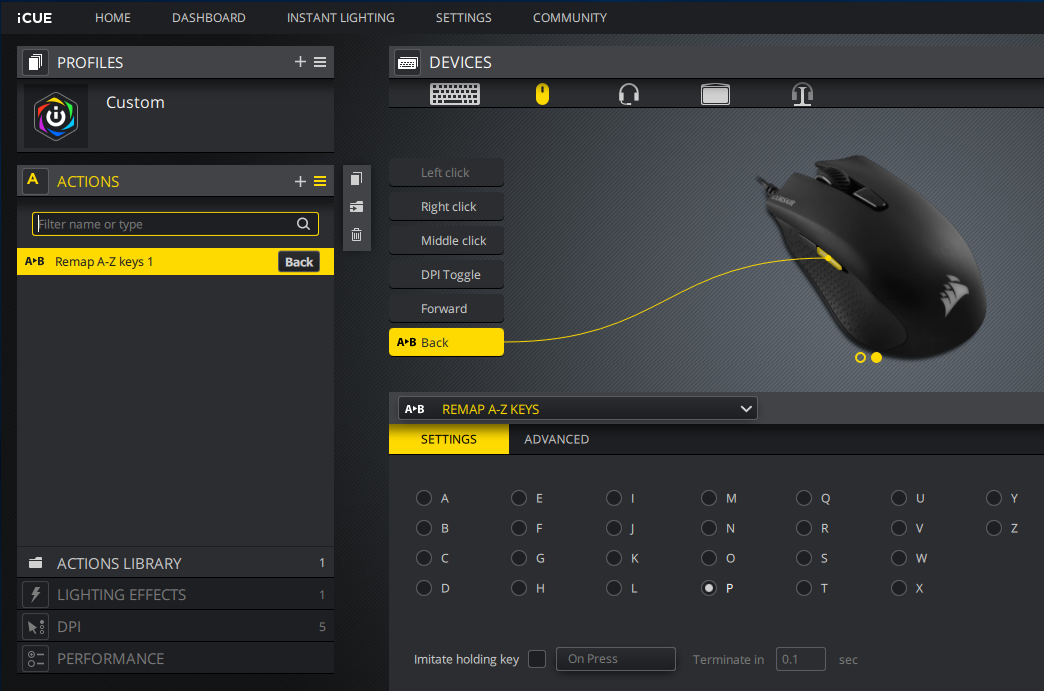
iCUE allows supported Corsair mice to assign different actions, shortcuts, or commands to programmable buttons.
DPI adjustment
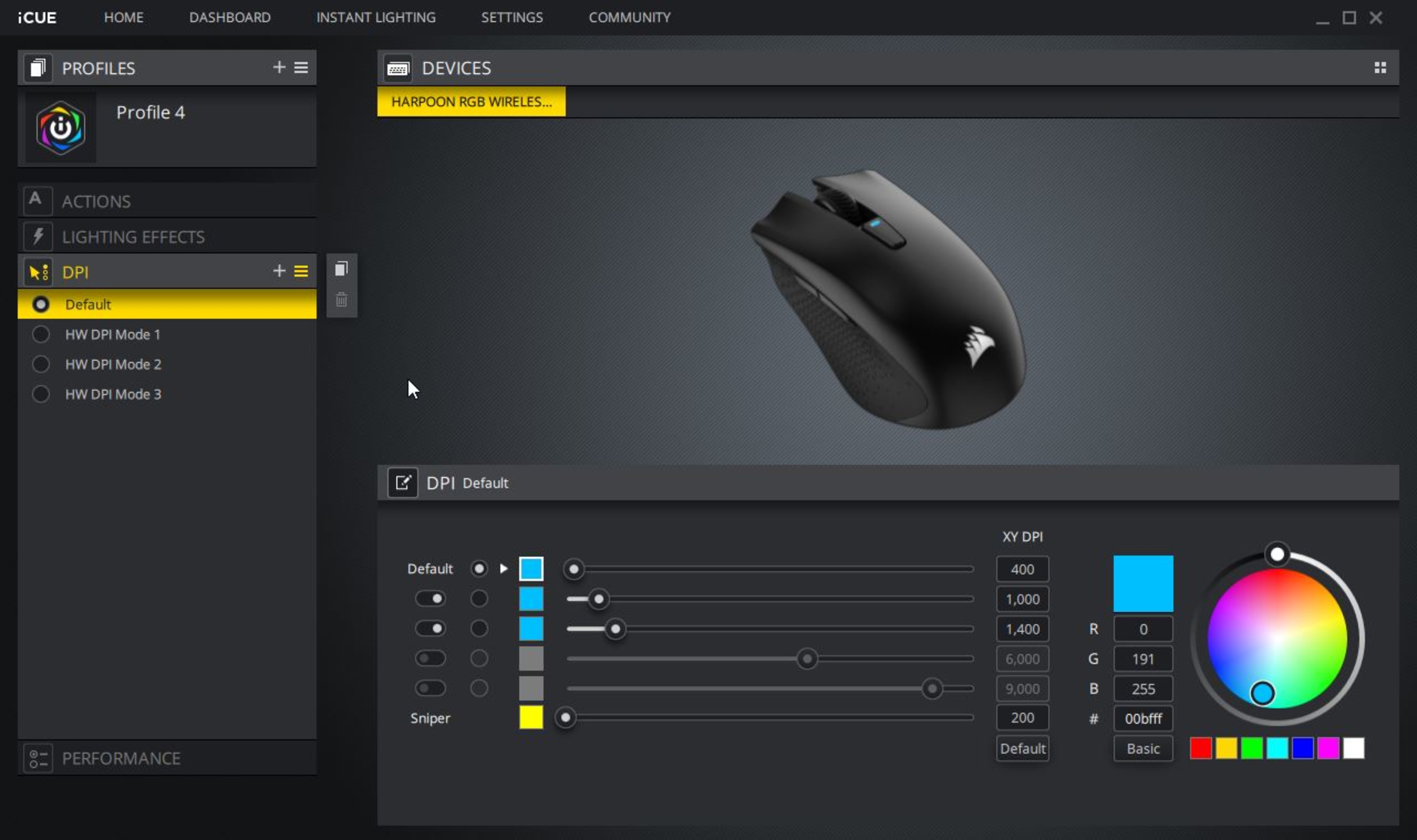
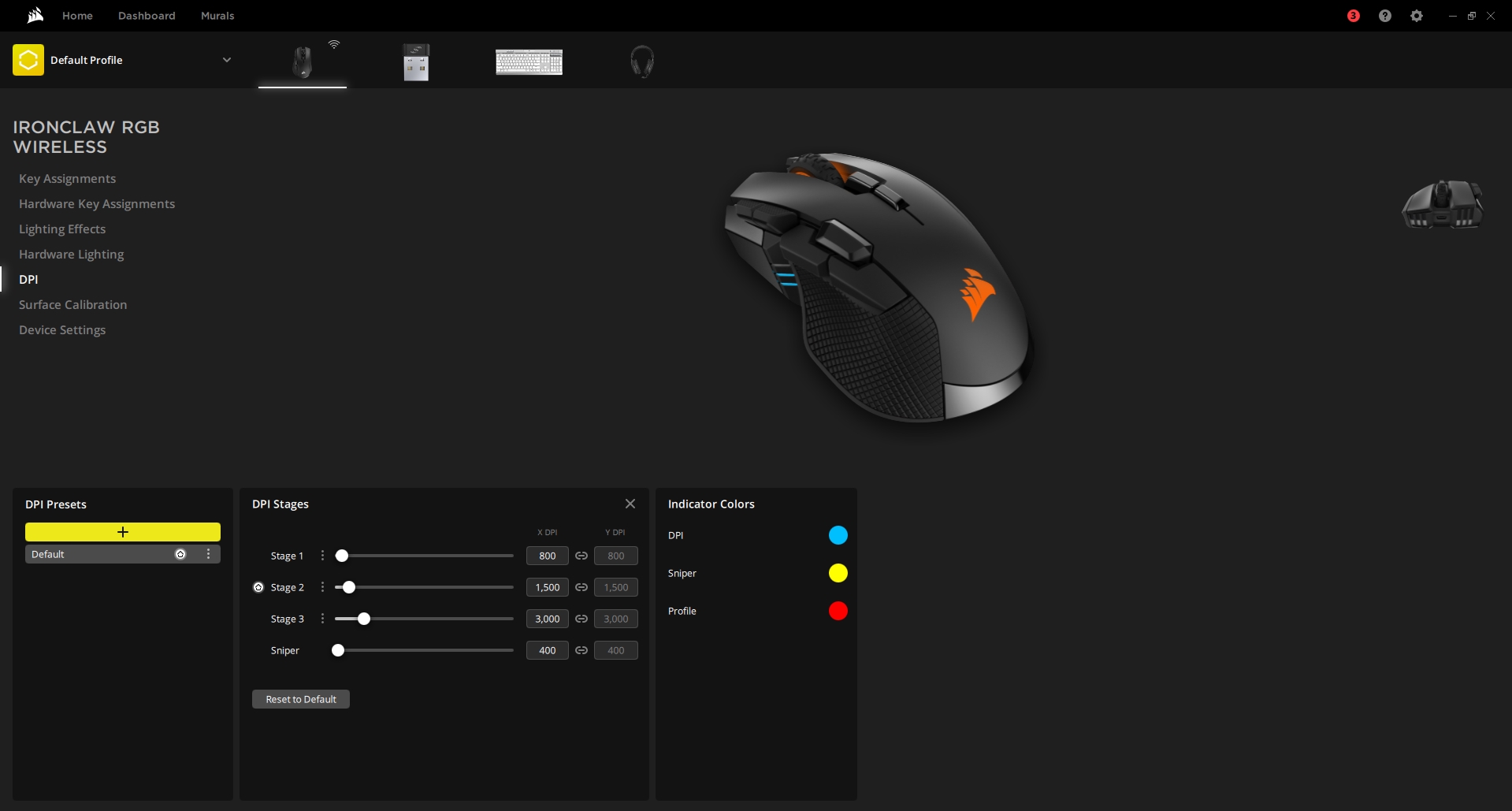
Users can create sensitivity stages and change how quickly the cursor moves based on gaming or work requirements.
RGB lighting control
Compatible Corsair mice can use iCUE to configure lighting colors, effects, and synchronization with other Corsair devices.
Which Corsair Mice Work With iCUE?
Most modern Corsair gaming mice support iCUE, including models from the M65, Dark Core, Harpoon, Ironclaw, Katar, and Scimitar product families. However, available settings vary by model because hardware features differ.
Check compatibility
Verify the exact mouse model on Corsair’s support documentation before expecting specific features such as onboard profiles or advanced macros.
How to Install Corsair iCUE for a Gaming Mouse
Installing Corsair iCUE requires downloading the official application, connecting the mouse, and allowing the software to detect the device. The process is generally straightforward, but outdated drivers or conflicting software can prevent detection.
Before installation, close unnecessary peripheral management programs because multiple applications controlling the same device may create conflicts.
Source: Bing
Download iCUE
Get the current iCUE installer from Corsair’s official software page rather than using unofficial download sites.
Connect the mouse
Use a direct USB connection when possible during setup to improve detection reliability.
Restart after installation
A system restart may help Windows load updated device services correctly.
Signs That iCUE Is Installed Correctly
A successful installation usually means the mouse appears inside the iCUE dashboard, settings menus are available, and changes such as lighting or DPI adjustments apply immediately.
Device appears in iCUE
The software recognizes the connected Corsair mouse without warning messages.
Settings save properly
Created profiles and assigned controls remain available after restarting the application.
How to Configure a Corsair Gaming Mouse in iCUE
Configuring a Corsair mouse in iCUE involves selecting the device, choosing a setting category, and applying changes. The exact menu names can differ between iCUE versions and mouse models.
A practical setup usually starts with DPI settings, button assignments, and a profile structure that matches how the mouse will be used.
Source: Bing
Adjust DPI settings
Choose DPI levels that match your preferred aiming speed and create separate stages if you switch between gameplay situations.
Assign mouse buttons
Map frequently used commands, shortcuts, or in-game actions to available programmable buttons.
Create profiles
Save different configurations for specific games or applications to avoid changing settings manually.
Creating Macros With Corsair iCUE
iCUE can record and assign macros on supported Corsair mice. Macros are useful for repetitive desktop tasks and certain game commands where allowed by the game’s rules.
Users should check individual game policies before using macros because some competitive games restrict automated actions.
Record carefully
Review recorded actions before assigning them to avoid unwanted commands.
Common Corsair iCUE Mouse Problems and Fixes
Most Corsair iCUE mouse issues are related to software conflicts, outdated firmware, connection problems, or incorrect settings. Troubleshooting should begin with simple checks before reinstalling software.
Changing advanced Windows settings is usually unnecessary unless basic solutions fail.
Source: Bing
Mouse not detected
Reconnect the mouse, try another USB port, restart iCUE, and check whether firmware updates are available.
Settings not saving
Confirm that the correct profile is active and that onboard memory settings are configured properly if supported.
iCUE uses high resources
Reduce unnecessary lighting effects, close unused integrations, or update to the latest software version.
When Reinstalling iCUE Makes Sense
A clean reinstall may help when the application repeatedly crashes, fails to detect multiple Corsair devices, or shows corrupted settings. Before removing the software, save important profiles if possible.
Backup profiles
Export important configurations before reinstalling to avoid losing custom settings.
Corsair iCUE Settings That Matter Most for Gaming
The most useful iCUE settings depend on the game type, mouse model, and personal preference. Competitive players often focus on DPI consistency and button placement, while casual users may prioritize lighting and convenience features.
Source: Bing
FPS gaming
Lower DPI values with controlled sensitivity adjustments are commonly preferred by players who prioritize precise aiming.
MMO and strategy games
Extra programmable buttons can provide quick access to commands and shortcuts.
Everyday computer use
Profile switching and shortcut assignments can improve productivity outside gaming.
Frequently Asked Questions
Q
Is Corsair iCUE free software?
Yes, Corsair iCUE is available as free software for compatible Corsair devices. Users can download it from Corsair’s official software resources.
Q
Can I use a Corsair mouse without iCUE?
Yes, a Corsair mouse can usually work as a basic pointing device without iCUE. However, advanced features such as custom profiles, RGB control, and programmable buttons may require the software.
Q
Why is my Corsair mouse not showing in iCUE?
Common causes include connection issues, outdated firmware, software conflicts, or an unsupported device. Reconnecting the mouse and updating iCUE are common first troubleshooting steps.
Q
Does Corsair iCUE change mouse performance?
iCUE does not automatically improve hardware performance, but it allows users to adjust settings such as DPI, polling options, and button functions that can affect how the mouse feels during use.
Q
Can Corsair iCUE control other devices?
Yes, iCUE can manage many compatible Corsair peripherals, including keyboards, headsets, lighting products, and other supported accessories.
✦ Wrapping Up
Conclusion
Corsair gaming mouse software, known as iCUE, provides the controls needed to customize compatible Corsair mice for gaming and everyday use. Its main benefits come from programmable buttons, adjustable DPI settings, profiles, and lighting management.
The best configuration depends on the specific mouse model and personal preferences. Starting with basic settings, testing changes, and keeping firmware updated can help create a reliable setup.
💡 Key Takeaway
Install Corsair iCUE, connect your mouse, create a profile, adjust DPI and buttons based on your needs, and troubleshoot simple connection issues before making advanced changes.
Kimberly ensures every piece of content is clear, helpful, and user-friendly. She focuses on creating guides that are easy to read while maintaining accuracy and trust.
Learn how to perform a Cadillac tire pressure monitoring system reset, relearn TPMS sensors, fix warning lights, and troubleshoot common Cadillac tire pressure issues.
Learn how to replace a tire pressure monitor system sensor safely, including tools needed, replacement steps, relearn procedures, common problems, and when to seek professional help.