An SSD makes a laptop faster, quieter, tougher, and more responsive than a traditional hard drive.
Understanding why SSD is important in a laptop helps you choose a computer that feels quick in daily use, starts reliably, and handles modern apps with ease. After testing and using laptops with both solid-state drives and hard disk drives, I have seen how much the storage device affects real-world performance—not just benchmark scores.

What Is an SSD in a Laptop?
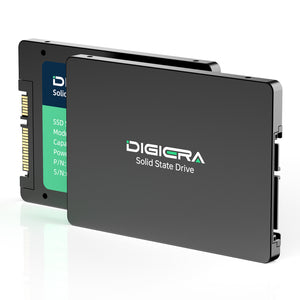
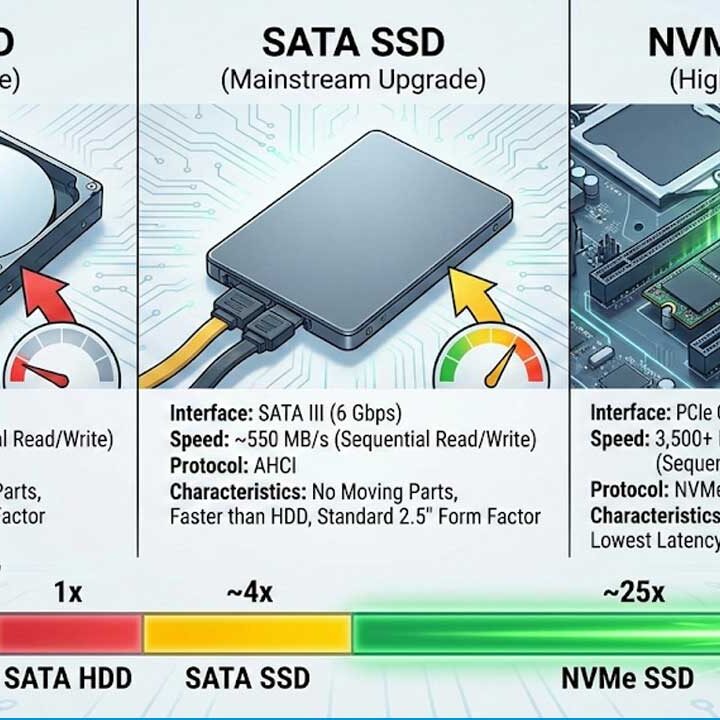
An SSD, or solid-state drive, is a storage device that saves your files, apps, and operating system using flash memory. It has no spinning disks or moving read-and-write heads.
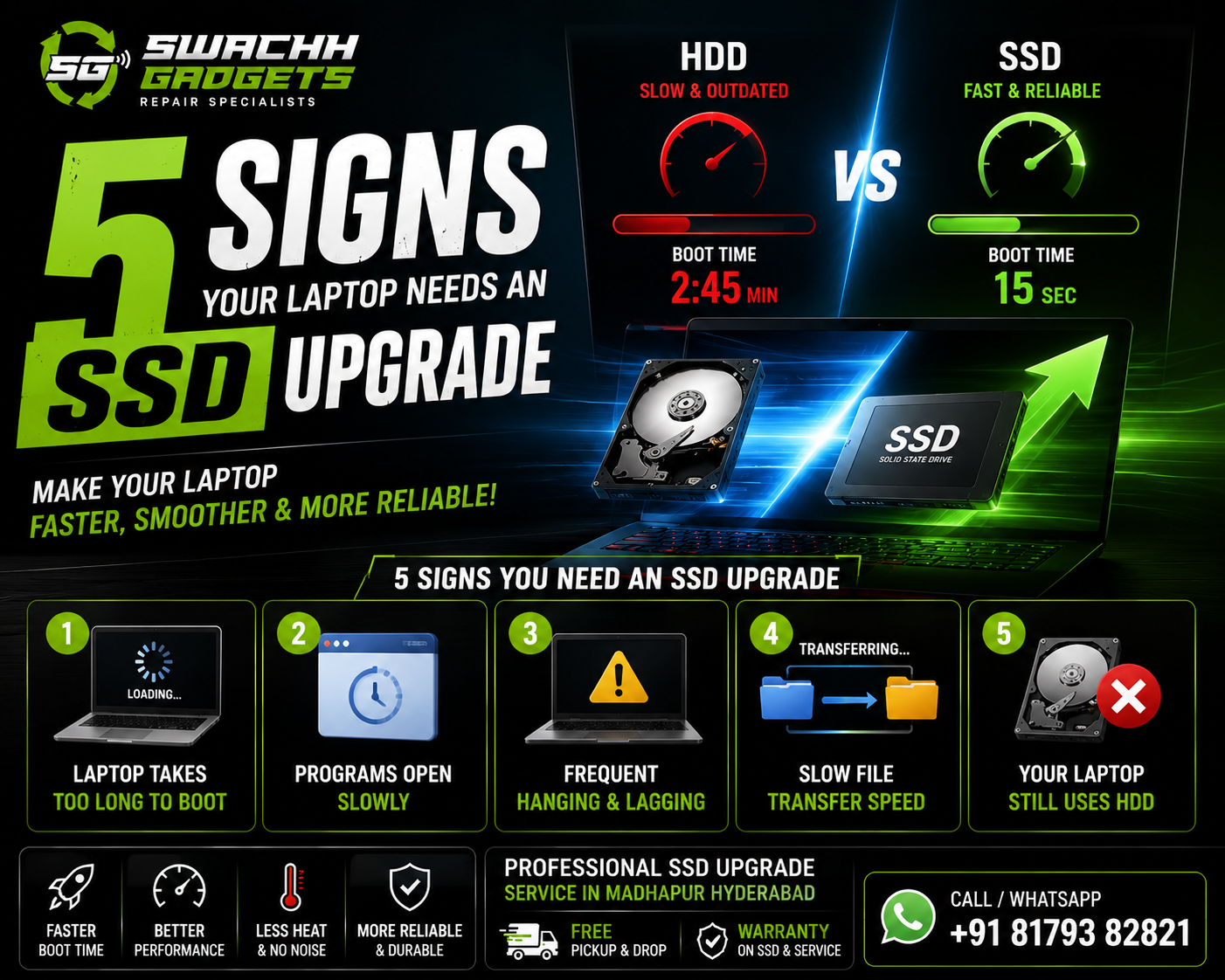
A traditional hard disk drive, or HDD, stores data on spinning magnetic platters. An SSD works more like a large, fast memory bank. Because it has no moving parts, it can find and open data much faster.
Common laptop SSD types include:
• SATA SSDs, which use the older 2.5-inch SATA connection and are much faster than HDDs.
• M.2 SATA SSDs, which are small and efficient but use the same basic SATA technology.
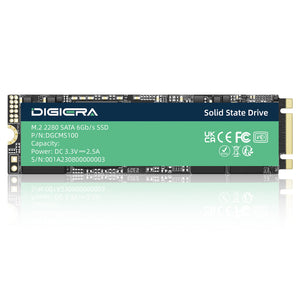
• NVMe SSDs, which use the PCIe interface and offer much higher speeds than SATA drives.
Most new laptops use M.2 NVMe SSDs. However, the actual speed depends on the laptop, SSD model, cooling system, storage capacity, and workload.
Why SSD Is Important in a Laptop
The main reason why SSD is important in a laptop is that storage affects nearly every task. Your operating system loads from the drive, and most programs must read data from it before they can work.
An SSD reduces the time your laptop spends waiting for files. It can make a modest laptop feel far more pleasant, even when the processor and memory stay the same.
Here are the main reasons an SSD matters:
• Faster startup: Windows or macOS can load in much less time.
• Quicker app opening: Programs launch with less delay.
• Better file access: Documents, photos, and videos open faster.
• Smoother updates: System updates and software installations often finish sooner.
• Faster file transfers: Large files can move more quickly, especially with an NVMe SSD.
• Better multitasking: The laptop can respond more quickly when several apps use storage at once.
• Lower noise: An SSD operates silently.
• Improved durability: There are no spinning parts to damage during normal movement.
In simple terms, an HDD often makes you wait. An SSD removes much of that waiting. That difference is easy to notice when you use a laptop every day.
How an SSD Improves Laptop Speed
Many people ask why SSD is important in a laptop when the computer already has a fast processor. The answer is that the processor cannot work efficiently if it must wait for slow storage.
When you open an app, the laptop reads its files from storage and loads them into memory. If the drive is slow, the processor may sit idle while data arrives. An SSD sends that data much faster, which helps the entire system feel more responsive.
You may notice the improvement when you:
• Turn on the laptop in the morning.
• Open a web browser with many tabs.
• Start Microsoft Word, Adobe Photoshop, or similar software.
• Search through a large photo folder.
• Install a game or system update.
• Copy files to an external drive.
• Wake the laptop from sleep.
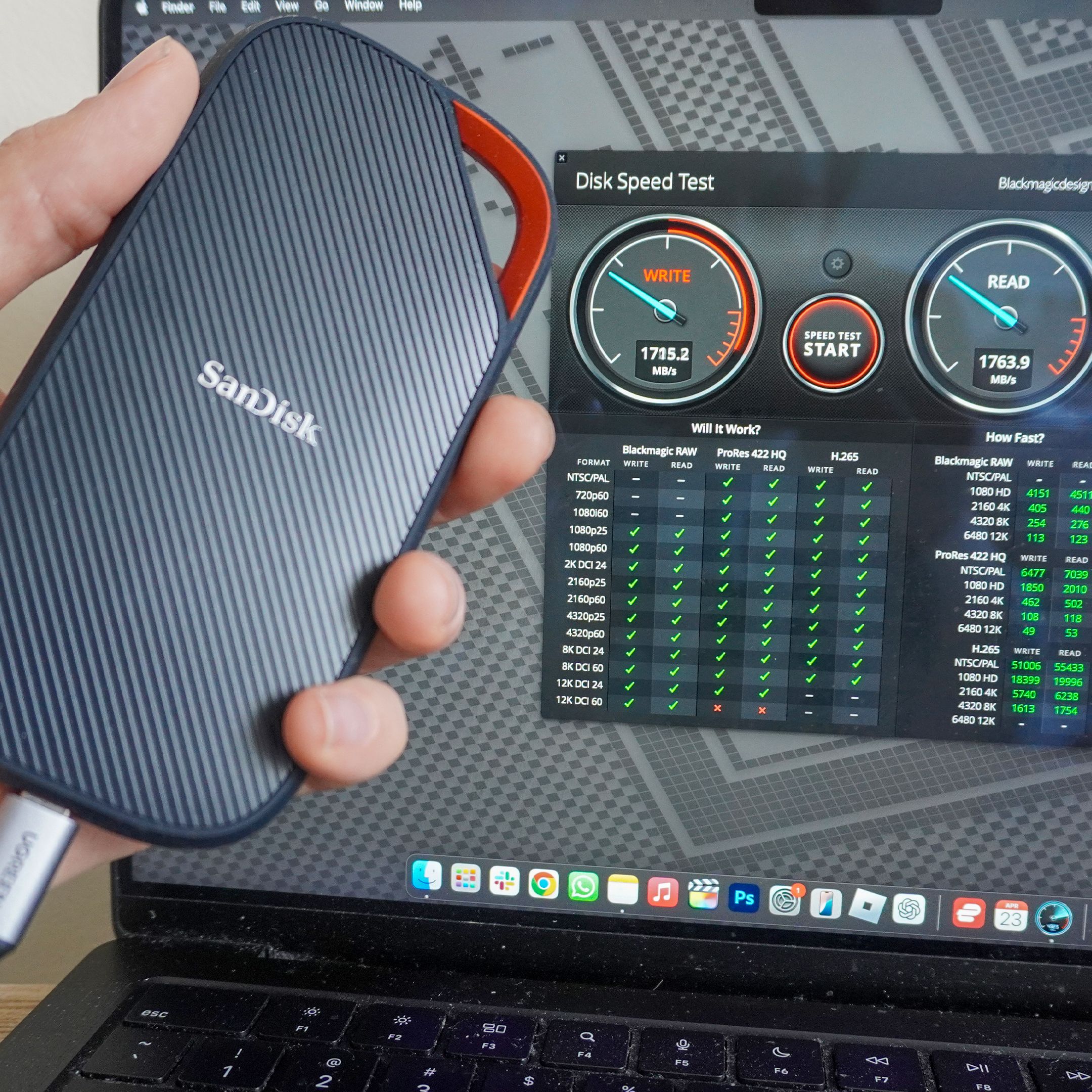
NVMe SSDs usually provide much higher sequential read and write speeds than SATA SSDs. Still, random access performance is also important. Random access measures how quickly a drive can handle many small files, which is common when launching apps or loading an operating system.
This is why a laptop with a midrange processor and SSD can feel faster than a laptop with a stronger processor and HDD.
SSD Benefits for Battery Life and Portability
Battery life is another reason why SSD is important in a laptop. SSDs generally use less power than mechanical hard drives, although the exact difference depends on the model and how the laptop is used.
An HDD must spin its platters and move its read-and-write head. An SSD does not need those mechanical actions. This can reduce power use during many storage tasks.
The battery benefit may not always be dramatic. The screen, processor, graphics chip, wireless connection, and cooling fans often use more energy. Even so, an SSD can support better overall efficiency.
SSDs also suit portable computers because they handle movement better. Carrying an HDD laptop in a backpack while it is running can create more risk than carrying a laptop with an SSD. A sudden bump can damage mechanical parts in an HDD.
That does not mean an SSD is unbreakable. Its circuit board and memory cells can still fail after physical damage, electrical problems, or heavy wear. A strong laptop case and regular backups remain important.
SSD Reliability and Durability
The absence of moving parts explains why SSD is important in a laptop for students, travelers, and mobile workers. An SSD is less sensitive to vibration and movement than an HDD.
Modern SSDs use flash memory cells with a limited number of write cycles. Manufacturers manage this with technologies such as:
• Wear leveling, which spreads writes across the drive.
• Error correction, which helps detect and fix certain data errors.
• Overprovisioning, which reserves some space for maintenance.
• TRIM support, which helps the drive manage deleted data.
Most users will not reach the rated write limit during normal laptop use. Heavy workloads, such as constant video recording, large database work, or frequent professional editing, can create more drive wear.
For important files, do not rely on the SSD alone. Use a backup plan with at least one additional copy. A simple approach is:
-
Keep your main files on the laptop.
-
Back them up to an external drive.
-
Store a second backup in a trusted cloud service or another safe location.
A drive can fail without warning, even when it is relatively new. Backups protect your data, while SSD quality helps improve everyday reliability.
SSD Performance for Gaming, School, and Work
The importance of an SSD changes slightly based on your workload, but most laptop users benefit from one.
For students, an SSD helps with quick startup, browser use, online classes, document editing, and file searches. It also makes it easier to move between apps when research, notes, and video calls are open together.
For office workers, an SSD can reduce delays when opening spreadsheets, presentations, email attachments, and project folders. It is especially helpful when a laptop uses virtual memory because the system has limited RAM.
For gamers, an SSD can reduce game loading times and make level changes faster. It does not always increase average frame rates. Frame rates depend more on the graphics processor, processor, memory, and game settings.
For creators, an SSD can improve project loading and media access. Video editors may use a fast internal SSD for the operating system and apps, plus a larger SSD or hard drive for project storage and archives.
Here is a simple guide:
• Basic browsing and schoolwork: A SATA SSD is usually enough.
• Office work and programming: An NVMe SSD offers a responsive experience.
• Gaming: Choose enough capacity for large games.
• Photo and video editing: Consider high capacity, strong sustained write performance, and a separate backup.
• Professional workloads: Check endurance ratings, cooling, warranty terms, and tested performance.
SSD Capacity: How Much Storage Do You Need?
Capacity is one of the most important parts of choosing an SSD. A fast drive with too little space can become frustrating.
A 256GB SSD may work for basic browsing and document storage, but it can fill quickly after installing operating system updates, apps, photos, and games. A 512GB SSD is a better starting point for many users.
A 1TB SSD is a strong choice for gaming, creative work, and people who store many files locally. Users with large video libraries may need 2TB or more.
Keep some free space available. An SSD may slow down when it is nearly full because it has less room for internal data management. The exact point varies by drive, but keeping around 10% to 20% free is a useful practical target.
Before buying, check:
• The laptop’s maximum supported capacity.
• Whether the laptop has an M.2 slot or a 2.5-inch bay.
• The supported interface, such as SATA or PCIe NVMe.
• The physical M.2 size, such as 2280.
• Whether replacing the drive affects the warranty.
• Whether the laptop allows storage upgrades at all.
Some thin laptops have storage soldered to the motherboard. In those models, choose capacity carefully at the time of purchase.
SSD Limitations You Should Know
A balanced explanation of why SSD is important in a laptop should include its limits. SSDs are not automatically perfect, and a higher speed rating does not improve every task equally.
Important limitations include:
• Higher price: SSDs often cost more per gigabyte than HDDs.
• Limited write endurance: Flash memory has a finite write life.
• Heat: Fast NVMe drives can become warm during long transfers.
• Performance drops when nearly full: Free space helps maintain performance.
• Data recovery challenges: Recovering deleted data from an SSD can be harder than recovering it from some HDDs.
• No protection from malware: An SSD can still be infected, encrypted, or damaged by software.
• Speed depends on the laptop: A PCIe 4.0 SSD may run at lower speeds in a laptop with a slower interface.
One mistake I have seen many laptop owners make is buying the fastest advertised SSD without checking compatibility. A premium PCIe drive may offer little practical benefit if the laptop supports only PCIe 3.0 or has weak cooling.
Another mistake is replacing an HDD without cloning or backing up the old drive. Always save your files and confirm that the operating system can boot from the new SSD before erasing the original storage.
SSD vs. HDD: Which Is Better for a Laptop?
For most modern laptops, an SSD is the better primary storage choice. It is faster, quieter, lighter, and more resistant to movement.
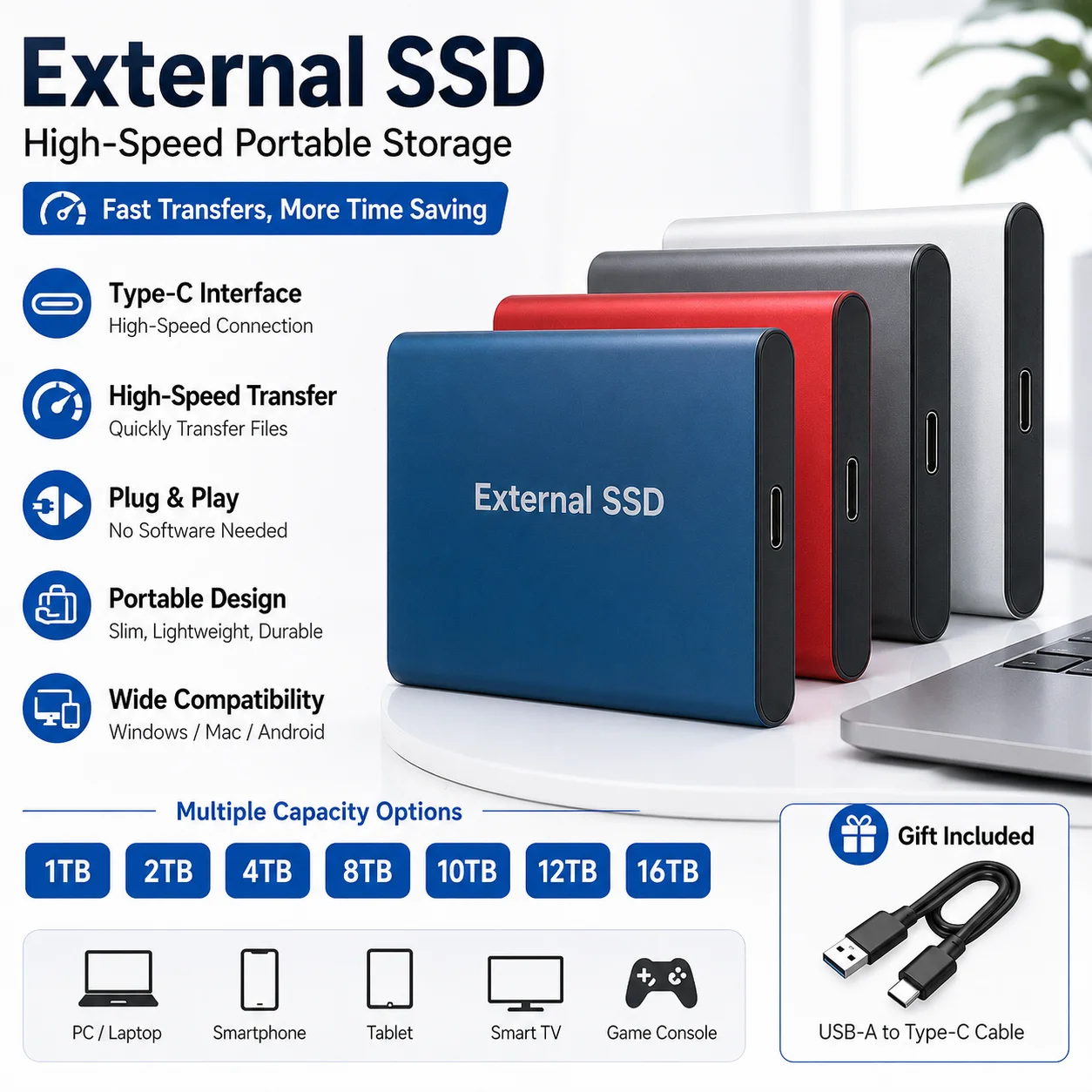
An HDD can still make sense when you need a large amount of inexpensive storage. For example, an external HDD can be useful for backups, archived photos, movies, and older project files.
| Feature | SSD | HDD |
|---|---|---|
| Startup speed | Very fast | Slower |
| App loading | Fast | More waiting |
| Noise | Silent | Audible spinning and clicking |
| Resistance to movement | Generally better | More sensitive to shock |
| Power use | Often lower | Often higher |
| Cost per gigabyte | Higher | Lower |
| Long-term archive use | Good with backups | Useful for low-cost storage |
| Best laptop role | Main system drive | Secondary or external storage |
A practical setup is to use an SSD for the operating system and active apps, then use an external hard drive or cloud service for large backups. This gives you speed without wasting money on expensive internal capacity.
How to Choose the Right Laptop SSD
When shopping for a laptop, look beyond the word “SSD.” Check the details before making a decision.
Use this buying checklist:
-
Choose at least 512GB for a comfortable general-purpose laptop.
-
Select an NVMe SSD when the laptop supports it and the price is reasonable.
-
Check the PCIe generation, but do not pay heavily for a speed you cannot use.
-
Review the warranty and endurance information.
-
Look for reputable testing that measures sustained performance, not only short benchmark bursts.
-
Check whether the SSD has a dedicated cache or uses system memory for caching.
-
Confirm that the drive includes suitable thermal management for your laptop.
-
Plan a backup before moving important files.
In my experience, capacity often matters more than extreme peak speed. A roomy 1TB SSD usually offers a better daily experience than a tiny, faster drive that stays almost full.
How to Maintain an SSD in a Laptop
Good habits can help your SSD remain reliable for years.
• Leave free space on the drive.
• Install operating system updates and firmware updates from trusted sources.
• Keep the laptop cool and avoid blocking its vents.
• Do not use repeated manual defragmentation on an SSD.
• Let the operating system manage TRIM.
• Monitor drive health with a trusted utility.
• Shut down properly when practical.
• Keep important files backed up.
Modern operating systems usually recognize SSDs and handle many maintenance tasks automatically. Avoid random “drive optimizer” tools that promise huge speed gains. Some can cause more harm than good.
If the laptop becomes unusually slow, crashes often, or reports storage errors, back up your files first. Then check drive health, available space, system temperatures, and possible malware.
Frequently Asked Questions About Why SSD Is Important in a Laptop
Why is SSD important in a laptop?
An SSD helps a laptop start faster, open apps sooner, and respond more quickly during everyday tasks. It also runs quietly and handles movement better than a traditional hard drive.
Is an SSD better than an HDD for a laptop?
For most laptop users, yes. An SSD offers better speed, lower noise, lower mechanical risk, and often better power efficiency, while an HDD provides cheaper storage capacity.
Does an SSD improve laptop battery life?
An SSD can reduce power use during storage activity because it has no spinning parts. However, battery life also depends on the display, processor, graphics hardware, wireless connection, and software.
Does an SSD make a laptop faster for gaming?
An SSD can shorten game startup and loading times. It usually does not create a major increase in frame rates, which depend mainly on the graphics processor, processor, memory, and game settings.
How much SSD storage is enough for a laptop?
A 512GB SSD is enough for many students and office users. Choose 1TB or more if you play large games, edit video, store many photos, or want more room for future files.
Can an SSD fail in a laptop?
Yes, an SSD can fail because of electronic faults, damaged memory, controller problems, heat, or other issues. Regular backups are essential because no storage device is completely risk-free.
Conclusion
An SSD is important in a laptop because it improves speed, responsiveness, portability, noise levels, and everyday comfort. It helps the system start quickly, opens apps with less waiting, and handles movement better than an HDD.
The best choice is not always the fastest SSD available. Focus on a suitable interface, enough capacity, good cooling, reliable warranty coverage, and a strong backup plan.
If your current laptop still uses an HDD, upgrading to an SSD may be one of the most noticeable improvements you can make. Compare compatible drives, protect your files, and share your laptop upgrade experience in the comments.