Kwikset smart lock instructions usually involve installing the lock, adding user codes, pairing the lock with an app or smart home system when supported, and testing both electronic and manual locking functions before daily use.
Across homes in the United States, Kwikset smart locks are commonly used on front doors, garage entrances, and rental properties because they allow keyless entry through PIN codes, mobile apps, or traditional keys depending on the model. The exact setup process depends on the specific Kwikset model, such as SmartCode, Halo, Aura, or Powerbolt series.
This guide explains the documented steps that apply to many Kwikset smart locks, including preparation, programming, locking methods, battery care, and troubleshooting. Always confirm model-specific details in the official manual because button locations, programming procedures, and smart home features can differ between versions.
Source: Bing
What You Need Before Following Kwikset Smart Lock Instructions
Before installing or programming a Kwikset smart lock, collect the required tools, verify compatibility, and identify the lock model. The model number is usually located on the interior side of the lock or in the original documentation.
A properly prepared installation prevents common problems such as a keypad that does not respond, a motor that cannot move the deadbolt, or programming failures.
Source: Bing
Required items
Prepare the Kwikset smart lock, compatible batteries, screwdriver, existing door hardware measurements, and the user manual for the exact model.
Door requirements
The door should close completely, the deadbolt should move freely, and the strike plate should align correctly with the latch.
Model identification
SmartCode, Halo, Aura, and Powerbolt models may use different programming buttons and connection methods.
How to Find Your Kwikset Smart Lock Model
Look for a model label, product number, or manual reference included with the lock. Knowing the model helps you avoid using incorrect programming sequences.
Check the interior assembly
Many Kwikset electronic locks display identifying information on the inside cover or battery compartment area.
How to Install a Kwikset Smart Lock Step by Step
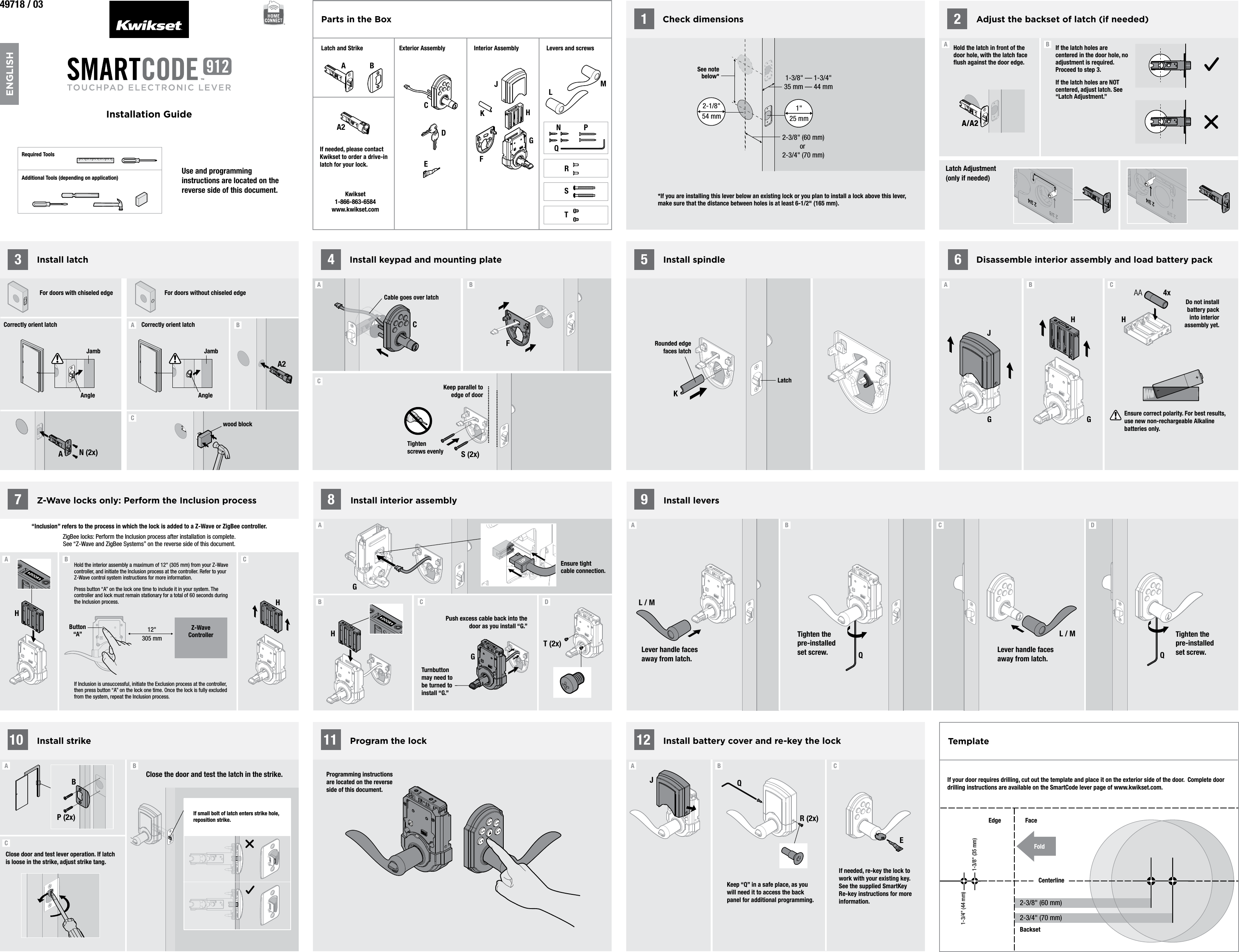
Installing a Kwikset smart lock generally involves removing the existing deadbolt, installing the exterior keypad and interior assembly, inserting batteries, and completing the handing process so the lock learns the door direction.
Do not force the deadbolt during installation. Resistance usually indicates a door alignment problem rather than a motor issue.
Source: Bing
Remove the old lock
Take off the existing deadbolt hardware and clean the mounting area before installing the new lock.
Install exterior and interior parts
Attach the keypad assembly and connect the interior mounting plate according to the model instructions.
Install batteries
Insert fresh batteries with the correct polarity before beginning programming.
Complete the Door Handing Process
Many Kwikset smart locks perform an automatic handing process after installation. This allows the motor to understand whether the door opens to the left or right.
Success sign
The lock completes its calibration movement and responds normally to keypad commands.
Failure sign
Grinding sounds, repeated motor movement, or an inability to lock may indicate alignment or installation problems.
How to Program User Codes on a Kwikset Smart Lock
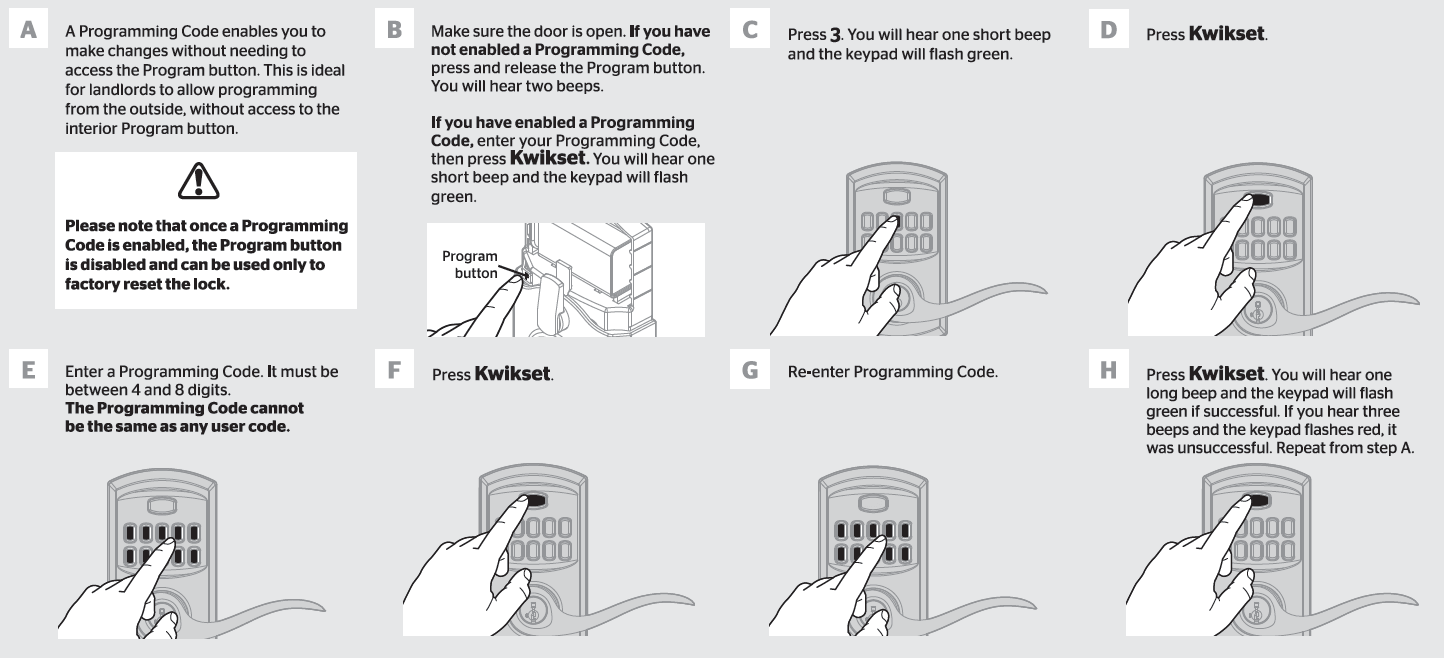
Programming a Kwikset smart lock usually requires entering a programming code or using the Kwikset app on compatible models. The exact button sequence varies by model.
Use unique access codes for different users when possible. This makes it easier to remove access later without changing every user’s code.
Source: Bing
Create a programming code
Follow the model-specific instructions to set or change the programming code used for lock management.
Add user codes
Enter a separate PIN code for each person who needs access.
Test every code
Confirm that each code unlocks and locks the door correctly before relying on it.
Programming Problems and Solutions
If the keypad does not accept a new code, check battery strength, confirm the correct programming sequence, and verify that the lock is not in a locked programming state.
Keypad does not respond
Replace batteries and check whether the keypad lights or produces normal sounds.
New code fails
Repeat the programming process using the correct model instructions.
How to Lock and Unlock a Kwikset Smart Lock
Most Kwikset smart locks can be locked by pressing the lock button, touching the keypad lock symbol on supported models, using an app, or turning the interior thumb turn manually.
Unlocking methods depend on the model and may include PIN codes, mobile applications, traditional keys, or connected smart home platforms.
Source: Bing
Keypad locking
Use the dedicated lock button or keypad feature described in your model manual.
Mobile control
Compatible connected models can be managed through supported smart home apps.
Manual operation
The interior thumb turn and emergency key cylinder can provide access if electronic functions are unavailable.
How to Know the Lock Worked Correctly
A successful lock operation usually includes a motor sound followed by the deadbolt moving fully into the locked position. The door should remain securely closed without pressure against the bolt.
Check alignment
If the bolt struggles, inspect the strike plate and door position.
Kwikset Smart Lock Troubleshooting Guide
When a Kwikset smart lock stops working, check the simplest causes first: battery condition, door alignment, programming settings, and wireless connection problems if the lock uses smart features.
Avoid repeatedly forcing the lock motor because mechanical resistance can damage internal components.
Source: Bing
Lock will not unlock
Check batteries, verify the correct user code, and confirm that the deadbolt is not physically blocked.
Motor runs but door stays locked
Inspect deadbolt alignment and make sure the bolt can extend freely.
App connection fails
Confirm Bluetooth, Wi-Fi, or smart hub requirements for your specific Kwikset model.
When to Reset a Kwikset Smart Lock
A factory reset can remove stored codes and settings. Use it when troubleshooting persistent programming problems or preparing the lock for a new owner.
Before resetting
Record any information you need because saved access codes and connections may be deleted.
Frequently Asked Questions
Q
Why is my Kwikset smart lock not accepting my code?
A Kwikset smart lock may reject a code because the code was not programmed correctly, the lock was reset, batteries are weak, or the wrong programming method was used for the model.
Q
How often should I replace Kwikset smart lock batteries?
Battery life depends on usage, battery quality, and model features. Replace batteries when the keypad becomes slow, warning lights appear, or the motor does not operate normally.
Q
Can I use a Kwikset smart lock without Wi-Fi?
Many Kwikset electronic locks can work locally with keypad codes without Wi-Fi. Internet features such as remote access usually require a compatible connected model and network setup.
Q
Why does my Kwikset lock beep but not open?
A beep without unlocking may indicate a wrong code, weak batteries, lockout settings, or a mechanical issue preventing the deadbolt from moving.
Q
Do all Kwikset smart locks use the same instructions?
No. Kwikset SmartCode, Halo, Aura, Powerbolt, and other models have different programming steps and features, so always verify instructions for the exact model.
✦ Wrapping Up
Conclusion
Kwikset smart lock instructions become easier to follow when you first identify the exact model, prepare the door correctly, and complete programming in the recommended order. Installation, code setup, and troubleshooting all depend on proper alignment and reliable power.
For the safest results, use the model-specific manual whenever changing programming settings, performing a reset, or connecting the lock to smart home systems.
💡 Key Takeaway
Start by finding your Kwikset model number, install fresh batteries, test mechanical movement, and then follow the correct programming steps for your specific lock.
Kimberly ensures every piece of content is clear, helpful, and user-friendly. She focuses on creating guides that are easy to read while maintaining accuracy and trust.
Learn how to install a smart lock on a sliding door with this detailed guide covering compatibility checks, tools, installation steps, troubleshooting, and safety tips for US homes.
Learn how much a tire pressure monitor sensor costs, including replacement sensor prices, installation fees, programming costs, and factors that affect TPMS replacement expenses.
Learn how a gaming mouse with pinky rest improves grip comfort, who needs one, key features to consider, and how to choose the right ergonomic gaming mouse setup.