Your stylus may not work because of low power, poor pairing, missing drivers, or an incompatible touchscreen.
When you ask, “why is my stylus not working on my laptop,” the cause is often easier to fix than it seems. A pen can stop responding because of a dead battery, a disabled digitizer, an outdated driver, or a mismatch between the stylus technology and your laptop. This guide explains how to find the real cause and restore smooth writing without guessing.
Why Is My Stylus Not Working on My Laptop?
The most common reason is simple: your laptop and stylus are not communicating correctly. A stylus may need Bluetooth for buttons and shortcuts, while the pen tip may use a separate touchscreen system. This means the stylus can appear connected but still fail to write.
Other problems include software errors, screen damage, a worn pen tip, or using a stylus that your laptop does not support. Not every touchscreen laptop supports active pen input. Some screens only respond to fingers.
When troubleshooting why is my stylus not working on my laptop, check the problem in this order:
• Confirm that your laptop supports pen input.
• Check the stylus battery or charging level.
• Make sure the correct stylus is paired or compatible.
• Restart the laptop and test the pen again.
• Update or reinstall touchscreen and pen drivers.
• Check Windows pen settings and app support.

Check Whether Your Laptop Supports a Stylus
Before changing drivers or buying a new pen, confirm that your laptop supports an active stylus. A touchscreen does not always mean that it supports pressure-sensitive pen input.
Most active pens require a special digitizer layer inside the display. This layer detects the pen’s signal, pressure, tilt, and location. A basic touch display may detect your finger but ignore an active stylus.
Look for these details:
• Check your laptop model on the manufacturer’s support page.
• Read the technical specifications for “active pen support.”
• Search for terms such as Windows Ink, MPP, AES, USI, or EMR.
• Check the manual for a list of compatible pens.
• Look for a pen icon, stylus logo, or included pen in the product box.
The pen protocol also matters. For example, a Microsoft Pen Protocol stylus may not work with a laptop designed for an AES pen. These systems can look similar, but they use different communication methods.
If your laptop only supports passive capacitive styluses, an active Bluetooth pen will not write on the screen. This compatibility issue is one of the main answers to why is my stylus not working on my laptop.

Check the Stylus Battery and Physical Condition
A low battery can make a stylus seem completely broken. Some pens stop sending input when the battery is nearly empty, while others may still operate but lose Bluetooth features or shortcut buttons.
If your stylus uses a replaceable battery, install a fresh battery with the correct polarity. If it has a built-in battery, charge it for at least 20 to 30 minutes before testing it again.
Also inspect the pen itself:
• Check for a cracked body or loose button.
• Remove and reattach the pen tip if the design allows it.
• Look for a bent, worn, or broken nib.
• Clean the tip and screen with a soft, dry cloth.
• Make sure a protective screen cover is not blocking pen input.
A thick screen protector can sometimes reduce pen accuracy or prevent the digitizer from detecting the stylus. This is more likely when the protector is not designed for active pen use.
In my troubleshooting experience, users often replace the laptop driver first and overlook the battery. A fresh battery and a clean screen solve many stylus problems within minutes.

Restart the Laptop and Reconnect the Stylus
A restart can clear a temporary Windows input error. It reloads the touchscreen service, pen driver, Bluetooth service, and Windows Ink components.
Follow these steps:
-
Save your work and shut down any drawing or note-taking apps.
-
Restart the laptop.
-
Test the stylus on the Windows desktop or a blank document.
-
If the pen still does not work, turn Bluetooth off and back on.
-
Remove the stylus from the Bluetooth device list.
-
Pair the stylus again according to the manufacturer’s instructions.
Some pens do not need Bluetooth to draw. Bluetooth may only control the top button, shortcut button, or remote features. Still, reconnecting Bluetooth can fix communication problems on certain models.
If the stylus writes after a restart but stops again later, a background service or driver may be failing. In that case, continue with the driver and Windows settings checks below.

Update or Reinstall Pen and Touchscreen Drivers
Drivers allow Windows to communicate with the laptop’s touchscreen hardware. If a driver is outdated, damaged, or replaced by an incompatible update, the stylus may stop responding.
To check the relevant drivers in Windows:
-
Right-click the Start button.
-
Open Device Manager.
-
Expand Human Interface Devices.
-
Look for HID-compliant touch screen.
-
Look for HID-compliant pen or similar entries.
-
Right-click the device and select Update driver.
-
Restart the laptop after the update.
If updating does not help, reinstall the driver. In Device Manager, right-click the touchscreen or pen device, choose Uninstall device, and restart the laptop. Windows may reinstall the driver automatically.
You can also download drivers from the laptop manufacturer’s official support page. Use your exact model number. Avoid random driver websites because they may provide incorrect or unsafe files.
Some laptops also need firmware, chipset, or system control updates. These updates can affect pen input even when the pen driver itself appears current. This is another important step when investigating why is my stylus not working on my laptop.
Make Sure the Touchscreen Is Enabled
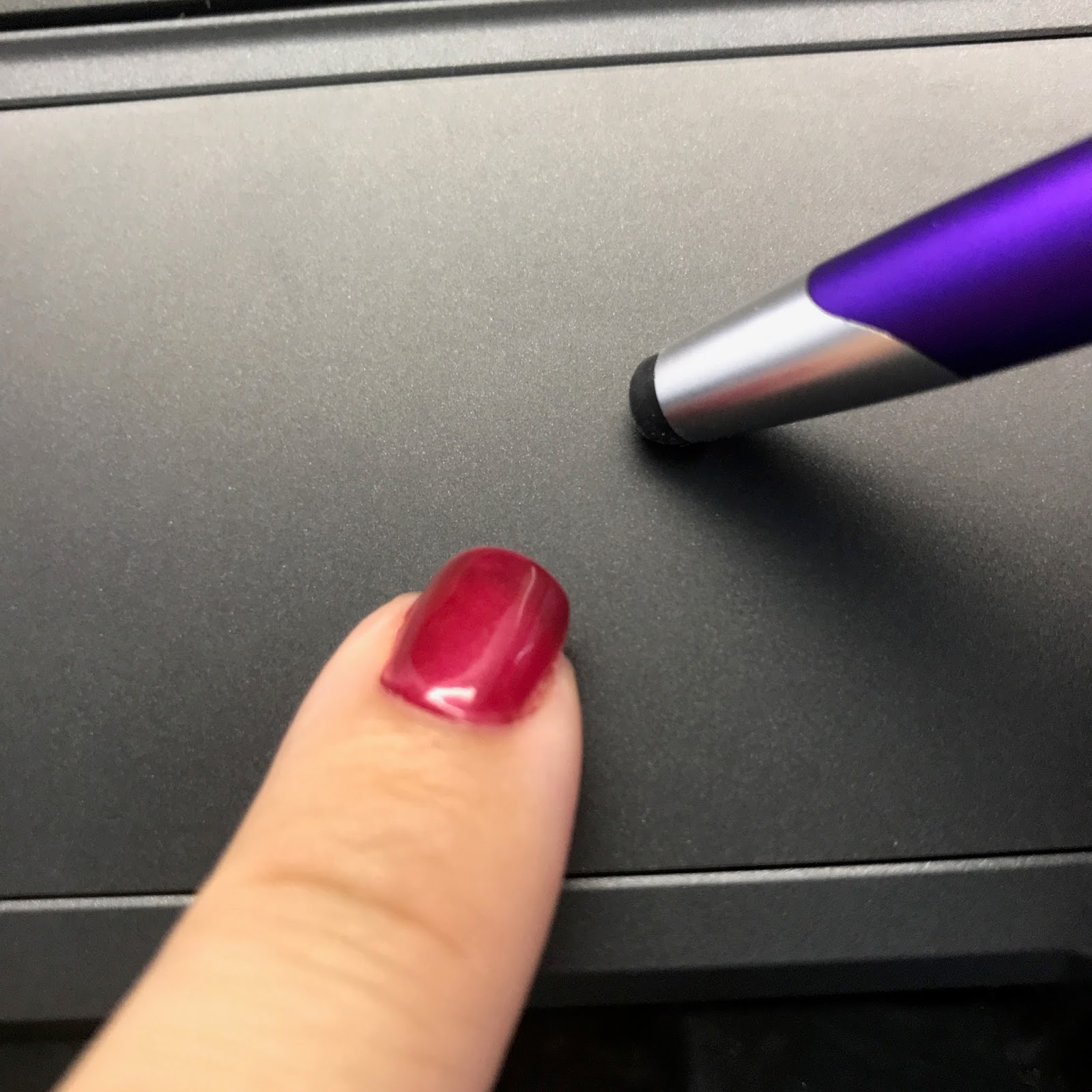
Windows can disable the touchscreen device. When this happens, both finger touch and stylus input may stop working.
To check it:
-
Open Device Manager.
-
Expand Human Interface Devices.
-
Find HID-compliant touch screen.
-
Right-click it.
-
Select Enable device if that option appears.
If the screen responds to your finger but not the pen, the touchscreen is probably active. The issue may instead involve pen compatibility, the digitizer, or the stylus itself.
You can also open Windows Settings and search for pen settings. Check options related to pen and Windows Ink. Settings can vary by Windows version and laptop brand, so the labels may not look exactly the same.
Do not disable random Human Interface Devices. Some entries control the touchpad, keyboard, or other important hardware. If you are unsure, note the device name before changing anything.
Check Windows Pen and Windows Ink Settings
Windows includes settings that control how your pen behaves. These settings usually do not cause a completely dead stylus, but they can affect buttons, handwriting, and palm rejection.
Open Settings and search for “Pen & Windows Ink.” Review these options:
• Pen shortcuts and button actions.
• Handwriting panel settings.
• Visual effects when touching the screen.
• Whether the pen is used as a mouse in certain apps.
• Palm rejection and touch input behavior.
Test the pen in more than one program. Microsoft Paint, OneNote, and a simple text or drawing app are useful for testing. If the stylus works in one app but not another, the laptop hardware may be fine.
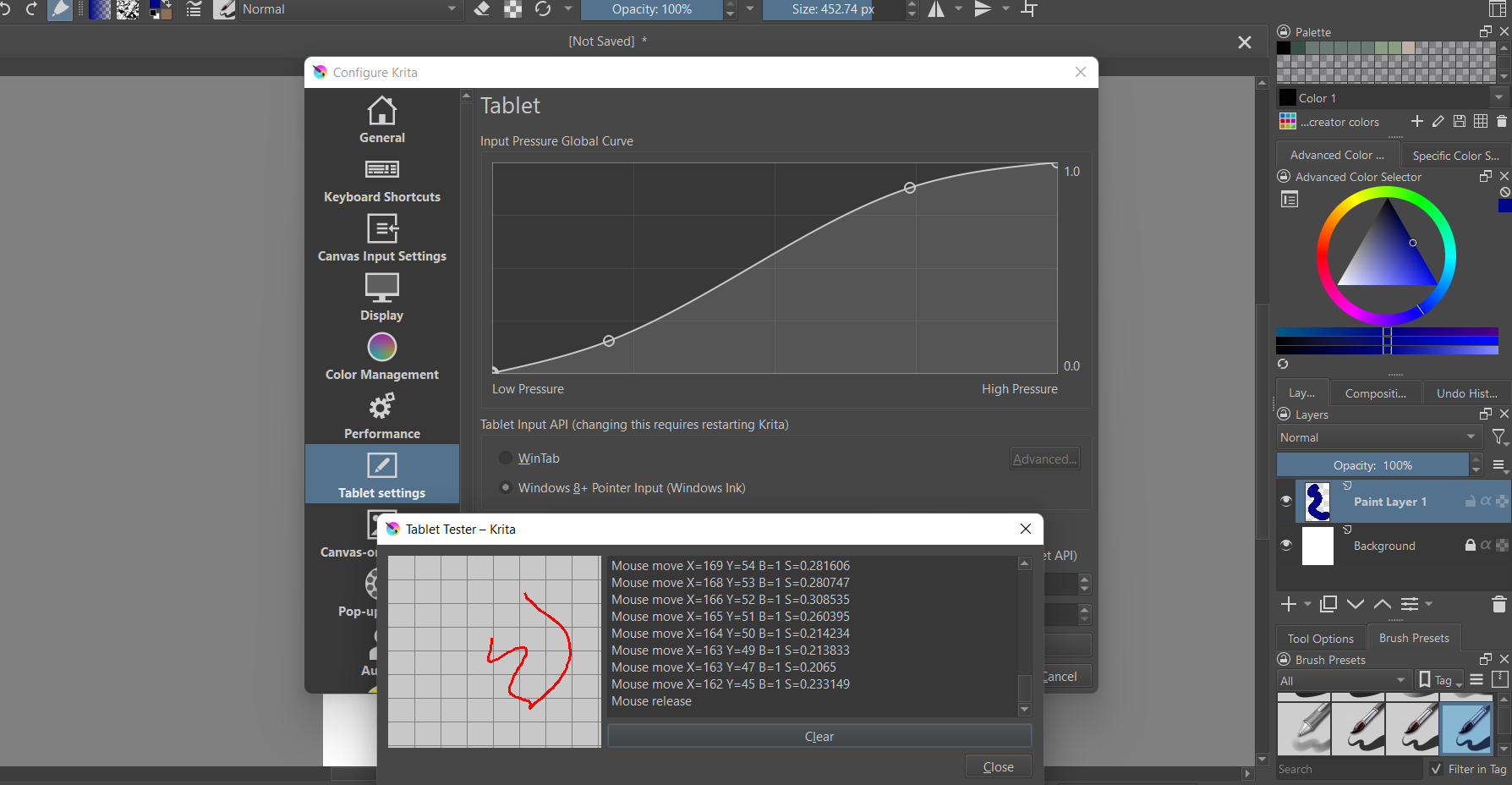
Some programs need their own pen settings. Drawing apps may require Windows Ink to be enabled. Other apps may use a separate tablet input system. Check the app’s preferences for pen pressure, tablet API, and stylus input.
Check for Bluetooth Pairing Problems
Bluetooth pairing is important for many pen features, but it may not control basic writing. A stylus can sometimes draw without Bluetooth while its shortcut buttons fail.
If your pen has a Bluetooth button, pair it again:
-
Open Settings.
-
Select Bluetooth and devices.
-
Find the stylus in the device list.
-
Choose Remove device.
-
Turn the pen off if it has a power switch.
-
Turn it back on or press its pairing button.
-
Select Add device and complete pairing.
Keep the stylus close to the laptop during pairing. Also make sure it is not connected to another nearby computer or tablet. Many pens remember their last device and may reconnect to it automatically.
If Bluetooth cannot find the pen, charge the pen first. Also update the laptop’s Bluetooth driver. A Bluetooth issue may explain why the pen button does not work, but it does not always explain why the tip fails.
Test the Screen, Pen Tip, and Digitizer
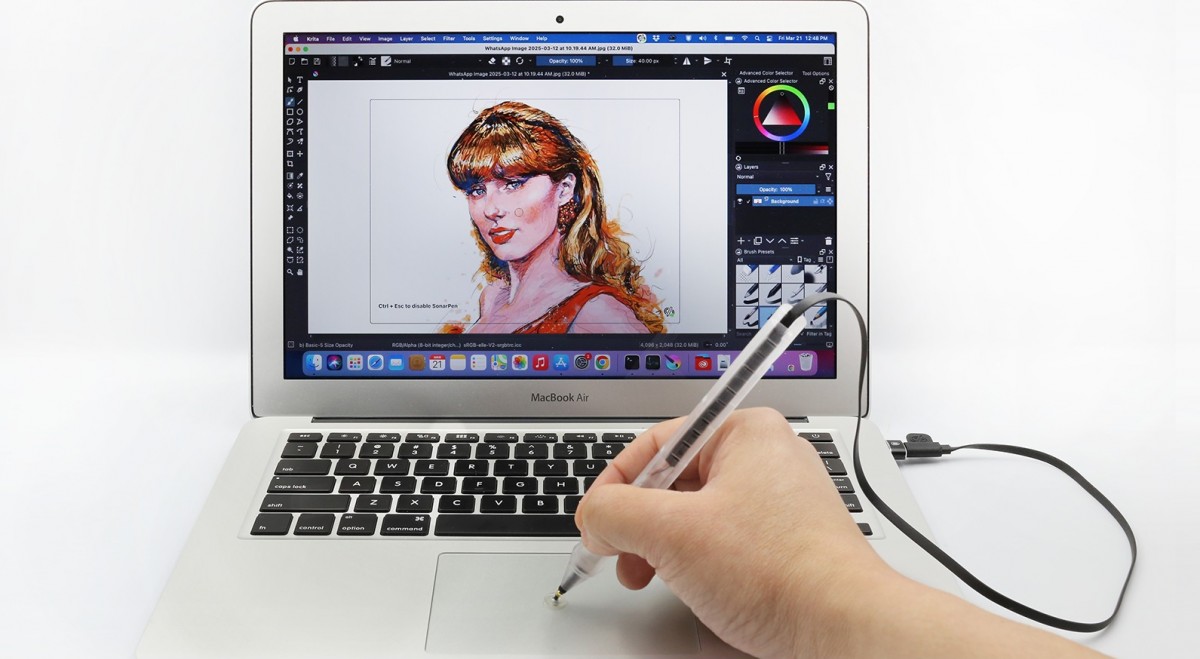
A damaged screen or digitizer can create a hardware problem. The digitizer is the sensor layer that detects the stylus. If part of it fails, the pen may work in one area but not another.
Test the pen across the entire display:
• Draw slow lines from the top to the bottom.
• Test all four corners.
• Write in the center of the screen.
• Try both landscape and tablet modes.
• Test with a finger to compare touch response.
If the pen fails only in one area, the display may have damage or a digitizer fault. Cracks, pressure damage, liquid exposure, and loose internal cables can all affect pen input.
Try a different compatible stylus if possible. If two known-compatible pens fail in the same screen area, the laptop is likely the problem. If another pen works normally, your original stylus may need a new tip, battery, or replacement.
Do not press hard to make the pen work. Excess pressure can damage the tip, screen surface, or digitizer.
Fix Stylus Problems After a Windows Update
A Windows update can sometimes change drivers or reset input settings. This does not mean updates are harmful, but hardware vendors may need time to adjust their drivers.
If the stylus stopped working immediately after an update, try these steps:
-
Restart the laptop twice.
-
Check Windows Update for additional driver updates.
-
Install the newest drivers from the laptop maker.
-
Reinstall the touchscreen and pen devices in Device Manager.
-
Use System Restore only if the issue began after a major system change.
-
Contact the manufacturer if the touchscreen disappears from Device Manager.
Before rolling back an update, create a backup of important files. A rollback may fix the pen but create another issue. It should be treated as a troubleshooting step, not the first choice.
If the computer is used for work, school, or design, record the exact update date and error symptoms. This information helps technical support identify the problem faster.
Common Causes of a Stylus Not Working
When asking why is my stylus not working on my laptop, these are the most likely causes:
• The laptop does not support active pen input.
• The stylus uses the wrong protocol.
• The battery is dead or nearly empty.
• The pen tip is damaged or worn.
• The touchscreen or digitizer is disabled.
• The pen driver is missing or corrupted.
• Bluetooth pairing is incomplete.
• Windows Ink is disabled in the drawing app.
• A screen protector blocks accurate detection.
• The laptop screen or digitizer has physical damage.
• The stylus is connected to another device.
• The app does not support pressure-sensitive input.
Finding the cause is easier when you change one thing at a time. If you update drivers, change settings, and replace the battery all at once, you may not know which solution worked.
A Simple Troubleshooting Order
Use this short process when you need a practical answer to why is my stylus not working on my laptop:
-
Confirm laptop and stylus compatibility.
-
Charge the pen or replace its battery.
-
Restart the laptop.
-
Test the pen in Paint or another basic app.
-
Remove thick screen protectors for a short test.
-
Reconnect Bluetooth if the pen uses it.
-
Enable the touchscreen in Device Manager.
-
Update or reinstall pen and touchscreen drivers.
-
Test another compatible stylus.
-
Contact the laptop maker if the digitizer appears damaged.
This order starts with safe, simple checks and moves toward more technical fixes. It also helps you avoid spending money on a new stylus when the real issue is a disabled driver or unsupported screen.
Mistakes to Avoid When Fixing Stylus Input
Do not assume that every touchscreen laptop works with every stylus. Compatibility is based on the digitizer and pen protocol, not just the laptop’s operating system.
Avoid installing unofficial driver tools. They can add unnecessary software and may install drivers that do not match your hardware. The laptop maker’s support page is usually the safest place to find firmware and device drivers.
Do not use sharp tools to clean the pen tip or screen. A microfiber cloth is enough for normal dust and fingerprints. Also avoid pressing harder when the pen fails. Pressure cannot fix a missing driver or incompatible digitizer.
One lesson I have learned from pen troubleshooting is to test the simplest explanation first. A dead battery, wrong pen, or disabled touchscreen is far more common than a serious motherboard failure.
When to Contact Technical Support
Contact the laptop or stylus manufacturer when basic troubleshooting does not help. Support is especially important if the laptop is still under warranty.
Prepare this information before contacting support:
• The exact laptop model.
• The stylus model and protocol.
• Your Windows version.
• Whether finger touch works.
• Whether the stylus works on another device.
• Any recent updates or drops.
• Error messages shown in Device Manager.
If the touchscreen is missing from Device Manager, the issue may involve firmware, an internal cable, or the display assembly. If the screen is cracked or has liquid damage, professional repair is safer than opening the laptop yourself.
Frequently Asked Questions
Why is my stylus not working on my laptop even though the screen is touch-enabled?
A touch-enabled screen may support fingers but not active pens. Check whether the laptop has an active digitizer and whether the stylus uses the correct protocol.
Does a stylus need Bluetooth to work on a laptop?
Not always. Some pens use the screen’s digitizer for writing and use Bluetooth only for buttons, shortcuts, or remote features.
How do I reset my laptop stylus?
Remove the stylus from Bluetooth settings, charge it, restart the laptop, and pair it again. You can also reinstall the pen and touchscreen devices through Device Manager.
Why does my stylus work in one app but not another?
The app may not support Windows Ink, pressure sensitivity, or your pen’s input system. Check the app’s pen settings and test the stylus in Paint or OneNote.
Can a screen protector stop a stylus from working?
Yes, a thick or poorly fitted screen protector can reduce accuracy or block pen detection. Remove it briefly to see whether the stylus works without it.
How can I tell whether my stylus or laptop is broken?
Test the stylus on another compatible device, or test another compatible stylus on your laptop. If multiple compatible pens fail, the laptop’s digitizer or software is more likely to be the cause.
Conclusion
The answer to why is my stylus not working on my laptop usually involves compatibility, power, pairing, drivers, or the touchscreen digitizer. Start with the battery and laptop specifications, then test the pen in a basic app. After that, check Bluetooth, Windows settings, and Device Manager.
Work through the steps in order and change one setting at a time. This simple method can save money and prevent unnecessary repairs. If the pen still fails with updated drivers and a known-compatible stylus, contact the manufacturer or an authorized repair center for help.