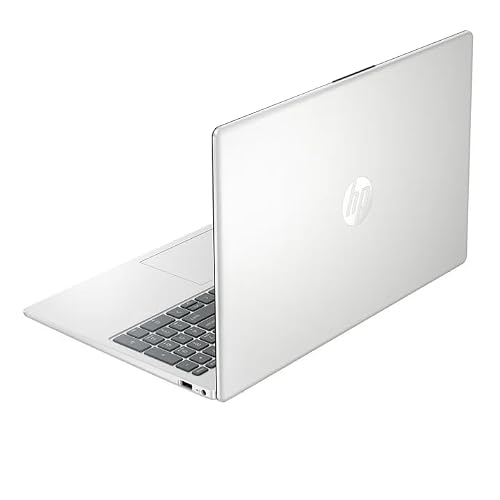
Use a manual blower, soft brushes, and isopropyl alcohol to clean a PC safely and effectively.
I’ve cleaned dozens of rigs and laptops without using canned air. In this guide I’ll show clear, safe steps on how to clean PC without air duster. You will learn what tools to use, what to avoid, and how to keep parts safe. I write from hands-on experience and tested methods that work for desktops and laptops.
Why cleaning your PC matters
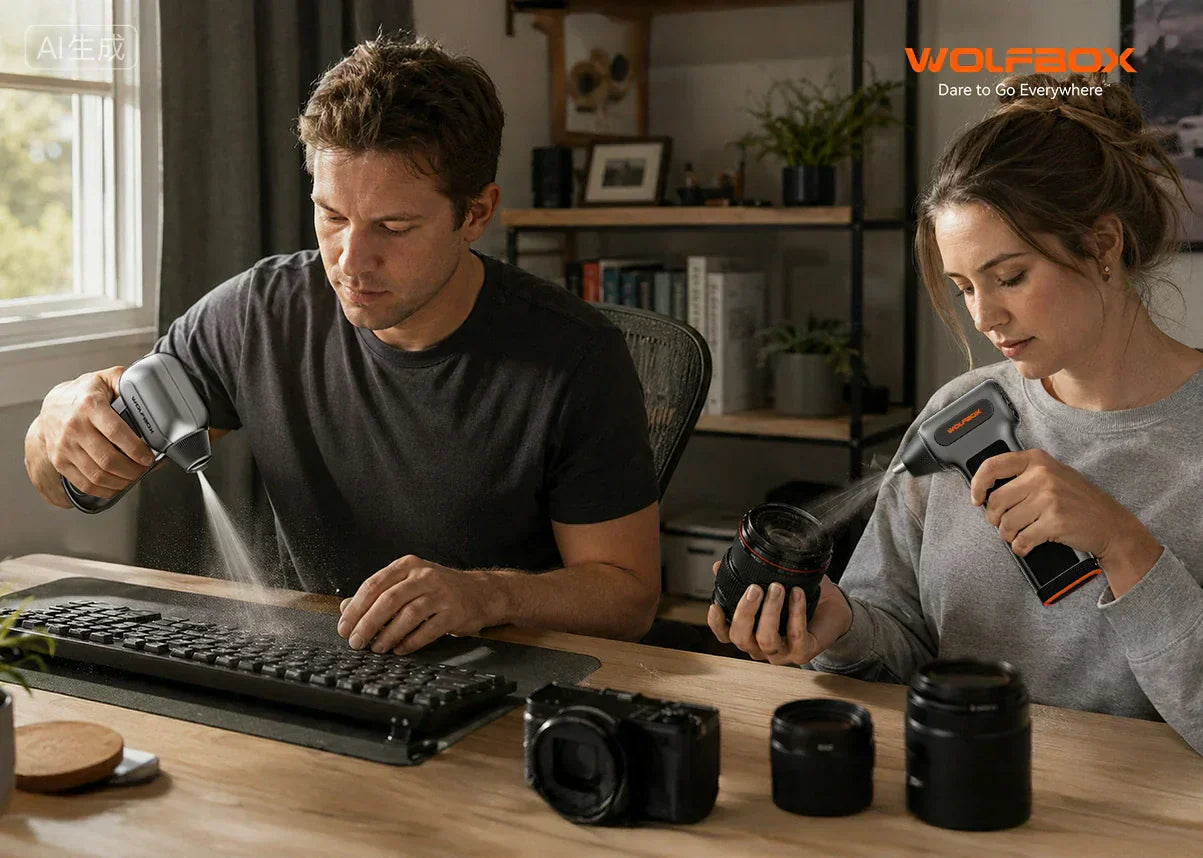
Dust builds up fast. It blocks airflow and raises component temperatures. A hot PC runs slower and parts wear out sooner. Learning how to clean PC without air duster protects your investment. Regular cleaning also cuts fan noise. Cleaning can prevent sudden shutdowns and extend the life of your CPU, GPU, and storage.
I follow manufacturer guidelines and simple safety rules. That lowers risk and keeps warranties intact. Small, regular cleanings beat rare deep scrubs. Think of cleaning like oil changes for a car: small work now avoids big repairs later.

Tools and materials to clean your PC without an air duster
Choose safe tools. Avoid anything that creates static or sprays liquid into electronics.
- Manual blower (camera or rubber bulb) — gentle, controllable bursts of air.
- Soft anti-static brush — natural or nylon bristles with soft tips.
- Microfiber cloths — lint-free and gentle on surfaces.
- Isopropyl alcohol 90%+ — for stubborn grime on metal and contacts.
- Cotton swabs — use sparingly for tight spots.
- Small household vacuum with brush attachment — low-power only and kept outside case to catch dust.
- Anti-static wrist strap and mat — reduce static risk when touching parts.
- Toothpick or plastic pry tool — safe for crevices, not metal tools.
- Replacement thermal paste — if you remove heatsinks or the CPU cooler.
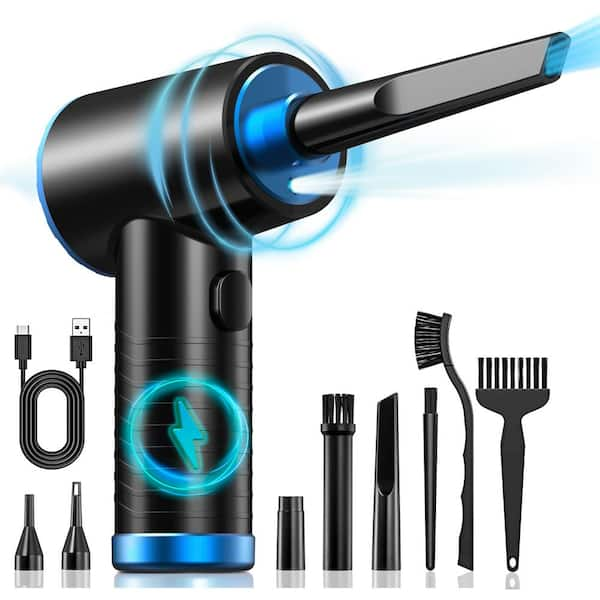
These items let you learn how to clean PC without air duster in a low-risk way. I keep a kit with a camera blower, two brushes, and alcohol on my desk. They handle 90% of my cleaning jobs.
Step-by-step: How to clean PC without air duster (desktop)
Follow these steps. Work slowly. Short bursts and gentle contact win.
- Power down and unplug
- Turn off the PC. Unplug power, monitor, and peripherals. Press the power button for a few seconds after unplugging to drain residual power.
- Ground yourself
- Wear an anti-static wrist strap or touch a metal part of the case before touching components.
- Open the case
- Remove side panels. Place screws in a small dish so you don’t lose them.
- Remove large dust bunnies by hand
- Pick out big clumps gently. Do not pull hard on cables.
- Use a manual blower
- Blow dust out in short bursts. Aim from inside toward the case openings so dust leaves the case.
- Brush fans and heatsinks
- Hold fan blades still with a finger or tool. Use a soft brush to remove dust from blades and fins.
- Vacuum carefully
- Use a low-power vacuum outside the case to catch dust as you brush. Keep the vacuum nozzle a few inches away. Never run a vacuum inside the case near connectors.
- Clean the PSU intake
- Do not open the PSU. Blow and brush from the outside intake grille only.
- Wipe surfaces and cables
- Use a slightly damp microfiber cloth for the case and cables. Dry thoroughly.
- Reassemble and test
- Reinstall panels. Plug in and boot. Watch fan speeds and temps for any issues.
I once cleaned a dusty workstation this way. The CPU temp dropped 10°C and fan noise fell significantly. Small, steady steps give big results.

Quick question: Can a hairdryer replace an air duster?
Use cool, low settings only. Hot air can melt plastic and push dust deeper. A camera blower or vacuum-controlled method is safer.
How to clean GPU, CPU cooler, and RAM without air duster
These parts need care. Follow these short steps.
- GPU
- Remove the card. Use the blower and brush on fans and heat fins. Hold fans still while cleaning. Re-seat card firmly.
- CPU cooler and heatsink
- Remove cooler if needed. Clean old thermal paste with isopropyl alcohol and a lint-free cloth. Apply fresh thermal paste before re-mounting.
- RAM sticks
- Remove RAM. Clean gold contacts with isopropyl alcohol on a swab. Let dry fully before re-installing.
I once cleaned a GPU with a blown-in dust layer. Brushing and reapplying thermal paste fixed an overheating problem. If you are unsure, take photos before removing parts to help reassembly.
How to clean laptop without air duster
Laptops are tighter and more fragile. Be extra careful.
- Power off, remove battery if possible, and unplug.
- Open the service panel if available. If not, access vents and keyboard only.
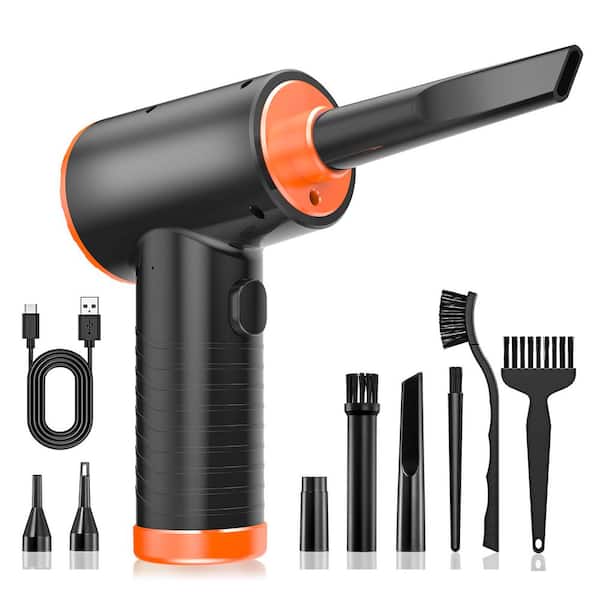
- Use a camera blower in short bursts through vents.
- Clean keyboard with a soft brush and sticky putty to lift crumbs.
- Use a small vacuum outside the laptop to catch dust as you brush.
- For deep cleaning, follow the service manual to remove the cooling assembly. Clean fans and heatsink, then reapply thermal paste if needed.
I cleaned a laptop for a friend by carefully removing the bottom panel. The process took 30 minutes and the laptop ran much cooler afterward. If you are not comfortable opening a laptop, a tech shop can help.

Common mistakes and safety tips
Avoid these errors to clean PC without air duster safely.
- Rushing the job — fast moves can damage pins and connectors.
- Spinning fans with compressed blasts — this can generate current and harm motors. Hold blades still.
- Using water or low-concentration alcohol — water can short circuits. Only use 90%+ isopropyl alcohol sparingly and let parts dry.
- Opening the PSU — never open the power supply. It houses charged capacitors.
- Skipping grounding — static can kill components. Always ground yourself.
A rule I use: if it feels risky, stop and wait. Safety keeps parts working.
PAA-style quick answers built into the guide
Q: Will vacuuming harm my PC?
A: A strong vacuum can cause static and damage. Use a low-power vacuum and keep it outside the case while brushing dust toward the nozzle.
Q: How often should I clean my PC without air duster?
A: Clean light every 1–3 months and deep clean every 6–12 months, depending on dust levels and pets.
Q: Is a camera blower enough for deep dust?
A: It handles most loose dust. For sticky buildup, pair the blower with a soft brush and a vacuum to remove the residue.

Frequently Asked Questions of how to clean pc without air duster
What is the safest tool to replace an air duster?
A gentle camera-style rubber blower is the safest. It gives controlled air and no pressurized propellants.
Can I use rubbing alcohol inside my PC?
Yes, use 90%+ isopropyl alcohol on metal contacts and thermal paste areas. Use it sparingly and let parts dry fully before power-up.
How do I clean a keyboard without canned air?
Flip the keyboard, shake out debris, use a soft brush, and pick stuck bits with sticky putty or a cotton swab dipped in isopropyl alcohol.
Will holding the fan blades while cleaning damage them?
No, gently holding the blades to stop spinning is safe. It prevents the fan from generating current and reduces stress.
Is it safe to open the power supply for cleaning?
No. Do not open the PSU. Clean only the external grille with a brush and blower.
Conclusion
Dust robs performance and shortens hardware life. Using simple tools like a manual blower, soft brushes, microfiber cloths, and high-proof isopropyl alcohol, you can learn how to clean PC without air duster safely and effectively. Start with small, regular cleanings. Work slowly, ground yourself, and keep the power off. Take photos before you disassemble parts and don’t force anything.
Try a basic cleaning this weekend. Share your results, subscribe for more hands-on PC care tips, or leave a comment with questions about your build.