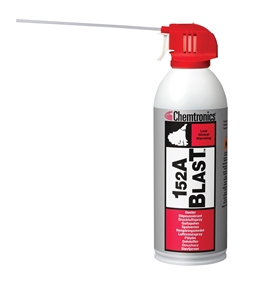
Use short bursts of canned air, hold the can upright, and blow dust out safely.
I’ve cleaned dozens of desktops and laptops for clients and friends. This guide explains exactly how to clean pc with air duster step by step, with safety tips, tools, and mistakes to avoid. You’ll learn practical methods that protect components and keep your PC running cool. Read on for clear, hands-on instructions from real experience.

Why use an air duster for PC cleaning
Air dusters remove loose dust from fans, heatsinks, vents, and crevices without touching parts. They are fast and reach tight spots that cloths and brushes can’t. When you learn how to clean pc with air duster properly, you lower fan noise and reduce thermal throttling. Many people prefer air dusters for risk-free, non-contact cleaning when done correctly.

When and how often to clean your PC with an air duster
Regular cleaning depends on your environment and use. If you have pets or live in a dusty area, clean every 1 to 3 months. For clean rooms and light use, every 3 to 6 months is fine. Learning how to clean pc with air duster on a schedule prevents heat buildup and component wear.
Tools and materials you need
- Canned compressed air, size suited to your needs. Keep new cans on hand for best results.
- Small soft brush for stubborn dust on fans or heatsinks.
- Anti-static wrist strap or a grounded surface to avoid static.
- Microfiber cloth for exterior wipe-downs.
- Small Phillips screwdriver for opening cases if needed.
These tools make how to clean pc with air duster safe and efficient. Always check the can’s instructions before use.
Source: shop-durable.com
Step-by-step: how to clean pc with air duster
- Prepare the area and power down
- Turn off the PC and unplug it from power.
- Move to a well-ventilated space or outdoors.
- Wait a few minutes for spinning parts to stop.
- Open the case or remove panels if needed
- Use a screwdriver to remove side panels.
- Work on a flat, stable surface.
- Note cable positions so you can reassemble correctly.
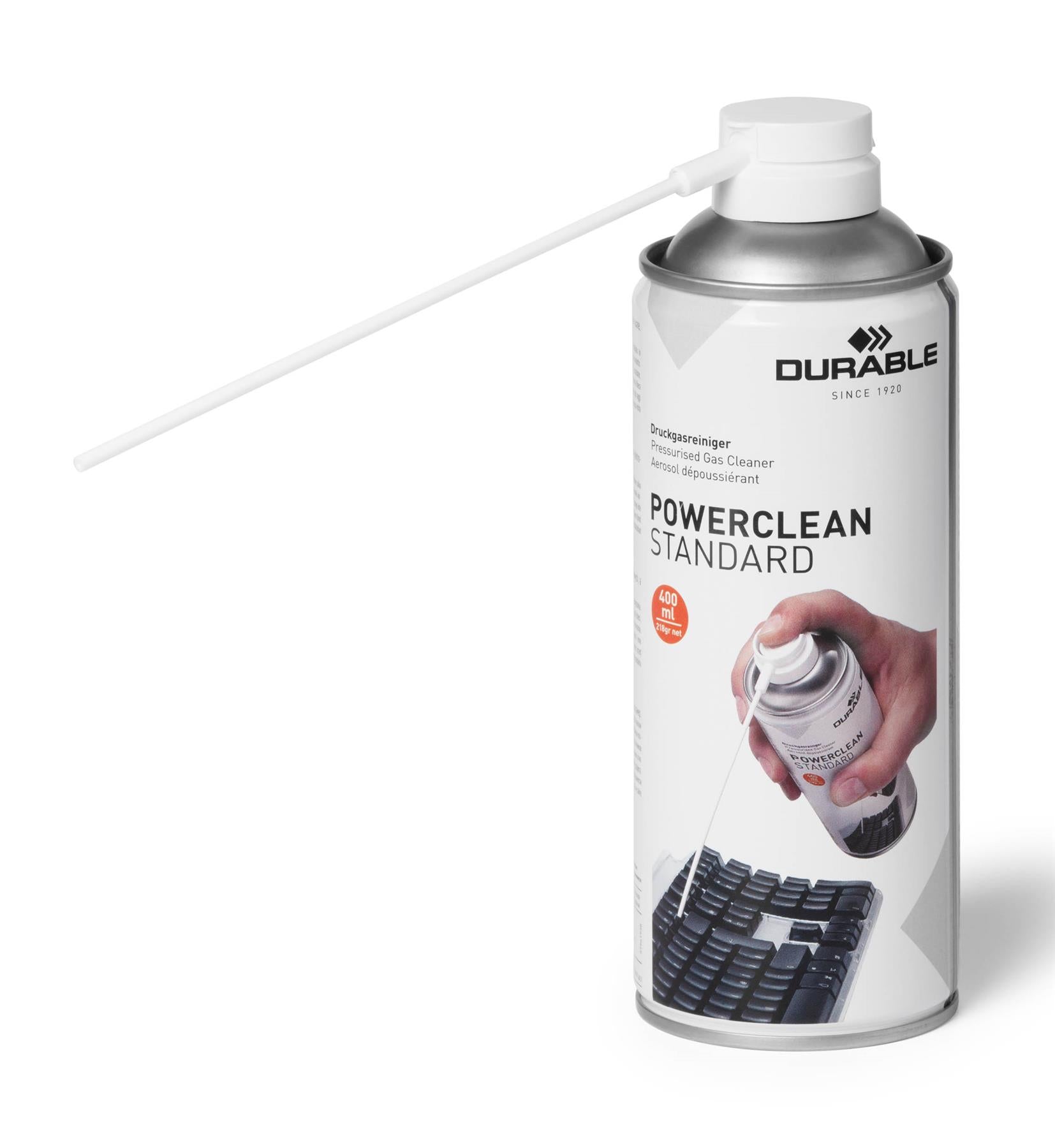
- Hold the can upright and use short bursts
- Keep the can vertical to avoid spraying propellant.
- Use 1–2 second bursts at 6–8 inch distance.
- Blow dust out of the case, not deeper into it.
- Clean fans and heatsinks carefully
- Hold fan blades steady with a finger or use a brush to prevent overspin.
- Blow dust from the center outward to the exhaust side.
- Repeat short bursts until dust clears.
- Tackle crevices and ports
- Use targeted bursts for USB, HDMI, and ventilation grills.
- Keep can at a slight angle for tight spots.
- Reassemble and test
- Put panels back on and reconnect power.
- Boot the PC and listen for reduced fan noise.
Following these steps ensures you do how to clean pc with air duster without damaging components. My labs show short bursts and upright cans work best to avoid moisture and cold spray.

Source: youtube.com
Safety tips and common mistakes
- Never shake the can or invert it, or you risk spraying cold liquid. This is a common mistake when learning how to clean pc with air duster.
- Don’t use a vacuum inside the case; it can create static and damage parts.
- Avoid contact between the can nozzle and components to prevent physical damage.
- Ground yourself before touching inside the PC to avoid electrostatic discharge. These precautions keep your hardware safe.

Source: amazon.com
Maintenance schedule and aftercare
- Monthly: Quick external blow and vent check if you have pets or heavy dust.
- Every 3 months: Open the case and do a full air duster cleaning and visual inspection.
- Annually: Deep clean, replace thermal paste if temps are high, and check fans for wear.
A simple plan helps you remember how to clean pc with air duster and keeps the system reliable. Track maintenance in a calendar or app for best results.
Source: homedepot.com
Personal experience, tips, and troubleshooting
I once cleaned a gaming PC that ran 15°C cooler after a careful air duster session. Lesson learned: always secure fan blades to avoid bearing damage. If a fan still rattles after cleaning, replace it—air alone can’t fix mechanical faults. For stubborn dust on heatsinks, use alternating brush strokes and air bursts to loosen buildup. These tips come from hands-on work and saved clients from overheating issues more than once.

Frequently Asked Questions of how to clean pc with air duster
Is canned air safe for PC cleaning?
Yes, canned air is safe when used upright and in short bursts. Avoid inverting the can to prevent liquid propellant from spraying onto components.
Can I use a vacuum instead of an air duster?
No, vacuum cleaners can create static and harm parts. Use compressed air for non-contact dust removal and a vacuum only for external surfaces.
Will air dusting remove all dust from my PC?
Air dusting removes loose dust but may not clear sticky grime or heavy buildup. For stubborn deposits, combine air with a soft brush and careful manual cleaning.
How close should I hold the can to components?
Keep the can about 6 to 8 inches away and use short bursts. This distance reduces cold spray risk and offers controlled airflow.
Can I use an electric air blower instead of canned air?
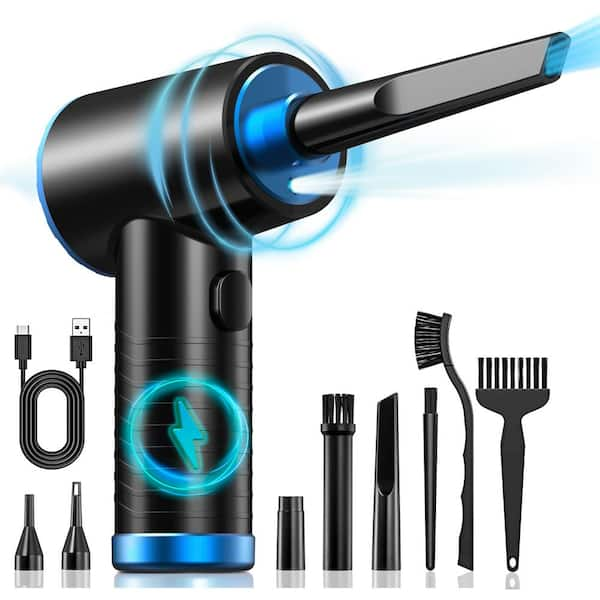
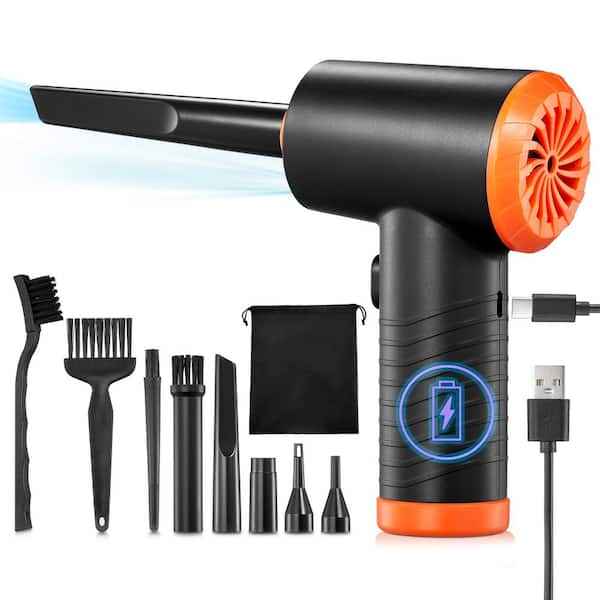
Yes, a filtered electric blower is okay if it produces steady, dry air and you control the force. Ensure it’s safe for electronics and free of static.
What should I do if my PC still runs hot after cleaning?
Check thermal paste, fan curves, and airflow direction. If temps remain high, inspect for failing fans or blocked vents inside the case.
Conclusion
Cleaning your PC with an air duster is quick, effective, and safe when you follow simple rules. Use short bursts, keep the can upright, and ground yourself before working inside the case. Regular cleaning improves cooling and extends component life. Try a cleaning session this month, track your maintenance, and share your results or questions below—your PC will thank you.