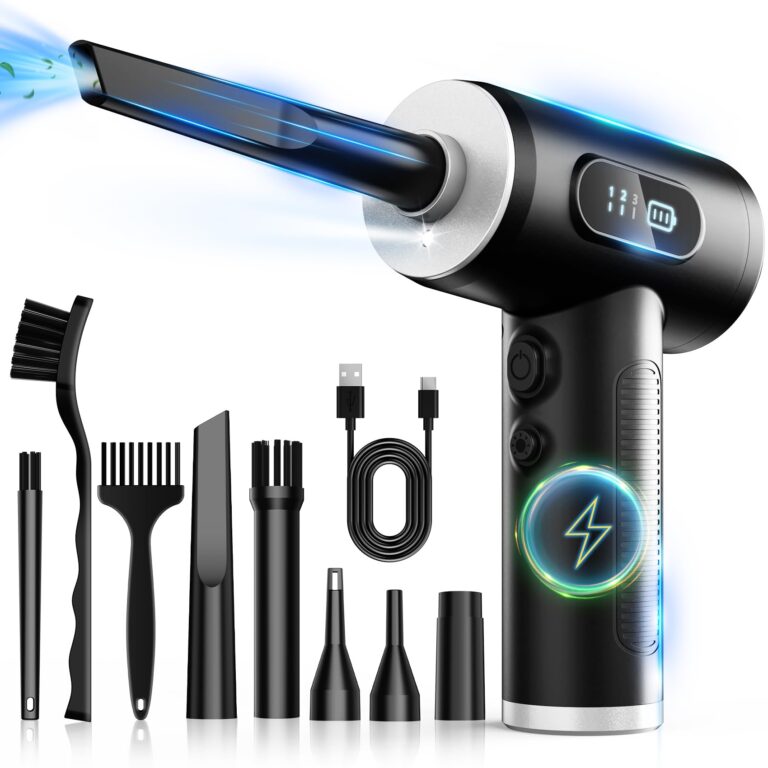
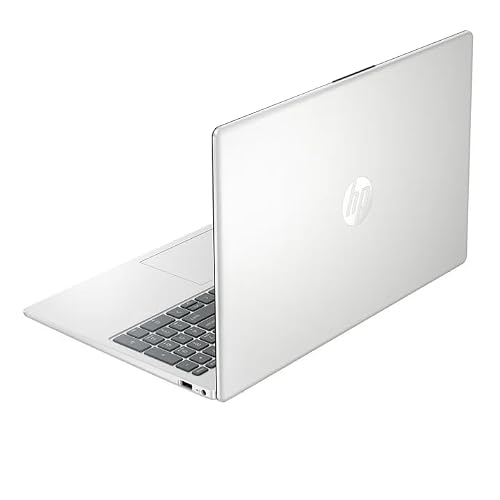
Use short bursts of canned air from a safe distance to blow out dust and debris gently.
I’ve cleaned dozens of laptops and taught tech classes on safe maintenance. This guide explains how to clean laptop with air duster step by step. You will learn what to buy, how to avoid damage, how to reach vents and keyboards, and when to stop and seek pro help. Read on for clear, tested advice you can use today.
Why use an air duster for laptop cleaning?
Air dusters remove loose dust without touching delicate parts. They are fast, cheap, and reduce overheating by clearing vents. Using an air duster correctly extends laptop life and keeps fans quiet. This method is ideal for routine upkeep and quick cleanups between deeper services.

Safety first: precautions before you start
Turn the laptop off and unplug it. Remove the battery if it is removable. Work in a well-ventilated area and keep the can upright to avoid liquid spray. Ground yourself by touching a metal surface to reduce static risk. These steps help you clean safely with an air duster.
Tools and materials you'll need
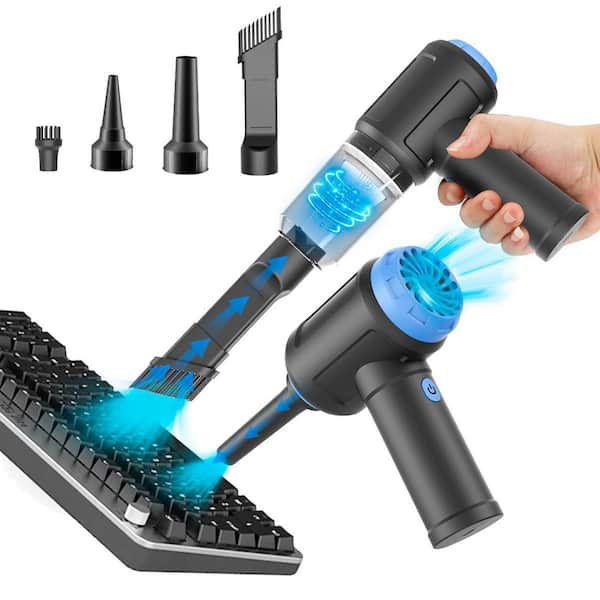
Keep a short, simple kit ready:
- Canned air duster with a narrow straw attachment
- Soft microfiber cloth for surfaces
- Small soft brush or paintbrush for stubborn dust
- Phillips screwdriver if you plan to open the case
- Isopropyl alcohol 70% or higher for sticky spots
These items let you clean external and limited internal areas safely.

Step-by-step: how to clean laptop with air duster
Follow these short steps for a safe clean.
- Prepare the laptop
- Shut down and unplug the laptop.
- Remove any external drives and the battery if you can.
- Place the laptop on a flat, stable surface.
- External blast
- Hold the can upright and attach the straw.
- Use short bursts of air about 1–2 seconds each.
- Keep the straw 2–3 inches from the surface to avoid cold spray.
- Keyboard cleaning
- Tilt the laptop at a 45-degree angle.
- Blow air in a zigzag pattern across the keys.
- Use a soft brush to dislodge crumbs, then blow again.
- Vents and ports
- Target vents and ports from the outside.
- Use brief bursts to push dust out of the chassis.
- Avoid forcing dust deeper by using too-strong bursts.
- Screen and case
- Never use canned air directly on the screen at close range.
- Wipe the screen with a dry microfiber cloth first.
- If needed, dampen the cloth slightly with water or alcohol for spots.
- Internal cleaning (only if comfortable)
- If your warranty and skill allow, open the case carefully.
- Blow short bursts to clear fans and heatsinks.
- Hold fan blades still with a toothpick while blowing to prevent overspin.
- Reassemble and test once done.
Repeat gentle bursts and inspect after each pass. Stop if you see liquid spray or hear unusual noises.
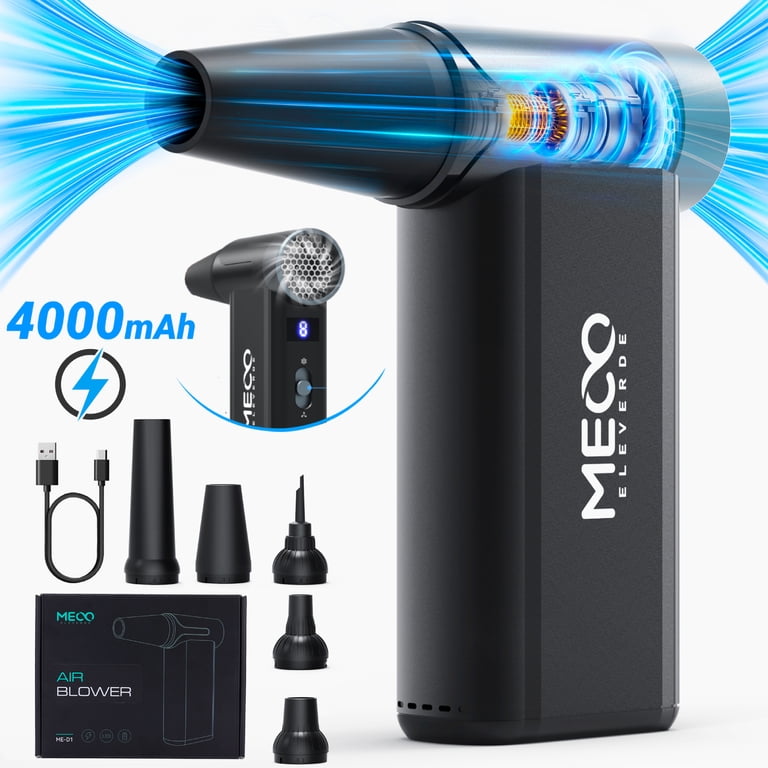
How to clean laptop with air duster: keyboard and fan tips
Keyboard and fan areas trap most dust. Use these focused tips.
Keyboard tips
- Flip and gently tap the laptop to dislodge big crumbs.
- Use short, angled bursts to push debris out.
- Follow with a brush between keys if needed.
Fan and heatsink tips
- Access fans through vents or by opening the case.
- Prevent the fan from spinning while you blow air.
- Blow from both intake and exhaust sides to move dust out.
These small steps help cool the laptop and improve performance.

Dos and don'ts when using an air duster
Simple rules keep you safe and effective.
Dos
- Do use short bursts, not continuous spray.
- Do keep the can upright to avoid spraying liquid.
- Do protect the fan blades from overspin.
Don'ts
- Don’t use hair dryers or vacuum cleaners instead.
- Don’t tilt the can or shake it vigorously.
- Don’t blast air near delicate ports at point blank range.
Following these rules reduces risk and yields better results.

Troubleshooting and limits of air dusters
Air dusters work well for loose dust but have limits.
What an air duster won’t fix
- Sticky grime or spilled liquids
- Deep thermal paste issues or clogged heatsink fins
- Mechanical failures like worn fans
If the laptop still runs hot or makes noise after cleaning, the issue may need professional repair. Use an air duster as the first step, not the whole solution.

Maintenance schedule and best practices
Set a simple cleaning schedule to keep your laptop healthy.
Light cleaning every 1–2 months
- Blow vents and keyboard with short bursts.
- Wipe surfaces with a microfiber cloth.
Deeper cleaning every 6–12 months
- Open the case if you know how and clean fans and heatsinks.
- Replace thermal paste only if you know the process.
Regular checks will prevent dust buildup and maintain performance.

Personal experience and lessons learned
I once cleaned a client laptop that rebooted due to overheating. Short air duster bursts fixed the vents and the laptop ran cool again. I learned to never let users blast continuously. I also learned to hold fan blades still; otherwise the sensor can misread fan speed. These real cases shaped my best practices.
Frequently Asked Questions of how to clean laptop with air duster
Is canned air safe for laptop fans?
Yes, when used correctly. Use short bursts and keep the can upright to avoid liquid discharge and hold the fan to stop overspin.
How often should I use an air duster on my laptop?
Light cleaning every 1–2 months is good. Do a deeper clean every 6–12 months depending on dust levels.
Can I use an air duster on the screen?
Not directly at close range. Wipe the screen first with a microfiber cloth and use very gentle air bursts from a distance if needed.
Will using an air duster void my warranty?
It depends on the manufacturer. External cleaning usually does not, but opening the case might. Check your warranty terms first.
What happens if the air duster sprays liquid?
Stop immediately and let the laptop dry completely for 24–48 hours before powering on. Liquid can damage components if powered too soon.
Conclusion
Cleaning a laptop with an air duster is a fast, effective way to remove dust and improve cooling. Follow the simple safety steps here, use short bursts, and avoid tilting the can. If you stay consistent, you will reduce fan noise and keep your laptop running well. Try a light clean this week, and share your results or questions below to keep your device in top shape.