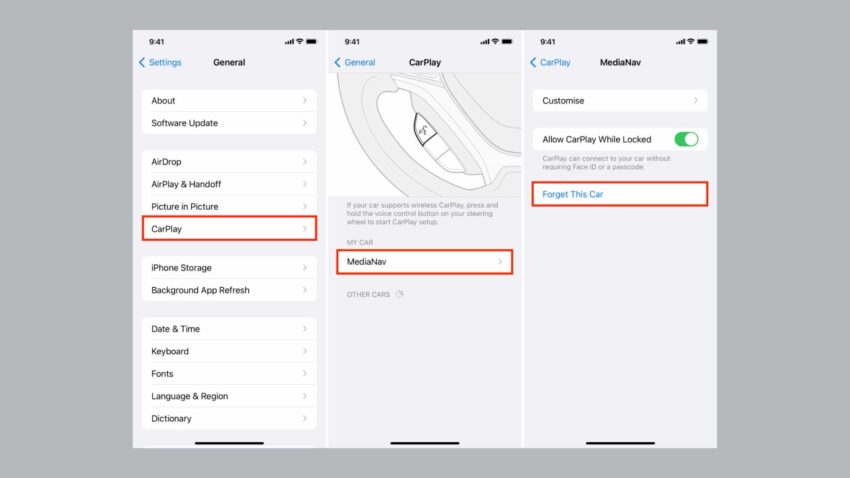
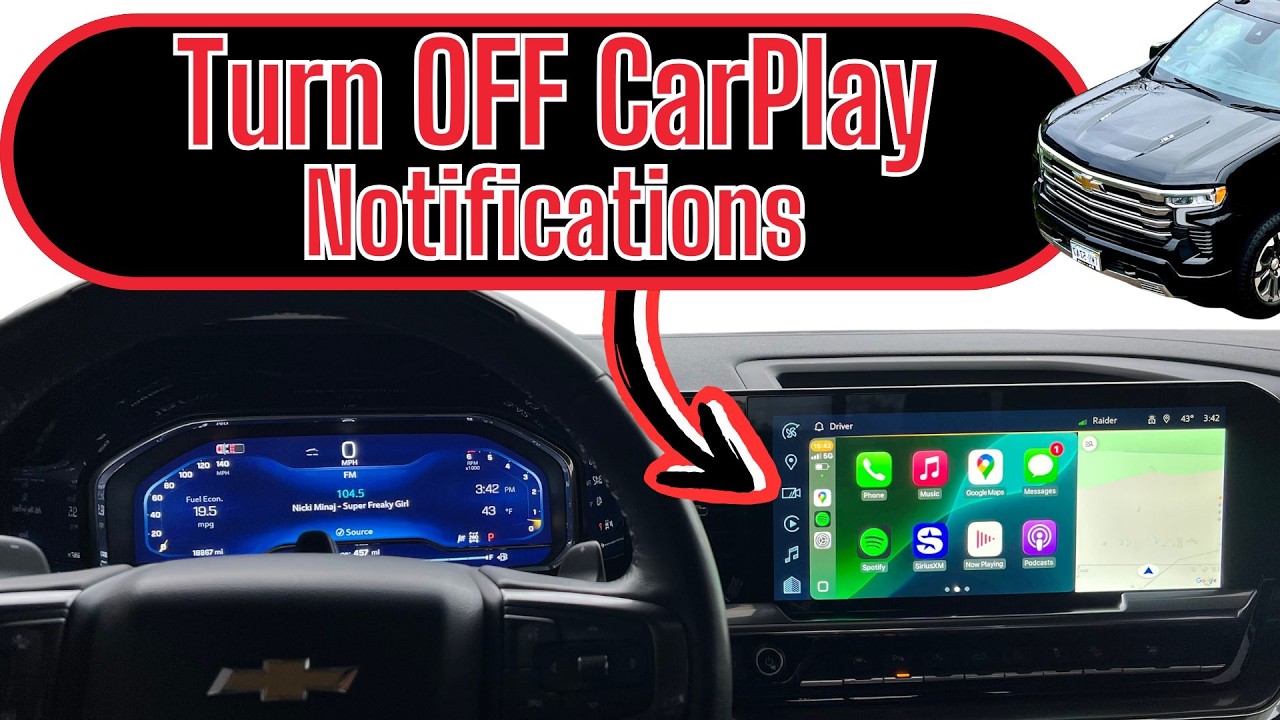
To turn off wireless CarPlay, open your iPhone Settings, go to General > CarPlay, select your vehicle, and choose Forget This Car. You can also disable CarPlay access through Screen Time or turn off wireless connections from your vehicle’s infotainment settings if supported.
Across the United States, many drivers use Apple CarPlay to connect an iPhone to a vehicle display for navigation, calls, music, and messaging. Wireless CarPlay makes this connection automatic, but some drivers prefer to turn it off when they want to stop automatic pairing, use another phone, protect privacy, or troubleshoot connection problems.
The correct way to disable wireless CarPlay depends on whether you want to stop one vehicle from connecting, completely block CarPlay on your iPhone, or simply prevent automatic wireless connections. This guide explains each method and the situations where each option works best.
Source: everyminds.com
What Does Turning Off Wireless CarPlay Mean?
Turning off wireless CarPlay means stopping your iPhone from automatically connecting to a compatible vehicle through Bluetooth and Wi-Fi-based CarPlay communication. The action you choose determines whether the change affects one car or all CarPlay connections.
Apple CarPlay itself is not removed from your iPhone when you disable a wireless connection. You can usually enable it again later by reconnecting your vehicle and allowing CarPlay access.
Source: storage.googleapis.com
Disable one vehicle
Removing a specific car prevents your iPhone from automatically connecting to that vehicle until you set it up again.
Block CarPlay completely
Changing iPhone restrictions can prevent CarPlay from working with any vehicle.
Stop automatic wireless pairing
Some vehicles allow wireless connection settings to be adjusted directly from the infotainment system.
How to Turn Off Wireless CarPlay on an iPhone
The most common method is removing your vehicle from the CarPlay list on your iPhone. This stops that vehicle from automatically launching CarPlay when your phone enters the car.
These steps apply to most recent iPhone models running supported versions of iOS, although menu names can vary slightly between software updates.
Source: irshtech.org
Step 1: Open Settings
Open the Settings app on your iPhone and select General.
Step 2: Open CarPlay settings
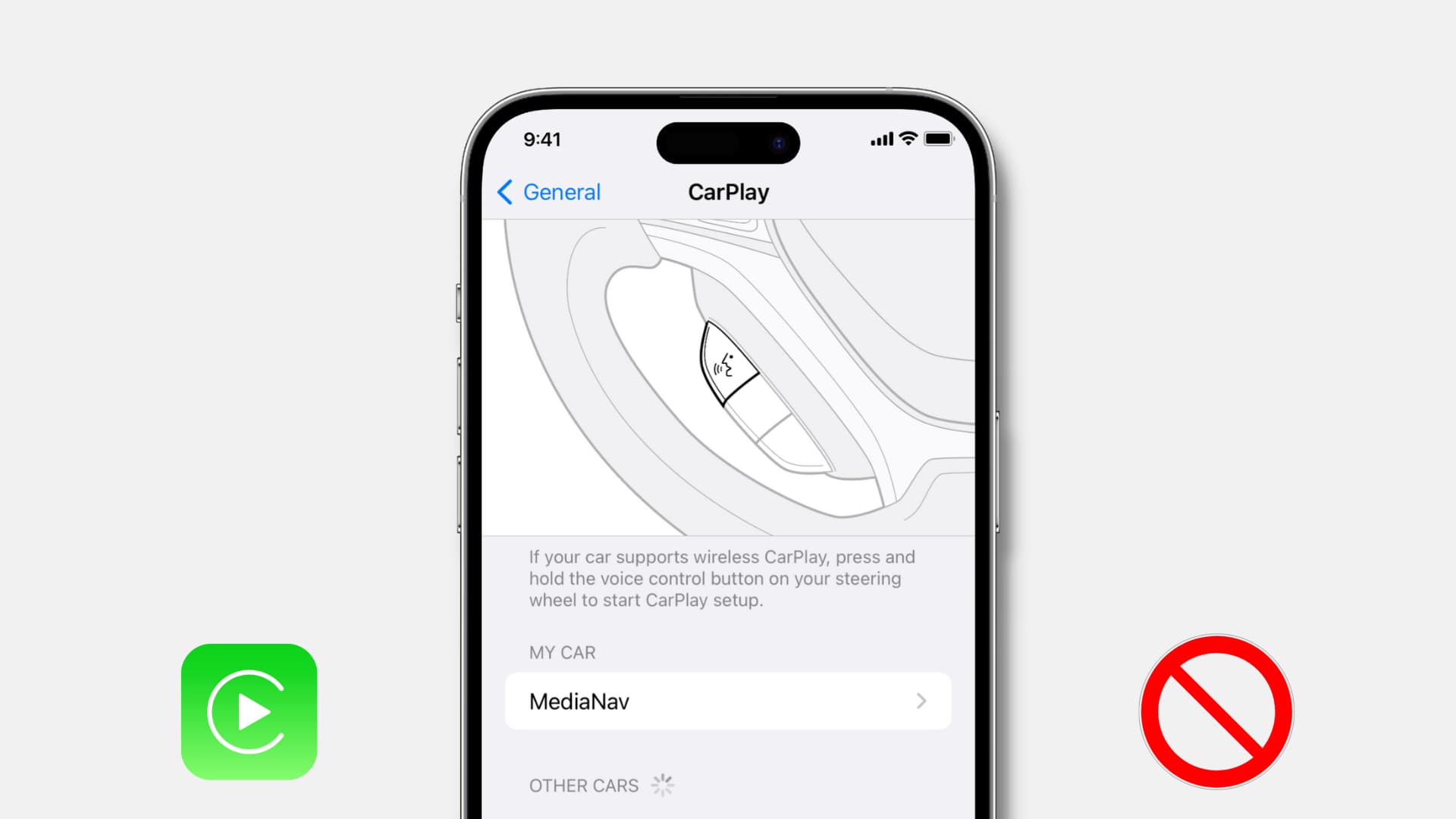
Tap CarPlay and choose the vehicle you want to disconnect.
Step 3: Remove the vehicle
Select Forget This Car and confirm the removal.
How to Disable CarPlay Completely Using iPhone Restrictions
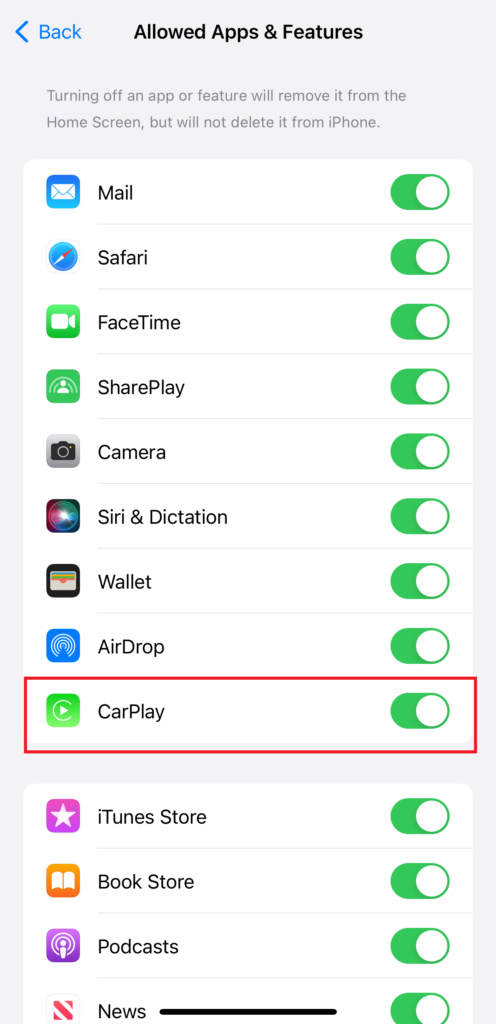
If you do not want your iPhone to connect to any CarPlay system, you can disable CarPlay access through Screen Time restrictions. This option is useful when you want a complete block rather than removing a single vehicle.
Open Screen Time
Go to Settings, select Screen Time, and open Content & Privacy Restrictions.
Disable CarPlay
Turn off the CarPlay option if it is available in your iPhone settings.
How to Turn Off Wireless CarPlay From Your Car Settings
Many vehicles with wireless Apple CarPlay include settings inside the infotainment system that control smartphone connections. The exact menu depends on the vehicle manufacturer, so the option may appear under Bluetooth, smartphone settings, connected devices, or projection settings.
If your car allows wireless connection management, disabling the CarPlay or smartphone projection feature can prevent automatic connections without changing your iPhone settings.
Source: ictfix.net
Check connected devices
Open your vehicle’s settings menu and look for paired phones or smartphone connection options.
Disable automatic connection
Some systems allow you to stop automatic phone projection while keeping Bluetooth available.
Consult the vehicle manual
CarPlay controls differ between manufacturers, so the owner’s manual is the most accurate source for model-specific steps.
How to Stop Wireless CarPlay From Automatically Connecting
Automatic connection is one of the most common reasons drivers search for ways to turn off wireless CarPlay. If you only want to stop automatic launches, you may not need to completely remove the vehicle from your iPhone.
Possible solutions include forgetting the vehicle, disabling wireless smartphone projection in the car, or connecting a different device as the primary phone.
Source: www.youtube.com > Geo Rides
Forget the vehicle
Removing the vehicle from CarPlay settings stops automatic pairing until setup is completed again.
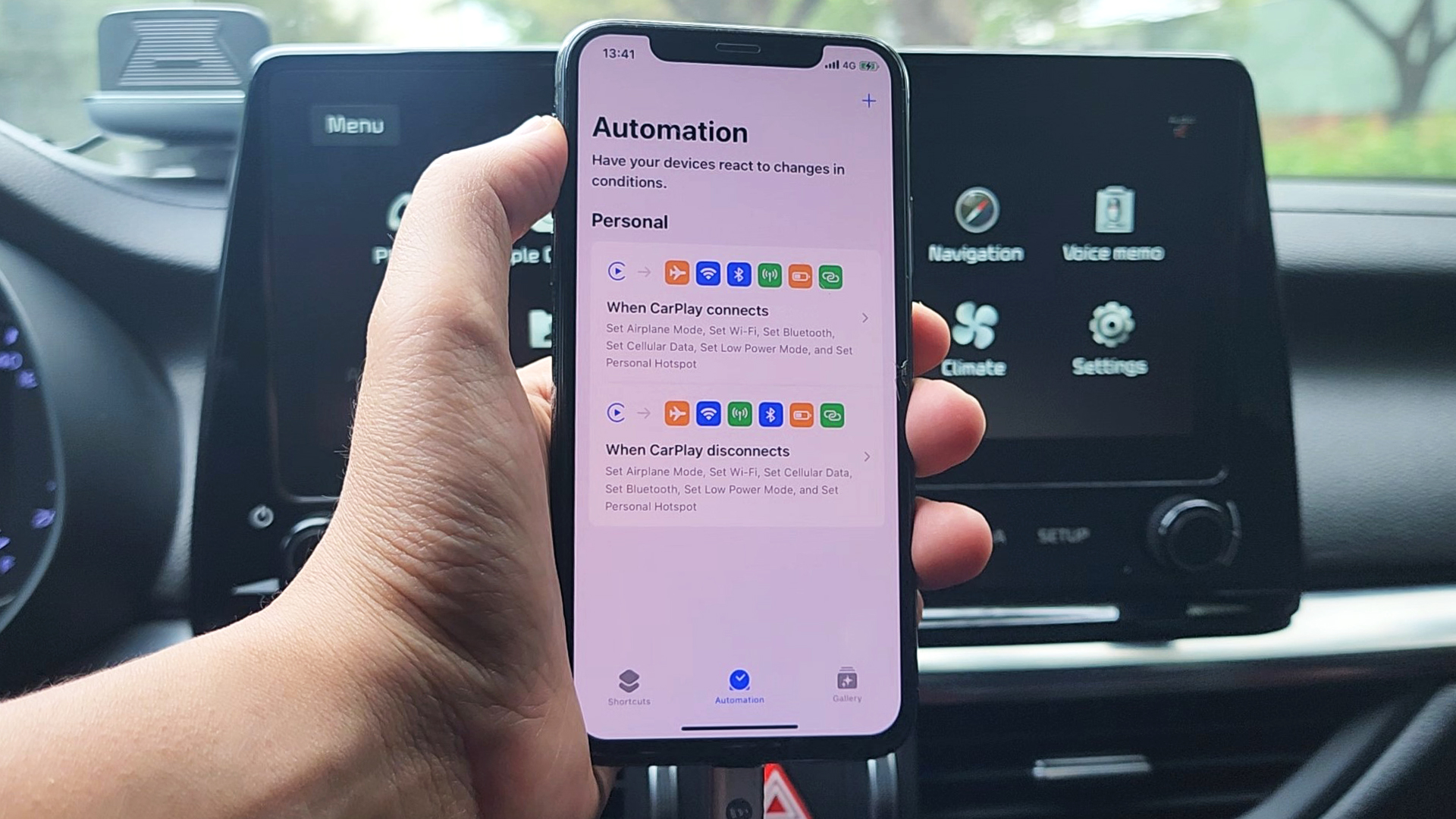
Turn off Bluetooth or Wi-Fi temporarily
Disabling wireless connections can prevent CarPlay from starting, but it also affects other wireless features.
Change the preferred phone
Some vehicles prioritize the first paired phone, so changing connection priority may reduce unwanted launches.
Common Wireless CarPlay Problems and Fixes
If turning off wireless CarPlay does not work, the issue may be caused by saved pairings, outdated software, or vehicle-specific settings. Checking the simplest causes first can save time.
Before changing multiple settings, identify whether the problem is automatic connection, failed pairing, or a CarPlay option that is still enabled elsewhere.
Source: www.idownloadblog.com
CarPlay reconnects after removal
Check whether the vehicle still has your iPhone saved as a paired device and remove it from the car system as well.
CarPlay option is missing
Menu names differ by iPhone version and vehicle model. Update software and check manufacturer instructions.
Another person’s iPhone connects
Remove unwanted devices from the vehicle’s paired phone list and adjust connection priority settings.
Frequently Asked Questions
Q
Can I turn off wireless CarPlay but keep Bluetooth calls?
Yes, in many vehicles you can disable smartphone projection while keeping Bluetooth enabled for calls and basic audio. The exact option depends on the vehicle system.
Q
Will forgetting my car remove Bluetooth pairing too?
Forgetting a car in iPhone CarPlay settings removes the CarPlay relationship, but Bluetooth pairing may remain separately depending on your vehicle and iPhone settings.
Q
Why does CarPlay keep turning on automatically?
Wireless CarPlay is designed to connect automatically after the iPhone and vehicle recognize each other. Removing the vehicle, changing car settings, or disabling wireless projection can stop this behavior.
Q
Can I turn wireless CarPlay back on later?
Yes. You can reconnect your iPhone through the vehicle setup process and allow CarPlay access again whenever you want to use the feature.
Q
Does turning off wireless CarPlay save battery?
Disabling automatic CarPlay connections may reduce some wireless activity, but battery savings depend on how often your iPhone connects and what other wireless features are active.
✦ Wrapping Up
Conclusion
Turning off wireless CarPlay is usually a simple process that involves removing your vehicle from iPhone CarPlay settings or changing your car’s smartphone connection preferences. The best method depends on whether you want to block one vehicle or disable CarPlay completely.
If wireless CarPlay continues to activate after you change settings, check both your iPhone and vehicle system because either device may store connection information.
💡 Key Takeaway
Start by forgetting your vehicle in iPhone Settings > General > CarPlay. If that does not solve the issue, check your vehicle’s infotainment settings and remove saved phone connections.
Learn how wireless CarPlay works, how it connects your iPhone to your car, setup steps, compatibility requirements, limitations, and troubleshooting tips.