A gaming monitor improves motion clarity, response speed, visual detail, and comfort during demanding games.
If you are asking, “why do I need a gaming monitor,” the answer depends on how you play, what hardware you own, and what you expect from your games. A regular office monitor can show a game, but a gaming monitor can make fast action feel smoother, clearer, and more responsive. This guide explains the real benefits, the limits, and how to choose the right model without wasting money.
What Is a Gaming Monitor?
A gaming monitor is a display designed for fast motion, low input delay, and smooth gameplay. It often includes a high refresh rate, fast response time, adaptive sync, and features made for long gaming sessions.
A basic monitor may focus on office work, reading, or color accuracy. A gaming monitor focuses more on how quickly and clearly it shows movement. Think of it as the difference between watching a race through a small window and watching it from the best seat in the stadium.
Common gaming monitor features include:
• High refresh rates such as 120Hz, 144Hz, 165Hz, 240Hz, or higher
• Low pixel response times to reduce ghosting
• AMD FreeSync or NVIDIA G-SYNC compatibility
• Gaming presets for different types of games
• Low input lag for quicker on-screen reactions
• DisplayPort and HDMI connections for modern gaming systems
• Better motion handling than many standard office displays
A gaming monitor does not automatically make you a better player. However, it can remove some limits between your actions and what you see on screen.
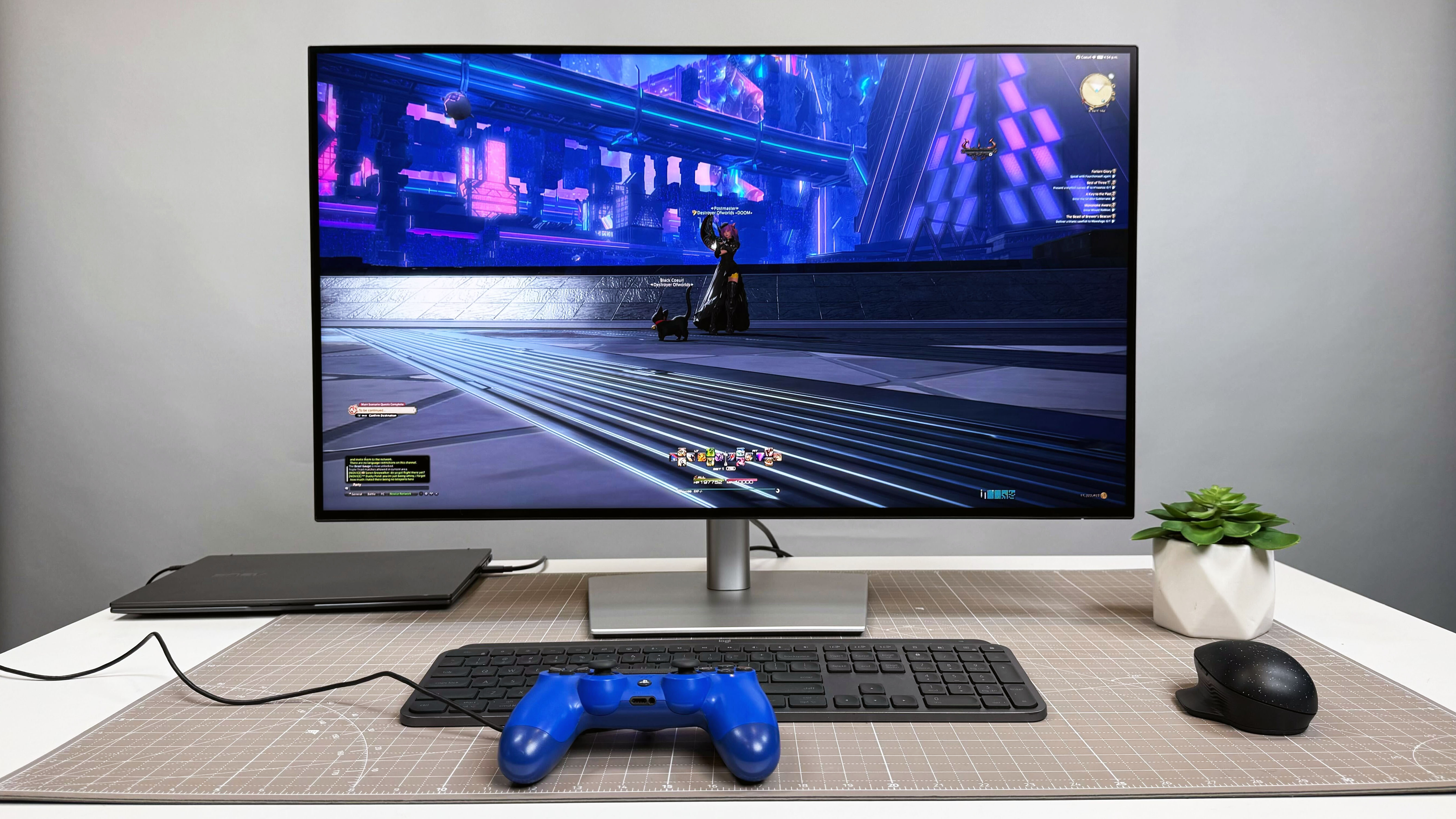
Why Do I Need a Gaming Monitor for Better Gameplay?
The main reason why do I need a gaming monitor is simple: it can make games feel faster and easier to control. This matters most in games that involve quick movement, aiming, racing, or camera changes.
A standard 60Hz monitor refreshes the image up to 60 times per second. A 144Hz monitor can refresh it up to 144 times per second. More refreshes can create smoother motion when your computer or console can produce enough frames.
For example, imagine turning your character quickly in a first-person shooter. On a 60Hz screen, the motion may look less smooth. On a 144Hz screen, the same turn can appear more fluid, which may help you track enemies and react with greater confidence.
A gaming monitor may also reduce input lag. Input lag is the delay between pressing a button and seeing the result on screen. Even a small delay can feel important when you play competitive games.
Here are the biggest gameplay benefits:
• Smoother camera movement
• Clearer images during fast action
• Faster visual feedback
• More accurate tracking of moving targets
• Less distracting screen tearing
• Better control in racing and action games
The difference is not always dramatic in slow games. It becomes easier to notice when you compare the screens side by side or return to a 60Hz monitor after using a 144Hz model.
:max_bytes(150000):strip_icc()/GettyImages-1190641416-f80a2eeffcd344f0bece7efd2a89fdaa.jpg)
Higher Refresh Rates Make Motion Smoother
Refresh rate is measured in hertz, or Hz. It tells you how many times the monitor can update the image each second.
A 60Hz monitor updates every 16.67 milliseconds. A 120Hz monitor updates every 8.33 milliseconds. A 144Hz monitor updates every 6.94 milliseconds. A 240Hz monitor updates every 4.17 milliseconds.
These numbers do not tell the whole story, but they show why high refresh rates can improve motion clarity. The display has more chances to show a new frame as your game changes.
A higher refresh rate is most useful when your system can produce a similar frame rate. If your computer only produces 50 frames per second, a 240Hz monitor cannot create 240 real game frames. It can still feel responsive in some cases, but much of its potential remains unused.
A simple guide looks like this:
• 60Hz: Suitable for basic gaming and slower games
• 75Hz to 100Hz: A modest improvement over 60Hz
• 120Hz to 165Hz: A strong choice for most PC gamers
• 240Hz: Useful for competitive players with powerful hardware
• 360Hz and above: Best for serious esports users with very high frame rates
For most people, 144Hz or 165Hz offers a strong balance between price and performance. You do not need the highest refresh rate to enjoy a clear upgrade.
Faster Response Times Reduce Ghosting
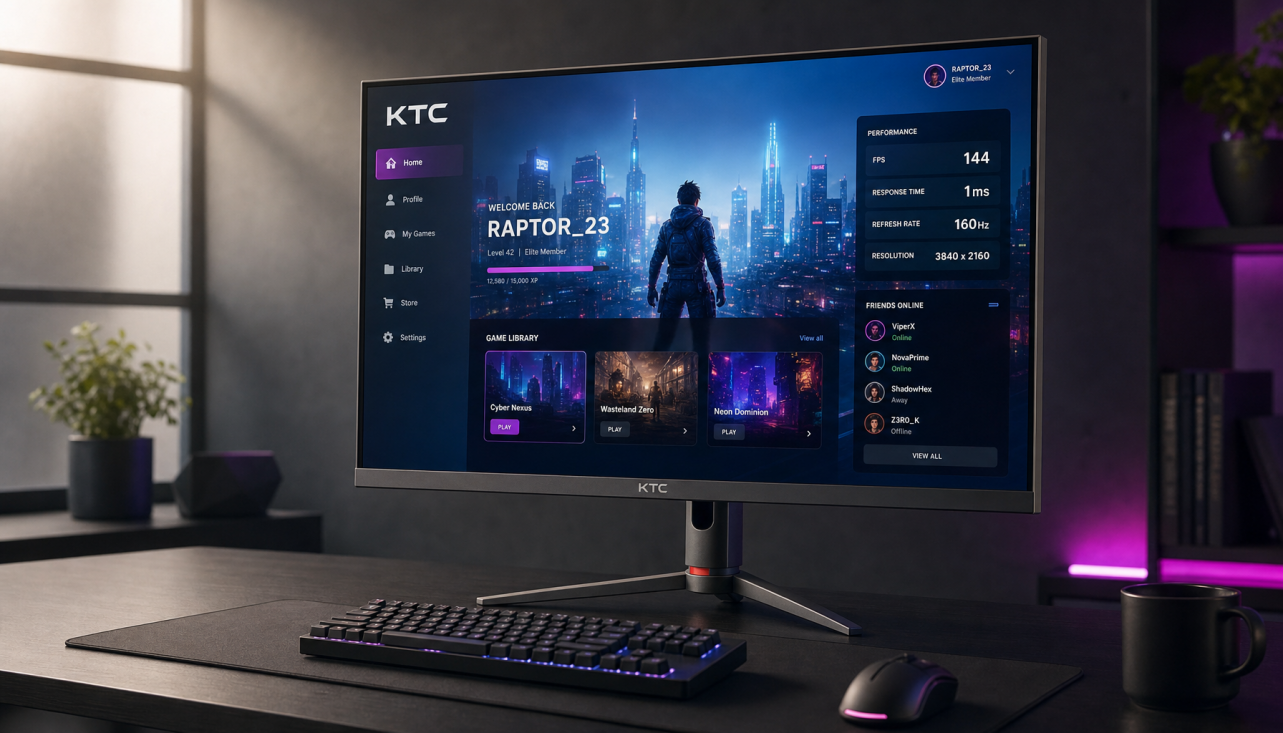
Response time measures how quickly a pixel changes from one color to another. A slow response time can create ghosting, which appears as a blurry trail behind moving objects.
Ghosting can make text, characters, or scenery look smeared during fast movement. It may not ruin a game, but it can reduce clarity and make your eyes work harder.
Gaming monitors often advertise response times of 1 millisecond. Treat this number with care. Manufacturers may use different testing methods, and a quoted “1ms” result may only apply to a specific overdrive setting.
Look for reviews that test several response modes. A monitor with a real-world response time of 3ms may perform better than a monitor that claims 1ms but shows strong overshoot. Overshoot can create bright or dark halos around moving objects.
When choosing a monitor, check for:
• Consistent response times across different refresh rates
• Low ghosting in dark and bright scenes
• Minimal overshoot
• A useful overdrive setting
• Independent motion tests
This is one reason why do I need a gaming monitor can have a more technical answer. A good display does not only refresh often. It also needs to change pixels cleanly.
Adaptive Sync Helps Prevent Screen Tearing
Screen tearing happens when the monitor displays parts of two different frames at the same time. It can create a visible horizontal break across the image.
Adaptive sync helps the monitor match its refresh rate to the game’s frame rate. AMD FreeSync and NVIDIA G-SYNC Compatible displays are common examples.
Suppose your game moves between 82 and 118 frames per second. A fixed-refresh monitor may show uneven motion or tearing. Adaptive sync can adjust the display to follow those frame changes more smoothly.
Adaptive sync is helpful, but it has limits:
• It cannot fix very low frame rates
• It may need to be enabled in both the monitor menu and graphics settings
• Some games or drivers may behave differently
• Poor overdrive tuning can still cause blur
For the best results, connect the monitor through a suitable HDMI or DisplayPort connection. Also check whether your graphics card supports the monitor’s adaptive sync technology.
A Gaming Monitor Can Improve Your Comfort
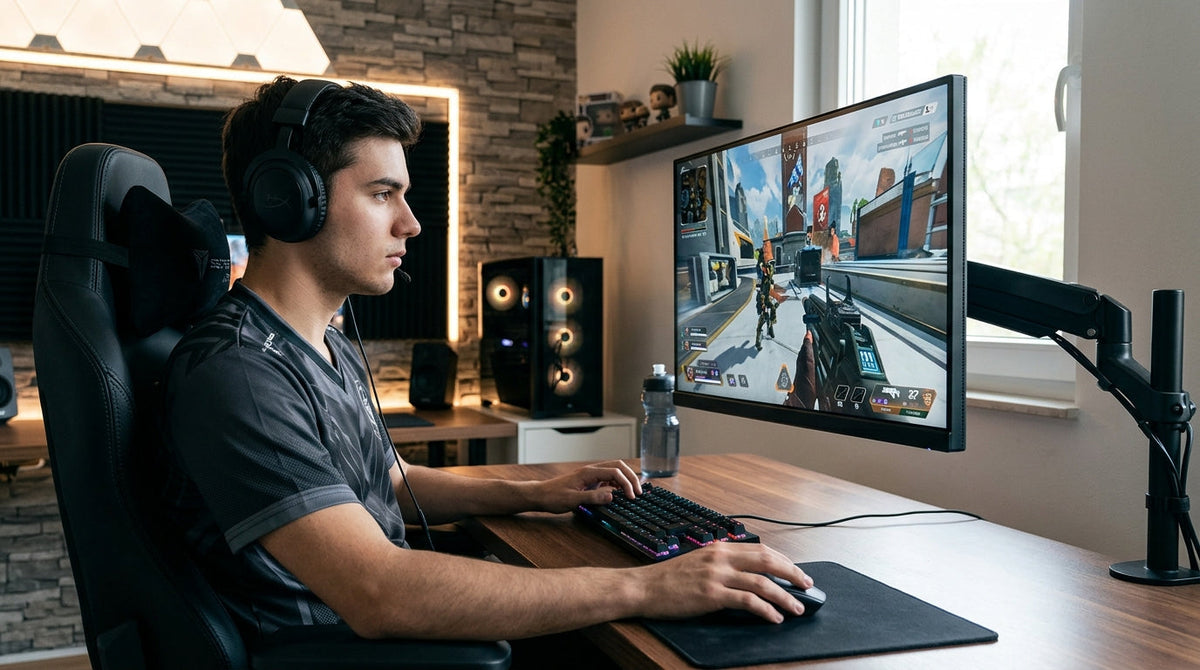
The question why do I need a gaming monitor is not only about winning matches. Comfort matters too, especially if you play for several hours.
A stable image with less blur can make long sessions feel easier on your eyes. Features such as flicker reduction and low-blue-light modes may also help some users. These features do not remove all eye strain, but they can support a more comfortable setup.
Your habits matter just as much as the monitor. The American Academy of Ophthalmology recommends taking regular breaks from close screen work. A useful habit is the 20-20-20 approach: every 20 minutes, look at something about 20 feet away for 20 seconds.
You can also improve comfort by:
• Placing the monitor about an arm’s length away
• Keeping the top of the screen near eye level
• Reducing glare from windows and bright lamps
• Adjusting brightness to match the room
• Sitting with your back supported
• Taking short movement breaks
A curved monitor may feel comfortable for some users, especially at ultrawide sizes. However, curvature is a preference, not a requirement for healthy gaming.

Better Image Quality Makes Games More Immersive
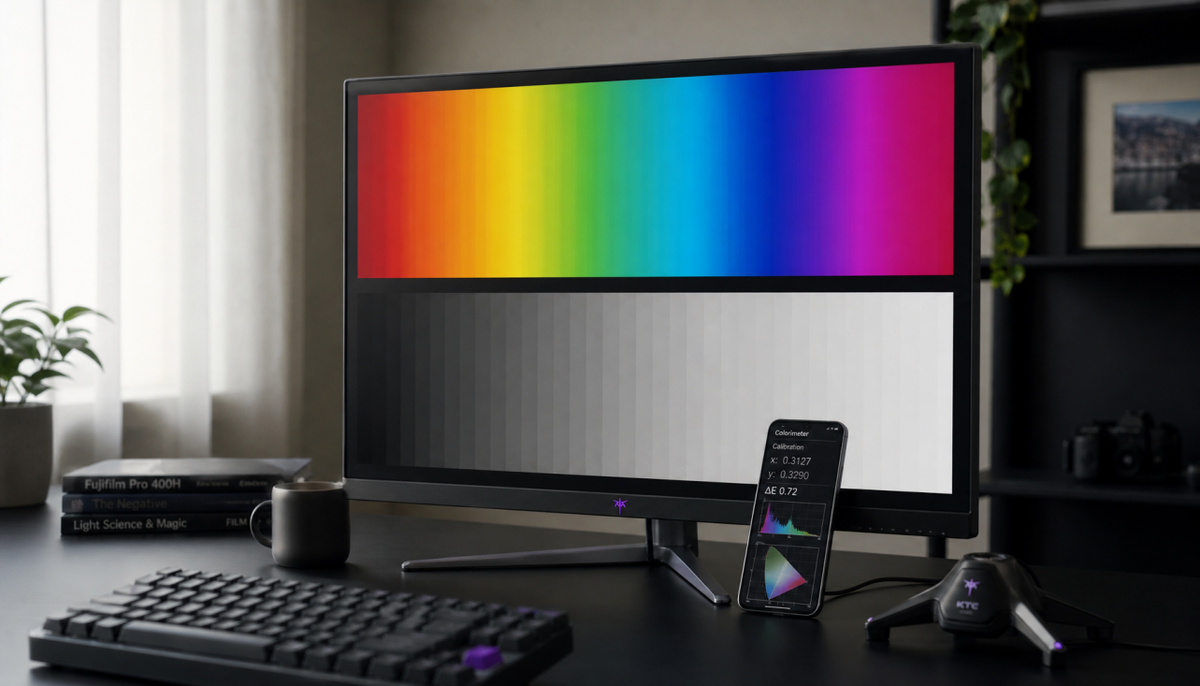
Many gaming monitors offer higher resolutions, stronger contrast, wider color ranges, or HDR support. These features can make games look more detailed and cinematic.
Resolution describes the number of pixels on the screen. Common choices include:
• 1920 × 1080, also called Full HD
• 2560 × 1440, also called QHD or 1440p
• 3840 × 2160, also called 4K UHD
A 1440p monitor often provides a clear image without demanding as much graphics power as 4K. It is a popular middle choice for PC gaming.
HDR can improve bright highlights and dark areas, but the label alone does not guarantee strong results. Basic HDR monitors may not get bright enough or have enough contrast to create a convincing HDR image.
For meaningful HDR, look for:
• High peak brightness
• Strong contrast
• Local dimming
• Wide color coverage
• Proper HDR testing
OLED monitors can provide excellent black levels and very fast pixel response. They may cost more and can carry a risk of image retention or burn-in with static content. Modern protection features reduce the risk, but they do not make it impossible.
Why Do I Need a Gaming Monitor for Different Game Types?
The best monitor depends on the games you play. There is no single perfect specification for every gamer.
Competitive shooters
Games such as Valorant, Counter-Strike 2, Overwatch 2, and Apex Legends benefit from high refresh rates and low input lag. A 144Hz to 240Hz monitor may be useful if your computer can maintain high frame rates.
Racing games
Racing games can benefit from a wide screen, fast refresh rate, and good motion clarity. An ultrawide monitor can create a wider view, though some games may not support every ultrawide format well.
Role-playing and adventure games
Story-driven games often benefit more from resolution, contrast, color quality, and HDR than from an extremely high refresh rate. A 1440p or 4K monitor may be a better fit.
Strategy and simulation games
These games often reward screen space. A larger 1440p monitor or ultrawide model can help you view more maps, menus, and units at once.
Console gaming
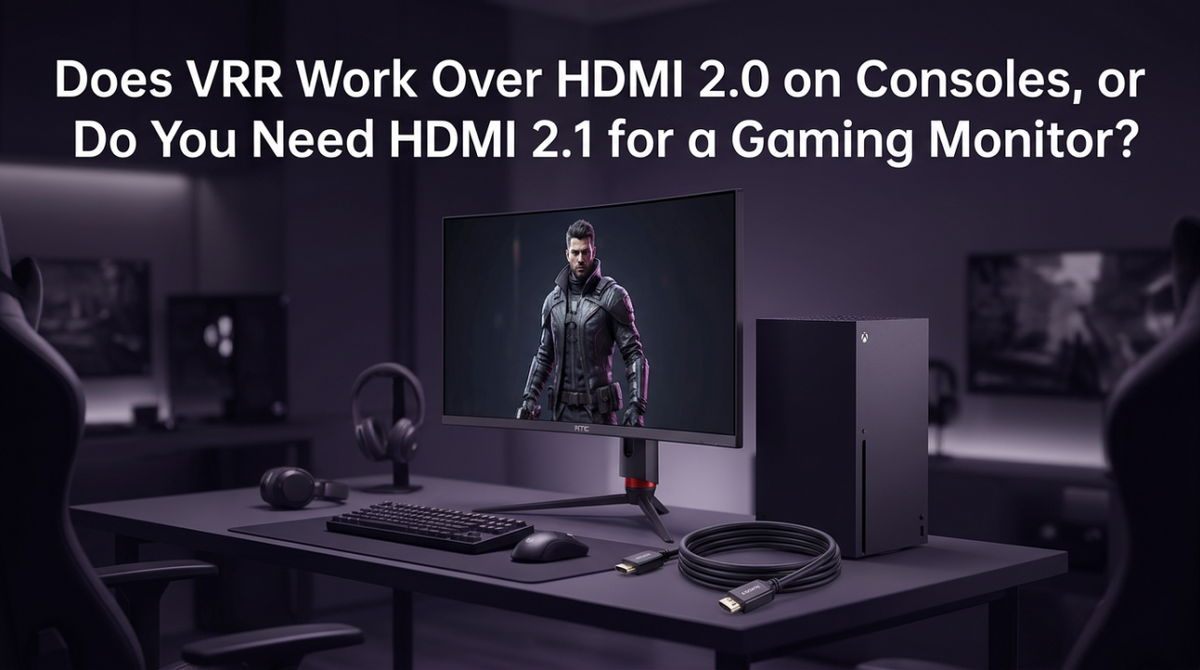
PlayStation 5 and Xbox Series X support features such as 4K resolution and high refresh rates in compatible games. A 120Hz HDMI 2.1 monitor may be useful if you want to take advantage of supported 120 frames per second modes.
The answer to why do I need a gaming monitor changes with your game library. Competitive players may prioritize speed, while single-player gamers may value image quality.
Do You Need a Gaming Monitor for Console or PC Gaming?
You may need a gaming monitor for either platform, but your requirements will differ.
For PC gaming, check your graphics card and processor. A powerful graphics card can make better use of a 1440p or 4K high-refresh display. A modest system may work better with a 1080p 144Hz monitor.
For console gaming, check the console’s supported resolution, refresh rate, and ports. A monitor with 4K resolution is useful only when the console and game support it. A 120Hz monitor is helpful only when the console outputs games at 120 frames per second.
Before buying, confirm:
• Maximum supported resolution
• Maximum refresh rate
• HDMI version
• Variable refresh rate support
• Built-in speakers or headphone support
• Compatibility with your desk and seating distance
One common mistake is buying a 4K monitor for a system that struggles to run games at 4K. Another is buying a 240Hz display for a console that cannot use its full refresh rate.
Gaming Monitor Versus Regular Monitor
A regular monitor is not automatically bad for gaming. Many office monitors show games well, especially for casual play. The difference is that gaming monitors usually offer more features for fast and responsive gameplay.
| Feature | Regular monitor | Gaming monitor |
|---|---|---|
| Refresh rate | Often 60Hz or 75Hz | Commonly 120Hz or higher |
| Response time | May be slower | Usually optimized for motion |
| Adaptive sync | Sometimes included | Commonly included |
| Input lag | Varies | Often designed to be low |
| Image quality | Depends on the model | Often includes gaming-focused options |
| Design | Office-focused | May include stands and presets for gaming |
A regular monitor may be the better choice if you mostly work, browse, or play slow-paced games. A gaming monitor becomes more valuable when you care about smooth movement, fast reactions, and competitive performance.
In my experience with display comparisons, the biggest upgrade is usually moving from 60Hz to 144Hz. After that, improvements become more specialized. A jump from 144Hz to 240Hz can help, but many users notice it less than the first upgrade.
What Are the Disadvantages of a Gaming Monitor?
Gaming monitors have clear benefits, but they are not perfect. Understanding the limits can help you avoid an expensive mistake.
The main disadvantages include:
• Higher cost than basic displays
• More demanding hardware requirements
• Possible image quality compromises on fast budget panels
• Extra gaming features that you may never use
• Larger power use on some high-brightness models
• Potential OLED burn-in with long static use
• Confusing specifications and marketing claims
A 240Hz monitor may cost more but provide little value if your system produces only 70 frames per second. A 4K monitor may look sharp but require a powerful graphics card for high frame rates.
You may not need a gaming monitor if:
• You play only slow games
• You mainly use a laptop for casual gaming
• Your current monitor already feels smooth and clear
• Your budget is better spent on a graphics card
• You rarely play games
The best upgrade is the one that fixes your actual problem. Do not buy a gaming monitor simply because a product page lists impressive numbers.
How to Choose the Right Gaming Monitor
Start with your hardware, games, budget, and desk space. Specifications should support your needs, not control them.
1. Choose the resolution
1080p is affordable and easier for many computers to run. 1440p offers a sharper image and is a strong choice for midrange and high-end PCs. 4K delivers excellent detail but needs more graphics power.
2. Choose the refresh rate
A 144Hz or 165Hz model is a sensible starting point for PC gaming. Choose 240Hz or higher only if you play competitive games and your system can produce very high frame rates.
3. Pick the right panel type
IPS panels usually offer balanced color, viewing angles, and response times. VA panels often provide stronger contrast but may show dark-level smearing on some models. OLED panels offer excellent contrast and response speed but can cost more and need burn-in care.
4. Check adaptive sync
Confirm that the monitor works well with your graphics card. Look for reliable variable refresh rate support and a useful operating range.
5. Review ports and stand features
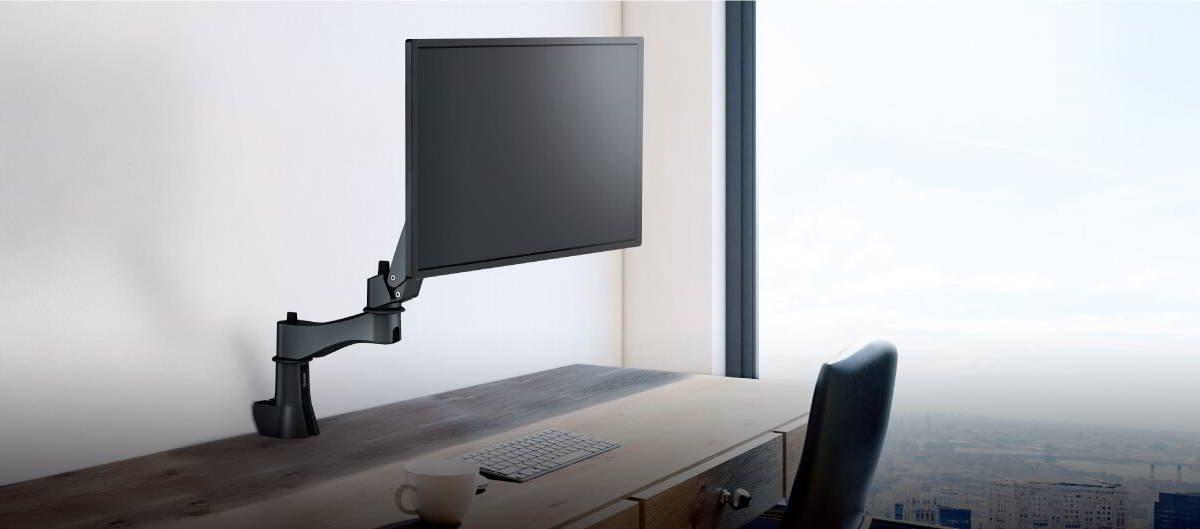
A height-adjustable stand, DisplayPort, HDMI, and VESA mounting support can make a major difference. Do not overlook these practical details.
6. Read independent tests
Look for measurements of input lag, response time, brightness, contrast, and color accuracy. Manufacturer specifications are useful, but real testing gives a clearer picture.
Common Gaming Monitor Buying Mistakes
Many buyers focus on one large number and ignore the rest of the product. This often leads to disappointment.
Avoid these mistakes:
• Buying the highest refresh rate without enough frame rate
• Assuming every 1ms monitor performs the same
• Ignoring ghosting and overshoot
• Choosing 4K when your hardware is built for 1080p
• Paying extra for HDR without checking brightness and local dimming
• Forgetting to check HDMI and DisplayPort limits
• Buying a screen that is too large for your desk
• Ignoring warranty and return policies
One practical lesson I often share is to check the monitor’s usable range, not just its maximum refresh rate. A display that works smoothly from 48Hz to 165Hz may be more useful than one that reaches 240Hz but performs poorly at lower frame rates.
Also, do not assume that a curved screen, RGB lighting, or an aggressive design improves performance. These features may look attractive, but they should come after core image and motion quality.
How to Set Up a Gaming Monitor Correctly
Even a strong monitor can look poor with the wrong settings. Spend a few minutes tuning it after installation.
Use this setup process:
-
Connect the monitor with the correct HDMI or DisplayPort cable.
-
Open your operating system’s display settings.
-
Select the monitor’s highest supported refresh rate.
-
Enable adaptive sync in the monitor menu.
-
Turn on variable refresh rate in your graphics settings if needed.
-
Choose a response-time mode that does not create visible overshoot.
-
Adjust brightness for your room.
-
Use the monitor’s native resolution.
-
Test motion with a trusted display test or a familiar game.
-
Turn off features that add delay, such as excessive image processing.
If a game feels uneven, check frame pacing, background programs, drivers, and graphics settings. A gaming monitor cannot solve every performance problem. Smooth gameplay depends on the whole system.
Does a Gaming Monitor Improve Your Skill?
A gaming monitor can improve your visual information, but it cannot replace practice. It may help you see movement sooner or aim with less distraction, yet your habits still matter most.
In competitive games, small advantages can add up. A smoother display may make tracking easier, while lower input lag may help your actions feel more direct. Still, the improvement varies by person, game, hardware, and skill level.
A good way to test the benefit is to borrow or use a high-refresh monitor for a week. Play the same games with similar settings. Pay attention to comfort, motion clarity, and control rather than expecting an instant rank increase.
The honest answer to why do I need a gaming monitor is that you need one only if its benefits match your goals. It is a tool, not a shortcut.
Frequently Asked Questions About Why Do I Need a Gaming Monitor
Do I need a gaming monitor for casual gaming?
No, you do not need one for casual gaming. A regular 60Hz monitor may be enough for puzzle games, turn-based games, older titles, and light play.
Is 144Hz better than 60Hz for gaming?
Yes, 144Hz usually provides smoother motion and quicker visual updates than 60Hz. The benefit is greatest when your computer can produce close to 144 frames per second.
Does a gaming monitor make games run faster?
No, a monitor does not increase your computer’s frame rate. It displays the frames your system produces, although a high-refresh display can show those frames more smoothly.
Is 4K better than 1440p for gaming?
4K provides more detail, but 1440p often offers a better balance of image quality and performance. Your graphics card, screen size, viewing distance, and preferred frame rate should guide the choice.
Can a gaming monitor reduce eye strain?
It may improve comfort through smoother motion, reduced flicker, and better brightness control. However, breaks, proper lighting, viewing distance, and good posture remain important.
Do I need a gaming monitor for a PS5 or Xbox Series X?
Not always, but a compatible 120Hz display can support smoother gameplay in games that offer 120 frames per second modes. Check the monitor’s HDMI support and the console’s output settings before buying.
Is a 1ms response time important?
A low response time can reduce motion blur, but the advertised number may not reflect real performance. Independent response-time and ghosting tests are more useful than the 1ms label alone.
Conclusion
The answer to why do I need a gaming monitor depends on your games, hardware, and priorities. A good model can provide smoother motion, lower input lag, clearer movement, adaptive sync, and better comfort than a basic office display.
For most PC gamers, a 1440p monitor with a 144Hz or 165Hz refresh rate offers an excellent balance. Competitive players may prefer 240Hz, while console users should focus on HDMI support and compatibility with 120Hz modes.
Review your current setup and identify what feels limited. Then choose a monitor that solves that problem instead of paying for features you will not use. Explore trusted display tests, compare models carefully, and share your gaming monitor experience in the comments.