Your webcam looks yellow because of warm lighting, incorrect white balance, a camera filter, or a hardware problem.
Wondering why is my webcam yellow can be frustrating, especially during a work call or video chat. In most cases, the cause is simple and fixable: your camera is reading the room’s light incorrectly. This guide explains the likely causes, quick fixes, software settings, and signs that your webcam may need repair.

Why Is My Webcam Yellow?
A yellow webcam image usually means the camera has a warm color cast. This happens when the webcam sees more yellow or orange light than blue light. The result can make your skin, walls, and clothes look unusually warm.
The most common causes include:
• Warm indoor bulbs, such as soft white or incandescent lights
• Incorrect white balance settings
• A yellow screen filter or privacy app effect
• Poor room lighting
• Outdated webcam drivers
• A loose cable or USB connection
• A damaged camera sensor
Webcams try to make white objects look white. This process is called white balance. If the camera guesses wrong, white may look cream, yellow, or orange instead.
In my experience troubleshooting video calls, lighting is the most common reason for a yellow webcam image. People often replace the camera first, even though changing one light or moving away from a lamp solves the issue.
Common Reasons Your Webcam Looks Yellow
Warm or yellow indoor lighting
Many home offices use warm bulbs. These bulbs create a cozy look in a room, but they can make your webcam image appear yellow.
A bulb labeled 2700K or 3000K gives off warm light. Daylight bulbs often sit closer to 5000K or 6500K and look cooler or more neutral. Your webcam may struggle when warm room light mixes with daylight from a window.
Try turning off nearby lamps and using natural daylight for a quick test. If your face looks normal near a window, the lamp is likely the cause.
Incorrect white balance
White balance tells your camera how to interpret color. Most webcams use automatic white balance, but the feature can fail in dim rooms or under mixed lighting.
Some webcam apps let you choose settings such as:
• Auto
• Daylight
• Cloudy
• Tungsten
• Fluorescent
A tungsten setting can sometimes make an image look cooler, while a daylight setting may correct a warm indoor cast. The best choice depends on your room and light source.
A yellow screen or webcam filter
Video apps may apply filters without making the change obvious. A “warm,” “sunset,” “golden,” or “vintage” filter can make the webcam image yellow.
Check your camera settings in apps such as Zoom, Microsoft Teams, Google Meet, Discord, OBS Studio, or your webcam maker’s software. Turn off filters, effects, color adjustments, and background tools.
Also check system tools. Some computers have eye comfort modes that tint the display yellow. This usually changes what you see on the screen, not the actual video sent to others. Still, it can make you think the webcam itself is yellow.
Mixed light from windows and lamps
A window may provide cool blue light while a lamp provides warm yellow light. Your webcam then receives two different color temperatures at once.
This is like asking your camera to balance two voices speaking at the same time. It may choose the wrong color and produce a yellow or uneven image.
For a cleaner result, use one main light source. Face a window, or turn off the warm lamp and use a neutral LED light.
A dirty lens
Dust, fingerprints, and oily marks can reduce contrast and make the image look dull or warm. A dirty lens may also create a hazy glow around bright areas.
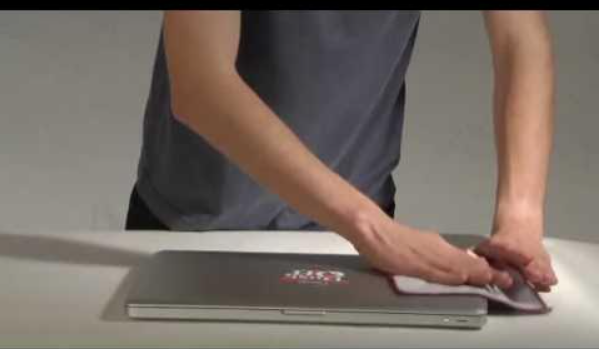
Clean the lens gently with a microfiber cloth. Avoid paper towels, glass cleaner, and strong sprays. These can scratch the lens or leave a film.
Outdated drivers or camera software
A driver helps your computer communicate with the webcam. An outdated or corrupted driver can cause color errors, exposure problems, flickering, or poor focus.
This is more common after a major operating system update. It can also happen when two camera apps try to control the webcam at the same time.

How to Fix a Yellow Webcam
Use these steps in order. Start with the simple checks before changing advanced settings.
1. Check the room lighting
Turn off all nearby lamps. Then test the webcam in front of a window or under a neutral white LED light.
If the yellow tint disappears, your camera is working correctly. The light source is causing the color problem.
Keep the main light in front of you. A light behind your head can make your face dark, while a light above you can create harsh shadows.
2. Restart the camera app
Close the app that uses your webcam. Wait a few seconds, then open it again.
If the issue remains, restart your computer. This clears temporary camera settings and releases the webcam from other programs.
3. Turn off video filters
Open the video settings in your app. Look for:
• Filters
• Touch-up effects
• Color effects
• Low-light compensation
• HDR video
• Automatic enhancement
• Studio effects
Disable each option and check the image after every change. This helps you find the setting that caused the yellow webcam image.
4. Adjust white balance
If your software provides manual controls, set white balance to automatic first. If automatic mode still looks yellow, test daylight or fluorescent mode.
Do not change many controls at once. Adjust one setting, check the image, and then continue. This avoids creating a new color problem while fixing the old one.
5. Improve the light position
Place a light in front of your face, slightly above eye level. A small LED panel or desk lamp with a neutral white bulb can work well.
Avoid placing a strong light directly behind you. Your webcam may reduce exposure to protect the bright background, leaving your face dark and yellow.
A simple setup often works best:
• One neutral light in front
• A clean background
• No bright window directly behind you
• No warm lamp close to your face
6. Clean the webcam lens
Use a dry microfiber cloth. Wipe the lens in small circles without pressing hard.
If you use a laptop, clean the lens and the area around it. Dust near the camera can scatter light and reduce image quality.
7. Update or reinstall the driver
On Windows, open Device Manager and find your camera under Cameras or Imaging devices. Check for driver updates, then restart the computer.
On macOS, camera drivers are usually managed by the operating system. Install available system updates, close apps that use the camera, and test again.
Download drivers only from your computer or webcam manufacturer. Random driver websites may offer unsafe or incorrect files.
8. Test the webcam in another app
Open the built-in camera app on your computer. Compare it with the app where you first noticed the yellow color.
If the webcam looks normal in one app but yellow in another, the problem is likely an app setting. If it looks yellow everywhere, check the lighting, driver, cable, and hardware.

How to Tell Whether Lighting or Hardware Is the Problem
A quick comparison can help you find the cause of a yellow webcam image.
Follow this test:
-
Open the built-in camera app.
-
Turn off nearby warm lamps.
-
Face a window or neutral LED light.
-
Remove filters and effects.
-
Test the webcam on another computer if possible.
-
Compare the image with another webcam or phone camera.
The camera may have a hardware problem if the yellow tint remains in every app and under neutral lighting. A damaged sensor, aging lens coating, or internal color failure can cause a permanent color cast.
A loose USB cable can also create unstable behavior. Try another USB port, avoid unpowered hubs, and check for bent connectors.
For a laptop webcam, hardware damage may occur after a drop, liquid spill, pressure on the screen, or repair work near the display. If the camera suddenly turned yellow after one of these events, professional service may be the safest option.

Webcam Color Settings to Check
Different apps use different names for color controls. Look for settings related to image quality, camera control, or video effects.
Exposure
Exposure controls how bright the image appears. Too much exposure can wash out colors, while too little exposure can make the image muddy.
Exposure does not directly fix a yellow webcam, but poor exposure can make the warm tint look worse.
Saturation
High saturation makes colors stronger. If saturation is too high, yellow and orange tones may become very obvious.
Set saturation near its default value before making small changes.
Temperature
Temperature controls whether the image looks warmer or cooler. Move it slightly toward the cool side if your face looks orange or yellow.
Make small changes. A setting that is too cool can make your skin look gray or blue.
Tint
Tint adjusts green and purple balance. It is not usually the main fix for a yellow webcam, but it can help if the image also looks green.
HDR and low-light mode
HDR can improve bright and dark areas, but it may produce strange colors on some webcams. Low-light modes can also add noise and create a warm cast.
Turn these features off during testing. You can enable them again if they improve the image in your room.

Why Is My Webcam Yellow on Zoom, Teams, or Google Meet?
If your webcam is yellow in only one video app, the app probably has a filter or camera adjustment enabled.
Open the app’s video settings and select the correct camera. Then check the preview window. Disable effects and restore the camera settings to default.
Also close other apps that may be using the webcam. For example, OBS Studio, a browser tab, a virtual camera tool, or a laptop camera utility may change the image before it reaches your meeting app.
If the preview looks normal but other people still see yellow video, ask them whether the color problem appears on their side. A display color profile or night mode on their device may affect what they see.
Why Is My Webcam Yellow on a Laptop?
A laptop webcam may look yellow because of the room light, the display’s night mode, or the laptop maker’s camera software.
Start by testing the built-in camera app. Then disable features such as:
• Eye comfort mode
• Night light
• Automatic color enhancement
• Face retouching
• Low-light correction
• Privacy or security camera effects
Remember that a yellow screen does not always mean the webcam recording is yellow. Take a still image or join a test meeting from another device to confirm the actual video color.
If the laptop camera remains yellow in every app, update the operating system and camera software. Persistent color problems after a physical accident may require hardware inspection.
How to Prevent a Yellow Webcam Image
Once you fix the issue, a few habits can help prevent it from returning.
• Use one main light source when possible.
• Choose a neutral white LED bulb.
• Keep the light in front of your face.
• Clean the camera lens once in a while.
• Avoid placing a bright window behind you.
• Save a reliable webcam profile if your camera software supports it.
• Check filters before important meetings.
• Keep your operating system and camera software updated.
I once spent too long adjusting color sliders when the real problem was a warm desk lamp sitting beside the monitor. Moving the lamp and facing a window fixed the image in less than a minute. That experience taught me to test the light before changing advanced camera controls.

When Should You Replace Your Webcam?
You may need a new webcam if the yellow tint is permanent and appears under neutral lighting in every app.
Replacement is also reasonable when the camera has:
• Cracks or visible internal damage
• Severe flicker
• A failed focus system
• Dead pixels
• A damaged USB connector
• A color cast that does not change after testing
Before buying a new camera, test your current webcam on another computer. This step prevents an unnecessary purchase caused by a software issue.
A newer webcam may offer better low-light performance, automatic white balance, and manual color controls. However, better hardware cannot fully solve poor room lighting. Even an expensive camera can look yellow beside a warm lamp.
Safety and Privacy Tips During Troubleshooting
Camera troubleshooting should not require unsafe software or risky repairs.
Use these precautions:
• Download updates from official manufacturer websites.
• Do not install unknown webcam repair tools.
• Cover the lens when the camera is not in use if privacy matters to you.
• Check which apps have camera access.
• Avoid opening a laptop unless you understand the repair risks.
• Do not spray cleaner directly onto the webcam.
Privacy settings are also worth checking. On Windows and macOS, review which apps can access the camera. Remove access for apps you do not recognize or no longer use.
Frequently Asked Questions About Why Is My Webcam Yellow
Why is my webcam yellow in low light?
Low light can confuse automatic white balance and exposure. Add a neutral light in front of your face, then restart the camera app and test again.
Can a yellow light bulb make my webcam look yellow?
Yes. Warm bulbs often produce yellow or orange light, especially when they are close to the camera. Try a neutral or daylight LED bulb, or use natural light from a window.
Why is my webcam yellow only in Zoom?
Zoom may have a filter, touch-up effect, or color setting enabled. Open Zoom’s video settings, turn off effects, and restore the camera controls to their default values.
Does a dirty webcam lens cause a yellow image?
A dirty lens can make the image hazy, dull, or warm. Clean it with a dry microfiber cloth, but avoid liquids and rough materials that may damage the lens.
How do I fix a yellow webcam on Windows?
Test the camera in the Windows Camera app, turn off filters, update the camera driver, and improve the lighting. If the image stays yellow in every app, test another USB port or computer.
Is a yellow webcam always a sign of damage?
No. Lighting and white balance cause most yellow webcam problems. Hardware damage becomes more likely when the tint remains under neutral lighting and appears in every camera app.
Conclusion
A yellow webcam image usually comes from warm lighting, mixed light, incorrect white balance, or an active video filter. Start with the simplest fixes: turn off warm lamps, face a neutral light, clean the lens, disable effects, and test the camera in another app.
If the yellow color remains everywhere, update the software, try another cable or computer, and consider hardware damage. Use this guide to test each cause step by step, then share your results or explore more webcam setup tips for clearer video calls.