Your webcam may look dark because of poor lighting, blocked lenses, wrong settings, or a camera fault.
If you are asking, “why is my webcam dark,” the answer is often simple to fix. A dim room, dirty lens, low exposure, privacy setting, outdated driver, or video app control can make your camera feed look almost black. This guide explains each likely cause and gives safe steps for Windows, Mac, browsers, Zoom, Teams, and other common apps.

Why is my webcam dark?
A webcam needs enough light to create a clear image. When the room is dim, the camera raises its exposure. This can add grain, blur, and strange colors. Some webcams also lower brightness when a bright window or lamp sits behind you.
The most common reasons include:
• The room has weak or uneven lighting.
• A laptop lid, sticker, or privacy shutter partly covers the lens.
• Dust, fingerprints, or oil sit on the camera glass.
• Your webcam brightness, exposure, or contrast setting is too low.
• Zoom, Teams, FaceTime, or another app controls the camera settings.
• Windows or macOS has not allowed camera access.
• The webcam driver or camera software is outdated.
• A USB port, cable, or external webcam has a connection problem.
• The camera sensor is damaged or too old for the current lighting.
Think of your webcam as a small window. If the window is dirty, the room behind it is dark, or a curtain covers it, the picture will suffer. Finding the cause is easier when you test one change at a time.
Check the room lighting first
Poor lighting is the most common answer to why is my webcam dark. Most built-in laptop cameras work best when light shines toward your face, not directly behind you.
Try sitting near a window with your face toward the light. You can also place a desk lamp behind your screen and point it toward your face. Use soft, indirect light when possible because a bare bulb can create harsh shadows.
Avoid these lighting setups:
• A bright window directly behind your head.
• A ceiling light that creates dark eye sockets.
• A monitor with high brightness but a dark room.
• A colored lamp that changes your skin tone.
• A strong light placed too close to your face.
A simple test can reveal the problem. Turn on a lamp in front of you, close curtains behind you, and open your camera preview again. If your face becomes clear, your webcam is working and the room lighting was the main issue.
In my own webcam tests, moving a lamp only a few feet can make a larger difference than buying a new camera. Good placement often beats expensive equipment.

Clean the lens and remove anything blocking it
A dirty lens can make a webcam look dark, cloudy, or out of focus. Fingerprints are especially common because people often touch the top edge of a laptop without noticing the camera area.
Shut the camera app before cleaning. Then wipe the lens gently with a clean microfiber cloth. Do not spray liquid directly onto the camera. If needed, put a small amount of screen-safe cleaner on the cloth, not on the device.
Also check for:
• A built-in privacy shutter.
• A sliding webcam cover.
• Tape or a privacy sticker covering part of the lens.
• Dust near the camera opening.
• A laptop case blocking the camera.
• A monitor mount or external webcam clip sitting at the wrong angle.
After cleaning, open the camera preview again. If the image is still dark, compare the same webcam in another app. This helps separate a physical problem from an app setting.

Test the webcam in another app
A dark image in one app does not always mean the webcam is broken. Video apps can apply their own brightness, exposure, color, and low-light settings.
Close every app that may use the camera. Then open your device’s built-in camera app.
On Windows:
-
Open the Start menu.
-
Search for Camera.
-
Open the Camera app.
-
Check the preview under normal room lighting.
On a Mac:
-
Open Photo Booth or FaceTime.
-
Select the built-in or external camera.
-
Check whether the image looks normal.
If the image looks clear in the built-in camera app but dark in Zoom, Teams, Discord, or a browser, the problem is likely inside that app. Select the correct camera and review its video settings.
This test is one of the fastest ways to understand why is my webcam dark. It tells you whether the issue affects the whole computer or only one program.
Adjust camera brightness and exposure settings
Some webcams and video apps let you change brightness, contrast, exposure, gain, white balance, and low-light compensation. These controls may be hidden inside advanced camera settings.
Look for settings named:
• Brightness
• Exposure
• Contrast
• Gain
• Low-light compensation
• HDR
• Automatic exposure
Start with automatic exposure. If the image remains dark, raise brightness or exposure slightly. Increase one setting at a time so you can see what changes.
Be careful with gain. Gain brightens the image electronically, but too much gain creates digital noise. Your face may become brighter while the background looks rough and speckled.
If your webcam software has a reset button, use it before making many changes. A poor setting can remain active even after you close the app. Resetting gives you a clean starting point.

Fix webcam settings in Windows
Windows can affect camera behavior through privacy controls, drivers, and manufacturer software. The exact menu names may vary by Windows version, but the main steps are similar.
First, check camera permissions:
-
Open Settings.
-
Select Privacy & security.
-
Choose Camera.
-
Turn on camera access.
-
Allow apps to access your camera.
-
Allow desktop apps to access your camera.
Next, check the device:
-
Right-click the Start button.
-
Open Device Manager.
-
Expand Cameras or Imaging devices.
-
Right-click your webcam.
-
Select Update driver.
-
Restart the computer after any update.
You can also select the webcam in the Windows Camera app and check its available controls. Some laptops include camera tools from the computer maker. These tools may have a privacy mode, brightness slider, or automatic light setting.
Do not download random driver files from unknown websites. Use Windows Update or the manufacturer’s official support page. This reduces the chance of installing unsafe software.

Fix webcam settings on a Mac
On a Mac, camera access is controlled through system privacy settings and the app using the camera. macOS usually manages exposure automatically, but the image can still look dark when the room has poor light or an app applies a filter.
Check camera access:
-
Open System Settings.
-
Select Privacy & Security.
-
Choose Camera.
-
Turn on access for the app you want to use.
-
Quit and reopen the app.
If the camera does not work correctly, close apps that may be using it. A camera can usually be controlled by only one app at a time. FaceTime, Photo Booth, Zoom, browser tabs, and recording tools may compete for access.
Restarting the Mac can also clear a temporary camera service issue. If the camera remains dark in every app, install available macOS updates and check Apple’s support guidance for your model.

Correct dark webcam video in Zoom, Teams, and browsers
If you still wonder why is my webcam dark in Zoom or Teams, inspect the app’s video controls. These programs may use a different camera than your computer’s default camera.
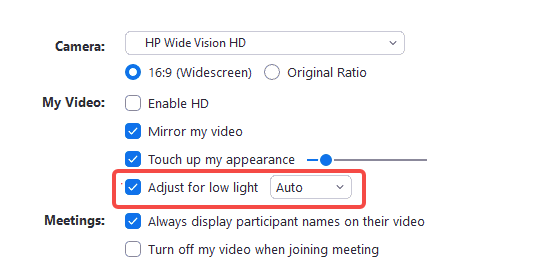
In most video apps, open Settings and then Video. Confirm that the selected camera is correct. Look for options such as low-light adjustment, video filters, portrait effects, background blur, and automatic lighting.
Turn off filters for a clean test. A filter can make the image appear darker or change the exposure. Also check whether the app has a low-light mode. Some versions adjust the video automatically, while others offer a manual slider.
For a browser:
• Confirm that the website has camera permission.
• Close extra tabs that may use the webcam.
• Check the selected camera in the meeting settings.
• Restart the browser.
• Test the camera in a private window if an extension may interfere.
A browser-based camera test can help, but use a trusted site. Avoid uploading private recordings to unknown services.
Check the external webcam, cable, and USB port
External webcams can look dark because of a weak connection or incorrect device selection. A loose USB plug may still power the camera while causing unstable video.
Try these steps:
-
Unplug the webcam.
-
Wait several seconds.
-
Connect it directly to the computer.
-
Avoid a USB hub during testing.
-
Try another USB port.
-
Select the external camera in your video app.
-
Test it in the built-in Camera, Photo Booth, or another trusted app.
If the webcam has a removable cable, inspect it for bends or damage. Try a compatible replacement cable if the design allows it. Some webcams also have a physical exposure dial or a lens ring. Make sure it has not moved accidentally.
Test the webcam on another computer if possible. If it is dark everywhere, the camera may have a hardware problem. If it works normally on another computer, review the original computer’s permissions, drivers, and app settings.
Understand when the webcam may be damaged
A webcam may need repair or replacement when software checks do not help. Hardware damage is more likely if the camera became dark after a drop, liquid spill, cable failure, or sudden electrical issue.
Warning signs include:
• The image stays black in every app.
• The webcam is missing from system settings.
• The camera flickers when the cable moves.
• Brightness changes without any setting change.
• The image has permanent lines, spots, or a purple tint.
• Another computer shows the same dark image.
Before replacing it, check the warranty and manufacturer support options. A built-in laptop camera can be difficult to repair safely. An external webcam may be a simpler and less costly solution.
Very cheap webcams often struggle in low light because they use small sensors and basic lenses. A newer model with automatic exposure and better low-light performance can help, but it still needs reasonable lighting.
Improve webcam quality with simple lighting
You do not need a studio to make a webcam brighter. A few small changes can create a clean and natural image.
Try this setup:
• Place a soft lamp behind or beside the monitor.
• Keep the main light close to eye level.
• Face a window instead of turning your back to it.
• Add a second weak light if one side of your face is too dark.
• Reduce bright screens or lamps behind you.
• Use a white wall or light curtain to reflect soft light.
A ring light can help, but use a low or medium setting. Very bright light can make your face look pale and cause the camera to darken the rest of the image.
Keep the camera near eye level. A higher camera angle can improve framing, while a lower angle often creates an unflattering view and catches more ceiling light. Small changes in distance and angle can also help the camera expose your face correctly.
Mistakes to avoid when fixing a dark webcam
People often make the problem worse by changing many settings at once. If you adjust brightness, contrast, exposure, gain, filters, and lighting together, you may not know which change helped.
Avoid these common mistakes:
• Increasing gain to the highest level.
• Pointing a bright lamp directly into the lens.
• Installing drivers from unofficial websites.
• Cleaning the lens with paper towels or rough fabric.
• Testing only one video app.
• Leaving several camera apps open.
• Ignoring a physical privacy shutter.
• Buying a new webcam before checking the room light.
Change one thing, test the camera, and note the result. This method may feel slow, but it usually finds the cause faster than guessing.
I once spent time adjusting an app’s brightness when the real problem was a nearly closed privacy cover. Checking the physical camera first would have saved several minutes. Simple checks are easy to overlook, especially during a rushed meeting.
How to prevent a dark webcam image
Once you fix why is my webcam dark, a few habits can help prevent the issue from returning. Keep the lens clean and check the camera cover before important calls.
Use a short pre-call routine:
-
Open the meeting app early.
-
Preview your video.
-
Confirm the correct camera.
-
Check the light on your face.
-
Remove filters and effects if the image looks unusual.
-
Make sure the camera permission is active.
-
Keep a lamp or window in front of you.
Update your operating system and webcam software through trusted sources. Also avoid placing the webcam where it can be covered by papers, a monitor arm, or a laptop case.
If you work from different locations, test the camera each time. A bright home office may hide a webcam weakness that becomes obvious in a hotel room or a dim conference space.
When to contact technical support
Contact the computer or webcam maker when the camera remains dark after testing different apps, lighting, ports, and computers. Support may know about model-specific firmware issues or known camera faults.
Before contacting support, collect useful details:
• Computer model and operating system.
• Webcam model.
• Apps where the problem appears.
• Whether the image is dark everywhere.
• Steps you already tried.
• Any recent update, drop, spill, or cable change.
A short sample image can also help, but avoid sharing private video. If the camera is used for work or school, your organization’s IT team may manage camera permissions and drivers.
Do not open a laptop or camera housing unless you understand the risks and the device is outside its warranty. A small repair attempt can cause more damage or create a safety issue.
Frequently Asked Questions About Why Is My Webcam Dark
Why is my webcam dark even in a bright room?
The camera may be facing a bright window, so it exposes for the background and leaves your face in shadow. Try placing the main light in front of you and check the camera lens for dirt or a privacy cover.
Why is my webcam dark in Zoom but not in the Camera app?
Zoom may use different exposure settings, filters, or a different camera device. Open Zoom’s video settings, select the correct camera, disable filters, and review its low-light controls.
Can a dirty webcam lens make the video look dark?
Yes. Dust, fingerprints, and oil can reduce light and make the image look hazy. Turn off the camera and gently clean the lens with a dry microfiber cloth.
Why is my laptop webcam dark after an update?
An update may change camera permissions, drivers, or app settings. Check system camera access, restart the computer, and update the camera driver through Windows Update or the computer maker’s official support page.
How do I make my webcam brighter?
Place a soft light in front of your face, reduce strong backlighting, and raise brightness or exposure slightly in the camera app. Avoid using maximum gain because it can make the video grainy.
Is a dark webcam always a sign that the camera is broken?
No. Poor lighting, blocked lenses, privacy settings, and app controls are more common causes. If the image stays black or dark in every app and on another computer, hardware damage becomes more likely.
Why is my external webcam dark on one USB port?
The port, USB hub, cable, or device selection may be causing the problem. Connect the webcam directly to another port, try a different cable if possible, and select the webcam manually in your video app.
Conclusion
The answer to why is my webcam dark is usually found in the lighting, lens, camera permissions, app settings, or connection. Start with the easiest checks: face a light source, clean the lens, open another camera app, and confirm that the correct camera is selected.
If those steps fail, update trusted drivers, test another USB port or computer, and look for signs of hardware damage. Use this guide before your next video call, and share your own webcam fix or experience in the comments.