Your cooling pad may not work because of weak power, blocked vents, dust, a failed fan, or poor laptop placement.
If you are asking, “why is my cooling pad not working,” the good news is that most causes are simple to check. This guide explains how cooling pads work, how to test each part safely, and when cleaning or replacement is the better choice.

Why Is My Cooling Pad Not Working?
A laptop cooling pad uses one or more fans to move air beneath your computer. This airflow helps reduce heat around the bottom case and may improve ventilation through the laptop’s intake vents.
However, a cooling pad does not create cold air like an air conditioner. It mainly helps your laptop release heat more easily. If the laptop’s internal fan is clogged, the room is hot, or the pad is not lined up with the intake vents, you may see little or no improvement.
When people ask why is my cooling pad not working, the cause often falls into one of these areas:
• The pad is not receiving enough power.
• The USB cable or port is damaged.
• The fan is blocked by dust or hair.
• The cooling pad switch or speed control has failed.
• The laptop vents do not match the fan position.
• The laptop is already overheating because of an internal issue.
• The pad is working, but its cooling effect is too small to notice.
A useful first step is to separate two problems: the pad’s fan is not spinning, or the fan is spinning but not cooling the laptop. These problems need different solutions.
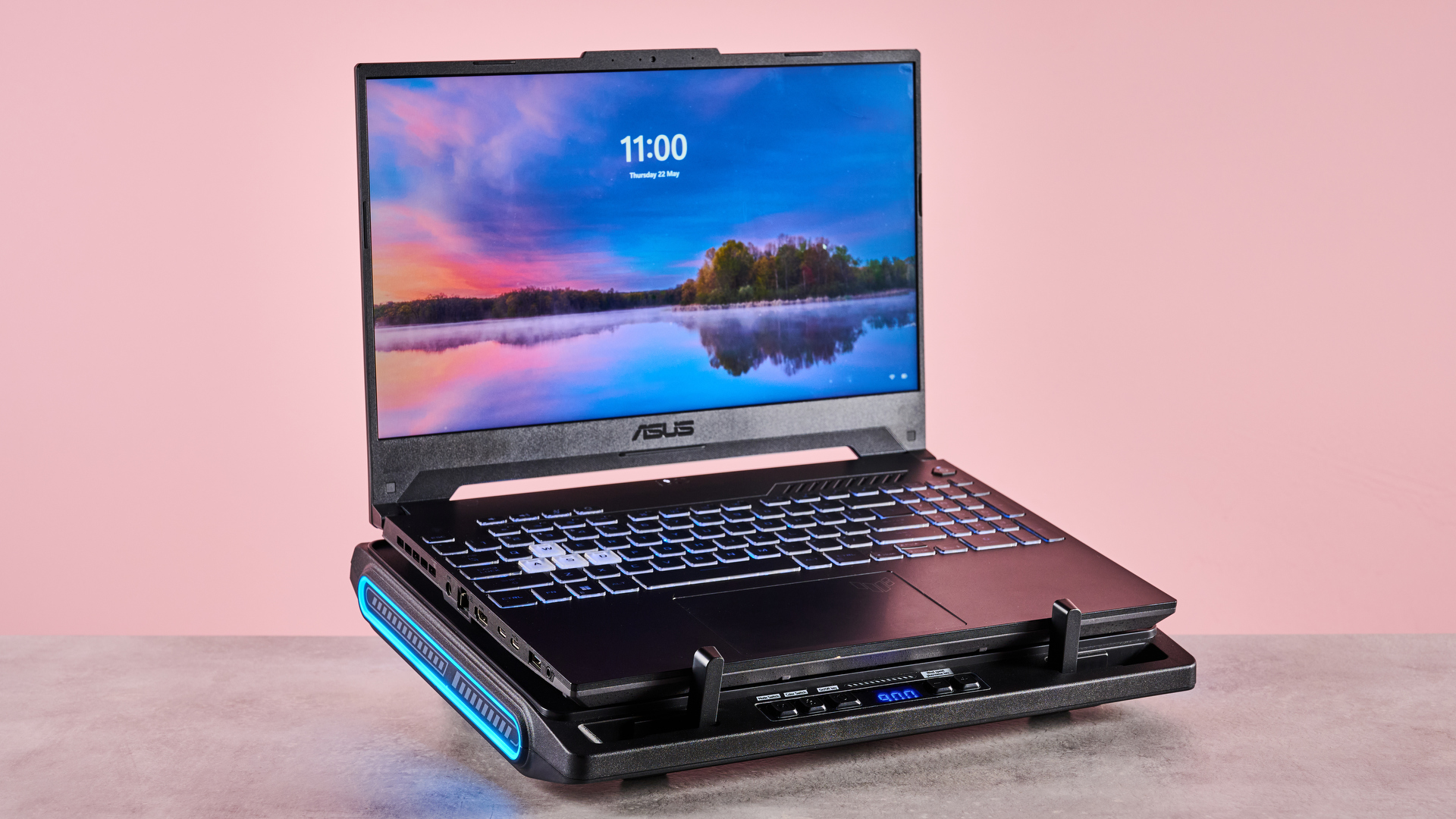
Common Reasons a Cooling Pad Stops Working
1. The cooling pad has no power
Most laptop cooling pads use a USB cable. Some draw power from one USB port, while others need two ports for stronger fans or extra features.
Try these checks:
• Unplug the pad and connect it to another USB port.
• Test the port with a mouse, keyboard, or USB drive.
• Check whether the pad has a power switch.
• Look for a power light, if the model includes one.
• Connect the pad directly to the laptop instead of using a hub.
A USB hub may not provide enough power. This is common with cheap, unpowered hubs. A damaged laptop port can also make the pad appear faulty.
2. The USB cable is damaged
The cable often fails before the fan does. Repeated bending near the plug can break the small wires inside.
Move the cable gently while the pad is connected. If the fan starts and stops, the cable may have a loose connection. Do not keep using a cable that becomes hot, smells burnt, or shows exposed wires.
If the cable is removable, test the pad with another compatible cable. Make sure the replacement cable supports power and fits firmly.
3. Dust or hair is blocking the fan
Dust acts like a blanket over the fan blades and air vents. Pet hair can wrap around the center of the fan and stop it from turning.
Turn off the pad and unplug it before cleaning. Use a can of compressed air in short bursts. Hold the fan blades still while cleaning so they do not spin too fast.
Avoid spraying liquid cleaner into the pad. Never open the housing while it is connected to power.
4. The fan switch or speed control has failed
Some cooling pads have a dial, button, or touch control. A failed switch can stop the fan even when the motor and USB cable are fine.
Turn the control from its lowest setting to its highest setting. Listen for a faint motor sound. If the fan only works at one position, the speed control may be worn.
A loose internal connection can also cause this issue. Repair may cost more than a basic replacement, especially for a low-cost cooling pad.
5. The pad is placed on a soft surface
A bed, couch, blanket, or pillow can cover the cooling pad’s lower vents. It can also block the laptop’s own intake vents.
Use the pad on a hard, flat surface. A desk is best. Keep the front and sides clear so air can move freely.
This is one of the most common reasons why is my cooling pad not working searches lead to a simple fix. The pad may be running, but the surface is preventing airflow.
6. The laptop vents do not line up with the fans
Cooling pads are not universal in performance. A large laptop may have intake vents near the rear, while a small pad may place its fans near the center.
Look under your laptop and find the intake vents. Then compare their position with the cooling pad fans. Adjustable fan pads can help, but they cannot always match every laptop design.
A pad with several small fans may also perform worse than a model with one large fan placed under the main intake area.
How to Fix a Cooling Pad That Is Not Working
Follow these steps in order. This method helps you find the problem without buying parts too soon.
Step 1: Check for fan movement
Connect the cooling pad to a known working USB port. Turn it on and look closely at the fan blades.
If the blades do not move, focus on power, the cable, the switch, or the motor. If the blades move, the pad is working at a basic level, and the problem may be airflow or laptop heat.
Do not place your fingers near moving blades. Use a small piece of paper to check airflow from a safe distance.
Step 2: Test another USB port
Try every suitable USB port on the laptop. Some ports may be loose or may provide less power than others.
If possible, test the pad with another computer. This quickly shows whether the issue comes from the pad or your laptop.
If it works on another computer, inspect your laptop’s USB port. The port may have dirt, physical damage, or a power problem.
Step 3: Inspect the cable and plug
Look for cuts, bent connectors, loose plugs, or black marks. A USB plug that feels unusually loose may not maintain contact.
If the cable is detachable, use a replacement with the same connector. Do not force a plug into the port. A poor fit can damage both the cable and the computer.
Step 4: Clean the pad
Unplug the pad. Remove visible dust from the top and bottom vents with compressed air or a soft, dry brush.
Clean the laptop’s underside as well. If the laptop vents are blocked, the cooling pad may have little effect even when its fan works.
For heavy dust inside a laptop, professional cleaning is safer. Opening a laptop can affect warranty coverage or damage delicate parts.
Step 5: Check the laptop’s own cooling system
The cooling pad cannot replace the internal laptop fan. Start the laptop and listen for its fan during normal use or a demanding task.
If the laptop fan never spins, makes grinding sounds, or becomes very loud, the internal cooling system may need service. Thermal paste may also be old, but replacing it requires careful disassembly.
Step 6: Compare temperatures
Use a trusted hardware monitoring tool to check the laptop’s processor and graphics temperatures. Test the laptop for the same task with the pad off and on.
Keep the test fair:
-
Use the same game, app, or workload.
-
Test for the same length of time.
-
Keep the room and laptop position the same.
-
Record the highest temperature and fan noise.
A small temperature change does not always mean the cooling pad failed. The laptop may already have strong internal cooling, so the pad has little extra work to do.
How to Tell Whether the Cooling Pad Is Actually Working
A working cooling pad should usually produce some airflow and a soft motor sound. You may also feel air moving through its vents.
The laptop may not feel cold. That is normal. The goal is better heat transfer, not a cold case.
Look for these signs:
• The fan blades spin at a steady speed.
• Air moves through the pad.
• The USB connection stays secure.
• The pad does not smell hot or burnt.
• Laptop temperatures rise more slowly during heavy use.
• The laptop fan does not need to run as loudly.
A cooling pad can work correctly and still provide limited results. Laptop design, room temperature, internal dust, workload, and fan placement all affect performance.
For example, a pad may lower temperatures during light office work but make little difference during gaming. Games often push the processor and graphics chip hard. In that case, the internal heatsink and fans remain the main cooling system.

How to Improve Cooling Pad Performance
Place the laptop so its bottom vents sit above the strongest airflow area. If the pad has adjustable fans, move them carefully until they match the intake vents.
Keep the laptop flat and stable. Do not cover the pad with fabric. Leave space behind the laptop so warm air can escape.
You can also improve cooling by taking these steps:
• Clean dust from the laptop vents.
• Close apps that use high processor power.
• Update the laptop’s power and graphics settings.
• Use a balanced power mode for daily work.
• Avoid using the laptop in direct sunlight.
• Keep the room cool and well ventilated.
• Lift the rear of the laptop slightly if the pad design allows it.
Do not use ice packs, frozen objects, or wet cloths near the laptop. Condensation can damage electronic parts. A dry, steady airflow is much safer than extreme cooling.
In my troubleshooting experience, people often expect a cooling pad to fix every heat problem. It is better to view the pad as an airflow aid. It can support a healthy laptop, but it cannot repair a blocked heatsink or failed internal fan.

When Should You Replace the Cooling Pad?
Replace the cooling pad if the motor does not run after you test several USB ports and a known-good cable. Replacement is also sensible when the fan grinds, stops often, smells burnt, or becomes unusually hot.
A basic pad may not be worth repairing. Small fan motors and control boards are often difficult to replace, and opening the case can create a safety risk.
Choose a replacement based on useful features, not only the number of fans. Consider:
• Fan size and airflow.
• Quiet operation.
• Adjustable fan placement.
• A strong, replaceable USB cable.
• A stable stand with good grip.
• Adequate support for your laptop’s size.
• Easy-to-clean vents.
More fans do not always mean better cooling. A well-positioned large fan may move air more effectively than several small fans.
Check the product’s airflow rating when available, but treat marketing claims with care. Real performance depends on your laptop’s vent design and the test conditions.
.webp)
Safety Tips for Laptop Cooling Problems
Stop using the cooling pad if you notice smoke, sparks, a burning smell, melted plastic, or a very hot USB plug. Disconnect it from power and inspect the laptop and cable for damage.
Do not use a damaged USB port. A loose port can cause unstable power or short circuits. If the port looks bent or feels hot, have it checked by a qualified technician.
A hot laptop is not always dangerous, but sudden shutdowns, screen glitches, battery swelling, and burning smells need prompt attention. A swollen battery is a serious hazard. Turn off the laptop, unplug it, and seek professional service.
Many modern laptops reduce their speed when temperatures rise. This process is called thermal throttling. It protects the hardware, but repeated overheating can reduce performance and may signal a deeper cooling problem.

Frequently Asked Questions
Why is my cooling pad not working even though the fan spins?
The fan may be spinning but not sending air toward the laptop’s intake vents. Dust, poor alignment, a soft surface, or weak airflow can also limit the cooling effect.
Why is my cooling pad not turning on through USB?
The USB port, cable, switch, or fan motor may be faulty. Test another port, connect the pad to another computer, and replace the cable if it can be removed.
Can a cooling pad cool a laptop that is already overheating?
It may help, but it cannot fix a blocked heatsink, failed internal fan, old thermal paste, or damaged battery. If the laptop shuts down or becomes extremely hot, professional inspection is the safer choice.
Should a cooling pad make my laptop feel cold?
No. A cooling pad usually provides airflow rather than cold air. Its purpose is to help the laptop move heat away more efficiently.
Does a cooling pad work better on a desk or a bed?
A desk is much better. A bed or blanket can block both the pad’s vents and the laptop’s intake vents, which reduces airflow and may increase heat.
How long do laptop cooling pads last?
A cooling pad can last for years when kept clean and used on a hard surface. Heavy dust, worn fan bearings, damaged cables, and frequent movement can shorten its life.
Can I use a different USB cable with my cooling pad?
You can if the cable has the correct connector and supports power. Choose a cable that fits securely, and stop using it if the plug becomes hot or loose.
Conclusion
A cooling pad that is not working usually has a power, cable, dust, switch, placement, or airflow problem. Start with the simple checks: test another USB port, inspect the cable, clean the vents, and confirm that the fan spins.
If the pad runs but your laptop stays hot, check the laptop’s own fans and vents. A cooling pad can improve airflow, but it cannot replace internal maintenance or repair a failing component.
Work through the steps carefully before buying a new pad. If you found a useful fix, share your experience in the comments and explore more laptop care guides for safer, cooler performance.