Logitech software may not open because of a blocked background service, damaged files, outdated drivers, or another app conflict.
When Logitech software will not launch, the cause is often simple but hidden. Logitech G HUB, Options+, SetPoint, and Logitech Gaming Software all rely on background services, startup permissions, system files, and device drivers. This guide explains why is my logitech software not opening and shows safe steps to fix it on Windows and macOS.
Why is my Logitech software not opening?
Several issues can stop Logitech software from starting. The app may briefly appear and close, remain stuck on a loading screen, or do nothing at all.
The most common causes include:
• A frozen Logitech background process
• A damaged or incomplete installation
• An outdated version of Logitech G HUB or Options+
• Windows or macOS permission limits
• A conflict with antivirus software or another utility
• An outdated USB, Bluetooth, or chipset driver
• A recent operating system update
• A problem with the Logitech Updater service
• Corrupted user settings or cache files
Logitech software works more like a small system than a simple app. It uses background services to detect your mouse, keyboard, headset, or webcam. If one part stops, the main program may fail to open.
Quick checks before trying advanced fixes
Start with the simple checks. They often solve why is my logitech software not opening without requiring a full reinstall.
Restart the computer
A restart clears temporary processes and reloads system services. It can also release a USB device that became stuck after sleep mode.
Save your work, restart the computer, and try Logitech software again. Do not only sign out unless a full restart is not possible.
Check the Logitech device
Unplug a wired device, wait about 10 seconds, and connect it to another USB port. Avoid using a USB hub during this test.
For wireless devices, check the battery and reconnect the receiver. If you use Bluetooth, remove the device from Bluetooth settings and pair it again.
Close duplicate Logitech processes
A frozen process can prevent a fresh copy of the app from starting.
On Windows:
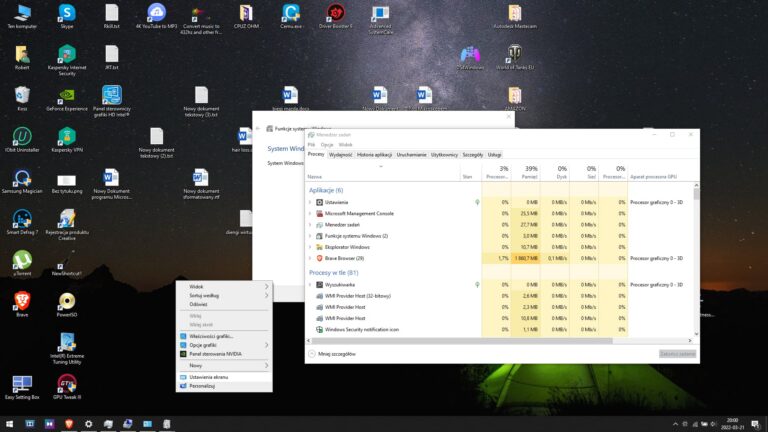
- Press Ctrl + Shift + Esc to open Task Manager.
- Look for Logitech G HUB, Logitech Options, lghub.exe, lghub_agent.exe, or Logitech-related processes.
- Select the process.
- Choose End task.
- Open the Logitech app again.
On macOS:
- Open Applications.
- Select Utilities.
- Open Activity Monitor.
- Search for Logitech processes.
- Select a related process and click the Stop button.
- Open Logitech software again.
This step is especially useful when asking why is my logitech software not opening after the computer wakes from sleep.

Fix Logitech software not opening on Windows
Windows users have several built-in tools that can help identify the problem. Work through these steps in order.
Run Logitech software as an administrator
A permission issue may stop the app from reaching its service or device settings.
- Open the Start menu.
- Search for Logitech G HUB or Logitech Options+.
- Right-click the app.
- Select Run as administrator.
- Approve the User Account Control prompt.
If the program opens this way, the app may lack normal permissions. You can right-click its shortcut, open Properties, select Compatibility, and test the option to run the program as an administrator.
Do not leave administrator mode enabled unless it solves the issue. Some users report that elevated apps can create communication differences with games or other programs.
Restart Logitech services
Logitech G HUB depends on background services. If the service is stopped, the interface may not launch correctly.
- Press Windows + R.
- Type
services.msc. - Press Enter.
- Find Logitech-related services.
- Right-click each relevant service.
- Select Restart.
- Set the startup type to Automatic if it is disabled.
The exact service names can vary by Logitech product and software version. If you do not see a Logitech service, continue with the repair and reinstall steps.
Install pending Windows updates
A Windows update can fix system compatibility problems. It can also create a temporary conflict if the Logitech app is very old.
Open Settings, choose Windows Update, and install available updates. Restart your computer afterward.
Also check for optional driver updates if your mouse, keyboard, or headset is not detected. Use Windows Update first when possible. Avoid random driver sites, since they can provide unsafe or incorrect files.
Check antivirus and firewall settings
Security software may block Logitech background services. This does not always mean the app is unsafe. It may simply need permission to communicate with the device.
Temporarily pause third-party antivirus protection only for testing. If Logitech software opens, turn protection back on and add the official Logitech app folder to the allowed list.
Never disable security software for long periods. If you use a work or school computer, contact the administrator instead of changing these settings.

Repair or reinstall Logitech G HUB and Options+
A damaged installation is one of the strongest answers to why is my logitech software not opening. This can happen after a failed update, sudden shutdown, or interrupted uninstall.
Repair the app first
Some Windows versions offer a repair option:
- Open Settings.
- Select Apps.
- Choose Installed apps.
- Find Logitech G HUB or Logitech Options+.
- Open the app’s advanced options.
- Select Repair if available.
- Restart the computer.
Repair attempts to fix program files without removing all settings. It is a safer first step than a full reset.
Perform a clean reinstall
If repair fails, reinstall the software from Logitech’s official support page.
- Uninstall the Logitech application from Windows Settings.
- Restart the computer.
- Remove remaining Logitech folders only if the official reinstall guide recommends it.
- Download the newest installer from Logitech.
- Install the program.
- Restart the computer again.
- Connect the Logitech device after the app opens.
A clean reinstall may remove profiles, macros, lighting settings, and custom button assignments. Back up or export profiles first when the software still opens on another computer.
Do not install multiple Logitech management apps for the same device unless Logitech specifically supports that setup. For example, G HUB and older Logitech Gaming Software can compete for control of gaming devices.

Fix Logitech software on macOS
Mac users may see a warning that Logitech software cannot access input monitoring, accessibility, Bluetooth, or system extensions. Without these permissions, the app may open but fail to detect the device.
Allow required permissions
Open System Settings and check these areas:
• Privacy & Security
• Accessibility
• Input Monitoring
• Bluetooth
• Login Items
Find Logitech Options+, Logi Options+, or another installed Logitech app. Turn on the permissions it requests, then quit and reopen the software.
The exact menu names can change between macOS versions. If a permission does not appear, uninstalling and reinstalling the current version may make the request appear again.
Check Login Items
Some Logitech apps need a helper process to start when you sign in.
- Open System Settings.
- Select General.
- Choose Login Items.
- Look for Logitech or Logi entries.
- Allow the related background item.
- Restart the Mac.
Apple silicon Macs may also require a current application version. An old Intel-based app can behave poorly on a newer Mac, even when the installer completes.

Fix corrupted cache and user settings
Corrupt cache files can explain why is my logitech software not opening after an update. The app may repeatedly read a broken setting and close before showing its main window.
Before deleting files, close all Logitech processes. Then use the official Logitech reset instructions for your product and operating system.
A safer general approach is:
- Export profiles if the app still works elsewhere.
- Uninstall the Logitech software.
- Restart the computer.
- Install the newest version.
- Recreate settings instead of copying every old configuration file.
Avoid deleting random system folders. Logitech stores files in different locations depending on the product and version. Removing the wrong folder can cause more problems or erase custom profiles.
This is one lesson worth remembering: a clean reset often works better than repeatedly installing the same damaged configuration.

Check device drivers and USB connections
A Logitech app may open normally but fail to detect the mouse, keyboard, webcam, or headset. In other cases, a driver issue can also stop the software from launching.
Try these steps:
• Test a different USB port.
• Connect the device directly to the computer.
• Remove unnecessary USB devices during testing.
• Update motherboard or chipset drivers from the computer maker.
• Reconnect a wireless receiver.
• Keep the receiver away from USB 3.0 hubs and other wireless devices.
• Test the Logitech device on another computer.
If the device works on another computer, your original system likely has a software or port issue. If it fails everywhere, inspect the cable, receiver, battery, or hardware.
For Bluetooth devices, remove old pairings before creating a new connection. Multiple saved connections can sometimes make troubleshooting harder.

Resolve conflicts with other apps
Some programs hook into the keyboard, mouse, screen, or game system. These can conflict with Logitech software.
Common examples include:
• Other mouse and keyboard utilities
• RGB lighting control tools
• Game overlays
• Macro programs
• Remote desktop software
• Virtual machine tools
• Aggressive antivirus products
• System cleanup and tuning apps
Close these tools and test Logitech software again. If it opens, enable the programs one at a time to find the conflict.
A clean boot can help Windows users locate background conflicts. It starts Windows with a limited set of services. If Logitech software opens during a clean boot, another startup program is likely involved.
This test does not prove that the other program is harmful. It only shows that two background tools may be trying to manage the same device.
What to do when Logitech G HUB is stuck loading
Logitech G HUB may remain on the logo screen even when its files are present. This often points to a stopped service, damaged cache, or network-related update issue.
Try the following order:
- End all G HUB processes in Task Manager.
- Restart the Logitech services.
- Restart Windows.
- Run G HUB as administrator once.
- Check firewall permissions.
- Repair or reinstall G HUB.
- Test with a new Windows user account.
A new user account is a useful diagnostic step. If G HUB works there, your main Windows profile may contain damaged settings or permission problems.
Do not repeatedly force-install the app while it is still running. That can leave old processes active and make why is my logitech software not opening even more difficult to diagnose.
Common mistakes to avoid
Troubleshooting becomes slower when several changes are made at the same time. Make one change, test the app, and note the result.
Avoid these mistakes:
• Downloading Logitech software from unofficial websites
• Installing old and new Logitech apps together
• Deleting system folders without a backup
• Disabling antivirus protection permanently
• Reinstalling Windows before testing the app on another computer
• Assuming a dead battery is a software failure
• Ignoring macOS permission requests
• Using a USB hub during every test
Write down the app version, operating system version, device model, and exact error message. These details help Logitech support identify the issue faster.
From common troubleshooting cases, the biggest time saver is testing the device and software separately. First ask whether the app opens without the device connected. Then ask whether the device works with another computer. This simple split narrows the problem quickly.
When to contact Logitech support
Contact Logitech support if the problem continues after a clean reinstall and basic hardware tests.
Include:
• Your Logitech product model
• Your operating system and version
• The Logitech software name and version
• A description of what happens when you open it
• Any error message
• Steps you already tried
• Whether the device works on another computer
You may also need support if the receiver is lost, the device firmware update failed, or the product is still under warranty. Firmware problems can make a device unstable, so do not unplug it during an update unless the software clearly tells you to do so.
A hardware replacement may be needed when the device fails on several computers with different cables, ports, or receivers. Software fixes cannot repair a damaged switch, receiver, battery, or circuit board.
Frequently Asked Questions: Why is my Logitech software not opening?
Why is Logitech G HUB stuck on the loading screen?
G HUB may be stuck because its background service is frozen or its cache is damaged. End all G HUB processes, restart Logitech services, and reinstall the latest version if the loading screen remains.
Why is my Logitech software not opening after a Windows update?
A Windows update can expose compatibility problems with an older Logitech app or driver. Install the newest Logitech version, restart Windows, and check whether antivirus or firewall rules are blocking the app.
Why does Logitech Options+ open but not detect my device?
The device may need permission, a new Bluetooth pairing, or a different USB connection. Check privacy permissions, reconnect the device, and test it directly on another USB port.
Can antivirus software stop Logitech software from opening?
Yes, security software can block a Logitech helper service or prevent the app from communicating with connected hardware. Test this by reviewing allowed apps, but keep protection enabled and use official support instructions.
Should I uninstall Logitech Gaming Software before installing G HUB?
Usually, removing older Logitech software helps prevent conflicts, especially when both programs try to control the same gaming device. Check your device’s compatibility before uninstalling, because some older products may not support G HUB.
Will reinstalling Logitech software delete my profiles?
It can, especially after a clean reinstall or cache reset. Export profiles first when possible, and keep a record of macros, sensitivity values, lighting settings, and key assignments.
Conclusion
The answer to why is my logitech software not opening usually involves a frozen service, damaged files, missing permissions, outdated software, or a conflict with another utility. Start with a restart, check background processes, test the device connection, and then move to repair or clean reinstall steps.
Work slowly and test one change at a time. Use official Logitech installers, keep Windows or macOS updated, and avoid deleting system files without guidance. If the software still fails on several computers, contact Logitech support and provide your device and error details. Explore the official support resources for your model, and share your solution or question in the comments to help other users.