Your laptop camera keeps turning on and off because apps, drivers, privacy settings, or hardware may be fighting for access.
If you are wondering why does my laptop camera keep turning on and off, the cause is often simple to fix. A video app may be opening in the background, your camera driver may be unstable, or your laptop may have a loose camera connection. This guide explains the likely causes and shows safe steps to restore steady camera use.
Why Does My Laptop Camera Keep Turning On and Off?
A laptop camera may turn on and off when software repeatedly requests access, loses access, and then tries again. This can happen during a video call, while using a browser, or even when no camera app appears open.
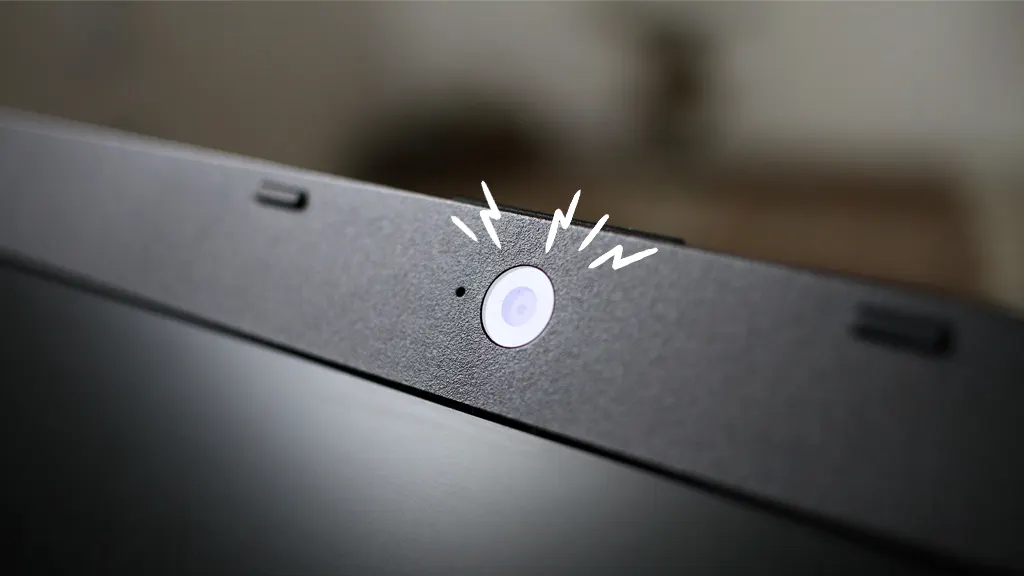
The camera light is useful because it shows that the camera may be active. However, the light itself does not always identify which app is using the camera. You may need to check app permissions, task settings, drivers, and security tools.
Common causes include:
- Two apps trying to use the camera at the same time
- A frozen or poorly updated camera driver
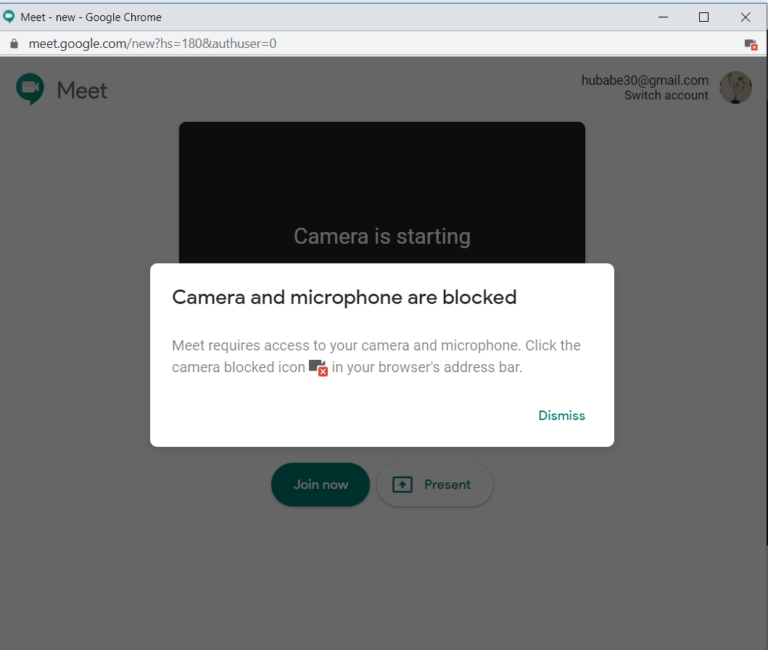
- Privacy settings blocking and allowing access
- A browser tab using camera permission
- Antivirus or security software scanning the camera
- A loose internal cable or damaged camera module
- Malware or an unwanted remote access app
- A recent operating system or app update
In many cases, the issue is not a serious hardware failure. Think of the camera like a single microphone in a small room. If two people try to use it at once, the system may keep switching between them.
Common Software Causes
Software problems are the most common reason why does my laptop camera keep turning on and off appears as a recurring issue. The problem may begin after installing a new meeting app, browser extension, operating system update, or security program.
Another app is using the camera
Most laptop cameras work best with one main app at a time. If Zoom, Microsoft Teams, Google Meet, Skype, Discord, or a browser tab tries to access the camera together, the camera may disconnect and reconnect.
Close every app that may use video. Do not only close the window. Some apps remain active in the system tray or menu bar.
Check these areas:
- Windows taskbar notification area
- macOS menu bar
- Browser tabs with meeting pages
- Startup apps
- Background chat programs
- Camera filters or virtual camera tools
A browser tab has camera access
A forgotten browser tab can keep requesting camera access. This is common with online meeting sites, social media pages, and web-based recording tools.
In your browser settings, review camera permissions. Remove access from sites you no longer use. Then restart the browser and test the camera in only one trusted site.
The camera driver is unstable
A driver helps the operating system communicate with the camera. If the driver is damaged, outdated, or not compatible with a recent update, the camera can flicker or stop at random.
Windows users can check the camera in Device Manager. Look under Cameras or Imaging devices. Updating or reinstalling the camera driver may solve the problem.
Mac users usually receive camera support through macOS updates and the laptop maker’s system software. Restarting the Mac and installing available updates can repair many camera conflicts.
Privacy software is blocking access
Some antivirus tools and privacy apps monitor the webcam. They may block access, allow it briefly, and then block it again. This can make it seem as though the camera is turning itself on and off.
Open your security software and review webcam protection settings. Allow access only for apps you trust. Avoid disabling security protection for a long time, especially on a shared or work laptop.

Hardware and Connection Problems
If software checks do not explain why does my laptop camera keep turning on and off, the camera hardware may need attention. Hardware faults often appear when you move the screen, adjust the hinge, or press near the webcam.
A laptop camera is usually connected to the motherboard by a thin cable inside the display panel. The cable may become loose or damaged after a drop, hard impact, or repeated hinge movement.
Signs of a hardware problem include:
- The camera fails when the screen moves
- The camera works only at certain angles
- The image briefly shows static
- The camera disappears from system settings
- Several apps show the same camera error
- An external webcam works normally
Do not open the display panel unless you have repair experience. Laptop screens and camera cables are delicate. If the laptop is under warranty, contact the manufacturer or an approved repair center.
Dust on the lens can reduce image quality, but it usually does not cause the camera to turn on and off. A flickering camera points more toward software, power, or cable trouble than a dirty lens.
How to Fix a Laptop Camera That Keeps Turning On and Off
Try these steps in order. Test the camera after each major step so you can identify what fixed the problem.
1. Restart the laptop
A full restart clears temporary camera sessions and closes background processes. This simple step often fixes a camera that became stuck after sleep mode or a video call.
Choose Restart instead of only closing the lid. On Windows, a restart can refresh system services more completely than shutting down with Fast Startup enabled.
2. Close all camera apps
Quit every app that may use the camera. Then wait a few seconds and open only one camera app.
On Windows, press Ctrl, Shift, and Esc to open Task Manager. On macOS, use Force Quit when an app does not close normally. Avoid ending system processes unless you know what they do.
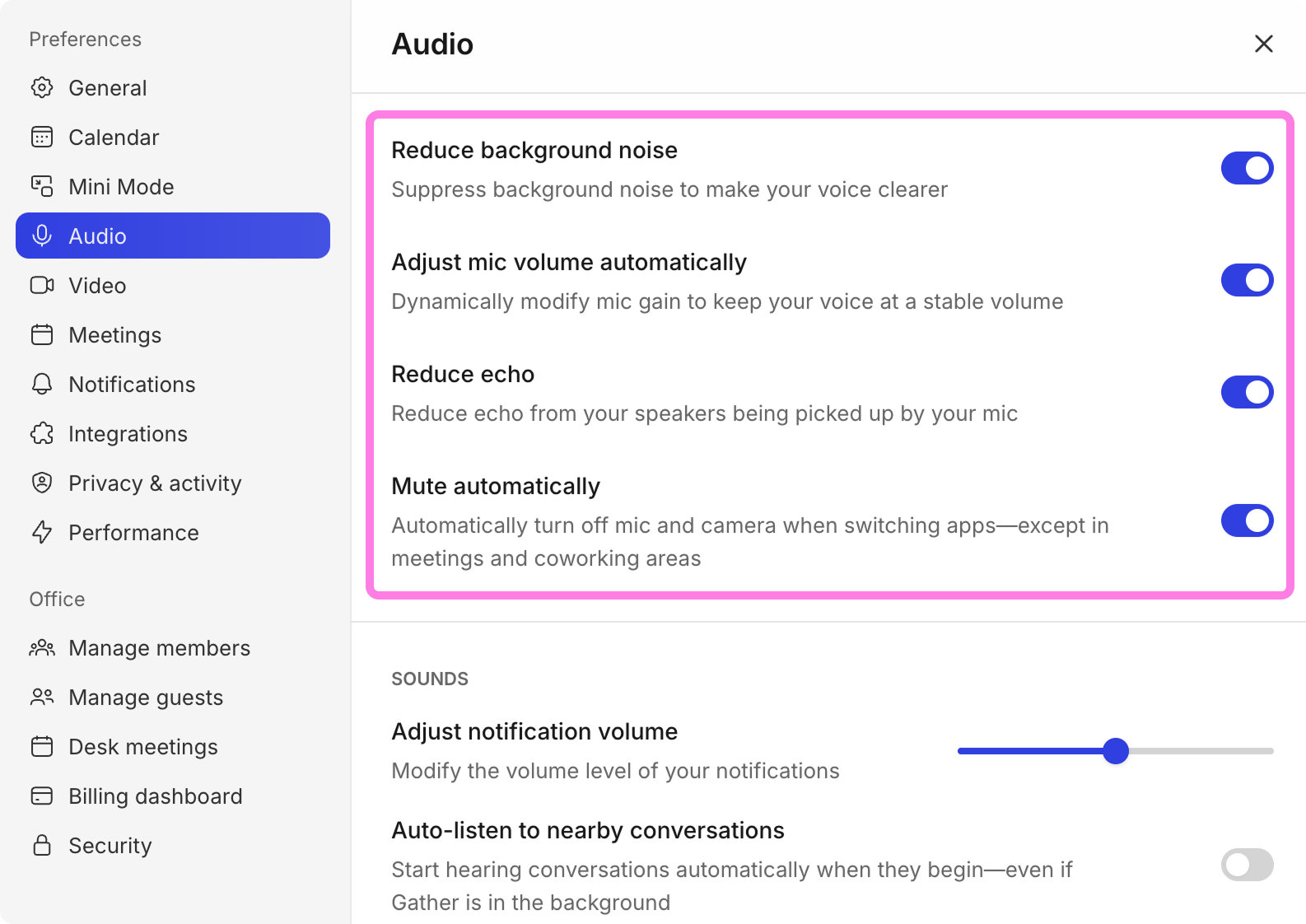
3. Check camera permissions
Windows users can open Settings, select Privacy and security, and choose Camera. Make sure camera access is allowed for the device and the app you want to use.
Mac users can open System Settings, select Privacy and Security, and choose Camera. Enable access for trusted apps, then quit and reopen those apps.
4. Test the built-in camera app
Use the Windows Camera app or an Apple-supported camera test through a trusted app. This helps separate a system problem from an issue inside Zoom, Teams, Meet, or another program.
If the built-in camera works but one app does not, repair or reset that app. If every app fails, continue with driver and hardware checks.
5. Update the operating system and apps
Install updates from the laptop maker and the operating system provider. Camera problems are sometimes fixed through driver updates, security patches, or compatibility improvements.
Only download drivers from the laptop manufacturer or a trusted operating system update tool. Random driver websites can provide unsafe or incorrect files.
6. Reinstall the camera driver on Windows
Open Device Manager and expand Cameras. Right-click the camera, choose Uninstall device, and restart the laptop if the option is available.
Windows may reinstall the driver automatically. If it does not, download the correct camera driver from the laptop manufacturer’s support page.
7. Reset the affected app
If the camera fails only in one program, check that program’s camera settings. Select the built-in camera instead of a virtual camera, remove unused camera effects, and reset the app if needed.
Virtual camera tools can create confusion. Examples include video filters, streaming software, and background replacement utilities.
8. Test with an external webcam
Connect a trusted USB webcam. If it works without interruption, the built-in camera or its cable may be the problem.
If both cameras keep disconnecting, the cause is more likely to be the operating system, USB power, security software, or a broader system fault.

How to Check for Privacy or Security Risks
A camera turning on and off can feel alarming. In most cases, it is caused by a normal app or driver. Still, you should check security if the behavior happens when the laptop is idle.
Review the list of apps with camera permission. Remove access from programs you do not recognize. Also review browser extensions and uninstall ones you did not install or no longer need.
Run a full malware scan with a reputable security program. Keep the operating system updated, and avoid downloading cracked software. Unwanted remote access tools can sometimes control cameras, although this is less common than ordinary app conflicts.
Useful safety steps include:
- Cover the camera when you are not using it
- Keep the camera privacy shutter closed when available
- Use a standard user account for daily work
- Turn on automatic security updates
- Use unique passwords and multifactor authentication
- Check remote access apps and remove unknown tools
- Contact a professional if the camera activates with other unusual activity
A camera light that turns on briefly does not prove that someone is watching you. Look for supporting signs, such as unknown accounts, unexpected software, unusual login alerts, or unexplained system activity.
Windows and Mac Settings That Can Help
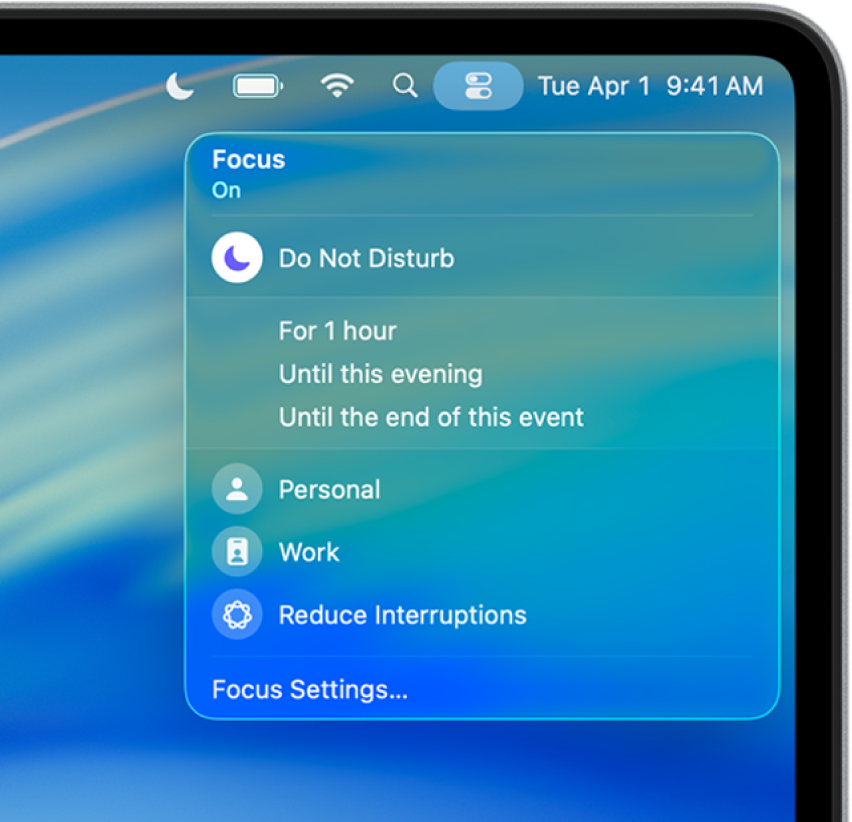
The exact fix depends on your operating system. Windows and macOS use different privacy controls, driver systems, and camera services.
Windows troubleshooting
On Windows, check these settings:
- Settings > Privacy and security > Camera
- Device Manager > Cameras
- Settings > Apps > Installed apps
- Windows Update
- Task Manager > Startup apps
The Windows Camera app can help test the device. If it shows an error code, write it down. Search the code on the laptop maker’s support page rather than relying on random forum instructions.
Some laptops also include a physical camera switch or keyboard key. Look for a camera icon on the function keys. Pressing it may block the camera and create symptoms that seem like a software fault.
macOS troubleshooting
On macOS, check these areas:
- System Settings > Privacy and Security > Camera
- System Settings > General > Login Items
- Software Update
- The camera selection menu inside the video app
Quit apps fully before testing. On a Mac, clicking the red button may close the window while leaving the app open. Use Command and Q to quit the active app.
If the camera works in one macOS app but not another, the problem is likely related to permissions or that app’s settings. If no app can detect the camera, contact Apple Support or the laptop manufacturer.

Mistakes to Avoid When Troubleshooting
When people ask why does my laptop camera keep turning on and off, they often try too many changes at once. This makes it hard to know which step helped and may create new problems.
Avoid these common mistakes:
- Installing drivers from unknown websites
- Disabling all security tools permanently
- Opening the screen panel without repair experience
- Granting camera access to every app
- Deleting system files
- Using registry cleaners or unsafe repair tools
- Ignoring a physical camera shutter
- Assuming the camera issue proves malware
Take notes as you troubleshoot. Record when the problem began, which apps were open, and whether moving the screen changes the behavior. This information can save time if you need technical support.
In my troubleshooting experience, the fastest reliable method is to test one trusted app, then test the built-in camera, and finally test an external webcam. This simple comparison often shows whether the fault is in the app, system, or hardware.

When to Contact a Professional
You should seek professional help when the camera continues to disconnect after software checks and a clean restart. A repair technician can inspect the camera cable, display hinge, motherboard connection, and camera module.
Contact support sooner if:
- The laptop was dropped or exposed to liquid
- The camera disappears from Device Manager
- The screen or hinge is damaged
- The camera causes the system to freeze
- You see unknown remote access activity
- The laptop is still under warranty
Do not repeatedly bend or press the screen to make the camera work. That may temporarily change the connection but can cause more damage.
Keep your important files backed up before sending the laptop for repair. If privacy is a concern, ask the technician about data protection and provide only the account access they need.

Frequently Asked Questions About Why Does My Laptop Camera Keep Turning On and Off
Why does my laptop camera keep turning on and off during a Zoom call?
Another program may be trying to use the camera, or Zoom may have selected a virtual camera. Close other video apps, choose the built-in camera in Zoom settings, and update Zoom and the camera driver.
Can a laptop camera turn on by itself because of malware?
Malware can access a camera, but ordinary software conflicts are much more common. Check camera permissions, review unknown apps, and run a full security scan if the camera activates while the laptop is idle.
Why does my camera work in one app but not another?
The apps may have different camera permissions or may be using different camera sources. Allow access for the affected app and select the correct built-in camera in its video settings.
Can a loose camera cable cause the camera to turn on and off?
Yes. A loose or damaged cable can interrupt the camera signal, especially when you move the laptop screen. If the camera changes when the hinge moves, have the laptop inspected by a qualified technician.
Will updating the camera driver fix the problem?
An update can fix driver bugs and compatibility problems, but it is not a guarantee. If updating does not help, reinstall the driver, check privacy settings, and test the camera with another app or external webcam.
Should I cover my laptop camera?
Covering the camera is a simple privacy measure when you are not using it. A built-in shutter is best, because thick covers can sometimes press against the screen when the laptop closes.
Conclusion
A laptop camera that keeps turning on and off is usually dealing with an app conflict, privacy restriction, driver problem, or hardware connection issue. Restart the laptop, close camera apps, check permissions, update the system, and test the camera with another app.
If the camera reacts to screen movement or fails everywhere, stop forcing it to work and seek professional help. Follow the steps above one at a time, and share your results or questions in the comments.