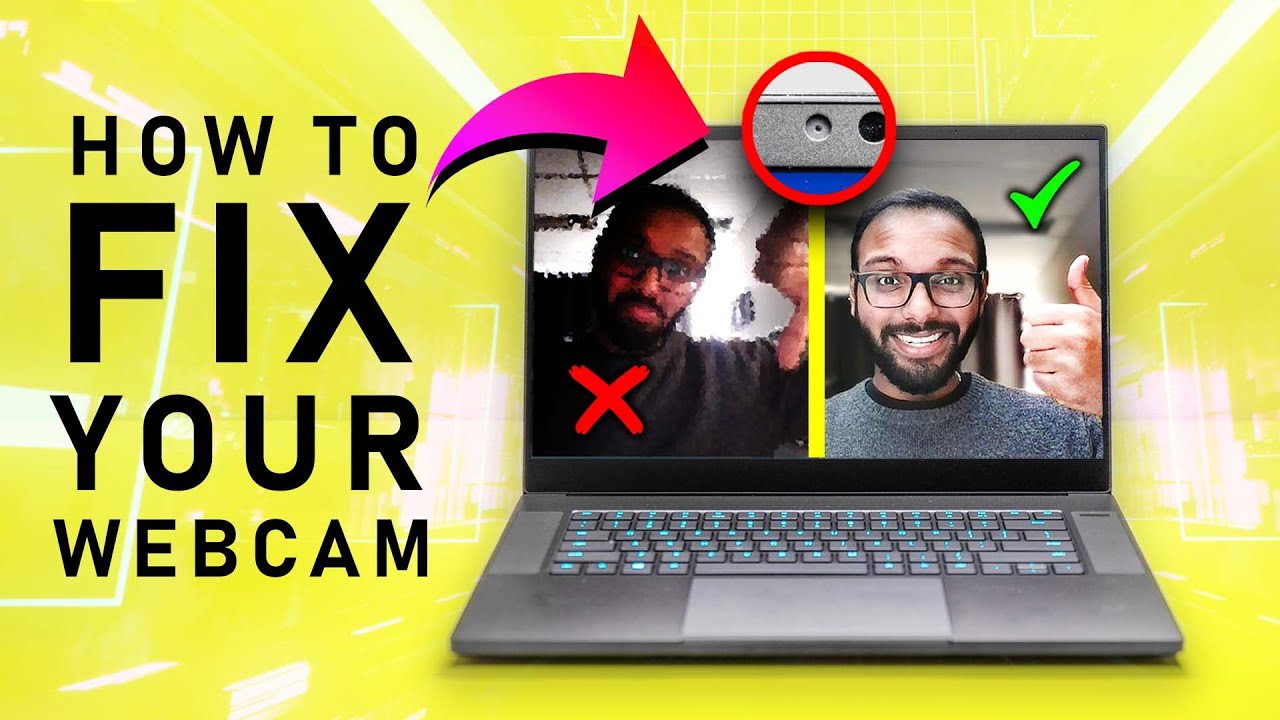
Laptop webcams are so bad because tiny sensors, weak lenses, poor lighting, and limited processing reduce image quality.
If you have looked blurry, dark, or strangely grainy on a video call, you are not alone. The answer to why are laptop webcams so bad lies in a mix of hardware limits, thin laptop designs, software choices, and poor lighting. This guide explains each cause in simple terms and shows how to improve your camera without buying a new computer.
Why Are Laptop Webcams So Bad?
Most built-in laptop webcams use small camera parts. They are designed to fit inside a thin screen, not to match the quality of a modern phone camera.
A webcam must work with a tiny lens, a small image sensor, and limited space. These parts collect less light than the larger camera system in a smartphone. As a result, your video may look soft, noisy, washed out, or too dark.
Laptop makers also treat the webcam as a secondary feature. They often spend more money on the display, processor, battery, keyboard, and cooling system. The webcam may receive only enough hardware to support basic video calls.
Here are the main reasons laptop webcams look poor:
• Small image sensors capture less light.
• Tiny lenses produce less detail.
• Thin screen bezels leave little room for camera parts.
• Low camera resolutions limit sharpness.
• Automatic exposure can make faces too bright or too dark.
• Budget webcams may use weak image processing.
• Poor lighting exposes every weakness.
• Video apps often compress the camera feed.
The short answer to why are laptop webcams so bad is that they are built for convenience and low cost, not professional image quality.
Small Sensors Make a Big Difference
The image sensor is the part that turns light into an electronic image. A larger sensor can collect more light. A tiny sensor struggles when the room is dim.
This is why your laptop webcam may look acceptable near a bright window but terrible at night. In low light, the camera raises its gain, which is similar to increasing the volume on a weak audio signal. You get a brighter image, but you also get more digital noise.
That noise appears as moving specks or colored grain. It can make your skin look rough and remove fine details from your face.
A phone may produce a better image because it has:
• A larger sensor.
• A wider lens system.
• Better autofocus.
• Dedicated image processing hardware.
• Multiple cameras and depth data.
• More advanced software for HDR and noise reduction.
A laptop webcam usually has none of these advantages. It must fit into a narrow screen frame and run with very little power.
In my own webcam testing, the biggest quality jump often came from adding light rather than changing software. A basic camera near a bright lamp looked clearer than a more expensive camera in a dark room.
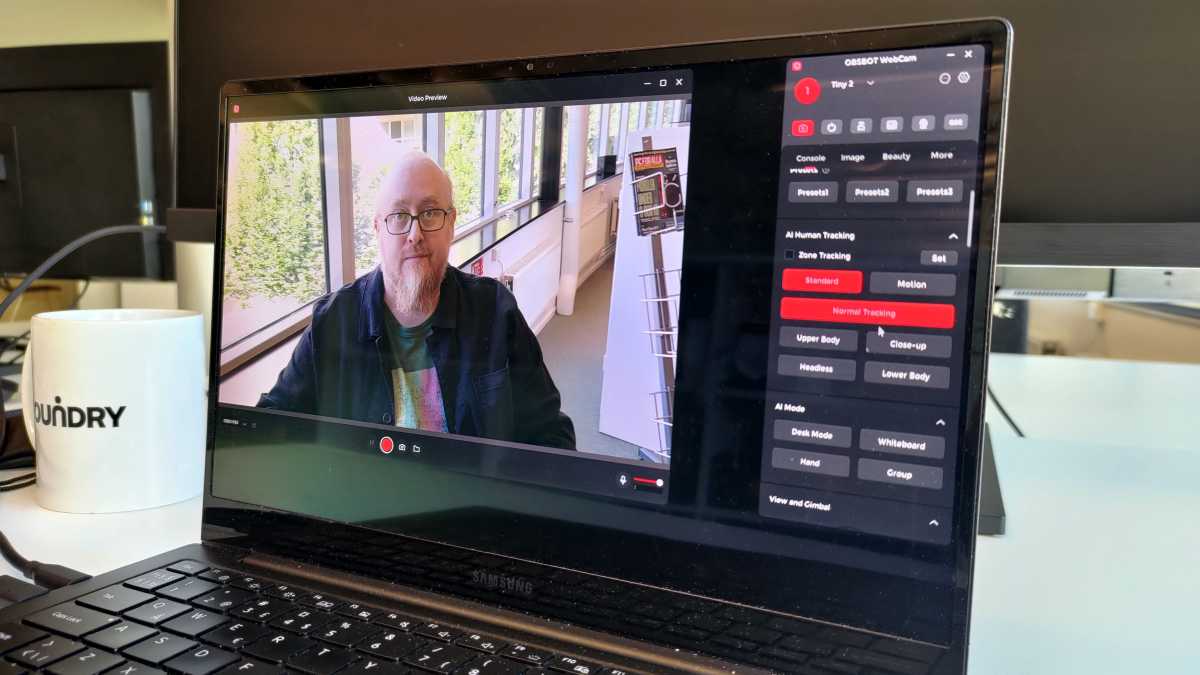
Tiny Lenses Reduce Sharpness
A laptop webcam lens is usually very small. It may have a fixed focus and a simple plastic design. This keeps the cost and size down, but it also limits sharpness.
The lens must capture a wide view from a short distance. That is useful when you sit close to your laptop, but wide lenses can make faces look less detailed. They may also create mild distortion near the edges of the frame.
Many built-in webcams use fixed focus. This means the camera does not actively adjust focus when you move. If you sit too close, lean back, or hold an object near the screen, the image may look soft.
Autofocus can help, but it is not always better. A webcam may hunt for focus during a call. You might see the image shift in and out of clarity while the camera tries to decide what matters most.
Common lens limits include:
• Soft edges.
• Weak detail.
• Fixed focus.
• Mild face distortion.
• Limited zoom quality.
• Glare from bright lights.
Digital zoom makes this problem worse. It crops the image instead of adding real detail. If you zoom in too far, your face becomes blurry and blocky.

Laptop Design Limits Camera Quality
Modern laptops are thin, light, and easy to carry. That design brings many benefits, but it leaves little room for a good camera.
The webcam sits inside the top bezel of the screen. Manufacturers must fit the lens, sensor, microphone, wiring, and protective cover into a very small space. A large camera module would make the screen thicker or increase the bezel size.
This creates a design trade-off:
• Thin laptops are easier to carry.
• Small bezels look modern.
• Large camera parts need more space.
• Better sensors often need more power and room.
• Advanced lenses can add cost and weight.
Some premium laptops now use 1080p or higher-resolution webcams. These models can look much better, but resolution is only one part of image quality. A 1080p webcam with a poor lens and weak sensor may still look worse than a well-lit 720p camera.
That is an important lesson when shopping. Do not judge a webcam only by its megapixel or resolution number.
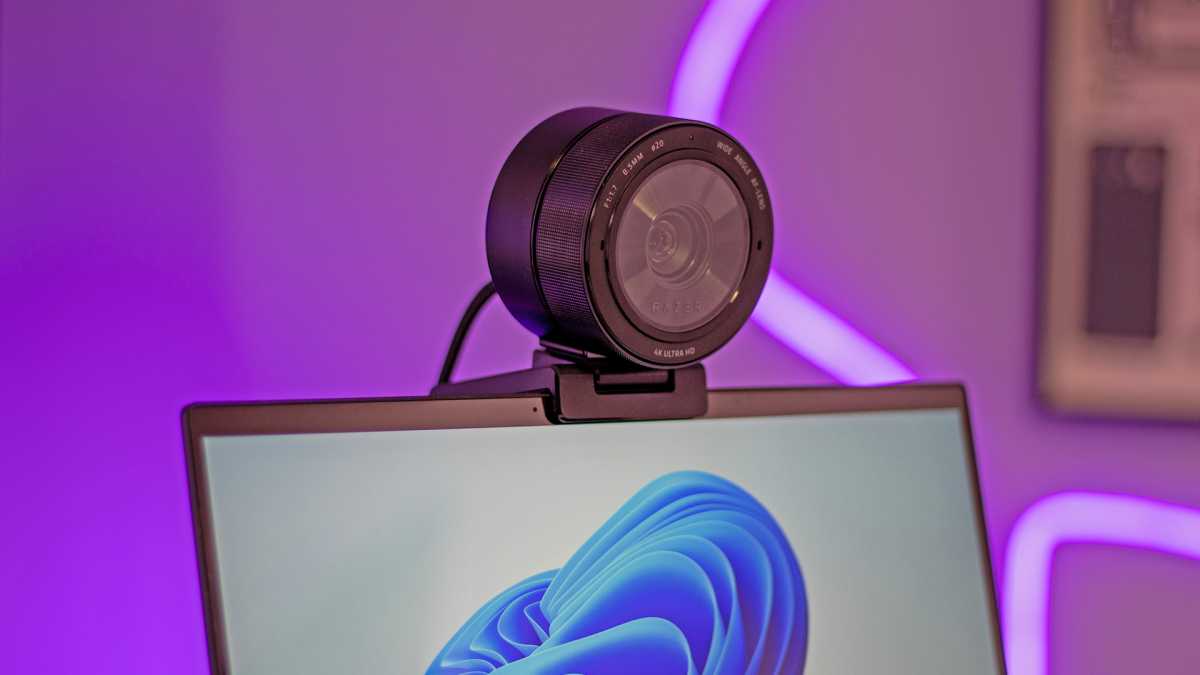
Low Resolution Is Still Common
Many laptop webcams use 720p video. This resolution can work for simple calls, but it does not provide much detail.
A 720p image contains fewer pixels than a 1080p image. When the video is shown in a large meeting window, the image can appear soft. Small text, hair detail, and facial features may disappear.
Some laptops advertise a high-resolution sensor but send a lower-resolution stream by default. The video app may also reduce resolution to save bandwidth.
A 1080p webcam usually gives you:
• A sharper face image.
• More room to crop.
• Better detail in good light.
• A cleaner image on large monitors.
However, resolution cannot fix poor lighting or a weak lens. More pixels do not automatically mean a better picture. They may simply create a larger blurry image.
When asking why are laptop webcams so bad, it helps to separate resolution from overall image quality. Resolution tells you how many pixels exist. It does not tell you how well those pixels capture light and detail.

Poor Lighting Makes Webcams Look Worse
Lighting is one of the biggest reasons why are laptop webcams so bad in real use. Even a decent camera can look poor when your face is dark.
A camera needs enough light to create a clean image. If the room is dim, the webcam must brighten the picture through software. This creates noise, motion blur, and dull colors.
Backlighting is another common problem. If a bright window is behind you, the camera sees a large area of light. It may darken your face to protect the background, leaving you looking like a silhouette.
For a better image:
-
Place a lamp or window in front of you.
-
Keep the light slightly above eye level.
-
Avoid strong light directly behind your head.
-
Use soft, diffused light instead of a harsh bare bulb.
-
Keep the light close enough to brighten your face.
-
Reduce mixed lighting from different color bulbs.
A simple desk lamp can help. A small LED panel with adjustable brightness can help even more. You do not need a studio setup for a clear video call.
I once noticed that a plain white wall near a window improved a webcam image because it reflected soft light back toward my face. Small changes like this often work better than filters.

Automatic Exposure and White Balance Can Fail
Laptop webcams use automatic controls to adjust the image. These controls include exposure, white balance, focus, contrast, and color.
Automatic exposure decides how bright the image should be. If a bright window or white wall enters the frame, the camera may lower exposure. Your face then looks too dark.
Automatic white balance decides whether the scene looks warm or cool. Under some indoor lights, skin may look orange, green, or gray. The camera is trying to correct the room, but it does not always understand what you want to look natural.
Other common problems include:
• Flickering under LED or fluorescent lights.
• Overexposed foreheads.
• Dark eyes caused by overhead lighting.
• Sudden brightness changes when you move.
• Washed-out colors from strong daylight.
Some webcam apps let you adjust exposure, brightness, contrast, saturation, and white balance. Use these controls gently. Extreme adjustments can create unnatural skin tones or increase image noise.
If your camera has an HDR setting, test it in a room with a bright background. HDR may protect highlights and reveal more detail in shadows. It can also produce an artificial look, so the best setting depends on your room.
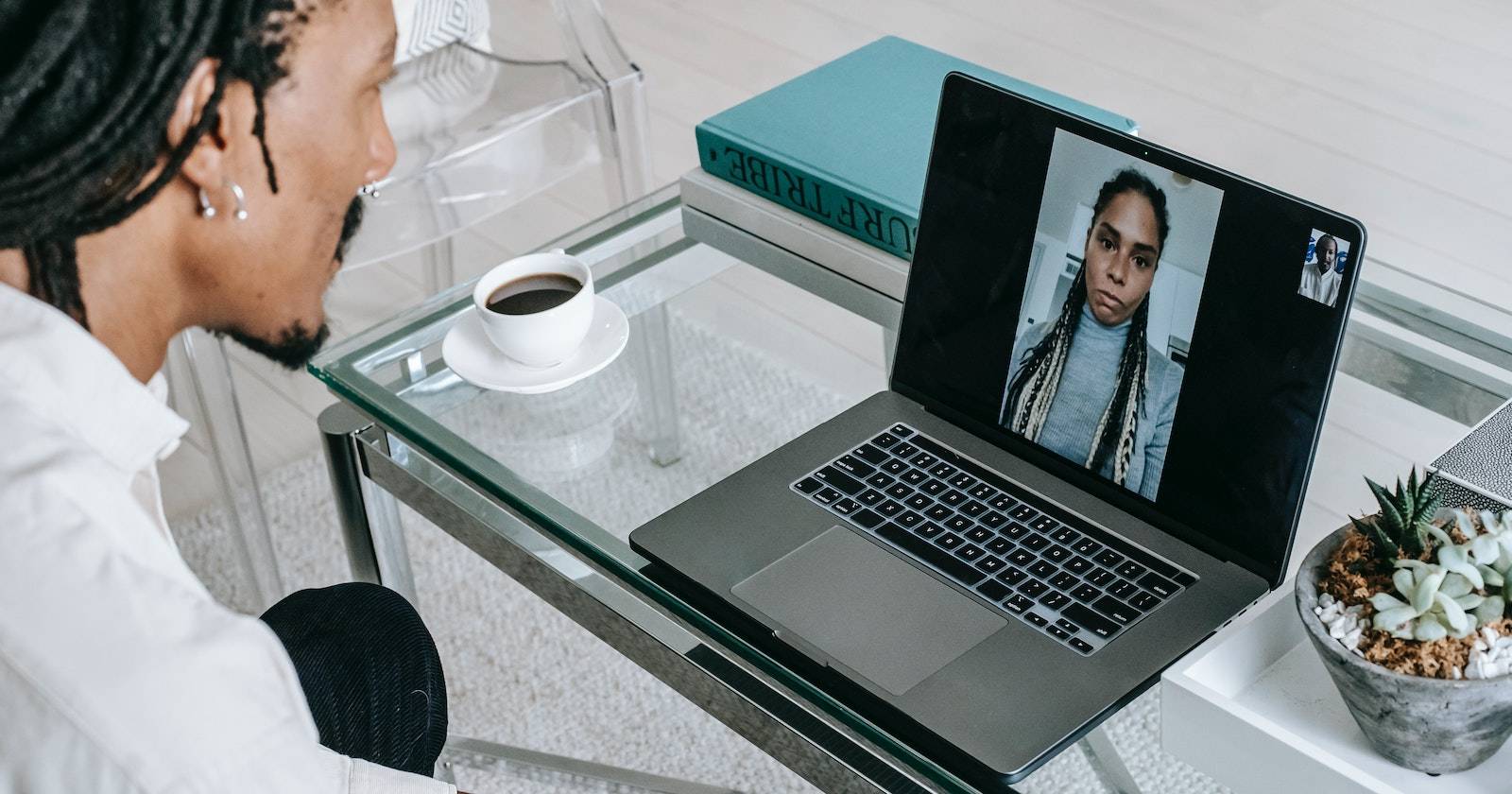
Video Calling Apps Compress the Image
Your webcam does not always send its full-quality image to the other person. Apps such as Zoom, Microsoft Teams, Google Meet, and other services compress video to reduce data use.
Compression lowers file size by removing some visual information. This works well when the image is clear and stable. It looks worse when the original image already has noise, motion blur, or poor lighting.
Your final video quality depends on several steps:
• The webcam sensor captures the scene.
• The webcam software processes the image.
• The operating system sends the video.
• The meeting app compresses the stream.
• Your internet connection may reduce quality.
• The other person’s device displays the result.
A weak Wi-Fi connection can cause lower resolution or choppy video. Even a high-quality camera cannot look smooth if the network keeps dropping data.
For important calls, use a stable connection when possible. Close heavy downloads, move closer to your router, or connect through Ethernet. Also check the meeting app’s camera settings and choose high-definition video if your plan and connection support it.
Privacy Covers and Screen Placement Matter
A privacy shutter or sliding cover protects you from unwanted camera access. That is a smart security tool, but it can block part of the lens if it is not fully open.
Dust, fingerprints, and stickers can also reduce image quality. Since the webcam sits near the top of the screen, it is easy to touch while adjusting the display.
Clean the lens carefully with:
• A soft microfiber cloth.
• Gentle circular motions.
• No harsh cleaning fluid sprayed directly on the camera.
Screen position also changes how you look. If the laptop sits below your chest, the camera points upward. This creates an unflattering angle and may show more of the ceiling.
Raise the laptop so the camera is close to eye level. A stack of stable books can work, but make sure the laptop cannot slide. This improves both the camera angle and your posture.
Software Drivers and Settings Can Affect Quality
A webcam may look poor because of software rather than hardware. Outdated drivers, incorrect permissions, or low-quality default settings can limit performance.
Check these settings:
• Confirm that the correct webcam is selected.
• Turn on HD video if the app provides that option.
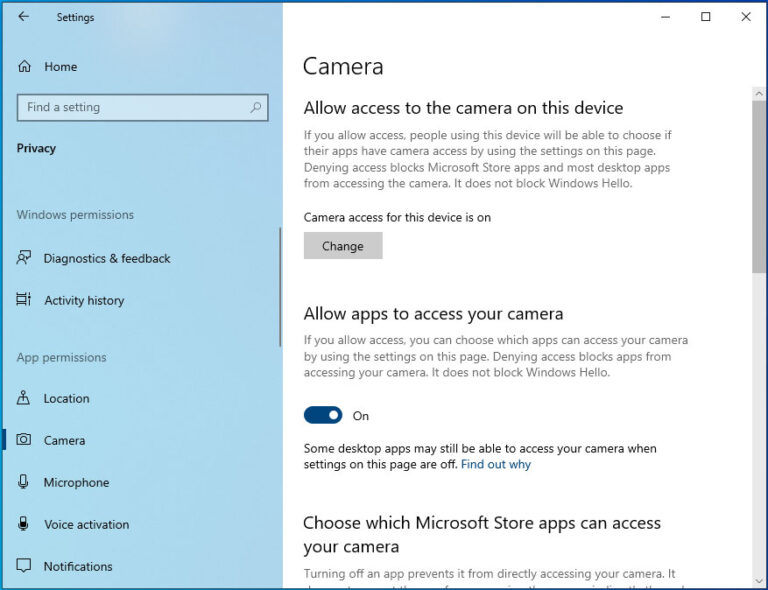
• Allow the app to access the camera.
• Install operating system updates.
• Update the laptop manufacturer’s camera drivers.
• Check whether a privacy utility is reducing camera quality.
• Disable unnecessary virtual backgrounds.
Virtual backgrounds use processing power. If your laptop is busy, the app may reduce video quality or create rough edges around your head.
Beauty filters and automatic enhancements can also make the image look strange. They may smooth your face, sharpen edges, or change skin color. Try turning them off when you want a natural image.
If the webcam suddenly became blurry, restart the computer and test it in another app. This simple step can reveal whether the problem comes from the camera, the meeting software, or a temporary system issue.
How to Improve a Bad Laptop Webcam
You can often improve your webcam without replacing your laptop. Start with the free changes first.
Improve the Room
Place a soft light in front of you. Open a window if the daylight is even. Avoid sitting with a bright window directly behind you.
Improve the Camera Angle
Raise the laptop to eye level. Sit at a comfortable distance, usually about an arm’s length from the screen. Keep your face near the center of the frame.
Clean the Lens
Use a clean microfiber cloth. Do not use your shirt, since fabric may leave oils or tiny fibers on the lens.
Change App Settings
Select HD video when available. Test brightness, exposure, and white balance. Turn off filters that make your face look artificial.
Improve Your Internet Connection
Use a stable Wi-Fi signal. Stop large downloads during important calls. If possible, use a wired connection.
Add an External Webcam
An external USB webcam is often the best upgrade. Look for:
• 1080p resolution.
• Good low-light performance.
• Autofocus if you move often.
• A useful field of view.
• A built-in privacy cover.
• Reliable microphone quality.
• Software controls for exposure and color.
A webcam with a 78- to 90-degree field of view suits many desk setups. A wider lens can show more of the room, but it may make your face look smaller.
In my experience, a basic 1080p external webcam plus a small front light can outperform a premium laptop webcam in nearly every meeting. The key is not only the camera. It is the complete setup.
Should You Buy an External Webcam?
An external webcam makes sense if you attend many meetings, teach online, stream, create videos, or speak with clients. It also helps when your laptop camera has a damaged lens or very low resolution.
You may not need one if you only make occasional calls. Better lighting, a clean lens, and a higher camera position can provide a large improvement at no cost.
Consider your needs:
• Casual calls: Improve lighting and camera height.
• Daily work meetings: Choose a reliable 1080p USB webcam.
• Online teaching: Use a camera with a wide view and clear audio.
• Streaming: Consider a better webcam, mirrorless camera, or dedicated video camera.
• Travel: Keep the built-in webcam and use a small light.
Remember that sound matters too. Viewers may forgive a slightly soft image, but poor audio quickly becomes tiring. If your laptop microphone sounds distant, an inexpensive USB microphone or headset may improve calls more than a camera upgrade.
What Webcam Specifications Really Matter?
Shopping for a webcam can be confusing because product boxes highlight large numbers. Focus on useful features instead.
Resolution matters, but it is not everything. A 1080p webcam is a good target for most people. A 4K webcam may help creators who crop or edit video, but it needs more bandwidth and processing power.
Low-light performance matters because many home offices are not brightly lit. Look for reviews that show real indoor footage, not only polished marketing images.
Autofocus helps if you move toward and away from the camera. Fixed focus can be fine for normal meetings when you remain at a steady distance.
The field of view affects how much the camera shows. A narrow view feels more personal. A wide view works well for group calls but may reveal clutter.
Software support is also important. A camera with exposure and color controls gives you more ways to solve image problems.
Do not assume that a higher price guarantees a better image. Check independent tests, sample videos, warranty terms, privacy features, and compatibility with your operating system.
Common Mistakes to Avoid
Many people blame the laptop webcam before checking the setup. Avoid these common mistakes:
• Sitting with a bright window behind you.
• Placing the laptop far below eye level.
• Using a dirty camera lens.
• Relying on digital zoom.
• Selecting a virtual camera with low output quality.
• Wearing a bright shirt under strong overhead lights.
• Expecting 720p video to look sharp on a large display.
• Buying a camera based only on resolution.
• Ignoring microphone quality.
• Testing the webcam only in a dark room.
Try a short recording before an important call. Look at the image, listen to the sound, and adjust one thing at a time. This method makes it easier to find the real problem.
Frequently Asked Questions About Why Are Laptop Webcams So Bad
Why are laptop webcams so bad compared with phone cameras?
Phone cameras usually have larger sensors, better lenses, stronger image processors, and more advanced software. Laptop webcams must fit into a thin display bezel, so they use smaller and less capable hardware.
Are 720p laptop webcams good enough for video calls?
A 720p webcam can work for basic calls, especially with good lighting and a strong internet connection. However, a 1080p webcam usually looks sharper and gives you more detail on larger screens.
Can better lighting fix a poor laptop webcam?
Better lighting can greatly improve image quality by reducing noise and motion blur. It cannot repair a damaged lens or add real resolution, but it often provides the biggest improvement for free.
Why does my laptop webcam look grainy?
Grain usually appears when the camera does not receive enough light. The webcam increases digital gain to brighten the image, which also increases noise.
Is an external webcam better than a built-in webcam?
An external webcam is often better because it can use a larger sensor, better lens, and more advanced controls. It also lets you place the camera at eye level instead of being limited to the top of the laptop screen.
Why does my webcam look blurry even in bright light?
The lens may be dirty, the camera may use fixed focus, or the meeting app may be lowering video quality. Clean the lens, check the focus distance, and confirm that HD video is enabled.
Does internet speed affect webcam quality?
Yes. A weak or unstable connection can cause video compression, lower resolution, frozen frames, and delays. A stable connection helps the app maintain better image quality.
Conclusion
Laptop webcams are so bad mainly because they use tiny sensors, simple lenses, limited space, and basic image processing. Low light, poor camera angles, automatic exposure, software compression, and weak internet can make the problem even more noticeable.
Start with free fixes: clean the lens, face a soft light, raise the laptop, and check your video settings. If you make frequent calls or create online content, a good 1080p external webcam can be a worthwhile upgrade. Test your setup before your next meeting, and share your best webcam tips in the comments.