Your laptop camera light usually means an app is using the webcam, but malware or a stuck process is also possible.
Wondering why is my camera light on my laptop can feel unsettling, especially when no video call is open. In most cases, the cause is simple: a meeting app, browser tab, camera tool, or background service has accessed the webcam. This guide explains the likely causes, safe checks for Windows and Mac, privacy risks, and practical fixes you can use today.
Why Is My Camera Light On My Laptop?
The camera light turns on when the webcam is active or when your laptop detects that an app has started using it. Many laptops connect the light to the camera’s power circuit, so the light acts as a useful privacy signal.
If you ask, “Why is my camera light on my laptop when I am not using it?” the answer is often a background app. Zoom, Microsoft Teams, Google Meet, Skype, FaceTime, Discord, and browser pages can keep camera access open for a short time after you leave a call.
Common explanations include:
• A video meeting app is still running.
• A browser tab has camera permission.
• The built-in Camera app is open in the background.
• A messaging app is checking video settings.
• A driver or system service has stopped responding.
• A recent update has caused a temporary camera error.
• Unwanted software may be trying to access the webcam.
A camera light that turns on briefly during startup is usually normal. A light that stays on for many minutes without a clear reason deserves closer attention.

Common Reasons Your Laptop Camera Light Turns On
Understanding the cause makes the fix much easier. Start with ordinary software issues before assuming the laptop has been hacked.
A video call app is still open
Closing a meeting window does not always close the full app. Some programs remain active in the system tray or menu bar. If the app still has access to your camera, its process may keep the webcam awake.
Check apps such as:
• Zoom
• Microsoft Teams
• Google Meet
• Skype
• Discord
• Slack
• FaceTime
• Facebook Messenger
Quit the app fully, not just the meeting window. On Windows, right-click its icon in the notification area and choose the option to quit or exit. On Mac, select the app and press Command-Q.
A browser tab has camera permission
A web page can use your camera after you approve permission. This includes video meeting sites, online interview tools, social media pages, and browser-based recording tools.
A tab may still use the camera even when it is not the active page. Close tabs that use video, then restart the browser. You can also remove camera permissions from your browser settings.
The Camera app is stuck
The built-in camera program may freeze while the camera remains active. This can happen after sleep mode, a system update, or a failed video call.
Restarting the app often solves the issue. If it does not, restart the laptop. A full restart closes many background processes and reloads the camera driver.
A virtual camera is active
Programs such as OBS Studio, Snap Camera alternatives, and video effects tools can create virtual cameras. These tools may access your physical webcam while another app is open.
Look for camera, streaming, recording, or video enhancement software. Close these programs one at a time and watch whether the light turns off.
A camera driver has failed
A driver helps the operating system communicate with the webcam. If the driver crashes, the camera light can remain on even though no picture appears.
This issue is more common after:
• A Windows update
• A macOS update
• A laptop manufacturer driver update
• A system restore
• Installing new video software
Updating or reinstalling the camera driver can correct the problem.
How to Check Camera Access on Windows
If you are asking why is my camera light on my laptop running Windows, the privacy settings can show which apps have recently requested camera access.
Follow these steps:
-
Open Settings.
-
Select Privacy & security.
-
Choose Camera.
-
Review camera access for the device.
-
Check which apps are allowed to use the camera.
-
Turn off access for apps you do not recognize or need.
Windows versions can display slightly different labels. Look for options related to camera access, desktop apps, and recent activity.
Next, check running programs:
-
Press Ctrl + Shift + Esc to open Task Manager.
-
Select Processes.
-
Look for meeting, recording, browser, or camera apps.
-
Select an app that should not be using the webcam.
-
Choose End task.
Be careful with system processes. Do not close a process unless you know what it does. If you are unsure, search the exact process name using a trusted security tool or your laptop maker’s support page.
You can also inspect the camera in Device Manager:
-
Right-click the Start button.
-
Open Device Manager.
-
Expand Cameras or Imaging devices.
-
Right-click the webcam.
-
Choose Update driver.
-
Restart the laptop after the update.
If the problem began after a driver update, open the webcam’s Properties window and check whether the option to roll back the driver is available.

How to Check Camera Access on a Mac
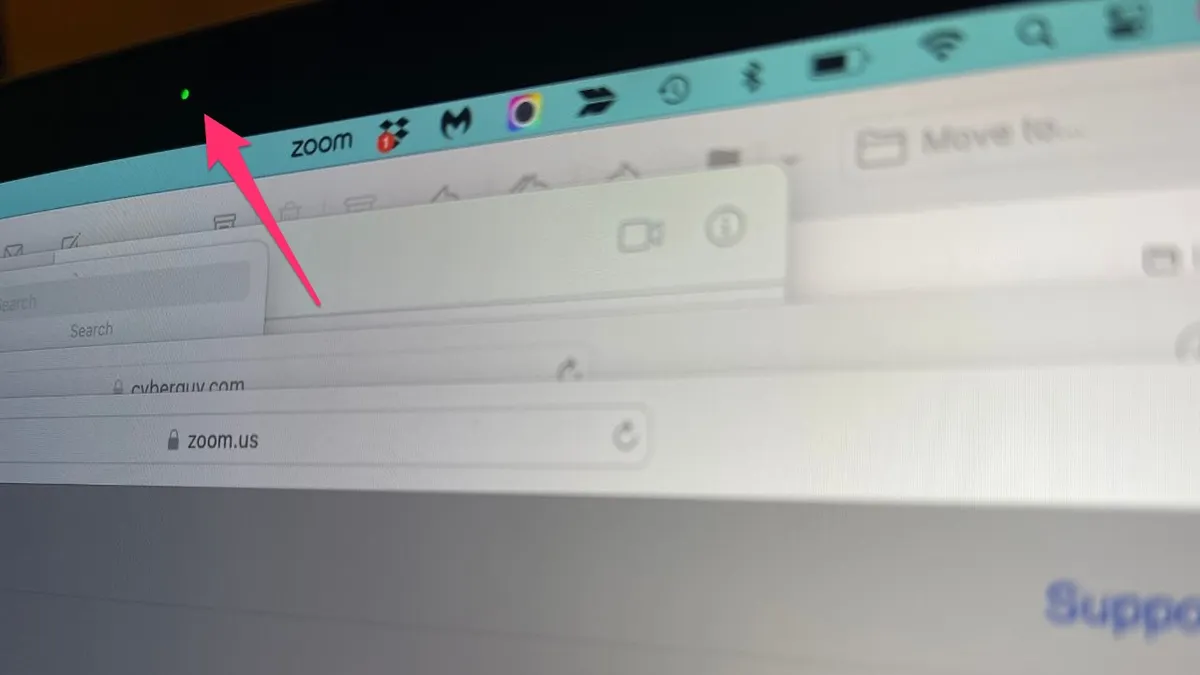
Mac users may wonder why is my camera light on my laptop when the green indicator stays active. The same basic rule applies: an app or service is accessing the built-in camera.
To review permissions:
-
Open the Apple menu.
-
Select System Settings.
-
Choose Privacy & Security.
-
Select Camera.
-
Review the apps listed there.
-
Turn off access for apps that do not need it.
On older macOS versions, these settings may appear under System Preferences. The names can vary, but the privacy section should still include camera permissions.
Then quit active apps:
-
Press Option-Command-Escape.
-
Review the apps that are running.
-
Select video, browser, or recording apps.
-
Choose Force Quit only when normal quitting fails.
You can also open Activity Monitor and search for terms such as camera, video, capture, meeting, or recording. Do not force quit unknown system services without checking their purpose first.
If the light stays on after closing apps, restart the Mac. If the issue continues after a restart, install available macOS updates and check for updates from the laptop manufacturer or webcam software provider.

Is a Camera Light Always a Sign of Hacking?
No. A camera light does not automatically mean your laptop has been hacked. Most cases come from a normal app, a browser permission, or a software glitch.
Still, unexpected webcam activity should not be ignored. Modern laptops often link the indicator light directly to camera power, which makes secret recording harder. However, not every external webcam has the same hardware design, and some older devices may not provide a reliable light.
Warning signs include:
• The camera light turns on repeatedly after you close every camera app.
• An unknown app has camera permission.
• New programs or browser extensions appear without your approval.
• Your laptop becomes unusually slow or hot.
• The webcam activates alongside strange pop-ups.
• Your accounts show unfamiliar sign-ins.
• Antivirus alerts mention spyware, remote access tools, or unwanted software.
If you see these signs, disconnect from the internet and run a full scan with reputable security software. Do not delete random system files. If the behavior continues, ask a qualified technician or your organization’s IT team for help.
Security agencies commonly recommend keeping operating systems updated, using strong account passwords, enabling multifactor authentication, and limiting app permissions. These steps reduce the chance that a malicious program can misuse your camera.
What to Do When Your Camera Light Will Not Turn Off
If you still wonder why is my camera light on my laptop after closing all apps, use this simple troubleshooting order.
1. Close every camera app
Quit meeting tools, browsers, recording software, and messaging programs. Remember to check the taskbar, system tray, or Mac menu bar.
2. Restart the laptop
A restart clears many temporary camera processes. It is one of the safest and fastest fixes.
3. Check camera permissions
Remove access from apps that do not need the webcam. You can restore permission later if required.
4. Disconnect accessories
Unplug external webcams, USB docks, monitors, and capture devices. One of these may be controlling the camera.
5. Update the system
Install pending operating system, driver, and application updates. Updates often repair camera compatibility problems.
6. Run a security scan
Use trusted security software and let it complete a full scan. A quick scan may miss files that load later.
7. Test the webcam
Open the official Camera app or another trusted tool. If the camera works normally and the light turns off after closing it, the problem was likely app related.
8. Contact support
Seek help if the camera light remains on after a restart, permissions are disabled, and security scans show no issue. The problem may involve the camera hardware, motherboard, or firmware.
In my experience troubleshooting webcam problems, people often skip the simple permission check and jump straight to malware concerns. One case involved a browser tab left open from an online interview. Another involved a meeting app running in the background after the user closed the call. Checking the system tray first saved a great deal of time.

How to Protect Your Laptop Camera
If privacy is your main concern, you can reduce webcam risks without making the laptop difficult to use.
• Allow camera access only to apps you trust.
• Review browser camera permissions each month.
• Remove camera permissions from apps you no longer use.
• Keep Windows, macOS, browsers, and security software updated.
• Avoid installing unknown camera filters or recording tools.
• Do not click suspicious email attachments or pop-ups.
• Use a separate user account for guests.
• Cover the webcam when you are not using it.
A physical webcam cover can add peace of mind, but use a thin cover made for laptops. Thick covers can press against the screen when the laptop closes and may damage the display.
A cover also does not stop an app from accessing the camera. It only blocks the image. The camera light may still turn on, so permission controls and security updates remain important.
When to Get Professional Help
You should contact a professional if the camera light remains on after a full restart and no approved app has camera access. This is especially important if the issue occurs in Safe Mode or continues when the operating system is freshly started.
Get help quickly if you notice signs of account theft, spyware, or remote access. Change important passwords from a separate trusted device, enable multifactor authentication, and ask a security professional to examine the laptop.
Hardware damage is another possibility. A damaged camera cable, faulty motherboard circuit, or firmware problem can cause unusual camera behavior. A technician can test these parts without risking further damage.
Do not open the laptop unless you have the right tools and experience. Laptop screens and camera cables are delicate, and an incorrect repair can make a small issue much worse.
Frequently Asked Questions About Why Is My Camera Light On My Laptop
Why is my camera light on my laptop when no app is open?
A background app, browser tab, camera driver, or system service may still be using the webcam. Close apps completely, restart the laptop, and review camera permissions.
Can someone turn on my laptop camera without the light?
Most modern laptops connect the camera indicator to the webcam hardware, which makes hidden access difficult. However, designs vary, so keep your operating system updated and use trusted security software.
Does covering my webcam stop someone from watching me?
A physical cover blocks the camera image, but it does not stop software from accessing the webcam. Use the cover along with permission controls, updates, and malware protection.
Why is my camera light on after restarting my laptop?
The cause may be a startup app, faulty driver, browser extension, or hardware issue. Review startup programs and camera permissions, then run a security scan.
How do I turn off the camera light on my laptop?
Close the app using the camera, disable its camera permission, or restart the laptop. Do not disconnect internal hardware or change system files just to turn off the light.
Can a browser use my camera without permission?
A modern browser normally asks for permission before a website uses the camera. You can review and remove those permissions in the browser’s privacy and site settings.
Should I worry if the camera light turns on for a few seconds?
A brief light during startup, login, or app loading is usually normal. Worry more when the light stays on, returns often, or appears with unknown software and other unusual activity.
Conclusion
The answer to why is my camera light on my laptop is usually a running video app, browser permission, driver error, or camera process that did not close correctly. A restart and a quick review of camera permissions solve many cases.
Unexpected webcam activity still deserves care. Close unknown apps, update your system, run a trusted security scan, and use a webcam cover if it helps you feel safer. If the light remains on after these steps, contact professional support rather than opening the laptop yourself.
Take a few minutes today to check your camera permissions and startup apps. If this guide helped, share it with someone who has faced the same webcam scare or explore your laptop maker’s privacy and security resources.