Your camera is not compatible with Windows Hello because it lacks the required infrared hardware or certified drivers.
If you are asking, “why is my camera not compatible with Windows Hello,” the answer is usually linked to hardware, drivers, or security settings. This guide explains how Windows Hello face recognition works, how to check your camera, and which fixes are worth trying before buying new equipment.
How Windows Hello Face Recognition Works
Windows Hello is Microsoft’s sign-in system for Windows 10 and Windows 11. It can use your face, fingerprint, or PIN to unlock your computer. Face sign-in is convenient, but it needs more than a standard webcam.
A normal webcam captures visible light. Windows Hello face recognition usually needs a near-infrared, or IR, camera. This camera reads facial features in more detail and works in different lighting conditions.
Think of a regular webcam as a basic snapshot camera. An IR camera works more like a security scanner. It checks whether the face in front of it is real and matches the saved profile.
Windows Hello face hardware may include:
• An infrared camera for facial scanning
• An IR illuminator to help in low light
• A compatible camera driver
• Hardware support for secure facial recognition
• Firmware that meets Microsoft’s security requirements
This is why your camera may work well in Zoom, Microsoft Teams, or the Windows Camera app but still fail with Windows Hello. Video calls need a picture. Windows Hello needs a secure identity check.

Why Is My Camera Not Compatible With Windows Hello?
The most common reason is simple: your camera is a standard RGB webcam, not a Windows Hello-compatible IR camera. Many built-in laptop cameras support video calls but do not include the extra sensor needed for facial sign-in.
Here are the main causes to check.
Your camera does not have an infrared sensor
Windows Hello face recognition normally requires an IR camera. A camera that only records visible-light video cannot provide the same depth and anti-spoofing information.
Look at your laptop’s specifications. Search for terms such as:
• Windows Hello face authentication
• IR camera
• Infrared camera
• Facial recognition camera
• Hello-compatible camera
If the product page only says “HD webcam,” “720p camera,” or “1080p webcam,” it may not support Windows Hello.
The camera driver is missing or outdated
A compatible camera can still fail when its driver is damaged, outdated, or replaced by a basic Windows driver. This can happen after a Windows update, a clean installation, or a device firmware change.
Windows may show the camera in Device Manager, but that does not always mean all Windows Hello features are available. The correct driver must expose the required security and biometric functions.
Windows cannot detect the camera correctly
Privacy settings can block camera access. A camera may also be disabled in Device Manager, disabled by a keyboard switch, or blocked by laptop firmware.
Some laptops have a physical privacy shutter. Others use a function key or a small switch near the camera. If the shutter is closed, Windows Hello cannot scan your face.
Your external webcam is not certified for Windows Hello
Many USB webcams are excellent for meetings but do not support Windows Hello. A standard USB connection does not automatically make a camera compatible.
An external camera must include the right IR hardware and support Windows Hello authentication. Check the manufacturer’s product details before buying one.
A Windows update changed device behavior
Windows updates often improve security, but they can also expose driver problems. A camera that worked before an update may stop working because of a new driver, privacy rule, or firmware conflict.
This does not always mean the camera is broken. It may mean Windows needs the correct driver installed again.
Your organization blocks biometric sign-in
Work and school computers may use policies that disable facial recognition. An administrator can block Windows Hello, camera access, or biometric services.
If the device belongs to your employer or school, you may not be able to change this setting yourself. Contact the IT team before changing security policies.
How to Check if Your Camera Supports Windows Hello
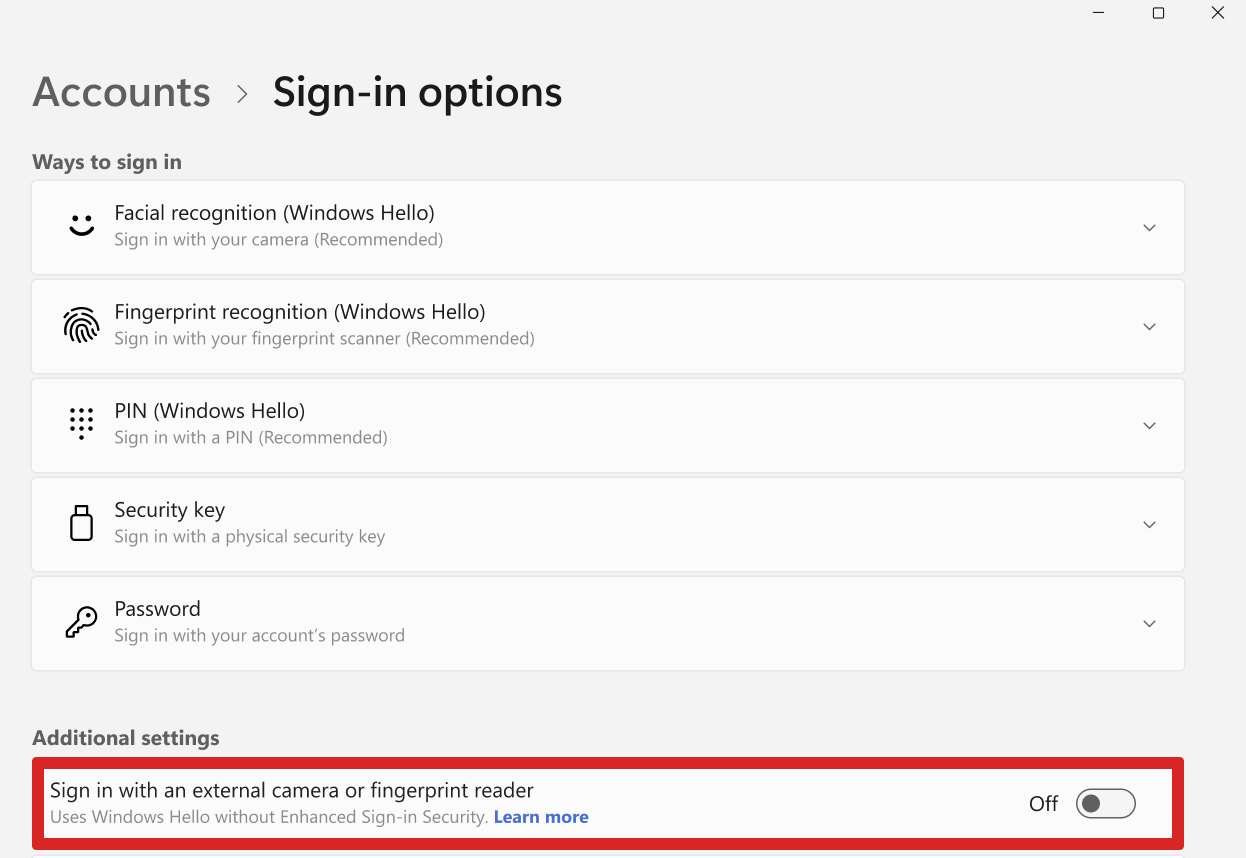
Windows provides a direct way to check whether face sign-in is available.
-
Open Settings.
-
Select Accounts.
-
Choose Sign-in options.
-
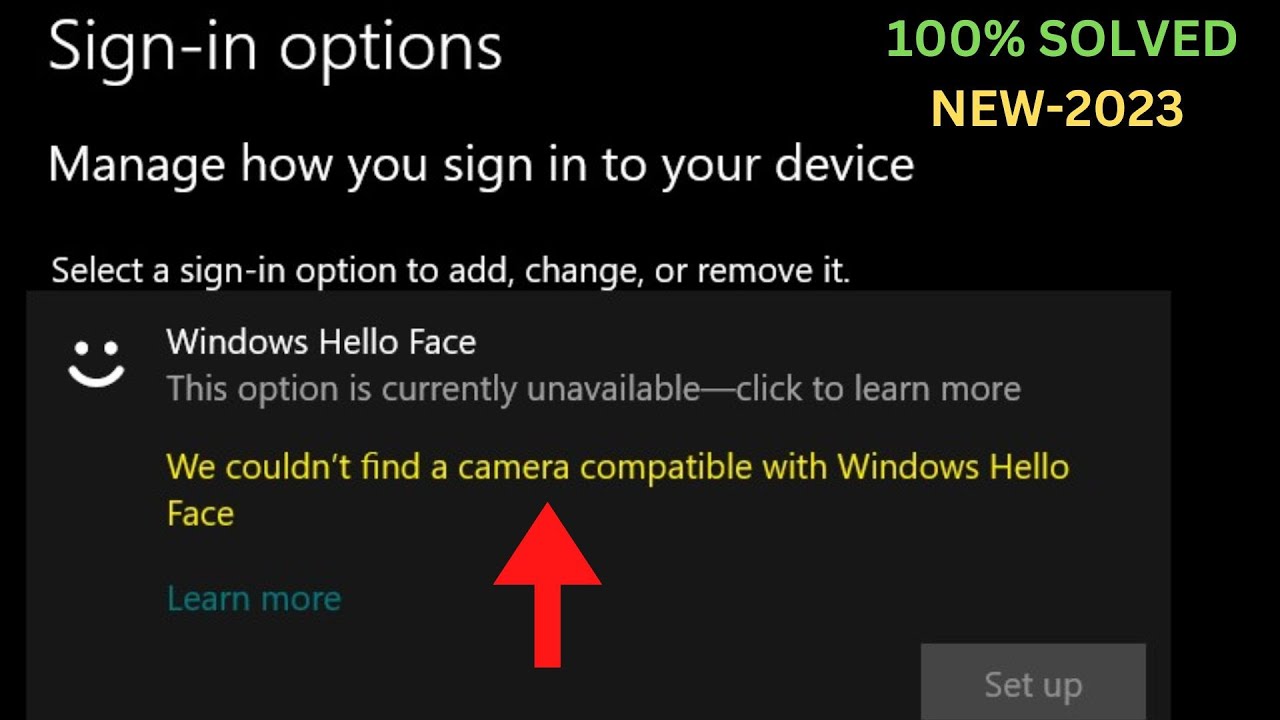
Look for Facial recognition or Windows Hello Face.
-
Select Set up.
If Windows says, “We couldn’t find a camera compatible with Windows Hello Face,” the system does not currently detect suitable hardware.
This message can mean two different things:
• Your camera truly lacks IR hardware.
• Your compatible camera has a driver, privacy, or connection problem.
You can also check Device Manager.
-
Right-click the Start button.
-
Select Device Manager.
-
Expand Cameras or Imaging devices.
-
Right-click the camera.
-
Select Properties.
-
Review the device status and driver details.
Look for warning icons. A yellow warning symbol often means Windows has a driver problem. You can also check the Driver tab for the driver date and provider.
The Windows Camera app offers another useful test. If the app cannot show an image, the problem may affect the camera itself. If the Camera app works but Windows Hello does not, the problem is more likely related to IR support, certification, or Windows Hello settings.
How to Fix a Camera That Is Not Compatible With Windows Hello
Start with simple checks before changing advanced settings. Many camera problems come from privacy controls or drivers, not permanent hardware failure.
1. Restart the computer
A restart can reload the camera service and clear a temporary driver error. This basic step is easy to skip, but it often helps after an update or sleep cycle.
2. Open the camera privacy settings
Go to Settings, then Privacy & security, and select Camera. Turn on camera access for the device and allow apps to access the camera.
The exact menu names can vary between Windows 10 and Windows 11. Make sure access is enabled for desktop apps too.
3. Check the physical camera shutter
Look above the display for a slider or cover. If it blocks the camera, move it aside.
Also check the function keys. Some laptops use a key with a camera icon to turn the camera on or off. You may need to press it with the Fn key.
4. Update the camera driver
Open Device Manager and expand Cameras. Right-click your camera, select Update driver, and let Windows search for a newer driver.
For the best result, visit the support page for your laptop or camera model. Download the driver made for your exact Windows version. Laptop manufacturers often provide custom camera drivers that work better than generic ones.
5. Reinstall the camera driver
If updating does not help, reinstalling may clear damaged files.
-
Open Device Manager.
-
Right-click the camera.
-
Select Uninstall device.
-
Restart the computer.
Windows may reinstall the driver automatically. If it does not, install the driver from the computer manufacturer’s support page.
6. Run Windows Update
Open Settings, choose Windows Update, and select Check for updates. Install available updates, including optional driver updates when they relate to the camera.
Restart the computer after installation. Then check Windows Hello again.
7. Reset Windows Hello Face
If Windows Hello previously worked, remove and recreate your face profile.
-
Open Settings.
-
Select Accounts.
-
Choose Sign-in options.
-
Select Windows Hello Face.
-
Choose Remove.
-
Set it up again.
Use good lighting during setup. Keep your face centered and remove items that change your appearance, such as dark glasses or a hat. After setup, test sign-in in normal room lighting.
8. Check biometric services
Windows Hello relies on system services. Press Windows + R, type services.msc, and press Enter.
Look for the Windows Biometric Service. It should not be disabled. If it is stopped, right-click it and choose Start. You can set its startup type to Automatic if your system requires it.
Do not change services at random. A wrong setting can create new problems.
9. Remove conflicting camera software
Some security tools, virtual camera apps, and video filters can interfere with camera access. Close or temporarily remove software that controls the webcam.
Examples include:
• Virtual camera tools
• Webcam privacy utilities
• Manufacturer camera control apps
• Security software with camera blocking
Test Windows Hello after closing these programs.
10. Check group policies on managed computers
On a work computer, Windows Hello may be disabled by an administrator. A policy can prevent biometric sign-in even when the camera is fully compatible.
Avoid changing company policies without permission. Ask your IT department to confirm whether facial recognition is allowed.
When You Need a New Windows Hello Camera
If the camera lacks an IR sensor, software fixes cannot add that feature. A normal webcam cannot become an infrared Windows Hello camera through a driver update.
Before buying a replacement, check the product description carefully. Look for the exact phrase “Windows Hello compatible,” not only “HD webcam” or “USB webcam.”
A suitable external camera should offer:
• Windows Hello face support
• An infrared sensor
• A compatible Windows driver
• A secure sign-in design
• Support for your version of Windows
Some monitors and docking stations include built-in cameras. However, the included camera may support video only. Confirm the exact model’s specifications.
A fingerprint reader is another option. It can be easier to install and may work well when a compatible camera is too expensive. Windows Hello PIN sign-in is also secure and does not need special camera hardware.
Facial recognition is convenient, but it is not the only secure choice. The best option depends on your budget, privacy needs, desk setup, and daily routine.
Common Mistakes to Avoid
When troubleshooting why your camera is not compatible with Windows Hello, avoid these common mistakes.
• Buying a webcam based only on resolution. A 4K camera may still lack IR hardware.
• Assuming every laptop camera supports facial sign-in. Many do not.
• Installing random drivers from unofficial websites. They may be unsafe or incorrect.
• Disabling security tools without checking their settings first.
• Deleting biometric folders or registry entries without a backup.
• Repeating Windows Hello setup in poor lighting.
• Ignoring the camera privacy shutter or keyboard switch.
• Treating a working webcam as proof of Windows Hello compatibility.
In troubleshooting work, one useful lesson is to separate “camera works” from “camera supports Windows Hello.” These are different tests. A camera can pass the first and fail the second without any fault.
Another practical lesson is to check the manufacturer’s specifications before spending money. Many people replace a perfectly good webcam because they mistake image quality for biometric support.
Camera Compatibility, Privacy, and Security
Windows Hello is designed to make sign-in quick while adding protection against simple photo-based attempts. The use of infrared hardware helps the system analyze your face in a more secure way than a standard webcam can.
Still, no sign-in method is perfect. Facial recognition can struggle with strong backlighting, major appearance changes, camera obstruction, or poor sensor quality. It may also be less suitable for people who want to limit biometric data use.
You can use a Windows Hello PIN instead. The PIN is tied to your specific Windows device and is different from a general online account password. A fingerprint reader is another useful choice.
Consider these points:
• Use a PIN if you prefer not to use facial recognition.
• Use a fingerprint reader if you want fast sign-in without a camera.
• Keep Windows updated to receive security fixes.
• Protect your Microsoft account with a strong password and multifactor authentication.
• Avoid unknown third-party biometric software.
Microsoft states that Windows Hello biometric data is designed to stay on the device rather than being sent as a normal password to a remote server. However, exact behavior can depend on the device, configuration, and organization policies. Review your computer maker’s privacy information if this is a major concern.
Frequently Asked Questions About Why Is My Camera Not Compatible With Windows Hello
Why does my webcam work in Zoom but not with Windows Hello?
Zoom only needs a camera that can send video. Windows Hello usually needs an IR sensor and compatible security support, so a standard webcam may work in Zoom but fail for face sign-in.
Can I make a normal webcam work with Windows Hello?
Usually, no. A driver cannot add missing infrared hardware, so you need a certified Windows Hello camera or another sign-in method such as a PIN or fingerprint reader.
How do I know if my laptop has an IR camera?
Check the laptop’s specifications for “IR camera,” “infrared camera,” or “Windows Hello Face.” You can also check Settings > Accounts > Sign-in options to see whether Windows Hello Face can be set up.
Why did Windows Hello stop working after an update?
An update may have changed the camera driver, privacy permissions, firmware behavior, or biometric settings. Restart the computer, check Windows Update, reinstall the camera driver, and recreate your Windows Hello face profile.
Does Windows Hello work with an external USB camera?
Yes, but only when the external camera specifically supports Windows Hello. A regular USB webcam can provide video but may not include the infrared hardware required for facial authentication.
Can poor lighting make Windows Hello say the camera is incompatible?
Poor lighting can prevent successful face setup or recognition, but it usually does not cause a true compatibility message. If Windows says it cannot find a compatible camera, check the hardware and driver first.
Is Windows Hello Face safer than a password?
Windows Hello Face uses device-based biometric authentication and is designed to resist simple sign-in attacks. Security depends on the device and setup, so keep Windows updated and use a strong account password as backup.
Conclusion
The answer to why your camera is not compatible with Windows Hello is usually missing IR hardware, an unsupported webcam, a damaged driver, or a blocked privacy setting. Start by checking the camera specifications, Windows Hello settings, Device Manager, camera permissions, and physical shutter.
If your camera is only a standard RGB webcam, no software fix can turn it into an infrared biometric device. In that case, choose a Windows Hello-compatible camera, fingerprint reader, or secure PIN.
Work through the checks in order, and you can avoid unnecessary repairs or purchases. If this guide helped, explore more Windows troubleshooting resources or share your camera model and solution in the comments.