Use short bursts, hold the can upright, and keep a safe distance to remove dust.
I’ve spent years cleaning laptops, cameras, and workshop tools, and I’ll walk you through exactly how to use air duster safely and well. This guide covers step-by-step use, safety rules, common applications, maintenance, limits, and real-life tips I learned the hard way. Read on to learn practical, tested methods for how to use air duster so your gear stays clean and safe.

Why use an air duster?
Air dusters blow compressed gas to remove dust and debris from tight spots. They are quick, non-contact tools that reach places a cloth or brush cannot. When used right, air dusters protect electronics, cameras, and delicate gear from buildup. Learning how to use air duster properly keeps devices working longer and reduces repair needs.
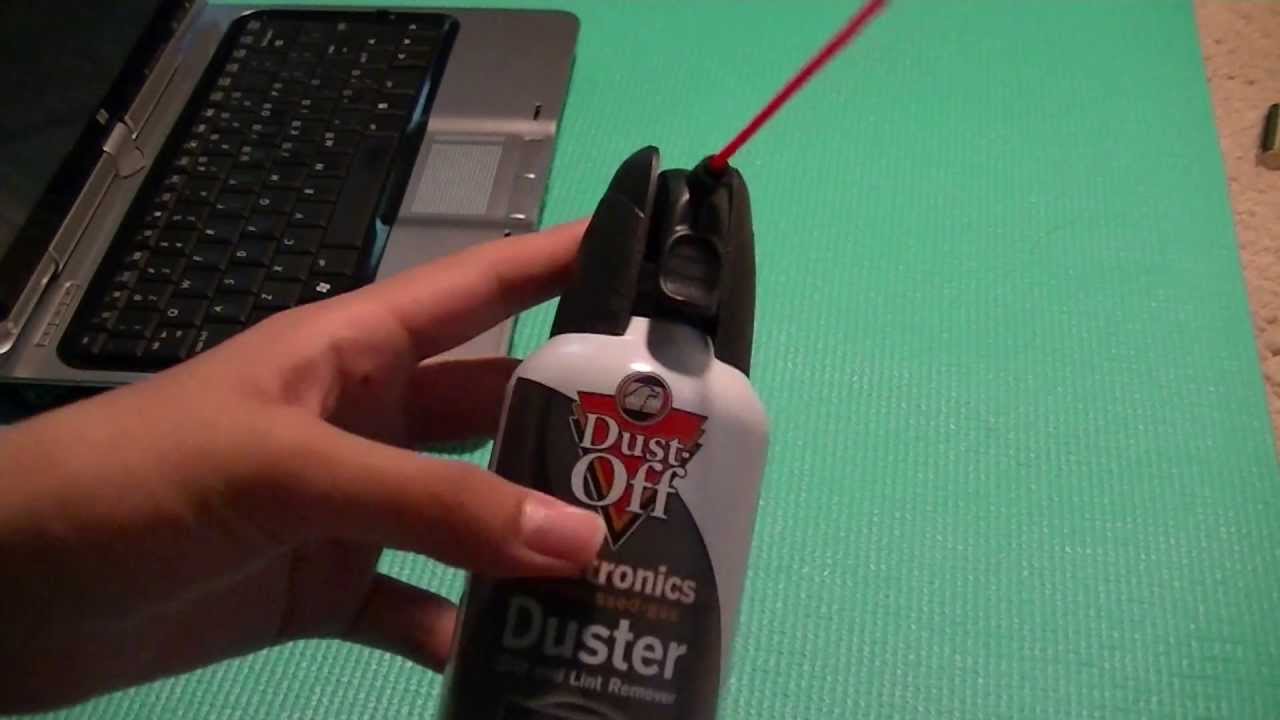
Safety first: essential precautions
Safety matters more than speed. Misuse can damage gear or cause injury. Keep these precautions in mind every time you use an air duster.
- Always read the can label and safety data before first use.
- Use in a well-ventilated area to avoid inhaling propellant fumes.
- Wear eye protection to prevent debris from blowing into your eyes.
- Do not shake or invert the can. Spraying upside down can expel cold liquid and harm surfaces.
- Keep the nozzle at least 2–4 inches from delicate parts to avoid excessive force.
- Do not use near open flames or heat. Many air dusters are flammable.
Follow these rules every time you practice how to use air duster to avoid damage and stay safe.
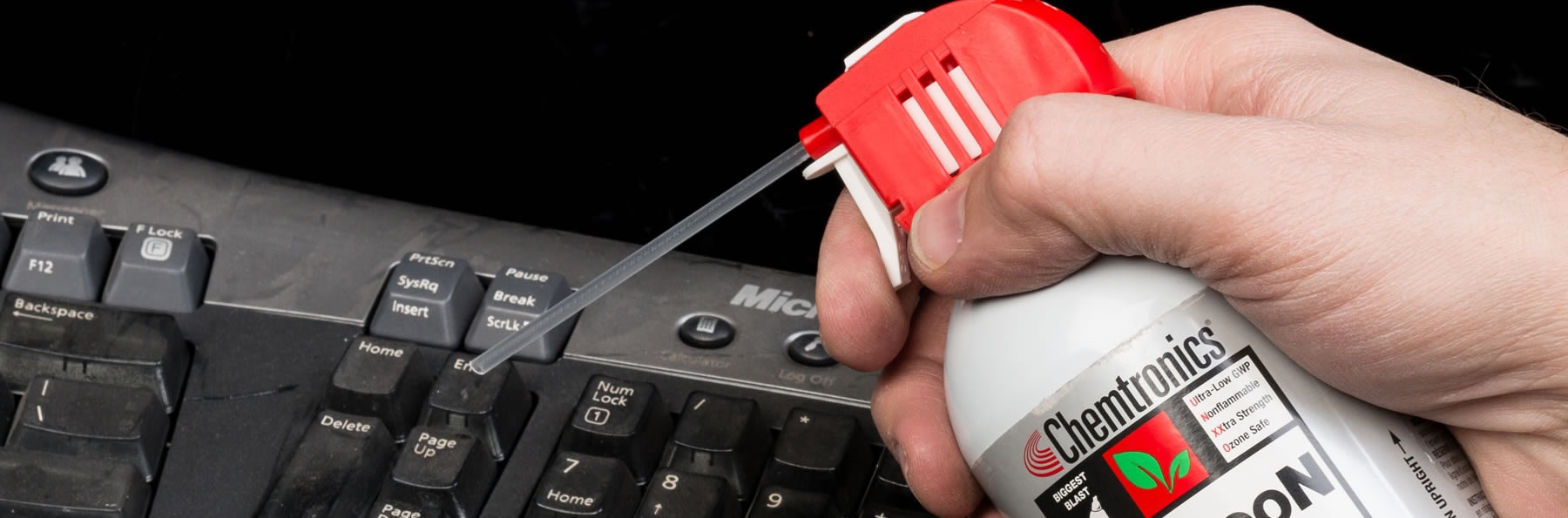
Step-by-step: how to use air duster safely and effectively
This clear routine works for most electronics and small gear.
- Prepare the workspace.
- Turn off and unplug the device. Remove batteries if possible.
- Move the device to a stable surface and place a soft mat underneath.
- Position the can.
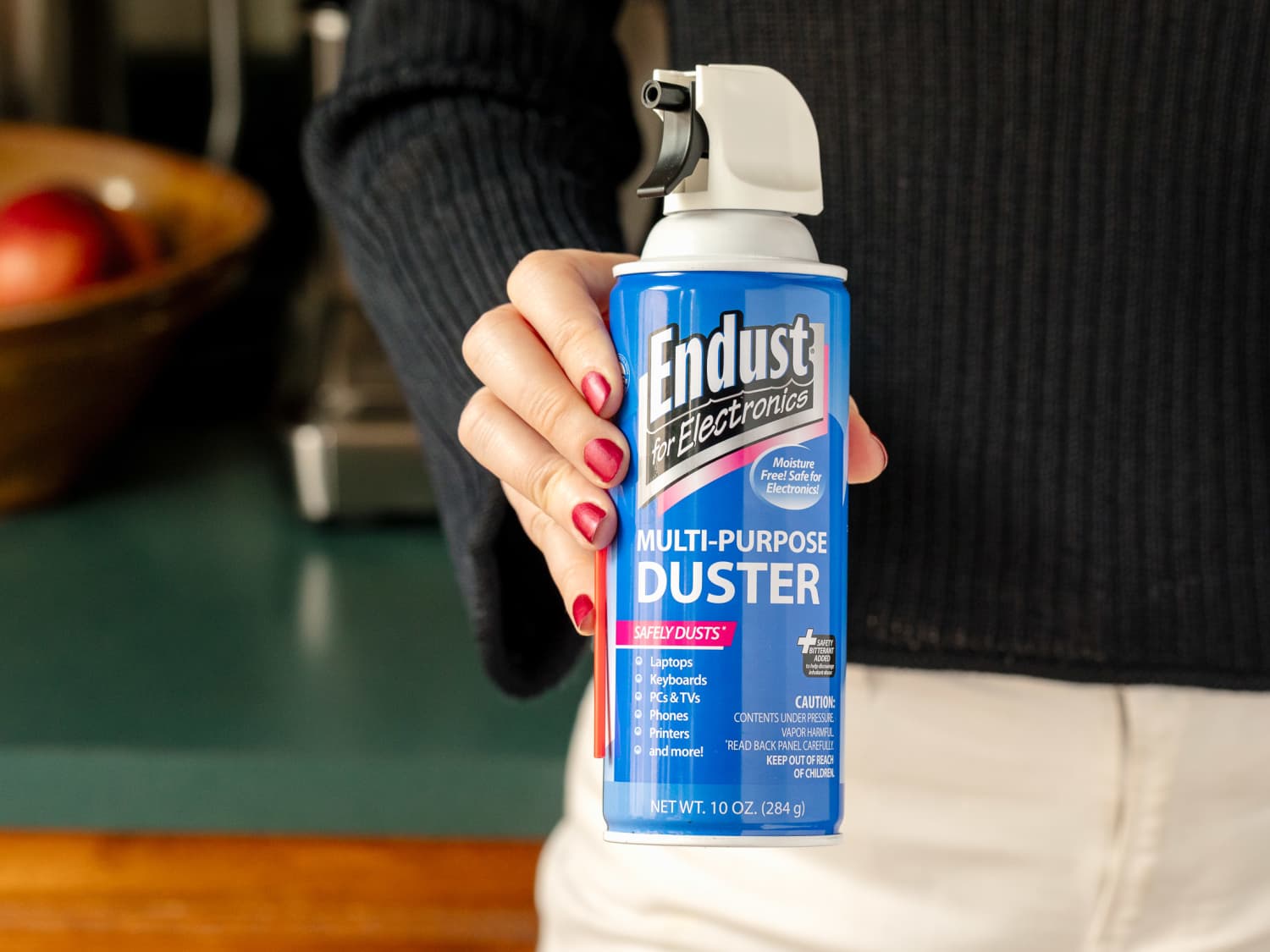
- Hold the can upright and attach the straw if provided.
- Keep the straw or nozzle 2–4 inches from the surface.
- Use short bursts.
- Press the trigger in quick 1–2 second bursts.
- Sweep across the area rather than blasting one spot.
- Target specific areas.
- Aim at vents, fans, keyboard crevices, ports, and lens ridges.
- Blow out dust, not into another sensitive component.
- Finish gently.
- Let the device sit for a few minutes to let any gas dissipate.
- Reconnect power and test the device after confirming no residue or dampness remains.
Practicing these steps will help you master how to use air duster with minimal risk to your gear.
Common uses and best practices
Air dusters work in many places. Here’s how to apply them wisely.
- Keyboards and laptops. Use short bursts to clean between keys and vents. Tip the keyboard slightly to let debris fall out.
- Desktop PCs and fans. Stop fans with a soft tool before spraying to avoid overspinning. Clean heatsinks and dust filters.
- Cameras and lenses. Use bursts to clear dust from lens edges and viewfinder. Never spray directly onto glass; blow from the side.
- Audio gear and consoles. Clean knobs, sliders, and ports with low-pressure bursts to avoid moving sensitive parts.
- Small appliances and tools. Remove lint and sawdust from tools, but keep a safe distance from bearings and seals.
How to use air duster varies by device. When in doubt, test a small area first and use the gentlest approach.
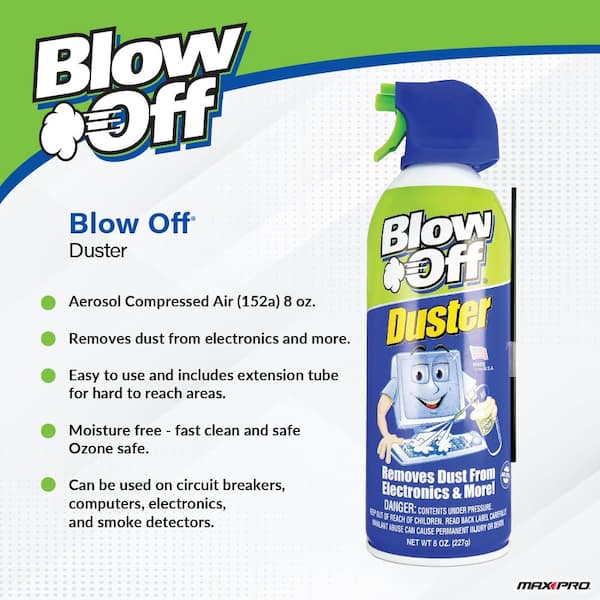
Maintenance, storage, and disposal
Treat cans with care to ensure they work and remain safe to use.
- Store in a cool, dry place away from heat sources.
- Keep out of reach of children and pets.
- Do not puncture or incinerate empty cans.
- Follow local rules for disposal of aerosol cans and hazardous waste.
- If a can gets cold, let it warm to room temperature before use to avoid frost spray.
Proper handling extends the safe life of your duster and protects the environment.
Limitations, risks, and alternatives
Air dusters are great, but they aren’t perfect. Understand the limits.
- They do not remove sticky or oily grime. Use isopropyl alcohol and lint-free cloths for that.
- Pressurized spray can harm fragile components if used too close or too long.
- Propellants can leave residue on sensitive optics if sprayed directly.
- Some "air dusters" are flammable; check labels before use near electronics and heat.
Alternatives to consider when air dusters are not ideal:
- Electric air blowers with adjustable pressure for safe, repeatable cleaning.
- Soft brushes and vacuum systems with anti-static features.
- Professional cleaning for high-end cameras or servers.
Knowing when not to use an air duster is part of learning how to use air duster responsibly.

Personal experience and pro tips
I cleaned hundreds of keyboards and several camera bodies over the years. Here are lessons I learned.
- Tip: Use the straw for tight spots but keep distance. I once froze a laptop fan by spraying too close. After that, I always use brief bursts.
- Tip: Stop fans by holding them steady with a small tool before blowing. This prevents overspin and bearing wear.
- Mistake to avoid: Don’t aim straight onto delicate lenses. Side-angle bursts prevent propellant contact.
- Hack: Use a small brush to loosen stubborn dust, then finish with an air duster to clear it away.
- Pro routine: Work top to bottom. Clean vents, then keyboards, then ports. This avoids pushing dust into cleaned areas.
These tips come from real repairs and cleanings. They make how to use air duster quicker and safer.
Frequently Asked Questions of how to use air duster
Can I use an air duster on my laptop fan?
Yes. Turn off and unplug the laptop, hold the can upright, and use short bursts from 2–4 inches away. Avoid holding the fan to let it overspin.
Is it safe to use air duster on camera lenses?
Only with caution. Never spray directly onto the glass; use side-angle bursts and a lens brush first to clear loose dust.
How often should I use an air duster?
It depends on usage and environment. For heavy use or dusty spaces, clean every 1–3 months; otherwise, every 6 months is often fine.
Can I inhale the spray for relief or cleaning?
No. Inhaling propellants is dangerous and can cause health issues. Use in ventilated areas and avoid breathing the fumes.
What should I do if the can sprays liquid?
Stop using it and allow the area to warm. Liquid propellant can freeze surfaces and leave residue, so wipe gently with a dry cloth once it warms.
Are electric air blowers better than handheld cans?
They can be, for repeated jobs. Electric blowers offer adjustable pressure and no toxic propellants, but they may cost more and require care to avoid high pressure on components.
Conclusion
Mastering how to use air duster keeps your devices clean and working longer. Use short bursts, hold the can upright, stay a safe distance, and follow the safety steps outlined here. Start with small tests, adopt the pro tips, and make cleaning part of your regular routine to avoid bigger repairs later. Try these methods on a low-stakes device this week, and comment below with your results or questions — I’d love to hear what worked for you.