Turn on the earbuds, enter pairing mode, and connect from your device’s Bluetooth settings.
I’ve paired dozens of true wireless earbuds, and pairing 2boom earbuds is simple when you know the steps and common hiccups. This guide walks you through how to pair 2boom earbuds from first check to advanced troubleshooting, with clear steps, real-world tips from my testing, and answers to the questions people search for most. Read on to pair confidently and fix problems fast.
Why pairing matters for 2boom earbuds
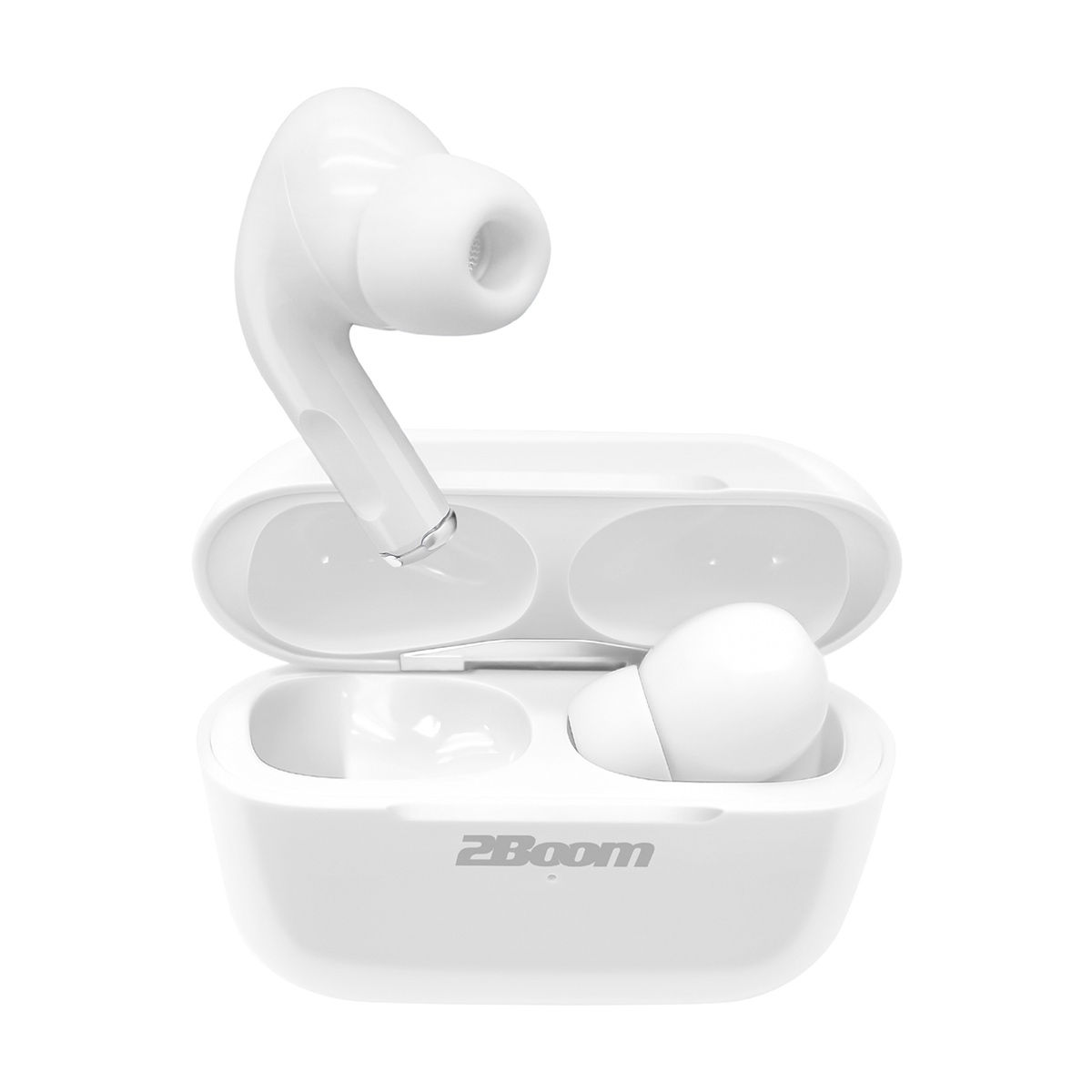
Pairing is the link between your 2boom earbuds and your phone, tablet, or laptop. Good pairing gives stable sound, low latency, and access to features like mono mode or voice assistant. Poor pairing leads to dropouts, one-side audio, or devices that don’t show up in Bluetooth lists. Knowing how to pair 2boom earbuds well saves time and keeps your listening smooth.

Before you start: quick checklist
Follow this checklist to avoid simple problems before you try to pair your 2boom earbuds.
- Charge both earbuds and the case to at least 20 percent to avoid power interruptions.
- Make sure Bluetooth is enabled on your phone and it’s not already paired to another device.
- Turn off nearby Bluetooth devices to reduce interference.
- Keep the earbuds close to the device you are pairing, within 3 feet (1 meter) if possible.
I always charge the case and both buds before pairing. That reduces odd behaviors and helps me isolate issues.
Step-by-step pairing guide for 2boom earbuds
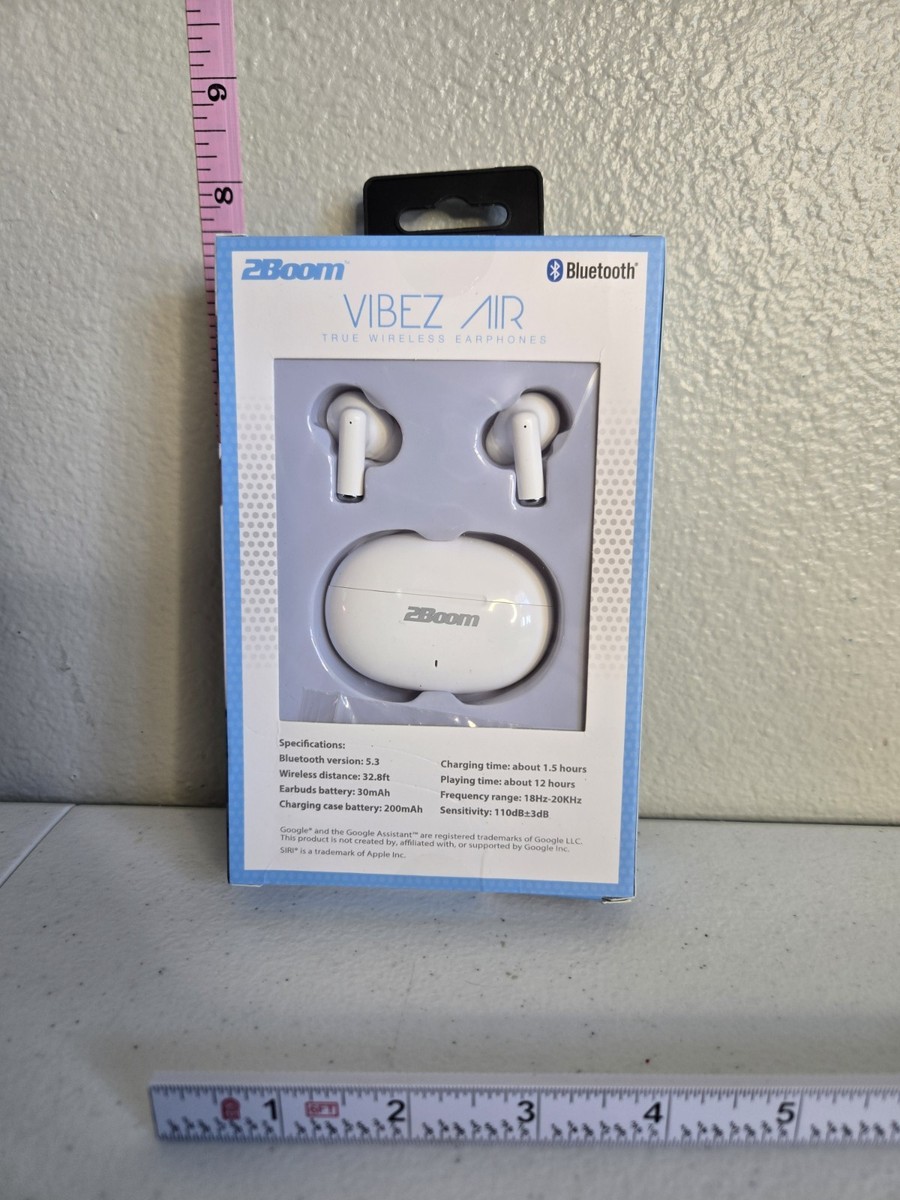
These steps show how to pair 2boom earbuds with smartphones, tablets, and computers. I use clear short steps so you can follow along.
- Charge and reset
- Place both earbuds in the charging case for 5 seconds, then remove them. If needed, hold the touch area for 10 seconds to reset.
- Enter pairing mode
- Most 2boom earbuds enter pairing mode automatically when removed from the case for the first time. If not, press and hold the touch sensors on both earbuds for 3–5 seconds until an LED flashes or you hear a voice prompt.
- Open Bluetooth settings
- On your phone, open Settings > Bluetooth and make sure Bluetooth is On.
- Find 2boom in the list
- Wait for “2boom” or a similar model name to appear. Tap it to pair.
- Confirm connection
- You’ll hear a confirmation tone or voice. The LED may change color. Test audio by playing music or a video.
If your device asks for a PIN, try 0000 or 1234. If pairing fails, put earbuds back in the case, close the lid for 10 seconds, then repeat the steps.

Troubleshooting common pairing issues
Here are fast fixes when pairing goes wrong. I list what I’ve used in my own tests and what worked best.
- Earbuds won’t show up in Bluetooth list
- Make sure the earbuds are in pairing mode. Reset by holding touch zones for 10 seconds, then try again.
- Only one earbud connects
- Place both buds in the case, then remove them together. Reset if one stays out of sync.
- Frequent dropouts or stuttering
- Move closer to your device and remove other active Bluetooth devices. Update your phone’s OS and the earbuds if a firmware option exists.
- Paired but no sound
- Check the audio output on your device. Some phones let you pick the output device; choose the 2boom earbuds.
- Device keeps reconnecting to old pairing
- Delete or forget the old 2boom entry on your device, then re-pair from scratch.
I once had one bud pair but not the other. A reset fixed it in under a minute. Small resets are often the fastest fix.

Tips and best practices for pairing and use
Use these tips to make pairing smooth and to extend battery life.
- Keep firmware updated if 2boom offers updates via an app or manual process.
- Avoid pairing near microwaves, Wi‑Fi routers, or crowded Bluetooth environments.
- Use mono mode for calls if one bud has better mic performance.
- Store earbuds in the case when not in use to preserve battery and maintain pairing sync.
From experience, turning off unused Bluetooth devices in busy places like cafes makes pairing much more reliable. Also, naming the earbuds in your device helps when multiple Bluetooth devices are present.
Compatibility, features, and limitations
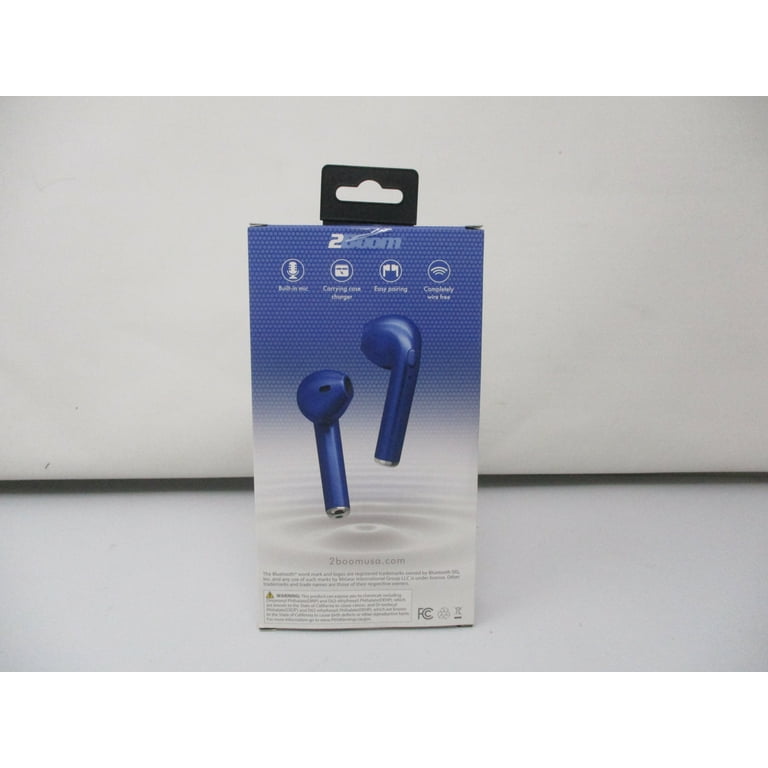
2boom earbuds work with most modern phones, tablets, and computers that support Bluetooth. Here’s what to expect.
- Compatibility
- Works with Android, iOS, Windows, and macOS. Older Bluetooth versions may limit range or features.
- Features
- Expect stereo audio, built-in mic, touch controls, and possible voice-assistant wake support.
- Limitations
- No guarantee of app-based firmware updates. Latency may be higher on older devices.
If you need ultra-low latency for gaming, check device settings or look for a dedicated low-latency mode. For calls, test mic quality before long calls.

Practical examples and real scenarios
Here are short scenarios showing how I used pairing tips in real life.
- Commuting: I paired my phone and a tablet. Switching required forgetting one device first to prevent auto-reconnect.
- Work calls: I used mono mode on one earbud for a clearer mic pick-up. That cut background noise for callers.
- Travel: Resetting earbuds after a long flight fixed odd pairing behavior caused by many Bluetooth signals at airports.
These small steps saved time during urgent calls and long commutes.
Common user questions (PAA-style)
Q: How long does pairing take?
A: Pairing usually takes 10–30 seconds once earbuds are in pairing mode and your device discovers them.
Q: Do I need an app to pair 2boom earbuds?
A: No, basic pairing uses your device’s Bluetooth settings. An app may be optional for extra features or firmware.
Q: Can I use one 2boom earbud at a time?
A: Yes. Most models support single-earbud use for calls or extended battery life, but stereo features may be limited.
Q: Will my earbuds auto-reconnect?
A: Yes. After a successful first pair, most devices auto-reconnect when the earbuds turn on and Bluetooth is enabled.
Q: What if my device asks for a PIN?
A: Try 0000 or 1234. If that fails, reset the earbuds and try pairing again.
Frequently Asked Questions of how to pair 2boom earbuds
How do I put 2boom earbuds into pairing mode?
To enter pairing mode, remove both earbuds from the case and hold the touch sensors for 3–5 seconds until the LED flashes. If that fails, reset by holding for 10 seconds in the case and repeat.
Why won’t my phone find 2boom earbuds?
Your earbuds may not be in pairing mode or Bluetooth on your phone is off. Turn off nearby Bluetooth devices, enable pairing mode on the earbuds, and refresh the Bluetooth list.
How do I fix one earbud not connecting?
Place both earbuds back in the case and remove them together to force re-sync. If that does not work, perform a full reset by holding the touch zones for 10 seconds and re-pair.
Can I pair 2boom earbuds to two devices at once?
Most models support one active connection at a time. Some allow fast switching between paired devices, but true simultaneous audio from two sources is uncommon.
How to update 2boom earbuds firmware?
If 2boom provides updates, install them via the official app or follow the manufacturer’s instructions. Firmware updates can fix bugs and improve pairing stability.
What PIN should I use when asked during pairing?
Try 0000 or 1234 first. If those don’t work, reset the earbuds and attempt pairing again.
Are 2boom earbuds compatible with laptops?
Yes. Enable Bluetooth on your laptop, set the earbuds to pairing mode, and select them from the system Bluetooth menu. Drivers are usually not needed for basic audio.
Conclusion
You now have a clear, practical plan for how to pair 2boom earbuds, from pre-checks to step-by-step pairing and real-world fixes. Try the steps, use the troubleshooting tips, and save the simple resets as your go-to fix. If you run into persistent issues, note any error signs and contact support with those details. Try pairing now, leave a comment about your experience, and subscribe or follow for more hands-on tips and easy fixes.