Use a mouse ergonomically by keeping your wrist neutral, relaxing your grip, positioning the mouse close to your body, moving from your arm instead of only your wrist, and adjusting your workstation to support a natural posture.
For millions of computer users across the United States, daily work, school, and personal tasks involve hours of mouse use. Poor mouse technique can contribute to discomfort in the hand, wrist, forearm, shoulder, and neck, especially when combined with a poorly adjusted desk setup.
Ergonomic mouse use focuses on reducing unnecessary force, awkward wrist angles, and repetitive movements. The goal is not simply buying a different mouse, but creating a setup and movement pattern that allows your body to work in a more natural position.
Source: Bing
What Does Ergonomic Mouse Use Mean?
Ergonomic mouse use means operating a mouse in a way that keeps your hand, wrist, arm, and shoulder in comfortable positions while minimizing repeated stress. It combines proper posture, equipment placement, and movement habits.
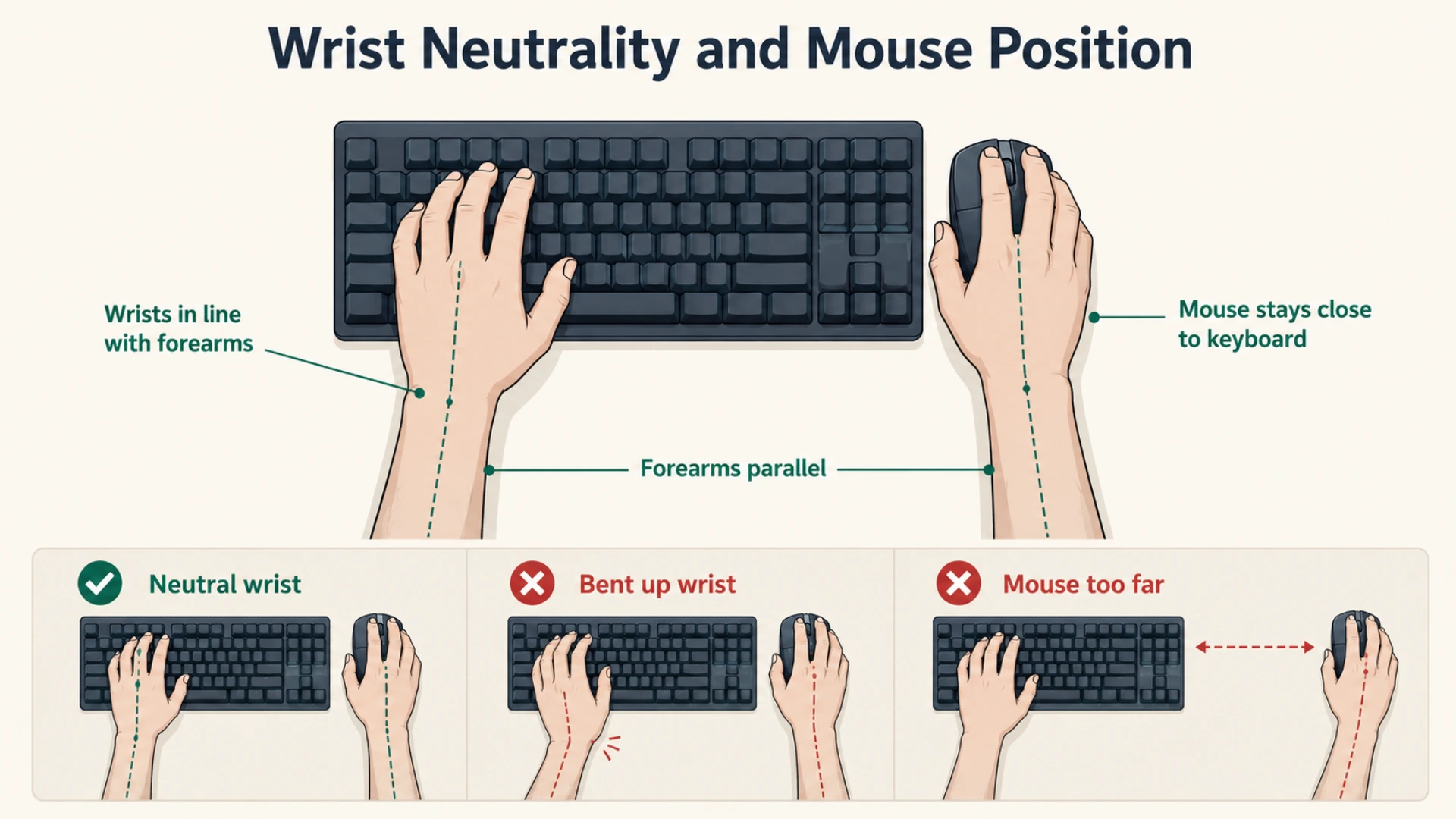
A neutral wrist position is one of the most important principles. This means your wrist stays aligned with your forearm instead of being bent backward toward the keyboard or twisted toward the thumb side.
Source: Bing
Neutral wrist alignment
Keep the back of your hand in a straight line with your forearm without excessive bending.
Low muscle effort
Use a relaxed grip and avoid pressing buttons or holding the mouse tightly.
Efficient movement
Adjust settings and placement so you can move the cursor without excessive reaching.
Why Mouse Position Matters
A mouse placed too far away forces your shoulder and upper arm to reach forward repeatedly. Keeping the mouse close reduces shoulder extension and encourages a more relaxed posture.
Position the mouse beside the keyboard within easy reach while keeping your elbow close to your torso.
Step-by-Step Guide to Using a Mouse Ergonomically
Creating an ergonomic mouse habit involves adjusting your workspace first, then improving how you hold and move the mouse. Small changes often make a noticeable difference in comfort.
Source: Bing
1. Adjust your sitting position
Sit with your shoulders relaxed, elbows near your sides, and forearms supported when possible.
2. Place the mouse correctly
Keep the mouse at the same height as your keyboard and close enough to avoid reaching.
3. Use a relaxed grip
Rest your fingers naturally on the buttons without squeezing the mouse.
4. Move with your arm
Use gentle forearm movements for larger cursor movements instead of repeating small wrist motions.
How to Hold a Mouse Correctly
Place your palm comfortably on the mouse and allow your fingers to rest naturally on the buttons. Avoid hovering your hand above the mouse because this creates unnecessary muscle tension.
Avoid wrist pressure
Do not press the wrist firmly against the desk edge because concentrated pressure can increase discomfort.
How to Adjust Your Mouse and Desk Setup
A comfortable mouse technique depends on the entire workstation. Desk height, chair position, keyboard placement, and monitor setup all affect how your arm reaches the mouse.
A properly adjusted setup allows your shoulders to stay relaxed and your elbows to remain close to your body while working.
Source: Bing
Mouse sensitivity
Increase pointer sensitivity if you need large arm movements to travel across the screen.
Desk height
Choose a height that allows your forearms to stay roughly level without lifting your shoulders.
Keyboard and mouse distance
Keep both devices close together so you do not repeatedly stretch your arm.
Should You Use a Vertical Ergonomic Mouse?
A vertical mouse changes hand orientation and may feel more natural for some users because it places the forearm in a different position. However, comfort varies between individuals, and switching devices does not replace good posture and movement habits.
Consider a vertical mouse if
You find a traditional mouse uncomfortable or want to experiment with a different hand position.
Common Ergonomic Mouse Mistakes to Avoid
Many mouse-related discomfort issues come from repeated habits rather than one single mistake. Identifying these habits can help improve comfort during long computer sessions.
Source: Bing
Holding the mouse too tightly
A strong grip increases muscle tension and can make long sessions more tiring.
Using only the wrist
Small repeated wrist movements may increase strain compared with smoother arm movements.
Keeping the mouse too far away
Reaching forward places extra demand on the shoulder and upper arm.
Ignoring discomfort
Persistent pain, numbness, or weakness should not be ignored and may require professional evaluation.
Signs Your Mouse Technique Needs Improvement
Frequent hand fatigue, wrist discomfort, shoulder tension, or needing to stretch your arm after computer use can indicate that your setup or technique needs adjustment.
Review your setup
Check mouse position, desk height, grip pressure, and posture before making major equipment changes.
How Often Should You Take Breaks From Mouse Use?
Regular breaks help reduce the effects of prolonged repetitive activity. Instead of waiting for discomfort, change positions periodically and allow your hands and shoulders to relax.
Short movement breaks, stretching, and alternating tasks can help reduce continuous stress from computer work.
Source: Bing
Change posture regularly
Avoid staying in the same seated position for extended periods.
Rest your hands
Relax your fingers and remove your hand from the mouse during inactive moments.
Frequently Asked Questions
Q
What is the most ergonomic way to hold a mouse?
The most ergonomic grip keeps your wrist straight, your fingers relaxed, and your hand resting naturally on the mouse without excessive pressure.
Q
Should my wrist touch the desk when using a mouse?
Your wrist should not be pressed firmly against a hard surface or desk edge. A neutral position with comfortable support is generally preferred.
Q
Can an ergonomic mouse prevent wrist pain?
An ergonomic mouse may improve comfort for some users, but it is only one part of an ergonomic setup. Posture, movement habits, and workstation adjustments also matter.
Q
Is a vertical mouse better than a regular mouse?
A vertical mouse may feel more comfortable for some people because of its different hand orientation, but there is no single mouse design that works best for everyone.
Q
When should I seek professional help for mouse-related discomfort?
Consider professional advice if you experience ongoing pain, numbness, tingling, weakness, or symptoms that interfere with normal activities.
✦ Wrapping Up
Conclusion
Learning how to ergonomically use a mouse starts with simple adjustments: maintain a neutral wrist position, keep the mouse close, relax your grip, and move efficiently. These habits can make daily computer use more comfortable.
An ergonomic setup is personal and may require small changes over time. Focus on reducing strain, responding to discomfort early, and creating a workspace that supports natural movement.
💡 Key Takeaway
Adjust your mouse position today, relax your grip, keep your wrist neutral, and evaluate your comfort after regular computer sessions.
Kimberly ensures every piece of content is clear, helpful, and user-friendly. She focuses on creating guides that are easy to read while maintaining accuracy and trust.
Learn how to connect CarPlay wirelessly using Bluetooth and Wi-Fi, check compatibility, complete setup steps, and troubleshoot common wireless Apple CarPlay problems.
Learn the average tire pressure monitoring system replacement cost in the USA, including TPMS sensor prices, labor fees, replacement factors, and money-saving tips.
Learn how to perform a Cadillac tire pressure monitoring system reset, relearn TPMS sensors, fix warning lights, and troubleshoot common Cadillac tire pressure issues.