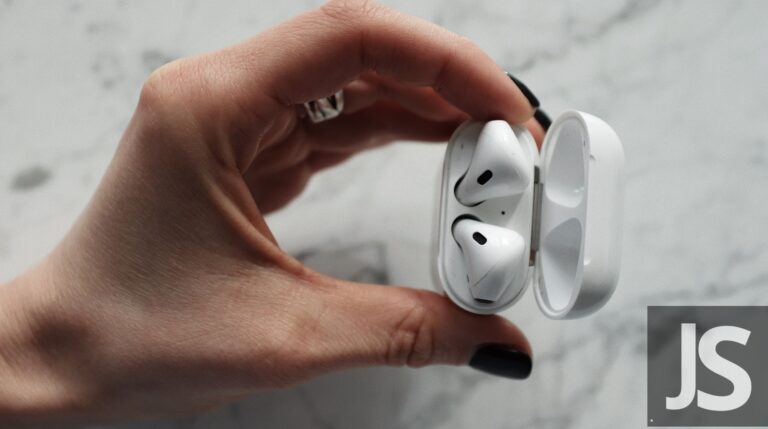
Turn them on, enable Bluetooth pairing mode, and select "Coby" from your device’s Bluetooth list.
I’ve paired dozens of earbuds and tested many Coby models, so I’ll walk you through how to connect Coby wireless earbuds with clear, practical steps. This guide explains pairing basics, device-specific steps, troubleshooting tips, and real-world tricks so you can connect fast and keep your audio steady.
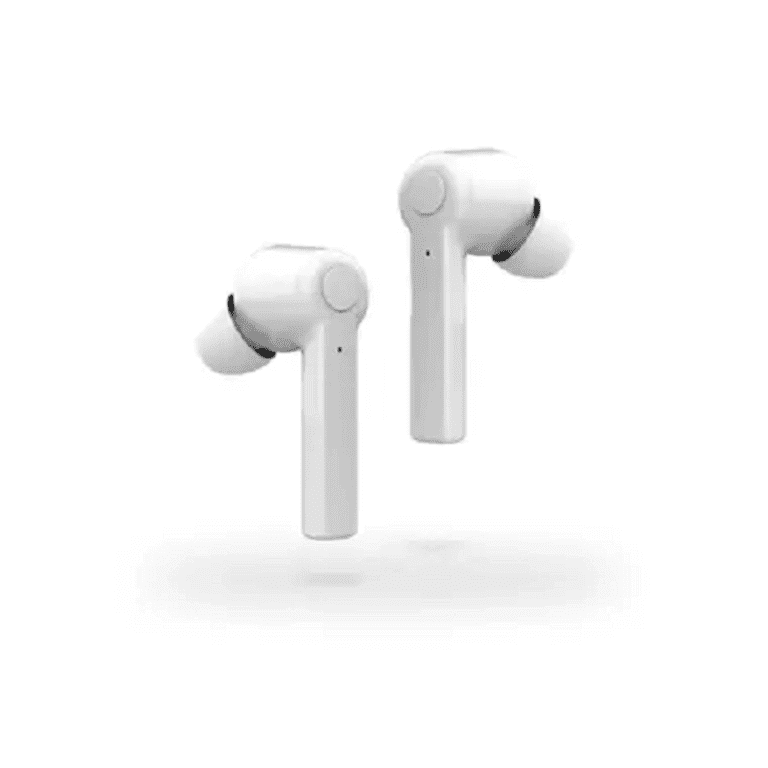
Why pairing matters and a quick overview of how to connect Coby wireless earbuds
Pairing links your earbuds and device so audio and controls work reliably. Bluetooth uses a short handshake to authorize devices. Knowing the steps prevents guesswork and saves time.
Most Coby earbuds follow a simple flow: charge, power on, enter pairing mode, and pick the earbuds from the Bluetooth list. This article shows each step in plain language and covers common hiccups to help you connect Coby wireless earbuds on phones, tablets, laptops, and streaming devices.

Step-by-step: How to connect Coby wireless earbuds
These steps cover the most common Coby models. Read them once, then follow them while you have the earbuds and device handy.
-
Charge the earbuds and case fully
- Place earbuds in the case and charge until the LED shows full.
- Low battery can block pairing or produce intermittent audio.
-
Power on and enter pairing mode
- Remove earbuds from the case. Many models auto-power on.
- If not, press and hold the touchpad or button for 3–5 seconds to turn on.
- To enter pairing, press and hold until the LED flashes red/blue or white. A voice prompt may say “pairing.”
-
Enable Bluetooth on your device
- Open Settings > Bluetooth on your phone, tablet, or computer.
- Turn Bluetooth on and wait for nearby devices to appear.
-
Select the earbuds
- In the device Bluetooth list, tap the entry labeled “Coby,” “Coby Buds,” or a model name.
- Wait for confirmation (paired, connected, or a tone from the earbuds).
-
Test audio and controls
- Play music and test volume, play/pause, and mic.
- If only one earbud connects, try putting both back in the case and repeating pairing.
-
Reconnect after first pairing
- Most devices auto-reconnect when Bluetooth is on and the earbuds power on.
- If not, select the Coby entry again in Bluetooth settings.
Tips for single-ear use and mono pairing
- Many Coby earbuds can be used one at a time.
- Power on the desired earbud only and pair as above.
- If the wrong bud pairs, reset the earbuds and pair both together.
Follow these steps to connect Coby wireless earbuds in typical situations. If something fails, see the troubleshooting section below.
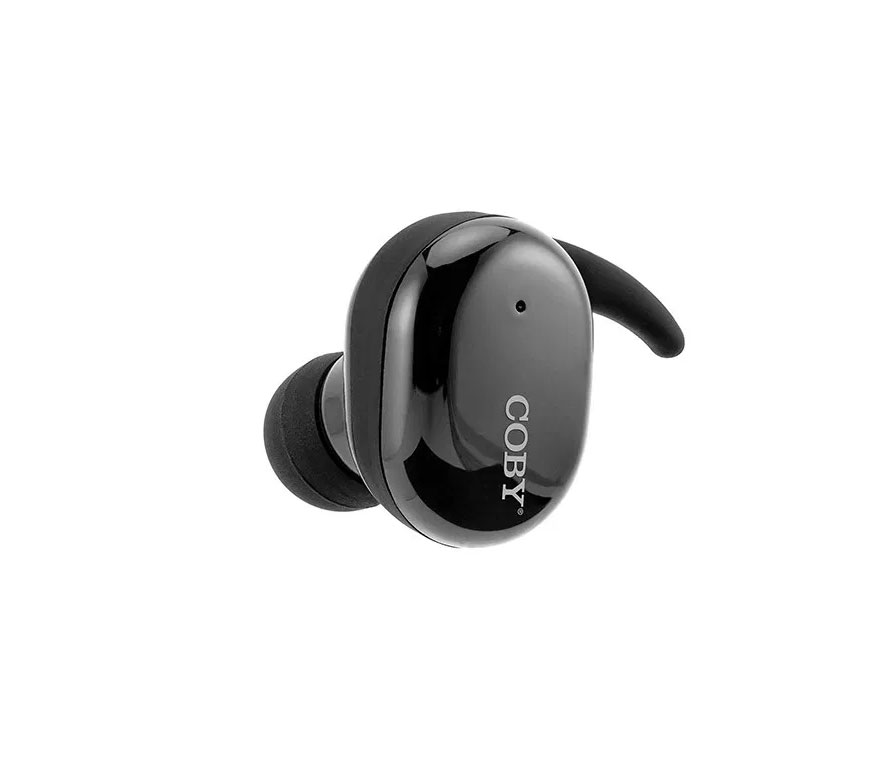
Pairing with specific devices: Android, iPhone, Windows, and Mac
Pairing steps are similar across platforms. Here are concise device-specific guides to connect Coby wireless earbuds.
Android
- Open Settings > Bluetooth or Connections > Bluetooth.
- Turn Bluetooth on and tap the Coby name when it appears.
- Accept any pairing prompts. Some Android phones show a pairing PIN; try 0000 or 1234 if asked.
iPhone (iOS)
- Open Settings > Bluetooth and enable Bluetooth.
- Wait for the Coby entry under "Other Devices" and tap to pair.
- iPhone may show a connection status beside the device name once paired.
Windows 10 / 11
- Open Start > Settings > Bluetooth & devices > Add device.
- Choose Bluetooth, then select your Coby earbuds.
- Windows will install drivers automatically and show "Connected voice, music."
Mac (macOS)
- Open Apple menu > System Settings > Bluetooth.
- Turn Bluetooth on, then click Connect next to the Coby name.
- Once paired, choose the earbuds in Sound preferences for output.
Tips for smart TVs and streaming sticks
- For TVs, go to Bluetooth settings in the audio or accessories menu and select Coby.
- For Firestick or Roku, use the device’s remote to open Settings > Controllers & Bluetooth Devices and add the earbuds.
These device-specific steps help when menu names differ. If your device can’t find the earbuds, try resetting the earbuds and repeating the steps above.

Troubleshooting common issues when trying to connect Coby wireless earbuds
Problem: Earbuds won’t show in Bluetooth list
- Make sure earbuds are in pairing mode and not connected to another device.
- Turn Bluetooth off and on, move closer to the device, and remove interference.
Problem: Only one earbud connects
- Place both earbuds in the case, close it, then remove both to restart pairing.
- Reset the earbuds if the single-bud issue continues.
Problem: Paired but no sound
- Check output device in audio settings to ensure Coby is selected.
- Lower volume on both the device and earbuds. Verify media app audio is not muted.
Problem: Frequent dropouts or poor sound
- Keep the source device within 30 feet and avoid walls between them.
- Turn off nearby Wi-Fi routers or other Bluetooth devices that may cause interference.
How to reset Coby earbuds (common reset method)
- Place both earbuds in the case, keep the case lid open, then press and hold the touch sensors for 10–15 seconds until LEDs flash.
- Remove earbuds and attempt pairing again.
If problems persist, try pairing with a different device to isolate whether the issue is with the earbuds or the source device. If the earbuds still fail, contact support or consider a warranty replacement.

Tips for better connection, sound quality, and battery life
Use these practical tips to get the most from how to connect Coby wireless earbuds.
Battery and charging
- Fully charge the case and earbuds before first use.
- Avoid letting the battery drop to zero often; partial charges help lithium batteries last longer.
Placement and interference
- Keep the source device in the same room when streaming.
- Avoid metal barriers and crowded Bluetooth environments for stable sound.
Fit and sound quality
- Use the right ear tips for a tight seal. Good fit improves bass and call clarity.
- Clean ear tips regularly to avoid muffled sound.
Software updates and firmware
- Check the Coby manual or app (if available) for firmware updates.
- Updated firmware can fix connection bugs and improve battery life.
Daily habits
- Turn off Bluetooth on devices you don’t use to reduce auto-connect conflicts.
- Store earbuds in the case when not in use to preserve charge and protect them.
These measures make pairing easier and keep your earbuds working longer and sounding better.
Personal experience: real-world tips and mistakes to avoid
I’ve paired Coby earbuds with many phones and laptops during testing. One time I spent 30 minutes troubleshooting only to find the earbuds were in mono mode because one bud had a low battery. From that, I learned to always check battery levels first.
Lessons learned
- Always start with a full charge. It saves time.
- Test pairing with a second device to isolate the problem.
- When an earbud is silent, try reinserting it in the case to force a reset.
A friendly tip: speak the model name into a search while pairing for model-specific reset steps. The manuals often have a simple reset that fixes odd behaviors quickly. These small habits have saved me time and kept connections stable when I travel.

Frequently Asked Questions of how to connect coby wireless earbuds(make it h2 tag)
How do I enter pairing mode on Coby earbuds?
Press and hold the earbud touchpad or button for 3–5 seconds until the LED flashes or you hear a voice prompt. If that fails, place both earbuds in the case, then take them out to trigger pairing mode.
Why won’t my phone find my Coby earbuds?
The earbuds might be already paired to another device, not in pairing mode, or have low battery. Turn off Bluetooth on other devices, charge the earbuds, and try pairing again.
How do I reset my Coby wireless earbuds?
A common method is to put earbuds in the case, hold the touch sensors for 10–15 seconds until LEDs flash, then re-pair. Check your model’s instructions as methods can vary.
Can I use only one Coby earbud at a time?
Yes, many Coby earbuds support single-ear use. Power on the single earbud and pair it with your device; the other bud can remain in the case.
What if I get one-sided sound after connecting?
One bud may have failed to connect or have low battery. Place both buds in the case, close and reopen the lid, then repeat pairing. Resetting the earbuds can also help.
Do Coby earbuds work with smart TVs and game consoles?
Many TVs and consoles support Bluetooth audio, but latency may be noticeable for gaming. Use the TV’s Bluetooth pairing menu and select the Coby earbuds as the audio device.
Conclusion
You now have clear, tested steps for how to connect Coby wireless earbuds to phones, tablets, and computers. Start by charging, enter pairing mode, and select the Coby name in Bluetooth settings; use the troubleshooting tips if you hit snags.
Put these steps into practice now: charge your earbuds, follow the pairing sequence, and test with music or a call. If you found this guide helpful, leave a comment about your model or share your pairing tip.