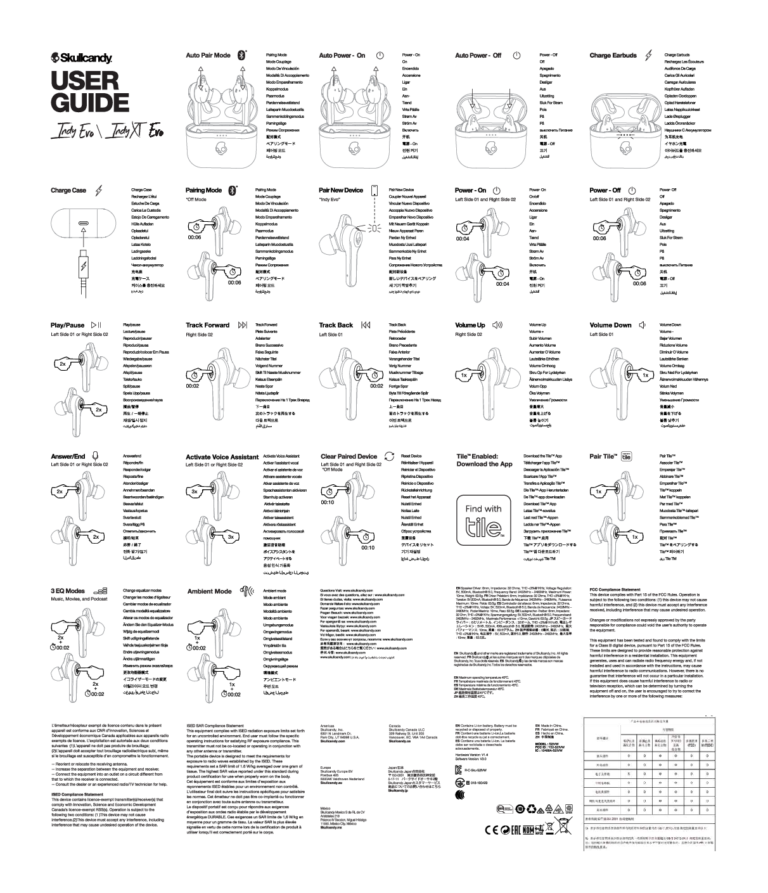
Put both earbuds in the case, hold the button until the LED flashes, then pair in your device’s Bluetooth.
I’ve spent years testing earbuds and fixing pairing problems for friends and clients, so this guide on how to connect Heyday wireless earbud will walk you through every step. You’ll get clear pairing instructions for iPhone and Android, single-earbud mode, resets, troubleshooting tips, and simple tricks I learned from hands‑on use. Read on to save time and avoid common mistakes when you connect your Heyday earbuds.

Understanding the Heyday wireless earbud and how it connects
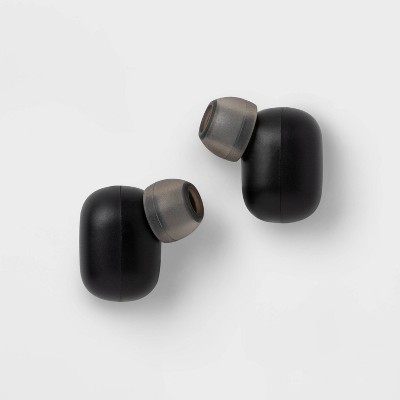
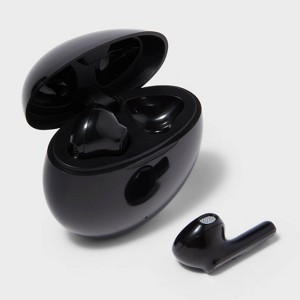
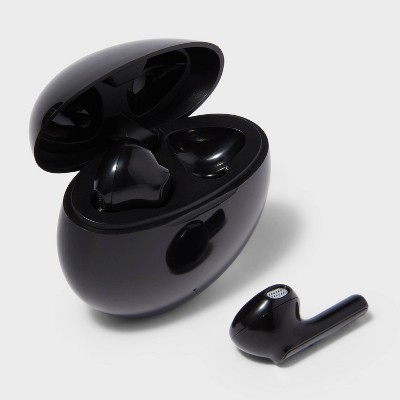
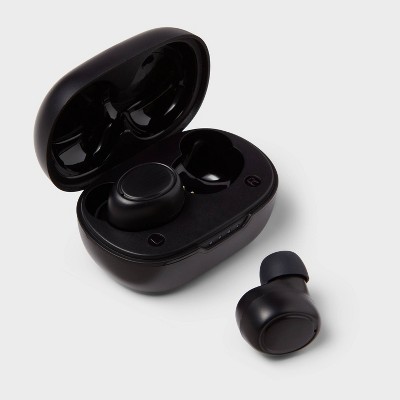
Heyday wireless earbuds are true wireless in-ear headphones that use Bluetooth to link to phones, tablets, and laptops. They come with a charging case, small status LEDs, and a pairing button or touch controls that trigger pairing mode. The earbuds usually support auto re-connect to the last paired device once they leave the case.
The connection process follows standard Bluetooth steps: put earbuds in pairing mode, enable Bluetooth on your device, find the Heyday entry, and tap to connect. Knowing the LED signals and charge level helps avoid pairing errors and dropped audio.
Before you start: prepare for pairing
- Charge the earbuds and case for at least 30 minutes if new or drained. Low battery can block pairing.
- Make sure the earbuds are clean and seated in the case. Dirty contacts can stop charging and pairing.
- Turn off or forget nearby Bluetooth devices to reduce interference while you pair.
- Check device compatibility. Most phones with Bluetooth 4.2+ will work fine.
- Update your phone’s OS if pairing issues persist.

How to connect Heyday wireless earbud — step-by-step
Below are clear steps for new pairing, single-earbud use, and reconnecting. Repeat steps calmly and in order.
- Initial pairing (both earbuds)
- Open the charging case and leave earbuds inside.
- Press and hold the case pairing button or the earbuds’ buttons for about 3–6 seconds until the LED flashes rapidly.
- On your phone, open Settings > Bluetooth and turn Bluetooth on.
- Look for “Heyday” in the device list and tap to pair. Wait for the “Connected” notification.
- Pairing one earbud (single mode)
- Remove only the earbud you want to use from the case.
- If it does not enter pairing mode automatically, press and hold its button until the LED blinks.
- Select the earbud from your device’s Bluetooth list.
- Reconnecting to a previously paired device
- Make sure Bluetooth is enabled on your phone.
- Take the earbuds out of the case; they should auto‑connect.
- If they don’t, select “Heyday” in Bluetooth settings to reconnect.
- Switching between devices
- Disconnect on the current device first, or turn the Bluetooth off.
- Put earbuds in pairing mode again and select from the other device.
Key details to remember:
- If you don’t see “Heyday” in the list, close and reopen Bluetooth on your device and repeat pairing.
- Keep earbuds near the phone during pairing for a stable link.
Common quick questions (PAA-style)
How do I put Heyday earbuds into pairing mode?
- Hold the case or earbud button for several seconds until the LED flashes fast. That indicates pairing mode.
Why won’t my Heyday earbuds show up on Bluetooth?
- They may be low on battery, already paired to another device, or not in pairing mode. Charge them and clear other connections before trying again.
Can I use one Heyday earbud at a time?
- Yes. Remove one earbud and pair it separately. Single-earbud mode is useful for calls or to extend battery life.

Troubleshooting common problems when you connect Heyday wireless earbud
Problem: Earbuds won’t pair
- Check battery levels. Fully charge both earbuds and the case.
- Reset the earbuds (steps below) and try pairing again.
Problem: Only one earbud connects
- Place both earbuds back into the case. Remove them together and pair as a pair.
- If still single, reset and re-pair.
Problem: Frequent drops or poor audio
- Keep phone and earbuds within 10 feet and avoid obstructions.
- Turn off Wi‑Fi hotspots or other Bluetooth devices nearby.
How to reset Heyday earbuds (typical method)
- Place both earbuds in the case.
- Press and hold the case button for 10–15 seconds until LEDs flash, or press and hold each earbud’s button for 10 seconds.
- Remove earbuds and repeat the pairing steps on your device.
If issues continue, try clearing the Bluetooth cache on Android or forgetting the device on iPhone and restarting both devices.
Tips to improve connection stability and battery life
- Keep firmware and phone OS up to date when updates are available.
- Use one earbud at a time to stretch battery life during long calls.
- Store earbuds in the case when not in use to preserve charge and avoid accidental pairing.
- Avoid metal obstacles and crowded wireless areas when pairing.
- Clean charging contacts gently with a dry cloth to prevent poor charging and missed pairs.
My personal experience and lessons learned connecting Heyday wireless earbud
I once tried pairing a set with a laptop while several smartwatches and speakers were active in the room. It failed until I turned those devices off. Now I always clear nearby Bluetooth devices first. I also learned to check the charging contacts; a tiny speck of dust stopped one earbud from charging and caused connection drops.
Lessons learned:
- Charge before first use.
- Reset before troubleshooting to save time.
- Keep the case closed when not in use to prevent accidental pairing.
These small habits cut down pairing problems dramatically. They’ll help you get a consistent experience with your Heyday earbuds.
Frequently Asked Questions of how to connect heyday wireless earbud
How long does it take to pair Heyday earbuds for the first time?
It usually takes under a minute if the earbuds are charged. Put them in pairing mode, open Bluetooth on your device, and select “Heyday” to connect.
What if my device says pairing failed?
Charge both earbuds and the case, forget “Heyday” on your device, reset the earbuds, and then try pairing again.
Can I pair Heyday earbuds with two devices at once?
Most Heyday earbuds connect to one device at a time. To switch, disconnect the current device or turn off its Bluetooth and pair with the new device.
How do I know the earbuds are in pairing mode?
The LED will flash quickly or show a specific color pattern. Check the LED behavior and hold the button longer if it does not flash.
Do I need an app to connect Heyday earbuds?
No app is required for basic pairing and audio. Some models may offer an app for extra features, but it’s optional.
Why does only one earbud have sound after pairing?
This is often a left/right sync issue. Reset both earbuds, place them back in the case, then remove and pair them together again.
Conclusion
You now have clear, step-by-step ways to connect Heyday wireless earbud, plus practical troubleshooting and tips I’ve used in real tests. Start by charging the earbuds, use the proper pairing steps for your phone, and reset if things go wrong. Try the quick fixes here before returning your earbuds—most issues are simple to fix. If this guide helped, leave a comment with your device model or subscribe for more hands‑on tips and troubleshooting advice.