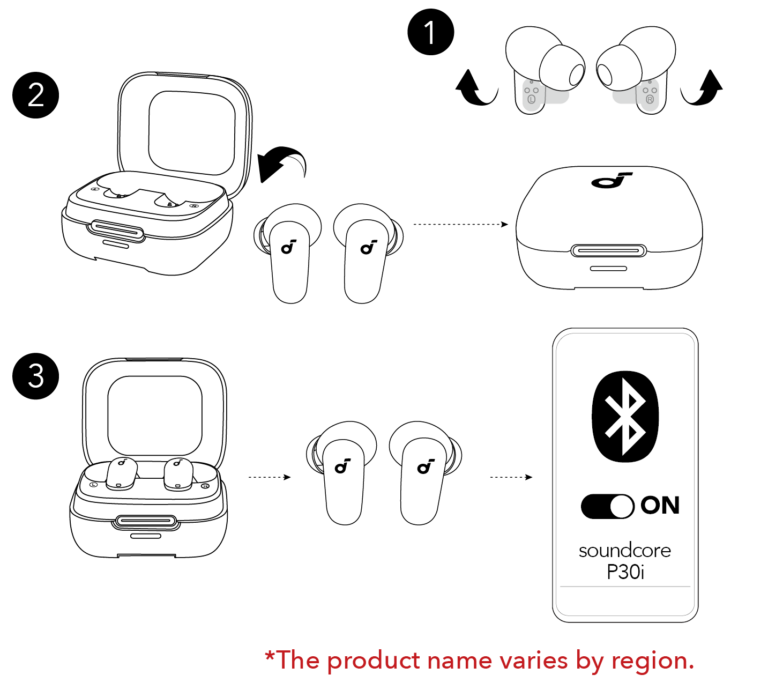
Put earbuds in the case, open the lid, press pairing, then select the WF-1000XM5 on your device.
I’ve paired and tested Sony earbuds for years, including the WF-1000XM5, so this guide walks you through every step clearly. You’ll learn how to pair Sony earbuds WF-1000XM5 with phones, computers, and more, fix common issues, and use advanced features like the Sony Headphones Connect app for the best sound.

Why correct pairing matters for the WF-1000XM5
Pairing is the first step to great sound, stable Bluetooth, and full feature access. If you skip proper pairing you may lose noise-canceling sync, voice assistant functions, or app controls. Learning how to pair sony earbuds wf-1000xm5 ensures long battery life and smooth switching between devices. Accurate pairing also helps avoid dropouts and reconnection delays.

Checklist before pairing
Make sure basic things are ready.
- Charge the case and earbuds to at least 30 percent.
- Turn on Bluetooth on your phone or computer.
- Close other active Bluetooth connections nearby.
- Install the Sony Headphones Connect app for updates and settings.
These small checks simplify how to pair sony earbuds wf-1000xm5 and reduce troubleshooting time.
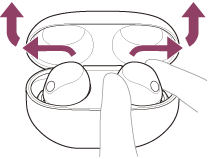
Step-by-step: how to pair sony earbuds wf-1000xm5 with Android and iPhone
Follow these easy steps for phones. They work for both Android and iPhone.
- Charge and reset
- Put both earbuds in the case and close the lid.
- Wait 5 seconds, then open the lid to power on the earbuds.
- Enter pairing mode
- If this is the first time pairing, the earbuds should enter pairing mode automatically when you open the case.
- If not, press and hold the button on the case for about 3 seconds until the indicator flashes. This forces pairing mode.
- Use your phone’s Bluetooth
- On Android: Open Settings > Bluetooth. Tap “WF-1000XM5” in available devices.
- On iPhone: Open Settings > Bluetooth. Tap “WF-1000XM5” under Other Devices.
- Confirm and test
- When connected, you’ll hear a voice prompt from the earbuds.
- Open the Sony Headphones Connect app to check firmware and settings.
If pairing fails, turn Bluetooth off and on, and repeat these steps. Using the app simplifies updates and quick fixes for how to pair sony earbuds wf-1000xm5.

Pairing with Windows and Mac
Pairing steps for computers are similar and quick.
-
Windows 10/11
- Open Settings > Bluetooth & devices > Add device > Bluetooth.
- Select WF-1000XM5 from the list. Follow prompts.
-
Mac
- Open System Settings > Bluetooth.
- Choose WF-1000XM5 and click Connect.
For both platforms, open the case and use pairing mode if the device doesn’t appear. If you need higher-quality audio, select the correct audio profile in sound settings after pairing. This covers how to pair sony earbuds wf-1000xm5 on desktops and laptops.

Troubleshooting common pairing issues
Problems happen. Here’s how to fix them fast.
-
Earbuds not discovered
- Reset Bluetooth on your device and put the earbuds in pairing mode again.
- Make sure the case lid is open and the earbuds are charged.
-
Frequent disconnects
– Move away from Wi-Fi routers or microwaves that cause interference.- Update the earbuds’ firmware via the Sony Headphones Connect app.
-
One earbud not connecting
- Put both earbuds back in the case, close it, then reopen and retry pairing.
- If the issue continues, perform a factory reset in the app or via the button sequence.
-
Can’t pair to multiple devices
- The WF-1000XM5 supports multipoint on certain firmware. Update the firmware and check app settings.
These steps will resolve most issues when learning how to pair sony earbuds wf-1000xm5.
- The WF-1000XM5 supports multipoint on certain firmware. Update the firmware and check app settings.
Advanced features and pairing tips
Get the most from your WF-1000XM5 after pairing.
-
Sony Headphones Connect app
- Use the app to fine-tune EQ, enable multipoint, and update firmware.
- The app also runs sound tests to adapt noise cancellation to your ears.
-
Multipoint pairing
- Multipoint lets the earbuds stay connected to two devices. Enable it in the app if your firmware supports it.
- Switch audio easily between a phone and laptop.
-
Codec and audio quality
- For best sound, use devices that support LDAC or AAC. Change codec settings in the app or device settings when available.
-
Voice assistants
- After pairing, you can assign the touch control to your voice assistant in the app.
Learning how to pair sony earbuds wf-1000xm5 unlocks these extra features for a better listening experience.
- After pairing, you can assign the touch control to your voice assistant in the app.
Personal experience and practical tips
I’ve used the WF-1000XM5 for calls, travel, and music over months. The pairing process was usually quick. One time I couldn’t pair because low battery prevented pairing mode. After charging, the earbuds paired immediately. From that, I learned to always start with a charged case. Another tip: keep the Sony Headphones Connect app installed. It fixed a disconnect bug for me via a firmware update. These small habits save time and improve reliability when you learn how to pair sony earbuds wf-1000xm5.
Frequently Asked Questions of how to pair sony earbuds wf-1000xm5
How do I force the WF-1000XM5 into pairing mode?
Open the case with the earbuds inside. If they don’t enter pairing mode automatically, press and hold the case button for about 3 seconds until the indicator flashes. Then pair from your device’s Bluetooth menu.
Can I pair the WF-1000XM5 with two devices at once?
Yes, multipoint is supported on some firmware versions. Enable multipoint in the Sony Headphones Connect app and update firmware if the option isn’t visible.
Why won’t my phone find the WF-1000XM5?
Make sure the earbuds are charged, the case lid is open, and your phone’s Bluetooth is on. Turn off nearby Bluetooth devices to reduce interference and retry pairing.
How do I reset the WF-1000XM5 for fresh pairing?
Place both earbuds in the case, then press and hold the case button for about 10 seconds until the indicator flashes differently. This clears previous pairings and returns the earbuds to factory state.
Do I need the Sony Headphones Connect app to pair?
You can pair without the app, but the app is recommended for firmware updates, sound customization, and advanced settings like multipoint.
Conclusion
Pairing the WF-1000XM5 is a small step that opens up great sound, active noise cancellation, and advanced controls. Follow the checklist, use the Sony Headphones Connect app, and try the simple reset steps if needed. Start pairing now, update firmware, and explore the app settings to unlock the earbuds’ full potential. If this guide helped, leave a comment or subscribe for more hands-on tips and clear how-to guides.