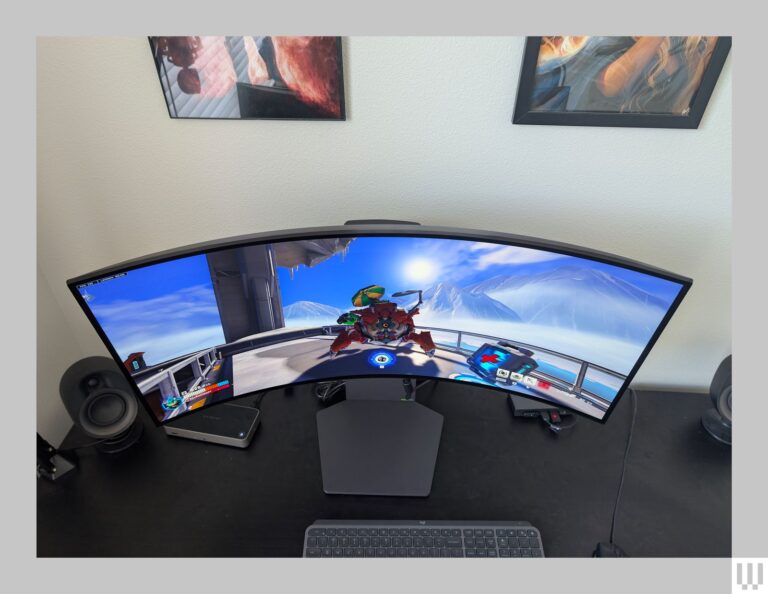
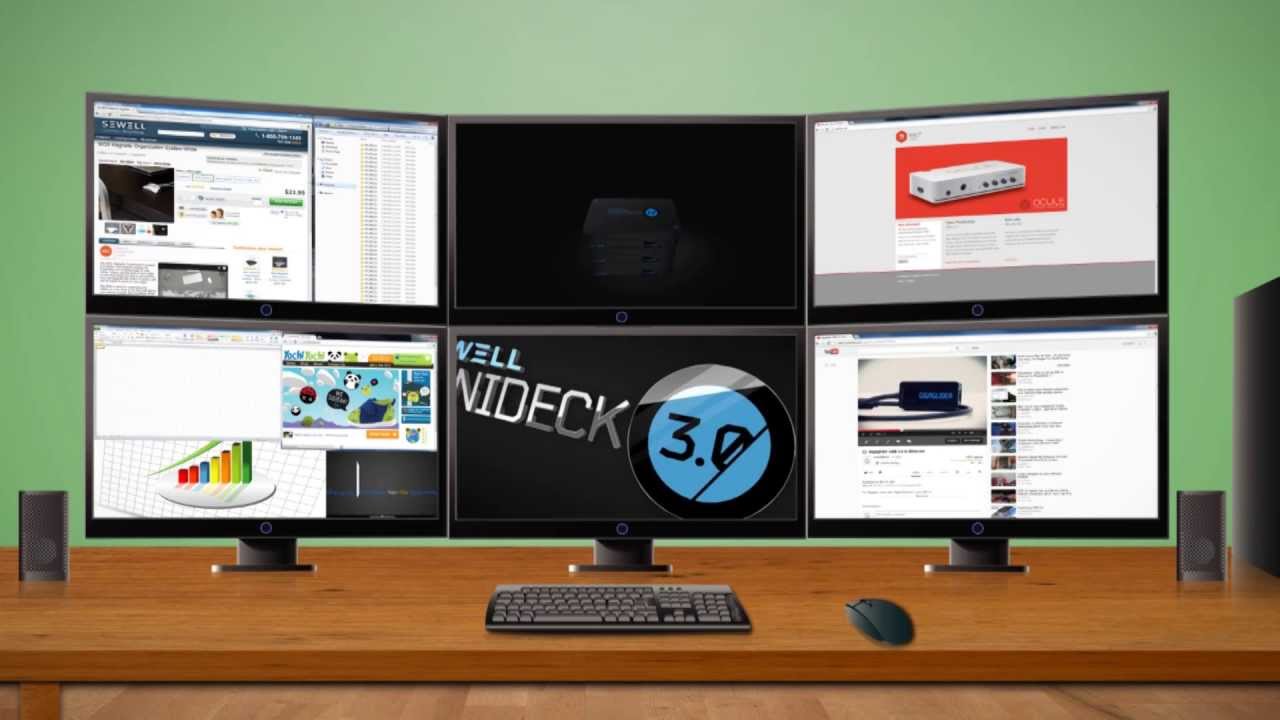
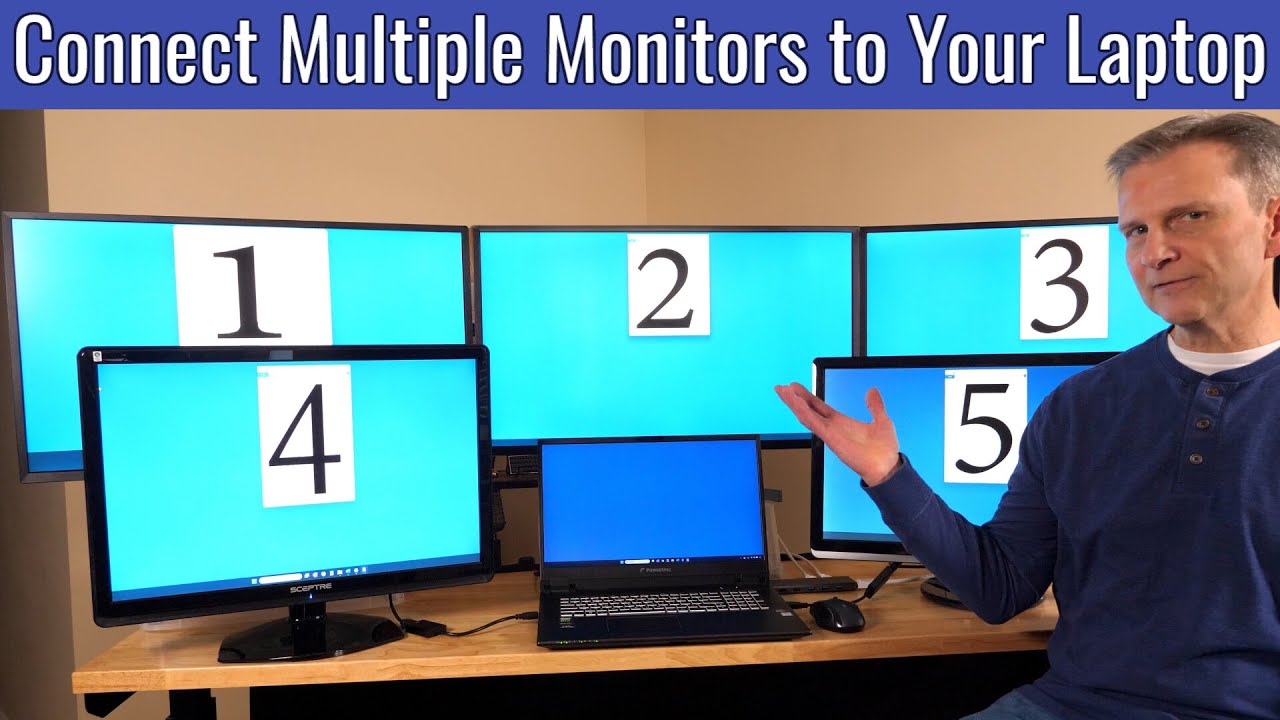
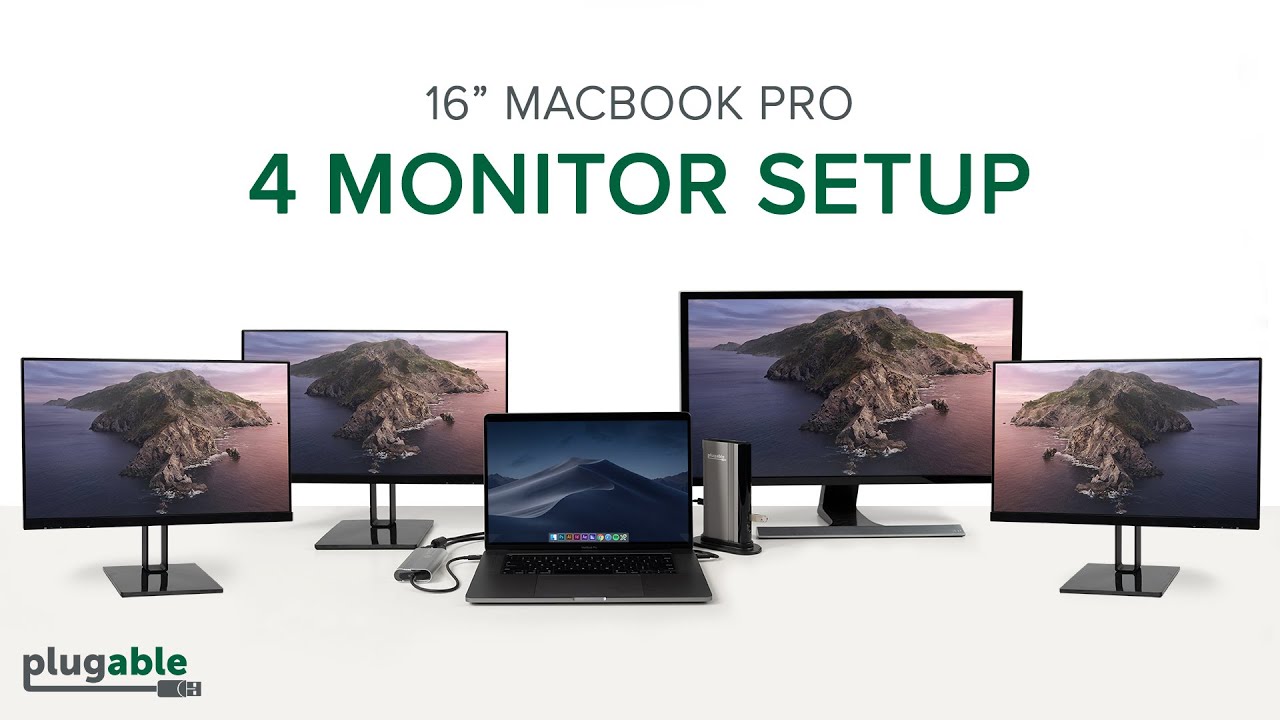
You can connect 4 monitors to a laptop using a Thunderbolt/USB-C dock, DisplayPort MST hub, or eGPU.
I build multi-monitor setups for video editors, traders, and software teams. This guide gives clear, tested ways to connect 4 monitors to a laptop. I cover hardware choices, step-by-step setups, operating system configuration, and practical troubleshooting tips you can use today.
I also explain why some laptops handle four displays natively while others need a dock, MST hub, DisplayLink adapters, or an eGPU. Read on for realistic, budget-aware options that work in the real world and for different workflows—from office multitasking to video editing and trading.

How multiple monitors work and what to expect
Laptops limit external displays based on the GPU, the display ports, and firmware. Some ports mirror the laptop screen. Others drive separate external displays. Thunderbolt and DisplayPort can carry multiple displays over one cable using MST (Multi-Stream Transport). USB graphics solutions (DisplayLink) push pixels over USB and use CPU and USB bandwidth. They are fine for document work and web browsing but not ideal for high‑frame-rate gaming or color-critical video editing.
- Expect limits on resolution and refresh rate per screen. More pixels need more bandwidth.
- Know mirroring vs extending. Extend creates separate workspaces. Mirror duplicates a screen.
- Driver and firmware support matter. Old or buggy drivers cause flicker, disconnections, or poor performance.
Check your laptop before buying gear
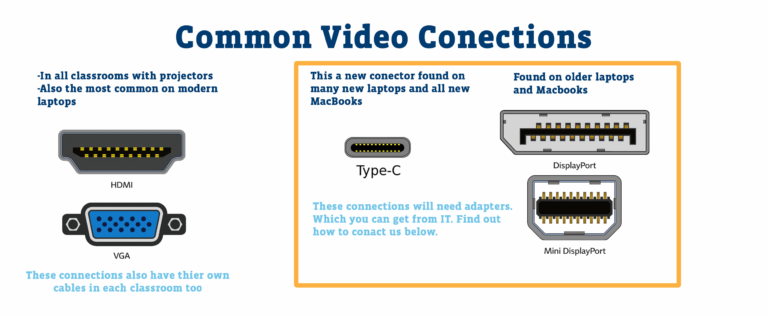
Before you buy anything, inspect your laptop. Find the exact model and GPU. Read the spec sheet for how many external displays the integrated or discrete GPU supports. Check ports: HDMI, mini DisplayPort, USB-C, Thunderbolt 3/4, and USB-A.
- If you have Thunderbolt 3 or 4, you have the best chance of running four monitors with a single dock or an eGPU.
- If your laptop has multiple native video ports, it may drive two or three external monitors without a dock.
- If only USB-A is available, plan to use USB display adapters or a dock with built-in video outputs (often DisplayLink-based).
Quick compatibility checklist
Use this short list when you research your laptop model.
- Find GPU type: Intel Iris Xe, NVIDIA MX/RTX, or AMD Radeon.
- Look for Thunderbolt 3/4 or USB4 support. These enable high-bandwidth docks and eGPUs.
- Check DisplayPort version: DP 1.2 vs DP 1.4 changes how many pixels you can run per cable.
- Look for explicit MST support in the spec sheet if you plan to use an MST hub.
- Note macOS M1/M2 limits: many M1 Macs natively support only one external display unless you use DisplayLink or a supported dock.
Source: youtube
Hardware options to connect 4 monitors to laptop
Below are the common, proven hardware choices to connect four monitors to a laptop. Choose based on budget, target resolutions, and the ports your laptop offers. I add practical pros and cons so you can pick the right path fast.
- Thunderbolt dock with multiple video outputs
- Best for high resolution and high refresh rate. Thunderbolt docks usually expose native GPU outputs to the OS.
- They connect via a single Thunderbolt cable and provide multiple DisplayPort/HDMI outputs. Look for DP 1.4 or HDMI 2.0/2.1 on the dock for more bandwidth.
- DisplayPort MST hub
- Splits one DisplayPort stream into multiple independent displays using Multi-Stream Transport (MST).
- Works when the GPU and driver stack support MST. DP 1.4 carries more pixels than DP 1.2. MST is a cost-effective choice for arrays of 1080p or mixed lower‑resolution monitors.
- USB-C multiport dock (non-Thunderbolt)
- Good for office work at lower resolutions. Many are DisplayLink-based and need a driver install.
- They can power the laptop and drive extra monitors, but graphics travel over USB and use CPU/bus bandwidth.
- USB-A to HDMI/DisplayLink adapters
- Cheap and flexible for adding one or two extra screens. Some are near plug-and-play.
- They use CPU and USB bandwidth. Expect more latency and reduced smoothness compared with native GPU outputs.
- External GPU (eGPU)
- For Thunderbolt laptops, an eGPU adds desktop-class GPU outputs and much more graphics power.
- Ideal when you need many displays plus GPU horsepower for gaming, real-time editing, or GPU compute workloads.
Common port and cable notes
Use the right cables. HDMI 2.0 supports 4K at 60Hz; HDMI 2.1 supports higher resolutions and frame rates. DisplayPort 1.2 supports MST for lower pixel counts. DP 1.4 gives more headroom for 4K and higher refresh. USB-C video uses DisplayPort Alt Mode or Thunderbolt. Use certified cables for stable 4K@60 or high refresh rate setups.
Source: youtube
Step-by-step: four proven setups to connect 4 monitors to laptop
These four methods are tested in the field. I use them for client installs. Pick the one that fits your laptop, budget, and work type. Each method includes concrete steps and tips to avoid common traps.
-
Use a Thunderbolt dock
- Confirm your laptop has Thunderbolt 3 or 4. Check the system report or spec sheet.
- Buy a dock with four video outputs, or buy a dock plus an MST hub if you need extra ports. Check the dock’s max combined bandwidth in the product specs.
- Connect the dock to the laptop. Plug monitors into the dock using the best cables your monitors accept (DisplayPort or HDMI).
- Install vendor drivers and firmware for the dock. Reboot if prompted.
- This approach gives near-native performance and a cleaner desktop. It works well for multiple 1440p displays or mixed 4K/1080p arrays when the dock supports the required bandwidth.
-
Use a DisplayPort MST hub
- Confirm your laptop or an attached dock outputs DisplayPort with MST support. Intel and AMD drivers often support MST—check the GPU docs.
- Connect an MST hub to the DisplayPort output. Plug multiple DisplayPort monitors into the hub.
- Set resolution and refresh rate so total pixels stay within DP bandwidth. For example, four 1080p@60 monitors fit easily on DP 1.2 or higher.
- MST works best when the GPU treats the external displays as separate logical screens instead of a single large surface.
-
Mix native ports and adapters
- Use built-in HDMI and USB-C outputs at the same time. Many laptops allow simultaneous use of different physical ports.
- Add one or two USB display adapters (DisplayLink) to reach four total screens. Choose USB-C adapters where possible for better bandwidth.
- Put your main, color-critical displays on GPU-native outputs. Put secondary or reference windows on USB adapters to balance load.
-
Use an eGPU (Thunderbolt only)
- Buy an eGPU enclosure and a desktop-class GPU. Verify Thunderbolt compatibility with your laptop model and OS.
- Plug the eGPU into Thunderbolt, install GPU drivers, and connect monitors to the GPU outputs on the eGPU card.
- Use this if you need many high-resolution screens plus serious GPU power for gaming, rendering, or 3D work.
Recommended setups by laptop type
Short recommendations for common laptop types and workflows.
- Ultrabooks with Thunderbolt 4: Use a single Thunderbolt dock with multiple DP/HDMI outputs for a clean one-cable setup.
- Laptops with multiple native ports (HDMI + miniDP): Use native ports first. Add a DisplayLink adapter for the 4th monitor if needed.
- MacBooks with M1/M2: Use a DisplayLink dock or an approved Thunderbolt dock that explicitly lists multi-display support. macOS driver support matters—check Apple documentation for your model.
- Older laptops with only USB-A: Expect to use DisplayLink USB adapters for extra screens. Keep expectations modest for video-heavy tasks.
Configure displays in Windows and macOS
After you connect hardware, set up displays in your OS. Below are simple steps and common tips to avoid pitfalls.
-
Windows 10/11
- Right-click the desktop and choose Display settings.
- Click Detect if a monitor is missing. Rearrange displays by drag-and-drop in the diagram.
- Choose Extend for each screen. Set scale and resolution per monitor. Keep scaling consistent for readability across screens.
- Update GPU, chipset, and dock drivers. If using DisplayLink, install the latest DisplayLink driver and reboot.
-
macOS
- Apple menu > System Settings > Displays.
- Click Detect Displays or press Option and click Detect if macOS does not find a screen.
- Arrange displays and set the main display. Note: macOS on M1 Macs often limits external displays without special docks or DisplayLink. Check Apple’s documentation for your Mac model.
Display arrangement and color calibration
Arrange monitors left-to-right to match your desk. Set a primary display for your menus and taskbar or dock. For color-critical work, use a hardware colorimeter or the OS calibration tool on your main monitor. Keep refresh rates similar where possible to avoid cursor tearing when you move windows between screens.

Source: youtube.com — practical troubleshooting and performance tips.
Troubleshooting, performance tips, and limitations
Running four monitors is usually straightforward, but hardware or driver limits can block you. Here is a quick checklist and fixes I use on site. These steps help isolate the issue fast.
-
No signal on a monitor
- Check the monitor input source and that the monitor is powered on.
- Swap ports or cables to isolate a bad cable or port. Test with a known-good cable.
-
Only 2 monitors detected
- Check the GPU’s external monitor limit and port mapping in the laptop specs.
- Try a dock, MST hub, or USB display adapter to add more screens.
- On Windows, update graphics drivers and check BIOS settings that affect external displays.
-
Low resolution or choppy video
- DisplayLink and USB adapters can cause lag. Put your main, color-critical screens on native GPU outputs.
- Reduce refresh rate or resolution to lower bandwidth. For example, run 1440p@60 instead of 4K@60 if you hit limits.
-
Bandwidth limits
- One DisplayPort 1.4 connection can only carry so many pixels. Spread monitors across multiple outputs when possible.
- To run four high-resolution displays, choose a dock or eGPU with several native outputs and the right DP/HDMI version support.
-
Driver and firmware steps
- Update laptop BIOS, GPU drivers, and dock firmware regularly. Many multi-monitor bugs are fixed in updates.
- Install DisplayLink drivers for DisplayLink docks or adapters. Use the vendor’s recommended driver version for your OS.
When to call support or return gear
If a new dock or hub fails to extend beyond two monitors despite correct specs, test it on another laptop. If it still fails, return it. Many docks advertise multi-monitor support but are limited by firmware or host compatibility. Buy from sellers with a clear return policy and test within the return window.
Advantages and trade-offs of common approaches
Match your needs to a method by weighing the pros and cons. Below I list the trade-offs I see most often on installs and in client work.
-
Thunderbolt dock
- Pros: simple setup, high performance, single-cable docking, often supports high-res outputs.
- Cons: higher cost and potential laptop compatibility issues. Check dock firmware and the laptop’s Thunderbolt firmware.
-
MST hub
- Pros: efficient use of DisplayPort bandwidth and cost-effective for many 1080p/1440p displays.
- Cons: requires MST support; limited to DisplayPort monitors or DP-to-HDMI active adapters for HDMI screens.
-
USB display adapters (DisplayLink)
- Pros: inexpensive and flexible. Good for adding a few screens on a budget.
- Cons: higher CPU usage, driver quirks, and latency. Not ideal for high-frame-rate gaming or color-critical video work.
-
eGPU
- Pros: desktop GPU power and many native outputs. Best for heavy GPU tasks and large multi-monitor arrays.
- Cons: expensive, requires Thunderbolt, and can introduce driver/thermal complexity with some laptops.
Performance tuning tips
For the smoothest multi-monitor experience:
- Put primary and color-critical displays on GPU-native outputs (DP/HDMI directly from GPU or dock).
- Use DisplayPort when possible for MST and daisy-chaining features.
- Use high-quality, certified cables for 4K@60 or high refresh rates.
- Disable USB power saving for DisplayLink devices to prevent disconnects and sleep issues.
Source: youtube
Personal experience, tips, and mistakes to avoid
I’ve set up multi-monitor rigs for editing suites and developer desks. One client wanted four 4K screens on a cheap USB-C hub that claimed support. It failed. The hub used a single limited DisplayPort lane and the laptop could not push all pixels. I switched to a Thunderbolt dock plus an MST hub and the setup ran reliably.
Practical tips I use on installs:
- Buy cables and adapters from sellers with easy return policies. You may need to swap hardware.
- Add monitors one at a time. This helps identify which change triggers a problem.
- Label cables and ports. It saves time when you troubleshoot or move gear.
- Avoid relying only on USB-A adapters when you need smooth video. Reserve USB adapters for secondary displays.
What I pack for an install
I always bring these essentials to speed up setup and testing:
- Extra DisplayPort and HDMI cables (DP 1.4 and HDMI 2.0/2.1).
- A small USB-C to DisplayPort active adapter and a DP MST hub.
- A DisplayLink USB adapter for quick testing and temporary screens.
- Driver links or USB sticks with the latest drivers for Intel, NVIDIA, AMD, and DisplayLink.
Frequently Asked Questions of how to connect 4 monitors to laptop
Can any laptop run four external monitors?
Most laptops cannot run four external monitors natively. Laptops with Thunderbolt 3/4 or a strong discrete GPU can. Others need docks, DisplayLink adapters, MST hubs, or eGPUs to reach four independent displays. Always check the GPU and port specs first.
Do I need a Thunderbolt dock to connect 4 monitors to laptop?
You do not always need a Thunderbolt dock, but it is the simplest and most reliable option for high resolutions and refresh rates. MST hubs, DisplayLink docks, USB adapters, and eGPUs are valid alternatives depending on your laptop and needs.
Will DisplayLink work for four monitors?
DisplayLink can support four monitors via a capable dock or multiple adapters. It uses CPU resources and can add latency. It works well for office apps, spreadsheets, and web work, but it’s not ideal for high-frame-rate gaming or color-critical video work.
How do I check if my laptop supports DisplayPort MST?
Check your laptop GPU specs or the port documentation for MST or Multi-Stream Transport. Vendor spec pages usually list MST support. You can also test with an MST hub—if the hub extends screens, your laptop supports MST.
Can I use different resolution monitors when I connect 4 monitors to laptop?
Yes. You can mix resolutions, but you may need to lower some screens’ resolution or refresh rate to stay within total GPU bandwidth. Configure each monitor in OS display settings for the best balance between clarity and performance.
Extra resources and links
For more detail, check your GPU vendor pages (Intel, NVIDIA, AMD), Thunderbolt specifications, and DisplayLink support pages. The links in this article point to spec articles and testing notes to help you decide.
Conclusion
You can connect 4 monitors to a laptop by matching your laptop’s ports and GPU to the right hardware: Thunderbolt docks, DisplayPort MST hubs, USB adapters (DisplayLink), or eGPUs. Start by checking specs and ports. Then pick the method that fits your performance needs and budget. Add one monitor at a time, update drivers and firmware, and keep spare cables for testing. If you want help choosing gear for your exact model, leave a comment or subscribe for a setup checklist and product picks.